Circle Crop
Turn any photo into a round picture for a profile, avatar, team page or sticker. Drag and zoom to frame the face, add a border ring if you like, and download a PNG or WebP whose corners are transparent, or a JPG on a colour you choose.
Updated

How do you crop a photo into a circle?
Open the photo above, drag it inside the circle until the face is centred, pick a size and download it. The tool cuts the largest circle that fits the picture (or a smaller one when you zoom in), smooths the round edge, and leaves the four corners transparent in a PNG or WebP file, so the circle sits cleanly on any background. Nothing is uploaded: the cutting and saving happen in your browser tab.
A circle crop is really a square crop with the corners removed. The tool reads a square of your photo, shrinks or enlarges it to the size you choose, and erases everything outside the circle that touches all four sides of that square. On the 1080 × 1080 px result made from the sample portrait, 249,452 of the 1,166,400 pixels are fully transparent: 21.4%, which is exactly the share a circle leaves empty in its square (1 − π/4).
Every number on this page comes from the tool itself, run on the sample portrait (a 928 × 1152 px JPG). The figures are real downloads and real screenshots, and the table of file sizes was read from the tool's own result panel.
How to crop a picture into a circle
- Open the photo Choose a JPG, PNG or WebP, drop it on the circle, or start with the sample portrait. The photo is read by your browser and never uploaded.
- Frame it Drag the photo inside the circle and zoom with the slider or your mouse wheel until the face sits where you want it. Centre puts it back in the middle.
- Choose size and edge Pick 256, 512 or 1080 px, or Full detail. Leave the corners clear, or fill them with white or a colour, and add a border ring of up to 8% of the width.
- Download Save the circle as PNG, WebP or JPG. The panel above the button shows the exact pixels and bytes of the file you will get.
Crop a portrait into a round avatar in the browser
A real screen recording of this page: the sample portrait is zoomed, dragged to frame the face, given a border ring, saved at 512 px and downloaded.
- The sample portrait opens inside the circle.
- The zoom slider moves in to 1.5 times.
- The photo is dragged so the face sits in the middle of the circle.
- A 4% border ring is added.
- The 512 px size is chosen and the circle is downloaded as a PNG.
How does the circle crop decide what to keep?
The circle always reads a square of the photo. At zoom 1× that square is as large as the photo's short side allows: 928 × 928 px for the 928 × 1152 sample, which is the whole width of the picture. Zooming divides that side, so at 1.45× the circle reads a 640 px square and at 4× a 232 px one. Dragging moves the square around, and it stops at the photo's edge instead of sliding off it, so there is never an empty slice in the circle.
The square is then drawn at the output size and clipped to a circle. The browser smooths the edge as it clips: on the 1080 px sample result, 2,484 pixels around the rim are partly transparent rather than simply on or off. That soft rim is what stops a round avatar from looking jagged, especially on a dark page.
The stage you drag on shows exactly that square, with everything outside the circle dimmed. The small preview beside the result panel is the file itself, drawn on a checkerboard so you can see which corners are clear.
- Zoom 1× reads the largest square the photo has; 4× reads a quarter of that side.
- The circle cannot be dragged past the photo’s edge.
- The rim is anti-aliased, not stair-stepped.
Which format should a circle crop be saved in?
PNG keeps every pixel exactly and keeps the clear corners, which is why it is the default. It is also the largest. WebP keeps the clear corners too, at a fraction of the size, and every current browser shows it; some older programs and upload forms still refuse it. JPG has no transparency at all, so the corners are filled with white (or the colour you chose) and the file is small.
The table lists the real files the tool produced from the sample portrait at each size, at the default 92% quality for WebP and JPG. A 512 px circle weighed 505,084 bytes as PNG, 69,124 bytes as WebP and 80,313 bytes as JPG. Note the Full detail row: it is 928 px here because that is all the photo has across, and it is smaller than the 1080 px PNG because nothing had to be invented by enlarging.
| Output size | PNG (clear corners) | WebP (clear corners) | JPG (white corners) |
|---|---|---|---|
| 256 px | 137,051 | 22,438 | 25,155 |
| 512 px | 505,084 | 69,124 | 80,313 |
| Full detail (928 px) | 1,433,181 | 196,098 | 221,055 |
| 1080 px | 1,908,093 | 201,680 | 265,576 |
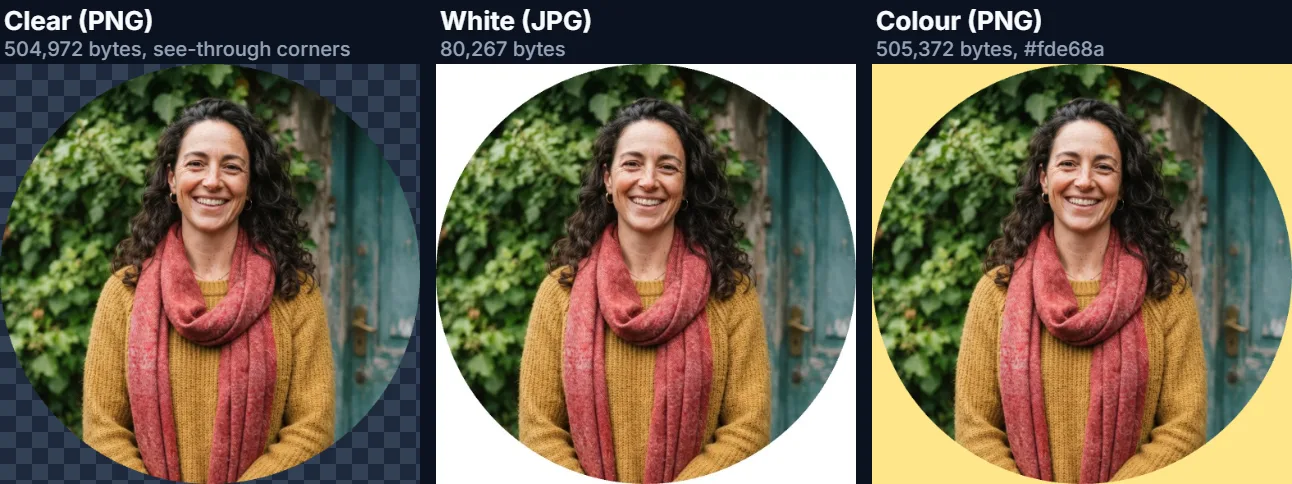
Why are the corners transparent, and when do you want white?
Every image file is a rectangle, so a round picture is a square whose corners hold nothing. In a PNG or WebP those corners are transparent: put the file on a blue slide, a dark web page or a coloured card and the background shows through, so only the circle is seen.
A JPG cannot store transparency. If you choose JPG with Clear selected, the tool fills the corners with white, because that is what a viewer would otherwise invent for you, and it says so under the controls. Choose White or Colour on purpose when the circle will always sit on one known colour, for example a printed name badge or an email template with a fixed background. A filled JPG is usually the smallest file and is accepted by every upload form.
Colour fills the corners with any shade you pick, which is handy for a set of team photos that should all sit on the brand colour, or for a sticker with a coloured backing.
What size should a profile picture circle be?
Pick the size the place you are uploading to asks for; when it does not say, 512 px or 1080 px is plenty for a screen. Small sizes cost little: a 256 px circle from the sample is 22,438 bytes as WebP.
What matters more is how many of your photo's pixels end up inside the circle. The panel under the stage says it plainly: at zoom 1× the sample's circle reads 928 px of real photo; zoomed to 1.45× it reads 640 px. Saving that 640 px circle at 1080 px is an enlargement, so the tool labels the result “enlarged from 640 px of the photo” and the picture is softer than the number suggests. Zoom out a little, or pick a smaller output, and the circle stays sharp.
Full detail always writes the circle at exactly the number of photo pixels it covers, up to 4,096 px across, so nothing is enlarged and nothing is thrown away.
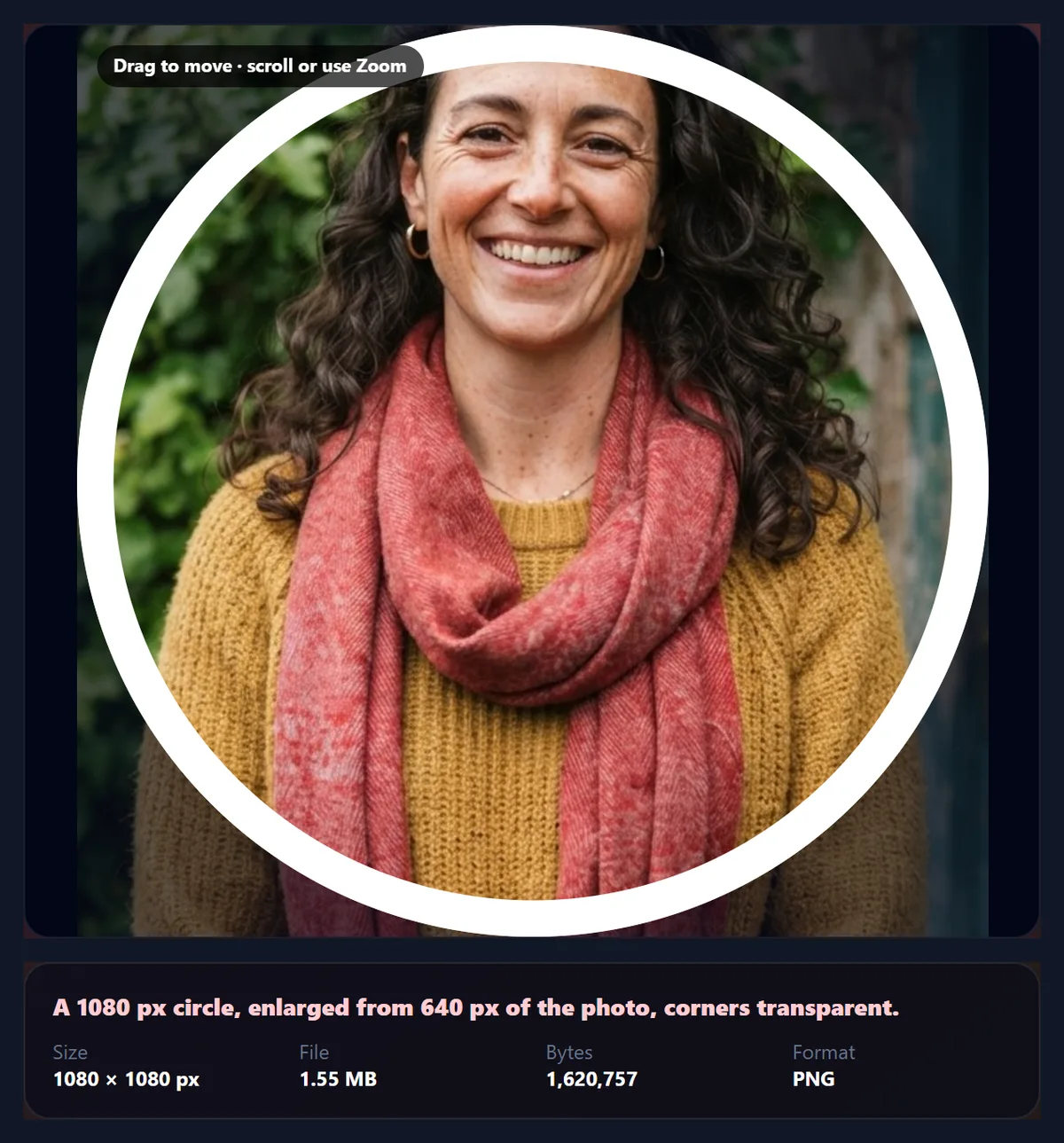
How do you add a border ring to a circle photo?
Move the Border ring slider. The ring is drawn just inside the circle's edge, from 0.5% to 8% of the circle's width, in any colour you choose. Because it is inside the edge, the outer size of the file does not change and none of the corners are filled.
A thin white ring (2–4%) separates a photo from a busy or dark background and is the most common choice for avatars. A brand-coloured ring works for team pages and event badges. The stage shows the ring exactly as it will be saved, so what you see is the file.
- The ring covers the outer rim of the photo; it does not add pixels around it.
- Ring width is a share of the circle, so it looks the same at 256 px and 1080 px.
Should you upload a circle or a square?
It depends on who does the rounding. Many apps and social networks store a square profile photo and draw the circle themselves when they show it. Uploading a pre-cut circle there is harmless when its corners are transparent, but a circle on white can end up with white slivers in their own rounded frame. For those sites, frame the face here, then save a square by using the Crop Image tool at 1:1, or simply upload the original and position it in their editor.
A ready-cut circle is the right file wherever the picture is shown exactly as you give it: presentation slides, website team pages, email signatures, documents, thumbnails, name badges and stickers. There, a transparent PNG or WebP circle is what makes the picture look round.
Which photos can you open, and is anything uploaded?
The tool opens JPG, PNG and WebP files up to 40 megapixels. HEIC photos from recent iPhones must be converted to JPG first. The camera's orientation is applied when the photo is opened, so a portrait taken on a phone stays upright.
Nothing is uploaded and no account is needed. The photo is decoded, cropped and saved in your browser tab, and closing the tab discards it. The saved file is written from the pixels alone, so it carries no camera data and no location.
Why does the circle look blurry, or cut off the top of the head?
Blurry usually means the circle covers fewer pixels of your photo than the size you are saving. Read the line under the stage: if it says the circle reads 400 px and you chose 1080 px, the photo is being enlarged 2.7 times. Zoom out, move to Full detail, or start from a larger photo.
A cut-off head means the face is near the top of the picture and the circle cannot move above the photo's edge. Zoom in a little so the circle reads a smaller square, and you will be able to drag it higher. If the photo simply has no room above the head, the circle cannot add any; a different photo, or a deliberately low position, is the only fix.
If the download button stays greyed out, the file did not open. An error under the stage says why; the usual cause is a HEIC or an image over 40 megapixels.


Frequently asked questions
How do I crop a picture into a circle?
Open it above, drag and zoom until the face is centred, choose a size and download. The corners are transparent in PNG and WebP.
Is the circle crop free?
Yes. It runs in your browser with no account, no watermark and no daily limit.
Is my photo uploaded?
No. Cropping and saving happen on your device. Only the optional sample portrait is downloaded from HueFold.
How do I get a transparent background around the circle?
Keep Outside the circle on Clear and save as PNG or WebP. JPG cannot be transparent, so its corners become white.
Which format is smallest?
WebP. A 512 px circle of the sample was 69,124 bytes as WebP, 80,313 as JPG and 505,084 as PNG.
Can I add a border around the circle?
Yes. The Border ring slider draws a ring of 0.5–8% of the width inside the edge, in any colour.
What size should my profile picture be?
Use the size the site asks for; 512 or 1080 px suits most screens. Avoid sizes larger than the photo pixels the circle covers.
Why does the tool say the circle is enlarged?
The circle covers fewer photo pixels than the size you picked. Zoom out or choose a smaller size for a sharper result.
Can I crop a circle from a PNG with transparency?
Yes. Transparent areas of the original stay transparent in a PNG or WebP circle.
Does it remove EXIF and location data?
Yes. The circle is written from pixels only, so camera details and GPS location are not carried over.
Can I make an oval instead of a circle?
Not here: the output is always a perfect circle. For a rectangle of any ratio, use the Crop Image tool.
Related tools
- Crop Image — A rectangular crop to 1:1, 4:5, 9:16 or exact pixels.
- Background Remover — Cut the person out first for a circle on a clean colour.
- Photo Frames — Gallery mats, instant prints and other frames around a photo.
- Make Passport Size Photo — Official ID photo sizes, measured in millimetres.
- AI Photo Enhancer — Fix a dark or tinted portrait before you crop it.
- Compress Image to 50KB — Shrink the finished avatar for a strict upload limit.