Sticker Maker
Turn a logo or a photo into a die-cut sticker: the subject is cut out (in your browser, or by HueFold's AI for real photos), given a smooth outline in any colour and a shadow, trimmed, and saved as a transparent PNG.
Updated

How do you make a sticker from an image?
Add an image or try a sample. A logo on a plain background is cut out in your browser at once; a photo with a real background is cut out by HueFold's AI. Set the outline width and colour, the shadow and the margin, check it on checks, dark or light, and download a transparent PNG.
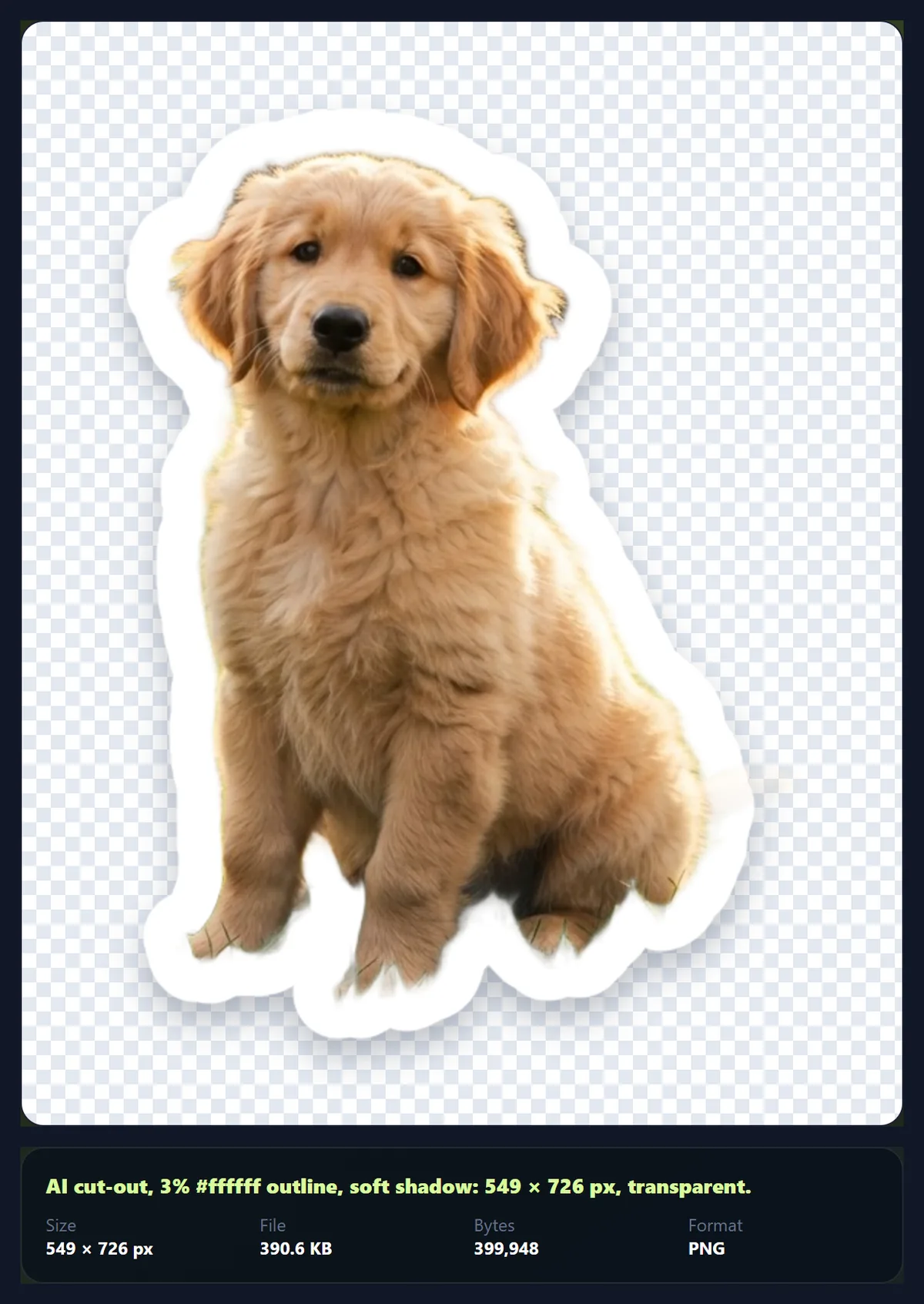
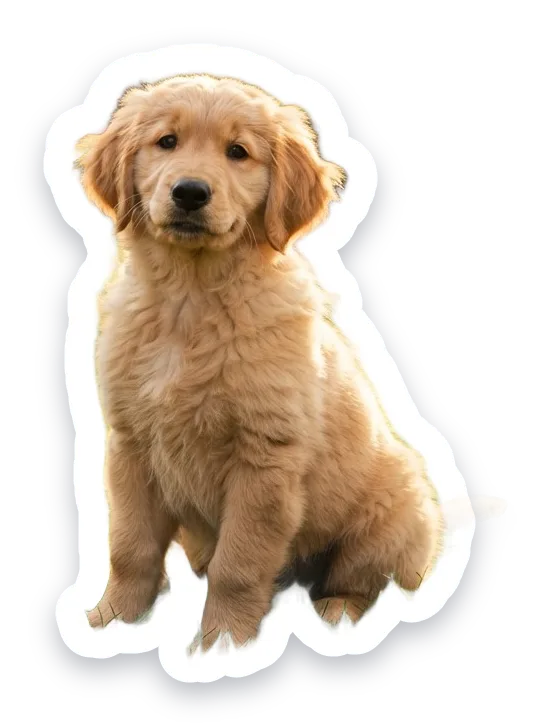
The sample logo became a 706 × 706 px sticker with a 19 px white outline; the puppy photo became a 549 × 726 px sticker cut out by the AI.
Plain-background stickers need no account; the AI cut-out needs a free account and uses no credits.
How to make a sticker
- Add an image A logo, a drawing or a photo.
- Cut it out Plain background, already transparent, or AI cut-out.
- Outline and shadow Width, colour, shadow and margin.
- Download A transparent PNG or WebP.
Turn an image into a die-cut sticker
A real recording of this tool: the sample logo as a sticker, a thicker outline, a strong shadow and the dark preview, then the puppy photo cut out by HueFold's AI and downloaded as a transparent PNG.
- The sticker maker opens with the sample logo as a sticker.
- The outline is made thicker, the shadow strong, and the preview dark.
- The puppy photo is cut out by HueFold's AI and given the same outline.
- The sticker is downloaded as a transparent PNG.
How thick should a sticker outline be?
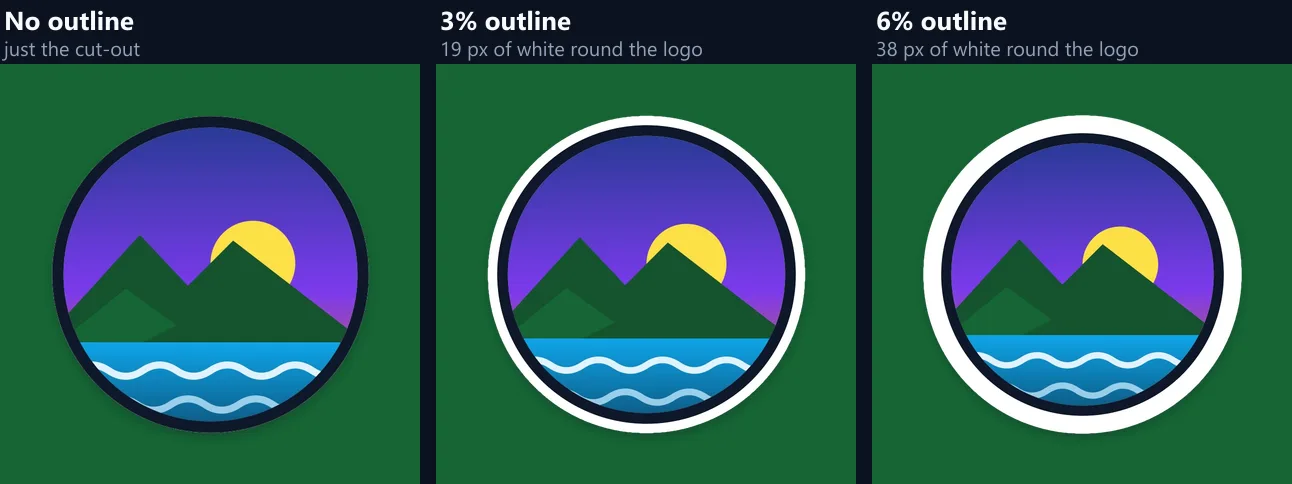
Thick enough to see round every edge, usually 2 to 4% of the sticker's size. The outline is set as a share of the image's longest side, so it looks the same whatever the size. On the 640 px sample logo, 1% was a 6 px outline that added 11,040 pixels round the logo, 3% was 19 px and added 36,468, and 8% was 51 px and added 103,709. The outline grows evenly in every direction, so it follows the shape at the same distance all the way round.
Printed die-cut stickers need an outline, because the cutter needs a margin round the design and a white border hides small cutting errors; a digital sticker for chats and posts looks good with a thin outline or none.
| Outline | Pixels added | Width | Sticker size | PNG |
|---|---|---|---|---|
| None | 0 px | 0 px | 666 × 666 | 253.3 KB |
| 1% | 11,040 px | 6 px | 678 × 678 | 261.2 KB |
| 2% | 24,700 px | 13 px | 694 × 694 | 262.7 KB |
| 3% | 36,468 px | 19 px | 706 × 706 | 264.1 KB |
| 4% | 50,645 px | 26 px | 722 × 722 | 265.5 KB |
| 6% | 75,412 px | 38 px | 746 × 746 | 268.6 KB |
| 8% | 103,709 px | 51 px | 774 × 774 | 274 KB |
How is the subject cut out?
Three ways, depending on the image. Plain background: when the subject sits on one flat colour, such as a logo on white, the tool reads that colour from the edge of the image and clears it in your browser, instantly and with no account. Already transparent: a PNG or WebP with a transparent background is used as it is. AI cut-out: a photo with a real background goes to HueFold's own cut-out AI, which separates the subject from the scene.
The AI cut-out is free with an account and uses no AI credits; the sample puppy photo took 15 seconds from the click to the finished sticker, on HueFold's local test setup.
What is a die-cut sticker?
A sticker cut along the shape of its design rather than as a square or a circle, usually with a white border round the edge. The tool makes the same shape: it measures the exact distance from every pixel to the subject, colours everything within the outline width, and smooths the edge so it is clean at any size.
Holes inside the shape, such as the space between a mug and its handle, are filled, so the sticker is one solid piece, as a cutter would cut it; a sticker with holes would tear or need a second cut.
Should I add a shadow?
For digital stickers, a soft shadow makes the sticker look as if it is lying on top of the page or the chat, and lifts it off busy backgrounds. A strong shadow is more dramatic and suits flat, bright backgrounds. For printing, choose no shadow: the printer would print it as a grey smudge.
The shadow falls slightly downward and is included in the margin, so it is never cut off at the edge of the image.

How do I check how my sticker will look?
Preview it on checks, dark or light. Checks show which parts are transparent; dark and light show how the outline and shadow look on a dark chat theme and on a white page. A white outline nearly disappears on white, so check the light preview if the sticker will be used on light backgrounds, or choose an outline colour that contrasts.
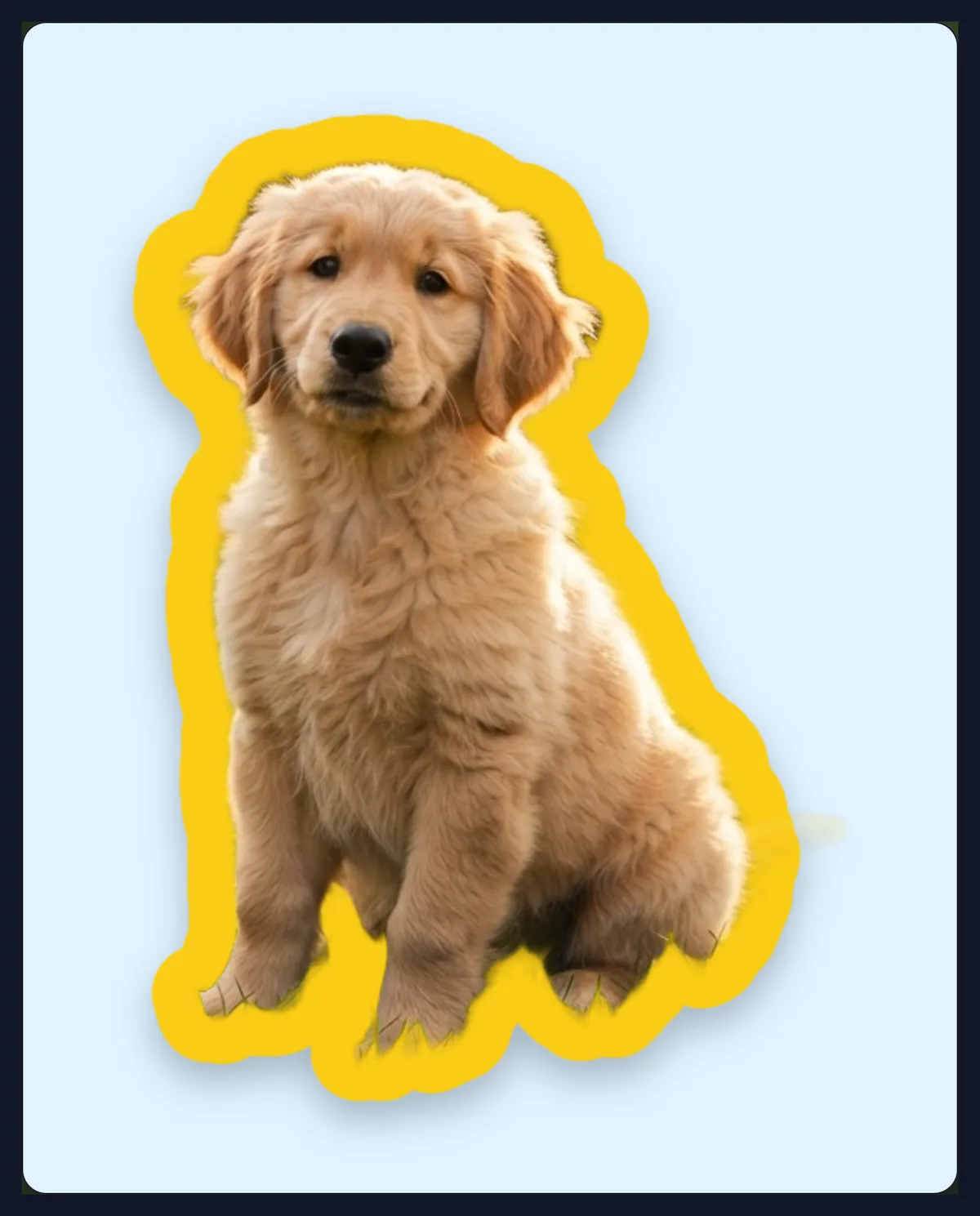
The outline can be any colour: white is classic, black gives a comic look, and a brand colour ties a set of stickers together.
Can I make a sticker from a photo of a person or a pet?
Yes, with the AI cut-out. Choose a photo where the subject is in focus and separated from the background, and sign in when asked; the cut-out is made by HueFold's own matting AI. Fur and hair keep soft edges: in the puppy sticker, 15% of the pixels were partly transparent, mostly the soft fringe of the fur and the shadow.
Plain-background cutting will not work on a photo with a real scene, because it only clears one flat colour; the tool switches to the AI cut-out for the puppy sample for that reason.
What is the margin for?
Space round the sticker inside the image, from none to 10% of its size. It keeps the outline and shadow from touching the edge, which matters when apps crop or round the corners of images, and gives printers a little room. The image is trimmed to the sticker plus the margin, so there is no wasted empty space.
At the default 3% margin with a 3% outline and a soft shadow, the sample logo's sticker was 706 × 706 px and 270,483 bytes as PNG.
Which format should I save?
PNG for almost every sticker: it keeps the transparent background and the soft edges exactly. WebP also keeps transparency and is smaller, and is accepted by most chat apps and websites. JPG has no transparency: the area round the sticker becomes white, which suits only printing on white paper.
WhatsApp stickers are 512 × 512 px; sticker-pack apps usually take a transparent PNG and make the pack for you, so save the sticker at least that large.
How do I make a set of matching stickers?
Use the same outline width, outline colour, shadow and margin for every sticker in the set, and images of similar size and style. Because the outline is a share of each image's size, images of very different sizes or with very different amounts of empty space round the subject can end up with outlines that look different: crop each image close to its subject first.
A brand set often uses a white outline and one accent colour that runs through every design, so the stickers read as a family in a chat or on a laptop lid.
Can I print my stickers?
Yes. Make the sticker from the largest image you have, choose no shadow, a white outline of about 3 to 5% and a small margin, and save it as PNG. Print services that cut stickers usually ask for a transparent PNG and cut round the outline; some ask for a separate cut line, which they can usually make from the outline themselves.
Check the print size: a sticker printed at 300 dpi needs about 600 px for every 5 cm, so a small logo file may print soft at large sizes.
Can I make a sticker from my logo?
Yes, and logos are the easiest case. A logo on a plain white or coloured background is cut out in your browser with Plain background; a logo saved as a transparent PNG is used as it is. Give it a white outline of 3 to 5% so it stands out on laptops, bottles and dark chat backgrounds, and a soft shadow for digital use.
If the logo has several separate parts, such as a symbol and a word, the outline joins them into one sticker when they are close; if they are far apart, place them closer in the original first, or make two stickers.
What size will my sticker be?
The size of the subject plus its outline, shadow and margin: the tool trims away all empty space. The 640 px logo with a 3% outline became a 706 × 706 px sticker; the puppy photo, whose subject fills only part of the frame, became 549 × 726 px. Start from a larger image for a larger sticker.
Images larger than 1,600 px on their longest side are worked on at 1,600 px, which keeps the outline quick to compute and is still enough for print at about 13 cm.
Is anything uploaded?
Only for the AI cut-out. Plain-background cutting, the outline, the shadow and the saved file are all made in your browser, with no account. The AI cut-out sends a copy of the photo to HueFold's own cut-out service, which needs an account but no AI credits.
The tool takes JPG, PNG and WebP images of up to 40 megapixels.
Why does my sticker have a coloured fringe?
With Plain background, a fringe means the background was not one flat colour, for example a photo of a logo on paper with a shadow. Try the AI cut-out instead, or make the image again on a flat colour. If parts of the subject disappear, they are the same colour as the background: use the AI cut-out.
If the AI cut-out misses part of the subject or keeps part of the background, try a photo where the subject is sharper and the background plainer. If the outline looks lumpy round fine details, such as hair, raise the outline width so it rounds over them.
Frequently asked questions
How do I make a sticker from a photo?
Add the photo, choose AI cut-out, set the outline and download a PNG.
Is the sticker transparent?
Yes, as PNG or WebP.
Can I change the outline colour?
Yes, to any colour, from no outline to 8% of the size.
Do I need an account?
Only for the AI cut-out of photos; it is free and uses no credits.
Can I print the stickers?
Yes. Use no shadow, a white outline and a large image.
Can I make WhatsApp stickers?
Yes. Save a transparent PNG and add it with a sticker pack app.
Are holes inside the shape filled?
Yes, so the sticker is one solid piece.
Is anything uploaded?
Only for the AI cut-out; everything else is in your browser.
Is it free?
Yes, with no watermark.
Related tools
- Background Remover — Cut out a subject without an outline.
- Remove Background from Logo — Clear a logo background.
- Icons — Icons to turn into stickers.
- Add Emoji to Photo — Put emoji on a photo.
- Curved Text Generator — Text for a round sticker.
- Transparent Background — Make any background transparent.