Vintage Filter
Give a photo the look of old film: faded blacks, a warm or cool cast, sepia, film grain, a vignette and a light leak. Five presets to start from, nine controls to fine-tune, and the download looks exactly like the preview.
Updated

How do you make a photo look vintage?
Open the photo and pick a preset: Faded film, 1970s print, Sepia, Cool matte or Light leak. Each one sets nine controls at once: fade, warmth, colour, sepia, contrast, grain, grain size, vignette and light leak. Adjust any of them, hold the compare button to see the original, and download the result as JPG, PNG or WebP at full size.
The vintage look is a set of real flaws of old photographs. Prints and ageing film never reach true black, dyes fade and shift the colour, film has grain, cheap lenses darken the corners, and light leaks into old cameras. The tool adds each of these on its own slider, so you can choose how much of each you want instead of applying one fixed filter.
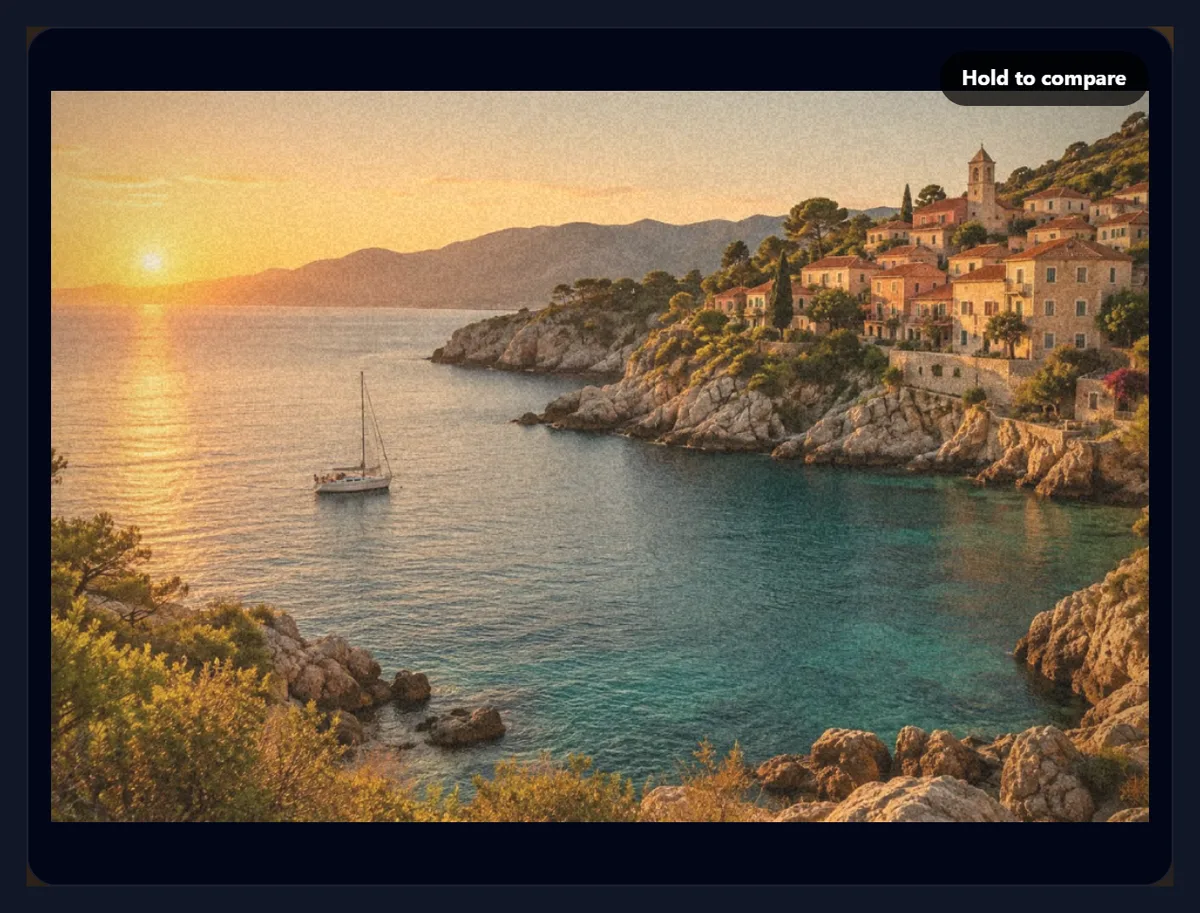
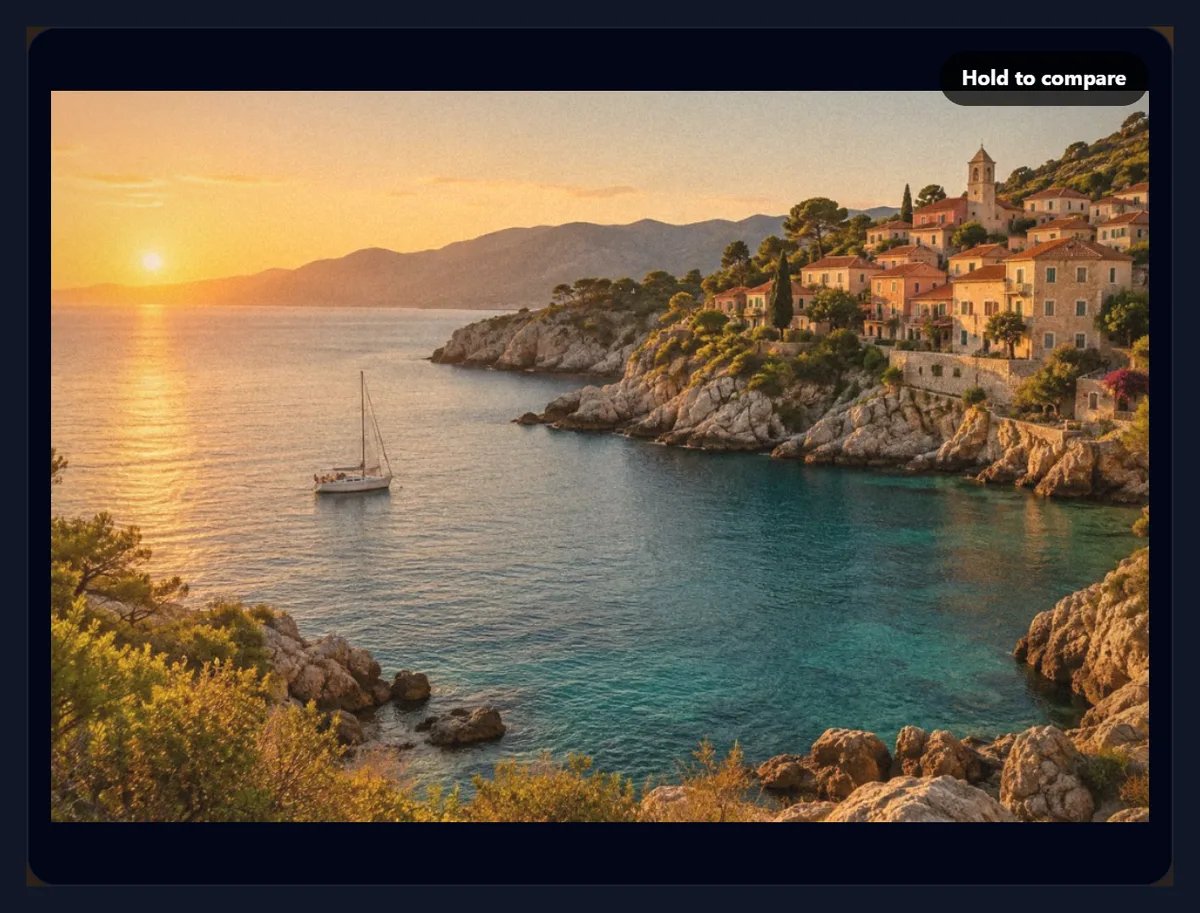
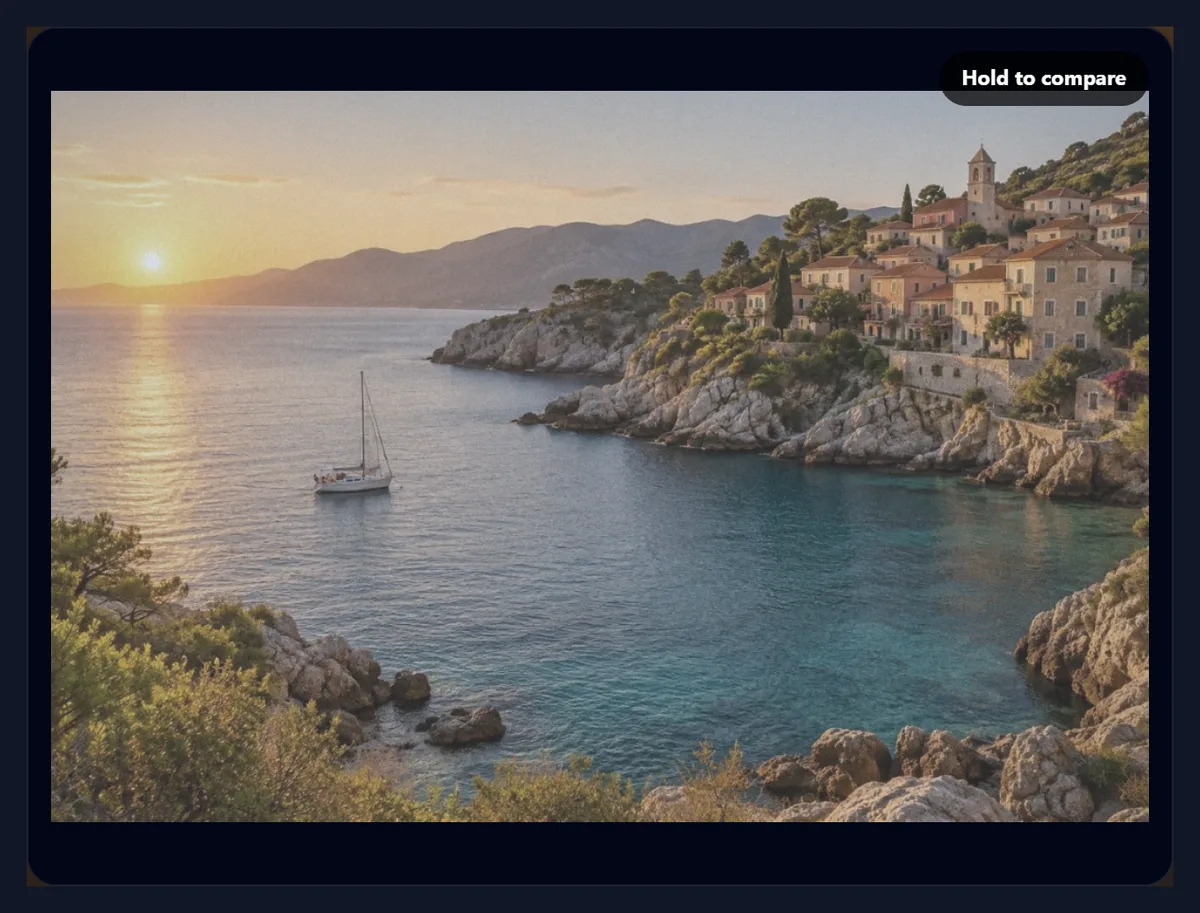
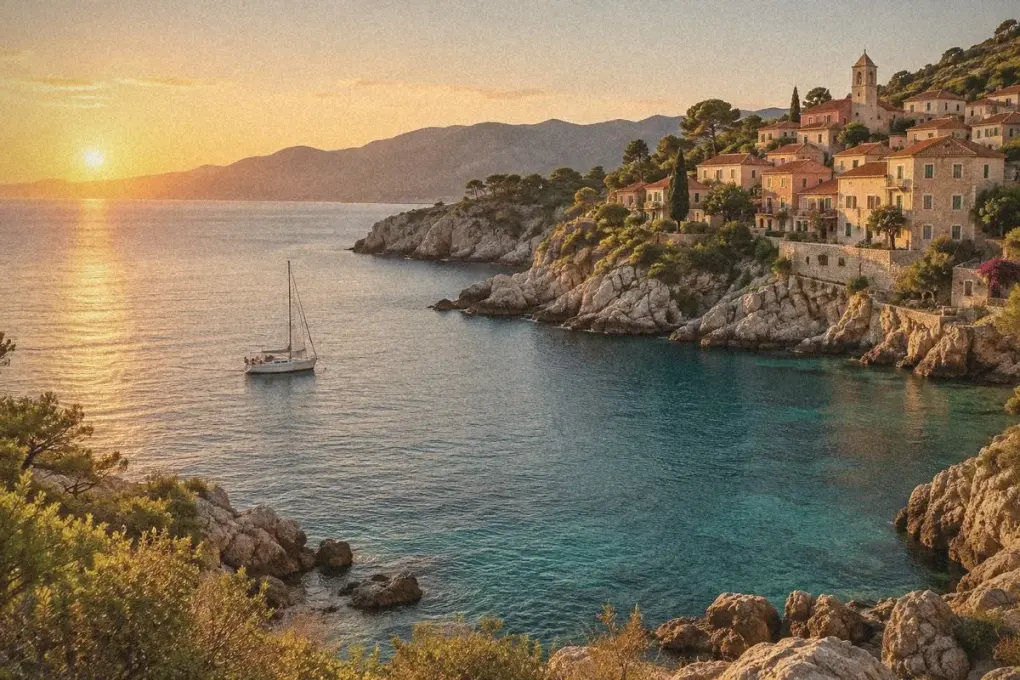
The sample is a coastal photo. The photo you use is filtered and saved inside your browser and never leaves your device.
How to add a vintage filter to a photo
- Open the photo Choose a JPG, PNG or WebP, drop it on the preview, or use the coastal sample.
- Pick a preset Faded film, 1970s print, Sepia, Cool matte or Light leak sets all nine controls.
- Fine-tune Adjust fade, warmth, colour, grain and the vignette; hold Hold to compare to see the original.
- Download Save the photo as JPG, PNG or WebP at its full size.
Give a photo a vintage look
A real recording of this tool: the coastal sample with the Faded film preset, the four other presets, the grain and fade sliders, and the download.
- The coastal sample opens with the Faded film preset.
- The 1970s print, Sepia, Cool matte and Light leak presets are tried.
- Back on Faded film, grain and fade are raised.
- The photo is downloaded.
Why does faded film look the way it does?
Mostly because its darkest tone is not black. A print on paper can never be darker than the ink and the paper allow, old colour film loses density as its dyes age, and a slightly fogged or underdeveloped negative never reaches full black at all. The result is shadows that look milky grey instead of black, and whites that are slightly dull. That lifted floor is the single biggest part of the vintage look; grain and colour cast come after it.
The Fade slider does exactly this. It lifts the darkest tone the photo can have by up to 64 levels out of 255 and lowers the brightest by up to 22. With warmth and contrast at zero, black became 16 at 25% fade, 32 at 50% and 64 at 100%, while white came down from 255 to 233. The default Faded film preset uses 35%: enough to soften the shadows without making the photo look washed out.
| Fade | Darkest tone | Brightest tone | Range left |
|---|---|---|---|
| 0% | 0 | 255 | 255 |
| 25% | 16 | 250 | 234 |
| 50% | 32 | 244 | 212 |
| 75% | 48 | 239 | 191 |
| 100% | 64 | 233 | 169 |
What does each preset do?
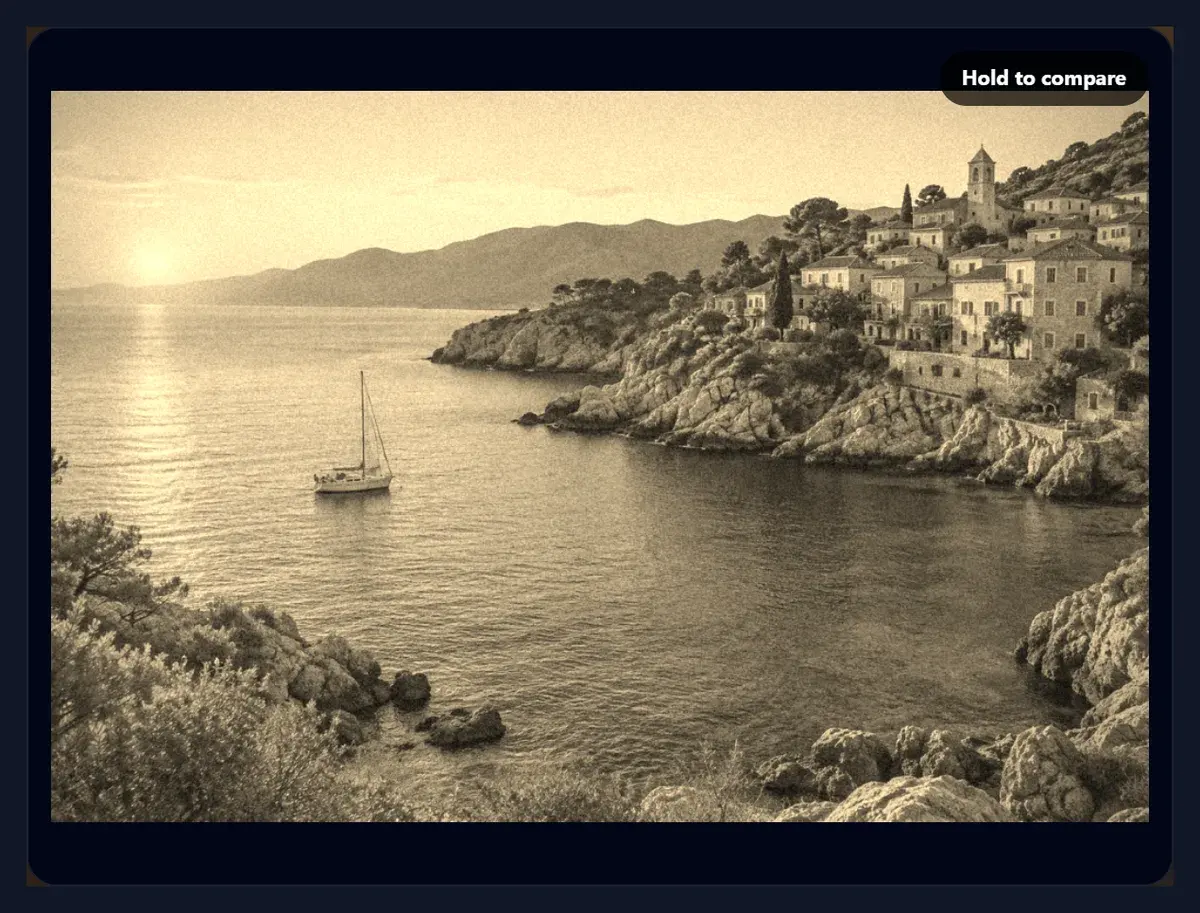
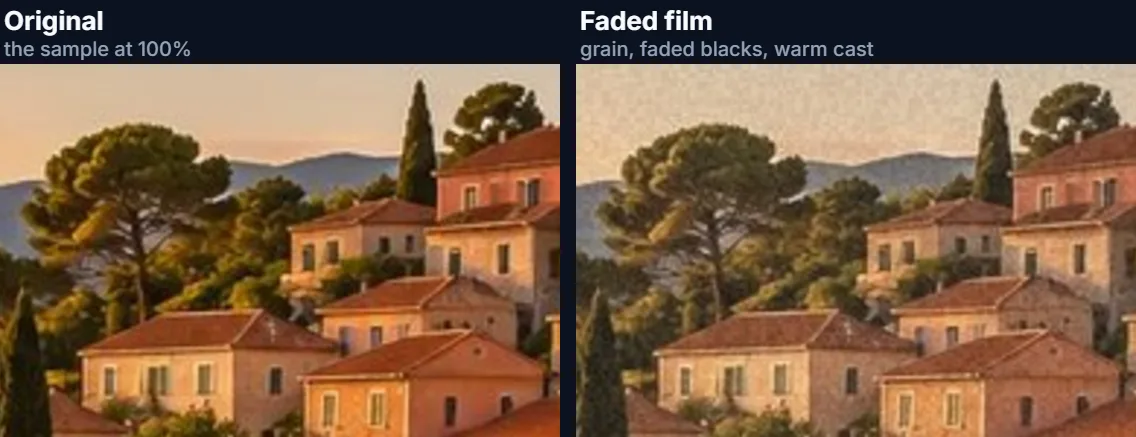
Faded film (35% fade, a little warmth, muted colour, light grain and a soft vignette) is the everyday choice: it reads as an old print without looking like an effect. 1970s print pushes everything further: a strong 50% fade, a heavy amber cast, coarser grain, a darker vignette and a faint warm leak in the corner, like a drugstore print from that decade. Sepia turns the photo into a brown monochrome, the tone of early photographs and of prints toned for permanence.
Cool matte goes the other way: blue-grey, low contrast and only fine grain, which suits city scenes, overcast landscapes and anything that should feel quiet rather than nostalgic. Light leak keeps the colours richer and adds a strong warm glow from the top-left corner, the look of film fogged by light getting into an old camera. On the 1200 × 800 coastal sample the four saved as 92% JPGs of 384,431, 432,976, 348,639 and 378,528 bytes; grain adds detail, so the grainier looks make slightly larger files.
How does the sepia tone work?
Real sepia came from a chemical toning bath that turned the silver in a black-and-white print into silver sulphide, which is brown and also far more stable, which is why so many old portraits that survive are brown. The digital version mixes each pixel's red, green and blue into a new red, green and blue with a fixed set of weights, the widely used sepia matrix, so that light tones become cream and dark tones become deep brown.
The Sepia slider blends between the photo's own colours and that brown tone, so 100% is full sepia and 40% leaves a hint of the original colour showing through, a popular hand-tinted look. The Sepia preset also drops colour saturation to zero first, so the result is a true monochrome.
What do warmth and colour do?
Warmth tints the whole photo towards amber or blue. At full warmth red is raised by 12% and blue lowered by 14%, with green raised a little, close to the shift many old colour prints show as their three dyes fade at different rates. Turning warmth below zero does the reverse, for the cooler, bluish cast of some slide films and of prints kept out of the sun.
Colour sets the saturation: 100% leaves the colours as they are, lower values mute them towards grey, and up to 150% makes them richer. Faded film sits at 80%, slightly muted, because a full-strength modern colour palette is one of the things that gives a fake vintage look away.
Why does film grain help?
Film records light in tiny crystals of silver, or clouds of dye that form where those crystals were, so every film photo has a fine random texture, strongest in the mid-tones and with faster, more sensitive films. A digital photo has none of it, which makes a vintage colour treatment on its own look smooth and slightly artificial. Adding grain is often what makes the effect believable.
Grain here is a fixed random pattern tied to each spot of the photo, so it does not change when you move a slider and the download looks exactly like the preview. Grain sets its strength (at 100% each grain moves the brightness by up to 38 levels either way), and Grain size sets how big each grain is, from 1 to 4 pixels of the full-size photo. Fine grain suits large prints and sharp photos; coarse grain suits small, soft or deliberately rough pictures.
What are the vignette and the light leak?
A vignette is a gradual darkening towards the corners. Old lenses, especially simple ones, let less light reach the edges of the frame than the middle, so most old photos have it whether the photographer wanted it or not. Here it starts about halfway from the centre to the corners and darkens the very corners by up to 60% at full strength; around 30 to 50% looks natural.
A light leak is the warm, orange glow you see in photos from cameras whose backs did not quite seal: light got onto the film and fogged one edge. The Leak slider adds that glow from the top-left corner, fading out over about half the photo's diagonal. Used lightly, it adds warmth and age; used strongly, as in the Light leak preset, it becomes the point of the picture.
When should I use a cool, matte look?
When nostalgia is not the goal. A lot of current photography on social media uses the same ingredients as the vintage look, lifted blacks, low contrast and gentle grain, but with a cool or neutral cast, because it makes photos feel calm and consistent. Matte here means the shadows are faded rather than the photo being printed on matte paper.
The Cool matte preset gives a 45% fade, a cool cast, colour at 70%, contrast lowered by 20% and only fine grain. It works well across a set of photos taken in different light, because the strong fade and muted colour hide small differences between them.
What does the contrast slider change?
Contrast here is an S-shaped tone curve around mid-grey: raising it darkens the dark tones and brightens the light ones, lowering it flattens the photo towards grey. It is applied before the fade, so a photo can have punchy mid-tones and still have faded, milky shadows, which is how many old colour prints actually look: contrasty in the middle, soft at both ends.
Most presets add a little contrast (10 to 20%) to make up for what the fade takes away. If a photo looks flat after the fade, raise contrast rather than lowering the fade.
Which photos suit a vintage filter?
Photos whose subject could belong to an earlier time: landscapes, the sea, old streets, cars, people in simple clothes, food on a table. Strong modern clues, such as phones, screens and new logos, fight the effect, so crop them out first if you can. Soft, warm light suits most presets; harsh midday light suits Cool matte or Sepia better.
Start from a preset rather than from scratch, then adjust one thing at a time: fade first, then warmth, then grain. Hold the Hold to compare button on the preview to see the original again, and let go to see the look.
Which files work, and is anything uploaded?
You can open JPG, PNG and WebP photos up to 40 megapixels (above about 16 megapixels the result is saved slightly smaller, because that is the largest canvas iPhone browsers allow); convert iPhone HEIC photos to JPG first. The finished photo is saved as JPG, PNG or WebP at its full size: the Faded film sample came out at 1200 × 800 pixels and 396,888 bytes as a 92% JPG. The new file carries no EXIF data from the original.
Nothing is uploaded. The photo is opened, filtered and saved inside your browser tab, and no account is needed. The grain is computed from each pixel's position, so the file is the same every time you download it with the same settings.
Why does my vintage photo look muddy or fake?
Muddy usually means too much fade on a photo that was already dark: the lifted blacks turn a dim photo grey. Lower the fade, or brighten the photo first. Fake usually means one ingredient is too strong, typically the colour cast or the vignette; real old photos are subtle. Lower warmth to 20 to 30% and the vignette to 30% and look again.
If the grain looks like noise rather than film, lower the grain size to 1 pixel or the strength to 15 to 20%. If the download looks different from the preview, check that you are comparing at the same zoom: grain is sized for the full-size file, so a scaled-down preview shows it finer.
Frequently asked questions
How do I make a photo look vintage?
Open it, choose a preset such as Faded film, adjust the fade, warmth and grain, and download.
What makes a photo look old?
Faded blacks, a warm or cool colour cast, muted colour, film grain and darker corners.
How do I make a photo sepia?
Choose the Sepia preset, or raise the Sepia slider; 100% is a full brown monochrome.
Can I add film grain to a photo?
Yes. Grain sets the strength and Grain size sets how coarse it is, from 1 to 4 pixels.
What is a light leak?
A warm glow at the edge of a photo, from light reaching the film through a camera that did not seal.
Will the download look like the preview?
Yes. The grain is fixed to each spot of the photo, so the file matches the preview.
Is my photo uploaded?
No. It is filtered and saved in your browser.
Which formats can I use?
Open and save JPG, PNG or WebP; convert HEIC photos to JPG first.
Is it free?
Yes, with no account, watermark or limit.
Related tools
- Black and White Filter — Classic monochrome without the brown tone.
- Grayscale Image — Remove colour precisely, in your browser.
- Photo Effects — More looks for the same photo.
- Photo Borders — Add a white print border to finish the look.
- Darken Image — Fix an overexposed photo before adding the look.
- Overlay Images — Blend a texture or a second photo on top.