AI Image Upscaler
Enlarge a small picture 2, 3 or 4 times. The free mode runs on your device with a sharper filter than a plain stretch, shows the difference at 100%, and never uploads your image.
Updated
How do you upscale an image, and what can upscaling do?
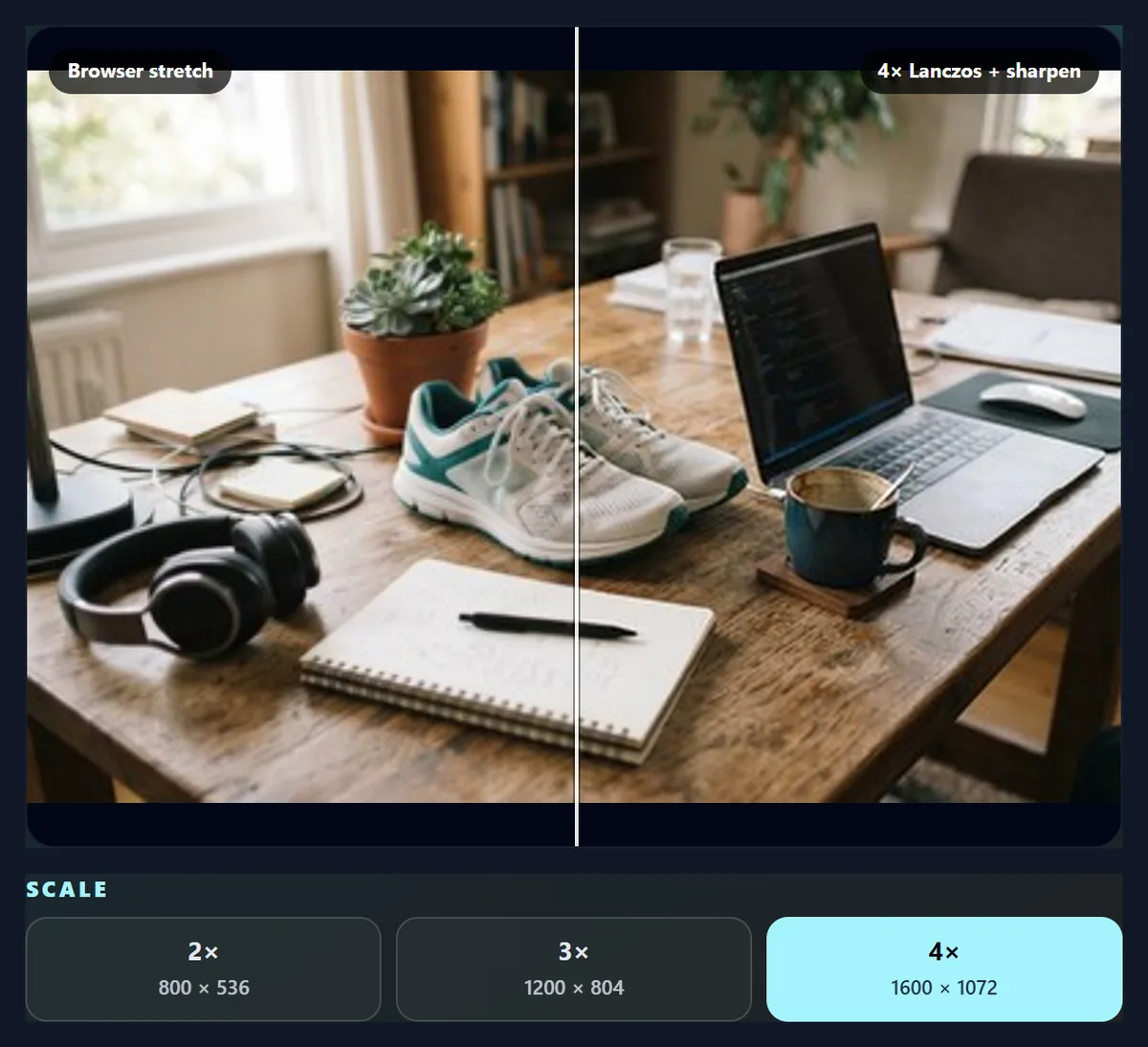
Open a small image, choose 2×, 3× or 4×, press Upscale, and compare the result with a plain browser stretch before downloading it as PNG or JPG. The free mode enlarges with Lanczos-3, a resampling filter that weighs several neighbouring pixels for each new one, then applies a light unsharp mask to firm up edges. It runs in your browser and is not AI: it makes the most of the detail already in the picture but does not invent new detail.
That distinction matters. An upscaler can make a small image larger without blocks or obvious blur, which is often all a thumbnail, an old logo or a cropped photo needs. No resampling filter can recover detail the camera never recorded. AI upscalers try to by predicting plausible detail, which can look impressive but can also change faces, lettering and textures. This page tells you which kind you are using.
AI upscaling is not switched on for this site yet. When it is, an AI option will appear under the tool, clearly marked, needing an account and AI credits. Until then the free mode works for everyone and keeps your image on your device.
How to upscale an image
- Open a small image Choose a JPG, PNG or WebP, drop it on the preview, or try the 400 × 268 px sample. Its size is shown underneath.
- Choose the scale Pick 2×, 3× or 4×; each button shows the resulting size. Scales that would exceed about 16.7 million pixels are disabled.
- Upscale and compare Press Upscale. Slide between the browser’s plain stretch and the result, or Inspect at 100% to see real pixels.
- Download Save a PNG (lossless, larger) or a JPG at 92% quality on white (smaller).
Upscale a 400 px photo 4× in the browser
A real recording of this tool: a 400 × 268 photo is enlarged 4× with Lanczos-3, compared with a plain stretch, inspected at 100% and downloaded as PNG.
- The 400 × 268 sample photo opens in the upscaler.
- 4× is chosen and Upscale makes a 1600 × 1072 result.
- The slider compares the browser’s plain stretch with the result.
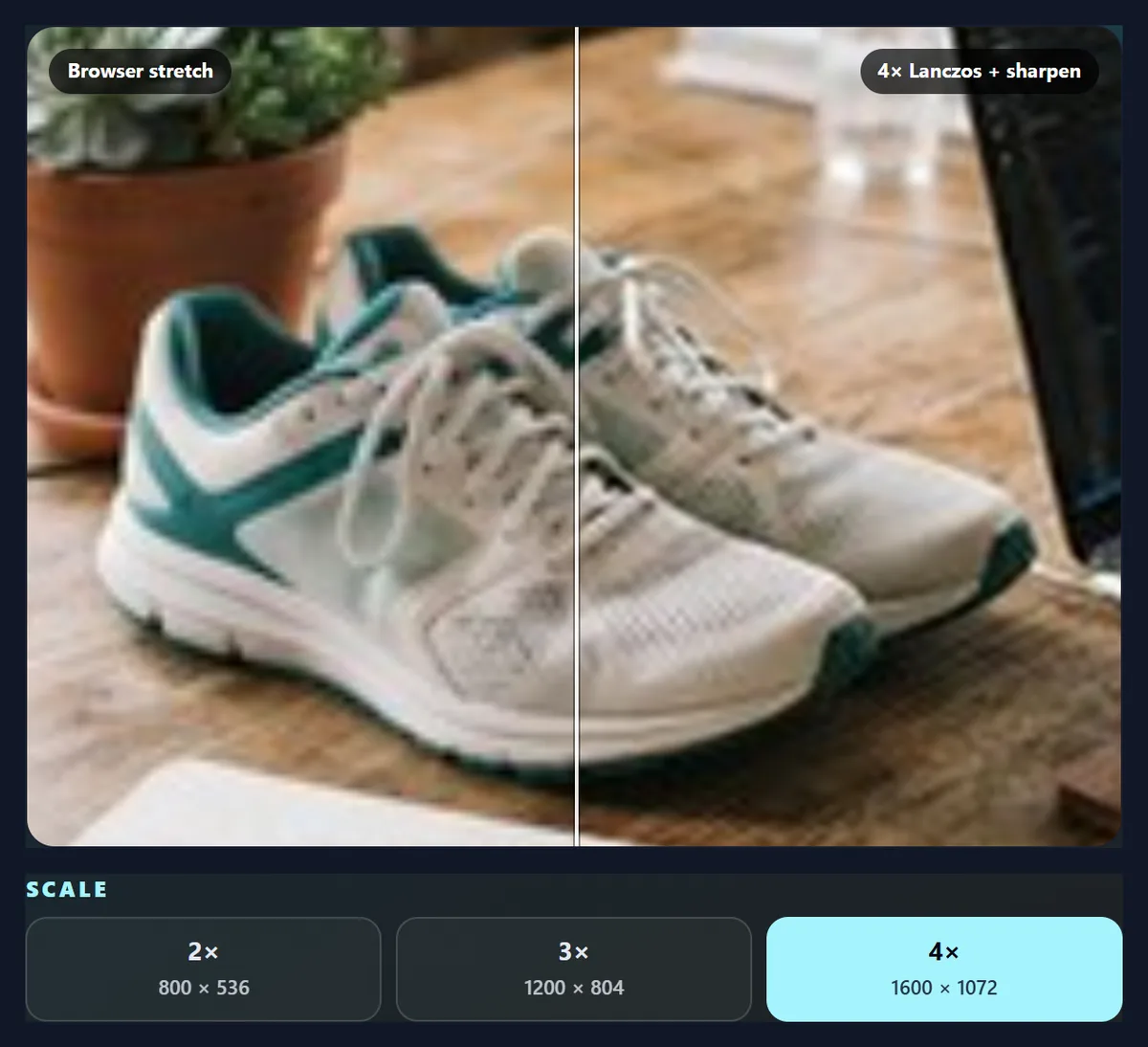
- Inspect at 100% shows the real pixels.
- The PNG is downloaded.
How does the free upscaler make new pixels?
Every pixel of the enlarged picture is a weighted mix of the original pixels around it. A plain browser stretch blends only the nearest few. Lanczos-3 uses up to six in each direction and gives each a weight from the Lanczos curve: close neighbours count most, and slightly further ones get small negative weights. Those negative weights are what keep an edge crisp instead of smearing it across several pixels. The work is done twice, across then down, which is far quicker than mixing in both directions at once.
Colour is mixed with each pixel's transparency taken into account, so a logo on a transparent background does not get a dark fringe. After resampling, an unsharp mask lifts contrast along edges by a small amount; pixels that differ from their blurred surroundings by less than 3 levels are left alone, so skies and skin do not turn grainy.
The table gives the Lanczos-3 weight at each distance from the new pixel, in source pixels. These are the numbers the animated chart on this page draws.
| Distance | Weight |
|---|---|
| −3 | 0 |
| −2.5 | 0.0243 |
| −2 | 0 |
| −1.5 | -0.1351 |
| −1 | 0 |
| −0.5 | 0.6079 |
| 0 | 1 |
| 0.5 | 0.6079 |
| 1 | 0 |
| 1.5 | -0.1351 |
| 2 | 0 |
| 2.5 | 0.0243 |
| 3 | 0 |
Is it actually better than stretching the image?
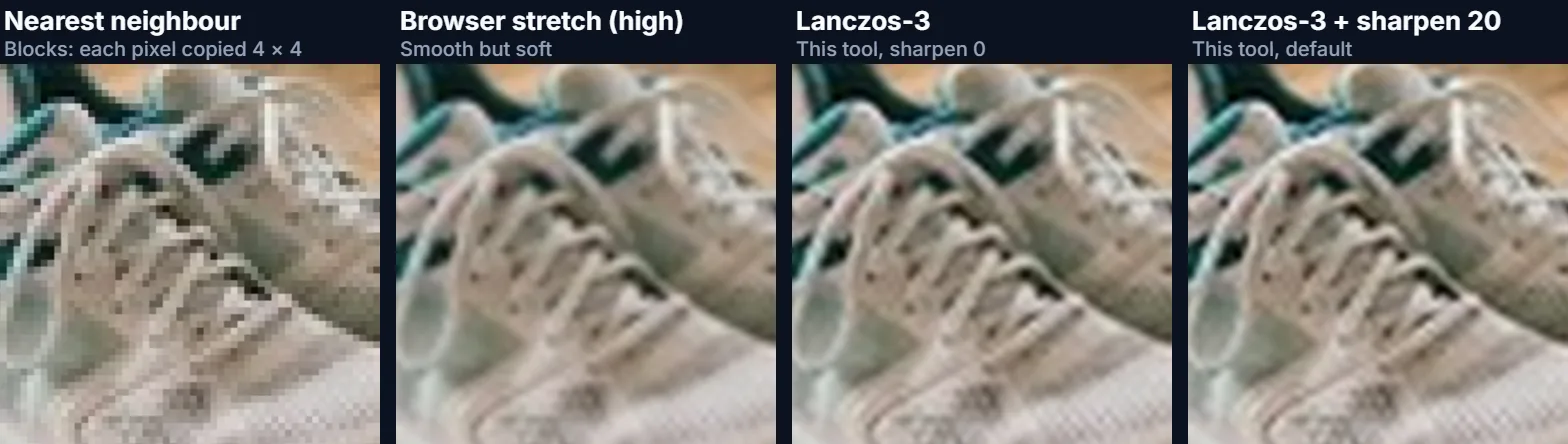
We measured it. The sample is a 400 × 268 photo made by shrinking a real 1264 × 848 photo, so we could enlarge it back to 1264 × 848 by each method and compare the result with the true original, pixel by pixel. The score is PSNR, peak signal-to-noise ratio, in decibels; higher means closer to the real photo.
Copying pixels into blocks (nearest neighbour) scored 27.87 dB. The browser's own smooth stretch scored 30.42 dB at its default setting and 30.70 dB at its best. Lanczos-3 scored 31.40 dB, the closest of all. Adding sharpening made edges look crisper but moved the pixels slightly away from the original: 31.40 dB at the default strength of 20, 31.07 dB at 60 and 30.37 dB at 100. That is why the default is gentle.
A difference of under one decibel is modest; you will see it as cleaner edges and less mush in fine texture when you inspect at 100%, not as a different picture.
| Method | PSNR |
|---|---|
| Nearest neighbour (blocks) | 27.87 dB |
| Browser stretch, default | 30.42 dB |
| Browser stretch, high quality | 30.70 dB |
| Lanczos-3 | 31.40 dB |
| Lanczos-3 + sharpen 20 (default) | 31.40 dB |
| Lanczos-3 + sharpen 60 | 31.07 dB |
| Lanczos-3 + sharpen 100 | 30.37 dB |
How much can you enlarge an image?
2×, 3× or 4×, as long as the result stays under about 16.7 million pixels, the largest canvas Safari allows on iPhones and iPads. A 400 × 268 image goes to 1600 × 1072 at 4×; a 1500 × 1000 image can go 3× (4500 × 3000) but not 4×, and the button for a scale that would not fit is disabled. Images above 40 megapixels cannot be opened at all.
The bigger the factor, the more of the picture is interpolation. 2× from a sharp source usually looks natural; 4× from a soft or heavily compressed one will look smooth rather than detailed. On an ordinary laptop the 4× enlargement of the sample took about a quarter of a second; larger results take longer, and a progress bar shows how far it has got.
Is an upscaled image good enough to print?
For small prints, often. A 1600 × 1072 result prints at about 13.5 × 9 cm at 300 DPI, the usual quality for photos held in the hand, or twice that at 150 DPI for something seen from a distance. The print will look as smooth as the enlargement does at 100% on screen, so inspect it there first. Large prints from small images will look soft however they are enlarged; for a poster, start from the largest original you have.
When will AI upscaling be available here?
When a dedicated upscaling model is enabled for HueFold. The tool is already wired to run one: as soon as it is switched on, an “Upscale with AI” button appears under the free tool, naming the model it uses. It will need an account, use AI credits, and upload the image to HueFold's servers to process it, which the free mode never does.
AI upscaling predicts detail rather than interpolating it, so it can make a blurry photo look sharper than any filter. It can also change things: a face can get slightly different features, small lettering can turn into convincing nonsense. If you use AI upscaling anywhere, check faces and text at 100% before you rely on the result.
Which files work, and which format should you download?
You can open JPG, PNG and WebP images; convert iPhone HEIC photos to JPG first. Download PNG when you want every pixel exactly as made, or when the image has transparency; it is large, since the 4× sample came to about 2.6 MB as PNG. Download JPG at 92% quality for a much smaller file to share or upload; transparent areas become white.
To bring the result under a size limit afterwards, open it in one of the KB compression tools.
Is my image uploaded?
Not in the free mode. Opening, enlarging, sharpening and saving all happen in your browser tab, and nothing is sent to HueFold. The download is written from the pixels, so it carries no EXIF data from the original, including GPS location. The AI mode, when it is available, is different and says so before it runs: it uploads the image to process it.
Why does my upscaled image still look soft?
Because the detail was never in the small image. Upscaling makes a picture bigger and keeps its edges as clean as possible; it cannot make a 200-pixel face into a 2000-pixel portrait. If you have a larger original anywhere, use that instead. If the softness comes from JPEG blocks in the source, enlarge less, or lower the sharpening so the blocks are not emphasised.
If the Upscale button does nothing, check that an image is open and that the chosen scale is not disabled. Very large results take a few seconds on older phones.
Frequently asked questions
Is this image upscaler AI?
The free mode is not: it uses Lanczos-3 resampling and sharpening in your browser. An AI mode will appear, clearly marked, once an upscaling model is switched on.
How do I upscale an image 4×?
Open it, choose 4×, press Upscale, and download the PNG or JPG.
Can upscaling fix a blurry photo?
No filter can add detail that was not captured. Upscaling enlarges cleanly; it does not restore focus.
Is it better than resizing in an image viewer?
In our test, Lanczos-3 came closer to the real full-size photo than the browser’s best stretch: 31.40 dB against 30.70 dB PSNR.
What is the largest result?
About 16.7 million pixels, for example 4096 × 4096, so the tool also works on iPhones and iPads.
Is my image uploaded?
Not in the free mode. Everything happens in your browser.
PNG or JPG?
PNG keeps every pixel and transparency but is large; JPG at 92% is much smaller.
Why is the default sharpening so low?
Stronger sharpening looked crisper but measured further from the real detail. 20 is a safe default.
Does it work on logos with transparency?
Yes. Colours are mixed with transparency taken into account, so edges do not get a dark fringe. Download PNG to keep it.
Is it free?
The free mode is, with no account or limit. The AI mode, when available, will use AI credits.
Related tools
- AI Photo Enhancer — Improve colour and clarity.
- Resize Image Pixel Online — Set an exact size in pixels.
- Resize Image for YouTube Banner — Turn a picture into a 2560 × 1440 banner.
- Sharpen Image — Sharpen without enlarging.
- Compress Image to 100KB — Bring a large result under a size limit.
- Video Upscaler — Enlarge video clips.