Resize Image for YouTube Banner
Turn a photo into a channel banner of exactly 2560 × 1440 pixels, keep names and logos inside the area every screen shows, and download a JPG that meets YouTube’s 6 MB limit. Nothing is uploaded.
Updated
What size is a YouTube banner, and how do you resize an image for it?
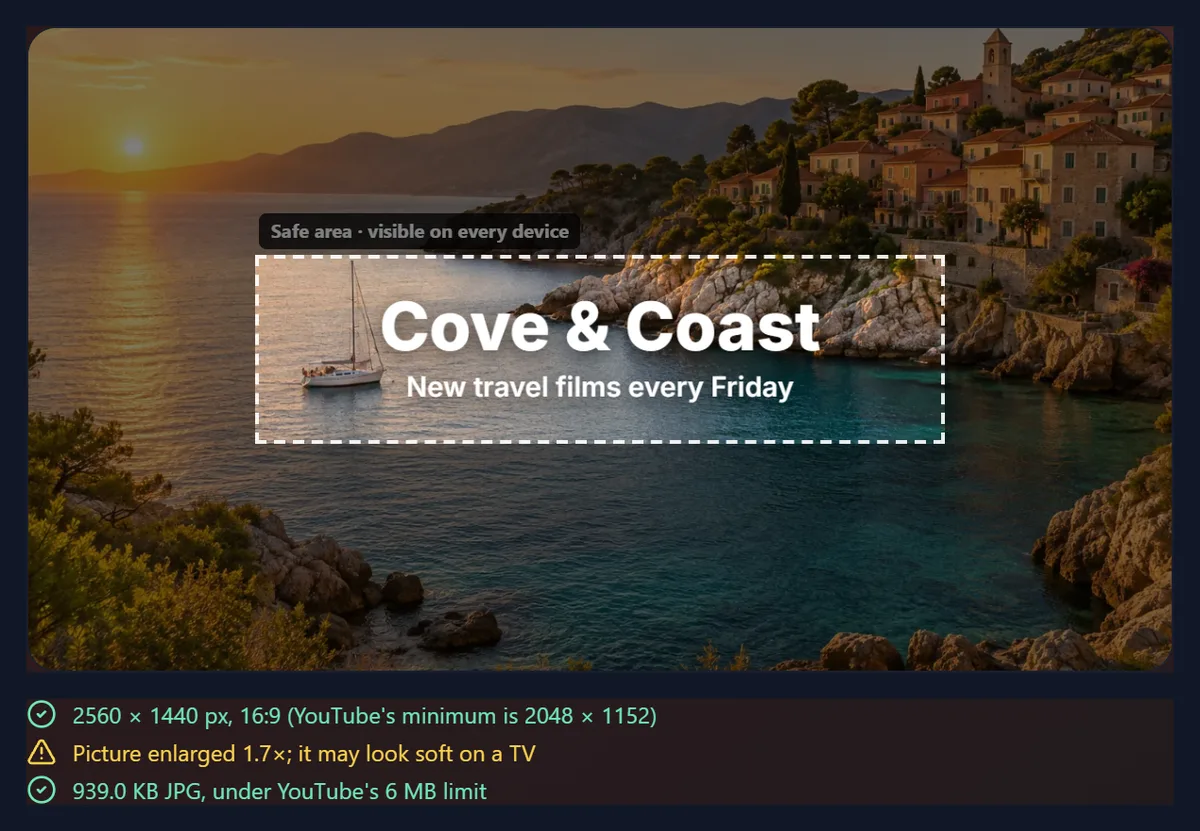
YouTube asks for a banner image of at least 2048 × 1152 pixels at a 16:9 shape, recommends 2560 × 1440 for TVs, and accepts files up to 6 MB. Only the centre, 1235 × 338 pixels at the minimum size, is guaranteed to show on every device, so text and logos belong there. Open your picture in the tool above, position it on the 2560 × 1440 canvas with that safe area marked, add a channel name if you like, and download the JPG.
A banner looks different on a TV, a computer and a phone. A TV can show the whole 16:9 image; smaller views crop it, and only the safe area in the centre is guaranteed everywhere. A photo that looks good full-screen can lose its subject, or cut through a name, on a phone. Seeing the safe area while you place the picture is the simplest way to avoid that.
The sizes on this page are from YouTube Help, “Manage your channel branding” (https://support.google.com/youtube/answer/10456525). The example banners were made by this tool from the sample cove photo.
How to make a YouTube banner from a photo
- Choose a picture Pick a JPG, PNG or WebP, drop it on the preview, or use the sample. A wide photo of at least 2560 pixels gives the sharpest result.
- Place it Fill the banner or fit the picture inside the safe band. Drag to pan and use the zoom slider until the subject sits where you want it.
- Add text (optional) Type a channel name and a tagline. They are centred in the safe area; adjust their size and colour.
- Download and upload Download the 2560 × 1440 JPG and upload it in YouTube Studio under Customisation, then Branding.
Make a YouTube banner from a photo
A real recording of this tool: a coastal photo fills a 2560 × 1440 banner, a channel name and tagline are added, the picture is zoomed and panned, fitted inside the safe band, and the JPG is downloaded.
- The sample photo fills the 2560 × 1440 banner, with the safe area outlined.
- A channel name and a tagline are typed into the safe area.
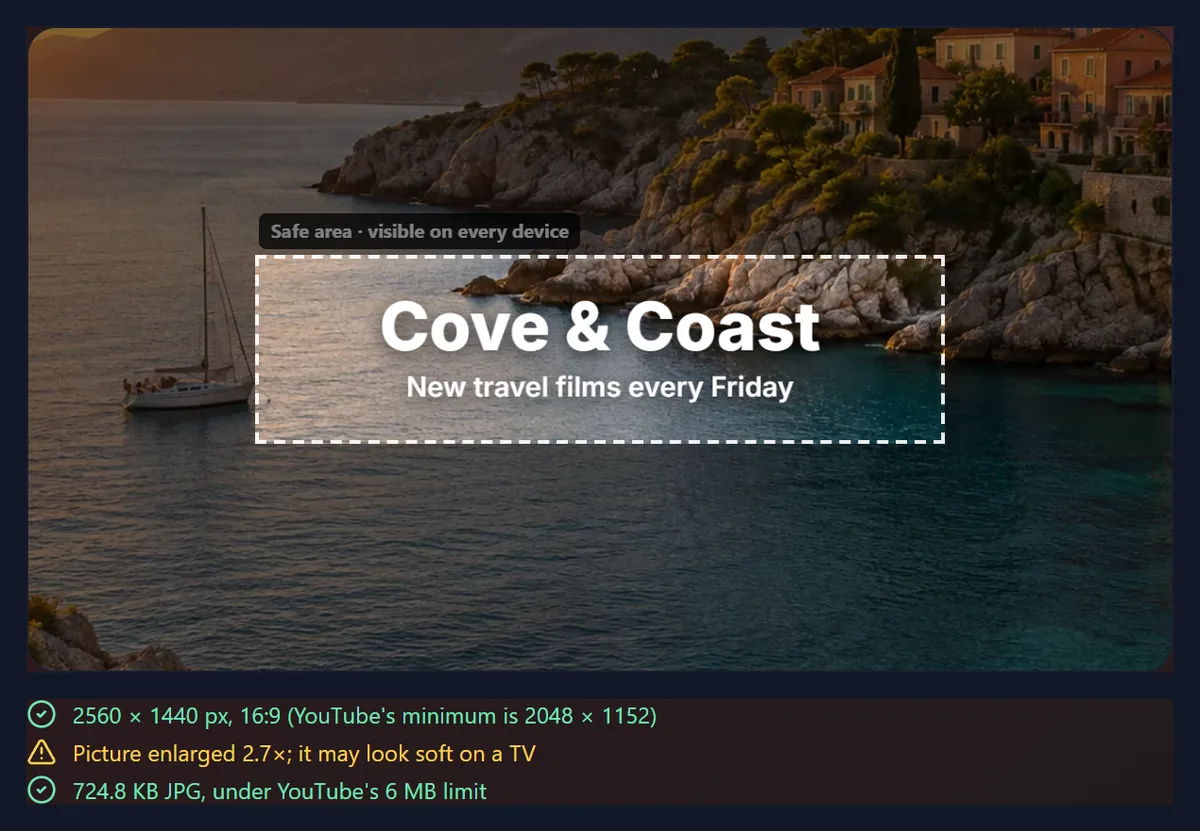
- The picture is zoomed and dragged to place the village.
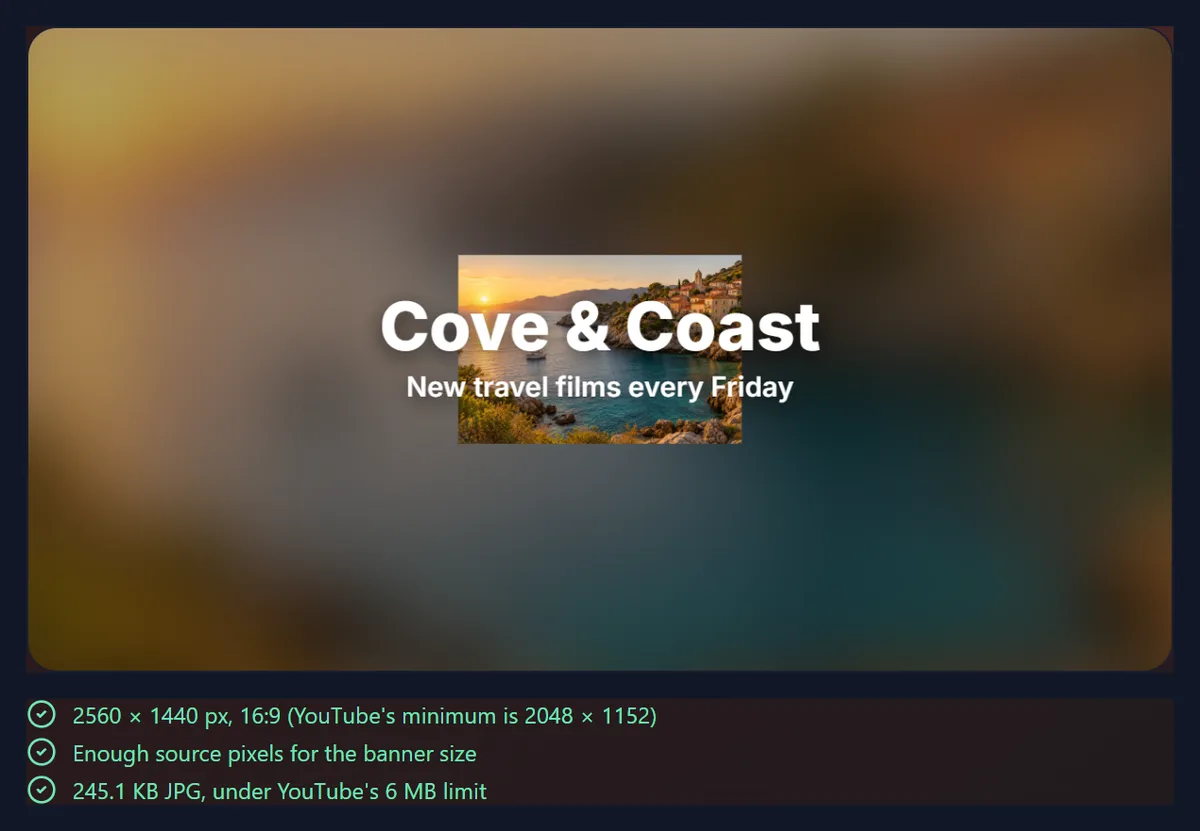
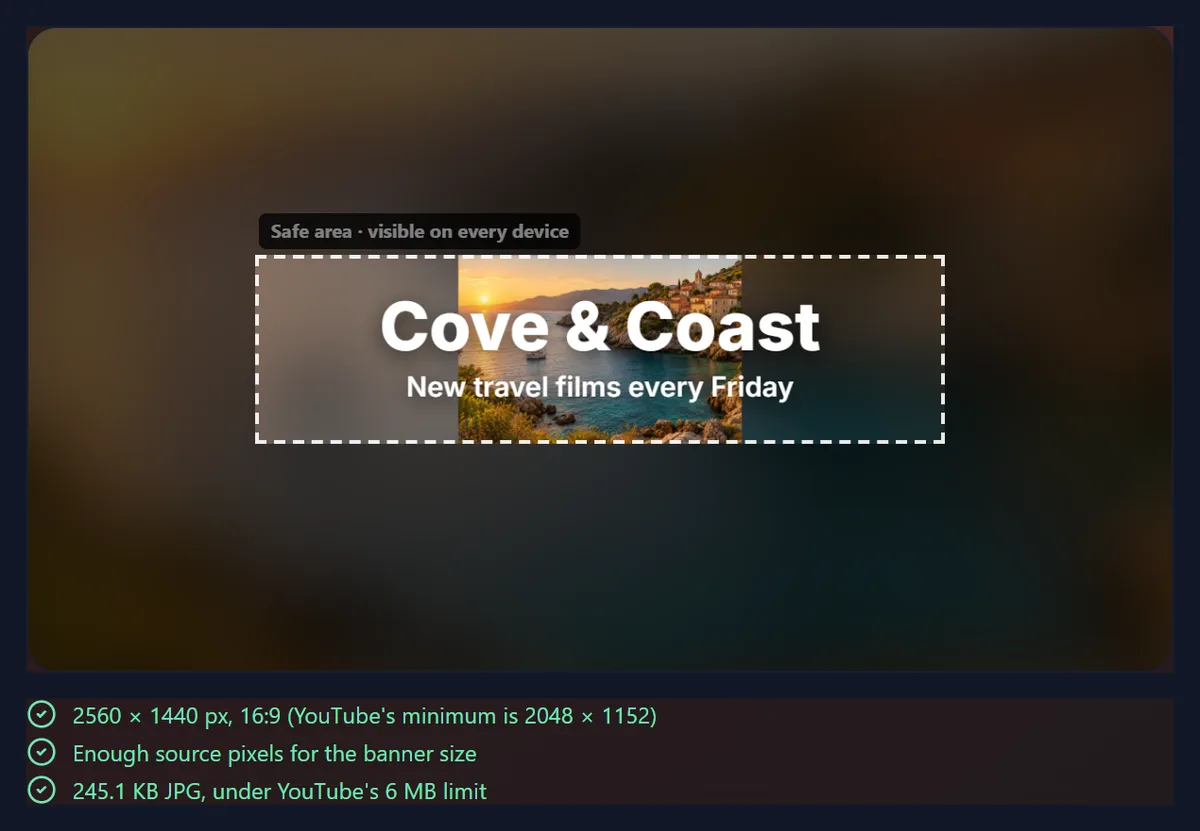
- Fit in safe band shows the whole photo over a blurred fill, then Fill the banner is chosen again.
- The 2560 × 1440 JPG is downloaded.
Where should text and logos go on a YouTube banner?
Inside the safe area, the band in the centre that YouTube shows on every device. The tool draws it as a dashed rectangle and, with Dim what only TVs show switched on, darkens everything outside it, so you see roughly what a phone will keep. The channel name and tagline you type are always placed inside it, centred, and shrink to fit its width if they are long.
Keep important parts of the picture there too. A face at the far left of a wide photo may be visible on a TV and gone on a phone. Drag the picture until the subject sits in the band, then check the dimmed view.
Should the picture fill the banner or fit in the safe band?
Fill the banner is the usual choice for a landscape photo: the picture covers all 2560 × 1440 pixels and you choose which part shows in the middle. Fit in safe band is for pictures that must appear whole, such as a logo, a group photo or a piece of artwork: the picture is scaled to the height of the safe area and centred, and the space around it is filled.
For that fill, the tool offers a blurred, darkened copy of your own picture, which looks continuous on a TV, or a single colour you pick. Browsers that cannot blur a canvas show the picture darkened without blur.
Why does the tool warn that my banner may look soft?
Because the picture is being enlarged. A banner is 2560 pixels wide; a photo 1536 pixels wide has to be stretched about 1.7 times to fill it, and stretching adds no detail. The tool warns when the picture is enlarged more than 1.25 times, the factor that would take it from YouTube's 2048-pixel minimum to 2560, because beyond that it holds less detail than the minimum banner.
On a phone the difference is hard to see; on a large TV it shows. For the sharpest banner, start from a photo at least 2560 pixels wide, zoom in less, or try the image upscaler first, which enlarges with a sharper filter than a plain stretch.
Can you add your channel name?
Yes. Type a channel name (up to 40 characters) and a tagline (up to 70). They are drawn in a bold sans-serif, centred in the safe area, white with a soft shadow by default; change the colour, switch the shadow off, or scale both lines between 60% and 140%. The text becomes part of the JPG, so check the spelling before downloading.
Your channel name already appears next to your profile picture on YouTube, so many creators use the banner for something else: an upload schedule, a tagline, or simply a strong photo. Keep it short; a phone shows the safe area at only a few centimetres across.
How do you upload the banner to YouTube?
In YouTube Studio, open Customisation, then Branding, and upload the JPG under Banner image. YouTube Studio then shows a preview of the banner before you publish it. Because the tool's file is already 2560 × 1440 and under 6 MB, it is accepted as it is.
YouTube can change these rules. If an upload is refused, compare the file with the current guidance on the YouTube Help page linked above; the tool's result line gives the size and file size to check against.
How does the banner compare with the other channel images?
A channel has two branding images, and they have very different rules. The banner is the wide picture across the top of the channel page. The profile picture is the small round image next to your name and beside every video and comment; YouTube shows it at 98 × 98 pixels, accepts JPG, GIF, BMP or PNG up to 15 MB, and does not allow animated GIFs. A name or logo that reads well in the banner may be illegible at profile-picture size, so design the two separately.
The figures in the table are from the same YouTube Help page. Video thumbnails are a third kind of image with their own guidance, which this tool does not cover.
| Image | Size | File limit | Formats |
|---|---|---|---|
| Banner | At least 2048 × 1152 px, 16:9; 2560 × 1440 recommended | 6 MB | Not stated on the page |
| Profile picture | Shown at 98 × 98 px | 15 MB | JPG, GIF, BMP or PNG; no animated GIFs |
What makes a good picture for a YouTube banner?
A wide picture with its interest in the middle. Banners are much wider than a typical photo, so a landscape, a cityscape, a studio wall or a texture works better than a portrait, which has to be cropped hard or zoomed far in. Look for a picture with a calm area in the centre where text can sit, and avoid one whose subject is pressed against an edge, because smaller screens will cut it off.
Contrast matters for any text you add. The tool's white text with a shadow reads on most photos; on a very bright picture, switch the text to a dark colour or choose Fit in safe band with a dark blurred fill. If the picture is smaller than 2048 pixels wide, consider shooting or choosing a wider one: the softness warning is the tool telling you a TV will show the difference.
What files work, and is anything uploaded?
You can open JPG, PNG and WebP pictures up to 40 megapixels; convert iPhone HEIC photos to JPG first. The banner is drawn and saved in your browser; nothing is uploaded to HueFold and no account is needed. The download is a JPG at 92% quality, recompressed only if it would exceed 6,000,000 bytes, so photos with lots of detail still fit.

Frequently asked questions
What is the YouTube banner size?
YouTube recommends 2560 × 1440 pixels; the minimum is 2048 × 1152 at 16:9. This tool makes 2560 × 1440.
What is the YouTube banner safe area?
1235 × 338 pixels in the centre at the minimum size, about 1544 × 423 at 2560 × 1440.
What is the maximum file size for a YouTube banner?
6 MB. The tool keeps the JPG under 6,000,000 bytes.
How do I resize a photo for a YouTube banner?
Open it in the tool, fill or fit it, drag it into place, and download the 2560 × 1440 JPG.
Why is my banner cropped on mobile?
Smaller screens crop the banner; only the centre safe area is guaranteed. Keep text and faces inside the area marked in the tool.
Can I add text to the banner?
Yes, a channel name and a tagline, centred in the safe area.
Why does it say my banner may look soft?
The picture is being enlarged more than 1.25 times. Start from a wider photo for a sharper TV view.
Is my picture uploaded?
No. The banner is made in your browser.
Can I use a PNG?
Yes, you can open PNG, JPG or WebP. The banner is saved as a JPG.
Where do I upload the banner?
In YouTube Studio, under Customisation, then Branding.
Related tools
- AI Image Upscaler — Enlarge a small photo before making a banner.
- Resize Image Pixel Online — Any exact size in pixels.
- YouTube Name Generator — Ideas for a channel name to put on the banner.
- YouTube Description Generator — Write the channel and video descriptions.
- Add Text to Photo — More text styles for a banner photo.
- Compress Image to 100KB — Make a smaller copy for the web.