Sharpen Image
Bring back crisp edges in a slightly soft photo with an unsharp mask: amount, radius and threshold, on brightness only so colours do not fringe. A 100% loupe shows the real pixels before and after, because sharpening cannot be judged on a shrunken preview.
Updated

How do you sharpen an image online?
Open the photo, start from a preset such as Standard, and look at the 100% loupe under the preview: it shows the file's real pixels before and after. Raise Amount for stronger edges, change Radius to choose how fine the detail is, and raise Threshold if smooth areas start to look gritty. Click anywhere on the photo to move the loupe, then download.
Sharpening works by finding edges and raising their contrast: a little darker on the dark side of each edge and a little lighter on the light side. Done well, the photo looks crisper without anyone noticing it was sharpened. Done too strongly, edges grow bright and dark outlines, called halos, and grain becomes gritty, which is why the tool shows the result at 100% and measures it.
The sample is a sharp desk photo deliberately softened with a 1.2 px Gaussian blur for this demo. The photo you use never leaves your device.
How to sharpen an image online
- Open the photo Choose a JPG, PNG or WebP, drop it on the preview, or use the soft sample.
- Pick a preset Gentle, Standard, Strong or After resizing set amount, radius and threshold at once.
- Check the loupe Click the photo to move the 100% loupe to fine detail, adjust the sliders, and watch the edge contrast reading.
- Download Save the sharpened photo as JPG, PNG or WebP at its full size.
Sharpen a soft photo
A real recording of this tool: the softened sample sharpened, the 100% loupe moved, the presets, the amount and radius sliders, and the download.
- The softened sample opens with the Standard preset and the 100% loupe.
- Clicking the photo moves the loupe to another area.
- The Strong, Gentle and Standard presets are tried.
- Amount and radius are raised and set back, then the photo is downloaded.
What does the amount slider do?
Amount is how much of the difference between the photo and a blurred copy of it is added back. At 0% nothing changes; at 100% the full difference is added once, so every edge gets darker on its dark side and lighter on its light side by the amount it differs from its surroundings. The loupe measures the result as edge contrast, the variance of the Laplacian, a standard focus measure: on the softened sample at a 1 px radius it rose from 44 with no sharpening to 67 at 50%, 99 at 100%, 189 at 200% and 313 at 300%.
The number keeps climbing, but the picture does not keep improving. Past about 150% the extra contrast goes into bright and dark outlines along edges, called halos, rather than into detail. Judge by eye in the loupe, not by the number: the right amount is the highest one that still looks natural.
| Amount | Edge contrast | Change |
|---|---|---|
| 0% | 44 | +0% |
| 50% | 67 | +52% |
| 100% | 99 | +125% |
| 150% | 140 | +218% |
| 200% | 189 | +330% |
| 300% | 313 | +611% |
What does the radius do?
Radius is the width of the blur the photo is compared against, in pixels: it decides how wide a band along each edge gets the extra contrast. A small radius, 0.5 to 1 px, crisps fine detail such as hair, fabric and text. A larger one, 2 to 4 px, strengthens broader edges and starts to look like added contrast, which is why photographers use a big radius with a small amount as a 'clarity' boost.
On the sample at 100% amount, the loupe's edge contrast was 49 at a 0.5 px radius, 99 at 1 px, 150 at 2 px and 175 at 4 px. As a rule, match the radius to the size of the detail you want to bring out, and keep it under 1.5 px for photos that will be seen at full size.
| Radius | Edge contrast | Change |
|---|---|---|
| 0.5 px | 49 | +11% |
| 1 px | 99 | +125% |
| 2 px | 150 | +241% |
| 4 px | 175 | +298% |
What does the threshold do?
Threshold protects smooth areas. Any difference between the photo and its blurred copy smaller than the threshold, in levels out of 255, is left alone, so skin, sky and walls keep their smooth tones and their grain is not exaggerated, while real edges, which differ by much more, still get sharpened. A threshold of 0 sharpens everything, including noise; 2 to 4 is a good range for most photos; 8 or more is gentle on portraits.
If a photo looks gritty after sharpening, raise the threshold before lowering the amount.
Why sharpen brightness only?
Sharpening each colour channel on its own can leave thin coloured outlines along edges, for example a magenta or green fringe where a dark branch meets a bright sky, because the red, green and blue channels each get their own overshoot. With brightness only, which is the default, the tool works out the change from the brightness of each pixel and adds the same amount to red, green and blue. Edges get crisper; colours stay where they were. Photographers have long done the same by sharpening only the lightness channel of a photo.
Turn it off only for special cases, such as a graphic with coloured edges that should all get crisper.
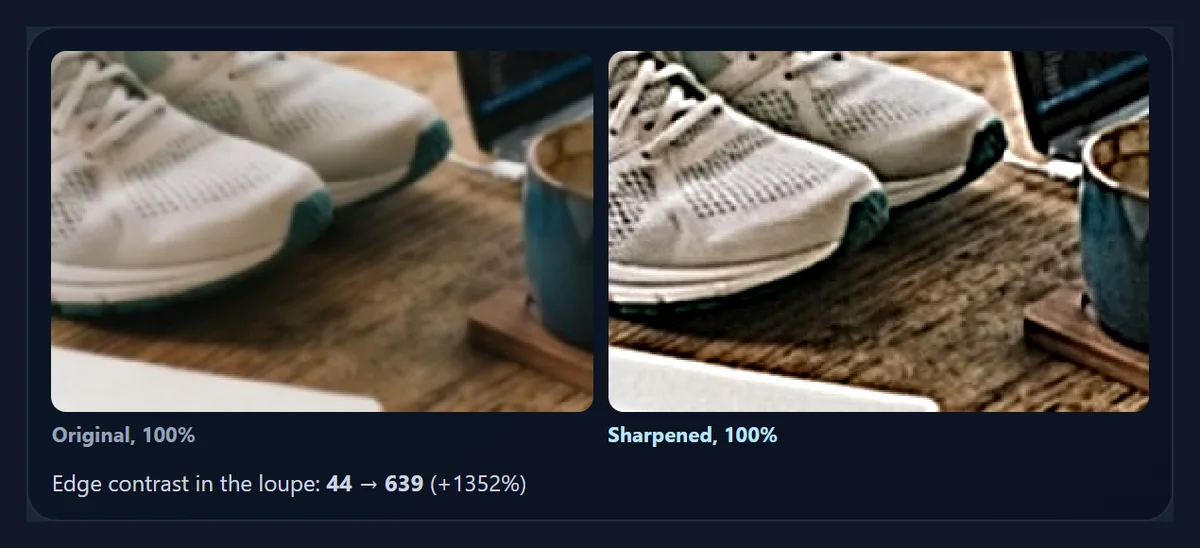
Why is it called an unsharp mask?
The name comes from the darkroom. Printers made a slightly blurred, faint negative copy of a photo, the unsharp mask, and printed through the original and the mask together. Where the picture was flat, the mask cancelled almost nothing; at edges, it boosted the difference between the two sides. Digital sharpening does exactly the same sum: original plus amount × (original − blurred copy).
The blur here is a true Gaussian, computed exactly rather than approximated with box blurs, so the small radii that sharpening needs (0.3 to 1 px) really do blur. The radius slider is the Gaussian's sigma.
Why judge sharpening at 100%?
Because a scaled-down view hides it. The preview at the top of the tool shows the whole photo, shrunk to fit the screen, and shrinking averages neighbouring pixels together, which removes most of what sharpening adds. The loupe shows the file's own pixels, one screen pixel each, before and after, so what you see there is what the download will look like at full size. Click anywhere on the preview to move the loupe there, and look at an area with fine detail and a smooth area side by side.
On the sample, the default Standard preset (100%, 1 px, threshold 2) took edge contrast in the loupe from 44 to 99, a change of +125%. The downloaded file was 1200 × 805 pixels and 161,179 bytes as a 92% JPG.
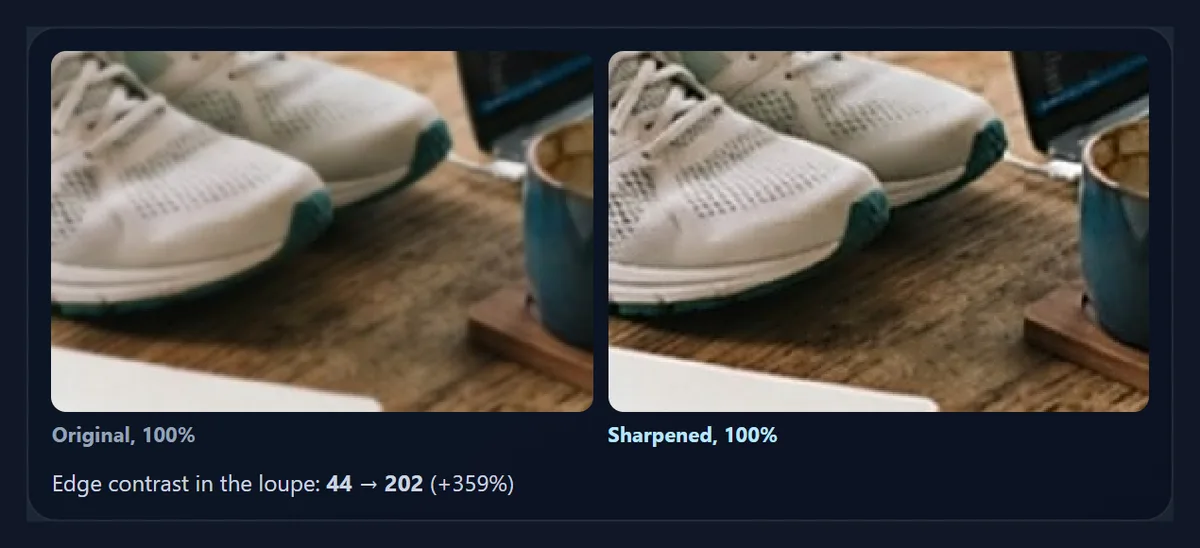
Which preset should I start from?
Gentle (60%, 0.8 px, threshold 4) suits portraits, where skin should stay smooth. Standard (100%, 1 px, threshold 2) suits most photos. Strong (160%, 1.4 px, threshold 2) suits landscapes, architecture and product photos with lots of hard edges. After resizing (40%, 0.5 px, threshold 0) is a light final pass for copies made smaller for the web, which lose a little crispness when they are scaled down.
Every preset only sets the three sliders, so you can start from one and adjust.
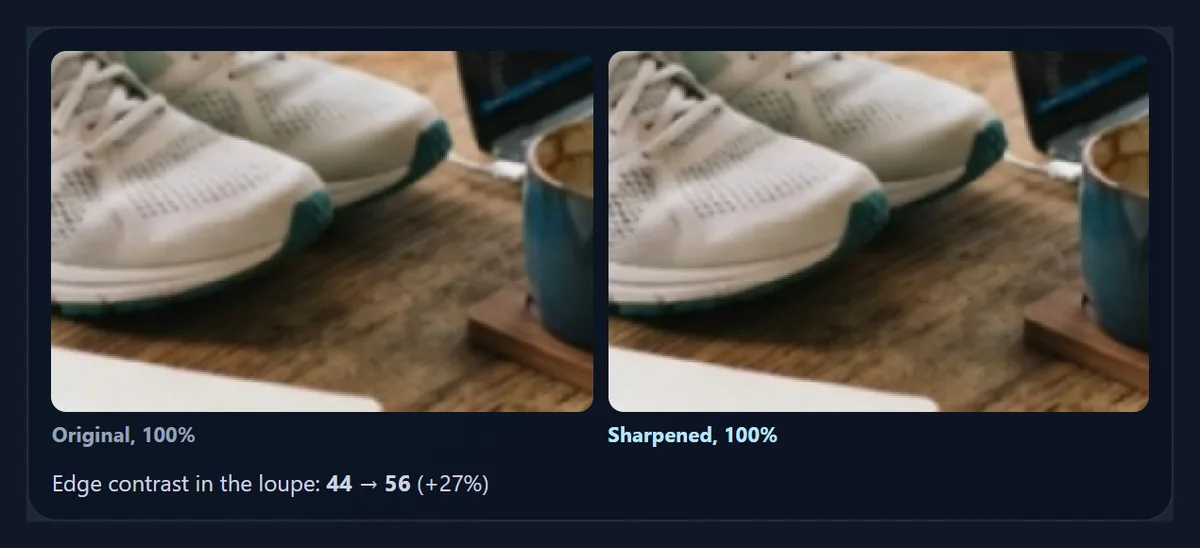
Can sharpening fix a blurry photo?
Only a slightly soft one. Sharpening raises contrast along edges that are already there; it cannot recover detail the camera never recorded. A photo that is a little soft, from a cheap lens, a soft-focus setting, a scan or resizing, can look clearly better. A photo that is badly out of focus, or smeared by camera shake or a moving subject, will look sharper only in a harsh, outlined way. For those, retake the photo if you can.
The sample here was made soft on purpose: a sharp desk photo given a Gaussian blur of 1.2 px, so you can see how much a typical mild softness can be brought back.
When should you sharpen in the editing order?
Last, or nearly last. Sharpening is tuned to the final size of the picture: a photo sharpened at full size and then made smaller loses most of the effect, and one sharpened and then enlarged has its halos enlarged too. So crop, straighten, fix the exposure and colour, resize, and then sharpen. Photographers often distinguish a gentle capture sharpening, to undo the softness every camera adds, from output sharpening for the final screen or print size; this tool is meant for the second.
Noise reduction, if you need it, belongs before sharpening, because sharpening makes grain stronger.
How much should I sharpen for print?
A little more than for screens. Ink spreads slightly into paper, which softens fine detail, so a print usually needs a touch more amount than looks ideal on screen at 100%; matte papers soften more than glossy ones. A good approach is to settle on what looks right in the loupe, then raise the amount by about a quarter for the print copy, and keep the screen copy separate.
For large prints viewed from a distance, a slightly larger radius helps more than a higher amount.
Which files work, and is anything uploaded?
You can open JPG, PNG and WebP photos up to 40 megapixels (above about 16 megapixels the result is saved slightly smaller, because that is the largest canvas iPhone browsers allow); convert iPhone HEIC photos to JPG first. The sharpened photo is saved as JPG, PNG or WebP at its full size. Nothing is uploaded: the photo is opened, sharpened and saved inside your browser tab, and no account is needed. The new file carries no EXIF data from the original.
Sharpen last: after cropping, resizing and colour changes, because resizing changes how much sharpening a photo needs.
Why does my sharpened photo look noisy or outlined?
Noise grows because sharpening raises every small difference, and grain is made of small differences. Raise the threshold, lower the amount, or use the Gentle preset. Outlines (halos) mean the amount or radius is too high: lower the radius first, then the amount. Coloured fringes mean brightness-only is switched off.
If the change looks invisible, you are probably judging the scaled-down preview: look at the 100% loupe instead.

Frequently asked questions
How do I sharpen a blurry picture?
Open it, choose the Standard preset, check the 100% loupe, and adjust Amount and Radius before downloading.
What is an unsharp mask?
Sharpening that adds back the difference between a photo and a blurred copy of it, named after a darkroom technique.
What amount should I use?
Start at 100% and stop before outlines appear along edges in the loupe.
What radius should I use?
Around 1 px for most photos; 0.5 px for very fine detail; up to 2 px for broad edges.
What does threshold do?
It leaves small differences alone, so skin, sky and grain stay smooth.
Why sharpen only brightness?
To avoid coloured fringes along edges.
Can it fix an out-of-focus photo?
Only a slightly soft one; it cannot recover detail that was never recorded.
Is my photo uploaded?
No. It is sharpened in your browser.
Which formats can I use?
Open and save JPG, PNG or WebP.
Is it free?
Yes, with no account, watermark or limit.
Related tools
- AI Photo Enhancer — Automatic colour, clarity and sharpening.
- AI Image Upscaler — Make a small photo bigger first.
- Photo Blur — The opposite: soften a background.
- Brighten Image — Fix exposure before sharpening.
- Resize Image in Pixels — Resize, then sharpen the copy.
- Crop Image — Crop before you sharpen.