Video Upscaler
Make a video bigger in your browser: twice the size, 1080p, 1440p or 4K, sharp (Lanczos-3) or soft, with sharpening and a before-and-after preview. Free, no upload, and honest about detail.
Updated
How do you upscale a video?
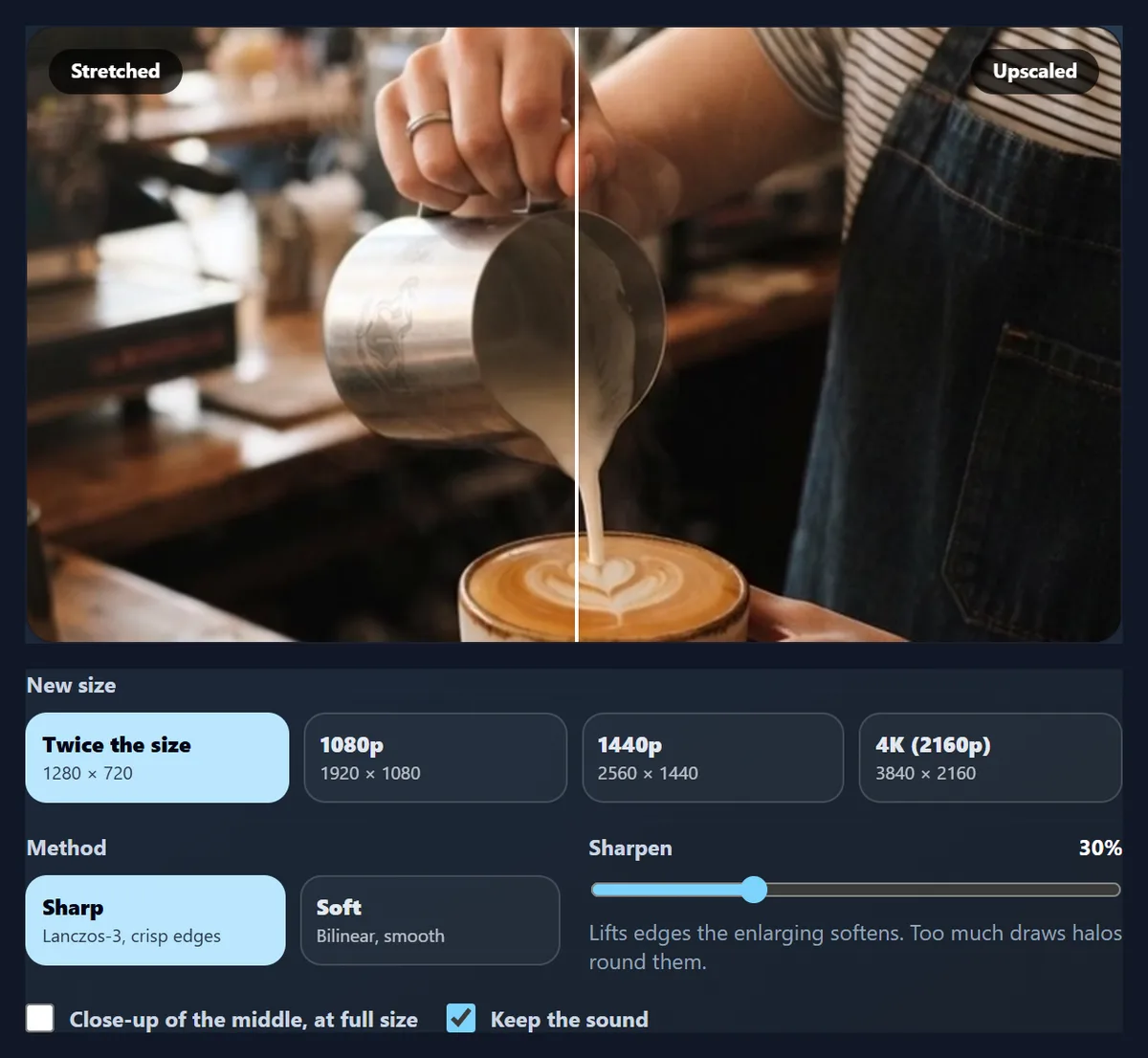
Open the video here, compare a frame before and after in the split preview, choose a size (twice the size, 1080p, 1440p or 4K), Sharp or Soft and how much to sharpen, and press Upscale: every frame is enlarged on your graphics card and saved as an MP4 with the sound kept.
Upscaling cannot bring back detail: a 640 × 360 clip upscaled to 1280 × 720 scored 41.52 dB against the real 1280 × 720, better than the soft method's 40.40, but not the original. It is a better enlargement, not new detail.
How to upscale a video
- Open the video Drop it on the tool or choose it.
- Compare Drag across the split preview.
- Choose size and method Up to 4K, sharp or soft.
- Upscale and download An MP4 with the sound kept.
Upscale a video
A real recording of this tool: the sample opened, the split preview dragged and zoomed, 1080p chosen and the video upscaled.
- The 640 by 360 sample opens with a frame in the split preview.
- The dividing line is dragged to compare, then the close-up is turned on.
- 1080p is chosen.
- The video is upscaled and the MP4 plays.
How close does an upscaled video get to the real thing?
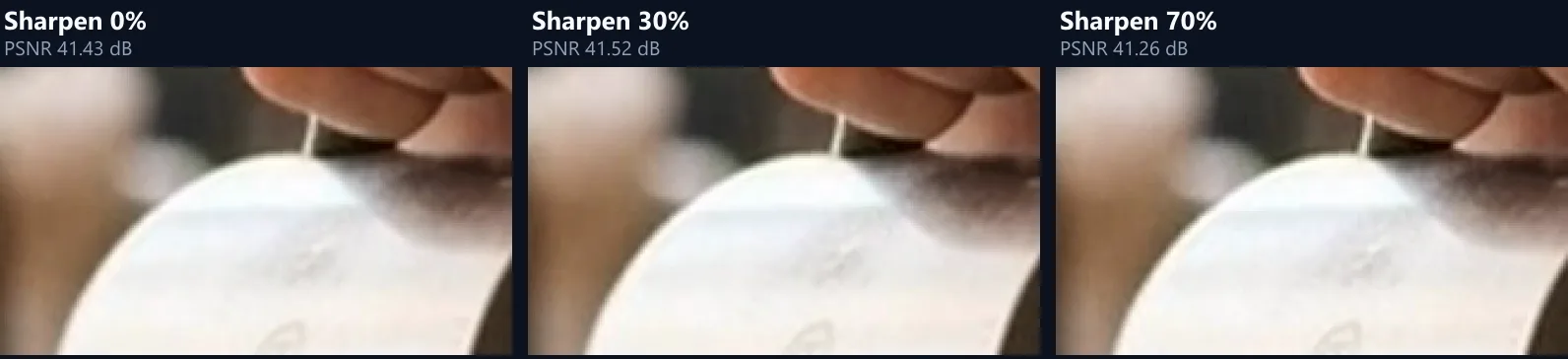
Close, but never the same. We shrank a 1280 × 720 café clip to 640 × 360, upscaled it back to 1280 × 720 with each of the tool's methods, and compared every one of its 192 frames with the original. Higher PSNR means closer: the soft method scored 40.40 dB, sharp (Lanczos-3) 41.43, and sharp with 30% sharpening, the default, 41.52. Sharpening at 70% fell back to 41.26: past a point, sharpening draws halos the original never had.
These numbers include everything the tool does, enlarging and saving as MP4. They show what upscaling is: a better guess at the missing pixels, not the missing detail itself.
| Method | Sharpening | PSNR | SSIM | MP4 size |
|---|---|---|---|---|
| Soft | 0% | 40.40 dB | 0.9813 | 2.84 MB |
| Sharp | 0% | 41.43 dB | 0.9827 | 3.17 MB |
| Sharp | 30% | 41.52 dB | 0.9827 | 3.42 MB |
| Sharp | 70% | 41.26 dB | 0.9807 | 3.96 MB |
How do I upscale a video?
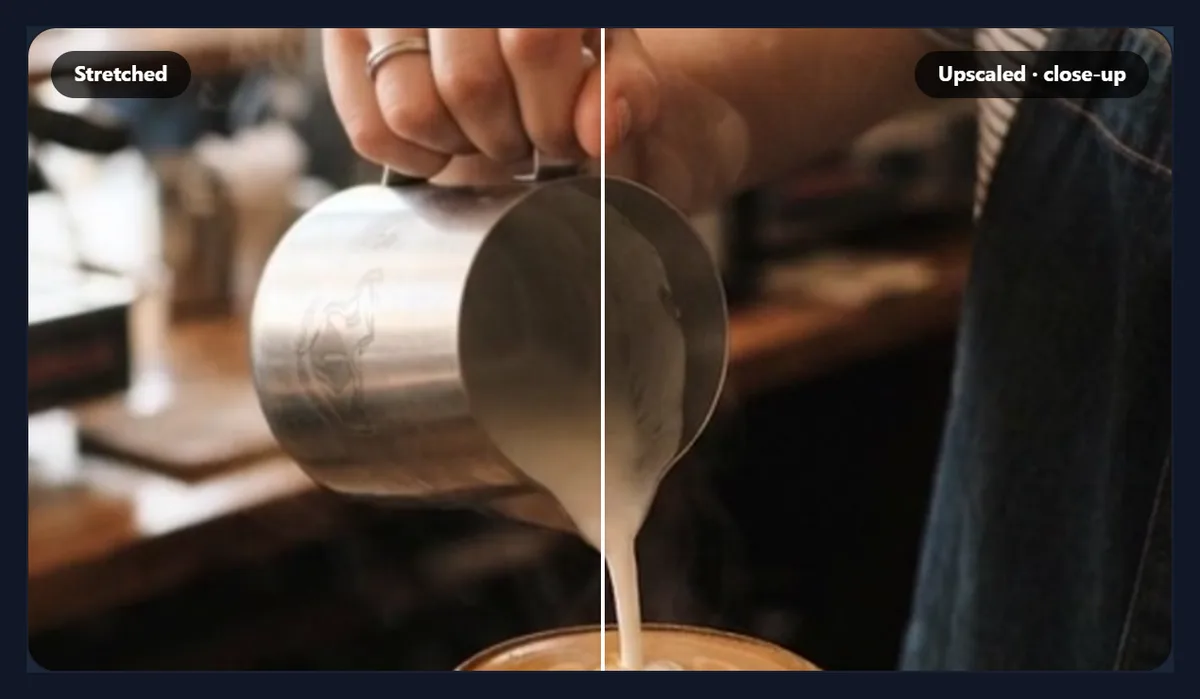
Drop a video on the tool or choose it. A frame appears split down the middle: on the left stretched by the browser, on the right upscaled; drag across it to compare, and tick Close-up to see the middle at full size. Choose the new size, the method and the sharpening, then press Upscale; the MP4 plays when it is ready and Download MP4 saves it, with the sound kept.
The 8-second sample took about 18 seconds at twice its size and 1.9 minutes at 4K on the test laptop: the video plays through once, more slowly for big sizes, while every frame is enlarged on the graphics card.
What does upscaling do, exactly?
It makes a bigger picture by working out what each new pixel between the old ones should be. Soft (bilinear) blends the four nearest pixels, which is smooth but blurry. Sharp (Lanczos-3) weighs six pixels across and six down with a curve that keeps edges crisp, a standard method for high-quality resizing (the one ffmpeg calls lanczos). Sharpen then lifts the contrast along edges a little, to make up for the softness any enlarging leaves.
None of this invents detail: hair, text or texture too fine for the small video stays blurred, only larger and smoother.
Which method is best?
Sharp. To compare the enlarging alone, without any video compression, we took eight frames of the small video as lossless pictures, enlarged them with the tool's own code and, for reference, with ffmpeg's well-known filters, and compared them with the original frames. The tool's sharp method scored 40.55 dB, level with ffmpeg's Lanczos (40.66) and above its bicubic (40.47); the soft method scored 39.26, against 38.64 for ffmpeg's bilinear.
Sharpening does not bring the picture closer to the original: 30% scored 40.52 dB, a hair under none, and 70% 39.77. What it does is make edges look crisper, which is why a little is the default. This table uses a different measure from the first (red, green and blue rather than the video's brightness and colour planes), so compare numbers within a table, not across.
| Method | PSNR (R, G, B) |
|---|---|
| Soft (this tool) | 39.26 dB |
| Sharp (this tool) | 40.55 dB |
| Sharp, sharpened 30% (this tool) | 40.52 dB |
| Sharp, sharpened 70% (this tool) | 39.77 dB |
| ffmpeg bilinear (reference) | 38.64 dB |
| ffmpeg bicubic (reference) | 40.47 dB |
| ffmpeg lanczos (reference) | 40.66 dB |
How much does saving the MP4 cost?
Some detail, because every MP4 is compressed. On the measure of the first table, ffmpeg's Lanczos enlargement saved almost losslessly scored 45.18 dB, while the tool's MP4s scored about 41.5. Since the two enlargements are level on frames alone, nearly all of that gap is the browser's H.264 encoder, which saves the frames at a bitrate it chooses.
The files are still not small: at twice the size, the 8-second sample was 3.42 MB, against 0.45 MB for the small original. A video editor that lets you set a high bitrate can keep a little more, at a bigger file.
What does it look like up close?
The figure enlarges the same detail, the engraving on the milk jug, three times without smoothing so each pixel shows. The small video is blocky; the soft upscale is smooth but blurred; the sharp one with 30% sharpening has firmer edges; the real 1280 × 720 frame has detail neither can recover.
At normal viewing size the difference between methods is subtle; it shows most on edges and fine lines.

How much sharpening should I use?
A little: around 30%, the default. In the MP4s, 30% scored 41.52 dB against 41.43 with none, and 70% fell to 41.26; on frames alone 30% cost almost nothing (40.52 against 40.55) and 70% cost most. Too much sharpening adds bright and dark halos along edges and makes noise grainier; the figure shows the same detail at 0%, 30% and 70%.
For faces and skin, use less; for text, screen recordings and graphics, a little more can look crisper.
Which size should I choose?
Twice the size for small videos you want to fit a larger screen; 1080p for social networks and most players; 1440p and 4K when a platform or a project needs that size. The tool only offers sizes bigger than the video, up to 3,840 pixels on the long side, and shows the exact size and how many times the pixels before you start.
Bigger outputs make bigger files and take longer: from the 640 × 360 sample, 1080p was 6.20 MB and 4K 8.69 MB.
| Size | Pixels | MP4 | Took |
|---|---|---|---|
| 1280 × 720 | 4× the original | 3.42 MB | 18 s |
| 1920 × 1080 | 9× the original | 6.20 MB | 18 s |
| 3840 × 2160 | 36× the original | 8.69 MB | 113 s |
Can I see the result before upscaling the whole video?
Yes: the split preview shows one frame stretched by the browser on the left and upscaled on the right, with your size, method and sharpening, as you change them. Drag the line to compare, and tick Close-up to see the middle of the frame at full size, where the difference is clearest.
The preview uses the same code as the export, so what you see is what the MP4 will hold, before compression.
What do I get?
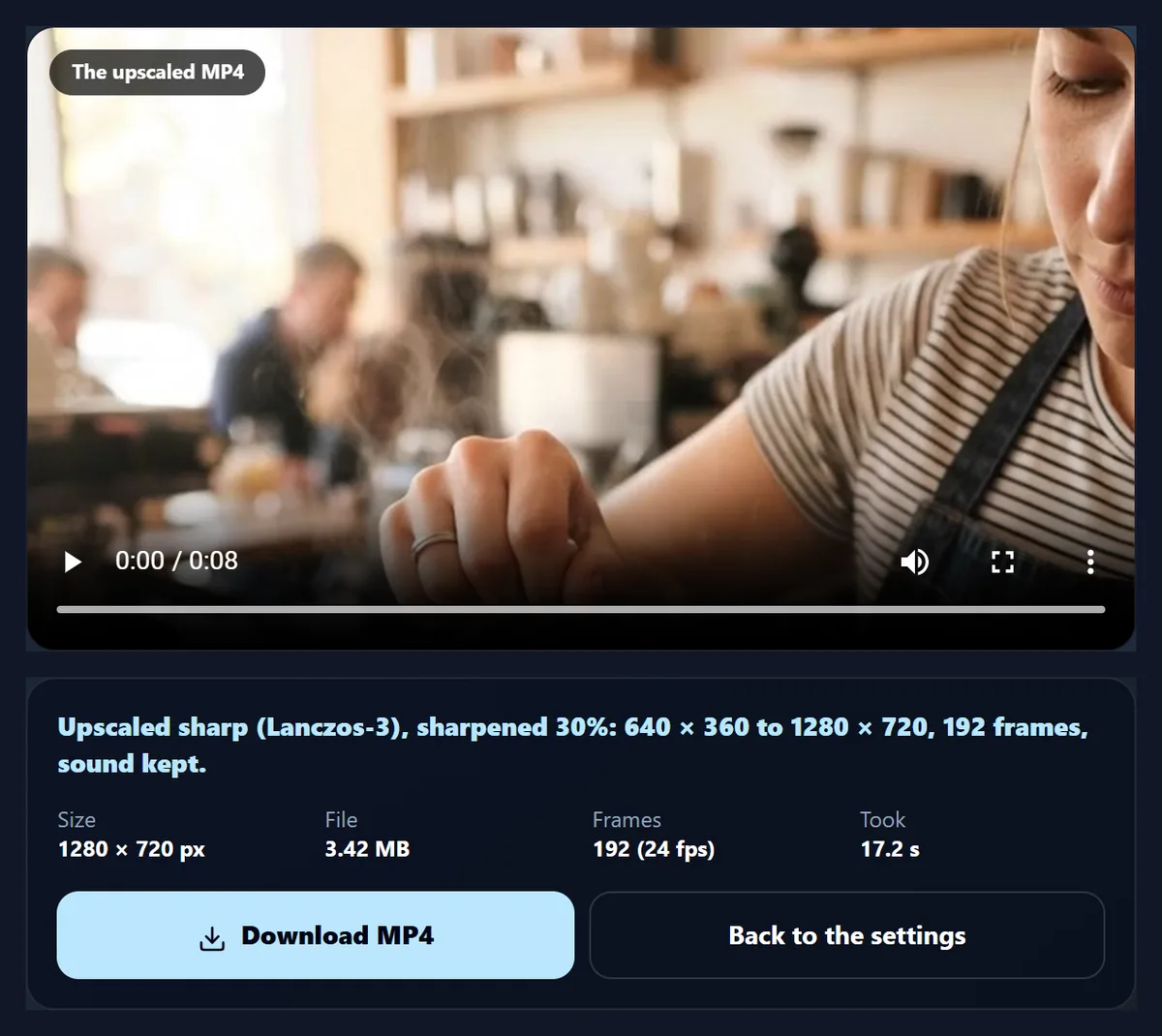
An MP4 with H.264 picture at the new size and the original sound as AAC, every frame at its own time. All six test runs kept all 192 frames at 24 a second. The result panel gives the size, the file size, the frame count and how long it took.
Back to the settings returns to the preview to try another size or method; the original video stays open.
Is this an AI upscaler?
No. AI upscalers use a trained model to draw detail that looks plausible, such as sharper eyes or textures; that can look impressive but it is invented, and it can change faces and text. This tool only uses mathematical resampling, so it adds nothing that was not in the video.
That makes it predictable and private, and suited to videos where accuracy matters more than wow, such as screen recordings, documents and product shots.
When is upscaling worth it?
When a platform, a project or a screen needs a bigger size: putting a 720p clip into a 1080p or 4K edit, meeting an upload minimum, or showing a small video full screen without the player's own rough stretching. It does not make an old, blurry video look new.
If you have the original high-quality file, use that instead: nothing beats the real pixels.
Does it need a powerful computer?
It runs on the graphics card through WebGL 2, which current browsers on computers and most phones have. Without WebGL 2 the tool falls back to the browser's own smoothing, says so, and switches off sharpening. Big outputs need much more memory: on our 8 GB test laptop, busy with other work, 4K worked once in 113 seconds and froze the tab in two later tries. For 4K, close other tabs and programs first, or choose 1440p; on a phone, choose a smaller size.
Keep the tab open and the screen on while it works.
Does upscaling change the shape of the video?
No. Every size keeps the video's own shape: a 16:9 video stays 16:9 and a portrait phone video stays portrait. The standard sizes are worked out from the short side, so 1080p makes a portrait 9:16 video 1080 pixels wide and 1920 tall, and every size is rounded to even numbers, as H.264 requires.
To change the shape, for example for Reels or Shorts, resize it afterwards with the Instagram resizer.
Can it fix an old or blurry video?
Only its size. A blurry video stays blurry when enlarged, and the blocky patches of a heavily compressed one become larger, smoother blocks. Sharpening can make edges look firmer, but it cannot restore what the camera or the compression lost.
To improve light, colour and contrast, use the video enhancer, before or after upscaling.
Is it good for screen recordings and text?
Sharp is the better method for them: it keeps the edges of letters and lines crisper than Soft. Text that was readable in the small video stays readable and looks cleaner on a big screen; text too small to read in the original stays unreadable.
For a recording of your screen, recording at the size you need is better than upscaling later.
Is my video uploaded?
No. The video is played, enlarged and saved inside this browser tab; nothing is sent to HueFold or anyone else, and there is no watermark, sign-up or limit.
The sound is decoded and saved again as AAC without being changed.
Which videos can I upscale?
Any video your browser can play: MP4, WebM and most MOV files. MKV files work when their picture and sound formats are ones the browser knows. The output is always MP4.
To change the shape instead of the size, use the video resizer or the Instagram resizer.
Frequently asked questions
Is the video upscaler free?
Yes: no sign-up, no watermark and no limit.
Is my video uploaded?
No. It is upscaled inside your browser.
Does upscaling add detail?
No. It enlarges smoothly; it cannot recover detail the video never had.
Is it an AI upscaler?
No: it uses Lanczos-3 resampling, so nothing is invented.
Can I upscale to 4K?
Yes, up to 3,840 pixels on the long side.
Which method should I use?
Sharp (Lanczos-3). 30% sharpening, the default, looks crisper at almost no cost; 70% is too much.
Is the sound kept?
Yes, saved as AAC.
How long does it take?
About twice the video’s length at moderate sizes; 4K takes longer.
Which formats can I upscale?
Any video the browser plays; the result is MP4.
Related tools
- Video Enhancer — Better light and colour.
- AI Image Upscaler — Enlarge a photo.
- Video to MP4 — Convert without resizing.
- Resize Video for Instagram — Change the shape.
- Slow Motion Video — Slow a clip down.
- WebM to MP4 — Screen recordings to MP4.