AI Photo Enhancer
Open a dull, dark or tinted photo and Auto reads it: how bright it is, how flat its contrast is and which way its colours lean. It corrects all three, then clarity and sharpening lift the detail. Compare before and after, with the change measured, and download it.
Updated

How does the photo enhancer fix a photo?
Open the photo and press nothing: Auto measures it and corrects it straight away. It finds the median brightness and lifts or lowers the exposure towards a mid-grey, solves the white balance that makes the midtones neutral, and adds contrast when the tones are bunched together. Clarity and Sharpen then raise the contrast of edges and textures. You see the change on a before-and-after slider, measured, and download the photo at full size.
This is automatic analysis, not a generative model. The enhancer changes exposure, white balance, contrast, saturation and edge contrast, the same corrections a photographer makes by hand, chosen from the photo's own statistics. It never invents a face, a texture or an object that is not there, so it is safe for product photos, documents and anything that has to stay true. It is also exactly the Enhance step of the HueFold editor and app: the same Auto, the same six looks and the same values.
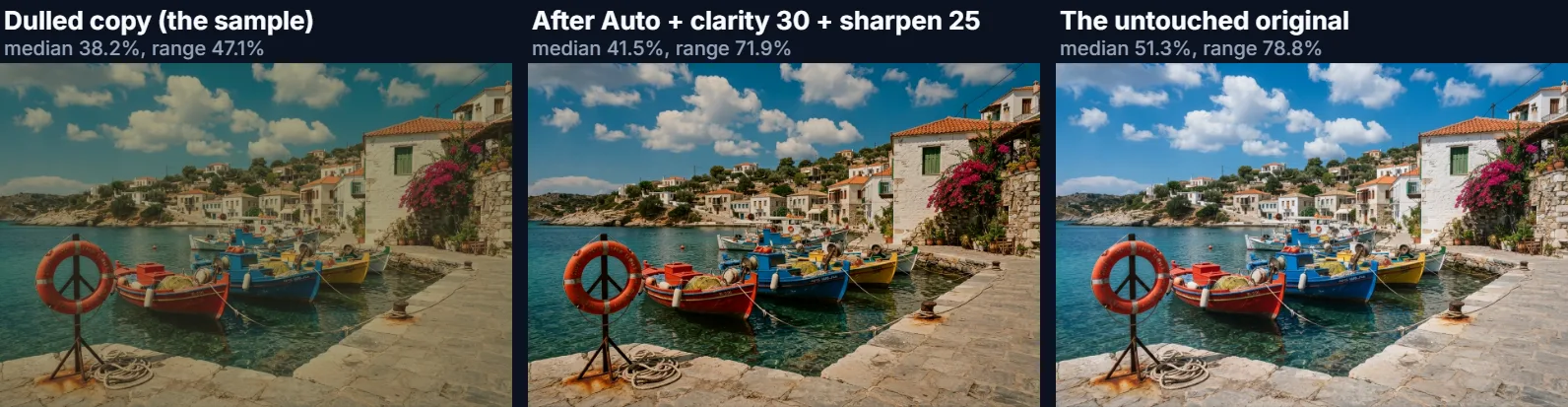
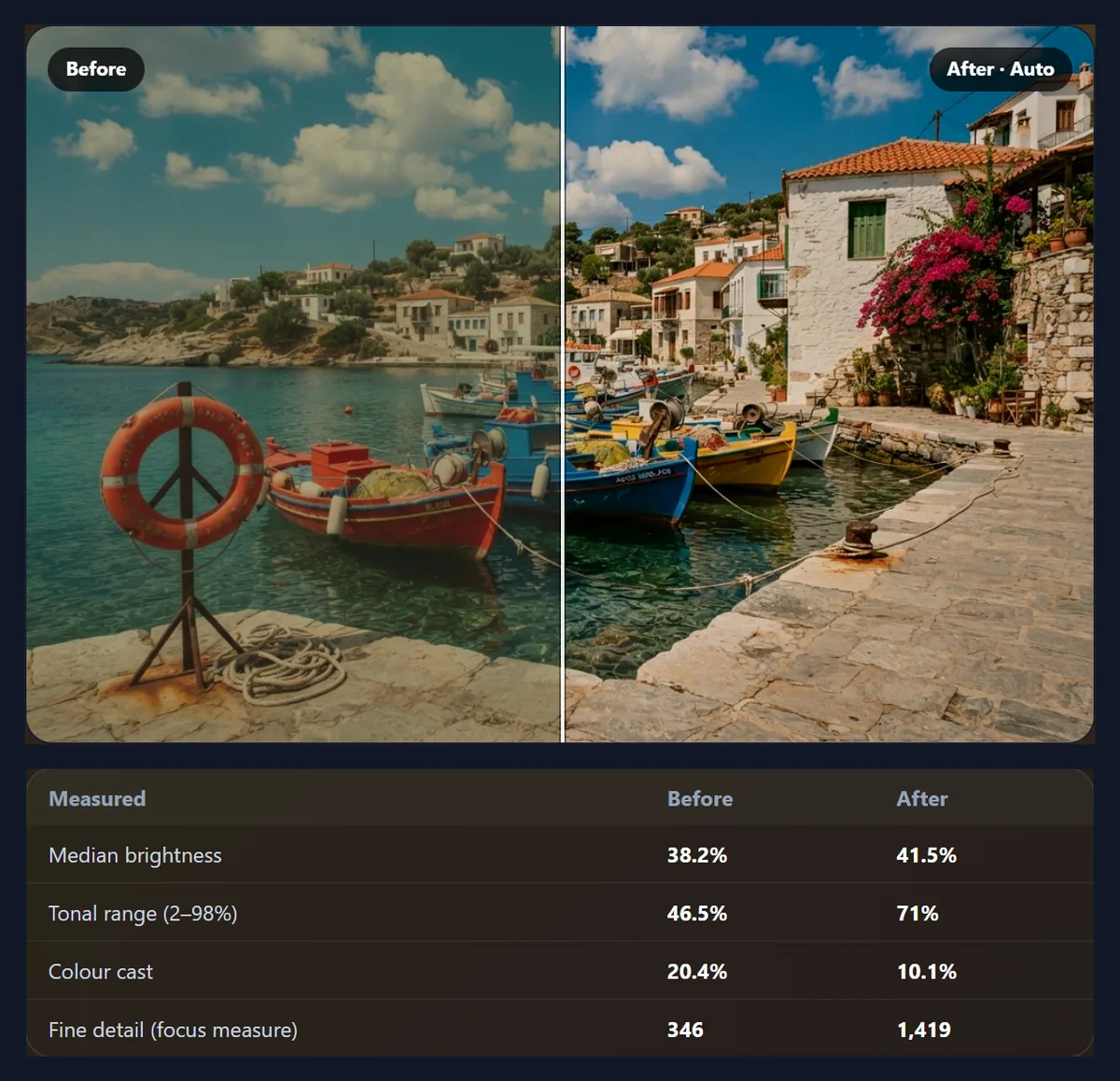
To show what it really does, the sample is a clean harbour photo we deliberately spoiled: darkened, flattened and tinted yellow by scaling each colour channel (red ×0.624, green ×0.60, blue ×0.48) and lifting the blacks. Auto never sees the original, so we can measure how far it gets back.
How to enhance a photo
- Open the photo Choose a JPG, PNG or WebP, drop it on the tool, or start with the dulled sample. Nothing is uploaded; the photo is read in your browser.
- Let Auto read it Auto corrects exposure, white balance and flat contrast and says what it changed, for example “Exposure +0.2 EV · Temp −60 · Tint +60 · Contrast +30”.
- Adjust to taste Try Brighten, Vivid, Punch, Warm, Cool or Soft, set the strength, and add clarity and sharpening. The table below the controls measures before and after.
- Download Save the enhanced photo at its full size as JPG, PNG or WebP. Your original file is not changed.
Enhance a dull, tinted photo with Auto in the browser
A real screen recording of this page: Auto corrects the dulled sample, the before-and-after slider is moved, Vivid and Warm are tried, clarity is raised and the photo is downloaded.
- The dull, yellow-tinted sample opens and Auto corrects it at once.
- The slider compares before and after across the photo.
- The Vivid and Warm looks are tried, then Auto is chosen again.
- Clarity is raised to 60 to strengthen the larger shapes.
- The enhanced photo is downloaded as a JPG.
How much of a spoiled photo can Auto recover?
Most of the contrast and nearly all of the colour balance. The dulled sample's tonal range, the spread from its 2nd to its 98th percentile of brightness, had fallen from 78.8% to 47.1%. Auto alone brought it back to 68.1%, two thirds of the way; with the default clarity 30 and sharpen 25 it reached 71.9%. The colour cast, measured as how far the midtones' red and blue drift from green, fell from 20.2% to 10.3%, level with the untouched original's 9.9%.
Brightness is where Auto deliberately stops short. It aims the median at a mid-grey of about 45% rather than at any particular photo, so it lifted the dulled copy from 38.2% to 41.4% while the bright original sits at 51.3%. If you want more light, Brighten adds a third of a stop, or raise the strength.
The last column is a focus measure (the variance of the Laplacian), which counts edge contrast. Sharpening raises it past the original's value; that means crisper edges, not detail the camera never recorded.
| Version | Tonal range (2–98%) | Median brightness | Colour cast | Focus measure |
|---|---|---|---|---|
| Original (untouched) | 78.8% | 51.3% | 9.9% | 1,463 |
| Dulled copy (the sample) | 47.1% | 38.2% | 20.2% | 477 |
| After Auto | 68.1% | 41.4% | 10.3% | 1,001 |
| Auto + clarity 30 + sharpen 25 | 71.9% | 41.5% | 9.7% | 1,958 |
What does Auto measure and change?
Auto reads a copy of the photo no larger than 160 pixels on its long side, exactly as the HueFold editor's Enhance does, and takes four measurements: the median brightness, the 2nd and 98th percentile brightness, and the average red, green and blue of the midtones (pixels between 12% and 88% brightness, so highlights and shadows do not mislead it).
From those it sets five controls. Exposure moves the median towards 45% (changes under a tenth of a stop are ignored). Temperature and tint come from a two-pass grid search for the white balance that makes the midtones' red and blue match their green, each capped at ±60. Contrast rises by up to 30 when the tonal range is under 85%. Saturation gets +10 only when the photo is almost colourless.
For the dulled sample that came to Exposure +0.2 EV, Temp −60, Tint +60 and Contrast +30. Both colour controls hit their cap, which is why a little of the cast remains: Auto prefers a safe partial fix to an extreme one.
- Exposure: median brightness towards 45%.
- White balance: midtones made neutral, each control capped at ±60.
- Contrast: up to +30 for flat photos (range under 85%).
- Saturation: +10 only for near-colourless photos.
What do Brighten, Vivid, Punch, Warm, Cool and Soft do?
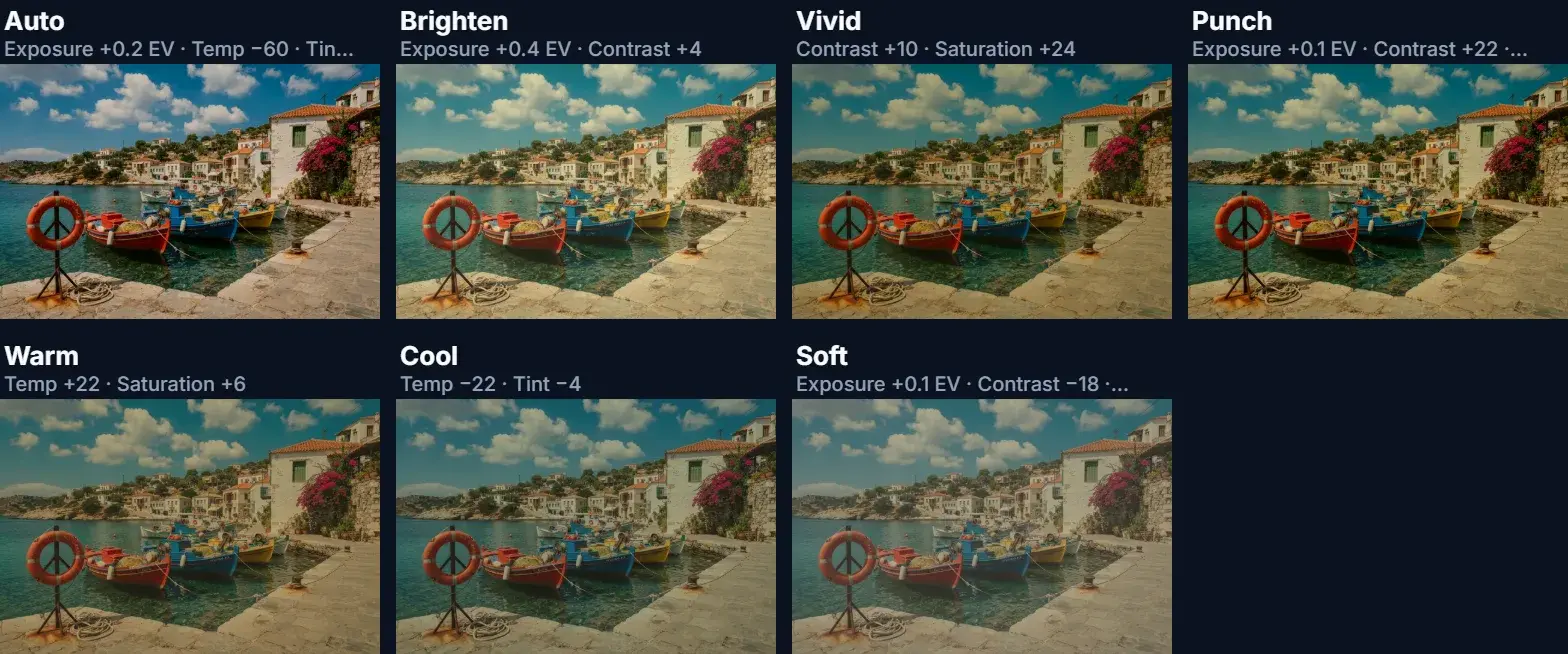
They are the HueFold editor's six fixed looks, with the same values. Each sets the same five controls Auto does, but to fixed amounts rather than measured ones, so they behave the same on every photo. The strength slider scales whichever one is chosen.
On the dulled sample, which needed white balance more than anything, the fixed looks show their limits: Brighten raised the median to 49.0% but left the yellow cast at 21.1%; Vivid and Punch made the cast stronger, because more saturation strengthens whatever colour is there. That is the case for starting with Auto on a photo with a colour problem, and using the looks on photos whose colour is already right.
| Look | What it sets | Median brightness | Tonal range | Colour cast |
|---|---|---|---|---|
| Auto | Exposure +0.2 EV, Temp −60, Tint +60, Contrast +30 | 41.4% | 68.1% | 10.3% |
| Brighten | Exposure +0.4 EV, Contrast +4 | 49.0% | 62.8% | 21.1% |
| Vivid | Contrast +10, Saturation +24 | 37.0% | 51.8% | 27.9% |
| Punch | Exposure +0.1 EV, Contrast +22, Saturation +10 | 38.3% | 60.5% | 27.5% |
| Warm | Temp +22, Saturation +6 | 38.4% | 47.3% | 24.0% |
| Cool | Temp −22, Tint −4 | 38.1% | 47.0% | 18.2% |
| Soft | Exposure +0.1 EV, Contrast −18, Saturation −8 | 43.1% | 42.0% | 14.8% |
What is the difference between clarity and sharpening?
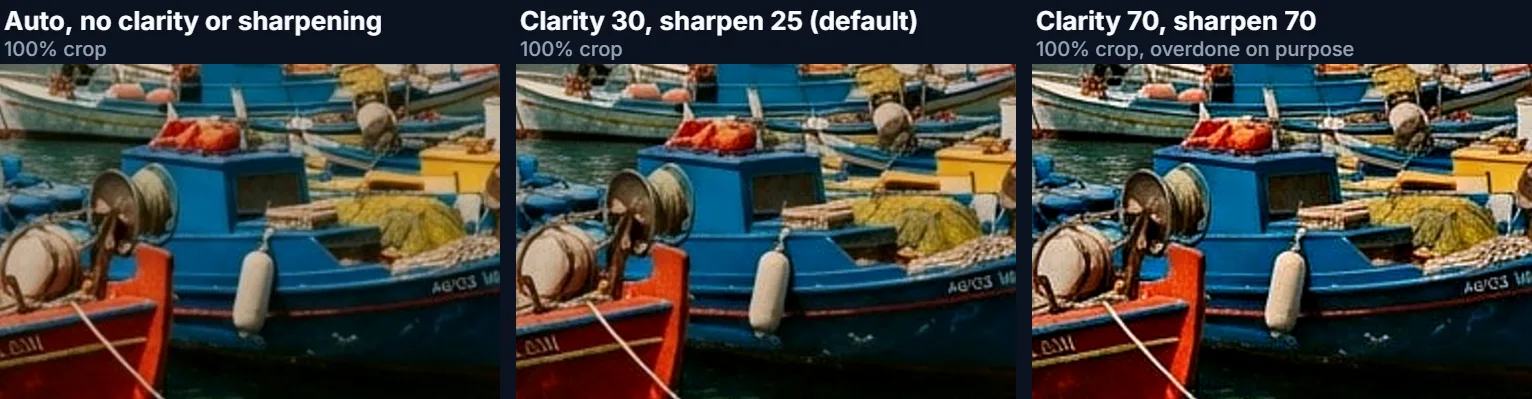
Both are unsharp masks: the photo is blurred, the blurred copy is subtracted, and the difference is added back to strengthen edges. They differ in scale. Sharpen works on fine edges, with a radius of about 0.6 px on a photo the size of the sample, and makes hair, text and texture crisper. Clarity works on large shapes, with a radius of 1.2% of the photo's short side (about 10 px here), and gives mid-sized forms such as boats, walls and faces more local contrast without touching the overall brightness.
Both skip differences of a few levels, so flat areas like sky are left alone instead of having their noise amplified. The defaults (clarity 30, sharpen 25) are deliberately mild; the figure shows the same crop with none, the defaults, and an overdone 70 and 70, where bright halos appear along the edges.
Is this enhancer AI, and is it safe for real photos?
It is automatic rather than generative. The decisions are made by measuring your photo, not by a model that redraws it, so every pixel of the result comes from a pixel of your original, only brighter, more neutral or with stronger edges. That makes it predictable: the same photo always gives the same result, and the panel tells you exactly which corrections were applied.
That is also its limit. It cannot repair a photo that is out of focus, recover a face lost in shadow noise, or fill in blown-out highlights; nothing that only redraws the picture can do that honestly either, and a generative tool would be inventing what is not there. For a small photo that needs more pixels, use the AI Image Upscaler after enhancing.
What do the before and after numbers in the tool mean?
Median brightness is the middle brightness of all pixels, from 0% (black) to 100% (white); a well exposed everyday photo usually sits between 35% and 60%. Tonal range is the spread between the 2nd and 98th percentile, so a few specks of pure black or white do not count; a flat, hazy photo has a small range. Colour cast is the larger of the midtones' red-to-green and blue-to-green imbalance; under about 3% looks neutral, though scenes full of sky and water, like the sample, lean blue by nature. The focus measure is a standard sharpness score that rises with edge contrast.
All four are measured on the working copy the tool shows you (at most 1,100 px on the long side), before and after, so you can see whether a change helped rather than guessing from a small preview.
Is the photo uploaded, and which files work?
Nothing is uploaded and no account is needed: the enhancement is calculated in your browser tab. The tool opens JPG, PNG and WebP up to 40 megapixels; very large photos are processed at the largest canvas a phone browser allows (about 16.7 megapixels). It saves JPG, PNG or WebP at full size, without EXIF data.
HEIC photos from recent iPhones need converting to JPG first. Transparent PNGs keep their transparency when saved as PNG or WebP.
Why does my enhanced photo look too pink, too flat or too crunchy?
Too pink or too blue: Auto assumes the midtones of a scene average out to grey. A sunset, a candle-lit room or a forest is not grey on purpose, and correcting it removes the mood. Lower the strength, or switch to Brighten or Punch, which leave the colour balance alone.
Too flat: Soft lowers contrast by design; choose Punch, or raise clarity. Too crunchy, with halos along edges: lower Sharpen and Clarity; above about 60 they start to outline everything. Too dark still: Auto stops at a mid-grey on purpose; Brighten adds a third of a stop more.
Frequently asked questions
How do I enhance a photo online?
Open it above. Auto corrects exposure, white balance and contrast straight away; adjust the strength, clarity and sharpening, then download.
Is the AI photo enhancer free?
Yes. It runs in your browser with no account, no watermark and no limit on photos.
Is my photo uploaded?
No. The photo is analysed and enhanced on your device; only the optional sample is downloaded from HueFold.
Does it use generative AI?
No. Auto measures the photo and sets five standard corrections. It never adds faces, textures or objects that were not in the photo.
What does Auto change?
Exposure towards a mid-grey median, white balance so the midtones are neutral, contrast for flat photos, and saturation only for near-colourless ones.
Can it fix a blurry photo?
It can sharpen edges, but it cannot restore focus that the camera missed. Mild blur improves; real blur stays.
Is it the same as the HueFold editor’s Enhance?
Yes. Auto and the six looks use the editor’s code and values, so a photo enhanced here matches one enhanced in the editor.
Why did Auto make my sunset less orange?
Auto assumes a neutral scene. For warm light you want to keep, lower the strength or use Brighten or Punch.
What is the difference between clarity and sharpen?
Sharpen strengthens fine edges; clarity adds local contrast to larger shapes. Both leave flat areas alone.
Which formats can I save?
JPG, PNG or WebP, at the photo’s full size (up to about 16.7 megapixels in a phone browser).
Does enhancing remove EXIF data?
Yes. The saved photo is written from pixels only and carries no camera details or location.
Related tools
- Photo Effects — 36 looks from the HueFold editor, from cinematic to film.
- AI Image Upscaler — Enlarge a small photo 2×, 3× or 4× after fixing it.
- B&W Image Filter — When colour cannot be saved, a good black and white often can.
- Crop Image — Straighten the framing with a crop to any ratio.
- Photo Blur — Soften a busy background or hide a detail.
- Background Remover — Cut the subject out of an enhanced photo.