B&W Image Filter
Turn a colour photo black and white, then decide how: a colour filter for the sky or the skin, contrast, shadows, highlights, film grain and a warm or cool tone. It all runs in your browser.
Updated

How do you make a photo black and white?
To make a photo black and white, every pixel's colour is turned into a shade of grey. The interesting part is how: a red door and a blue sky can be equally bright in colour and still need to look different in grey. The B&W Image Filter on this page lets you decide. Upload a photo and it turns black and white at once; then pick one of eight looks, or choose a colour filter, and set contrast, shadows, highlights, film grain and a warm or cool tone.
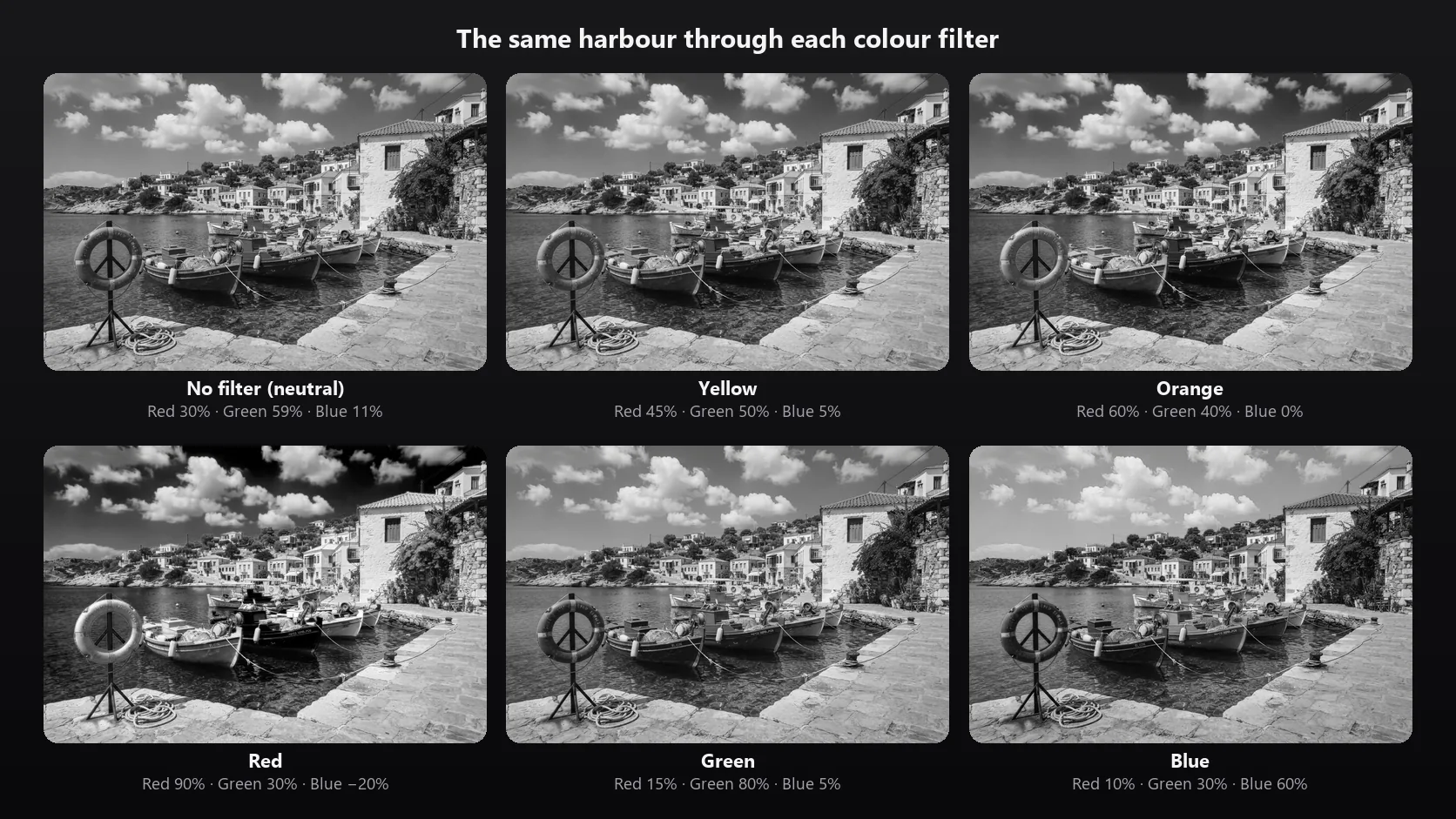
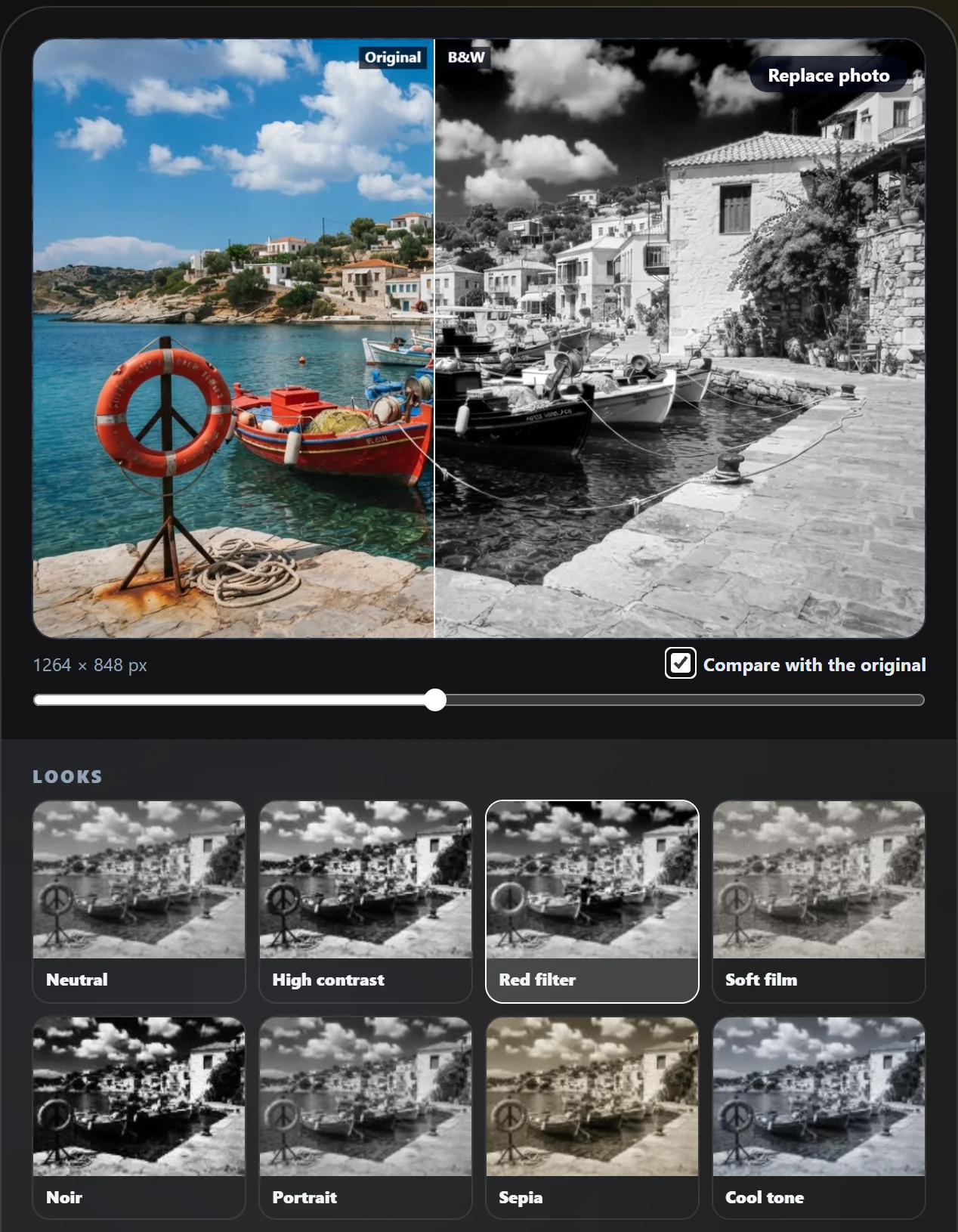
A colour filter decides which colours turn light and which turn dark, the way a coloured glass filter in front of black-and-white film does. A red filter makes a blue sky almost black and the clouds stand out; a green filter lightens leaves; an orange filter smooths skin. The comparison under the hero shows the same harbour photo in colour and through the red filter.
Everything happens in your browser, at your photo's own size, so nothing is uploaded and nothing needs an account. Download the result as a PNG or JPG, or open it in HueFold Studio to keep designing.
How to make a photo black and white
- Upload a photo Drop a JPG, PNG or WebP photo of up to 25 MB on the tool, or try the harbour or portrait sample. It turns black and white straight away.
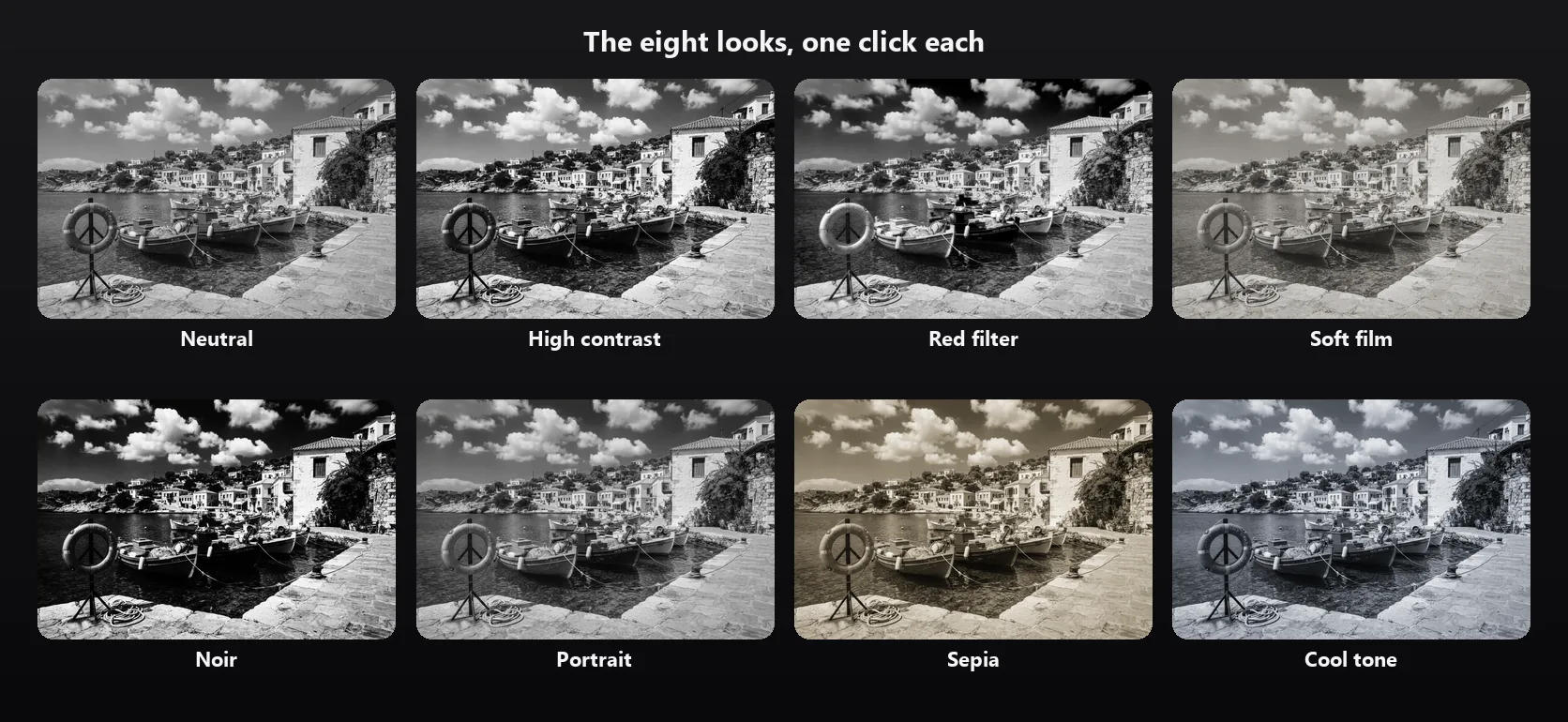
- Pick a look Start from Neutral, High contrast, Red filter, Soft film, Noir, Portrait, Sepia or Cool tone. Each thumbnail shows your own photo in that look.
- Choose a colour filter Yellow, orange, red, green or blue decide which colours turn light and which turn dark. Tick Compare to see the original beside it.
- Fine-tune Set brightness, contrast, highlights, shadows and film grain, and add a warm or cool tone. The preview updates as you drag.
- Download Save a PNG or a JPG at your photo's own size, up to 4096 pixels, or continue editing in HueFold Studio.
Make a photo black and white with the B&W Image Filter
A real run of the tool on this page: the harbour sample is converted, compared with the original, tried in five looks and three colour filters, adjusted with contrast, shadows, grain and a warm tone, and downloaded.
- Open the harbour sample, a 1264 × 848 photo. It turns black and white at once, in the Neutral look.
- Tick Compare with the original and drag across the photo: colour on the left, black and white on the right.
- Try the looks: High contrast, Red filter, Noir, Soft film, and back to Red filter.
- Try the colour filters. Blue makes the sky pale and the red boat dark, green is in between, and red turns the sky nearly black.
- Raise Contrast to +40, lower Shadows to -25 and add Film grain 30.
- Pick the Warm tone at strength 30.
- Choose JPG and download the photo at its own size.
How the B&W image filter works
The conversion runs in four steps, all in your browser. First, each pixel's grey is worked out from its red, green and blue: a share of each, added up. That mix is the channel mix, and it is what the looks and colour filters change. The three shares are scaled to add up to 100%, so changing the mix moves colours lighter or darker against each other without making the whole photo brighter or darker.
Second, the grey goes through a tone curve made from the brightness, shadows, highlights and contrast sliders. Third, film grain is added if you asked for it. Fourth, a warm or cool tone is laid over the grey if you picked one. Transparent pixels stay transparent throughout, so a cut-out PNG comes back as a black-and-white cut-out.
The preview you see is converted again on every change, at up to 1200 pixels; on a desktop computer that took between 9 and 28 milliseconds in our tests, which is why the sliders feel live. Download, Studio and the editor convert your photo at its own size, up to 4096 pixels on the long edge, with exactly the same settings. A 4096 × 2748 pixel photo took between 0.1 and 0.35 seconds; a phone will be slower.
Colour filters: which colours turn light or dark
Black-and-white photographers have long put coloured glass in front of the lens. The filter lets its own colour through and holds back the others, so on the film its colour comes out lighter and the opposite colour darker. The six colour filters in this tool do the same thing with the channel mix.
No filter uses the standard luma weights (30% red, 59% green, 11% blue), an even conversion that looks like a plain grayscale photo. Yellow and orange take more of the red and less of the blue, so blue skies darken a little and skin looks smoother. Red takes 90% red and subtracts 20% blue, which turns a blue sky nearly black and makes clouds and red things glow; it is the classic choice for dramatic landscapes. Green lightens leaves and grass and darkens skin and lips. Blue does the opposite of red: a pale sky, dark red boats and a dark red life ring.
Choosing a filter replaces the mix. To set your own, open Channel mix and drag the red, green and blue sliders anywhere from -50 to 150; the percentages beside them show the share each one ends up with.
| Colour filter | Red | Green | Blue | What it does |
|---|---|---|---|---|
| None | 30% | 59% | 11% | An even conversion |
| Yellow | 45% | 50% | 5% | Slightly darker sky |
| Orange | 60% | 40% | 0% | Smooth, light skin; darker sky |
| Red | 90% | 30% | -20% | Dramatic dark sky, light reds |
| Green | 15% | 80% | 5% | Light leaves, darker skin and reds |
| Blue | 10% | 30% | 60% | Light sky, dark reds |
The eight looks
A look is a starting point: a colour filter and slider settings chosen together, applied with one click. Every look's thumbnail is your own photo converted with it, so you can see the result before you pick. After choosing a look, every control is still yours to change; the look's button simply stops being highlighted once the settings no longer match it.
The table lists exactly what each look sets. Anything not listed stays at zero, and Reset to neutral puts everything back to the first look.
| Look | Colour filter | Settings |
|---|---|---|
| Neutral | None | Nothing else |
| High contrast | None | Contrast +45, shadows -20, highlights +15 |
| Red filter | Red | Contrast +15 |
| Soft film | Yellow | Contrast -20, shadows +25, grain 35, warm tone 20 |
| Noir | Orange | Brightness -10, contrast +70, shadows -30, grain 20 |
| Portrait | Orange | Brightness +8, contrast +10, highlights -15 |
| Sepia | Yellow | Contrast +10, warm tone 75 |
| Cool tone | None | Contrast +20, cool tone 50 |
Black and white portraits: skin and colour filters
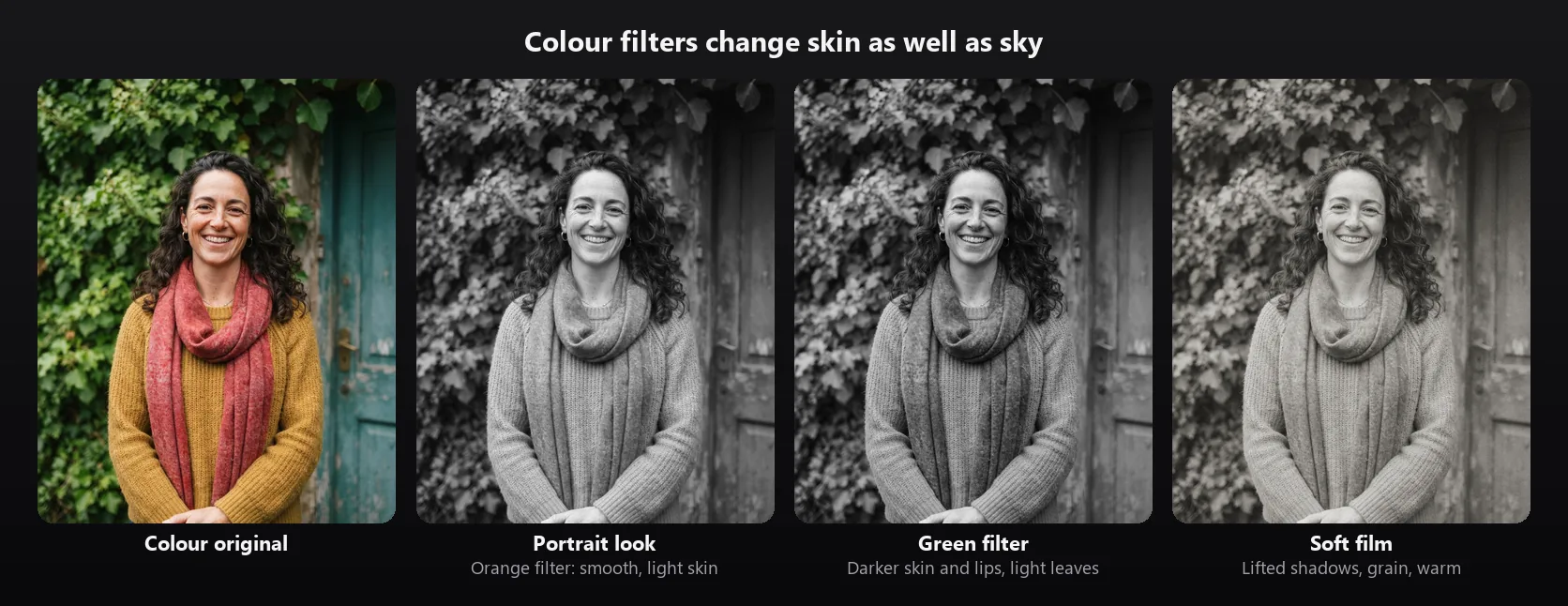
Skin is mostly red and yellow, so the colour filter changes faces more than any slider does. Filters that favour red, like orange and red, make skin lighter and smoother and hide blemishes and freckles; that is why the Portrait look uses the orange filter, lifts brightness a little and pulls highlights down so a bright forehead keeps its detail. Filters that favour green or blue do the opposite: skin, lips and freckles come out darker and more textured, which can suit a weathered, characterful portrait but rarely a flattering one.
In the portrait sample, the yellow sweater and the red scarf also change with the filter. Under the orange filter both turn light; under the green filter the scarf darkens and the ivy behind turns pale. When a portrait looks flat in black and white, try a different filter before reaching for contrast: separating the person from the background often does more than a stronger curve.
Brightness, contrast, shadows and highlights
The four tone sliders act on the grey, after the colour filter, and each runs from -100 to +100. Double-click a slider to put it back to zero.
Brightness lifts or lowers the midtones while pure black stays black and pure white stays white, so a brighter photo does not turn washed out and a darker one does not lose its highlights. Shadows works on the darker tones, most strongly a third of the way up from black, and Highlights on the lighter tones, most strongly two thirds of the way up: raise Shadows to open up a dark doorway, lower Highlights to bring back a bright sky.
Contrast above zero steepens the midtones along a smooth S-shaped curve, so the photo gets punchier without any tones being cut off; at +70, as in the Noir look, a grey a quarter of the way up from black drops to about an eighth. Below zero it pulls every tone towards middle grey, by up to 60% at -100, for a soft, faded print. The combinations in the looks are a good guide: Noir pairs high contrast with lower shadows, Soft film pairs lower contrast with raised shadows.
Film grain and warm or cool tones
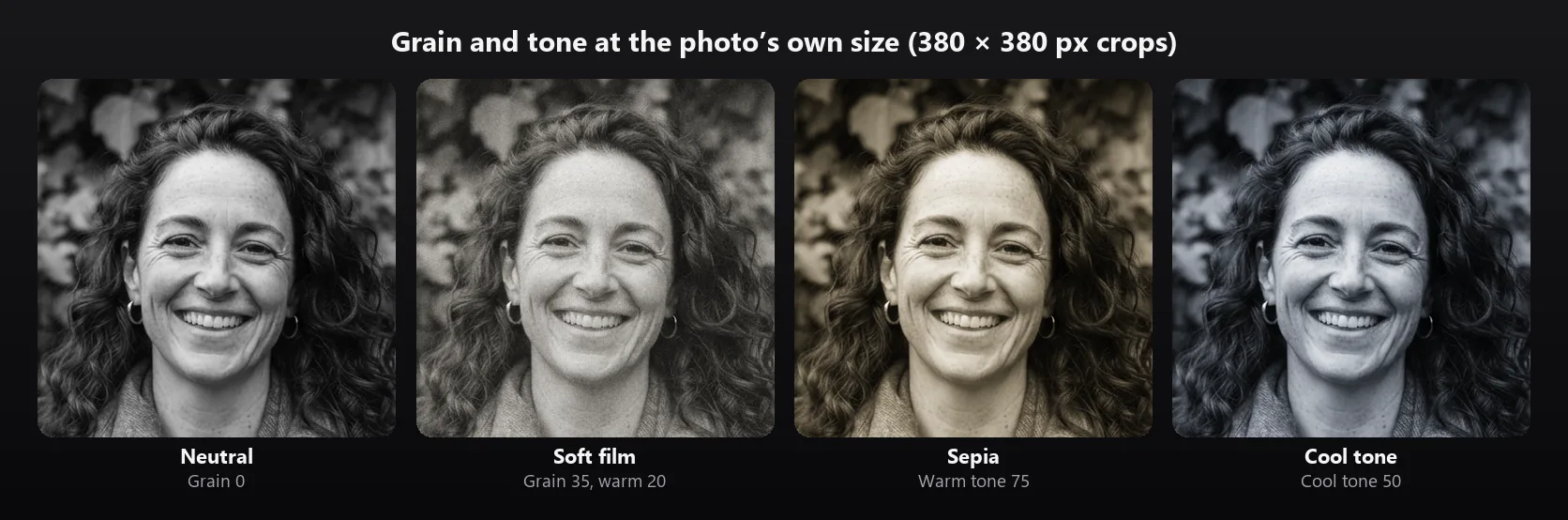
Film grain adds a fine, random texture like the silver grains of black-and-white film. It is strongest in the midtones and weakest in clean blacks and whites, the way real grain shows most on grey skies and skin. The grain is fixed to your photo: about 1400 grain cells across its long edge, in the same place in the preview as in the download, so what you see is what you save. Zoom in on the download and you will find it at full resolution, not scaled up from the preview.
Tone tints the grey. Warm gives the brown of a sepia or selenium-toned print and Cool the blue-grey of a cyanotype-like print; Tone strength runs from 0 to 100, and the tint is strongest in the midtones so blacks and whites stay clean. At full strength Warm adds about 9% red and takes away about 8% blue in the midtones. The Sepia look uses Warm at 75 and the Cool tone look uses Cool at 50. A toned photo is no longer strictly grey, so it downloads as a colour image.
Black and white or grayscale?
A grayscale image and a black-and-white photo are both made of greys, and the words are often used for the same thing. The difference is in how much you decide. A plain grayscale conversion uses one fixed mix of red, green and blue, which is what the Neutral look and the None filter do here. A black-and-white edit chooses the mix to separate the subject from its background, then shapes the tones with contrast, shadows and highlights, and sometimes adds grain or a tint.
If you just need a grey copy of an image, for printing or for a document, Neutral is enough, and the Grayscale Image tool does that job too. If the photo is the point, try the colour filters first: they are the one thing you cannot fix afterwards, because once the colour is gone the grey of a red and a blue of the same brightness can no longer be told apart.
Privacy, size and file formats
Your photo is never uploaded by the filter: it is opened, converted and saved in your browser, and no account is needed. The only time a picture leaves your device is when you click Continue editing in HueFold Studio, which asks you to sign in and uploads the black-and-white photo and your original to your HueFold account.
Photos up to 25 MB open; phone photos are turned the right way up from their EXIF data. A photo larger than 4096 pixels on its long edge is resized to 4096 first, which keeps it within the canvas size every phone browser allows; the size you are working at is shown under the preview. Download a PNG, which is lossless and keeps transparency, or a JPG, which is much smaller and is saved at quality 92 with any transparent areas on white. The file is named after your photo with -bw added.
| What | Limit |
|---|---|
| Photo you upload | JPG, PNG or WebP, up to 25 MB |
| Working size | Your photo's own size, up to 4096 px on the long edge |
| Preview | Up to 1200 px, converted on every change |
| Looks | 8, each adjustable afterwards |
| Colour filters | None, yellow, orange, red, green, blue, or your own channel mix |
| Sliders | Brightness, contrast, highlights, shadows (-100 to +100); grain (0 to 100) |
| Tone | Neutral, warm or cool, strength 0 to 100 |
| Transparency | Kept |
| Photo you download | PNG, or JPG at quality 92 |
| Account | Not needed; only to open the result in Studio |
What people use black and white for
A few jobs where black and white does more than colour.
- Give a busy street or travel photo one clear subject by taking away the colours that compete with it.
- Make a dramatic landscape: the red filter turns a blue sky dark and the clouds bright.
- Save a photo with mixed lighting, where orange lamps and blue daylight clash in colour.
- Make product photos on a brand page match, whatever colour the products are.
- Give portraits and headshots a timeless, editorial feel with the Portrait or Soft film look.
- Make a background photo calm enough for text to sit on in a poster, post or slide.
Troubleshooting
The problems people run into most, and what fixes them.
- The photo looks flat and grey: pick a colour filter that separates the subject from the background, then add contrast.
- The sky is too dark or has turned black: the red filter does that to blue skies. Try orange or yellow, or raise Highlights.
- Skin looks blotchy or too dark: switch to the orange filter or the Portrait look; green and blue darken skin.
- The download looks different from the preview: it should not. Zoom in on the download to see grain at its full resolution, and check the working size under the preview.
- A large photo came out smaller: photos over 4096 pixels on the long edge are resized to 4096 before converting.
- The tone looks too strong: lower Tone strength, or pick Neutral to remove the tint.
Black and white in HueFold Studio
This page converts one photo at a time. To build something with it, click Continue editing in HueFold Studio: after signing in, the black-and-white photo opens in a new design the shape of the photo, ready for text, stickers and layouts, with your original and your settings kept.
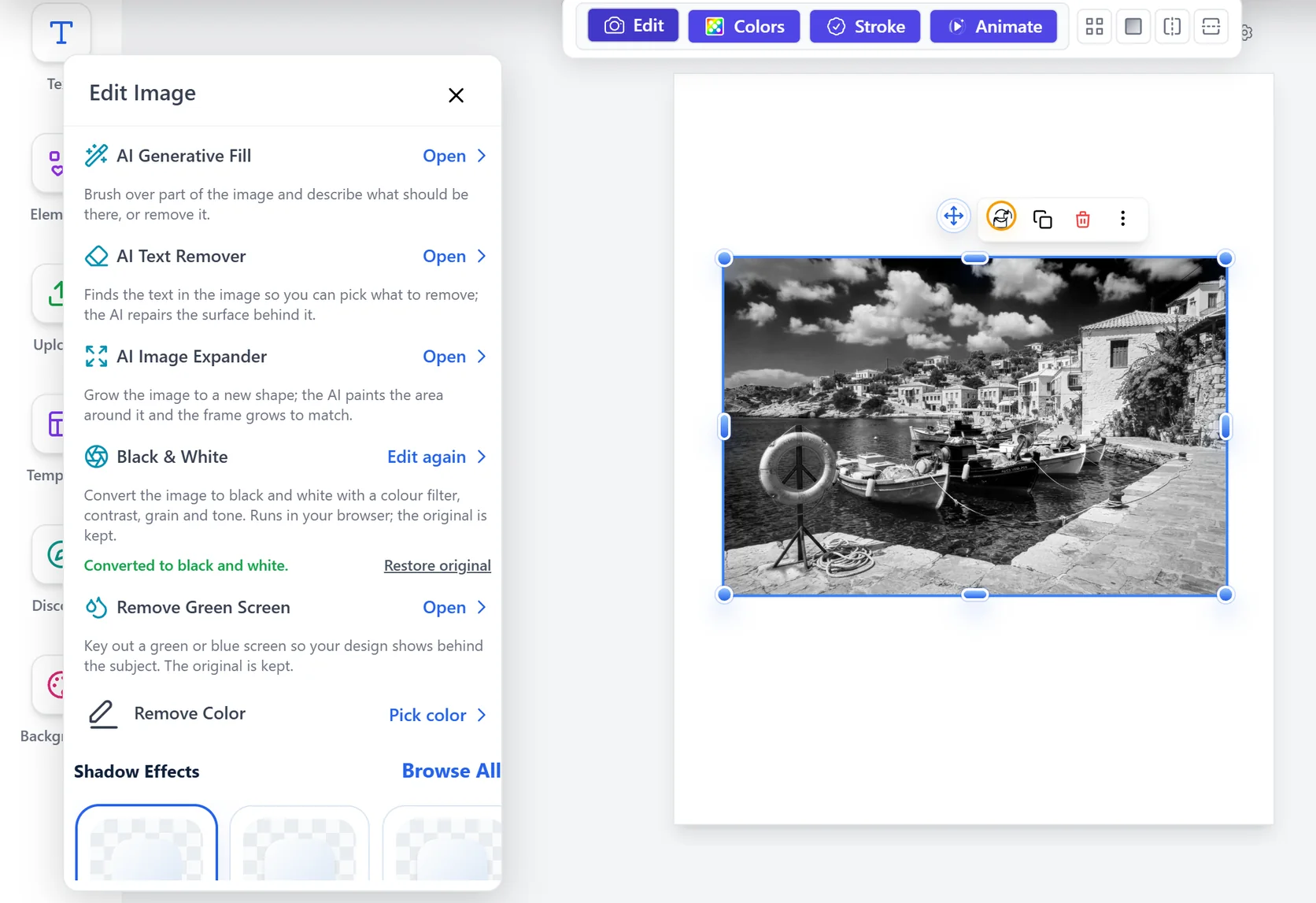
The same filter is in Studio for any image in a design. Select the image, open Edit and choose Black & White: the same looks, colour filters, sliders and compare view, applied to the image in place. Edit again opens the original photo with the settings you last used, rather than converting an already converted picture, and Restore original brings the colour back.
Frequently asked questions
How do I make a photo black and white?
Upload the photo to the tool on this page; it turns black and white straight away. Pick a look or a colour filter, adjust contrast, shadows, highlights, grain and tone if you like, and download a PNG or JPG.
Is the B&W image filter free?
Yes. It runs in your browser, needs no account and uses no credits. Signing in is only needed to open the result in HueFold Studio.
Is my photo uploaded?
No. The photo is opened, converted and saved in your browser. Only Continue editing in HueFold Studio uploads it, to your own HueFold account.
What does a colour filter do in black and white?
It decides which colours turn light and which turn dark. The filter's own colour comes out lighter and its opposite darker: a red filter darkens a blue sky, a green filter lightens leaves.
Which filter makes the sky dark and dramatic?
The red filter, or the Red filter look. It turns a blue sky nearly black so the clouds stand out. Orange and yellow darken the sky less.
Which colour filter is best for portraits?
Usually orange, which the Portrait look uses: it makes skin lighter and smoother. Green and blue make skin and lips darker and more textured.
Can I add film grain or a sepia tone?
Yes. The Film grain slider adds grain that is strongest in the midtones, and Tone adds a warm (sepia) or cool tint at the strength you choose. The Soft film and Sepia looks use both.
Does it keep transparency?
Yes. Transparent areas stay transparent; download a PNG to keep them. A JPG puts them on white.
What size photo can I use?
JPG, PNG or WebP up to 25 MB. It is converted at its own size up to 4096 pixels on the long edge; larger photos are resized to 4096 first.
Can I get the colour back?
Your original file is never changed, so just open it again. In HueFold Studio, Restore original in the Black & White panel brings the colour back.
Can I convert a photo to black and white online?
Yes, with the tool on this page. It works in your browser, so the photo is converted on your own device and not uploaded.
Is black and white the same as grayscale?
Both are made of greys. A grayscale conversion uses one fixed colour mix, like the Neutral look; a black-and-white edit also chooses the mix with a colour filter and shapes contrast, shadows and highlights.
What photos work best with a B&W filter?
Photos with clear light and shade or strong shapes: portraits, street scenes, architecture and landscapes with clouds. Photos whose subject differs from the background only in colour need a colour filter to stay readable.
Can I add text after applying the filter?
Yes. Click Continue editing in HueFold Studio to open the black-and-white photo in a new design, where you can add text, logos and layouts.
Related tools
- Grayscale Image — A plain grey conversion of any image.
- Photo Effects — More looks and filters for your photos.
- AI Filter — Restyle a photo with AI.
- Vignette — Darken the edges to frame the subject.
- Brighten Image — Fix a dark photo before converting it.
- Add Text to Photo — Put words on your black and white photo.