Images to Video Maker
Turn photos into a video in your browser: choose how long each shows, add crossfades and a slow zoom, pick 9:16, 16:9 or square, and add music. MP4 out, nothing uploaded.
Updated

How do you make a video from photos?
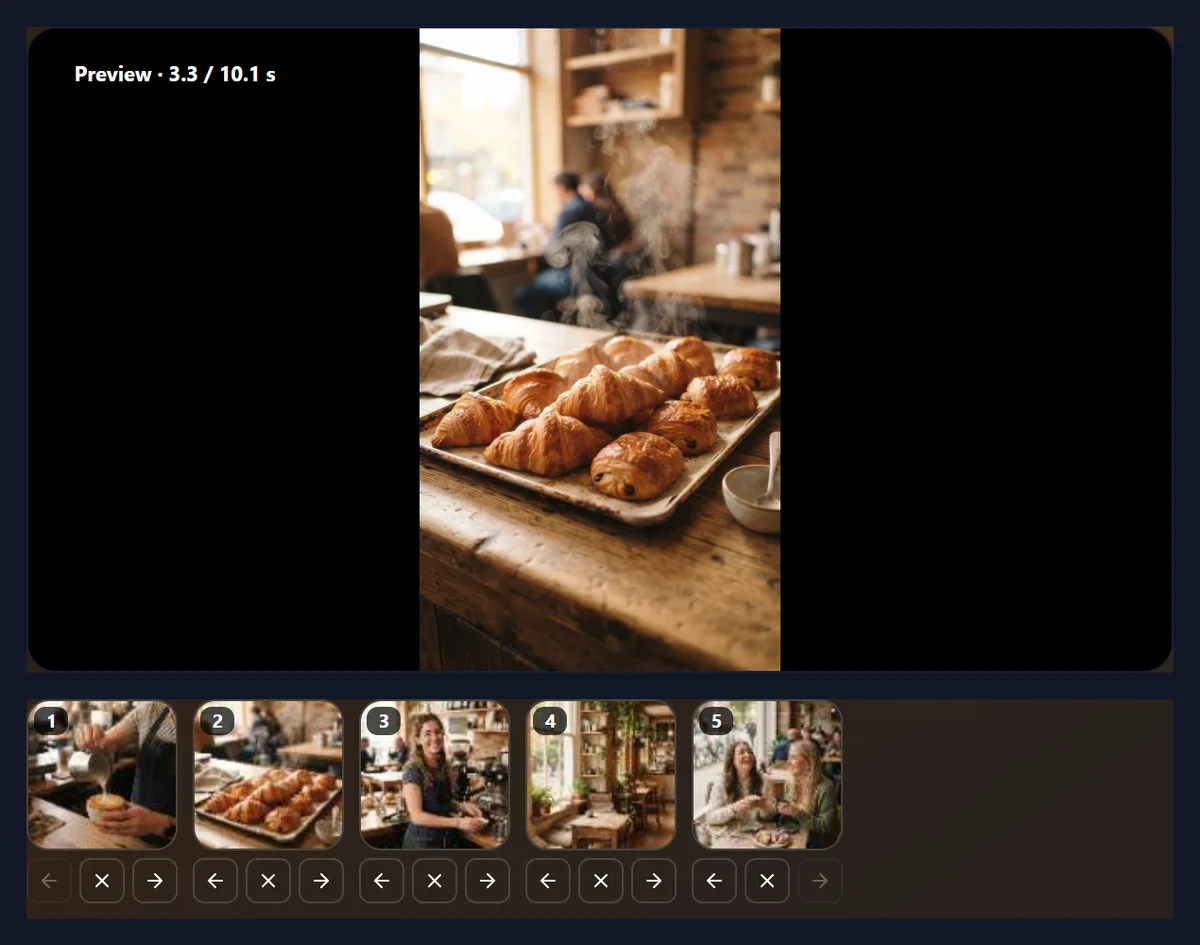
Add your photos and put them in order, choose how long each one shows and the transition between them, pick the shape of the video and, if you like, music. The preview plays the slideshow as it will be. Press Make the video and download the MP4.
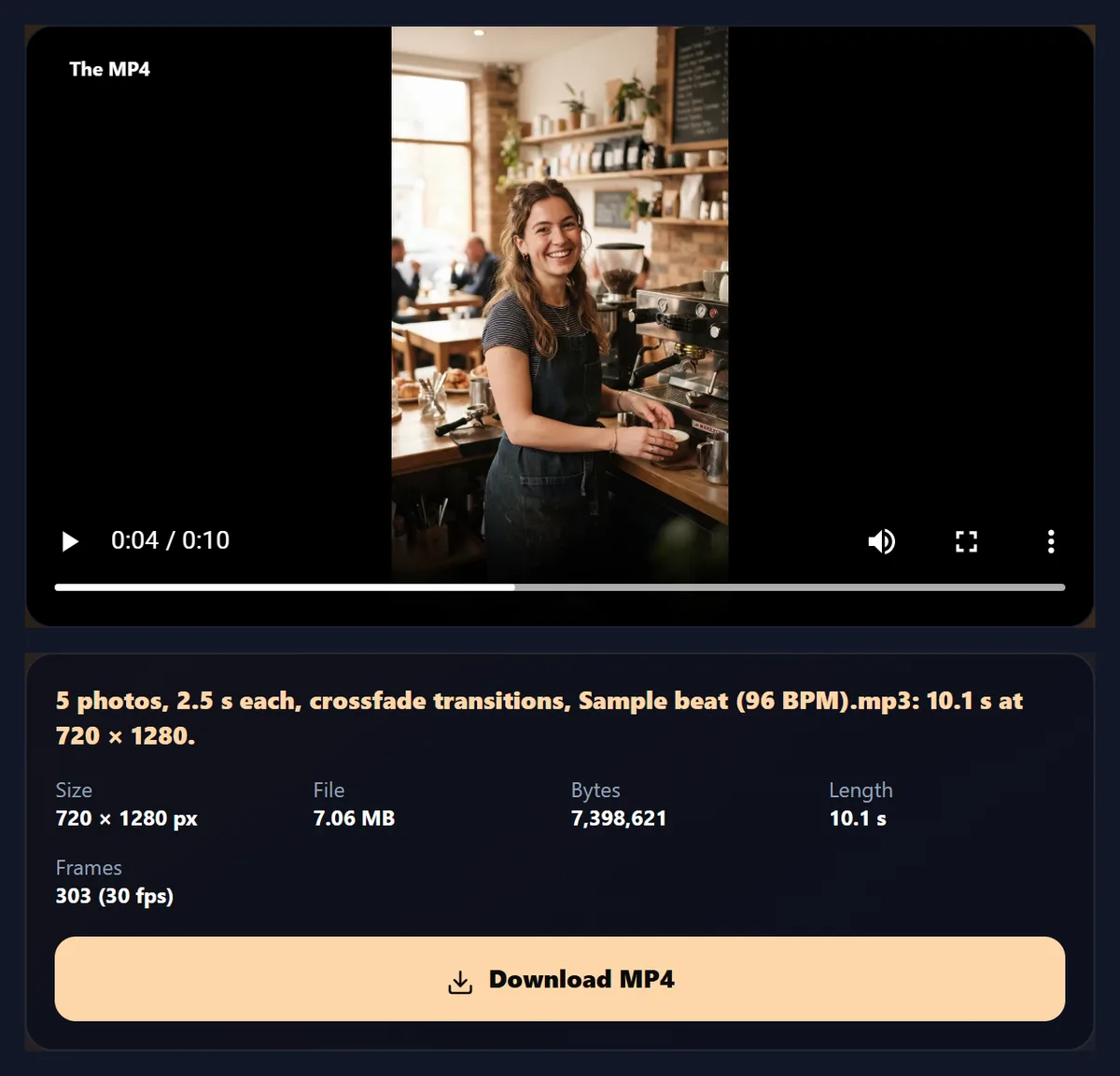
The five sample photos at 2.5 seconds each became a 10.1-second 9:16 video, 720 × 1280 at 30 frames a second, in 2 seconds. Everything happens in your browser.
How to turn photos into a video
- Add photos Up to 30, in the order you want.
- Set the timing Seconds a photo, transition and movement.
- Pick shape and music 9:16, 16:9, 1:1 or 4:5; the sample beat or yours.
- Make and download An H.264 MP4 at 30 frames a second.
Make a video from five photos
A real recording of this tool: the sample photos added, the timing and movement set, the shape tried, the sample beat added, and the MP4 made and played.
- The five sample photos are added.
- The time per photo and the slow zoom are set.
- The square and 9:16 shapes are tried.
- The sample beat is added as music.
- The MP4 is made and plays.
How long should each photo show, and how big is the video?
Two to four seconds a photo suits most slideshows: long enough to take a photo in, short enough to keep moving. The five sample photos as a 9:16 story at 720p with crossfades made a 5.1-second video at 1.5 seconds a photo and a 27.6-second one at 6 seconds. The file grew in step with the length, from 3.51 MB to 18.57 MB.
Every version came to about 0.68 MB a second, because the encoder aims at a fixed amount of data each second for the picture size, whatever the picture shows. So the length, not the photos, decides the size: to make a smaller file, show each photo for less time, use fewer photos, or choose 720p rather than 1080p.
| Each photo | Video length | MP4 size | Frames |
|---|---|---|---|
| 1.5 s | 5.1 s | 3.51 MB | 153 at 30 fps |
| 2.5 s | 10.1 s | 6.86 MB | 303 at 30 fps |
| 4 s | 17.6 s | 11.85 MB | 528 at 30 fps |
| 6 s | 27.6 s | 18.57 MB | 828 at 30 fps |
How do you turn photos into a video?
Add your photos, put them in order with the arrows under each one, and choose how long each shows, the transition between them, a slow zoom, the shape and the music. The preview plays the slideshow as it will look, and the line under it says how long the video will be and at what size. Press Make the video and the MP4 is ready to download a few seconds later.
The tool draws every frame of the slideshow, 30 a second, and encodes it as H.264 video in your browser, so making the video does not take as long as the video lasts: the 10.1-second sample took 2 seconds and the 27.6-second one 6.
How is the length worked out?
Each photo shows for the time you choose, and each transition overlaps the end of one photo with the start of the next. With five photos at 2.5 seconds and 0.6-second crossfades, that is 5 × 2.5 seconds less 4 overlaps of 0.6, or 10.1 seconds, as the measured MP4 confirms. With a straight cut there is no overlap, so five photos at 2.5 seconds last exactly 12.5 seconds.
A transition can never take more than half a photo's time, so short photos with long transitions still each get a moment on their own.
What does the slideshow look like frame by frame?
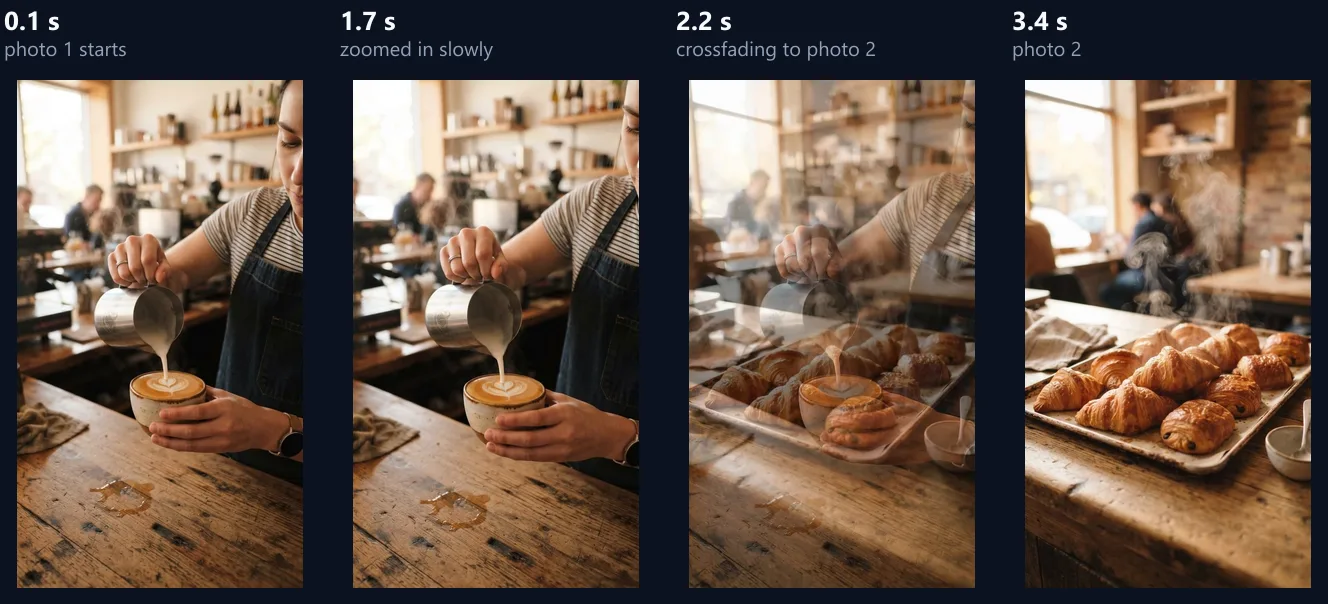
The figure shows four moments of the 2.5-seconds-a-photo sample. The first photo starts at its normal size and slowly zooms in; just before its time is up, the second photo fades in over it; then the second photo has the screen to itself and starts its own slow zoom.
The slow zoom, sometimes called a Ken Burns effect, makes still photos feel alive. Each photo grows by 12% over its time on screen. Choose Slow zoom out to start close and pull back, or Still for no movement.
Which transitions can I use?
Cut, crossfade, fade to black, fade to white, wipe, push, zoom and iris, the same transitions as the video transitions tool. A crossfade is the safe choice for most slideshows; fade to black feels slower and more formal; push and wipe feel lively. The length of the transition can be set from 0.3 to 1.5 seconds.
The same transition is used between every pair of photos, which keeps a slideshow calm. For a different transition at each join, make short videos and join them with the video transitions tool.
Which shape should the video be?
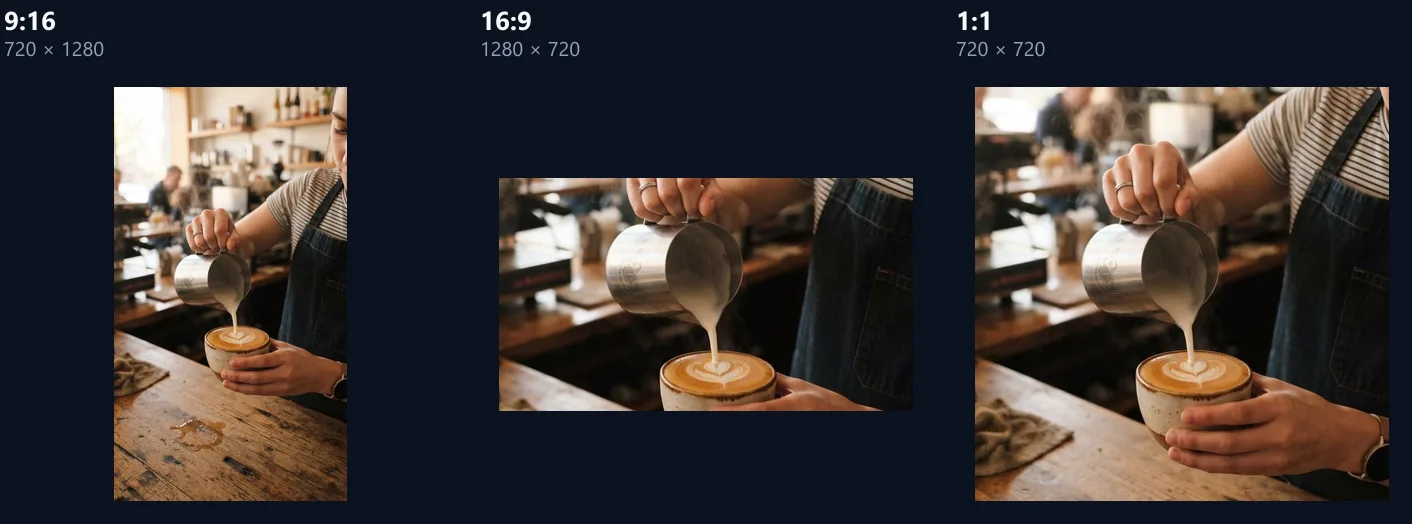
9:16 for Reels, Stories, TikTok and Shorts; 16:9 for YouTube, presentations and televisions; 1:1 or 4:5 for feeds. At 720p the 9:16 sample was 720 × 1280, the 16:9 one 1280 × 720, and the square one 720 × 720. Choose 1080p for a sharper video: 1080 pixels on the short side.
For the same 10.1 seconds, the 9:16 and 16:9 versions were 6.86 MB and 6.62 MB (the same number of pixels), and the square one 4.92 MB.
What happens to photos of a different shape?
By default each photo fills the frame and its edges are cropped, which suits a story and photos taken on a phone. Choose Fit on a blurred copy to show the whole photo over a blurred, darkened copy of itself, the look many apps use for landscape photos in a tall video, or Fit on black to show it on plain black.
Cropping always keeps the middle of the photo. If something important is near an edge, crop the photo first, or use one of the fit options.
Can I add music?
Yes: choose the sample beat, which was made for HueFold and is free to use, or your own music file (MP3, M4A, WAV or Ogg). The music starts with the first photo, repeats if it is shorter than the video, and fades out over the last 1.5 seconds so the video does not end mid-note. Set its volume from 10% to 150%. The sample slideshow with the beat at 90% had AAC sound averaging -14.7 dB below full scale, peaking at -2.1 dB, so it never clipped.
Use music you have the right to use, especially for anything you will publish: social sites mute or remove videos with music they detect as copyrighted.
How do I change the order of the photos?
Each photo has arrows to move it earlier or later, and a cross to remove it. Photos are added in the order you choose them; add more at any time with Add photos, up to 30.
Start with the strongest photo and end on one that feels like an ending: a wide shot, a smile or a logo. Viewers decide in the first second whether to keep watching.
Which photos can I use?
JPEG, PNG, WebP and any other picture your browser can open, from a phone or a camera. Phone photos are turned the right way up using the orientation saved in the file, and transparent PNGs are drawn on black.
Each photo is kept whole in memory and scaled as each frame is drawn, so very large camera files take a moment to open and use more memory; 30 photos straight from a camera can be too much for a phone. For a 1080p video, photos 1,080 pixels on their short side or larger look sharp; smaller ones are enlarged and look softer.
What can I make with it?
A memory video from a trip or a party, a product showcase from shop photos, a real-estate tour, a before-and-after, a portfolio reel, a menu or a birthday slideshow. The five sample photos make a short café reel.
For a reel with text over the photos, make the slideshow here and then add titles with the add text to video tool, or let the AI reel maker write and lay out a reel for you.
What kind of video file do I get?
An MP4 with H.264 video at 30 frames a second and, with music, AAC sound: the format every phone, computer, social app and editor plays. The encoder writes about six bits for every pixel each second, at least 4 and at most 16 megabits a second, so a 720p slideshow is about 0.7 MB a second and a 1080p one about twice that.
Because still photos are drawn into every frame, the file is as large as a video of the same length; the slow zoom and the transitions are what make it worth watching rather than a single photo.
How do I make a slideshow for Reels or TikTok?
Choose 9:16 and 1080p, keep each photo to 2 or 3 seconds, use crossfades or pushes, and add music: the sample beat, or a track you have the right to use. Put the most striking photo first, because people decide in the first second whether to keep watching.
To add a title or captions, make the slideshow here and then open the MP4 in the add text to video tool.
Can I make a slideshow on my phone?
Yes, in a current browser on Android or an iPhone: choose photos from your gallery and make the video as on a computer. It is saved to your downloads, ready to post.
Phones have less memory, so for long slideshows with many large photos choose 720p.
Are my photos uploaded?
No. The photos are opened, drawn and encoded into the video inside your browser tab. Nothing is sent to HueFold or anyone else, and there is no watermark or sign-up.
The music you choose stays on your device too.
Why will the video not make?
If the page says the browser cannot write MP4 video, use a current Chrome, Edge or Safari. If a photo will not open, it is in a format your browser cannot read, such as HEIC on some computers; convert it to JPEG first with the HEIC converter.
If making a long 1080p slideshow runs out of memory, choose 720p or use fewer photos.
Frequently asked questions
How do I make a video from photos?
Add the photos, choose the timing and shape, and press Make the video.
How many photos can I use?
Up to 30.
Can I add music?
Yes: the free sample beat or your own file.
Can I make a 9:16 video for Reels?
Yes. 9:16 is the default shape.
How long can each photo show?
From 1 to 8 seconds.
What format is the video?
MP4 with H.264 video and AAC sound, at 30 frames a second.
Are my photos uploaded?
No. The video is made in your browser.
Is there a watermark?
No.
Related tools
- AI Reel Maker — A reel written and laid out for you.
- Video Transitions — Join video clips with transitions.
- Add Text to Video — Titles and captions.
- Add Music to Video — Music under a video.
- Merge Videos — Join clips into one.
- HEIC to JPG — Open iPhone photos anywhere.