Resize Video for Instagram
Resize a video for Instagram in your browser: Reels and Stories at 1080 × 1920, feed posts at 4:5 or square, or landscape at 1080 × 566, filled or on a blurred copy.
Updated
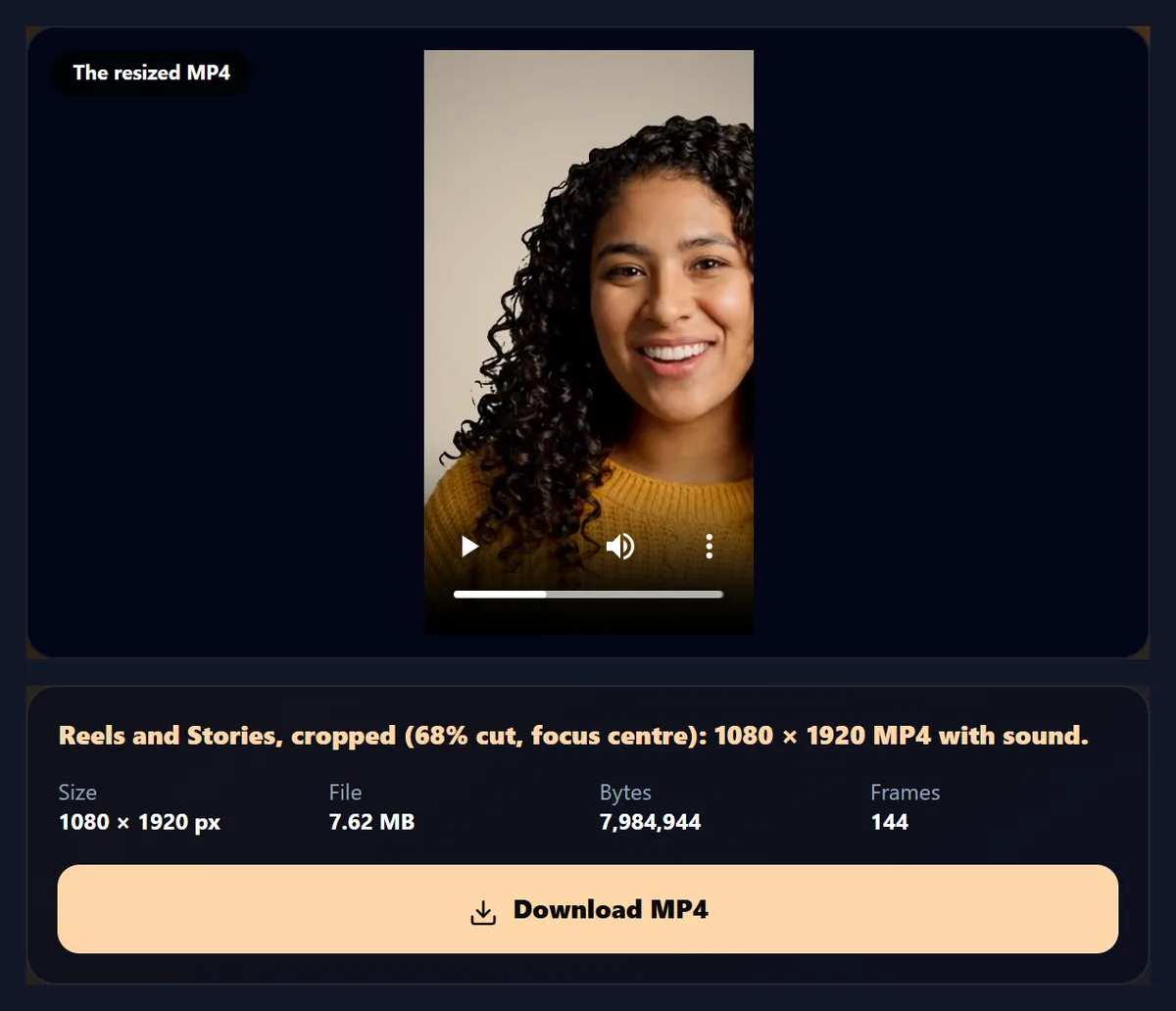
How do you resize a video for Instagram?
Open the video, choose Reels and Stories, Feed portrait, Feed square or Feed landscape, fill or fit it, and press Resize video. The MP4 is 1080 pixels wide in the shape you chose, with the sound kept.
The sample became a 1080 × 1920 Reel of 7.62 MB. Nothing is uploaded and there is no watermark.
How to resize a video for Instagram
- Open a video From your phone or computer.
- Choose the format Reels and Stories, or a feed shape.
- Fill or fit Crop with a focus, or fit on a blurred copy.
- Resize and download An MP4, 1080 wide, ready to post.
Resize a video for Instagram
A real recording of this tool: the sample opened, the four formats tried, fill and fit compared, and the Reel made.
- The sample video is opened.
- The feed and Reel formats are tried.
- Fit and fill are compared.
- The Reel is made.
What size should an Instagram video be?
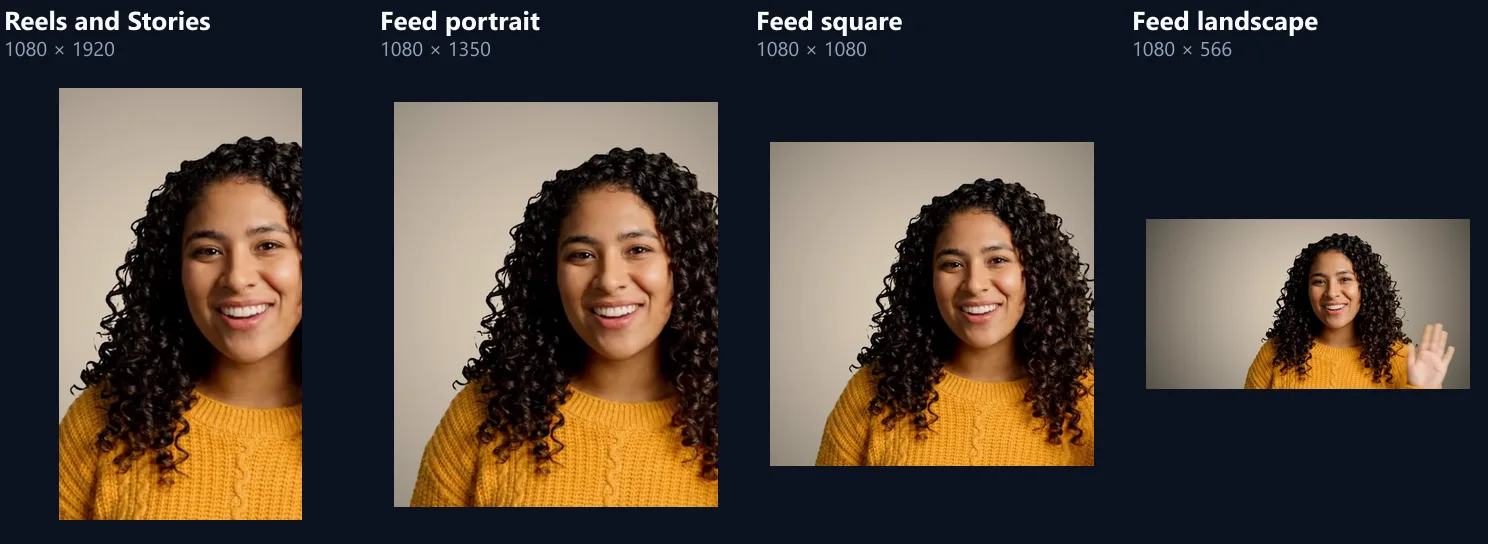
1080 pixels wide, in one of four shapes. Reels and Stories fill a phone screen at 9:16, 1080 × 1920. Feed posts can be anything from a 4:5 portrait, 1080 × 1350, through a square, 1080 × 1080, to a 1.91:1 landscape, 1080 × 566; a portrait takes up the most of the screen as people scroll.
The bigger the frame, the bigger the file: the 6-second sample resized by the tool was 7.62 MB as a Reel and 2.51 MB as a landscape post, because the encoder spends data in proportion to the pixels in each frame.
| Format | Shape | MP4 size | Picture |
|---|---|---|---|
| Reels and Stories | 9:16 | 7.62 MB | 1080 × 1920 |
| Feed portrait | 4:5 | 5.32 MB | 1080 × 1350 |
| Feed square | 1:1 | 4.37 MB | 1080 × 1080 |
| Feed landscape | 1.91:1 | 2.51 MB | 1080 × 566 |
How do you resize a video for Instagram?
Open the video and choose the format: Reels and Stories, Feed portrait, Feed square or Feed landscape. Choose Fill to crop the video to the new shape, sliding the focus to keep the subject in, or Fit to show the whole picture over a blurred copy of itself or a colour. Press Resize video and download the MP4.
The 16:9 sample became a 1080 × 1920 Reel with all 144 frames and its sound.
What does each format look like?
The figure shows the same moment of the sample in each format, filled. A wide video loses the most at 9:16, where a strip down the middle is kept; the landscape post keeps nearly the whole frame. Move the focus slider to choose which part of the frame is kept.
For Reels and Stories, keep faces and text away from the very top and bottom of the frame: Instagram puts its own buttons and captions there.
Can I keep the whole picture?
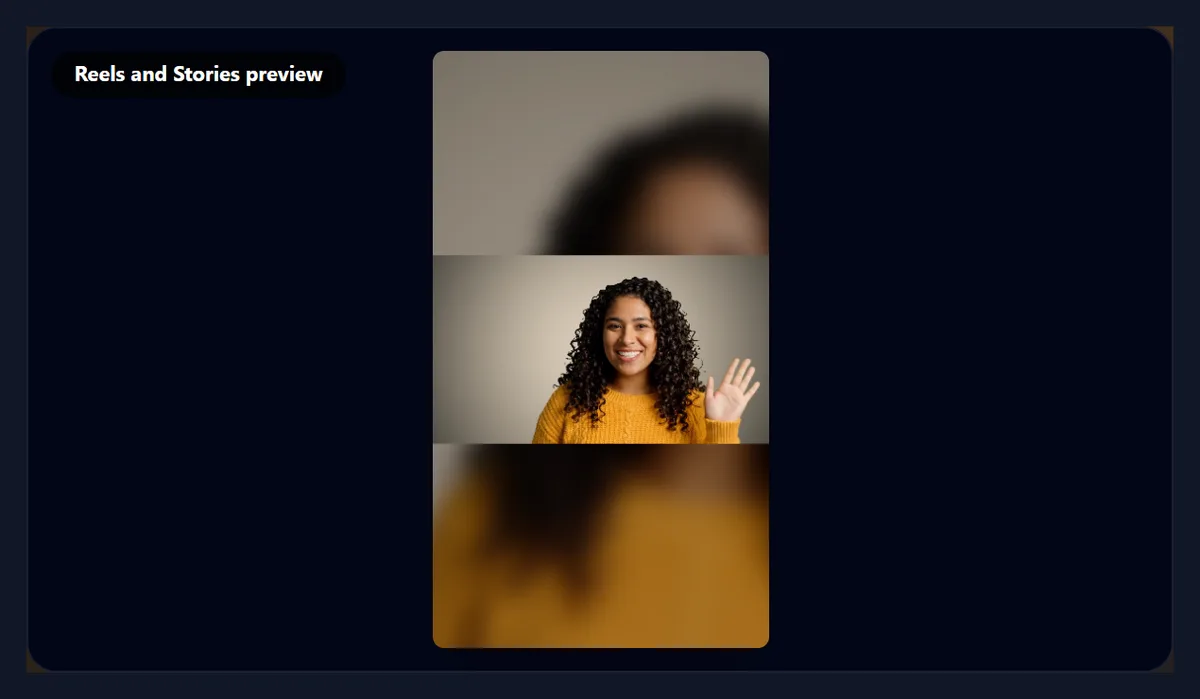
Yes: choose Fit (whole picture). The whole video is shown, and the empty space around it is filled with a blurred, darker copy of the same video, the look Instagram users know, or with black, white or navy. Nothing is cropped, at the cost of a smaller picture.
Fit is best for landscape videos with something important at the edges; Fill is best when the subject is in the middle.
Why 1080 pixels wide?
Instagram's recommended sizes for Reels, Stories and feed posts are all 1080 pixels wide, so making the video exactly that size means you choose the crop and the quality rather than leaving it to the app. Choose 720 wide for a smaller file when sharpness matters less.
A 4K phone video resized here keeps its detail at 1080 wide, rather than leaving the downscaling to the app.
Which format should I choose?
Reels and Stories for anything vertical, made for the full-screen feed; Feed portrait for posts, since it takes the most room in the feed; Feed square for grids and carousels that should look even; Feed landscape for wide footage you do not want to crop.
The same video can be made in several formats one after another: change the format and resize again.

Does this change how long the video is?
No: it changes only the frame. Every frame keeps its moment and the sound is kept. To shorten a video for a Story or a Reel, cut it first with the video splitter.
Instagram has its own limits on length and file size for each kind of post, and changes them from time to time; check the app if a video will not upload.
Will resizing lower the quality?
The video is re-encoded as H.264 at a generous bitrate for its size. Cropping keeps full detail in the part that is kept; if the source is smaller than the new frame, the tool warns that it is being enlarged, which looks softer.
Start from the original file from your phone or camera, not one already sent through a chat app, which compresses it.
How long does it take?
About twice the video's length: it plays through at half speed while every frame is resized and encoded, so that none is missed. The page shows how long before you start.
Keep the tab in front while it works.
Should I post a video as a Reel or a feed post?
Reels are shown full screen at 9:16, in the Reels tab and as people scroll; a feed post shows at its own shape, between 1.91:1 and 4:5. Make the 9:16 version for Reels and Stories, and a 4:5 version when you want a post that fills as much of the feed as a still photo can.
The same video can be resized to each format in a minute; pick each in turn and resize again.
What should I keep away from the edges?
Text, faces and logos. On Reels and Stories, Instagram draws the caption, the username, the buttons and the reply bar over the top and bottom of the frame, and on the right-hand side. Keep the important things in the middle of the frame.
In the feed, keep the subject near the middle too: previews and grids may show a cropped version of the frame.
How do I choose what is kept when filling?
Fill crops the video to the new shape and keeps the middle by default. Drag the Focus slider to keep more of the left or right (or the top or bottom) instead; the preview shows the result as you drag.
If the subject moves across the frame, Fit keeps all of it.
What can go behind a fitted video?
A blurred, darker copy of the video itself, the look most people know from Reels and Stories, or a plain black, white or navy background. The blurred copy fills the frame with the video's own colours, so it never clashes.
Plain backgrounds work well with captions added afterwards in the empty space.
What about the cover image?
Instagram lets you choose a cover for a Reel, either a frame of the video or an image you upload. Keep a frame in the video that would make a good cover, a clear face or a title, so it is easy to pick when posting.
A frame with little movement makes a sharper cover than one taken mid-motion.
Why does my video look worse after posting?
Every app compresses uploads again to save data, which can soften detail and band smooth colours. Uploading a clean 1080-wide video with a generous bitrate, like the ones made here, gives the app the best start; uploading a video that has already been compressed by a chat app gives it the worst.
Some apps also have a setting to upload at the highest quality; check it if videos look soft.
What else can I do before posting?
Add captions with the add text to video tool, music with add music to video, and cut it to length with the video splitter. Resize last, so the frame you choose here is the one that is posted.
For a Reel made from photos instead, use the images to video tool at 9:16.
Which videos can I resize?
Any video your browser can play: MP4 and MOV from phones, WebM, MKV and more, in any shape. The result is always an MP4 with H.264 video and AAC sound, which Instagram accepts.
If a video will not open, convert it with the video to MP4 converter first.
What do 9:16, 4:5 and 1.91:1 mean?
They are the frame's width and height in proportion. 9:16 is nine wide for every sixteen high, a phone held upright; 4:5 is slightly taller than square; 1:1 is square; 1.91:1 is wide, almost twice as wide as it is high. At 1080 pixels wide they make 1080 × 1920, 1080 × 1350, 1080 × 1080 and 1080 × 566.
The tool keeps everything 1080 wide and works out the height for each shape.
What should I do with a landscape video for Reels?
Either fill the 9:16 frame and keep the most important part with the Focus slider, which crops away about two thirds of a 16:9 video, or fit it on a blurred copy, which keeps the whole picture as a band across the middle. Fill suits a single person or object in the middle; fit suits wide scenes and groups.
Try both in the preview: the tool shows how much of the picture is cropped as you change the setting.
How do I fit a long video into Stories?
Stories are shown one short video at a time, so a long video needs splitting: resize it to Reels and Stories here, then cut it into parts with the video splitter, every so many seconds, and post the parts in order. Resize first, so every part has the same frame.
Check the current length for each Story in the app, since Instagram changes it from time to time.
When should I choose 720 wide?
When a smaller file matters more than the last bit of sharpness: on a slow connection, or for a quick Story. The tool scales the frame to 720 pixels wide in the same shape, which is under half the pixels of 1080 wide and a much smaller file.
For anything you want to look its best, keep 1080.
Can I resize on my phone?
Yes, in a current browser on Android or an iPhone: open the video from your gallery, pick the format and save the MP4, ready to post from the gallery.
Keep the screen on while it works.
Is my video uploaded?
No. The video is resized and encoded inside your browser tab. Nothing is sent to HueFold, Instagram or anyone else; you post it yourself. No watermark, no sign-up.
Large videos are not slowed by your internet connection.
Frequently asked questions
What size is an Instagram Reel?
1080 × 1920, 9:16.
What size is an Instagram feed video?
1080 wide, from 1080 × 1350 (4:5) to 1080 × 566 (1.91:1).
Can I resize without cropping?
Yes. Choose Fit to show the whole picture on a blurred copy.
Does it keep the sound?
Yes.
Does it change the length?
No. Use the video splitter to shorten it.
Does it post to Instagram?
No. You save the MP4 and post it yourself.
Is my video uploaded?
No. Everything happens in your browser.
Is there a watermark?
No.
Related tools
- Video Resizer — Every shape, not only Instagram.
- Video Splitter — Cut it to length.
- Crop Videos — Crop by hand.
- Add Text to Video — Captions for Reels.
- Add Music to Video — A song under it.
- AI Reel Maker — A Reel made for you.