AI Text Remover
Upload a photo and every line of text in it is found for you. Keep what you want with a click, and the AI removes the rest and repairs the surface behind it.
Updated

How do you remove text from an image?
To remove text from an image, mark the text and let an AI image model paint what is underneath it. On this page the marking is done for you: when you open a photo, a vision model finds every line of text in it — signs, posters, labels, captions, price tags, date stamps — and outlines each one. You keep any of it with a click, and the AI repairs the surface behind the rest.
The repair is blended into your photo only inside the boxes you leave selected. Everything else stays exactly as it was, down to the pixel, so removing a date stamp never softens the faces, and removing a sign's words never moves the sign. The model is asked to keep whatever the text was written on: a sign stays a sign and a chalkboard stays a chalkboard, just without the words.
Finding the text is free with a HueFold account. Removing it uses AI credits, and the cleaned photo downloads as a PNG or JPG at its own size.
How to remove text from an image
- Upload a photo Drop a JPG, PNG or WebP photo of up to 20 MB on the tool, or try the sample photo. Phone photos open the right way up.
- Find the text Every line of text is outlined and selected, in about 10 seconds. If you are signed in this starts by itself; otherwise click Find text automatically.
- Pick what goes Click a box to keep that text; click it again to remove it after all. Brush over anything the finder missed.
- Remove Click Remove. The AI repairs the surface behind the selected text, usually in 20 to 30 seconds, and the result is checked for any text left.
- Download Try another version if you like, then download the cleaned photo as a PNG or JPG at its own size.
Remove text from a photo with the AI text remover
A real run of the tool on this page: the text in a shop-front photo is found, the shop name is kept with a click, the rest is removed, and the result is checked and cleaned in a second pass.
- Open the sample photo, a 1200 × 896 bakery shop front.
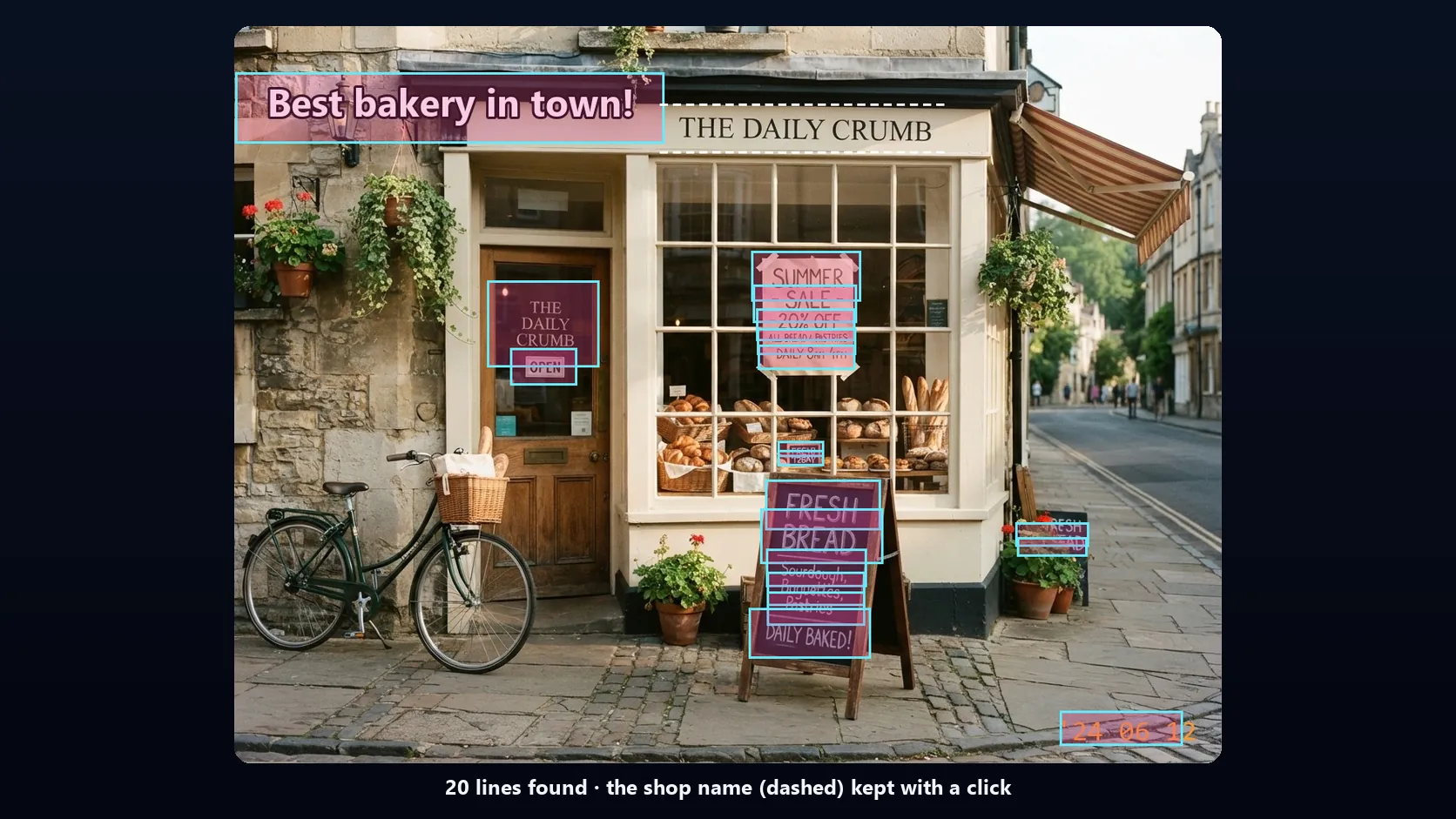
- The finder outlines 20 lines of text in about 11 seconds, every one selected.
- Click the shop sign, THE DAILY CRUMB, to keep it: 19 lines are left to remove.
- Click Remove 19 lines of text. The AI repairs the surfaces behind them.
- The result is checked: the caption, the door lettering and OPEN are still readable, so they are selected; click Remove again.
- The next check finds no text left apart from the kept sign. Download the photo as a JPG.
How the AI text remover works
The tool works in two steps, and only the second one changes your photo. First, a copy of the photo at up to 1536 pixels is shown to a vision AI model, which returns a box around every line of text it can read. Those boxes are drawn on your photo, every one selected, and nothing has been changed or charged yet.
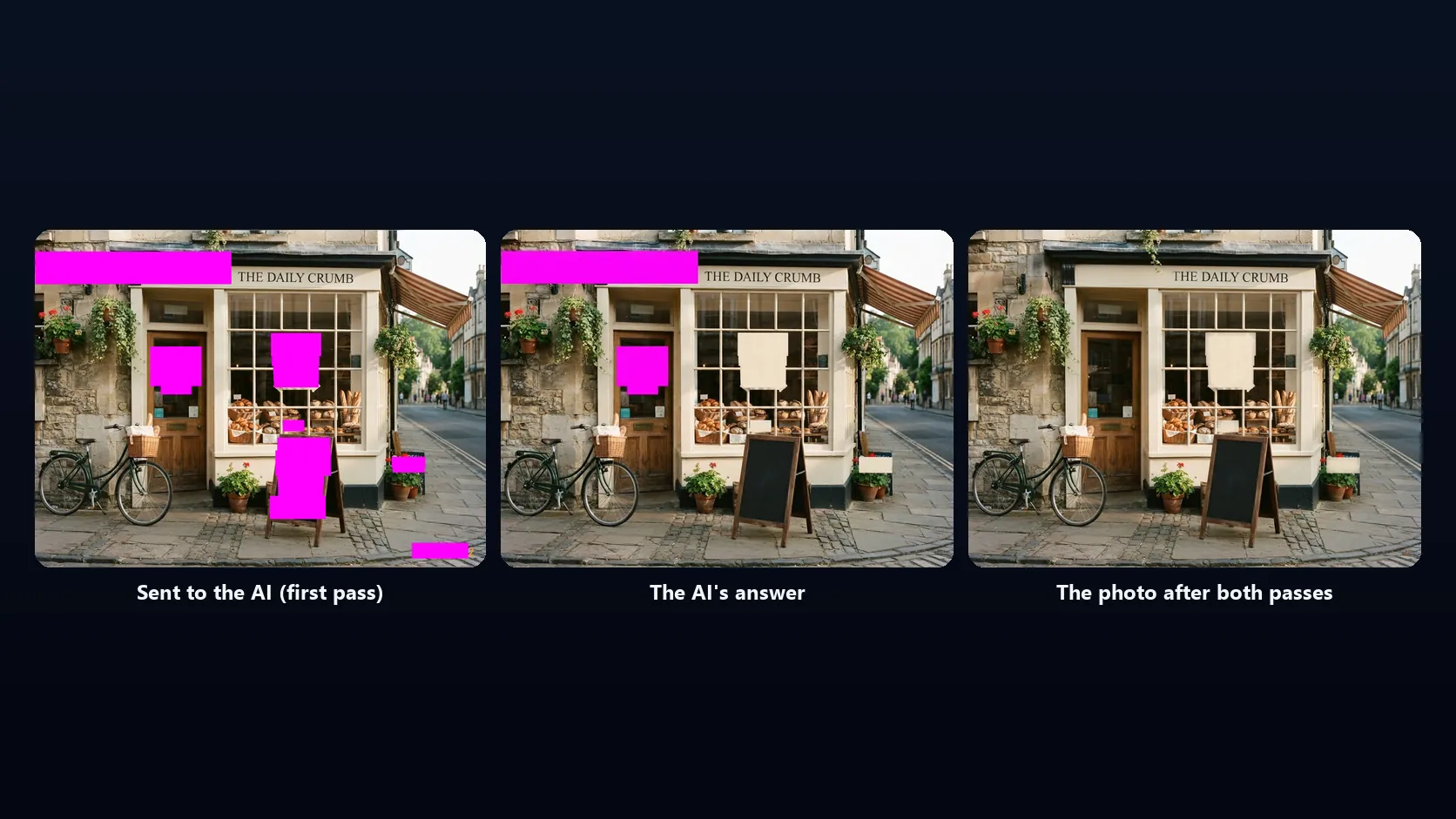
Second, when you click Remove, the selected boxes — each grown by about a third of its height above and below and about one character at each end, because letters have shadows, outlines and soft edges past the box — are painted solid magenta on a crop of the photo, and an AI image model is asked to repaint every magenta pixel so the writing is gone but the thing it was written on stays. The crop covers the selected text plus context around it; when the text is spread across most of the photo, as on a shop front, the whole photo is sent.
The model's answer is checked before it is used. If any magenta is left in it, or if the picture outside the boxes has been redrawn rather than left alone, the model is asked once more, and an answer that fails twice is never used. The answer is then blended into your photo only inside the selected boxes, with a soft edge of about one percent of the crop, so every pixel outside them is your photo exactly as it was.
How the text finder works, and what it finds
The finder is asked for every visible piece of text — words, letters, numbers, handwriting, signs, posters, labels, price tags, stickers, captions, overlays and date stamps, even small or partly hidden ones — with one box per line. On the sample photo it covered all of the text in three test runs, from the shop sign to a price tag 30 pixels tall in the window and a camera date stamp in the corner, in about 7 seconds each time.
Finding text needs a free HueFold account but uses no AI credits. If you are signed in, it starts by itself when you open a photo; otherwise, click Find text automatically. Find text again runs it once more on the picture as it is now, which is also what happens automatically after every removal.
The finder is an AI model, not a rulebook: very small, blurred or decorative text can be missed, and the same photo can come back as one box per word or one box per line. Anything it misses, brush over yourself.
| Text the finder read | Where it is | In the demo |
|---|---|---|
| Best bakery in town! | Caption laid over the photo | Removed |
| THE DAILY CRUMB | Shop sign above the window | Kept |
| THE DAILY CRUMB | Lettering on the door glass | Removed |
| OPEN | Sign on the door | Removed |
| SUMMER · - SALE - · 20% OFF · ALL BREAD & PASTRIES · - DAILY 8AM-4PM | Sale poster in the window, 5 lines | Removed |
| FRESH · T2BAY | Price tag in the window, 30 px tall (it says FRESH TODAY) | Removed |
| FRESH · BREAD · Sourdough, · Baguettes, · Pastries · DAILY BAKED! | Chalkboard on the pavement, 6 lines | Removed |
| FRESH · BREAD | Second chalkboard, behind the plants | Removed |
| 24 06 12 | Camera date stamp in the corner | Removed |
Choosing which text to remove
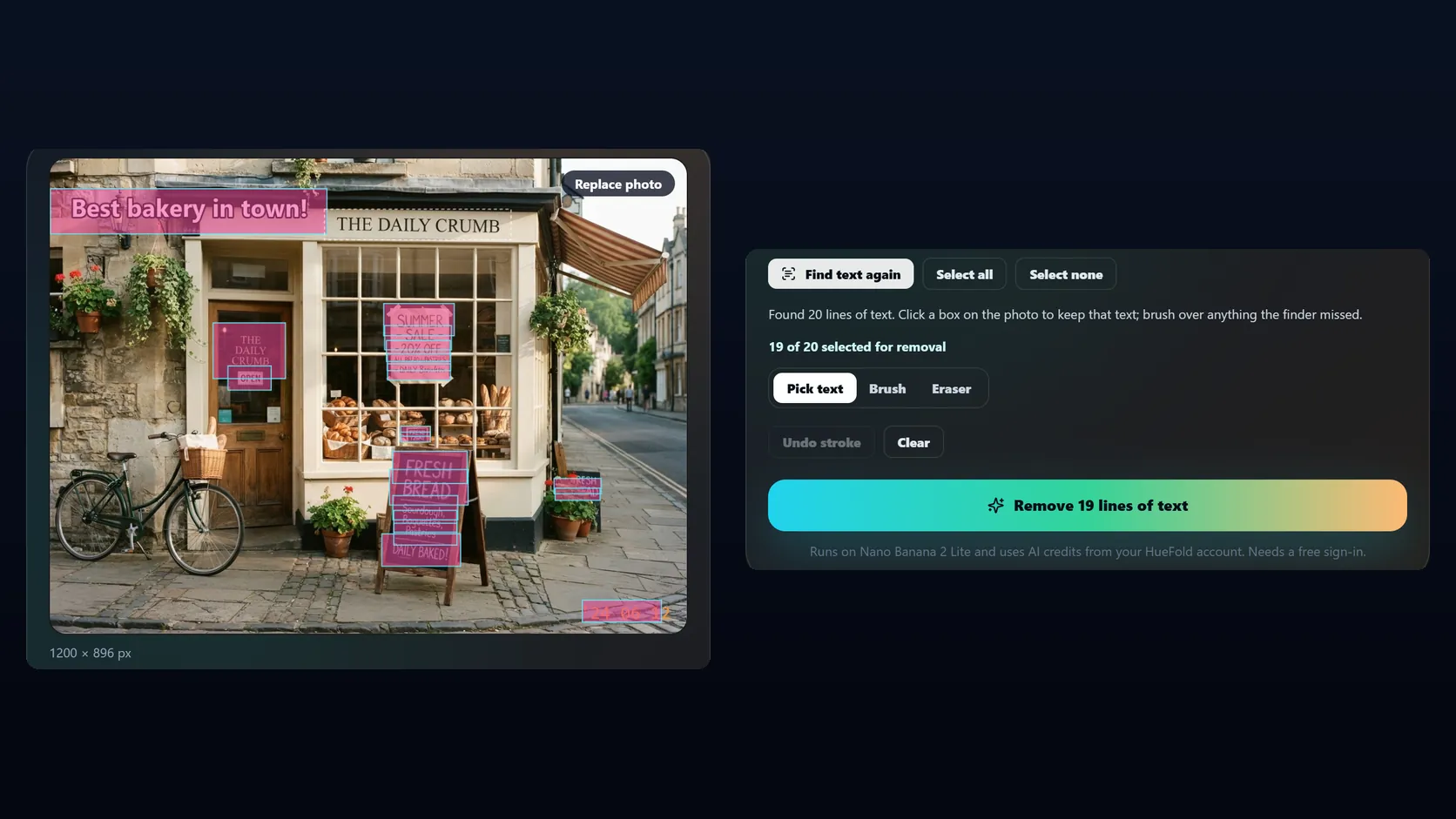
Every line the finder outlines starts selected, because most of the time you want all of it gone. To keep a line — a shop's name, a street sign, your own logo — click its box on the photo: the pink fill disappears and the outline turns dashed. Click it again to remove it after all. Where boxes overlap, a click picks the smallest one, so a single word inside a larger line can be kept. Select all and Select none do the whole photo at once, and the count under the buttons always says how many lines are selected.
Pick text, Brush and Eraser set what a click on the photo does. The brush marks anything the finder missed, from 1% to 20% of the photo's shorter side; the eraser takes back part of a box or a stroke, for example to keep a corner of a label. Undo stroke and Clear work as they do in generative fill.
The Remove button says what it will do — "Remove 12 lines of text", "…and the brushed area" — before anything is sent.
Signs, posters, captions: what replaces the text
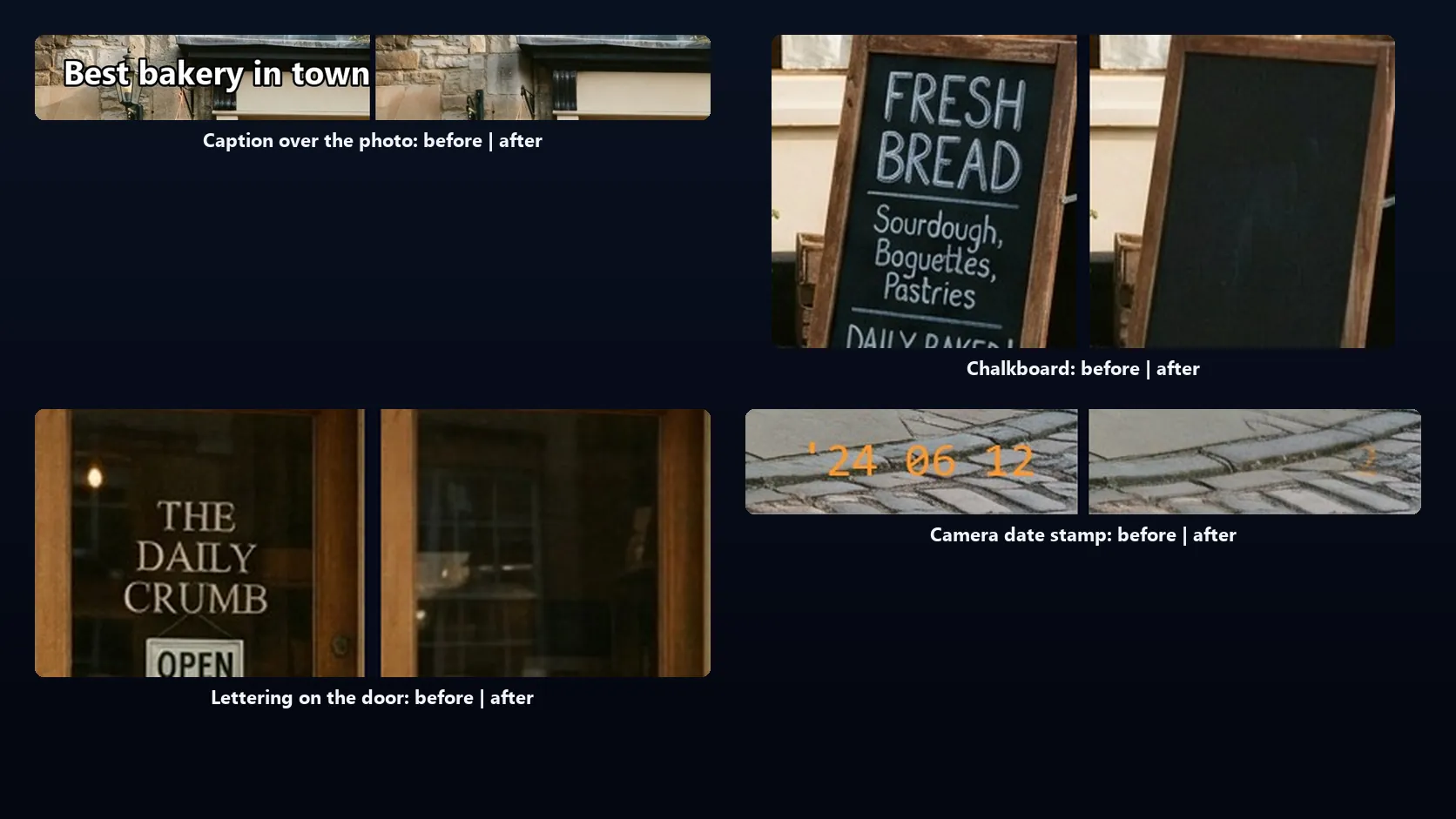
What appears where the text was depends on what the text was on. The model is told that a sign, poster, label, board, screen or page keeps its own shape, colour and texture, just without the letters; and that writing floating over the photo, like a caption or a date stamp, is removed by continuing the wall, sky, ground or objects behind it.
That instruction is the result of testing, not a guess. An earlier version asked for "a plain sign, a blank board, bare paper", and the model pasted flat panels over captions; telling it to keep the surface and restore the photo behind overlays fixed that. Even so, the model does not always agree: when text covers most of an object — the sale poster in the demo was almost all text — it may remove the object with its words and show what is behind it. If you want the object kept, try another version, or remove the text in two smaller steps.
Why the result is checked for text left
Image models like to write. A blank chalkboard next to a bakery looks, to the model, like a chalkboard that should say something, and now and then it writes words back where the old ones were. So after every removal the finder looks at the result again, by itself and at no cost. If it can still read text that you did not choose to keep, that text is outlined and selected, and the note says how many lines are left: click Remove to try them again. Lines you kept stay kept.
The demo shows it. The first removal cleared the poster, both chalkboards, the price tag and the date stamp, but the model left three places unfilled — the caption, the door lettering and OPEN — so the tool kept the photo's own pixels there rather than the marker, and the check found and selected exactly those three lines. A second Remove cleared them, and the next check found nothing but the shop sign that had been kept. Each pass used 5 credits.
A second pass usually works on a smaller crop than the first, just the places with text left, so the model often repairs them at a higher resolution. In testing, most removals were clean after one pass; chalkboards and text over busy backgrounds were the most likely to need a second.
Resolution and quality
Your photo is edited at its own size, up to 4096 pixels on the long edge. What is sent to the AI is a crop of up to 1536 pixels around the selected text, and the model's answer is scaled back to the crop's size before it is blended in. A single sign on a large photo is therefore repaired close to full resolution; text spread over a whole large photo is repaired at the model's resolution and can look slightly softer than the rest when you zoom in.
Like any AI repair, what replaces the text is invented: it continues the surface the model can see, but it is not what was really there. Fine patterns such as brickwork, wood grain and fabric are usually continued well; detailed objects behind large text may not be. Every removal can be undone, and + Another version asks the model again with the same boxes, up to four versions to choose from.

What is uploaded, stored and charged
Opening a photo, choosing text and brushing happen in your browser. Finding text sends a copy of the photo, at up to 1536 pixels, to the vision model; the boxes come back and the copy is not stored. Removing uploads the crop with the text marked to your HueFold account, sends it to the AI image model, and stores the answer in your account like any other HueFold AI image. The finished photo is put together in your browser.
Finding text needs a free account and uses no credits; it is limited to ten finds a minute. Each removal uses AI credits; the cost depends on the model, and the tool shows how many credits a removal used. A run that returns no image is not charged; an answer that comes back but fails the checks is, even though the tool does not use it.
| Step | Where it happens | Account | AI credits |
|---|---|---|---|
| Open the photo, pick text, brush | Your browser | No | No |
| Find text (and the check after a removal) | A copy is read by the vision model; nothing is stored | Free account | No |
| Remove | The marked crop is uploaded and sent to the AI | Free account | Yes |
| Blend, undo, switch versions, download | Your browser | No | No |
Download as PNG or JPG
Download the cleaned photo as a PNG, which is lossless and keeps transparency, or as a JPG, which is smaller and right for ordinary photos; JPG is saved at quality 92, with any transparent areas on white. Continue editing in HueFold Studio opens the cleaned photo in a new design the shape of the photo, ready for new text, with your original kept so Restore original works there.
| What | Limit |
|---|---|
| Photo you upload | JPG, PNG or WebP, up to 20 MB |
| Editing size | Your photo's own size, up to 4096 px on the long edge |
| Finding text | Free account, no credits, up to 10 a minute |
| Margin around each line | 0.35 of the line's height above and below, 0.6 at each end, at least 4 px |
| Brush | 1–20% of the photo's shorter side; eraser, Undo stroke, Clear |
| Area sent to the AI | A crop around the selected text, up to 1536 px |
| Checks on each answer | Marker left, picture outside the boxes redrawn; retried once |
| Versions | Up to 4 of the last removal |
| Undo | The most recent removal, with its boxes |
| Photo you download | PNG, or JPG at quality 92 |
What people remove text for
Common jobs for a text remover, all on pictures you have the right to edit.
- Clear a date stamp an old camera burned into family photos.
- Take an old caption or price off your own product photo before reusing it.
- Remove signs, posters and stickers that date a travel or street photo.
- Empty a sign, board or label in a photo to put your own words on it.
- Clean a screenshot of names or numbers you do not want to share.
- Remove text from a photo before using it as a background for a design.
Use it on pictures you have the right to edit
Remove text only from pictures you own or have permission to change. Do not use this tool to strip watermarks, credits, signatures or copyright notices from other people's work: they are how photographers and artists get paid and credited, and removing them can break copyright law.
Do not use it to alter documents, receipts, tickets, IDs, certificates or evidence. Changing what such a document says is forgery, whatever tool is used. And when you publish an edited photo where it matters — news, a listing, a report — say that it was edited.
Troubleshooting
The problems people run into most, and what fixes them.
- Some text was not outlined: the finder missed it. Choose Brush, paint over it, and remove it together with the rest.
- Text came back after removing: the check after the removal outlines it and selects it; click Remove again. Chalkboards are the most likely place for this.
- A sign or poster disappeared with its text: try another version, or keep some of its lines in the first pass and remove them in a second.
- A flat patch appeared where a caption was: try another version; the model usually restores the photo behind a caption, but not every time.
- The edge of a repair shows: brush a little wider so the area ends on plain surroundings, then remove again.
- The AI redrew the whole photo: the tool notices, asks again and never blends in a redrawn answer. If it happens twice, try again.
- Finding text asks you to sign in: finding is free but needs an account. Sign in and it runs by itself.
Removing text in HueFold Studio
This page does one job: take text out of a photo. To put new text on it, or build a design around it, click Continue editing in HueFold Studio under the result.
The text remover is in Studio too. Select an image in a design, open Edit and choose AI Text Remover: the same finder, the same boxes to keep or remove and the same checks, applied to the image in place, with Restore original to put the text back.
Frequently asked questions
How do I remove text from an image?
Upload the photo; every line of text is found and selected for you. Click any box whose text you want to keep, brush anything the finder missed, and click Remove. The AI repairs the surface behind the selected text and nothing else.
What text can it remove?
Words, letters and numbers on signs, posters, labels, price tags, chalkboards, doors and screens, and text laid over a photo, such as captions and camera date stamps.
Does it change the rest of my photo?
No. The AI's repair is blended in only inside the boxes you leave selected, with a soft edge. Every pixel outside them is your photo exactly as it was.
Can I keep some of the text?
Yes. Every line starts selected; click a line's box on the photo to keep it, and click again to remove it after all. Text you keep stays kept when the result is checked.
Is the AI text remover free?
Finding the text is free with a HueFold account. Each removal uses AI credits; the tool shows how many a removal used. Runs that return no image are not charged.
What happens to the sign or poster the text was on?
The model is asked to keep it, just without the words, and usually does. When text covers most of an object, it may remove the object too; try another version if you want it kept.
Why did some text come back?
Image models sometimes write words back, especially on chalkboards. The tool checks every result, outlines any text left and selects it, so a second Remove usually clears it.
Can I remove a watermark?
Only from your own pictures. Do not remove watermarks, credits or copyright notices from other people's work, and do not alter documents, receipts or IDs.
Is my photo uploaded?
To find the text, a copy is read by the vision model and not stored. To remove it, a crop with the text marked is uploaded to your HueFold account and the AI's answer is stored there. Everything else happens in your browser.
What formats can I use?
Upload JPG, PNG or WebP up to 20 MB, edited at up to 4096 pixels on the long edge. Download PNG, or JPG at quality 92.
What text can I remove from an image?
Captions, labels, date stamps, signs, poster text, price tags and other writing in your own pictures. The finder outlines it for you; you choose what goes.
Does it remove only the selected text?
Yes. Only the boxes and brushed areas you leave selected are changed; the rest of the photo is left exactly as it was.
Can I add new text after cleanup?
Yes. Click Continue editing in HueFold Studio to open the cleaned photo in a new design, or use Add Text to Photo.
Related tools
- AI Generative Fill — Brush over anything to remove it or replace it.
- Magic Eraser — Remove objects and distractions from a photo.
- Add Text to Photo — Put new words on the cleaned photo.
- AI Image Expander — Make a photo bigger to fit any shape.
- Change Photo Background — Put a new background behind the subject.
- AI Photo Enhancer — Improve clarity and colour.