AI To PDF Converter
Turn an Adobe Illustrator .ai file into a PDF anyone can open, without Illustrator and without uploading it. The artwork is copied as it is, Illustrator's own editing data is left out, and every page of the new PDF is checked against the .ai, pixel by pixel.
Updated
How do you convert an AI file to PDF?
Drop the .ai file on the tool and press Convert to PDF. An Illustrator file saved with the "Create PDF Compatible File" option already holds a PDF of its artwork; the tool writes that PDF out on its own, without the editing data only Illustrator reads, checks that every page draws exactly like the .ai, and you download it. It all happens in your browser.
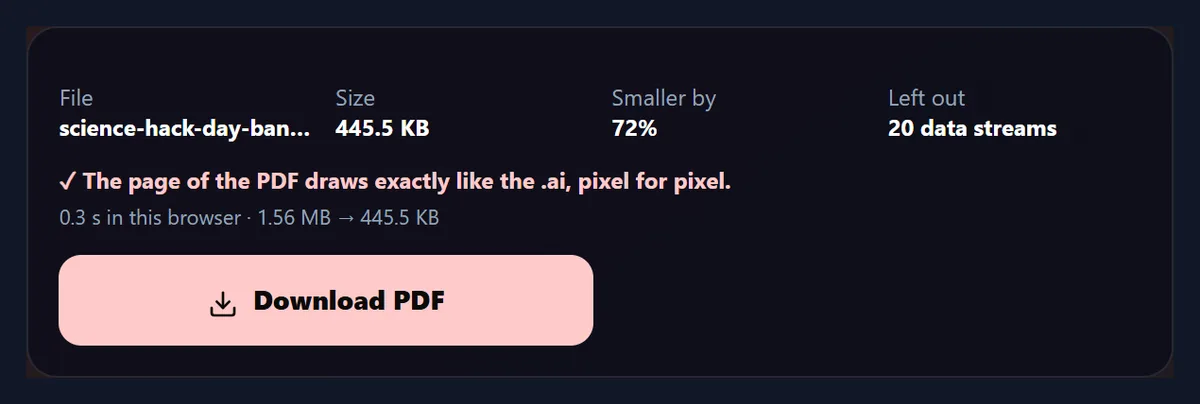
On the sample banner, a real Illustrator CC file, the 1.56 MB .ai became a 445.5 KB PDF, 72% smaller, and both this page and Inkscape drew the PDF identically to the .ai, without one pixel of difference.
How to convert an Illustrator file to PDF
- Open the .ai file Drop it, choose it, or try a sample.
- Convert to PDF Smallest file is optional.
- Download Checked against the .ai first.
Convert an Illustrator .ai file to PDF
A real recording of this tool: the CMYK sample banner opened, what is inside it read, converted to a PDF 72% smaller and checked, then converted again as the smallest file.
- The sample banner opens: a 1.56 MB Illustrator CC file in CMYK.
- The tool shows its artboard, colour, layer, and that 72% of it is Illustrator's own editing data.
- Convert to PDF writes the PDF without that data and checks it against the .ai: 445.5 KB, pixel for pixel the same.
- With Smallest file ticked, the metadata goes too: 386.6 KB.
How do I turn a .ai file into a PDF here?
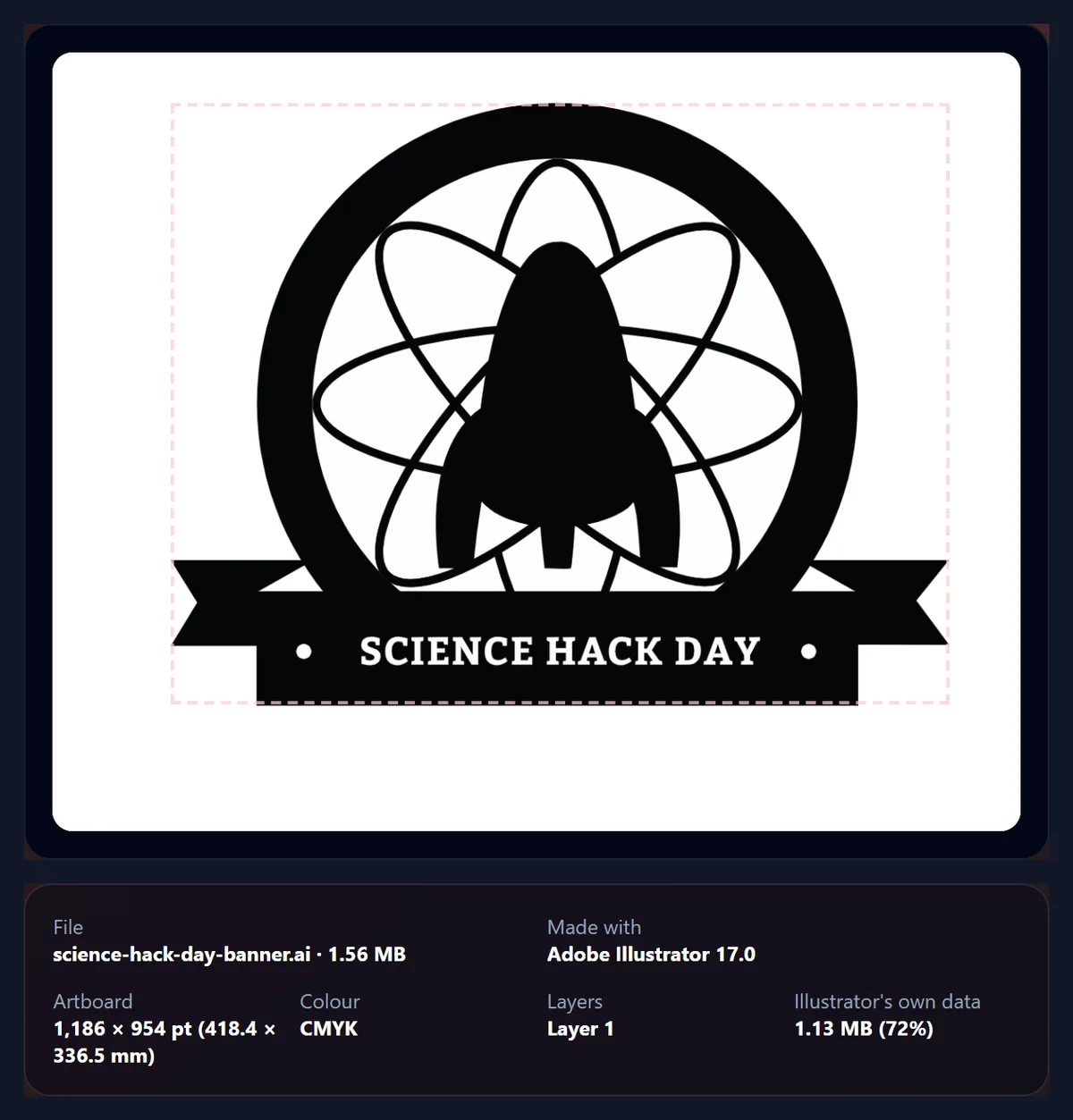
Drop the file on the tool or choose it. The tool reads it in this browser tab and shows the artboard as other programs see it, with a dashed box round the artwork, and what the file holds: the program that made it, the artboard size in points and millimetres, whether its colours are RGB or CMYK, its layers, and how much of the file is Illustrator's own editing data. Press Convert to PDF, and the PDF is ready in under a second, with its size, how much smaller it is than the .ai and the result of the check. Download PDF saves it with the same name and a .pdf ending.
The figure shows the sample banner open: a 1,186 × 954 point artboard (418.4 × 336.5 mm) in CMYK, made with Adobe Illustrator 17.0, whose own editing data is 1.13 MB of its 1.56 MB.
What is inside an Illustrator file?
Two formats, as Adobe's own help page on Illustrator file sizes puts it: PDF and PGF, Illustrator's native format. With "Create PDF Compatible File" ticked in the save options, Illustrator writes the artwork as a PDF any program that reads PDFs can open, and keeps its own PGF data beside it, which it needs to reopen the file with everything still editable. Adobe notes that the option makes the file bigger for exactly that reason. Inside the file, each page points to Illustrator's data through an entry called PieceInfo, and the data sits in streams named AIPrivateData: in the sample banner, 20 streams holding 1.13 MB, 72% of the file.
A PDF made from the file needs only the PDF part. That is why the tool leaves Illustrator's data out and copies everything else as it is: the drawing instructions, fonts, pictures and colour profiles the pages use.
How much smaller is the PDF?
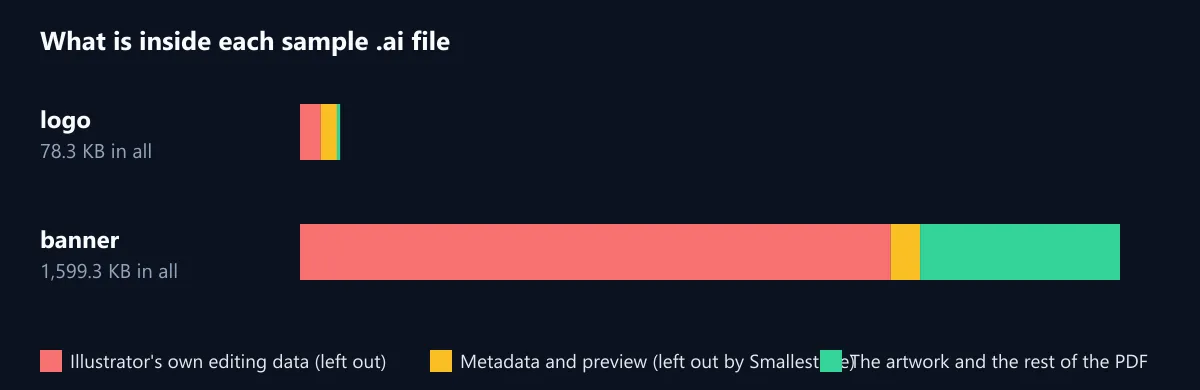
It depends on how much editing data Illustrator kept, which grows with how much the artwork has been worked on. The table shows the two sample files converted by this tool, as they are and with Smallest file ticked. Sizes are in KB of 1,024 bytes, as the tool shows them.
The banner shrinks most, by 72%, because its editing data is so large; with Smallest file the logo, whose artwork is only a few shapes, ends up 95% smaller.
| File | .ai (KB) | PDF (KB) | Smaller by (%) |
|---|---|---|---|
| Logo, as it is | 78.3 | 37.3 | 52 |
| Logo, smallest file | 78.3 | 4.2 | 95 |
| Banner, as it is | 1,599.3 | 445.5 | 72 |
| Banner, smallest file | 1,599.3 | 386.6 | 76 |
Is the PDF the same artwork as the .ai?
Yes, and the tool checks it every time. Nothing that draws the page is decoded, changed or compressed again: every stream the pages use is copied byte for byte into the new file. After writing the PDF, the tool draws each page of the .ai and of the new PDF with pdf.js, the PDF reader built into Firefox, and compares them pixel by pixel; the result panel says "The page of the PDF draws exactly like the .ai, pixel for pixel" only when no pixel differs.
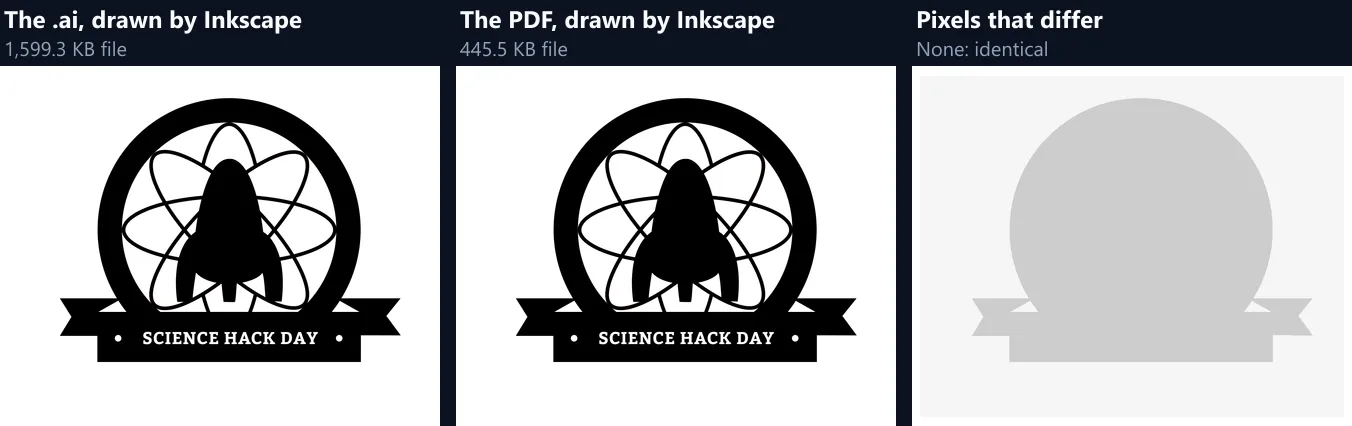
As an outside check, Inkscape 1.4 drew each sample .ai and each PDF made from it, with and without Smallest file: in all four pairs, not one pixel differed.
What does Smallest file leave out?
Two more things no PDF reader needs to show the pages. The first is the metadata Illustrator writes into the file: the document's title, its swatches, a 256-pixel-wide JPEG preview picture of the artboard, its dates and its IDs. The second is the page thumbnails: small preview pictures stored with each page, which a reader does not need, since it draws the page itself. The pages are identical either way, and the check says so.
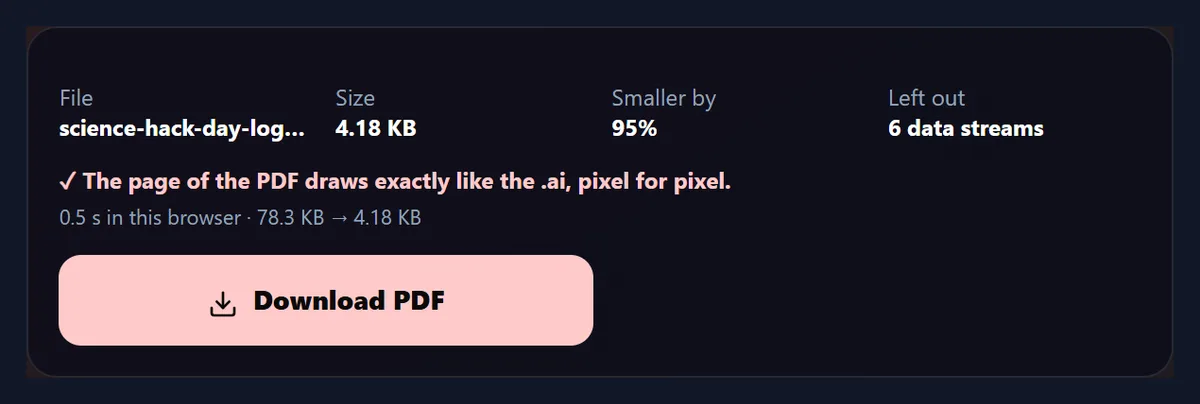
In the sample logo the metadata alone is 31.5 KB, three quarters of what is left after the editing data goes, so Smallest file takes the PDF from 37.3 KB to 4.2 KB. Keep it unticked if you want the PDF to carry the document's title and details.
What happens to CMYK colours and colour profiles?
Nothing: they stay exactly as they are in the .ai. The sample banner was made for print, in CMYK, and its artwork is defined in a CMYK colour profile embedded in the file (Inkscape names it U.S. Web Coated (SWOP) v2). The profile is copied into the PDF with everything else, so a print shop gets the same colour numbers the designer chose. It is also why the banner's PDF is still 386.6 KB with Smallest file ticked: almost all of that is the profile, which the artwork needs.
Converting to PNG or SVG, which are RGB formats, is where CMYK colours have to change. The AI to PNG and AI to SVG pages say how, with numbers.
Are layers and artboards kept?
Layers are kept as PDF layers. Illustrator writes each layer into the PDF part as an optional content group with the layer's name, and those are part of the pages, so the PDF has them too; PDF readers with a layers panel list them, and the tool shows them when the file opens. Both samples have one, called Layer 1.
Every page in the file's PDF part becomes a page of the PDF, in the same order. The tool shows the artboard size of each page, and its check compares every page, not only the first. Both samples hold one artboard each.
What if my .ai file will not convert?
There are two kinds the tool cannot read, and it says which it found. A file saved with "Create PDF Compatible File" turned off holds only Illustrator's editing data; what other programs see instead of the artwork is a note from Illustrator saying the file was saved without PDF content. Open it in Illustrator, choose Save As, tick the option in the Illustrator Options and save again. Older Illustrator files and EPS files are PostScript rather than PDF inside, and need Illustrator, or a PostScript interpreter such as Ghostscript, to draw; save them again as .ai or PDF.
The figure shows what the tool said to a PostScript file: an EPS made with Inkscape and renamed .ai, standing in for an old Illustrator file.

Should I keep the .ai file?
Yes. The PDF holds the artwork as it is drawn; the .ai also holds what Illustrator needs to edit it, which is exactly what the conversion leaves out. Send the PDF to people who need to see, print or place the artwork, and keep the .ai as your working file.
The same goes for the smaller size: it is not compression that loses anything from the picture, only data the PDF does not use.
How long does the conversion take?
Under a second for both samples, in Chrome on the test laptop: the middle of three runs was 0.4 seconds for the logo and 0.3 seconds for the 1.56 MB banner, check included. Writing the PDF itself takes a few hundredths of a second, because nothing in it is decoded or compressed again; the rest is drawing the pages of both files to compare them.
The first file you open takes a moment longer while the PDF reader loads.
When should I send a PDF instead of the .ai?
Whenever the person receiving the file does not need to edit it in Illustrator. A print shop, a client approving a proof, a colleague placing the logo in a layout or a document: they can all open a PDF in programs they already have, and the PDF keeps what matters to them. The shapes stay vectors, sharp at any zoom, the colours stay the CMYK numbers the designer picked, and the file is usually much smaller.
Send the .ai only to someone who will change the artwork in Illustrator.
Is my file uploaded?
No. The file is read, rewritten and checked inside this browser tab, by code on this page; nothing is sent to HueFold or anyone else, and nothing is kept after you close the tab. That matters for client work under embargo and unreleased logos. You do not need an account, and there is no watermark.
Files protected by a password cannot be rewritten without it, and the tool says so.
What else works with Illustrator and PDF files here?
AI to PNG saves the artwork as a picture at up to 600 dpi with a transparent background, and AI to SVG turns it into vectors for the web. Delete Pages from PDF removes pages from any PDF, PDF to PNG saves PDF pages as pictures, and Free PDF Converter turns PDFs into JPG, text, Word or PowerPoint.
All of them run in your browser in the same way.
Frequently asked questions
Is the AI to PDF converter free?
Yes. It runs in your browser, with no account and no watermark.
Do I need Adobe Illustrator?
No. The tool reads the PDF part Illustrator saves inside a PDF-compatible .ai file.
Is my .ai file uploaded?
No. It is read, rewritten and checked in this browser tab.
Will the PDF look the same as the .ai?
Yes. The pages are copied byte for byte, and each is checked against the .ai pixel by pixel.
Why is the PDF smaller than the .ai?
Illustrator's own editing data is left out; the sample banner lost 72% of its size.
Are CMYK colours kept?
Yes, with the file's colour profile, as they are in the .ai.
Are layers kept?
Yes, as named PDF layers, the way Illustrator wrote them.
What does Smallest file do?
It also leaves out the metadata and thumbnails; the pages stay identical.
My file says it was saved without PDF content. What now?
Save it again from Illustrator with Create PDF Compatible File ticked.
Does it convert EPS or very old .ai files?
No. Those are PostScript inside; save them again as .ai or PDF first.
Related tools
- AI To PNG — Illustrator artwork as a PNG.
- AI To SVG Converter — Illustrator artwork as vectors.
- Delete Pages from PDF — Remove pages from any PDF.
- PDF To PNG — PDF pages as pictures.
- Free PDF Converter — PDF to JPG, text, Word or PowerPoint.
- PPT To PDF — A deck as a PDF.