AI To PNG
Save an Adobe Illustrator .ai file as a PNG picture without Illustrator: pick the resolution, keep the background transparent or make it white, and choose the whole artboard or just the artwork. The file is drawn in your browser and never uploaded.
Updated
How do you convert an AI file to PNG?
Drop the .ai file on the tool, choose a resolution, a background and the area, and press Convert to PNG. The tool draws the artwork from the PDF part Illustrator saves inside the .ai file, at exactly the size you asked for, and saves it as a PNG with the resolution written into the file, ready to download. Nothing is uploaded.
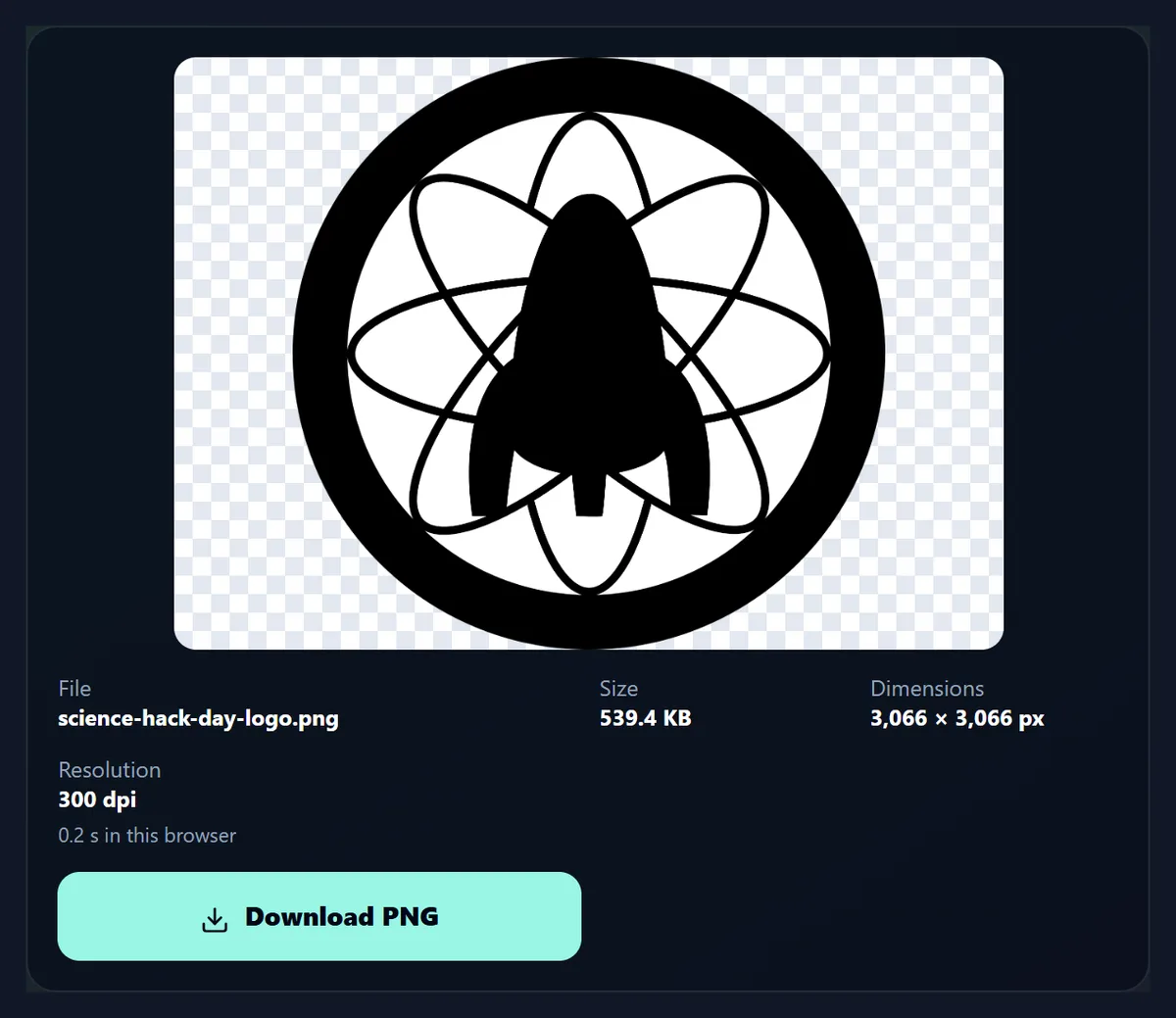
The sample logo's artwork at 300 dpi came out 3,066 × 3,066 pixels and 539.4 KB, with a clear background around the circle, in under a second.
How to save an Illustrator file as a PNG
- Open the .ai file Drop it, choose it, or try a sample.
- Pick the area The whole artboard or the artwork.
- Pick resolution and background 72 to 600 dpi, clear or white.
- Convert and download A PNG with its dpi written in.
Save an Illustrator .ai file as a PNG
A real recording of this tool: the sample logo opened, Artwork only and 600 dpi chosen, and the PNG made with a transparent background.
- The sample logo opens: an Illustrator CC file, its artwork boxed on the artboard.
- Artwork only cuts the PNG to the logo's own bounds.
- 600 dpi is chosen; the tool shows it will draw at 401 dpi, the most a phone can draw.
- Convert to PNG makes a 4,096-pixel PNG with a transparent background.
How do I save an Illustrator file as a PNG here?
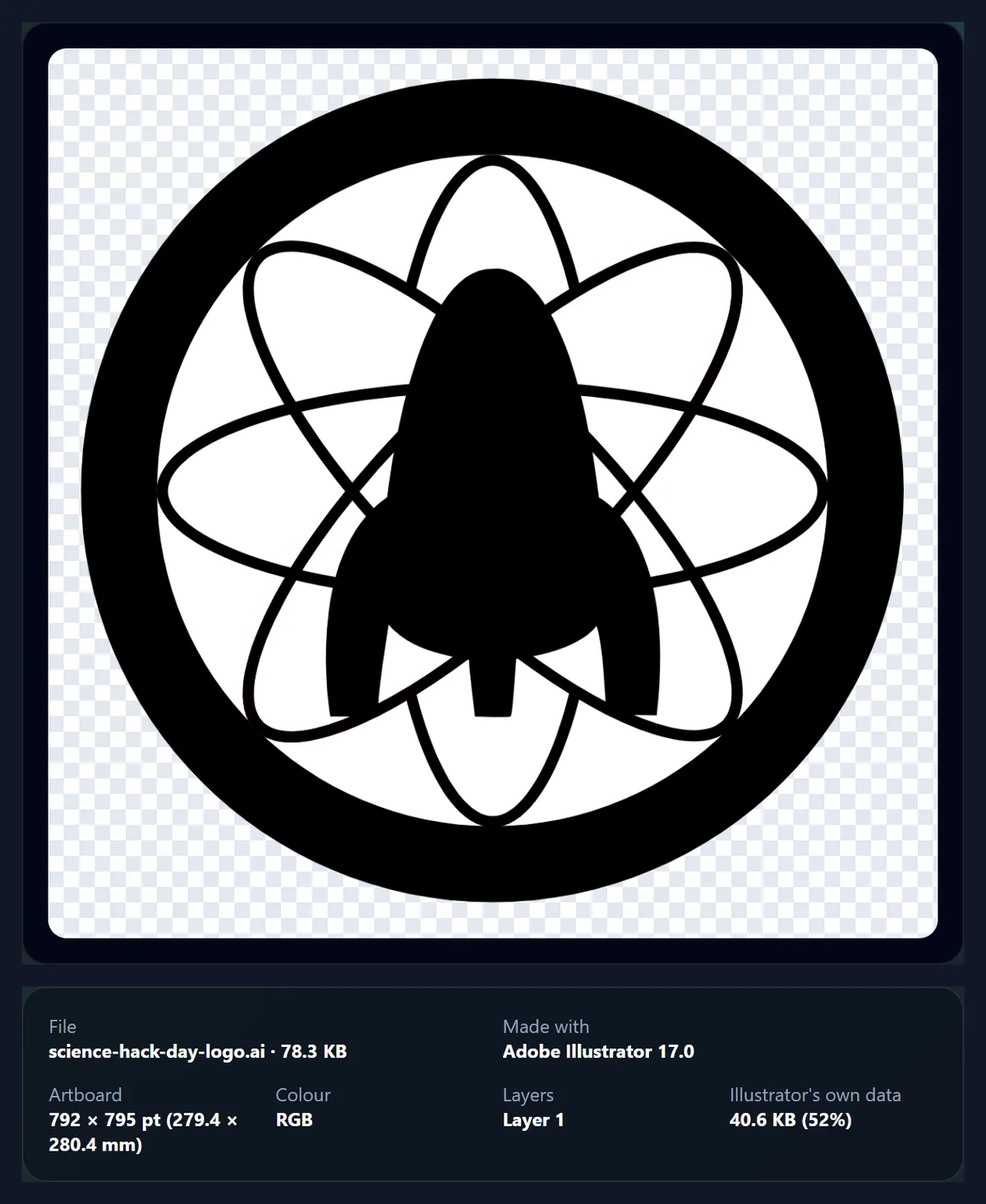
Drop the .ai file on the tool or choose it. The tool shows the artboard as other programs see it, with a dashed box round the artwork, and what the file holds: the program that made it, the artboard size, whether its colours are RGB or CMYK, its layers and how much of the file is Illustrator's own editing data. Choose the area, the resolution and the background; the line under the resolutions tells you the size in pixels before you convert. Press Convert to PNG, check the picture on its checkerboard, and download it.
The figure shows the sample logo open, with Artwork only chosen: the dashed box sits on the outer circle, 735.8 points square, inside a 792 × 795 point artboard.
What resolution should the PNG be?
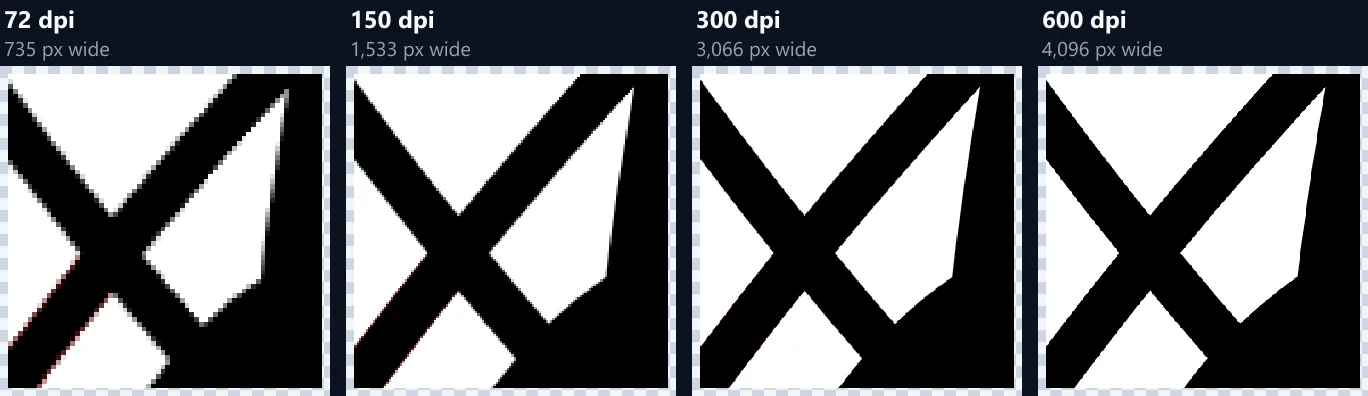
A .ai file is drawn with vectors, so it has no resolution of its own: the PNG gets as many pixels as you ask for. Illustrator measures in points, 72 to the inch, so 72 dpi gives one pixel per point, 150 dpi suits screens and slides, 300 dpi is the usual choice for print, and 600 dpi is for large prints. The table shows the sample logo's artwork saved by this tool at each resolution on a transparent background; sizes are in KB of 1,024 bytes, as the tool shows them.
The 600 dpi row is smaller than it sounds. The tool never draws a picture of more than 16,777,216 pixels, the most a phone browser can draw, so the logo was drawn at 401 dpi instead, 4,096 pixels across; the tool says so before you convert, and writes 401 dpi into the file.
| Resolution | Width (px) | Height (px) | Size (KB) |
|---|---|---|---|
| 72 dpi | 735 | 735 | 84.0 |
| 150 dpi | 1,533 | 1,533 | 214.5 |
| 300 dpi | 3,066 | 3,066 | 539.4 |
| 600 dpi (drawn at 401) | 4,096 | 4,095 | 816.2 |
How much sharper is a higher resolution?
The figure shows the same small part of the logo, where its thin orbits cross, from each of the four PNGs, enlarged to the same size without smoothing so that every pixel shows. At 72 dpi the edges are steps a few pixels high; at 300 dpi they are smooth at any normal viewing size. Pick the lowest resolution that is sharp where the picture will be used: each doubling makes about four times as many pixels and, for this logo, about two and a half times the file size.
For a picture that must stay sharp at every size, such as a logo on a website, AI to SVG keeps the artwork as vectors instead.
Whole artboard or artwork only?
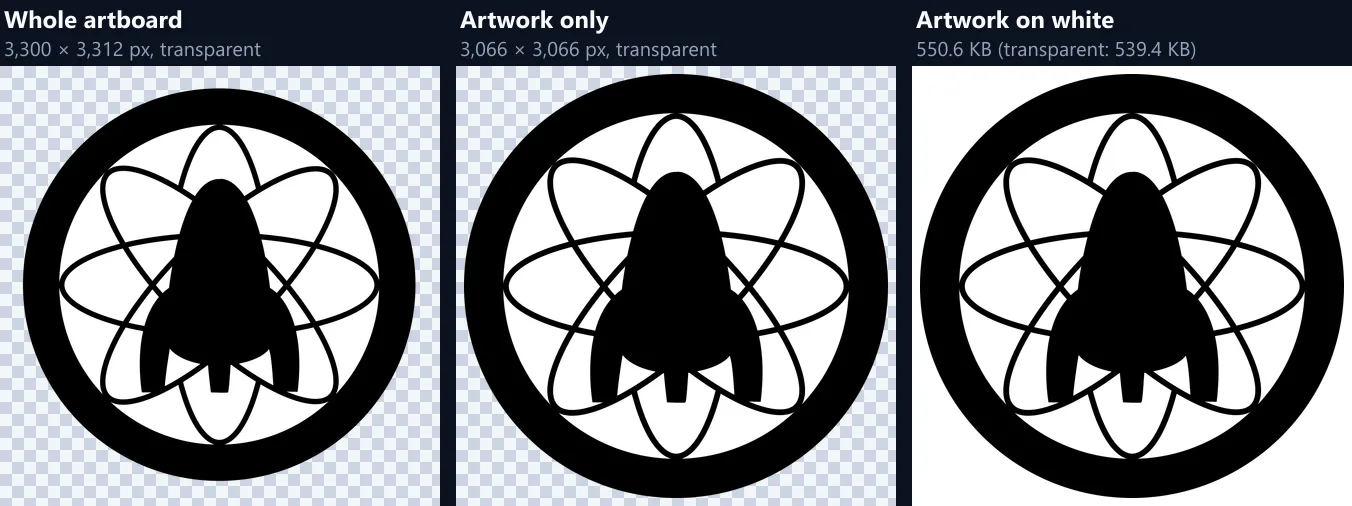
Whole artboard saves the page as it was laid out in Illustrator, margins and all. Artwork only uses the bounds Illustrator itself records for the artwork on that artboard (its ArtBox), so the PNG ends at the edge of the drawing. For the sample logo at 300 dpi that is 3,300 × 3,312 pixels for the whole artboard and 3,066 × 3,066 for the artwork only. The tool draws only the part you choose, so a large artboard never has to fit in memory just to cut a small logo out of it.
The dashed box on the preview shows where Artwork only will cut before you convert.
Does the PNG keep a transparent background?
Yes, unless you choose White. An Illustrator artboard has no paper colour of its own, so wherever nothing is drawn the PNG is clear. In the sample logo's 300 dpi PNG, 21.4% of the 9,400,356 pixels are fully clear (the corners outside the circle), 78.5% are solid, and 9,904 pixels, 0.1%, are partly clear: the smoothed edge of the circle, so it blends with any background without a white fringe.
White fills every clear pixel, for places that cannot show transparency, such as some email programs and print shops that ask for flat files; for this logo it made the PNG 2% larger, 550.6 KB.
What happens to CMYK colours?
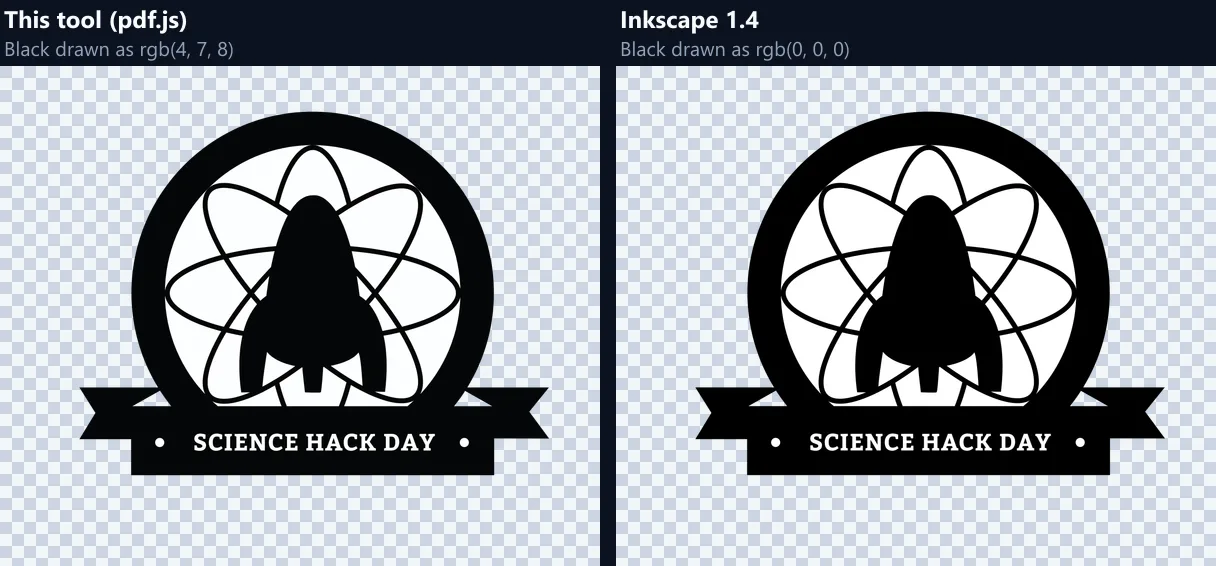
They are converted to RGB, because PNG files only hold RGB. The sample banner was made for print in CMYK, with a colour profile embedded in the file, and the tool says so when it opens. This tool draws it with pdf.js, which uses that profile: the banner's black ink comes out as rgb(4, 7, 8), the colour that ink makes on that press, and its unprinted white as rgb(253, 254, 255). Inkscape 1.4, drawing the same file, gave rgb(0, 0, 0) and pure white. The difference is small to the eye; apart from those colours, only 0.81% of pixels differed by more than 16 of 255, along the edges of shapes.
If the colours must stay CMYK for printing, convert the file to PDF instead: AI to PDF keeps them exactly as they are.
Does the PNG match what Illustrator's artwork looks like?
It is drawn from the same PDF part every other program reads, and it agrees with them. Saved at 300 dpi as the whole artboard, the sample logo from this tool and the same logo exported by Inkscape 1.4 at 300 dpi were the same size, 3,300 × 3,312 pixels, and only 0.34% of their pixels differed by more than 16 of 255, all on the edges of shapes, where each program smooths slightly differently.
The tool has no editing step: it does not retouch, sharpen or recolour the artwork, so what you get is what the file draws.
Is the resolution saved in the file?
Yes. Each PNG carries its resolution in the file (a pHYs entry), so programs that place pictures by their size in inches or millimetres, such as page layout and print tools, size it as you meant: the 300 dpi logo places at the same physical size as the artwork in Illustrator. Reading the four sample PNGs back, their stored resolutions were 72, 150, 300 and 401 dpi, the last because of the size limit.
Screens ignore the number and show pixels as pixels.
Which .ai files can it convert?
Files saved with Illustrator's "Create PDF Compatible File" option, which holds the artwork as a PDF any program can draw. A file saved without it holds only Illustrator's own data, and older Illustrator files and EPS files are PostScript inside; the tool recognises both and explains what to do instead of making a blank or broken picture. One artboard is converted at a time: choose it from the page buttons under the preview.
Fonts embedded in the file are drawn from the file itself, so you do not need them installed.
How long does it take?
Less than a second for the sample logo at every resolution, in Chrome on the test laptop: the middle of three runs was 0.1 seconds at 72 dpi, 0.2 at 150 dpi, 0.3 at 300 dpi and 0.8 seconds at 600 dpi, where the picture has 16.8 million pixels to draw and compress. Artwork with photos, gradients or many shapes takes longer than this logo of eleven shapes.
The first file you open takes a moment longer while the PDF reader loads.
When is a PNG the right format for Illustrator artwork?
When it is going somewhere that takes pictures, not vector files: a website or online shop, a slide deck, a social post, an email, a document, or a marketplace listing. PNG keeps every pixel exactly, with no blur round sharp edges and letters, and it keeps the background transparent, which JPG cannot. That makes it the usual format for logos and graphics placed over other colours.
For a print shop, send a PDF, which keeps the vectors and CMYK colours; for a website that should stay sharp on every screen, an SVG.
Is my file uploaded?
No. The .ai file is read and drawn inside this browser tab and the PNG is made there; nothing is sent to HueFold or anyone else. There is no account, no watermark and no limit on how many files you convert.
Big artboards at high resolutions take more memory; a phone may ask you to choose a lower resolution.
What else can I do with the PNG?
Remove Background from Logo cleans up a logo that came with a background, Resize Image Pixel Online changes its pixel size, PNG to JPG makes a flat JPG of it, and Compress Image to 100KB makes it fit an upload limit.
For the other formats, AI to PDF and AI to SVG convert the same .ai files.
Frequently asked questions
Is AI to PNG free?
Yes. It runs in your browser, with no account and no watermark.
Do I need Adobe Illustrator?
No. The tool draws the PDF part Illustrator saves inside a PDF-compatible .ai file.
Is my .ai file uploaded?
No. It is drawn and saved as a PNG in this browser tab.
Does the PNG have a transparent background?
Yes, unless you choose White; edges stay smooth.
What resolution should I choose?
150 dpi for screens, 300 dpi for print, 600 dpi for large prints.
Why is my 600 dpi PNG smaller than expected?
Pictures are kept to 16,777,216 pixels, the most a phone browser can draw; the tool shows the dpi used.
Can I save only the artwork, without the empty artboard?
Yes: Artwork only uses the artwork bounds Illustrator records.
What happens to CMYK colours?
They become RGB, using the file's own colour profile when it has one.
Is the dpi written into the PNG?
Yes, so layout and print programs place it at the right size.
Can it convert EPS or very old .ai files?
No. Those are PostScript inside; save them again as .ai or PDF first.
Related tools
- AI To PDF Converter — Illustrator artwork as a PDF.
- AI To SVG Converter — Illustrator artwork as vectors.
- Remove Background from Logo — Clear a logo's background.
- Resize Image Pixel Online — Change the pixel size.
- PNG To JPG — A flat JPG from a PNG.
- SVG To PNG — An SVG as a PNG.