PPT To PDF
Turn a PowerPoint presentation into a PDF anyone can open, in your browser: drop the .pptx, look through its slides, pick a quality and download. Each slide is drawn as PowerPoint draws it, with its text kept searchable, its titles as bookmarks and its web links clickable.
Updated

How do you convert a PowerPoint to PDF?
Drop the .pptx file on the tool. Its slides are read and drawn in this browser tab, so you can look through them before saving; pick Small, Standard or Print and press Save. The PDF has one page per slide, at the slide size set in PowerPoint, and hidden slides are left out, as PowerPoint leaves them out.
On the 7-slide sample pitch deck, each of the 45 pieces of text compared sat within 0.24 pt of where PowerPoint's own PDF puts it, and the Standard PDF took 0.4 s to make.
How to save slides as a PDF
- Open the presentation Drop a .pptx file or choose it.
- Pick a quality Small, Standard or Print.
- Save the PDF Checked page by page, then downloaded.
Save PowerPoint slides as a PDF
A real recording of this tool: the sample pitch deck opened, three slides looked at, Print picked and the 6-page PDF saved and checked.
- The 7-slide sample pitch deck opens, its slides as thumbnails.
- Slides 2, 4 and 5 are looked at.
- Print quality is picked.
- Save makes a 6-page PDF, leaving out the hidden slide, and checks it.
How do I convert a PowerPoint presentation to PDF?
Drop the file on the tool, or choose it. The presentation opens with its first slide large and the rest as thumbnails underneath; tap one to look at it. A Fonts box lists each font the slides use and how it is drawn, and anything the tool cannot draw exactly is named there before you save.
Pick a quality and press Save. The tool draws every slide, writes the PDF, opens it again to check it and offers it for download, named after your presentation.
How big is the PDF?
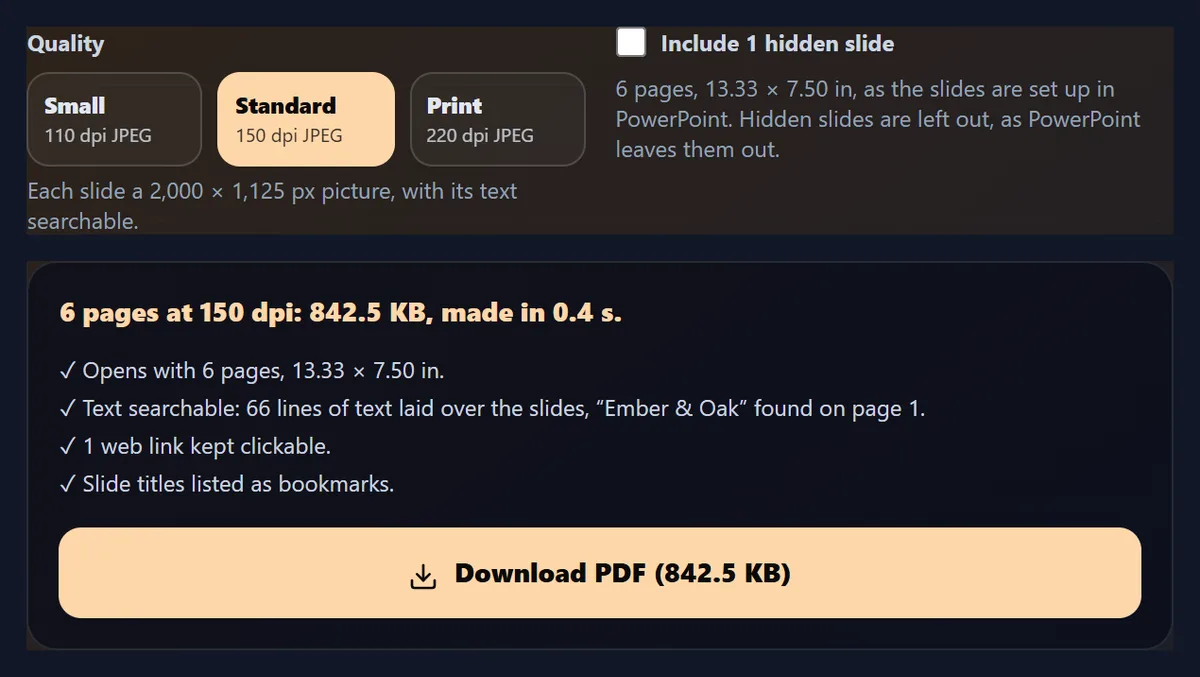
It depends on the quality. Each slide is saved as a picture at the resolution you pick, with its text laid over it, so a sharper picture means a bigger file. The table shows the sample pitch deck, 6 pages with two photos, saved at each quality; PowerPoint's own PDF of it was 191.9 KB, because PowerPoint writes text as type and only the photos as pictures.
Standard, 150 dpi, is sharp on a laptop screen and on a projector; Print, 220 dpi, keeps small text crisp when printed or zoomed in; Small, 110 dpi, is for sending by email.
| Quality | Picture of each slide | Made in | PDF size |
|---|---|---|---|
| Small, 110 dpi | 1,467 × 825 px | 0.7 s | 477.7 KB |
| Standard, 150 dpi | 2,000 × 1,125 px | 0.4 s | 842.5 KB |
| Print, 220 dpi | 2,933 × 1,650 px | 2.3 s | 1,514.7 KB |
How close is it to PowerPoint's own PDF?
Very close: each sample was made in Microsoft PowerPoint, which also saved it as a PDF, and the two were compared slide by slide. On the pitch deck, the 45 pieces of text PowerPoint placed were matched with this tool's: their baselines differed by 0.07 pt in the middle case and 0.24 pt at most, under a hundredth of an inch. Drawn side by side at 96 dpi, 96.6% to 99.4% of each slide's pixels were within 24 of 255 levels of PowerPoint's.
Most of the difference is the font: the sample uses Aptos, Office's new font, which is not free to use on the web, so it is drawn with Barlow, whose words came out 1.2% wider or narrower in the middle case.
| Slide | What is on it | Pixels within 24 of 255 levels |
|---|---|---|
| Pitch 1 | Title and subtitle | 98.6% |
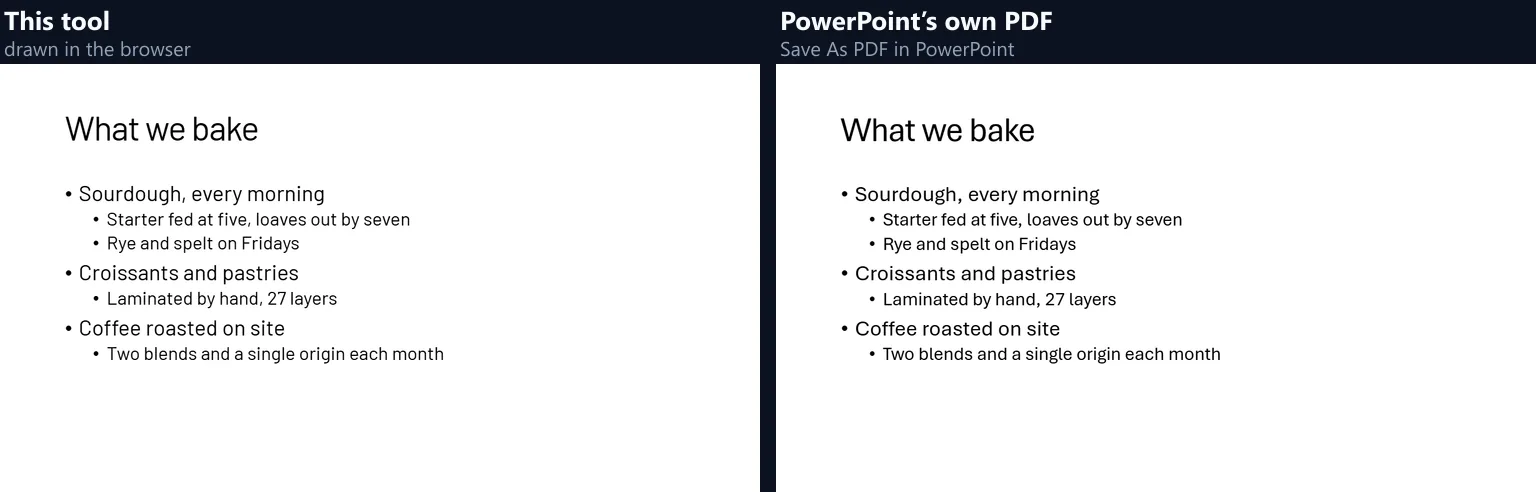
| Pitch 2 | Bullets on two levels | 96.6% |
| Pitch 3 | Bullets and a cropped photo | 96.8% |
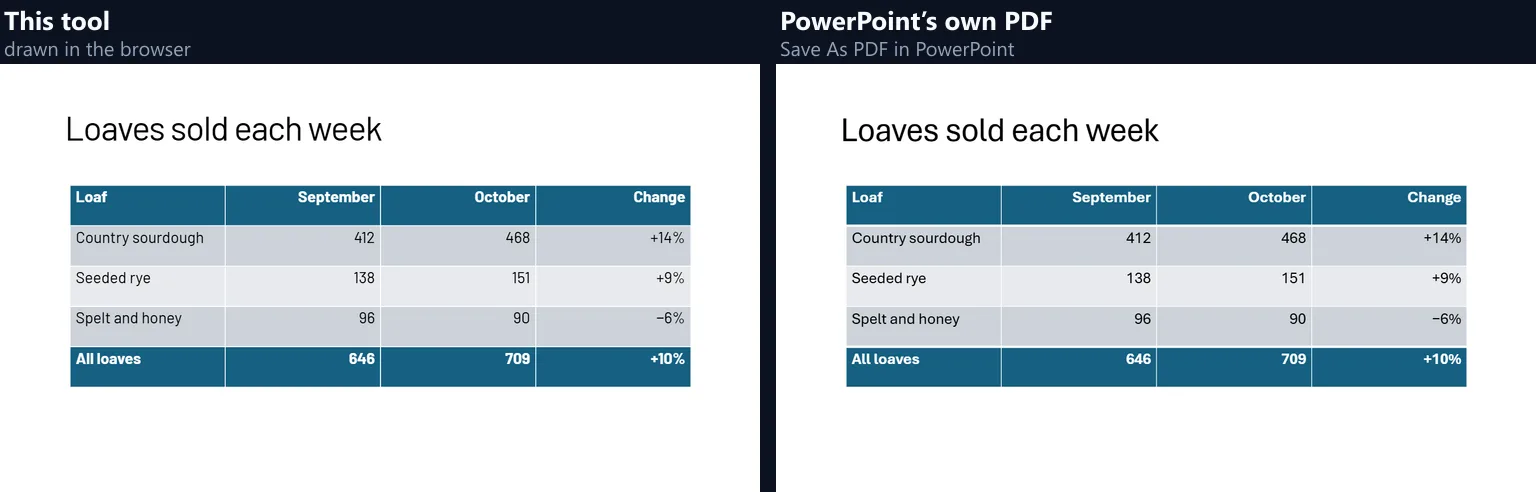
| Pitch 4 | A table in a table style | 97.0% |
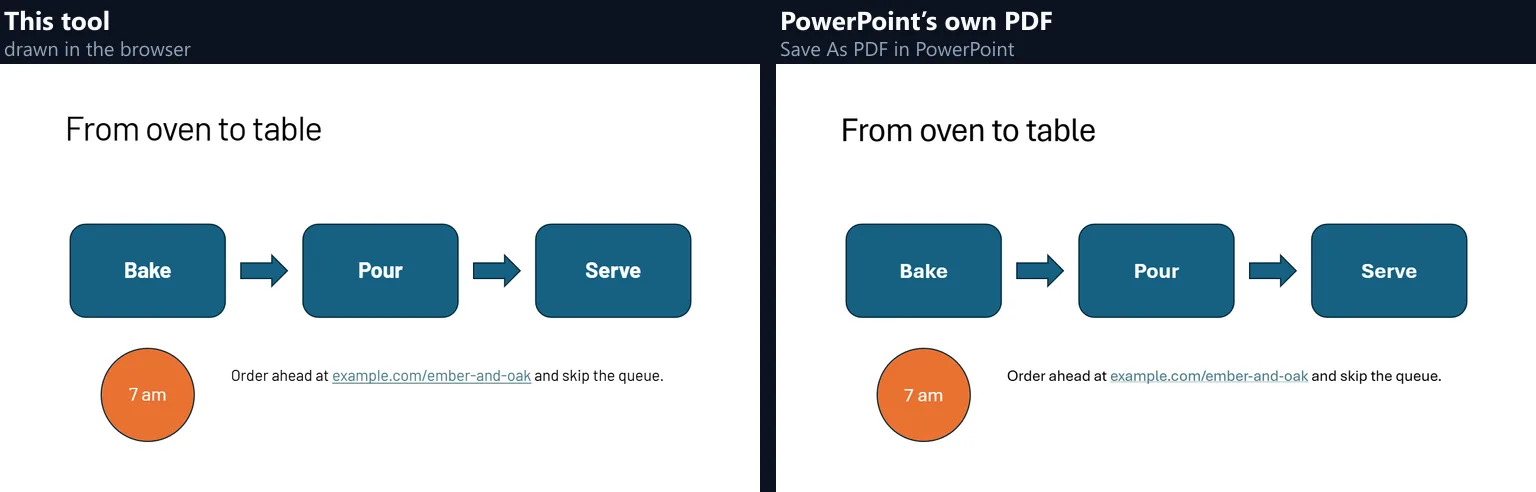
| Pitch 5 | Shapes, arrows and a link | 97.9% |
| Pitch 6 | A full-slide photo and a see-through band | 99.4% |
| Report 1 | Facet design, title slide | 99.9% |
| Report 2 | Facet bullets | 99.5% |
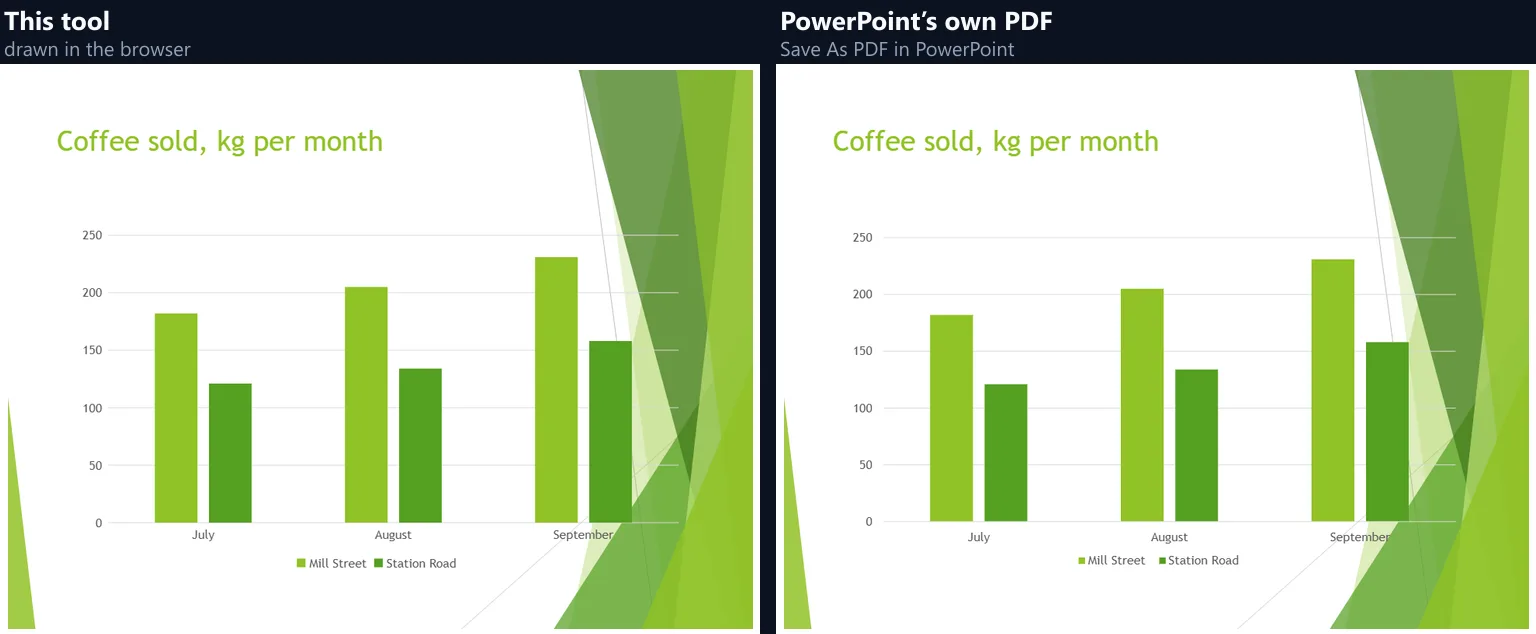
| Report 3 | A column chart | 98.2% |
| Report 4 | Section header | 100.0% |
Can I search and copy the text in the PDF?
Yes. Over each slide's picture the PDF carries the slide's text in invisible type, placed and stretched to cover the words it stands for, as scanned documents carry the text recognised in them. A PDF reader finds words, selects lines and reads them aloud. The figure shows what pdf.js, the PDF reader in Firefox, reads from page 2 of the sample's PDF.
Checked word by word, all 94 different words in PowerPoint's own PDF of the sample were in this tool's PDF too. Text in Latin, Greek and Cyrillic letters can be searched; text in other scripts is drawn on the slides but cannot be searched yet.
Are slide titles and links kept?
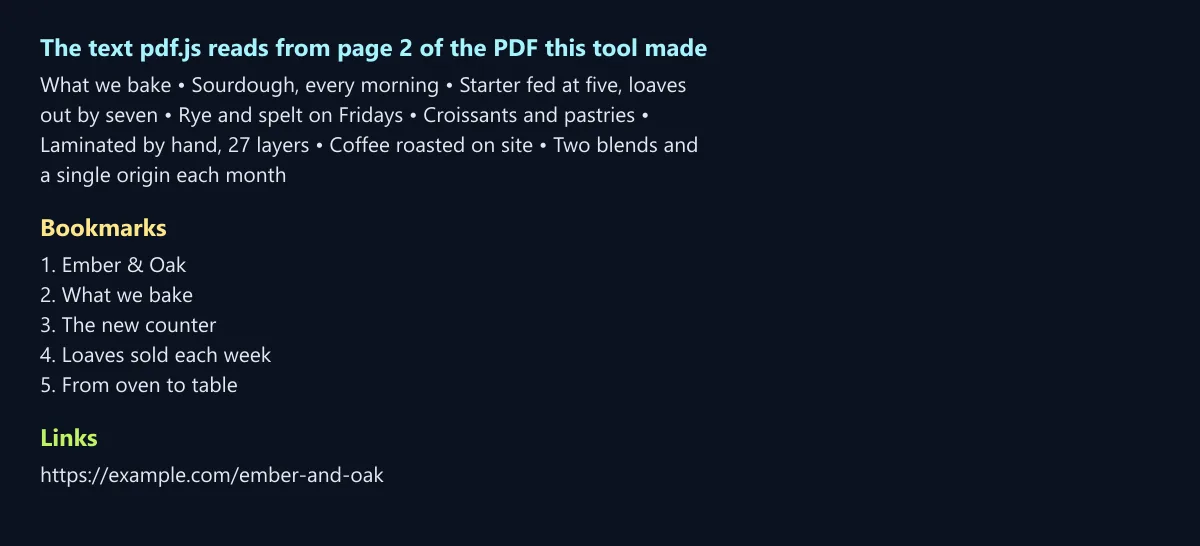
Yes. Every slide with a title gets a bookmark with that title, so a PDF reader's sidebar lists the slides by name: the sample's PDF has five, one per titled slide (its photo slide has no title). Web links in the slides' text, and on shapes and pictures, stay clickable in the PDF; the sample's link to example.com/ember-and-oak was kept, coloured and underlined as PowerPoint shows links.
Links that jump to another slide in the same presentation are not kept yet; they show as ordinary text.
What happens to the fonts?
A font your device has is used as it is. Office fonts it lacks are drawn with free fonts made with the same letter widths where one exists, so lines break where PowerPoint breaks them: Carlito for Calibri, Caladea for Cambria, Arimo for Arial and Tinos for Times New Roman. Aptos, the default since 2023, has no such twin; Barlow comes closest, and for Aptos Display, its heading cut, Barlow is drawn with its letters 0.0273 em closer, which brought five sample titles within 1.1% of PowerPoint's widths.
The Fonts box says, for each font, whether it was on your device, drawn with a stand-in of the same widths, or drawn with a close one. The PDF never needs the fonts: its text is drawn on the slides.
Do tables keep their style?
Yes. PowerPoint's table styles are read from the file: the header row's colour and bold white text, the banded rows, a total row, borders and each cell's own fill and alignment, and rows grow to fit their text as in PowerPoint. The sample's table, in PowerPoint's default style, matched PowerPoint's own PDF on 97.0% of its pixels.
Numbers line up slightly differently: Aptos gives every digit the same width, so figures stack in columns, while Barlow's digits vary, which made some numbers in the table up to about a quarter narrower.
What about shapes, pictures and backgrounds?
Shapes are drawn with their fills, outlines, shadows and text: 48 of PowerPoint's preset shapes, among them rectangles, rounded rectangles, ovals, arrows, stars, callouts, connectors and flowchart shapes, plus freeform shapes drawn point by point. Pictures keep their crop and transparency, groups keep their layout, and slide backgrounds keep their colour, gradient or picture. The design's own shapes, the stripes and panels a theme puts on every slide, are drawn behind each slide as PowerPoint draws them.
SmartArt is drawn from the shapes PowerPoint saves with it in the file; a shape the tool has no outline for is drawn as its box and named in the Fonts box.
Are charts drawn?
Yes, from the numbers PowerPoint saves with each chart: column and bar charts (side by side or stacked), line and area charts, pies and doughnuts, with their colours, gridlines, axis labels and legend. The sample report's column chart came out with the same bars, sizes and colours as PowerPoint's own PDF; labels and the legend sat up to 2.4 pt from where PowerPoint put them.
Charts of other kinds, such as scatter, radar or combined charts, are named as not drawn; save those decks to PDF from PowerPoint itself.
Which quality should I pick?
Standard for most uses: sending, reading on a screen and projecting. Print when the PDF will be printed, or when slides carry small text or detailed diagrams that people will zoom into. Small when the file must stay under an email limit; at 110 dpi its text is still clear at full-screen size.
If you need the smallest possible file, or text that stays sharp at any zoom, PowerPoint's own Save As PDF writes text as type; this tool is for when you do not have PowerPoint, or are on a phone or a shared computer.
Is my presentation uploaded?
No. The file is opened, its slides drawn and the PDF written inside this browser tab; nothing is sent to HueFold or kept anywhere. Only fonts are fetched: the free stand-ins from Google Fonts when a deck uses Office fonts your device does not have, and a font file from HueFold for the searchable text when slides use letters beyond Western European ones. There is no sign-up, watermark or limit on slides.
That matters for the decks people most often convert: pitches, reports, lessons and plans that are not public yet.
Does it open older .ppt files?
Not yet: .ppt, the format PowerPoint used until 2007, is a different kind of file, and the tool says so if you drop one. Open it in PowerPoint, Keynote or Google Slides and save it as .pptx first. Slide shows (.ppsx) and templates (.potx) open like .pptx files.
Keynote and Google Slides decks can be saved as .pptx from their File menus, then converted here.
Can I convert PowerPoint to PDF on my phone?
Yes, in a current browser on Android or an iPhone: open the presentation from Files, Drive or an email attachment, and save the PDF. On an iPhone it goes to the Files app, ready to share; on Android, to Downloads. Big decks take longer on a phone, since every slide is drawn on the phone itself.
The slide thumbnails and the quality buttons are big enough to tap.
What else can I do with documents here?
PDF to PPT turns a PDF back into slides; Delete Pages from PDF removes pages you do not need; PDF to PNG and PDF to JPG save pages as pictures; Word to PNG saves a Word document's pages as images.
Each of them, like this one, works inside your browser.
Frequently asked questions
Is it free to convert PowerPoint to PDF?
Yes: no sign-up, no watermark and no limit on slides.
Is my presentation uploaded?
No. The slides are drawn and the PDF written in your browser.
Can I search the text in the PDF?
Yes: each slide carries its text in invisible type over its picture.
Does it look the same as in PowerPoint?
Very nearly: on the sample, every line was within 0.24 pt of PowerPoint's own PDF.
Are hidden slides included?
No, as in PowerPoint, unless you tick Include hidden slides.
Are speaker notes included?
No: the PDF has the slides only.
Does it work with .ppt files?
Not yet: save them as .pptx first.
Are links kept?
Web links stay clickable, and slide titles become bookmarks.
Why is the PDF bigger than PowerPoint's?
Each slide is a picture under its text; pick Small for a smaller file.
Related tools
- PDF to PPT — A PDF back into slides.
- Delete Pages from PDF — Remove pages you do not need.
- PDF to PNG — PDF pages as PNG pictures.
- PDF to JPG — PDF pages as JPG pictures.
- Word to PNG — Word pages as images.
- Free PDF Converter — PDF to Word, text or PowerPoint.