PNG to JPG
Turn PNG images into smaller JPGs, one at a time or 50 at once. Pick the JPG quality and the colour that fills transparent areas, see every file size before and after, and download singly or as one ZIP.
Updated

How do you convert a PNG to JPG?
Add your PNG files, or try the three samples. Each one is converted at once and listed with its size as PNG and as JPG. Set the quality, choose a background colour for any transparent areas, click a file to preview it, and download it on its own or all of them as a ZIP.
PNG keeps every pixel exactly and supports transparency, which makes it ideal for logos, screenshots and graphics but very large for photos. JPG makes photos small by discarding detail that is hard to see, and has no transparency. Converting a PNG to JPG usually saves a lot of space, at the cost of transparency and a little sharpness.
The samples are a photo saved as PNG, a round logo with a transparent background, and a screenshot of a HueFold page. Your files never leave your device.
How to convert PNG to JPG online
- Add PNG files Choose or drop up to 50 PNG files, or try the samples.
- Set quality and background Pick the JPG quality and the colour that fills transparent areas.
- Check the sizes Each file is listed with its size before and after.
- Download Save a single JPG, or all of them as one ZIP.
Convert three PNGs to JPG
A real recording of this tool: three PNG samples converted to JPG, a transparent logo on white and on a dark background, the quality lowered, and a ZIP download.
- Three PNG samples open and are converted to JPG.
- The transparent logo is shown on the white fill.
- The background colour is changed to dark navy and back.
- The quality is lowered to 80% and all three are downloaded as a ZIP.
How much smaller does a PNG get as a JPG?
A lot for photos, less for graphics. The coast photo saved as a PNG was 2,263,440 bytes; as a 92% JPG it was 322,806 bytes, 86% smaller. The screenshot went from 361,402 to 110,555 bytes (69% smaller), and the transparent logo from 39,016 to 43,718 bytes, larger than the PNG: flat colour and clean edges are what PNG compresses best.
The more a picture looks like a photo, with gradients, texture and noise, the more JPG saves. Pictures made of flat colour, sharp lines and text are where PNG is already efficient and where JPG's compression shows first.
| Sample | PNG bytes | JPG bytes | JPG as a share of the PNG |
|---|---|---|---|
| Photo saved as PNG | 2,263,440 | 322,806 | 14% |
| Logo with transparency | 39,016 | 43,718 | 112% |
| Screenshot | 361,402 | 110,555 | 31% |
What happens to transparent areas?
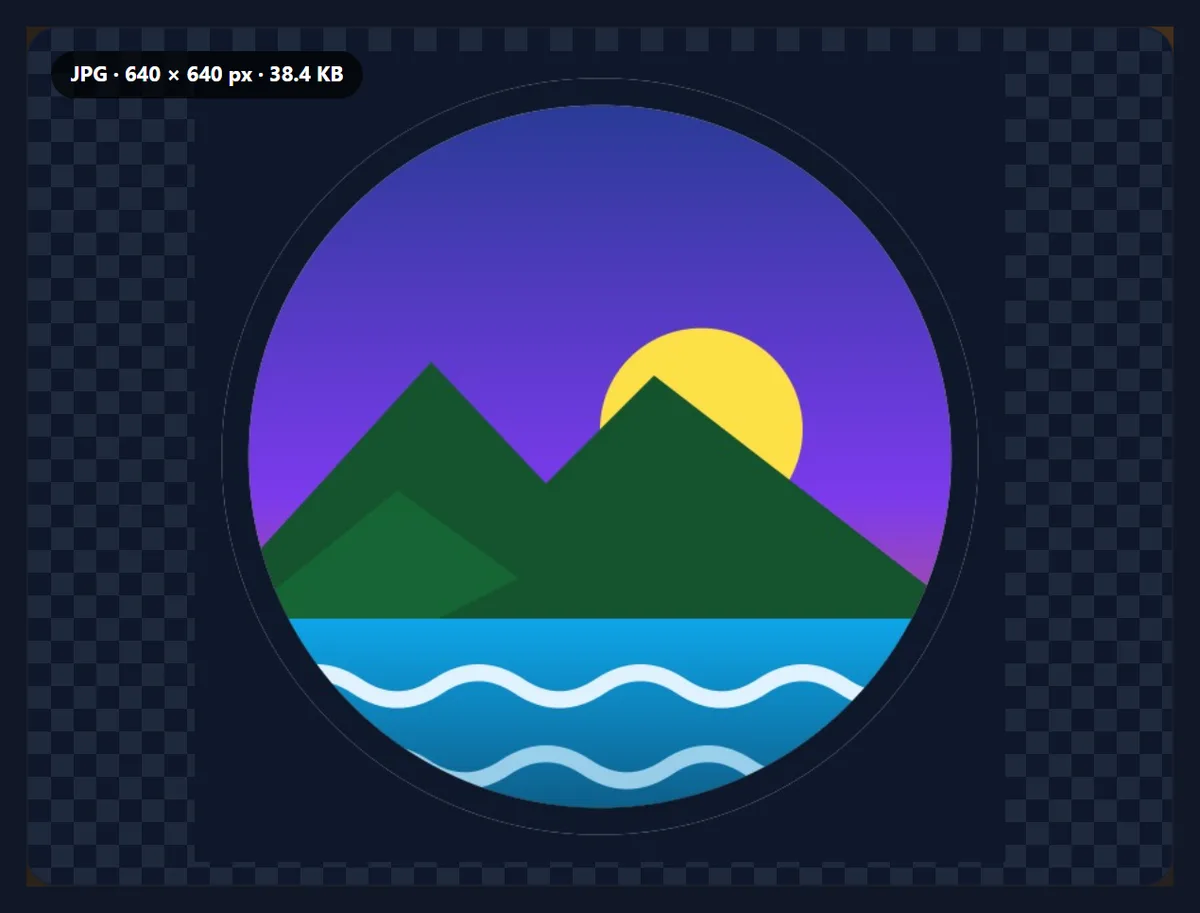
JPG has no transparency, so every transparent pixel needs a colour. The converter fills them with white by default, or with any colour you choose, before saving. Semi-transparent edges, such as a soft shadow or anti-aliased lettering, are blended with that colour too, so pick the colour of the page the JPG will sit on and the edges will look right there.
The sample logo became a 43,718-byte JPG of 640 × 640 pixels on white. On a dark background you would choose a dark fill instead.
Which JPG quality should I use?
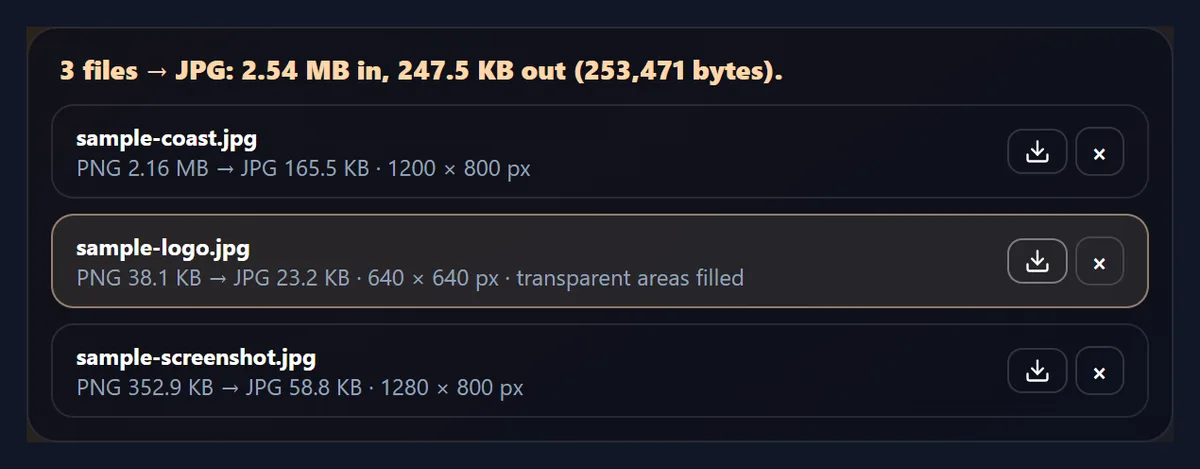
92%, the default, is visually lossless for most photos. 80% is a good choice for the web, with files noticeably smaller. Below 70% artefacts start to show, first around sharp edges and text. The three samples came to 477,079 bytes in all at 92% and 253,471 bytes at 70%.
For screenshots and anything with small text, use a high quality, or keep them as PNG: JPG blurs the edges of letters.
Should screenshots be converted to JPG?
Only if size matters more than crispness. The sample screenshot shrank from 361,402 to 110,555 bytes as a 92% JPG, but JPG compresses in 8 × 8 pixel blocks, and the hard edges of text get faint ripples around them. For screenshots you will share as documents or put into slides, PNG is usually the better choice.
For screenshots of photos, videos or games, JPG is fine and much smaller.

When should you convert a PNG to JPG?
When the PNG is a photo, which is common with screenshots of photos, phone edits and pictures saved from design tools. When a site or form only accepts JPG, or caps the file size. When you are emailing or messaging many pictures. And when a printer or photo lab asks for JPG.
Keep the PNG when you need transparency, crisp text or exact pixels, or when the picture will be edited again: every edit saved as JPG loses a little more.
Can I convert many PNGs at once?
Yes, up to 50. Each one is listed with its size as PNG and as JPG, any filled transparency is noted, and you can download files singly or all together as a ZIP. Names stay the same apart from the extension, and files that would share a name are numbered.
Settings apply to every file in the list: change the quality or background colour and all of them are converted again.
What is kept, and what is not?
The picture is kept at its full size, upright. Text chunks and other metadata stored in the PNG are not copied into the JPG, and the JPG gets no EXIF data. Colours are saved in sRGB, the colour space the web assumes.
PNG files can store 16 bits per colour; JPG stores 8. For photos and screens that makes no visible difference; for heavy editing afterwards, keep the PNG.
What is the difference between PNG and JPG?
PNG is lossless: every pixel is stored exactly, with optional transparency and up to 16 bits per colour, compressed only by finding repetition. That suits graphics, which repeat a lot, and suits photos poorly, because photos are full of fine, unrepeated variation. JPG is lossy: it splits the picture into 8 × 8 pixel blocks and keeps their broad shapes and colours, discarding detail the eye rarely notices, and has no transparency.
So the same photo is usually far smaller as JPG, while a flat logo can be smaller as PNG. Converting from PNG to JPG trades exactness and transparency for size.
How do I get a PNG under an upload size limit?
Convert it to JPG and lower the quality a little. The photo saved as PNG was 2,263,440 bytes; as an 80% JPG it was 252,095. The screenshot went from 361,402 to 73,460 bytes at 80%. If a form has an exact limit, such as 100 KB, use Reduce Image Size in KB, which finds the highest quality that fits, and resizes only when quality alone cannot get there.
Making the picture smaller in pixels also shrinks the file quickly: halving both sides cuts the pixels to a quarter.
Why does my logo have a pale or dark outline?
Logos have soft, partly transparent edges so that their curves look smooth. When the PNG becomes a JPG, those edge pixels are blended with the fill colour. If the JPG is then placed on a different colour, the blended edge shows as a thin outline: pale on a dark page if the fill was white, dark on a light page if the fill was dark.
Pick the fill colour of the place where the JPG will be shown, or keep the logo as PNG or WebP, which keep the transparency.
Does it work on a phone?
Yes. The tool runs in any current mobile browser, so you can convert PNG screenshots and pictures straight from your phone's photos or files. On an iPhone, downloads go to the Downloads folder in the Files app; on Android, to the Downloads folder. Phones have less memory than computers, so convert very large images, or long lists of them, a few at a time.
Nothing is installed and nothing is uploaded, so it works the same on a phone, a tablet or a computer.
What about 16-bit and animated PNGs?
A 16-bit PNG, as saved by some editing and scanning software, is read at 8 bits per colour and saved as an ordinary 8-bit JPG, which is all a JPG can hold; for photos on screens and in print the difference is not visible. An animated PNG (APNG) gives its first frame, because a JPG holds one still picture.
If you need every bit of a 16-bit file for further editing, keep the PNG.
Will my file names change?
Only the ending: logo.png becomes logo.jpg. Spaces and unusual characters become hyphens so the name works on every system and website, and very long names are shortened to 80 characters. If two files in a batch would end up with the same name, the second gets -2 and the third -3, so nothing in a ZIP is overwritten.
How do I know whether my PNG is transparent?
The converter checks every PNG when it opens it, by sampling its pixels for any that are not fully opaque, and marks the files whose transparent areas were filled in the list. The preview shows the JPG as it will be saved, on the background colour you chose. Screenshots and most photos saved as PNG have no transparency at all; logos, icons, stickers and cut-out product photos usually do.
Is anything uploaded?
No. The images are opened, converted and saved inside your browser tab, and no account is needed. PNGs up to 40 megapixels can be opened.
Because the work happens on your device, a big batch is limited by its memory: on a phone, convert large images a few at a time.
Why does my JPG have a white or black box?
Because the PNG had a transparent background and JPG cannot store one. The converter fills it with the background colour you chose; white is the default. If you need the background to disappear on a coloured page, keep the PNG, or convert it to WebP, which keeps transparency and is usually smaller than PNG.
If the JPG looks blocky, raise the quality; if it is still too big, lower the quality a little or make the image smaller first.

Frequently asked questions
How do I convert PNG to JPG?
Add the PNG, choose the quality and background, and download the JPG.
What happens to a transparent background?
It is filled with the colour you choose; white by default.
Does PNG to JPG lose quality?
A little, at the quality you set; 92% is hard to tell apart from the PNG for photos.
Why is my JPG bigger than the PNG?
For flat graphics PNG is already efficient; keep those as PNG.
Can I convert many PNGs at once?
Yes, up to 50, and download them as one ZIP.
Should screenshots be JPG?
Usually not: JPG blurs text edges. Keep them as PNG unless size matters most.
Which quality should I use?
92% for best results, 80% for the web.
Are my images uploaded?
No. Everything happens in your browser.
Does the JPG keep metadata?
No, it carries no EXIF or PNG text data.
Is it free?
Yes, with no account, watermark or limit.
Related tools
- JPG to PNG — The other way: a lossless copy.
- Image Converter — Any format to JPG, PNG or WebP.
- Compress Image to 100KB — Shrink a JPG to a size limit.
- Reduce Image Size in KB — Any KB target.
- WebP to JPG — WebP files to JPG.
- Background Remover — Make a transparent PNG.