Remove Background from Logo
Make a logo’s white or coloured box transparent and save a PNG that sits cleanly on any page. The backdrop is found from the edge, letters keep their insides, and edge pixels are unmixed so curves stay smooth on dark backgrounds too.
Updated

How do you remove the background from a logo?
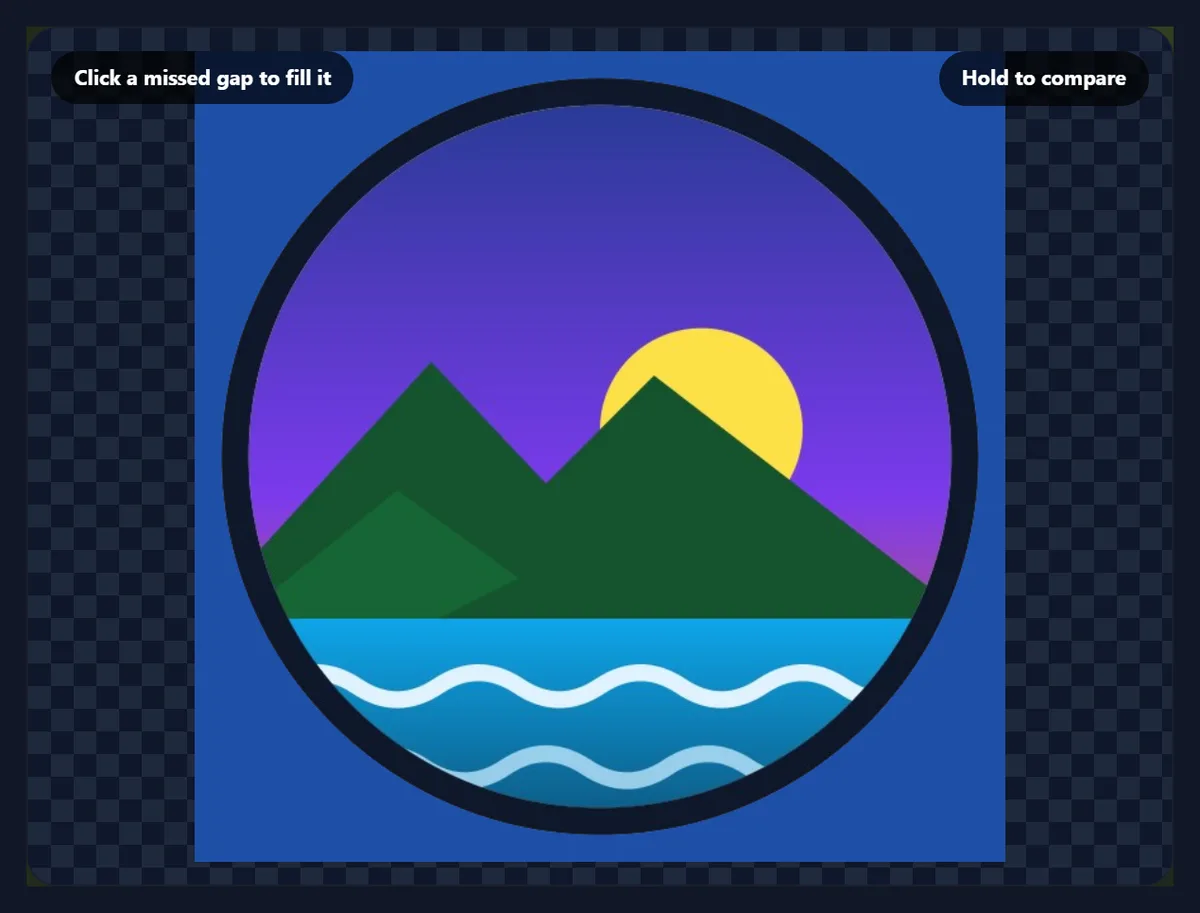
Open the logo image. The tool reads the backdrop colour from the image's edge, picks a tolerance to match, and makes the backdrop transparent, keeping anything the logo's outline encloses. Check the result on the checkerboard, fill any missed gaps inside letters with a click, and download a transparent PNG at the original size.
It works best on logos on a plain backdrop, which is how most logos arrive: exported on white, copied from a website or pasted into a document. Because the edge pixels are unmixed rather than cut, the PNG has no white fringe when it is placed on a dark page or a photo.
Nothing is uploaded and no AI is involved: the logo is changed inside your browser with colour maths, and never leaves your device.
How to make a logo background transparent
- Open the logo Choose a JPG, PNG or WebP logo, drop it on the preview, or use the sample.
- Check the backdrop The tool finds it from the edge; use Click: pick the backdrop if it chose wrongly.
- Fix the details Raise Tolerance if specks remain; click inside letters to fill missed gaps.
- Download a PNG Save a transparent PNG at the original size, or choose a new colour.
Remove a logo’s white background
A real recording of this tool: the sample logo on white made transparent, the soft edge setting, a royal blue background tried, and the PNG downloaded.
- The sample logo on white opens with its backdrop already transparent.
- Soft edge is set to 0 and back to 8.
- A royal blue background is tried, then Transparent again.
- The transparent PNG is downloaded.
What does the tolerance do?
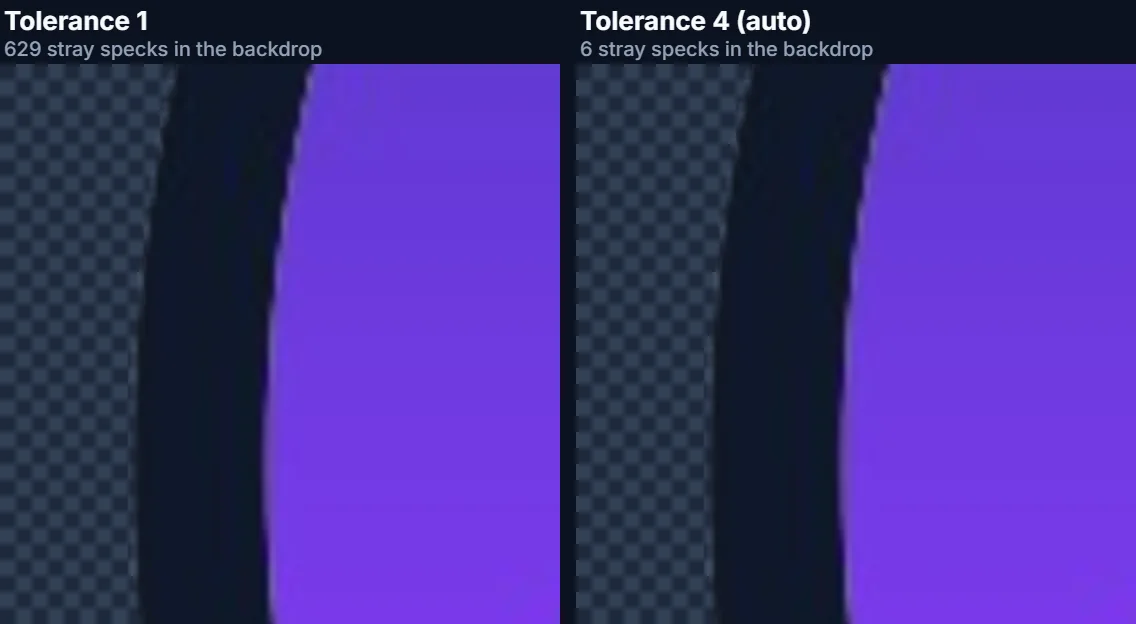
Tolerance is how different from the backdrop colour a pixel may be and still count as backdrop, measured as a colour distance. It matters most for logos saved as JPG, because JPEG compression never keeps a white background perfectly white: around the edges of the logo it leaves faint ripples of off-white. Too low a tolerance keeps those ripples as nearly invisible specks, which then show up as a dirty haze when the logo sits on a dark page.
On the sample, a logo saved as a JPG on white, the lowest tolerance (1) left 629 stray specks in the backdrop, 3 left 25, and the automatic setting the tool chose from the logo's own edge (4) left 6. From 20 up there were none. Going higher costs a little of the logo itself: at 40 the edge lost 173 solid pixels compared with tolerance 1, out of about 278,000. Start from the automatic value and raise it only if specks remain.
| Tolerance | Stray specks | Partly clear pixels | PNG bytes |
|---|---|---|---|
| 1 | 629 | 4,656 | 222,816 |
| 3 | 25 | 3,141 | 214,348 |
| 4 (auto) | 6 | 3,030 | 213,455 |
| 20 | 0 | 2,613 | 210,725 |
| 40 | 0 | 2,281 | 208,165 |
How does it find the background?
It reads the colour around the outer edge of the image, where the backdrop almost always is, and takes the most common colour there as the backdrop: #ffffff for the sample. From the edge it then fills inwards through every connected pixel close enough to that colour, like a paint bucket. Anything the fill cannot reach, because the logo's outline surrounds it, is kept as part of the logo.
That is why the white waves inside the sample logo survive even though they are nearly the same colour as the backdrop: the dark ring around the logo keeps the fill out. If the backdrop is not the edge colour, choose Click: pick the backdrop and click it on the preview; Find the backdrop again goes back to the automatic choice.
What about the holes inside letters?
The background inside letters such as O, A, B, D, P, Q and R, or inside a ring or a frame, is enclosed by the logo, so the fill from the edge cannot reach it and it stays white. That is deliberate, because enclosed white is often part of the design. When it is not, click inside each hole on the preview (Click: fill a missed gap is the default click mode): the fill starts again from there, with the same tolerance.
Check the result on the checkerboard: anything that should be see-through but still shows white is a missed gap. Hold to compare shows the original again while you hold it.
Why do the edges stay smooth?
Because a logo's edge is not a hard line. When a logo is drawn or saved, each pixel along a curve is a mix of the logo's colour and the white behind it; that is anti-aliasing, and it is what makes curves look smooth rather than stepped. A simple remover either keeps those pixels, leaving a pale fringe, or deletes them, leaving jagged steps.
This tool unmixes them instead. For each edge pixel it estimates the backdrop colour behind it and the logo colour next to it, works out how much of each the pixel contains, and keeps only the logo's share, as a partly transparent pixel of the logo's own colour. On a dark page or a photo, the edge then blends with the new background the way it blended with the white. The sample's downloaded PNG had about 3,000 partly transparent pixels along its edges.
When does the soft edge setting matter?
Soft edge widens the band of pixels that fade from backdrop to logo, beyond the tolerance. It matters for photos of things on a backdrop, such as a product on a white sweep, where the edge is soft and the backdrop is uneven. For a crisp logo it hardly matters: on the sample the number of partly transparent pixels went from 3,041 at 0 to 3,004 at 30, because the edge of a drawn logo jumps from white to colour within a pixel or two.
So for logos, leave Soft edge at its default of 8 and use Tolerance instead. Raise Soft edge only if the logo was photographed or scanned rather than exported from a design file.
Can I give the logo a new background colour instead?
Yes. Choose a swatch or any colour instead of Transparent and the backdrop becomes that colour, edges included: each edge pixel keeps its logo share and takes the new colour for the rest, so there is no white rim. The sample on royal blue (#1f4fa8) saved as a 209,225 byte PNG. Keep the backdrop's shading carries any shadows or gradient in the old backdrop over to the new colour, which helps with photographed logos and products.
A coloured version is useful for a profile picture, a favicon or a social media avatar, where a transparent background would be shown on whatever colour the site chooses.
Will my logo work on a dark background?
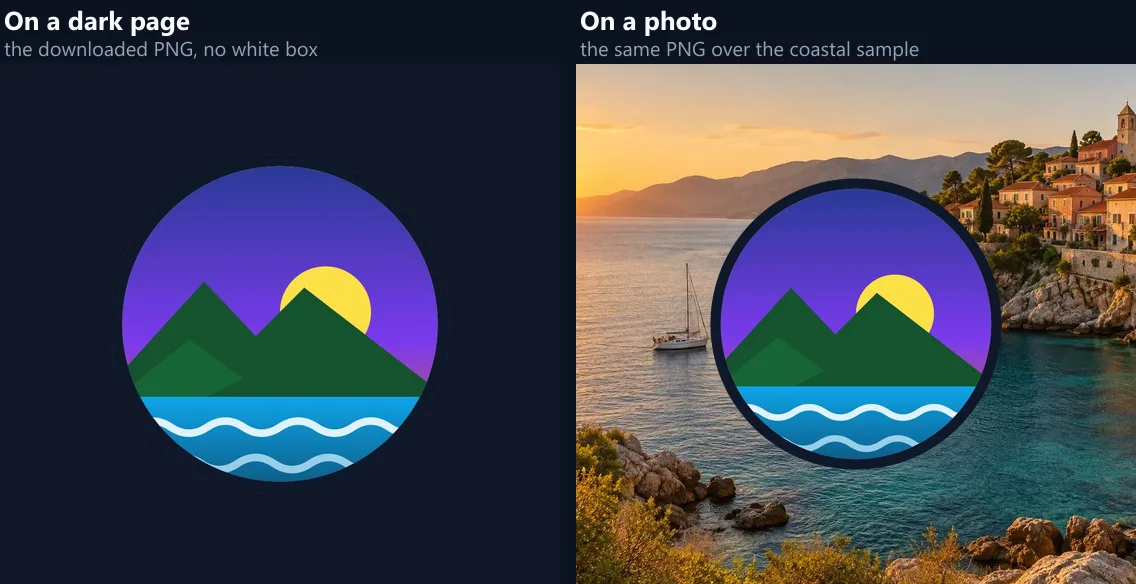
Check it before you use it. A transparent PNG fixes the white box, but it cannot fix a logo whose own colours are too dark for a dark page. The sample logo has a dark navy ring: on a light page it frames the logo, but on a dark page it almost disappears, as the figure shows. Brands usually keep a light, reversed version of their logo for exactly this reason.
The same PNG over a photo shows a second thing to check: the logo needs enough contrast with the busiest part of the photo it sits on. Place it over a calm area, or add a soft shadow or a light shape behind it.
Why is the download a PNG?
Because JPG cannot store transparency: every JPG pixel is a solid colour, so a transparent area would be filled with white again. PNG stores an opacity for every pixel, including the partly transparent edge pixels that keep curves smooth. The sample came out at 640 × 640 pixels, the same size as the original, and 213,455 bytes. WebP also keeps transparency and is usually smaller, and the tool can save it too, but PNG is the format almost every app and website builder accepts.
For the sharpest logo at large sizes, an SVG from the original design file is always better than any pixel image. Use this tool when all you have is a JPG or PNG with a box around it.
Which logos work best?
Logos on a plain, even backdrop: white, black, grey or any flat colour, as exported from a design app, copied from a website or saved from an email signature. Logos on a photo, a gradient or a pattern need the AI background remover instead, because there is no single backdrop colour to find. Very small logos, under about 200 pixels across, work but keep their blockiness; scale them up first with the AI image upscaler for a larger clean PNG.
If your logo touches the edge of the image, the fill can only start from the parts of the edge that are backdrop, which is usually enough. If the logo fills the whole edge, add a little margin around it first.
Which files work, and is anything uploaded?
You can open JPG, PNG and WebP images up to 40 megapixels; logos are usually far smaller. The result is saved as PNG, WebP or, with a colour background, JPG, at the original size. Nothing is uploaded: the logo is opened, changed and saved inside your browser tab, and no account is needed. There is no AI involved, just the colour maths described above, so the same image and settings always give the same file.
The sample is the site's own sample logo, saved as a JPG on white for this demonstration, the way logos often arrive.
Why is there still a white edge or box?
A thin pale outline usually means the logo was saved with a soft glow or shadow into the white, which is part of the image rather than anti-aliasing: raise the tolerance a little, or the soft edge. A white box that will not go means the backdrop was not found: choose Click: pick the backdrop and click it on the preview. White left inside letters is enclosed background: use Click: fill a missed gap.
If parts of the logo disappear, the tolerance is too high for a logo with light colours: lower it, or fill missed gaps by hand at a lower tolerance instead. If the logo looks jagged, it was probably jagged in the original; a larger original gives a smoother result.

Frequently asked questions
How do I make a logo background transparent?
Open the logo, check the backdrop was found, fill any gaps inside letters, and download the PNG.
Can I remove a white background from a logo?
Yes. White is the most common backdrop, and the tool finds it automatically from the edge.
Why is there white left inside the letters?
Enclosed background is kept by design. Click inside each letter on the preview to fill it.
Why does my logo have a white edge on a dark page?
Raise the tolerance slightly; the tool also unmixes edge pixels so curves have no white rim.
Can I use a JPG logo?
Yes. The tolerance handles JPEG’s off-white noise; the result is saved as PNG.
Can I change the logo’s background colour instead?
Yes. Choose a swatch or any colour instead of Transparent.
Does it work on a logo over a photo?
Not well: use the AI background remover for logos on photos, gradients or patterns.
Is my logo uploaded?
No. It is processed in your browser, with no AI.
Is it free?
Yes, with no account, watermark or limit.
Related tools
- Background Remover — AI cutouts for photos and busy backgrounds.
- Remove White Background — The same job for any image on white.
- Remove Black Background — For logos and art on black.
- SVG Editor — Edit a vector logo directly.
- AI Image Upscaler — Enlarge a small logo first.
- Overlay Images — Place the transparent logo on a photo.