Change Background Color
Swap the plain wall, sweep or paper behind a subject for any colour, or make it transparent. The backdrop is found from the photo’s edge, the edges of hair and clothing are unmixed so no grey fringe is left, and nothing is uploaded.
Updated

How do you change the background colour of a photo?
Open the photo and the tool reads the backdrop colour from its edges, finds everything of that colour connected to the edges, and replaces it with the new colour at once. Pick a swatch, any colour, or Transparent; adjust Tolerance if part of the wall is left or the change starts into the subject; and download.
This works on plain backdrops: a studio or office wall, a paper sweep, a sheet, a sky without clouds, a product shot on a coloured table, a logo or signature on a flat colour. It does not need an AI model, so it is instant and works offline once the page has loaded. A busy background, such as a street or a room, has no single colour to find; for that, use Change Photo Background, which cuts the subject out with an AI model.
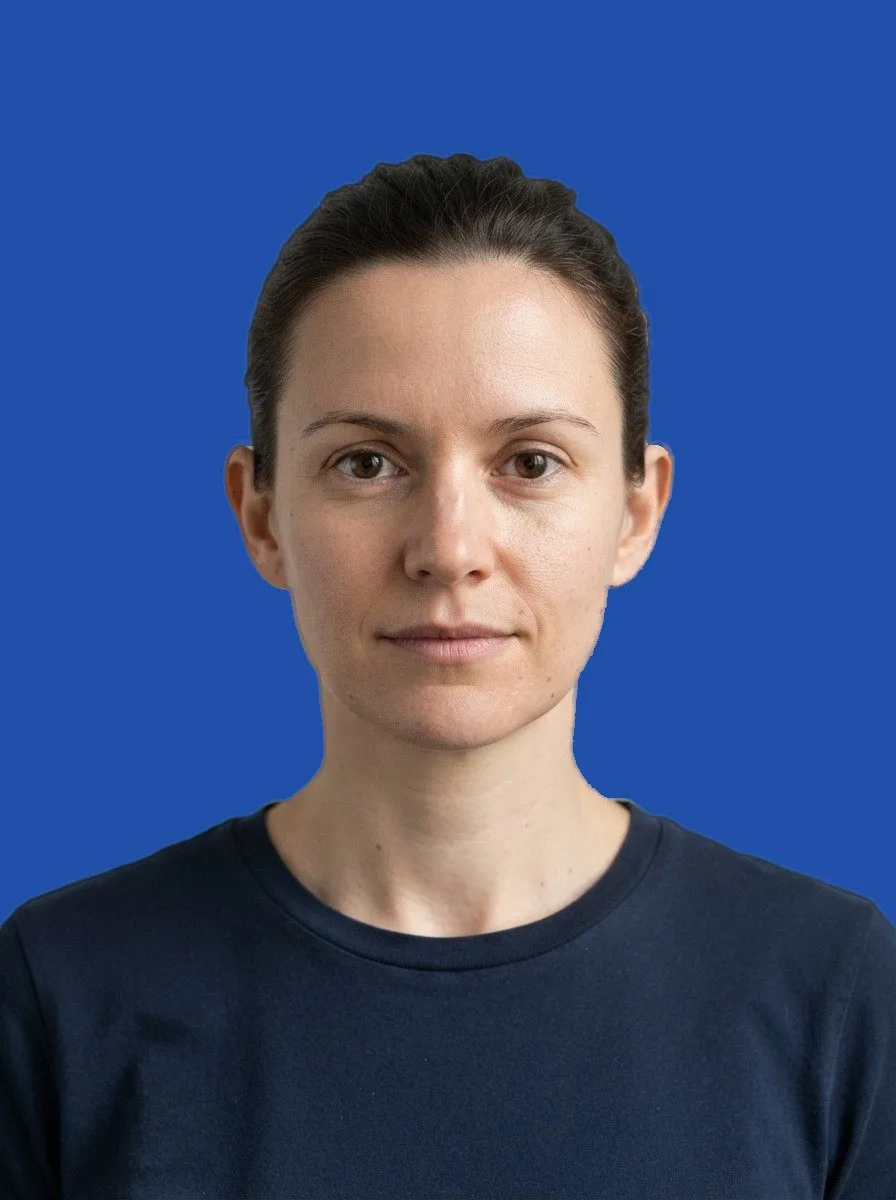
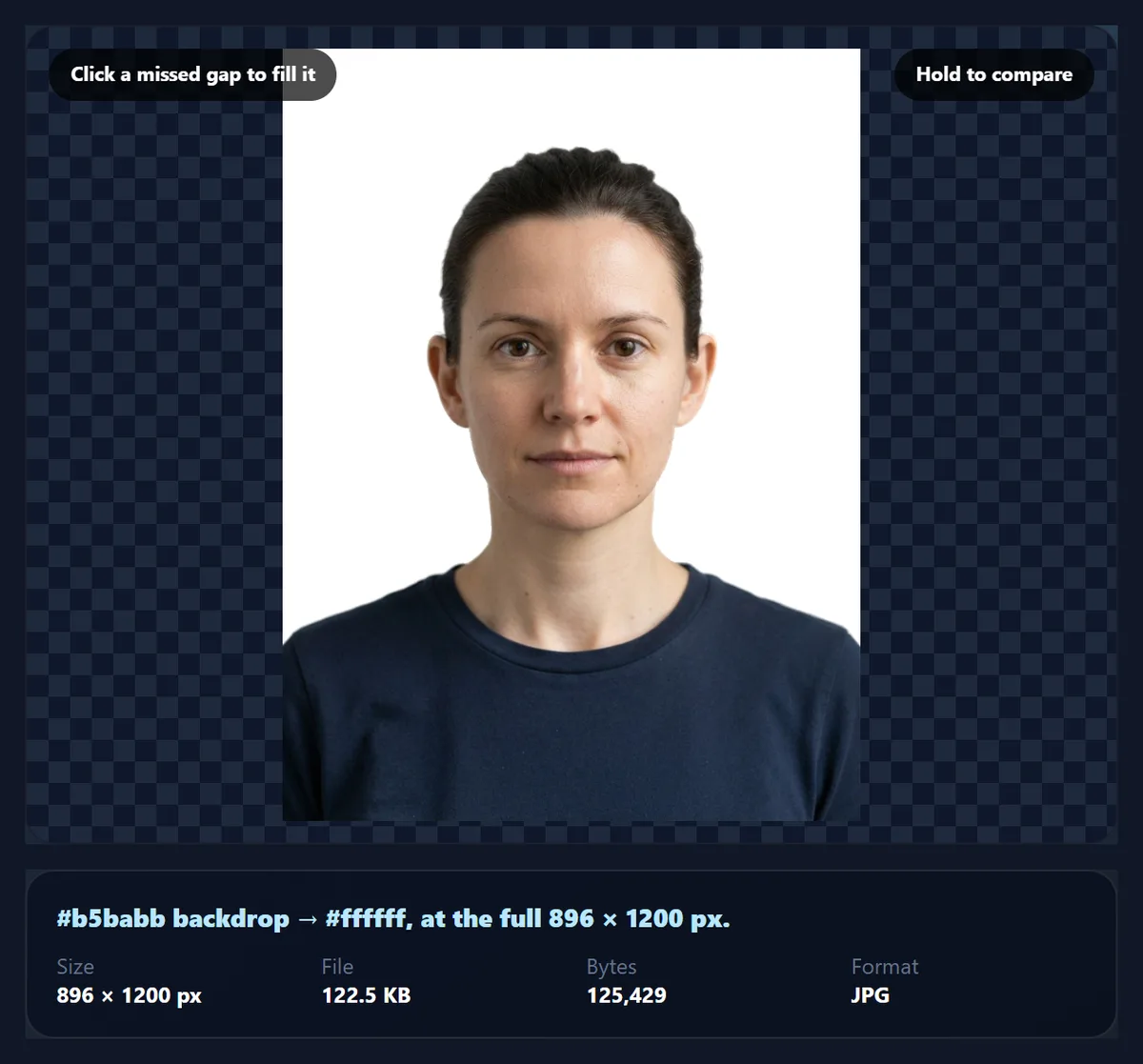
On the sample, a studio portrait of a fictional person made with AI, the tool found the grey wall (#b5babb) on 65% of the photo's edge, chose a tolerance of 6, and replaced 49% of the photo with the new colour.
How to change the background colour online
- Open the photo Choose a JPG, PNG or WebP with a plain background, drop it on the preview, or use the studio portrait sample.
- Pick the new colour A swatch, any colour from the picker, or Transparent. The backdrop is found and replaced at once.
- Check the edges Raise Tolerance if some backdrop is left, lower it if the subject is affected, and click any gap the fill missed.
- Download Save as JPG, PNG or WebP at full size; PNG and WebP keep a transparent background.
Change the background colour of a portrait
A real recording of this tool: the grey wall of a studio portrait is found and replaced, five colours are tried, the tolerance is lowered and restored, and a transparent PNG is downloaded.
- The studio portrait opens with its grey wall already replaced by royal blue.
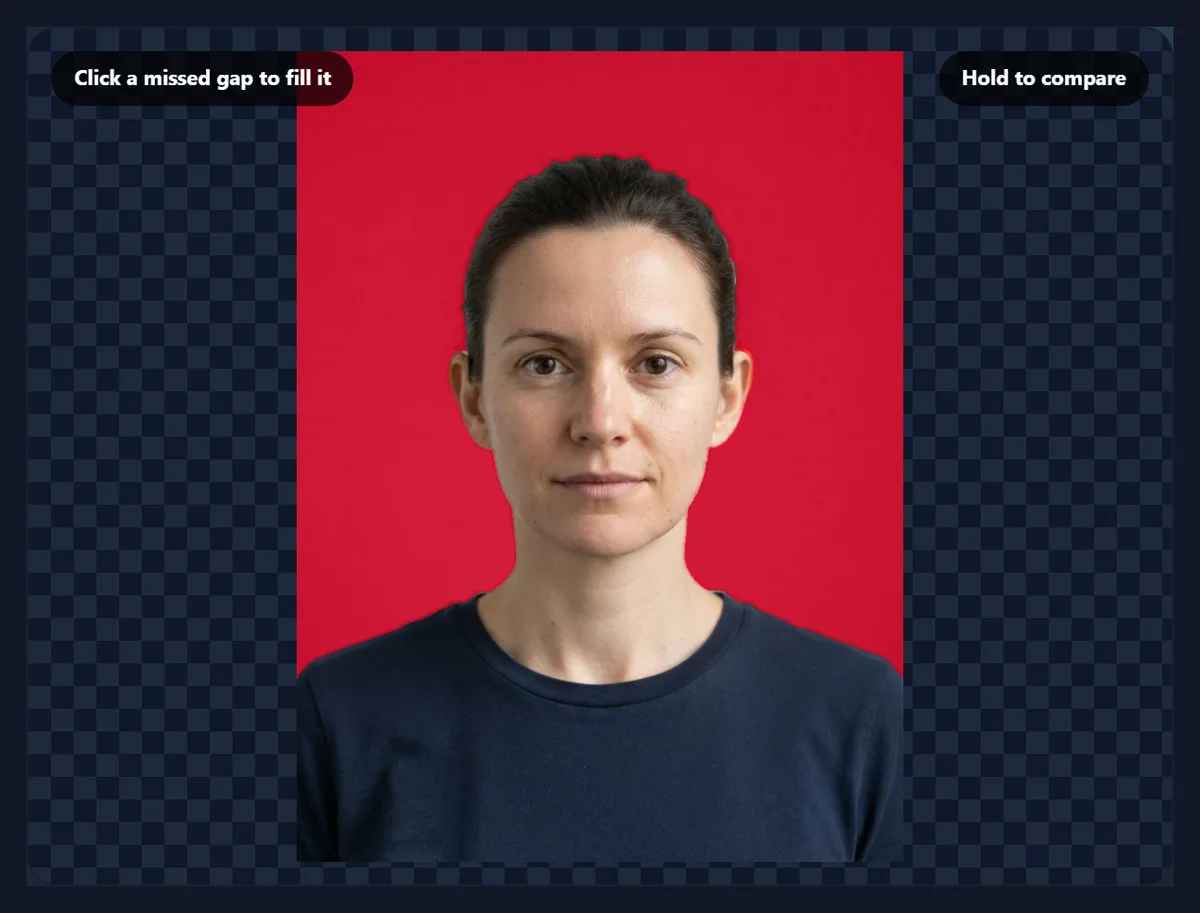
- White, light blue, red, black and royal blue are tried in turn.
- Tolerance is lowered, which leaves the darker parts of the wall, then set back.
- Transparent is chosen and the PNG is downloaded.
What does tolerance do?
Tolerance is how different from the backdrop colour a pixel can be and still count as backdrop, on a scale where black to white is 100 (the redmean colour distance, which weights red, green and blue roughly as we see them). A real wall is never one colour: it darkens away from the light, and the camera adds noise. The tool measures how much the edge pixels of the backdrop colour vary and suggests a tolerance just above that: 6 on the sample.
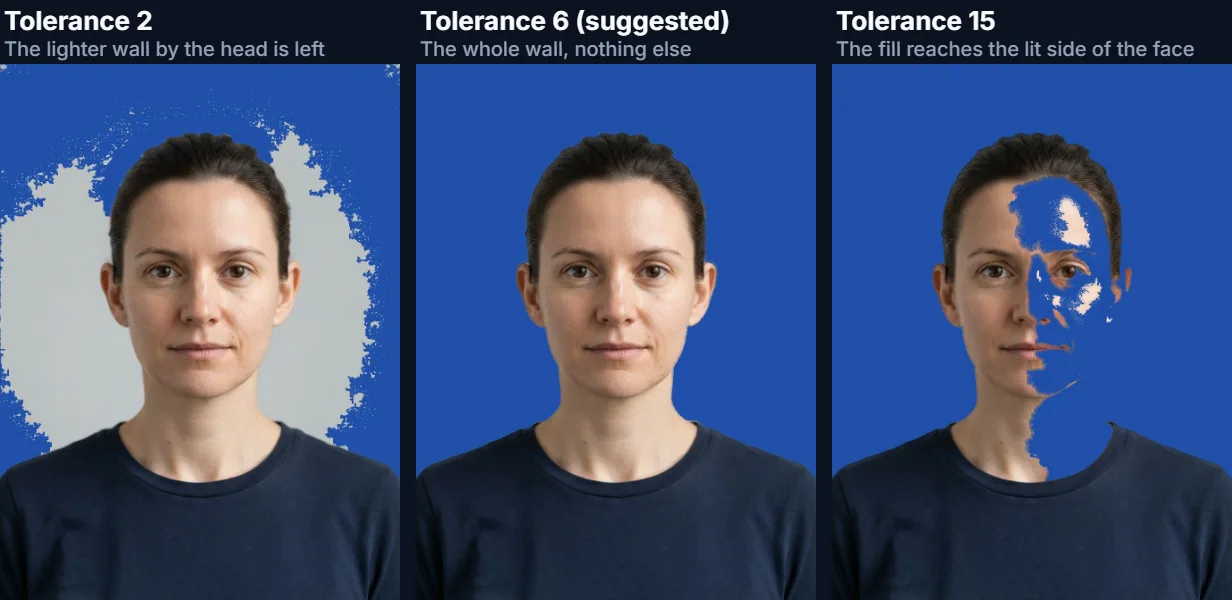
The table shows the share of the sample replaced as backdrop at each tolerance. At 2, only a quarter of the photo changed: the wall is lighter round the head, where the light falls, and that part was left grey. The suggested 6 took the whole wall and nothing else, 49% of the photo. Higher values let the fill leak into the subject wherever it is close to the wall's light grey: at 15 it already reached the lit side of the face, and at 40 the whole face. Beyond the tolerance, a Soft edge band fades pixels from backdrop to subject, so edges blend instead of stepping.
| Tolerance | Replaced as backdrop | Blended edge pixels |
|---|---|---|
| 2 | 25% | 1.3% |
| 4 | 46% | 1.1% |
| 6 (suggested) | 49% | 1.0% |
| 15 | 57% | 2.0% |
| 25 | 61% | 1.9% |
| 40 | 68% | 1.7% |
How is the backdrop found?
Three steps. First, the colour: the tool looks at a ring of pixels round the photo's edge, 1% of its shorter side wide, groups them into colour bins and takes the most common one. A portrait, a product shot or a scan almost always has backdrop on most of its edge. Second, the area: starting from every edge pixel of that colour, it floods inwards through neighbouring pixels within the tolerance. The flood cannot jump over the subject's outline, so a white shirt survives on a white wall as long as an edge of some other colour separates them. Third, any enclosed gap the flood could not reach, such as the space between an arm and the body, can be added with a click.
If the most common edge colour is not the backdrop, for example when a subject fills most of the frame, switch the click to Pick the backdrop and click the wall itself.
Why is there no grey fringe around the hair?
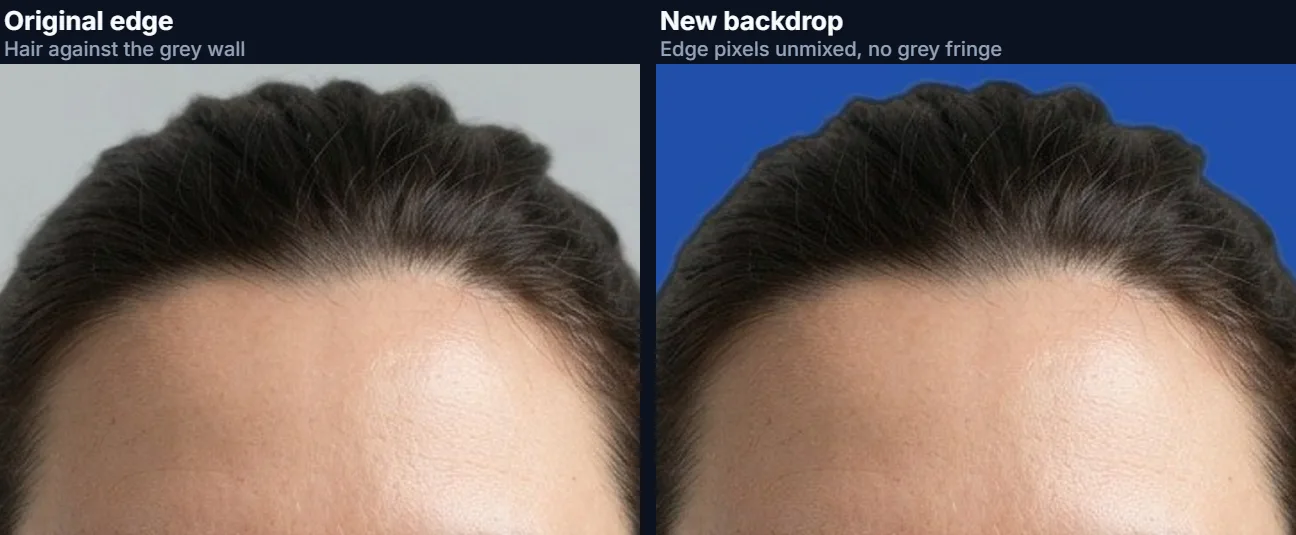
The pixels along an edge are a mix: a strand of hair thinner than a pixel leaves that pixel part hair, part wall. Painting the new colour only over the pure wall pixels would leave those mixed ones with the old grey in them, the halo that makes a cut-out look pasted. The tool unmixes them instead. It estimates how much of each edge pixel is backdrop from how close its colour is to the wall's, measures the wall colour right behind it from the backdrop pixels nearby (so a wall that darkens towards one side is followed), and swaps that share of old wall for new colour: new pixel = old pixel + (share of backdrop) × (new colour − wall colour).
For a transparent background, the same estimate is used the other way round: the wall's share is taken out of each edge pixel and becomes transparency, so the subject can go on any colour later without a rim.
Should the new background be flat or keep the shading?
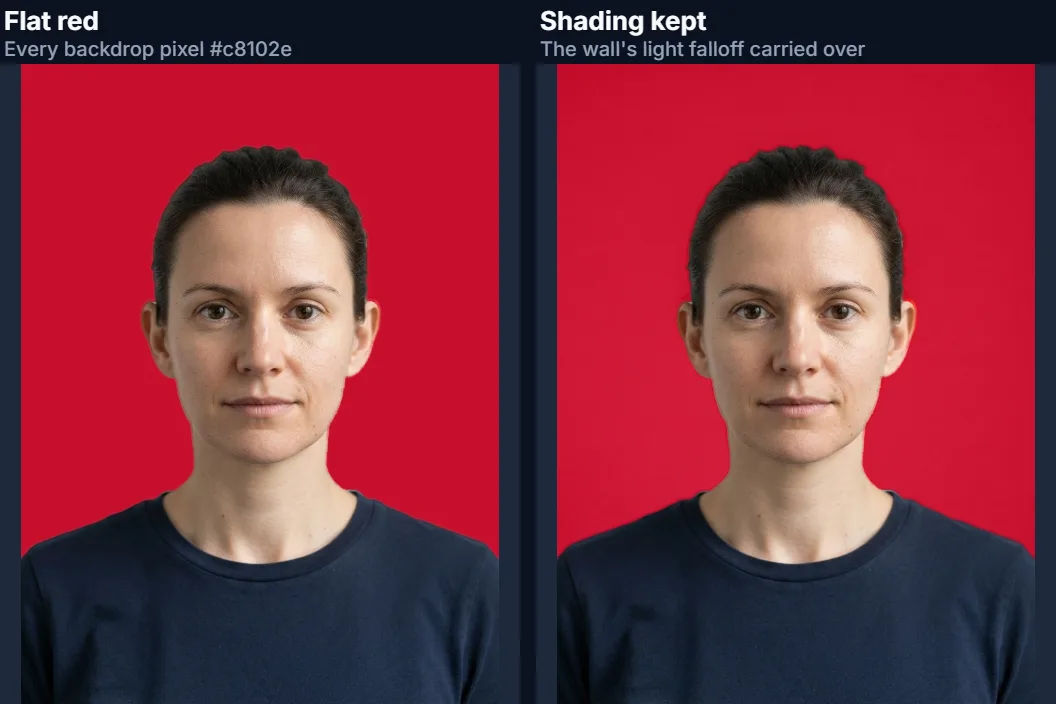
By default the new backdrop is one flat colour, which is what forms, ID cards, online shops and marketplaces usually want. Tick Keep the backdrop's shading to carry the old wall's light over to the new colour instead: wherever the wall was darker than its average colour, the new colour is darker by the same amount. Shadows the subject cast on the wall, and a studio light's gentle falloff, then stay, which looks more natural for portraits and product photos meant to look like they were shot on that colour.
Shading carries best to colours of similar lightness. Moving a light grey wall to a dark colour with the shading kept can show the wall's texture more strongly than you expect; compare both and choose.
Can you change a photo background to white for a passport or ID?
The tool can turn a plain, evenly lit wall into white or any other colour, which is often what an ID photo needs. Check the rules of the office you are applying to before you rely on it: many ask for a plain white or light background, and some also want no shadows on the background and no editing of the photo at all. Changing the background does not resize the photo, so for the exact passport size and head position use Make Passport Size Photo afterwards.
For the best result, take the photo against a plain wall with even light and a little distance between the person and the wall, so no shadow falls on it.
Which photos does it work on?
Plain backdrops of one colour, lit fairly evenly: portraits against a wall, products on a paper sweep or a coloured table, flat-lay shots, scanned documents and drawings, screenshots, logos, signatures and stickers on a flat colour. The subject should differ from the backdrop along its outline; a white cat on a white sofa will not separate. Gradients work up to a point, by raising the tolerance or ticking Keep the backdrop's shading.
Busy backgrounds do not: a street, a room, trees, a patterned wall. There the background has many colours and some of them will be in the subject too. Use Change Photo Background or Background Remover, which separate the subject with an AI cutout model.
How do you make the background transparent?
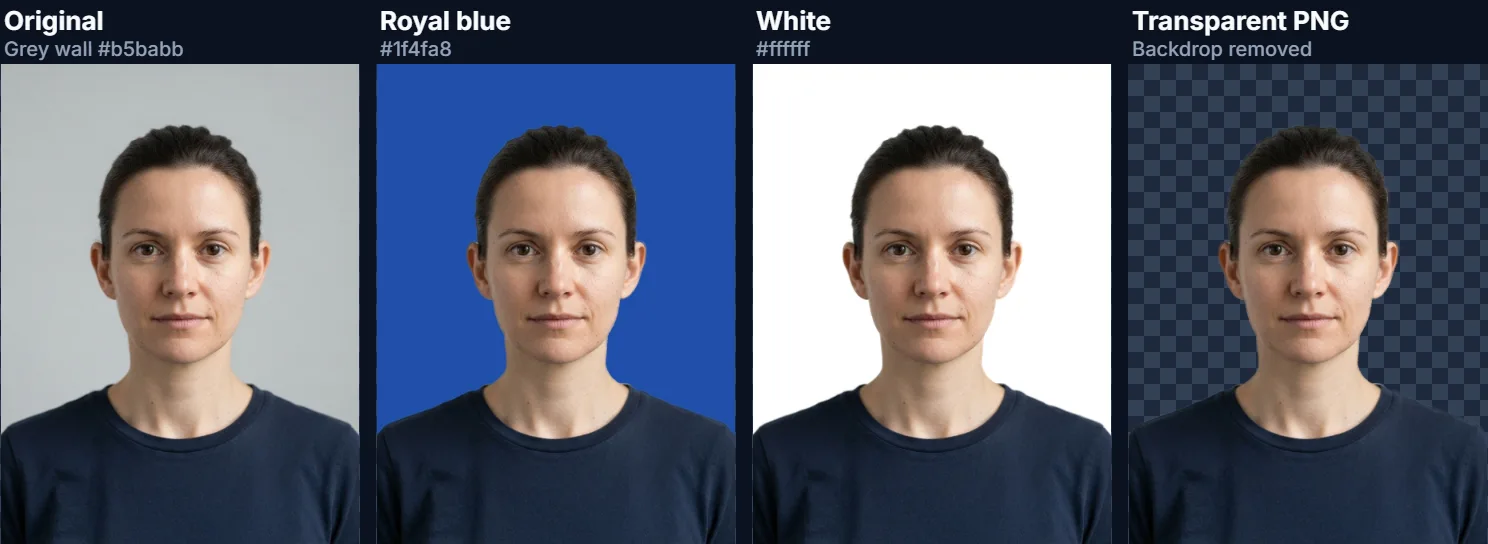
Choose Transparent instead of a colour and save as PNG or WebP. The backdrop becomes fully transparent and the edge pixels partly transparent, with the old wall colour taken out of them, so the subject can be placed on any background later. JPG cannot store transparency; if you save a transparent result as JPG it is put on white. The sample's transparent PNG was 927,660 bytes at 896 × 1200 pixels.
For logos and signatures on white paper, Remove White Background and Remove Background from Signatures have settings tuned for flat artwork.
Which files work, and is anything uploaded?
The tool opens JPG, PNG and WebP images up to 40 megapixels, the right way up, and saves at full size up to about 16 megapixels (larger photos are scaled to fit, the biggest canvas iPhone browsers allow). The blue version of the sample was 125,552 bytes as a 92% JPG at 896 × 1200 pixels. Convert iPhone HEIC photos first with HEIC to JPG.
Nothing is uploaded: the backdrop is found and replaced in your browser tab, with no account. The saved file carries no EXIF data from the original, so camera details and location are not copied.
Why is part of the background still the old colour?
Either that part differs from the edge colour by more than the tolerance (a shadow, a darker corner, a crease in the sweep), or it is enclosed by the subject so the flood could not reach it. Raise the tolerance a step at a time, or click the gap to add it. If the new colour bleeds into the subject, lower the tolerance; a hair or a shirt close to the wall's colour may need a lower soft edge too.
If the wrong colour was taken as the backdrop, switch the click to Pick the backdrop and click the wall. And if nothing seems to change, the photo's edge may not be backdrop at all: crop the photo so the wall reaches the edges, or use the AI tools for complex scenes.
Frequently asked questions
How do I change the background colour of a photo?
Open it, pick a new colour, adjust Tolerance if needed, and download. The plain backdrop is found for you.
Does it work with any background?
With plain, one-colour backgrounds. For busy ones, use Change Photo Background, which uses an AI cutout.
Can I make the background white?
Yes. Pick the White swatch; check your ID or passport office’s rules before using it there.
Can I make the background transparent?
Yes. Choose Transparent and save as PNG or WebP.
Why is there a grey edge around the subject?
There should not be: edge pixels are unmixed. If one remains, raise the soft edge or tolerance a little.
What if part of the background is missed?
Raise the tolerance, or click the missed area to fill it.
Can I keep the shadows on the wall?
Yes. Tick Keep the backdrop’s shading.
Is my photo uploaded?
No. Everything happens in your browser.
Which formats can I use?
Open JPG, PNG or WebP; save as JPG, PNG or WebP.
Is it free?
Yes, with no account or watermark.
Related tools
- Change Photo Background — An AI cutout for busy backgrounds, plus scenes and gradients.
- White Background — A pure white backdrop for product photos.
- Background Remover — Cut any subject out with AI.
- Make Passport Size Photo — Size the photo for an official document.
- Change Color of Image — Recolour the subject instead of the backdrop.
- Remove White Background — Make white transparent in logos and artwork.