Brighten Image
Rescue a dark or underexposed photo the way a camera would: add exposure in stops, lift the shadows on their own, or let Auto brighten find the most light it can add before the highlights burn out. A live histogram shows what is happening, and the photo never leaves your device.
Updated
How do you brighten a dark photo?
Open the photo and press Auto brighten, or set it yourself: Exposure adds light in stops (each stop doubles it), and Shadows lifts the darkest tones without touching the highlights. Watch the histogram and the three readings under it, hold Compare to see the original, and download the result at full size.
Most dark photos are underexposed rather than broken: the detail is there, just recorded too dimly. Brightening them is a matter of adding light evenly, the way a longer exposure would have, rather than pushing every pixel value up by the same amount, which turns blacks grey and makes the picture look flat. This tool works in linear light, the same scale the camera's sensor records, so one stop of exposure here looks like one stop on the camera.
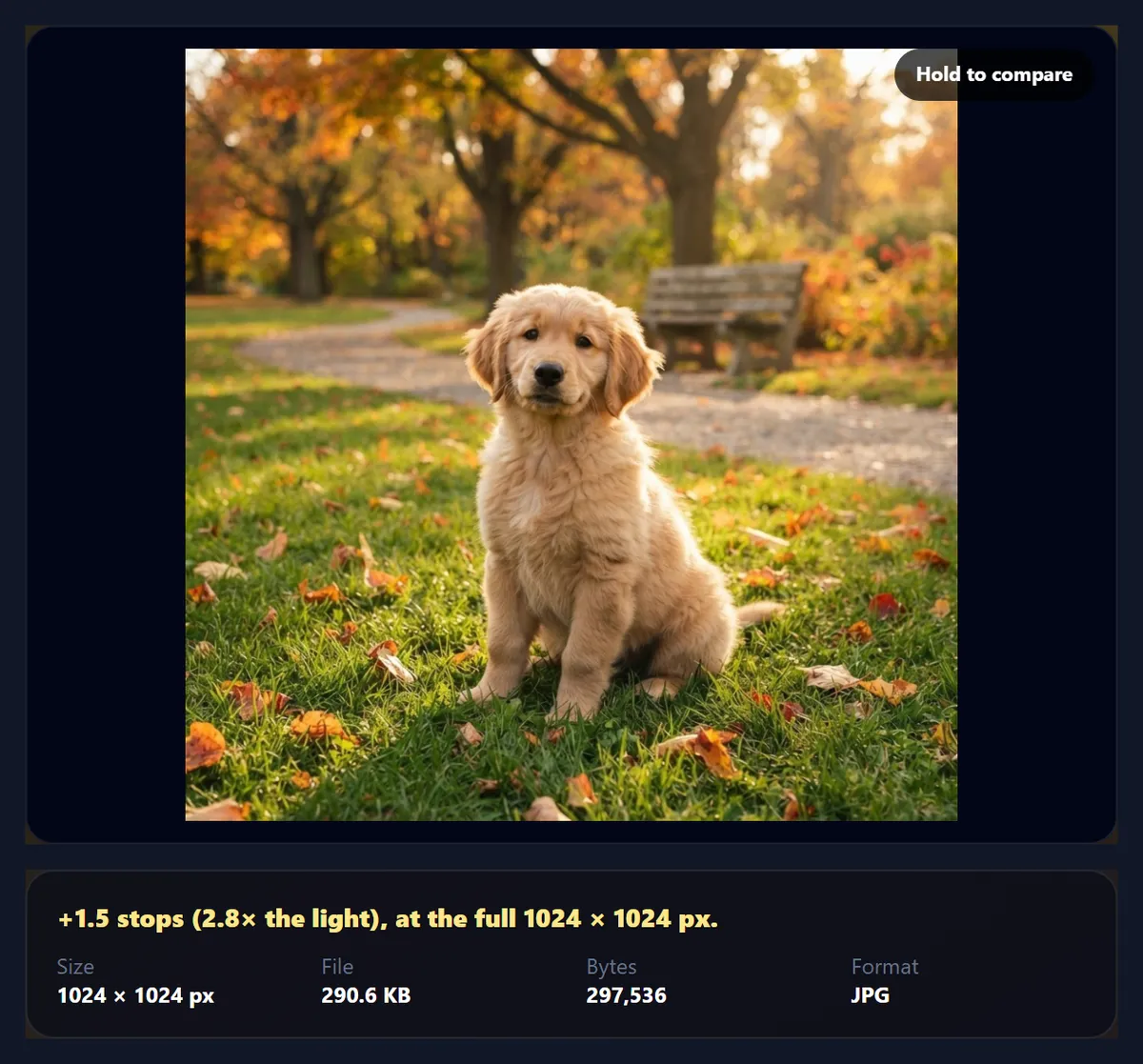
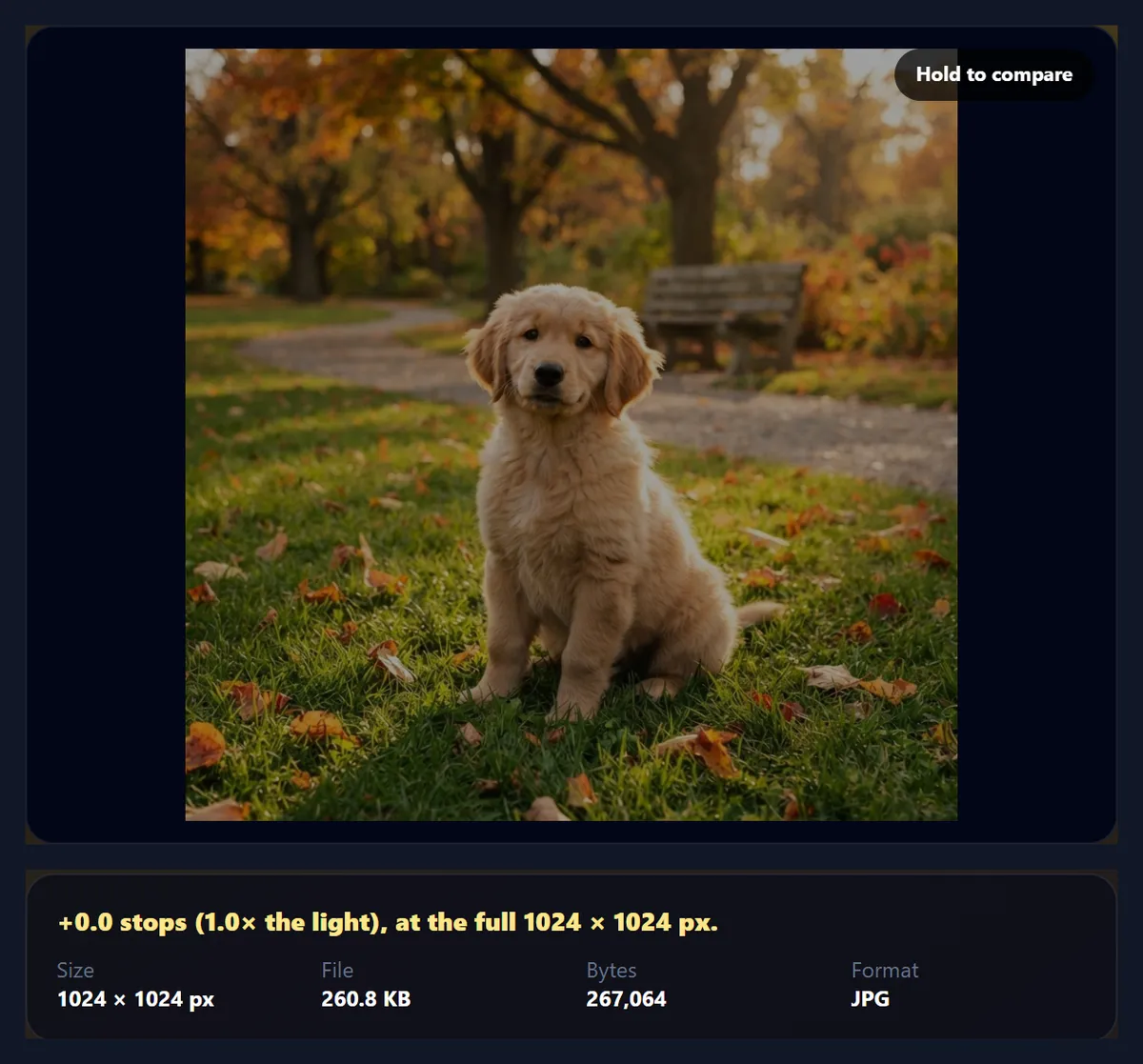
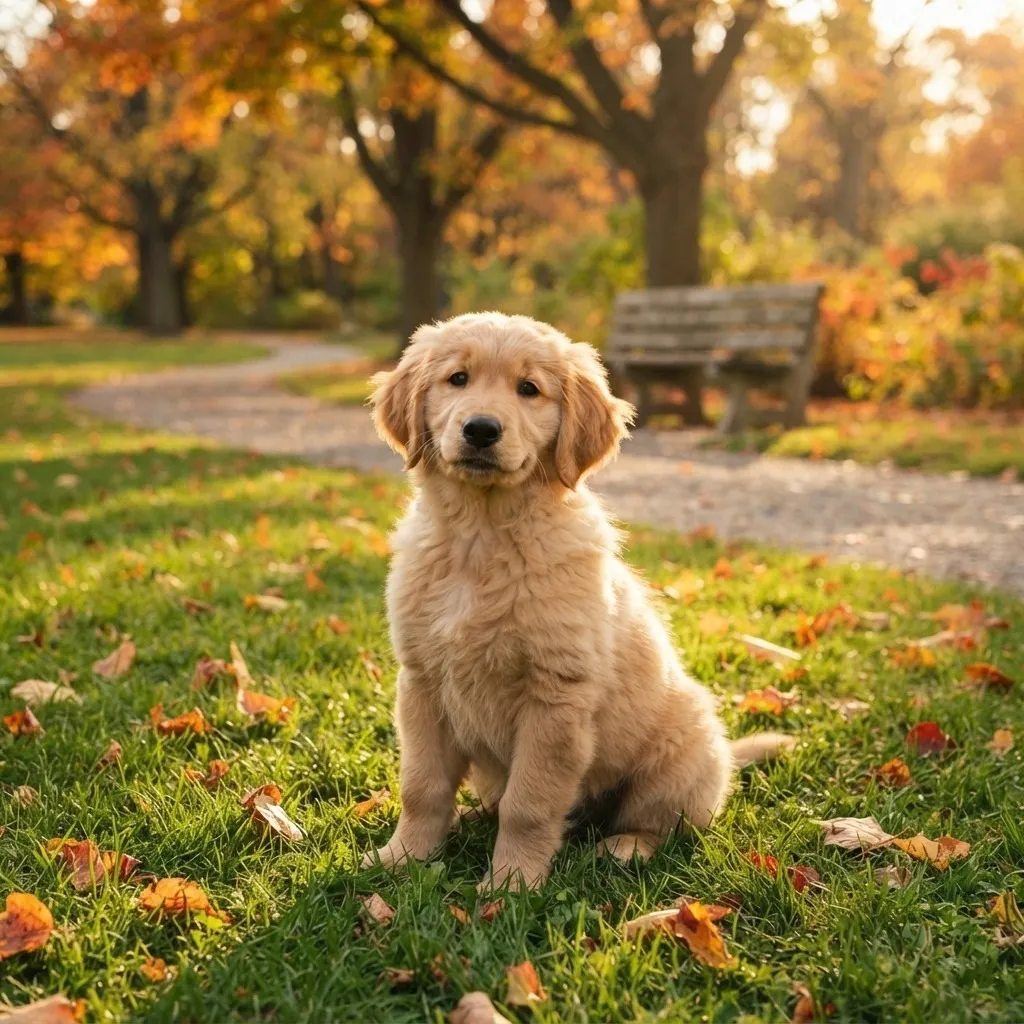
The risk in brightening is clipping: bright areas such as sky, skin highlights and white clothes reach pure white and lose their detail for good. Auto brighten checks for that and stops before more than half a percent of the photo would newly clip. The sample is a puppy photo that was darkened by 1.5 stops for this demo; Auto brought it back by exactly 1.5 stops.
How to brighten an image online
- Open the photo Choose a JPG, PNG or WebP, drop it on the preview, or use the dark sample.
- Press Auto brighten It finds the exposure that brings the middle tones up to a normal brightness without clipping the highlights.
- Fine-tune Adjust Exposure in stops and Shadows for dark corners, watching the histogram and readings. Hold Compare to see the original.
- Download Save the brightened photo as JPG, PNG or WebP at its full size.
Brighten a dark photo
A real recording of this tool: the dark sample, Auto brighten, a shadow lift, a comparison with the original, and the download.
- The dark sample opens with no exposure or shadow lift.
- Auto brighten adds 1.5 stops.
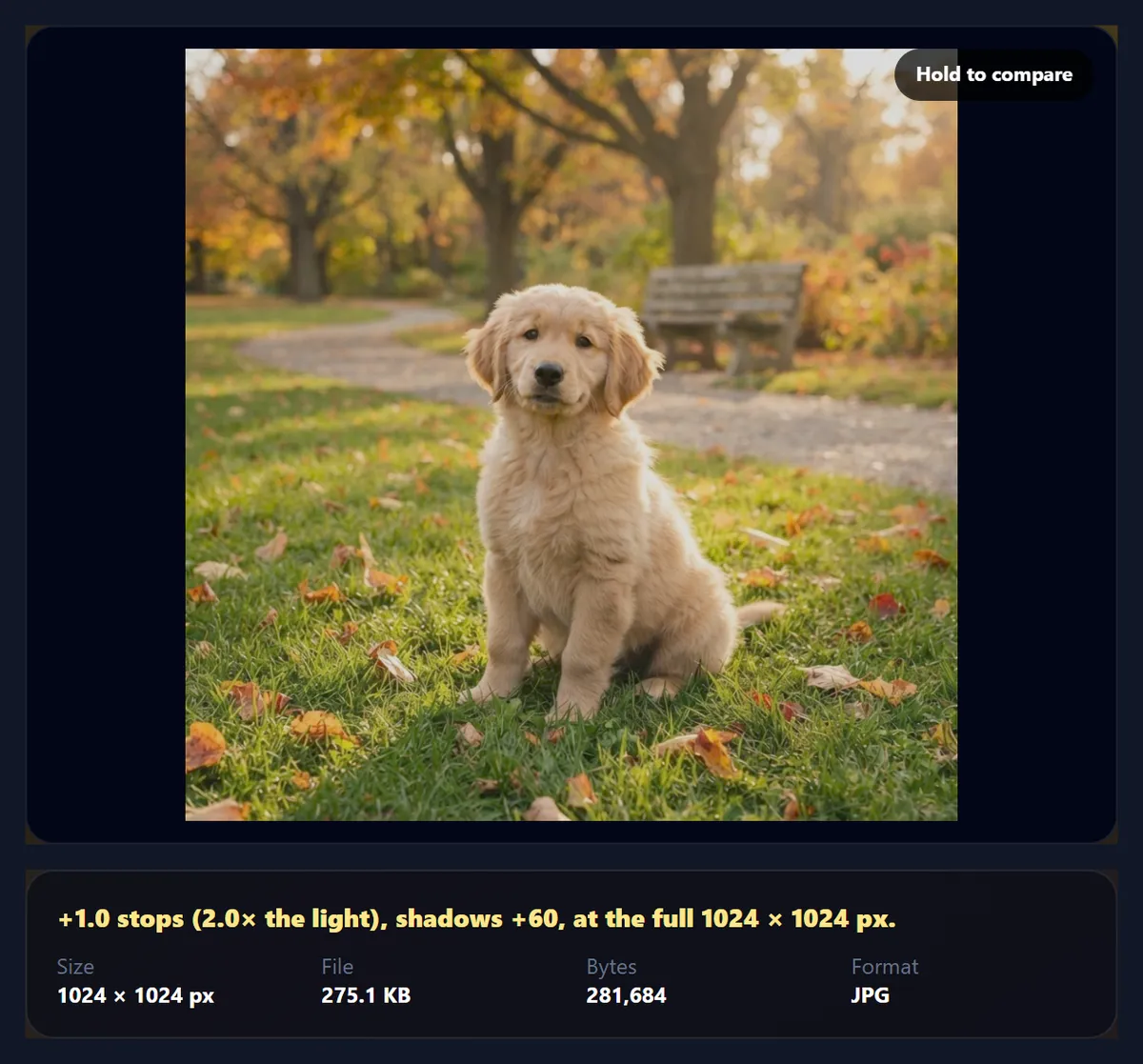
- The Shadows slider is raised to open up the darkest areas.
- Holding Compare shows the original, then the photo is downloaded.
What does one stop of exposure do?
A stop doubles the light. Photographers count exposure in stops because our eyes judge brightness by ratios: twice as much light looks like one even step brighter, whatever the starting point. The Exposure slider in this tool runs from 0 to 3 stops, so it can multiply the light by up to eight.
On screen the numbers behave differently, because image files store brightness on a curve rather than in proportion to light. A mid-grey that reflects 18% of the light, the standard grey photographers meter from, is stored as 118 out of 255. One stop more light puts it at 162; two stops at 221. Half a stop beyond that it has already reached 255, pure white. That is why the first stop of brightening makes such a difference and the third mostly burns out the highlights.
| Exposure | Light | Screen value (0–255) |
|---|---|---|
| −1 stop | 0.5× | 85 |
| 0 (as shot) | 1× | 118 |
| +0.5 stop | 1.41× | 138 |
| +1 stop | 2× | 162 |
| +1.5 stops | 2.83× | 189 |
| +2 stops | 4× | 221 |
| +2.5 stops | 5.66× | 255 (white) |
| +3 stops | 8× | 255 (white) |
How does Auto brighten decide how much to add?
Auto brighten looks at the median brightness of the photo, the value half the pixels are below, and tries exposures in tenth-of-a-stop steps from 0.1 up to 3 stops. It stops at the first exposure that lifts the median to 118, a normal mid-tone, or earlier if the next step would push more than an extra 0.5% of the pixels to pure white. If the photo's median is already 118 or brighter, it adds nothing, because the photo is not underexposed.
On the sample the median was 72. Auto chose +1.5 stops (2.8 times the light), which moved the median to 119, cut near-black pixels from 0.8% to 0.1%, and clipped only 0.3% of the photo to white. The download was 1024 × 1024 pixels and 297,536 bytes as a 92% JPG.
What does the Shadows slider do?
Shadows brightens the dark tones more than the light ones. It applies a gentle curve to the darkest part of the photo and fades the effect out towards the highlights, so a dark doorway, the underside of a face or a shaded foreground opens up while the sky stays where it was. White stays white at any setting.
With no exposure added, Shadows at 20% (the default) moves a pixel of 20 to 27 and a pixel of 64 to 73, but a pixel of 200 only to 202. At 100%, a near-black 20 becomes 72 and a mid-grey 128 becomes 167, while 200 becomes 210. Combine a little exposure with some shadow lift for a photo that is dark overall but has a bright window or sky; use more exposure and less lift when the whole frame is evenly dark.
| Pixel value | Shadows 0 | Shadows 20% | Shadows 50% | Shadows 100% |
|---|---|---|---|---|
| 8 | 8 | 13 | 24 | 54 |
| 20 | 20 | 27 | 40 | 72 |
| 40 | 40 | 48 | 63 | 96 |
| 64 | 64 | 73 | 88 | 120 |
| 128 | 128 | 135 | 146 | 167 |
| 200 | 200 | 202 | 205 | 210 |
| 255 | 255 | 255 | 255 | 255 |
Why do highlights turn white when you brighten too much?
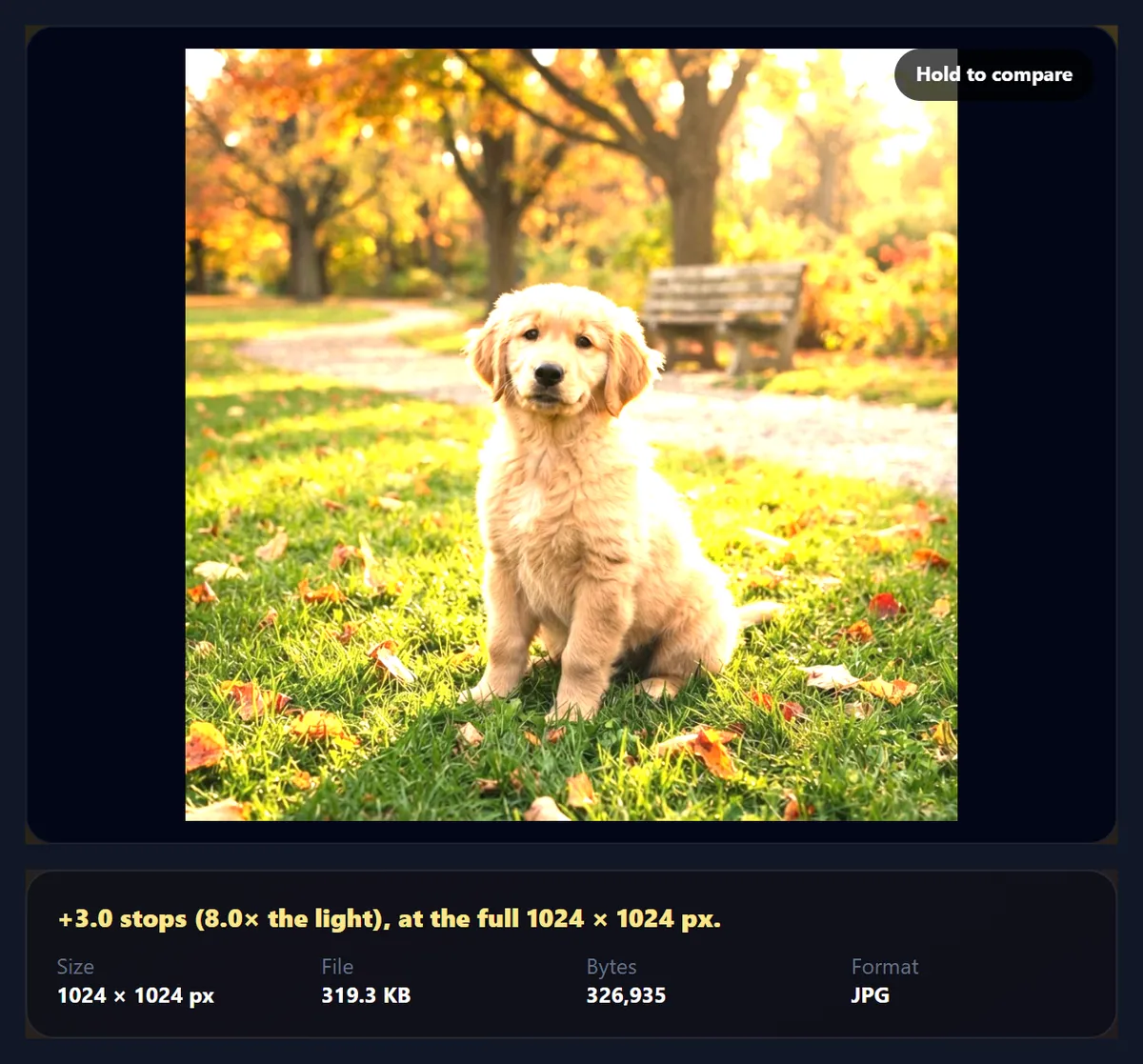
A file can only store values up to 255. Anything that brightening would push beyond that is stored as 255, pure white, and the detail in it is gone; no later edit can bring it back. The more exposure you add, the lower the starting value that ends up white: with one stop, every value of 188 or more clips; with 1.5 stops, 161 or more; with two stops, 137 or more; with three stops, anything from 99 up.
The readings under the histogram show this as it happens. On the sample at three stops the median reached 189, but 42% of the photo was clipped to white: the sky and the light parts of the fur turned into flat white patches. If the Clipped reading climbs, lower the exposure and use Shadows for the dark parts instead.
| Exposure | Clips from |
|---|---|
| +0.5 stop | 219 |
| +1 stop | 188 |
| +1.5 stops | 161 |
| +2 stops | 137 |
| +3 stops | 99 |
How do you read the histogram and readings?
The histogram counts how many pixels sit at each brightness, from black on the left to white on the right. A dark photo bunches up on the left; brightening slides the hump to the right. A tall spike at the right edge means pixels are clipped to white; one at the left edge means crushed blacks.
Under it are three readings, before and after: Median brightness (the middle value; around 118 is a normal mid-tone), Near-black pixels (the share darker than 16 out of 255, where detail is hard to see), and Clipped to white (the share at 255 in any colour channel). A good result usually has a median between about 100 and 140, few near-black pixels, and a clipped share close to what the original had.
Why is exposure better than a brightness slider?
A simple brightness slider adds the same amount to every pixel. Blacks become dark grey, the photo loses contrast, and colours fade. Exposure multiplies the light instead, as a longer shutter time or a wider aperture would have: black stays black, dark areas gain a little, bright areas gain a lot, and colours keep their proportions, so a red jacket stays red rather than going pink.
That is also why the tool shows exposure in stops rather than as a percentage: a stop means the same thing here as it does on a camera, so if you know a photo was taken a stop and a half too dark, you can add exactly that.
Can every dark photo be rescued?
Not completely. A JPG stores 256 levels per colour channel, and an underexposed photo uses only the lower part of them: a photo two stops too dark reaches only about 137, so brightening has about half as many distinct levels to spread over the whole range. On textured subjects that is invisible; on smooth gradients, such as a clear sky or a studio backdrop, it can show as visible steps or bands. Areas recorded as pure black hold no detail at all, and brightening only turns them grey.
For photos that matter, brighten the original file rather than a copy that has already been compressed or shared, and if the camera saved a raw file, start from that: raw files keep far more levels in the shadows.
Which files work, and is anything uploaded?
You can open JPG, PNG and WebP photos up to 40 megapixels (above about 16 megapixels the result is saved slightly smaller, because that is the largest canvas iPhone browsers allow); convert iPhone HEIC photos to JPG first. The download keeps the photo's size and can be JPG, PNG or WebP, with a quality setting for JPG and WebP. Nothing is uploaded: the photo is opened, brightened and saved inside your browser tab, and no account is needed. The new file carries no EXIF data from the original.
To make a photo darker instead, use Darken Image; to fix colour rather than brightness, try the photo effects and filters.
Why does my brightened photo look grainy or grey?
Grain (noise) was already in the dark photo; brightening makes it visible. Very dark photos taken in low light have more noise in the shadows than in the mid-tones, so lifting them by two or three stops shows it. Use the least exposure that looks right, and lean on Shadows only as much as you need.
If the result looks grey and flat, the photo may have been hazy rather than dark, with no true blacks to begin with. Brightening cannot add contrast; check the histogram: if it does not reach the left edge at all, the photo needs contrast, not light. If Auto brighten adds nothing, the photo's median is already at or above a normal mid-tone.
Frequently asked questions
How do I brighten a dark photo?
Open it and press Auto brighten, or raise Exposure and Shadows yourself, then download.
What is a stop of exposure?
Twice the light. Two stops is four times the light, three stops eight times.
How does Auto brighten work?
It adds exposure until the median reaches a normal mid-tone, stopping before more than 0.5% of the photo newly clips to white.
What does the Shadows slider do?
It lifts the dark tones more than the bright ones and never changes white.
Why did parts of my photo turn white?
Too much exposure clipped them. Lower Exposure and use Shadows instead.
Can I darken a photo with this tool?
No, Exposure starts at 0. Use Darken Image for that.
Is my photo uploaded?
No. It is brightened in your browser.
Will it change the size of my photo?
No. The download has the same pixel size, up to about 16 megapixels.
Which formats can I use?
Open and save JPG, PNG or WebP.
Is it free?
Yes, with no account, watermark or limit.
Related tools
- Darken Image — The opposite: tone down a bright photo.
- Vignette — Shade the edges after brightening.
- Photo Effects — Add a look once the exposure is right.
- Photo Straightener — Level a tilted horizon.
- Crop Image — Trim the frame.
- Compress Image to 100KB — Make the file smaller.