Vignette
Shade the edges of a photo so the eye settles on the subject, or fade them to white for a soft, old-fashioned look. Four controls shape it; four presets get you started; nothing is uploaded.
Updated
How do you add a vignette to a photo?
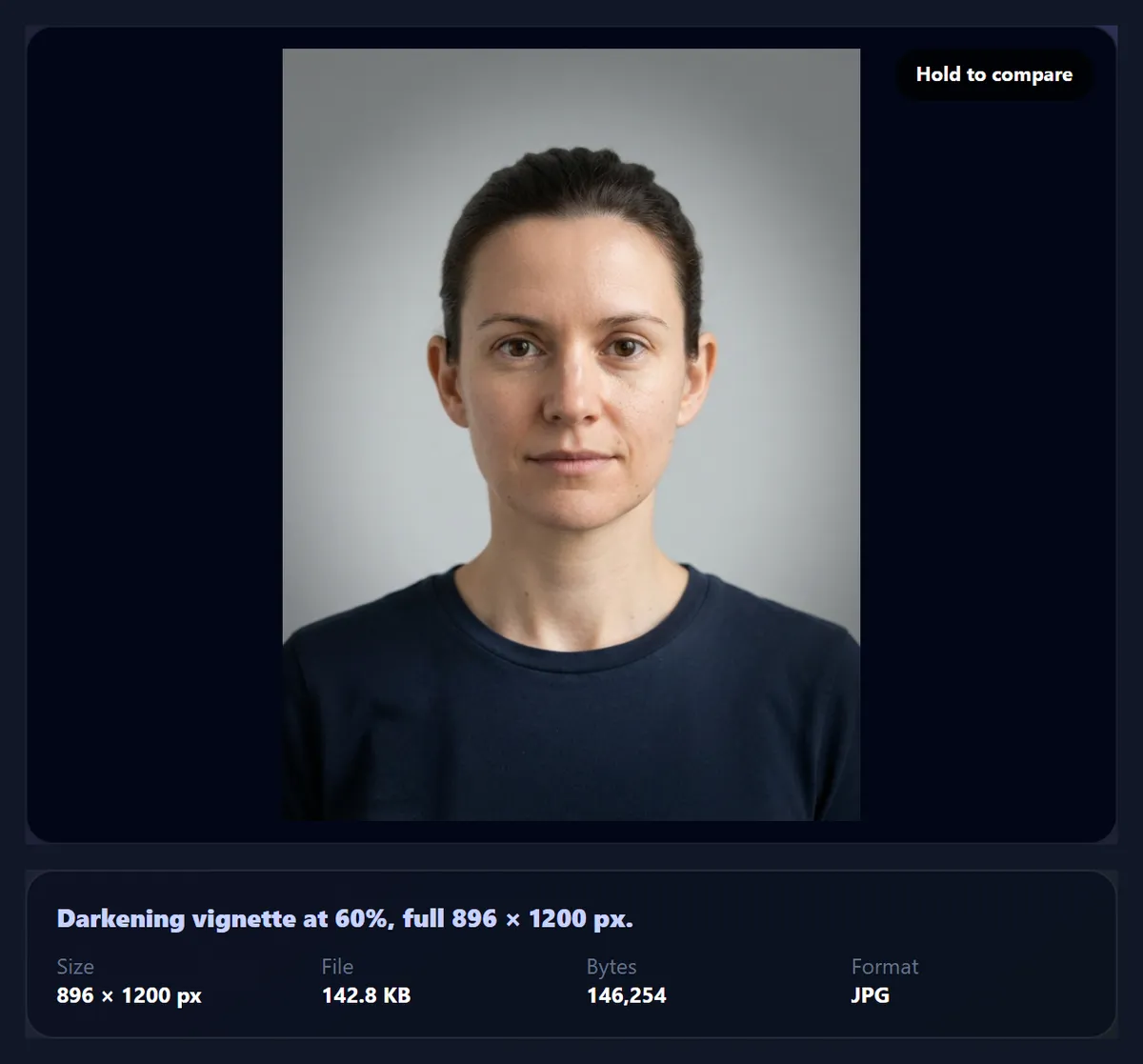
Open the photo, pick a preset such as Portrait, and adjust it if you like: Amount sets how dark the edges get, Midpoint how far from the centre the shading begins, Feather how gradually it fades in, and Roundness whether it follows the photo's shape or makes a circle. Choose Darken or Lighten, hold Compare to see the original, and download.
A vignette is a gradual darkening (or lightening) towards the edges and corners of a picture. Lenses produce one naturally, because less light reaches the corners of the sensor, and photographers have long added one on purpose: our eyes go to the brightest part of an image, so darker edges keep attention on the centre. A light, well-feathered vignette is hard to notice and easy to feel.
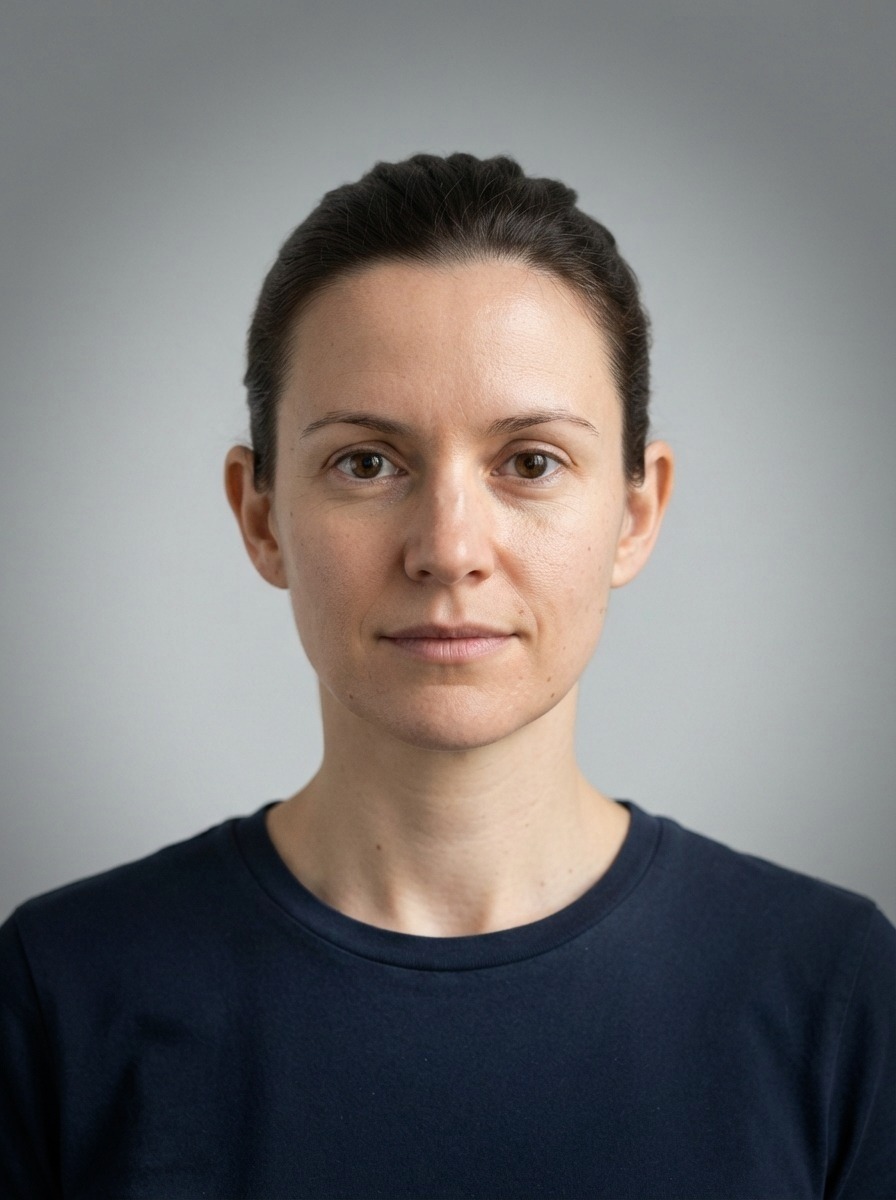
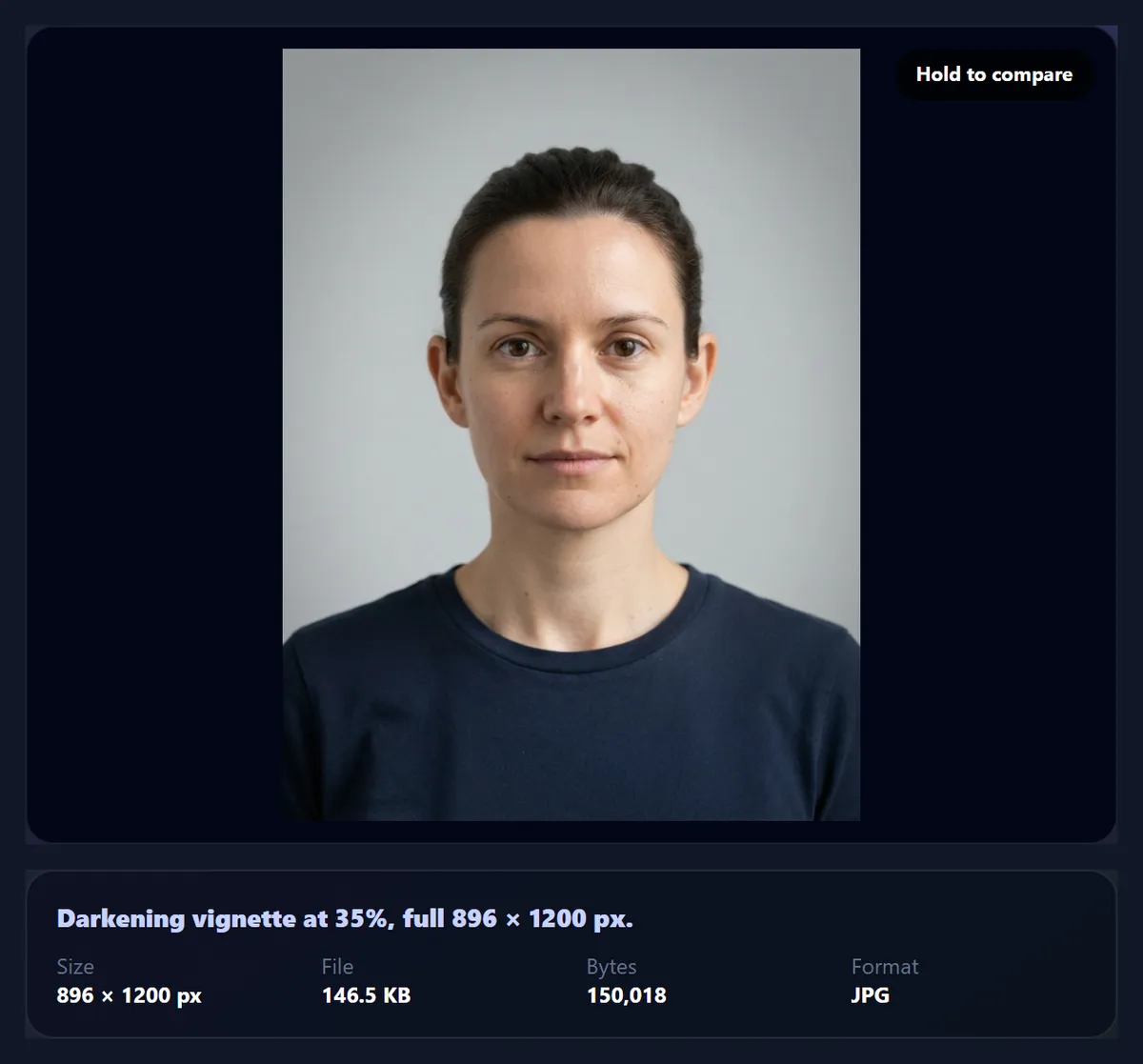
The tool applies the vignette in linear light, the way light really adds up, so the falloff looks like a lens rather than a grey wash laid over the picture. The sample is a portrait of a fictional person made with AI; the photo you use never leaves your device.
How to add a vignette online
- Open the photo Choose a JPG, PNG or WebP, drop it on the preview, or use the sample portrait.
- Start from a preset Subtle, Portrait, Dramatic or Soft white set all four controls at once.
- Shape it Adjust Amount, Midpoint, Feather and Roundness, and choose Darken or Lighten. Hold Compare to see the difference.
- Download Save as JPG, PNG or WebP at the photo’s full size.
Add a vignette to a portrait
A real recording of this tool: the Portrait vignette, then the Subtle, Dramatic and Soft white presets, a hand-shaped vignette, a comparison with the original, and the download.
- The sample portrait opens with the Portrait vignette.
- The Subtle, Dramatic and Soft white presets are tried.
- Darken is chosen, the amount raised and the roundness lowered by hand.
- Holding Compare shows the original, then the result is downloaded.
How does a vignette fade from the centre to the corners?
The tool measures each pixel's distance from the centre so that the corners are at 1 and the centre at 0. Inside the midpoint, nothing changes. From the midpoint outwards the strength rises along a smooth S-shaped curve, reaching full strength after the feather distance, and Amount sets what full strength means. With the Portrait preset (amount 60%, midpoint 35%, feather 70%, roundness 60%), a point 40% of the way to the corner keeps 98% of its light, halfway keeps 85%, and from 80% of the way out the corners keep 40%.
Light is measured in linear terms there, not in screen values. Because screens brighten dark values a lot, a corner keeping 40% of its light still looks clearly visible rather than black, which is why a vignette at 60% feels natural instead of heavy.
| Distance to the corner | Light kept |
|---|---|
| 0% (centre) | 100% |
| 25% | 100% |
| 40% | 98% |
| 50% | 85% |
| 60% | 66% |
| 70% | 48% |
| 80% | 40% |
| 100% (corner) | 40% |
What do amount, midpoint, feather and roundness do?
Amount is how strong the vignette is at full strength, from 0 to 100%. Midpoint is where it starts, as a share of the distance from the centre to the corner, from 0 (it starts in the middle) to 90% (only the corners are touched). Feather is how long the fade takes: low values give a visible edge, high values a gradual transition you barely notice. Roundness changes the shape: at 0 the vignette follows the photo's proportions, an ellipse on a wide photo; at 100% it is a circle, which shades the long sides of a landscape photo more.
A good starting point for most photos is a low amount, a midpoint around a third, and a high feather. If you can clearly see where the vignette begins, the feather is too low or the amount too high.
Which vignette suits which photo?
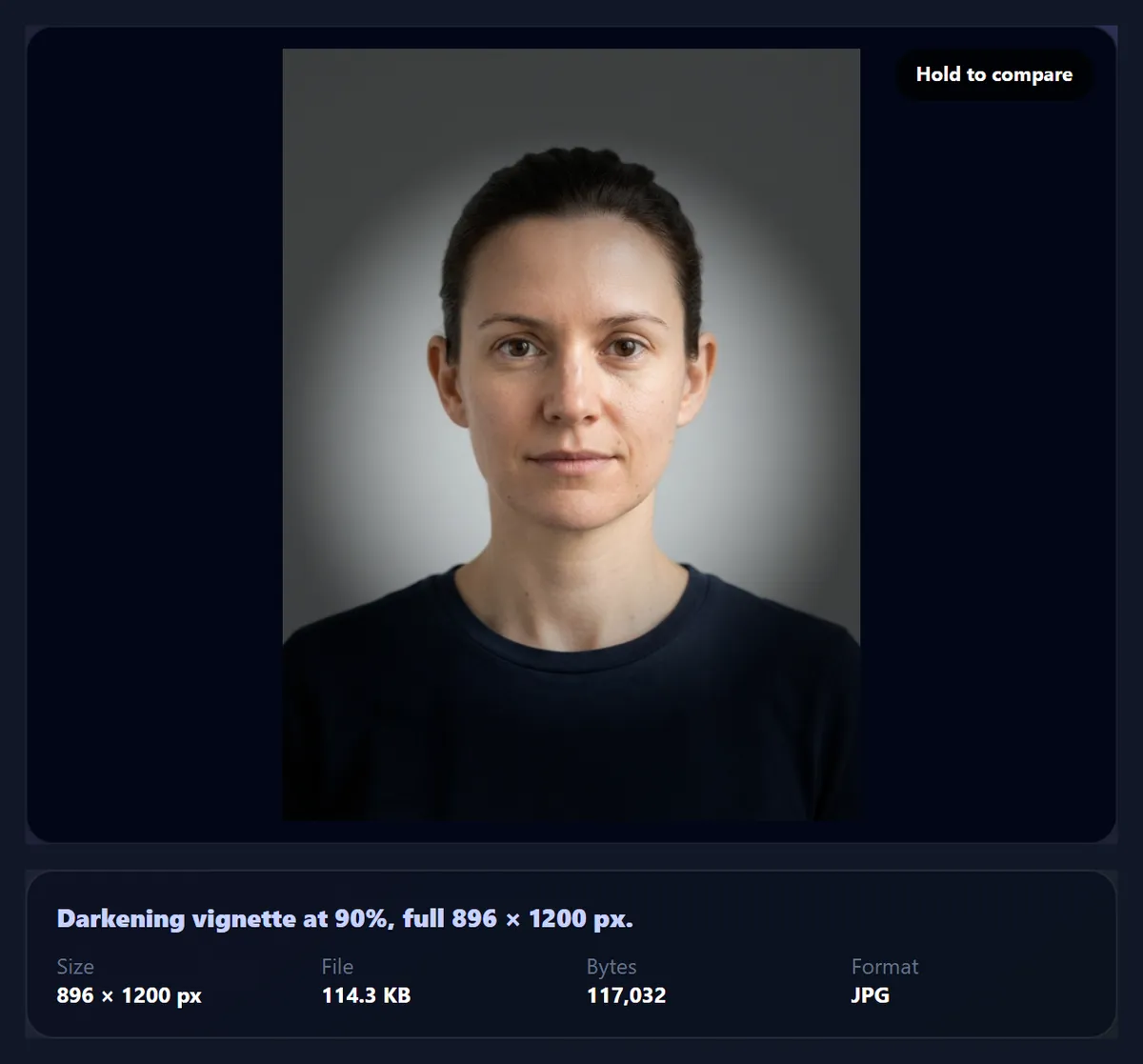
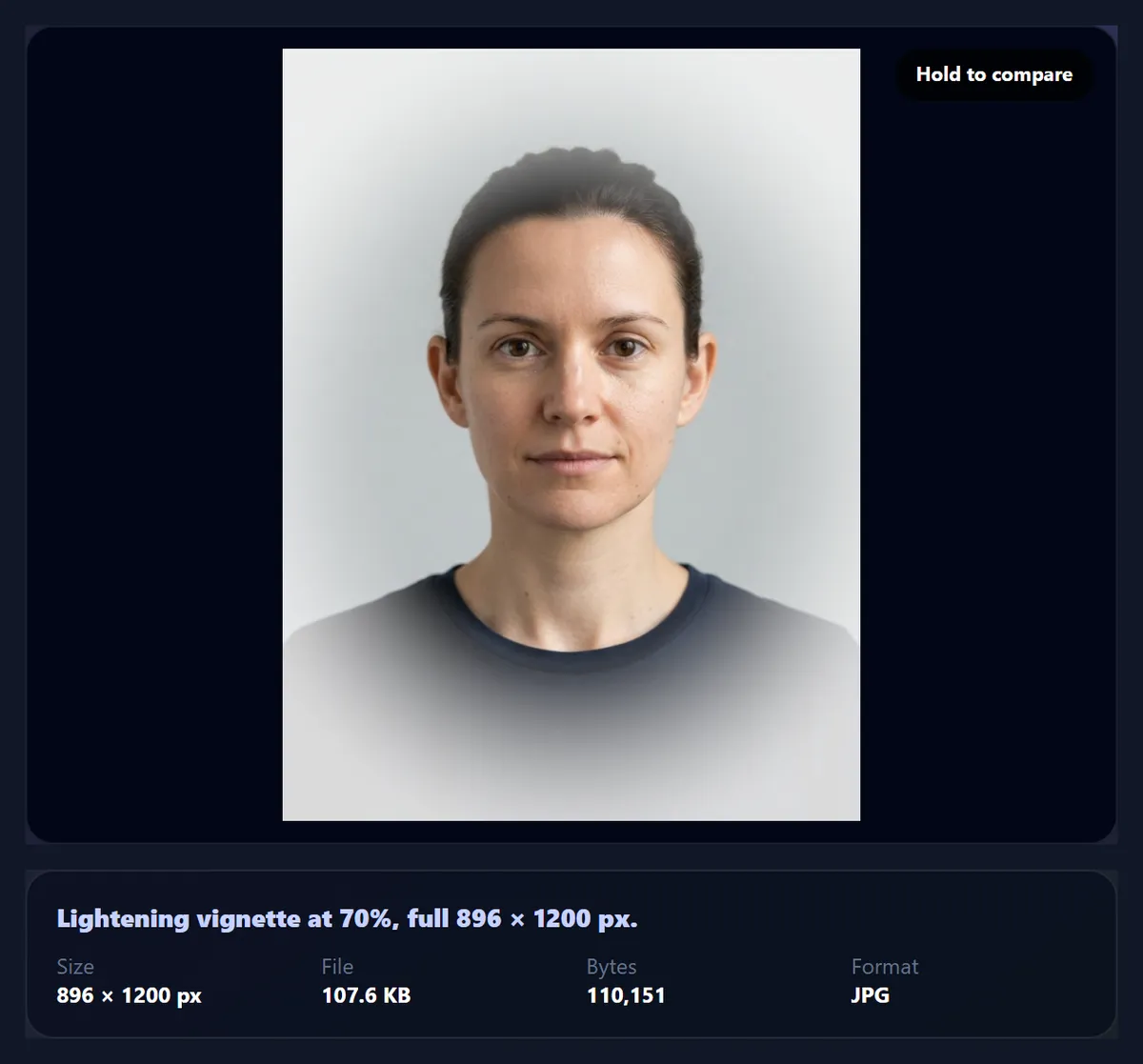
Subtle (amount 35%, midpoint 45%) suits landscapes and product photos, where you want a gentle pull towards the centre without anyone noticing a vignette. Portrait (60%, midpoint 35%, fairly round) frames a face. Dramatic (90%, midpoint 20%, nearly a circle) gives a moody spotlight look for night scenes, concerts and black-and-white images. Soft white (lighten, 70%) fades the edges to white for a dreamy, vintage or wedding-album feel, and works best on bright, airy photos.
Presets set all four controls; after choosing one you can still adjust any of them.
| Preset | Amount | Midpoint | Feather | Roundness | Edge |
|---|---|---|---|---|---|
| Subtle | 35% | 45% | 80% | 20% | Darken |
| Portrait | 60% | 35% | 70% | 60% | Darken |
| Dramatic | 90% | 20% | 55% | 80% | Darken |
| Soft white | 70% | 40% | 75% | 50% | Lighten |
Why apply a vignette in linear light?
Because that is how a lens darkens a picture. Pixel values in a JPG are stored on a curve that matches how our eyes see brightness, not how light adds up. Multiplying those stored values directly makes mid-tones go muddy and grey. The tool converts each pixel to linear light, reduces it by the vignette strength, and converts it back, the same as less light reaching that part of the sensor.
The difference is most visible on coloured edges, such as a blue sky or green foliage: done in linear light they get darker but keep their colour, rather than drifting towards grey.
Can a vignette be white?
Yes. Choose Lighten and the edges move towards white instead of black, by the same amount, midpoint, feather and roundness. A white vignette suits bright photos, wedding and baby pictures, and product shots on light backgrounds, where a dark edge would look out of place. On a dark photo it can look washed out, so compare before downloading.
Why do camera lenses make vignettes?
Every lens delivers a little less light to the corners of the frame than to the centre, for three reasons. Natural vignetting is geometry: light reaching the corners arrives at an angle, spreads over a larger area and passes through the aperture as a narrower opening, so brightness falls off roughly with the fourth power of the cosine of that angle. It is strongest on wide-angle lenses. Optical vignetting appears at wide apertures, when the lens barrel itself blocks part of the light travelling at a steep angle; stopping down by a stop or two usually reduces it. Mechanical vignetting comes from something in front of the lens, such as the wrong lens hood or a stack of filters, and shows as hard, dark corners rather than a gentle fade.
Phone cameras and raw editors correct much of this automatically, which is one reason a vignette added afterwards is now a deliberate choice rather than a flaw. The tool aims for the gentle kind: a smooth fade, applied in linear light, never hard dark corners.
Should you crop before adding a vignette?
Yes. The vignette is centred on the frame you give it, so it should be the last step before downloading, after cropping, straightening and rotating. If you crop afterwards, the darkest part is no longer in the corners: it ends up along one or two edges, which looks like uneven lighting rather than a vignette. Straightening after a vignette is worse still, because the crop that removes the blank corners also cuts the shaded corners away unevenly.
The same goes for the subject. The vignette is always centred, so it suits subjects in or near the middle of the frame. When the subject sits off to one side, crop so it is closer to the centre, or keep the amount low and the midpoint high so only the far corners are touched.
Why do vignettes suit black and white photos?
In a black and white picture, brightness is all there is to guide the eye, so a darker edge does more work than it does in colour. Darkroom printers did the same thing by hand: during the print exposure they gave the edges and corners extra light, a technique called burning in, so the paper printed them darker and the centre stood out. A vignette applied in linear light gives a very similar result.
For black and white, the Portrait or Dramatic preset is a good start. Convert the photo with the B&W Image Filter first, then add the vignette as the last step.
When should you not add a vignette?
Skip it, or use Lighten, for product photos on a white background: a dark vignette turns white corners grey, which looks like a dirty or badly lit backdrop, and many marketplaces ask for a plain white background. Skip it on screenshots, diagrams and graphics with text near the edges, where shading makes the edges harder to read. Be careful with group photos, because the people at either end sit in the darkest part of the frame.
Think about where the photo will be shown, too. If a platform crops it, for example to a square in a profile grid, the preview loses the vignette's corners on two sides and the shading looks lopsided there, even though the full photo is fine.
Which files work, and is anything uploaded?
You can open JPG, PNG and WebP photos up to 40 megapixels (above about 16 megapixels the result is saved slightly smaller, because that is the largest canvas iPhone browsers allow); convert iPhone HEIC photos to JPG first. The vignette is drawn at the photo's full size and saved as JPG, PNG or WebP; the sample portrait came out at 896 × 1200 pixels and 146,254 bytes as a 92% JPG. Nothing is uploaded: the work happens in your browser tab, and no account is needed. The new file carries no EXIF data from the original.
Why does my vignette look like a dark ring?
The feather is too low or the amount too high. A low feather makes the shading start abruptly, which shows as a ring or a tunnel. Raise the feather, lower the amount, or move the midpoint outwards. If the subject is off-centre, a strong vignette darkens part of it: keep the amount low, or crop the photo first so the subject is nearer the middle.
If the effect seems too faint, remember that it is designed to be felt more than seen. Hold Compare to see what it is doing.
Frequently asked questions
How do I add a vignette to a photo?
Open it, choose a preset such as Portrait, adjust the sliders if you like, and download.
What is a vignette in photography?
A gradual darkening or lightening towards the edges, which draws the eye to the centre.
Can I make a white vignette?
Yes. Choose Lighten, or the Soft white preset.
What does feather do?
It sets how gradually the vignette fades in. Higher is softer.
What does roundness do?
At 0 the vignette follows the photo’s shape; at 100% it is a circle.
Why does the tool use linear light?
So the edges darken like a lens and keep their colour instead of going grey.
Is my photo uploaded?
No. The vignette is applied in your browser.
Does it change the photo’s size?
No. The result has the same pixels as the original.
Which formats can I use?
Open and save JPG, PNG or WebP.
Is it free?
Yes, with no account, watermark or limit.
Related tools
- Brighten Image — Lift a dark photo before shading its edges.
- Photo Effects — More looks for a photo.
- B&W Image Filter — Black and white pairs well with a vignette.
- Photo Blur — Blur the background instead.
- Crop Image — Centre the subject first.
- Photo Borders — Finish with a border.