Darken Image
Tone down a bright or overexposed photo the way a camera would: take exposure off in stops, pull down just the highlights, or let Auto darken stop before the shadows go black. A live histogram and three readings show exactly what changes.
Updated

How do you darken a photo that is too bright?
Open the photo and press Auto darken, or set it yourself: Exposure takes light off in stops (each stop halves it), and Highlights pulls down only the brightest tones such as a white sky. Watch the histogram and the three readings under it, hold Compare to see the original, and download the result at full size.
An overexposed photo has too much light, so the middle tones look washed out and the brightest parts turn white. Darkening it evenly, the way a faster shutter would have, brings the middle tones back to a normal brightness without turning the shadows into a black mass. This tool works in linear light, the scale a camera sensor records, so a stop here is a real stop.
Darkening cannot restore detail in parts that were recorded as pure white; the readings show how much of the photo that is. The sample is a sunset photo brightened by 1.3 stops for this demo; the photo you use never leaves your device.
How to darken an image online
- Open the photo Choose a JPG, PNG or WebP, drop it on the preview, or use the overexposed sample.
- Press Auto darken It takes off the exposure that brings the middle tones back to normal without crushing the shadows.
- Fine-tune Adjust Exposure in stops and Highlights for a bright sky, watching the histogram and readings. Hold Compare to see the original.
- Download Save the darkened photo as JPG, PNG or WebP at its full size.
Darken an overexposed photo
A real recording of this tool: the overexposed sample, Auto darken, a highlights pull, a comparison with the original, and the download.
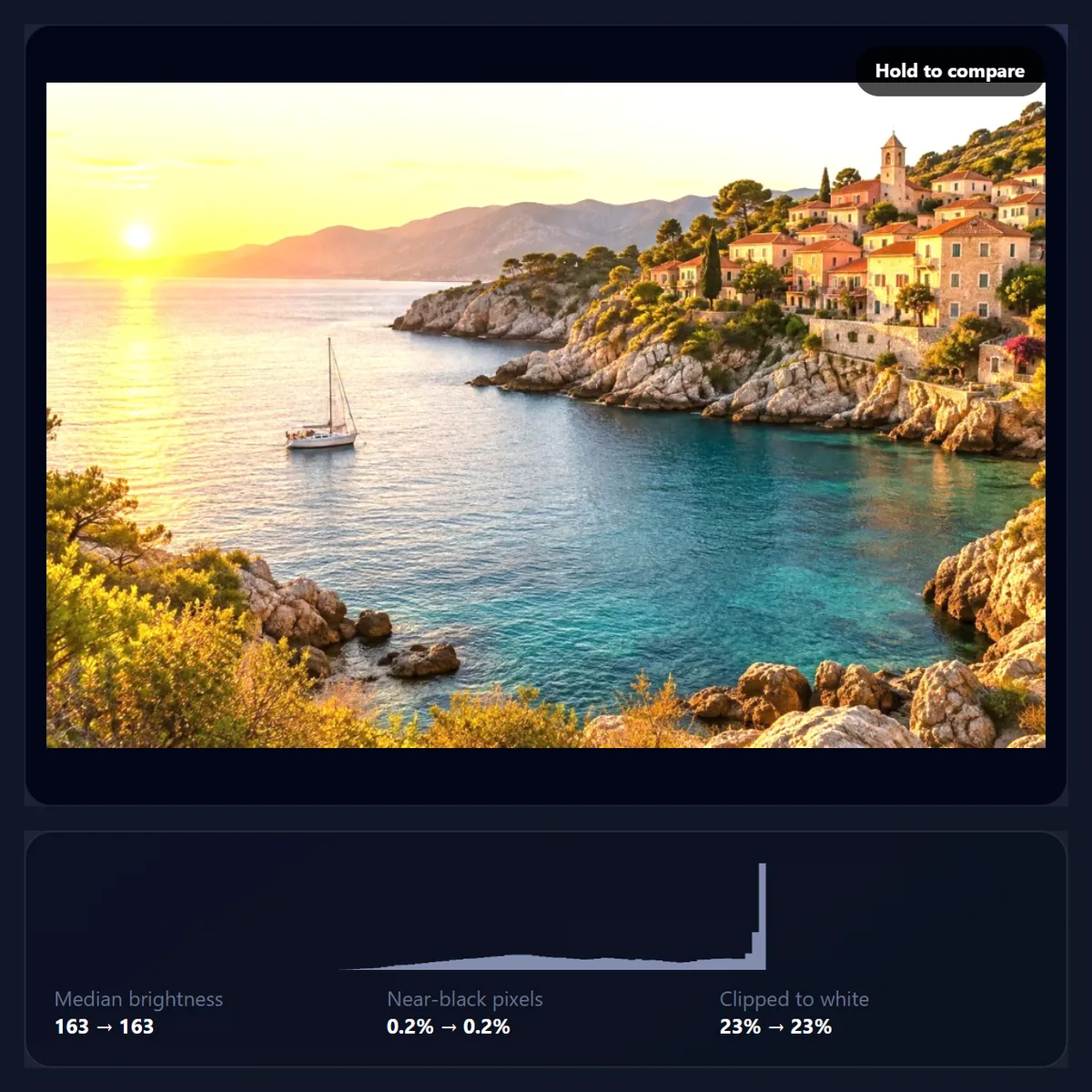
- The overexposed sample opens with no exposure change.
- Auto darken takes exposure off until the middle tones look normal.
- The Highlights slider pulls down the bright sky.
- Holding Compare shows the original, then the photo is downloaded.
What does taking off a stop of exposure do?
A stop halves the light. The Exposure slider runs from 0 down to −3 stops, so it can cut the light to an eighth. It works in linear light, the scale a camera sensor records, so taking off one stop looks the same as a shutter speed twice as fast would have.
On screen the numbers move unevenly, because image files store brightness on a curve. A bright tone stored as 230 drops to 197 at −0.5 stop, 169 at −1, 144 at −1.5 and 123 at −2. Pure white, 255, drops to 188 at −1 stop. The first stop does the most visible work; beyond two stops most photos look underexposed.
| Exposure | Light | Screen value of 230 |
|---|---|---|
| 0 (as shot) | 100% | 230 |
| −0.5 stop | 71% | 197 |
| −1 stop | 50% | 169 |
| −1.5 stops | 35% | 144 |
| −2 stops | 25% | 123 |
| −2.5 stops | 18% | 105 |
| −3 stops | 13% | 89 |
How does Auto darken decide how much to take off?
Auto darken looks at the median brightness of the photo, the value half the pixels are below, and tries cuts in tenth-of-a-stop steps down to −3 stops. It stops at the first cut that brings the median down to 118, a normal mid-tone, or earlier if the next step would push more than an extra 0.5% of the pixels below 16, where shadow detail disappears into black. If the median is already 118 or darker, it takes nothing off.
On the sample the median was 163. Auto chose −0.9 stops (54% of the light), which brought the median to 123 while near-black pixels went from 0.2% to 0.6%; it stopped there because a deeper cut would have crushed more of the shadows. The download was 1200 × 800 pixels and 333,688 bytes as a 92% JPG.
What does the Highlights slider do?
Highlights pulls down only the brightest tones. At 100 it takes up to 30% of the light off pure white and less and less off darker tones, so a mid-grey of 128 is barely touched while white 255 becomes 218. That is the control for a bright sky, a white shirt or a sunlit wall that looks too strong while the rest of the photo is fine. Tones never swap order, so nothing looks inverted or flat.
On the sample, half a stop of exposure with Highlights at 100 moved the median from 163 to 138, keeping the shadows open (near-black pixels 0.2% → 0.3%).
| Pixel value | Highlights 0 | Highlights 25 | Highlights 50 | Highlights 100 |
|---|---|---|---|---|
| 255 (white) | 255 | 246 | 237 | 218 |
| 230 | 230 | 225 | 220 | 210 |
| 200 | 200 | 198 | 195 | 191 |
| 128 | 128 | 128 | 128 | 127 |
| 64 | 64 | 64 | 64 | 64 |
| 20 | 20 | 20 | 20 | 20 |
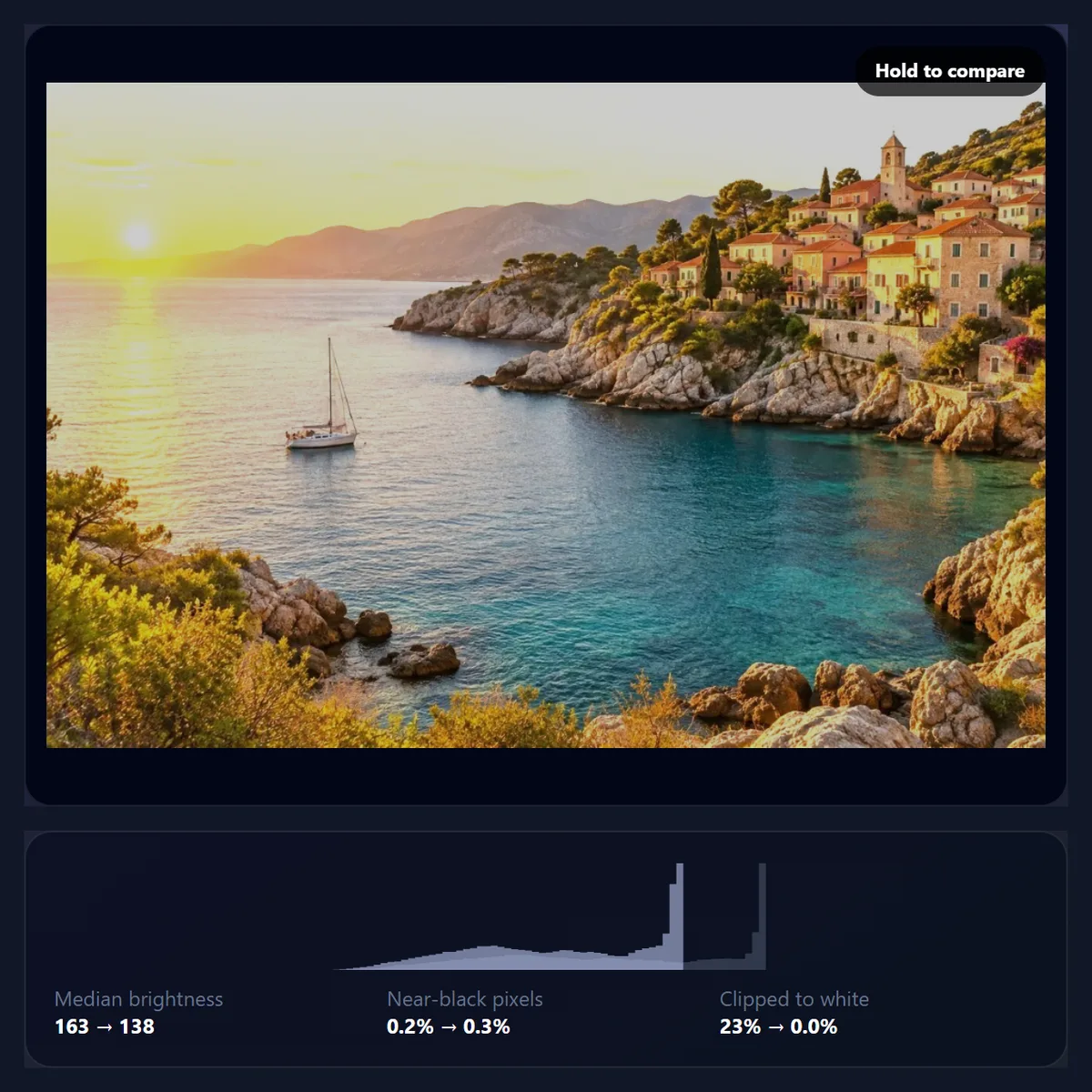
Can darkening bring back a white sky?
No. Where a photo is pure white (255 in every channel), the camera recorded no detail, only the fact that it was too bright. Darkening turns that flat white into a flat grey; it cannot draw clouds that are not there. The Clipped to white reading shows how much of the photo is affected.
The sample had 23% of its pixels clipped to white, because it was brightened by 1.3 stops for this demo. After Auto darken the reading fell to 0.0%, but those areas are now plain light grey, not sky. To keep detail in bright scenes, expose for the highlights when taking the photo, or shoot in a camera's raw format, which keeps more headroom above white.
How dark is too dark?
Watch the Near-black pixels reading. It counts the share of the photo darker than 16 out of 255, where most screens show black and detail is lost. Taking off 2.5 stops from the sample pushed it from 0.2% to 3.4% and the median down to 72: the shadows in the rocks and trees merged into black.
A darker photo is not wrong in itself: night scenes, moody portraits and silhouettes are meant to be dark. But if the reading climbs while the photo still looks too bright in places, use Highlights instead of more exposure.
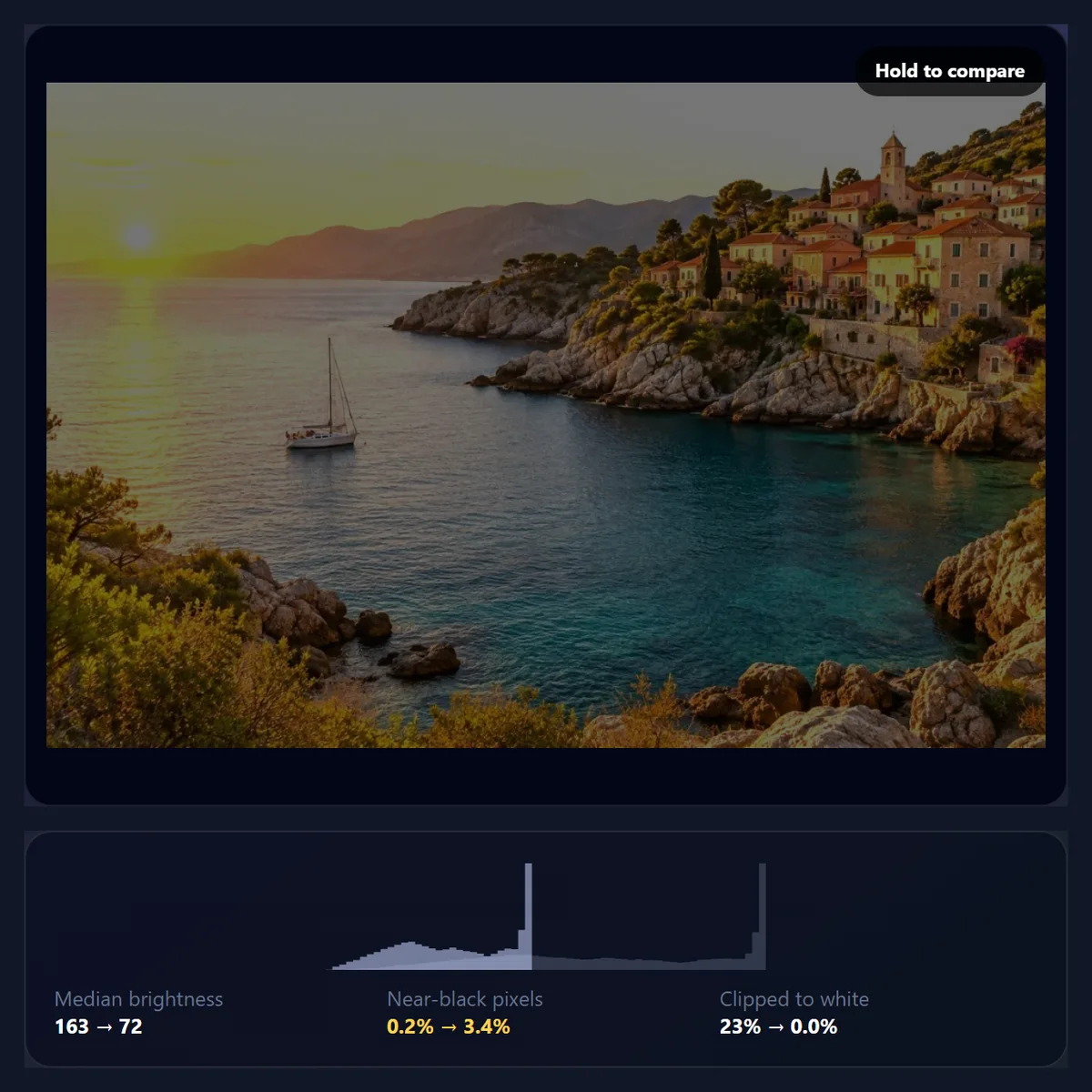
Why use exposure instead of a brightness slider?
A simple brightness slider subtracts the same amount from every pixel, so shadows hit black first and the picture loses contrast at the bottom while the highlights stay too bright. Exposure multiplies the light instead, as a faster shutter or a smaller aperture would have: bright areas lose the most, dark areas lose a little, black stays black, and colours keep their proportions, so a blue sea stays blue rather than going muddy.
Stops are also easy to reason about: if you know a photo came out about a stop too bright, take off exactly one.
When is darkening a photo useful?
Overexposed photos are the obvious case: a phone camera fooled by a dark subject against a bright background, a flash too close, or a sunny beach. Darkening also helps when a photo has to sit behind text, such as a banner, a thumbnail or a slide, where a darker, calmer background makes white text readable. And a little less exposure can make colours look richer: sunsets, autumn leaves and blue water often look stronger half a stop down.
For a mood rather than a correction, combine darkening with a vignette, which shades the edges and keeps the centre bright.
Why do night photos come out too bright?
Because a camera's automatic exposure aims to make the scene average out to a mid-grey. A night street, a candle-lit room or a concert is mostly dark, so the camera adds exposure until it looks like dusk, washing out the mood and often blowing out the lights. Taking off a stop or so restores what the scene looked like to your eye.
The same happens with dark subjects against dark backgrounds, such as a black dog on a dark sofa: the camera brightens everything to grey.
Does it work on a phone?
Yes. The tool runs in any current mobile browser, so you can darken photos straight from your phone's photos or files. On an iPhone, downloads go to the Downloads folder in the Files app; on Android, to the Downloads folder. Phones have less memory than computers, so convert very large images, or long lists of them, a few at a time.
Nothing is installed and nothing is uploaded, so it works the same on a phone, a tablet or a computer.
Which files work, and is anything uploaded?
You can open JPG, PNG and WebP photos up to 40 megapixels (above about 16 megapixels the result is saved slightly smaller, because that is the largest canvas iPhone browsers allow); convert iPhone HEIC photos to JPG first. The darkened photo is saved as JPG, PNG or WebP at its full size. Nothing is uploaded: the photo is opened, darkened and saved inside your browser tab, and no account is needed. The new file carries no EXIF data from the original.
The sample is a sunset photo brightened by 1.3 stops on purpose, in linear light, so that its sky clipped the way an overexposed camera shot does.
Why does my darkened photo look flat or grey?
Usually because clipped highlights turned grey. Large areas that were pure white become a uniform light grey when darkened, which looks flat; there is no detail to restore. Use less exposure and more Highlights, or crop the clipped area out. If the whole photo looks grey and low in contrast, it may have been hazy rather than bright: it needs more contrast, not less light.
If Auto darken changes nothing, the photo's median is already at or below a normal mid-tone; the photo may only need Highlights.
Frequently asked questions
How do I darken a photo?
Open it and press Auto darken, or lower Exposure and raise Highlights yourself, then download.
How do I fix an overexposed photo?
Take off exposure until the middle tones look right, and use Highlights for a bright sky.
What is a stop of exposure?
Half or twice the light. −1 stop halves it; −2 stops leaves a quarter.
How does Auto darken work?
It cuts exposure until the median reaches a normal mid-tone, stopping before more than 0.5% of the photo newly turns near black.
Can darkening bring back a white sky?
No. Pure white has no detail to recover; it only turns grey.
What does the Highlights slider do?
It darkens the brightest tones and barely touches the shadows.
Can I brighten with this tool?
No, Exposure stops at 0. Use Brighten Image for that.
Is my photo uploaded?
No. It is darkened in your browser.
Which formats can I use?
Open and save JPG, PNG or WebP.
Is it free?
Yes, with no account, watermark or limit.
Related tools
- Brighten Image — The opposite: lift a dark photo.
- Vignette — Darken just the edges.
- B&W Image Filter — A darker photo often suits black and white.
- Photo Effects — Add a look once the exposure is right.
- Add Text to Photo — Darken a photo to put text on it.
- Sharpen Image — Crisp up edges afterwards.