Photo Straightener
Level a crooked horizon or a leaning building. Auto level measures the tilt from the photo’s own straight edges, a grid helps you check, and the result is cropped so no blank corners show.
Updated
How do you straighten a crooked photo?
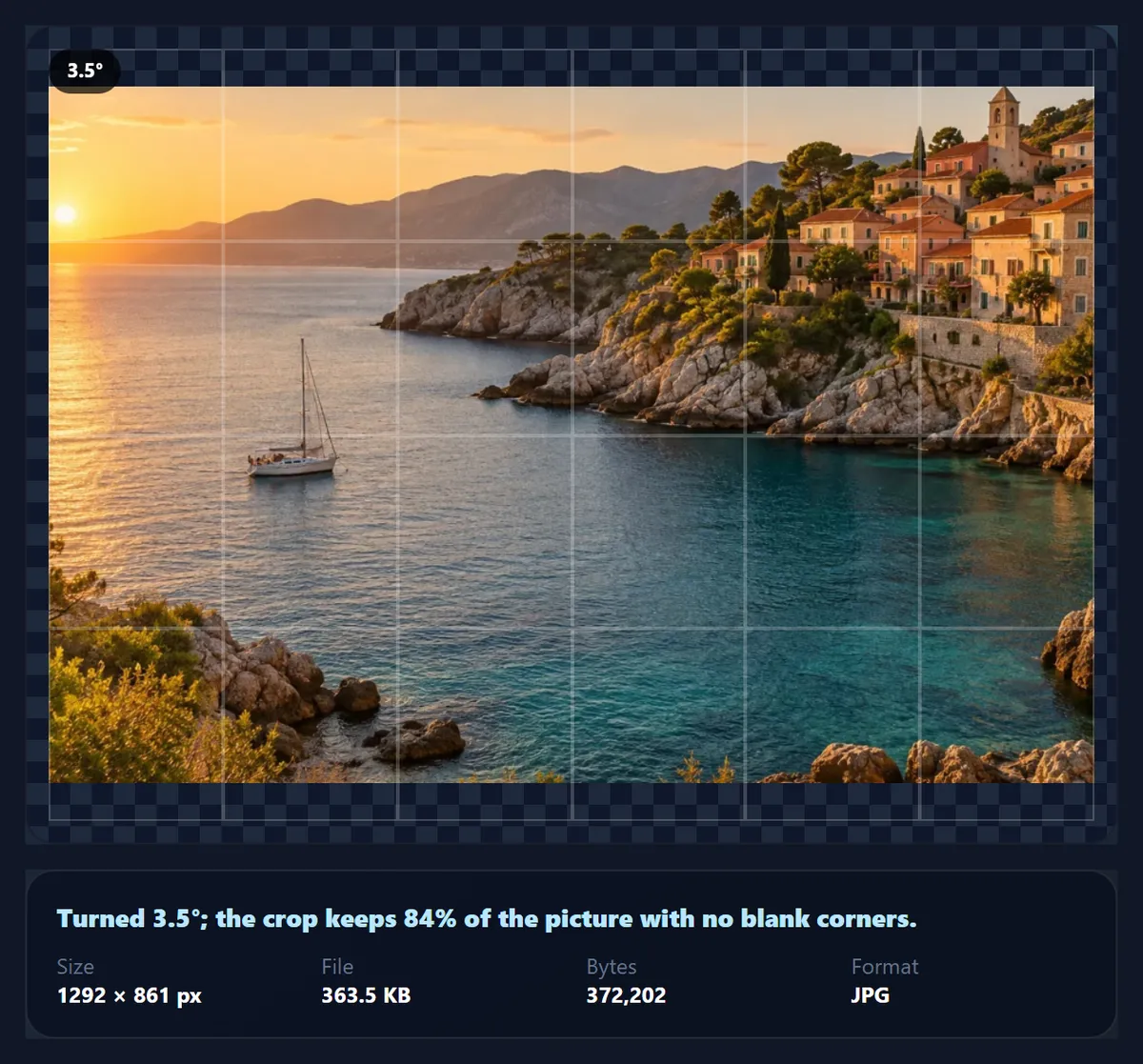
Open the photo and press Auto level. The tool measures which way the strong straight edges in the picture lean, a horizon, a roofline, the edge of a table, and turns the photo by that angle. Check the result against the grid, nudge the tilt slider if you disagree, in steps of 0.1°, and download. The photo is cropped to the largest rectangle with its own shape that has no blank corners.
A tilt of a degree or two is easy to miss when you take a photo and hard to unsee afterwards, especially where there is a horizon or water. Fixing it means turning the picture, and turning a rectangle always leaves empty triangles at the corners, so a straightener also has to crop. The trade-off between how much you turn and how much you keep is measured below.
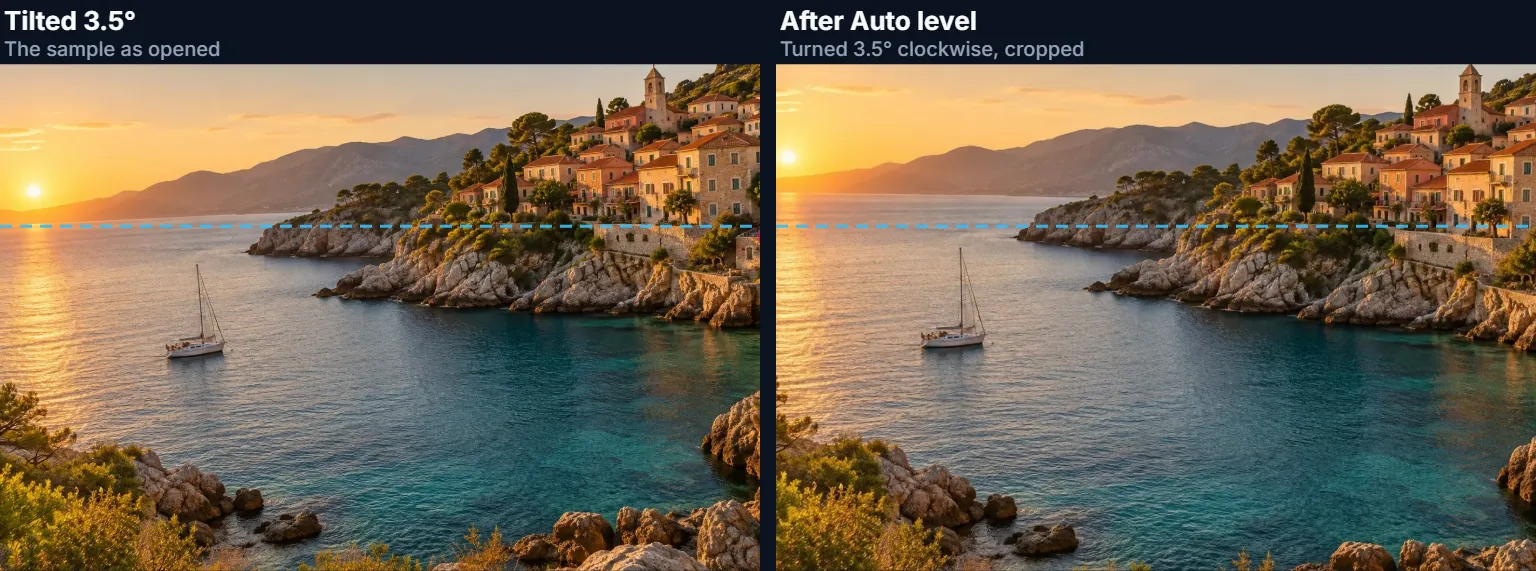
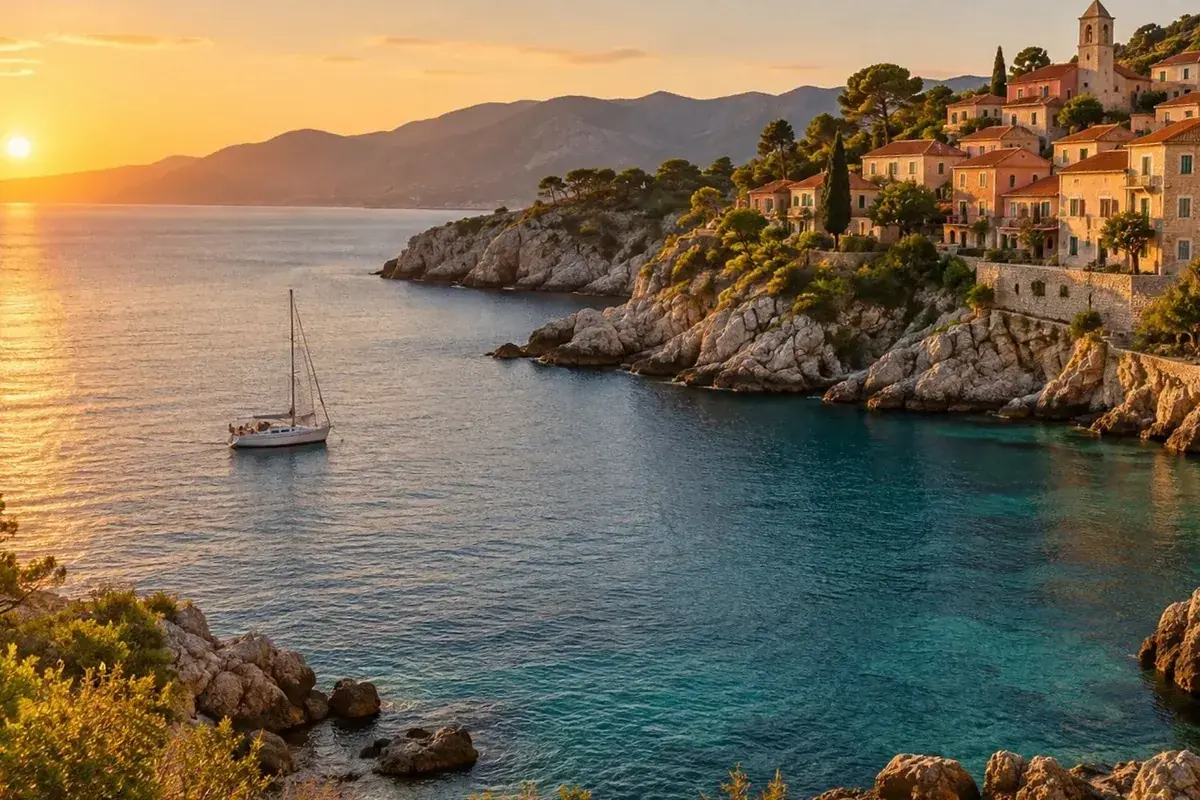
To make the demonstration checkable, the sample on this page is a coastal photo turned by exactly 3.5° anticlockwise. Auto level measured the lean as 3.5° and turned it back clockwise by that amount; the straightened file is 1292 × 861 pixels, 84% of the tilted picture. Nothing is uploaded.
How to straighten a photo online
- Open the photo Choose a JPG, PNG or WebP, drop it on the preview, or use the tilted sample. A grid is drawn over it.
- Press Auto level The tool reads the photo’s straight edges and sets the tilt. It tells you how far the edges leaned and which way it turned.
- Check and adjust Line up the horizon or a vertical edge with the grid. Drag the tilt slider, up to 15° either way in 0.1° steps, if needed.
- Download The panel shows the cropped size and how much of the picture is kept. Download as JPG, PNG or WebP.
Level a tilted horizon with Auto level
A real recording of this tool: a coastal photo tilted 3.5° is levelled with Auto level, adjusted by hand and downloaded.
- The tilted sample opens under the grid.
- Auto level measures the lean and turns the photo level.
- The tilt slider is moved by hand and set back.
- The straightened photo is downloaded.
How does Auto level find the tilt?
It looks for straight edges and measures which way they point. The tool works on a copy of the photo about 640 pixels across, finds where brightness changes sharply, and for each small patch works out the dominant direction of those changes, a method called the structure tensor, which reads a slightly sloping line correctly even where it is drawn in pixel steps. Each direction is then compared with the nearest horizontal or vertical, and the most common deviation, weighted by how strong and consistent the edges are, is the tilt.
That is why it works best on photos with a horizon, buildings, doorframes, shelves or a tabletop. On the sample, turned by a known 3.5°, it measured exactly 3.5°. On a photo with no straight lines at all, such as a close-up of foliage or a cloudy sky, it says it found no clear edges instead of guessing, and you set the angle by eye with the grid.
Auto level cannot know what should be straight. A road that really climbs, or a building photographed from below so that its sides converge, can fool it. Always check the result.
How much of the photo do you lose when straightening?
Turning a rectangle leaves four empty triangles, so the straightener keeps the largest rectangle with the photo's own proportions that fits inside the turned picture. The bigger the angle, the smaller that rectangle. For a 3:2 photo, a 1° correction keeps 95% of the picture, 3.5° keeps 84%, 5° keeps 79%, 10° keeps 65% and 15°, the slider's limit, keeps 55%.
Those figures are geometry, not estimates: the crop is the largest scale at which the turned-back rectangle still fits inside the original, which the tool computes exactly for each angle. They are also why it pays to hold the camera level when you can. A few degrees are cheap to fix; a lot of degrees cost a lot of picture.
| Correction | Kept | Crop size |
|---|---|---|
| 0.5° | 97% | 1516 × 1010 |
| 1° | 95% | 1497 × 998 |
| 2° | 90% | 1460 × 973 |
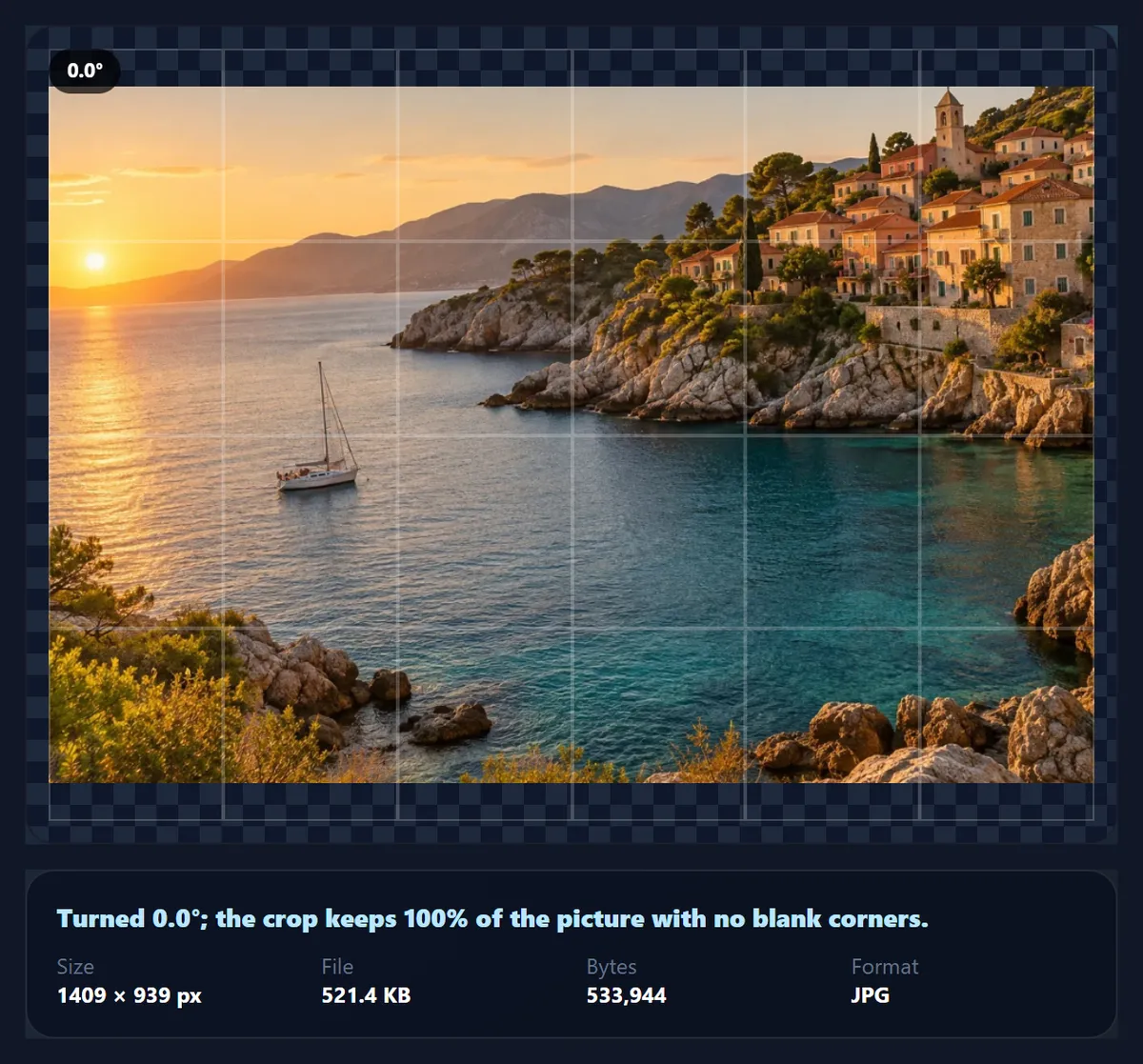
| 3.5° | 84% | 1409 × 939 |
| 5° | 79% | 1362 × 908 |
| 10° | 65% | 1233 × 822 |
| 15° | 55% | 1134 × 756 |
How do you check that a photo is level?
Use the grid and the most reliable line in the picture. A sea horizon is the best reference there is, because it is genuinely level. Away from water, use vertical lines near the centre of the photo, such as a door frame or the corner of a building. Verticals near the edges of a wide-angle photo can lean because of perspective, and lining those up will make the centre look wrong.
The grid divides the preview into six columns and four rows. Drag the tilt slider until your reference line runs parallel to a grid line, not necessarily on top of it. Then switch the grid off and look at the photo as a whole: a straight picture should feel calm, not just measure level.
What is the difference between straightening and rotating?
Straightening is a small rotation with a crop. It is for photos that are meant to be level and are a little off, so it works within ±15°, in steps of 0.1°, and always crops away the empty corners to leave an ordinary rectangular photo.
Rotating is for turning a photo by any amount: a quarter turn to fix a sideways picture, 180° for an upside-down scan, or a deliberate angle for a design. The rotate image tool offers pixel-exact quarter turns and, for other angles, a choice between growing the canvas to keep the corners or cropping them.
Does straightening reduce quality?
A little, unavoidably. Turning by a fraction of a degree means each new pixel is worked out from the original pixels around it, which the tool does once, with the browser's high-quality smoothing. Edges stay clean, but the finest texture can soften very slightly. Straighten once from the original rather than repeatedly.
The crop also lowers the pixel count: the 1409 × 939 sample came out at 1292 × 861. If you need a particular size afterwards, resize the result rather than straightening at a larger angle than necessary.
What should be level in a photo?
Level the line the eye trusts most. A sea or lake horizon is the most reliable reference, because water lies flat: a small tilt there makes the whole picture look as if it is draining to one side. Without a horizon, use a true vertical near the centre of the frame, such as a door frame, a lamp post or the corner of a building, rather than lines near the edges.
Not every line should be level. Hills, roads and roof lines often really slope, and the skyline of a hillside is rarely straight. Converging lines are a different problem: when you tip a camera up at a tall building, its sides lean towards each other (converging verticals). A rotation can make one side vertical but not both; that needs perspective correction. In that case, level the line nearest the middle and let the two sides lean by the same amount.
Why do so many photos come out tilted?
Handheld photos are almost never perfectly level. A phone held at arm's length or a camera held to the eye tips by a degree or two without the photographer noticing, and the screen gives no horizon to compare against unless a grid or level is switched on; most camera apps can show one. Scans tilt too, when a print or a page sits slightly askew on the glass; lining it up against the edge of the glass helps, and the straightener can correct what is left.
Small tilts are easy to see because the frame itself is a perfect rectangle: a horizon a degree or two off runs right next to a perfectly straight edge. The tool's range of ±15° covers handheld tilts and crooked scans; for bigger turns, use Rotate Image.
Where does the photo turn, and what shape is the crop?
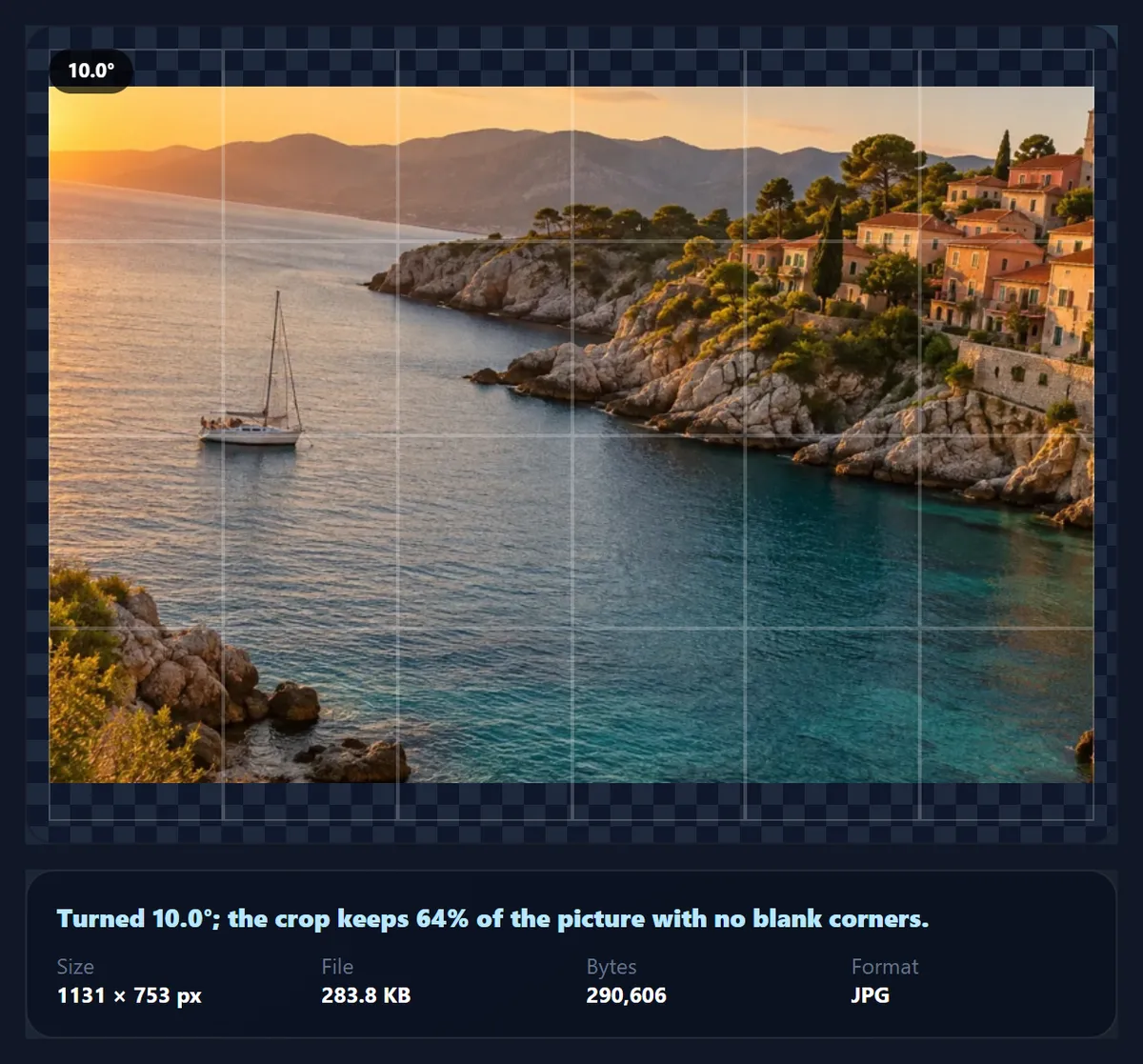
The photo turns around its centre, and the crop is the largest rectangle of the photo's own shape that fits inside the turned picture, centred as well, so a 3:2 photo stays 3:2 and a square stays square. On the sample, a 3.5° correction kept 84% of the picture at 1292 × 861 pixels and a 10° correction kept 64% at 1131 × 753.
Because the crop is centred, detail close to the edges is the first to go. If something important sits near an edge, straighten by the smallest angle that looks right, or crop the result to a different shape afterwards with Crop Image.
Which files work, and is anything uploaded?
You can open JPG, PNG and WebP photos up to 40 megapixels (above about 16 megapixels the result is saved slightly smaller, because that is the largest canvas iPhone browsers allow); convert iPhone HEIC photos to JPG first. The download starts in the format you opened, with a quality slider for JPG and WebP. The photo is opened, measured, turned and saved inside your browser tab; nothing is sent to HueFold, and no account is needed. The saved file carries no EXIF data from the original, including GPS location.
Why did Auto level choose the wrong angle?
Because the strongest straight edges in your photo are not level in real life: a sloping roof, a staircase, a road going uphill or the converging sides of a tall building. Auto level follows whatever lines dominate the picture. Press Reset and set the tilt by hand with the grid, using the reference line you trust.
If it says it found no clear edges, the photo has no long straight lines for it to read; set the angle by eye. If the correction you need is more than 15°, use the rotate image tool, which turns by any angle.
Frequently asked questions
How do I straighten a crooked photo?
Open it and press Auto level, check it against the grid, adjust the tilt slider if needed, and download.
How does Auto level work?
It measures which way the photo’s strong straight edges lean and turns the photo by that angle.
How accurate is Auto level?
On a sample turned by exactly 3.5°, it measured 3.5°. It depends on the photo having real straight lines.
Why is the straightened photo smaller?
Turning leaves blank corners, so the tool crops to the largest rectangle with no blank areas: 84% of a 3:2 photo at 3.5°.
How far can I straighten?
Up to 15° either way in 0.1° steps. For larger angles use the rotate image tool.
Can I straighten without cropping?
Not here. Use the rotate image tool and choose Grow the canvas to keep the corners.
Does straightening lose quality?
Only a little: the photo is resampled once. Straighten from the original, once.
Is my photo uploaded?
No. Everything happens in your browser.
What if Auto level finds nothing?
The photo has no clear straight edges. Set the tilt by eye with the grid.
Is it free?
Yes, with no account, watermark or limit.
Related tools
- Rotate Image — Quarter turns or any angle, corners kept.
- Crop Image — Crop to a size or ratio after levelling.
- Flip Image — Mirror a photo horizontally or vertically.
- Brighten Image — Lift a dark photo by exposure.
- Vignette — Shade the edges to frame the subject.
- AI Photo Enhancer — Correct colour and light automatically.