Grayscale Image
Turn a colour photo into shades of grey with the method you choose, see all nine side by side on your own picture, reduce it to 16, 4 or 2 tones, and save a real grayscale PNG that is smaller than the colour one.
Updated

How do you convert an image to grayscale?
Open the photo and it is converted at once with Luminance, the method that keeps each colour's real brightness. Pick another method from the thumbnails if you prefer its look, choose how many tones to keep, and download a JPG, WebP or PNG at full size.
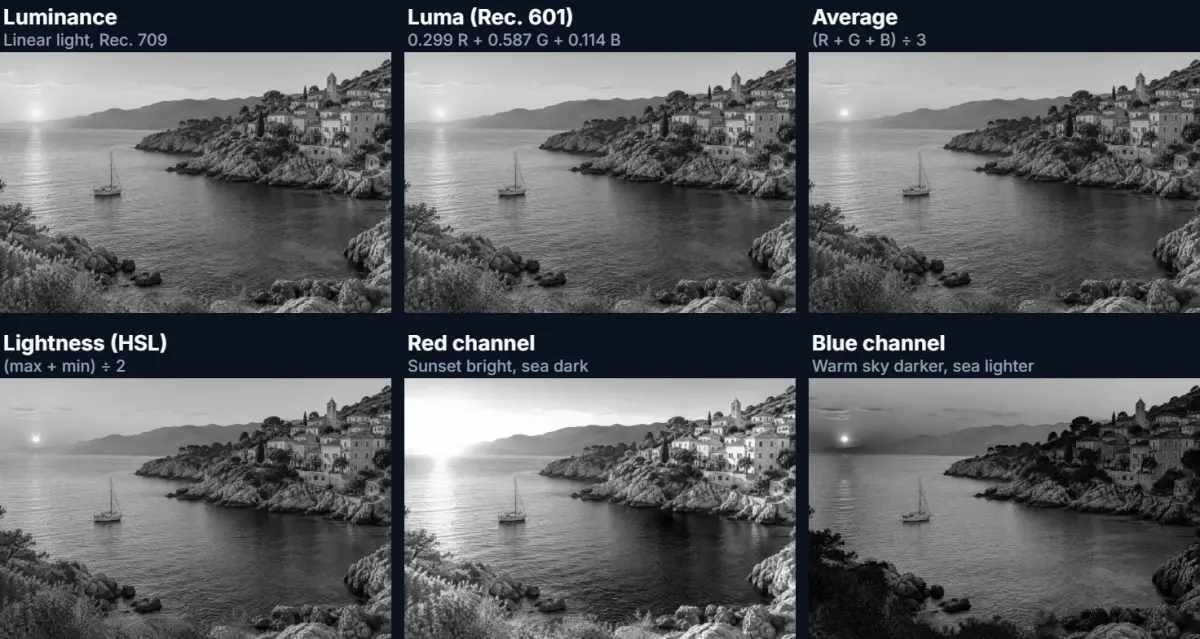
A grayscale image stores one brightness value per pixel instead of three colour values, so every red, green and blue has to be turned into a single grey. There is no one correct way to do that: an average treats the three colours equally, while luminance weights them the way our eyes see them, which is why pure blue comes out dark and pure green light. The thumbnails under the preview show every method on your own photo, so you can see the difference before choosing.
PNG downloads are true grayscale files with one channel, which a browser canvas cannot write on its own: on the sample, the grayscale PNG was 48% smaller than the same picture saved by the browser's own PNG encoder. Nothing is uploaded; the conversion happens in your browser tab.
How to make a photo grayscale online
- Open the photo Choose a JPG, PNG or WebP, drop it on the preview, or use the coastal sample.
- Pick a method Luminance is the default. The nine thumbnails show each method on your photo; hold Compare to see the colour original.
- Choose the tones Keep 256 tones, or reduce to 16, 4 or black and white, with dithering to keep gradients smooth.
- Download Save as JPG, WebP, or a true one-channel grayscale PNG, at the photo’s full size.
Convert a photo to grayscale
A real recording of this tool: the sample in Luminance grey, five other methods, 16 tones and dithered black and white, then a one-channel PNG downloaded.
- The coastal sample opens, converted to grey with Luminance.
- Rec. 601 luma, average, the red channel and the blue channel are tried, then Luminance again.
- The tones are cut to 16, then to dithered black and white.
- Back at 256 tones, PNG is chosen and the one-channel file is downloaded.
Which grayscale method should you use?
Every method turns the three colour values of a pixel into one grey, and they disagree most on saturated colours. Luminance converts the stored values to linear light, adds 21.26% of the red, 71.52% of the green and 7.22% of the blue (the Rec. 709 weights that sRGB uses), and converts the result back, so a colour's grey matches how bright it really is. Luma does the same sum on the stored values without the conversion, which is quicker but makes saturated colours darker: Rec. 709 luma is the modern TV standard, and Rec. 601 luma (29.9% red, 58.7% green, 11.4% blue) is the older one still used inside JPEG files and by many image libraries.
The simple methods ignore how we see. Average gives red, green and blue a third each, so pure red, green and blue all become the same grey, 85. Lightness takes the halfway point between the strongest and weakest channel, and Value takes the strongest alone, which turns every fully saturated colour white. The single-channel methods keep just the red, green or blue values, like black and white film shot through a strongly coloured filter.
The table shows the grey each method gives for a few colours, computed with the tool's own code. Luminance is the default because it is the only one that keeps yellow light and blue dark the way they look.
| Colour | Luminance | Luma 709 | Luma 601 | Average | Lightness | Value |
|---|---|---|---|---|---|---|
| Pure red #ff0000 | 127 | 54 | 76 | 85 | 128 | 255 |
| Pure green #00ff00 | 220 | 182 | 150 | 85 | 128 | 255 |
| Pure blue #0000ff | 76 | 18 | 29 | 85 | 128 | 255 |
| Yellow #ffff00 | 247 | 237 | 226 | 170 | 128 | 255 |
| Sky blue #87ceeb | 196 | 193 | 188 | 192 | 185 | 235 |
| Sunset orange #f4a261 | 181 | 175 | 179 | 168 | 171 | 244 |
| Leaf green #2a9d4b | 137 | 127 | 113 | 91 | 100 | 157 |
Why does luminance use linear light?
Because brightness adds up in light, not in the numbers a file stores. A JPG or PNG keeps each colour value on a curve that spends more of its 256 steps on dark tones, roughly matching how our eyes work. Adding 21% of a stored red value to 72% of a stored green value mixes numbers on that curve, which undercounts bright saturated colours: pure red becomes 54 with Rec. 709 luma, a deep grey, although red light is far from that dark. Converted to linear light first, weighted, and converted back, pure red becomes 127, close to the middle grey it looks like next to white.
The difference matters most for photos with strong colours: sunsets, flowers, neon, red and blue clothing. For pale or grey subjects, all the weighted methods give almost the same result, and any of them is fine. The relative luminance used to measure text contrast in the WCAG accessibility guidelines is the same weighted sum in linear light, which is why a grayscale preview made with Luminance is a fair check of how readable a design will be without colour.
Is a grayscale PNG smaller than a colour one?
It can be, if the file really is grayscale. A PNG can store one channel per pixel (colour type 0 in the PNG specification) at 1, 2, 4, 8 or 16 bits, or grey plus transparency (colour type 4). A browser's canvas cannot write those: Chrome's PNG encoder stores red, green, blue and alpha (colour type 6) even when every pixel is grey, which is four times the raw data. This tool writes the PNG itself, filtering each row the way PNG encoders do and compressing it with the browser's own deflate.
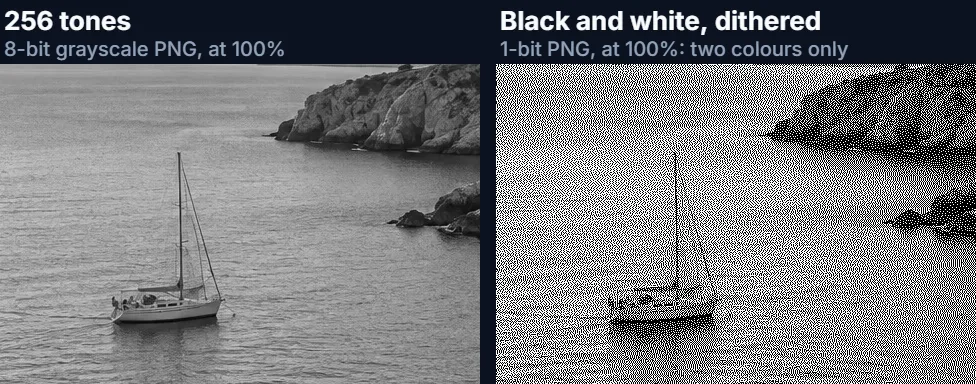
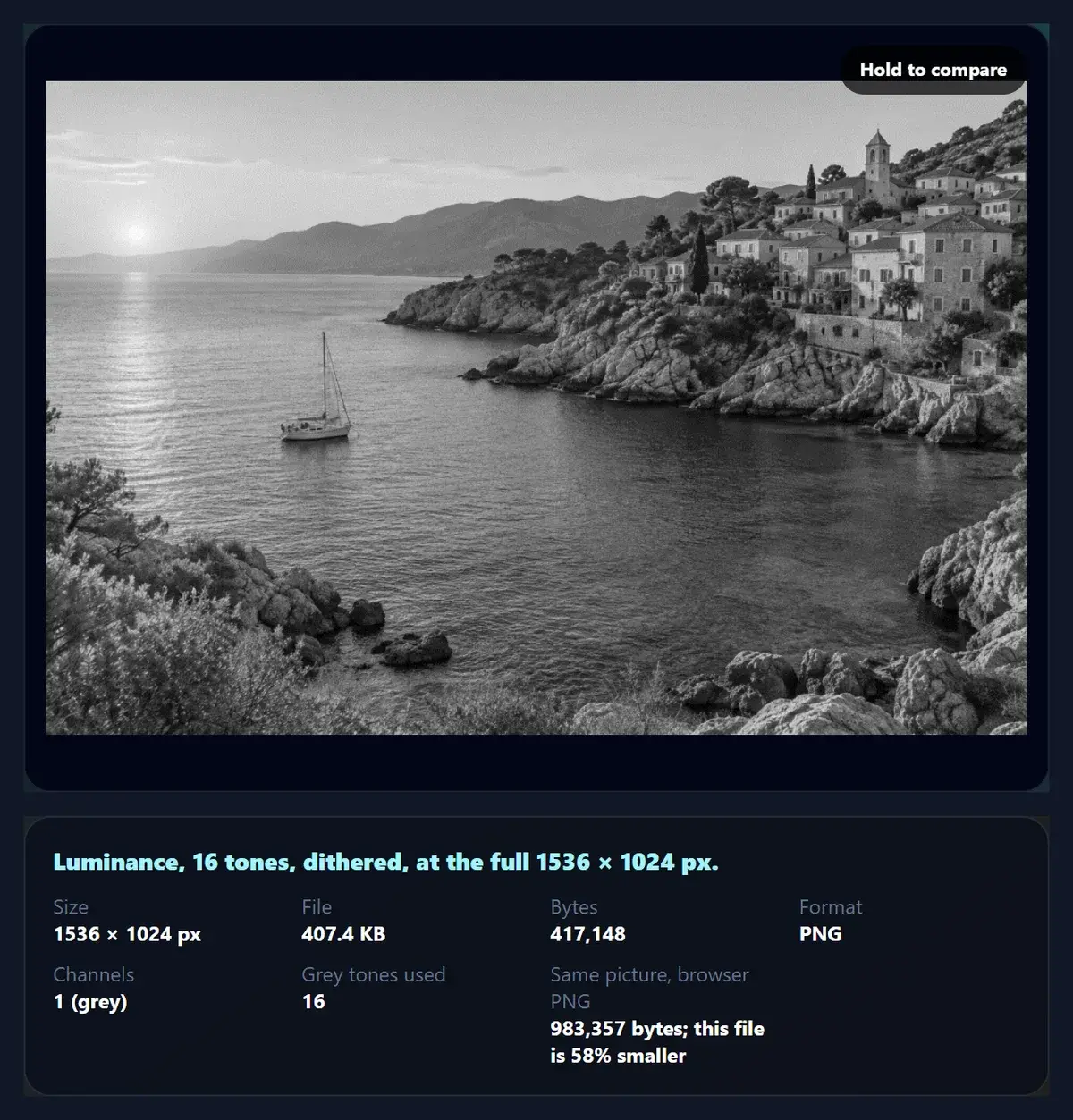
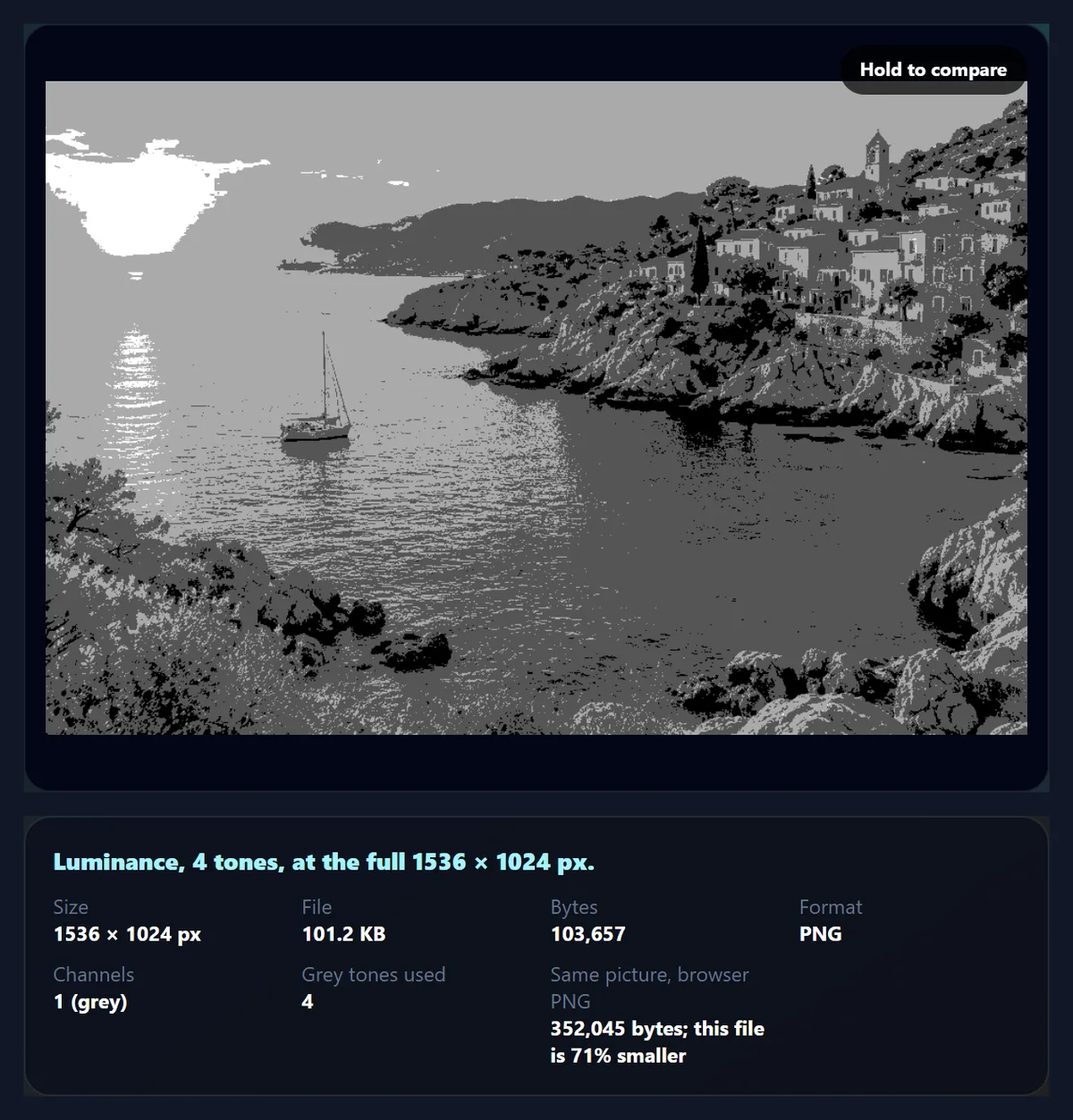
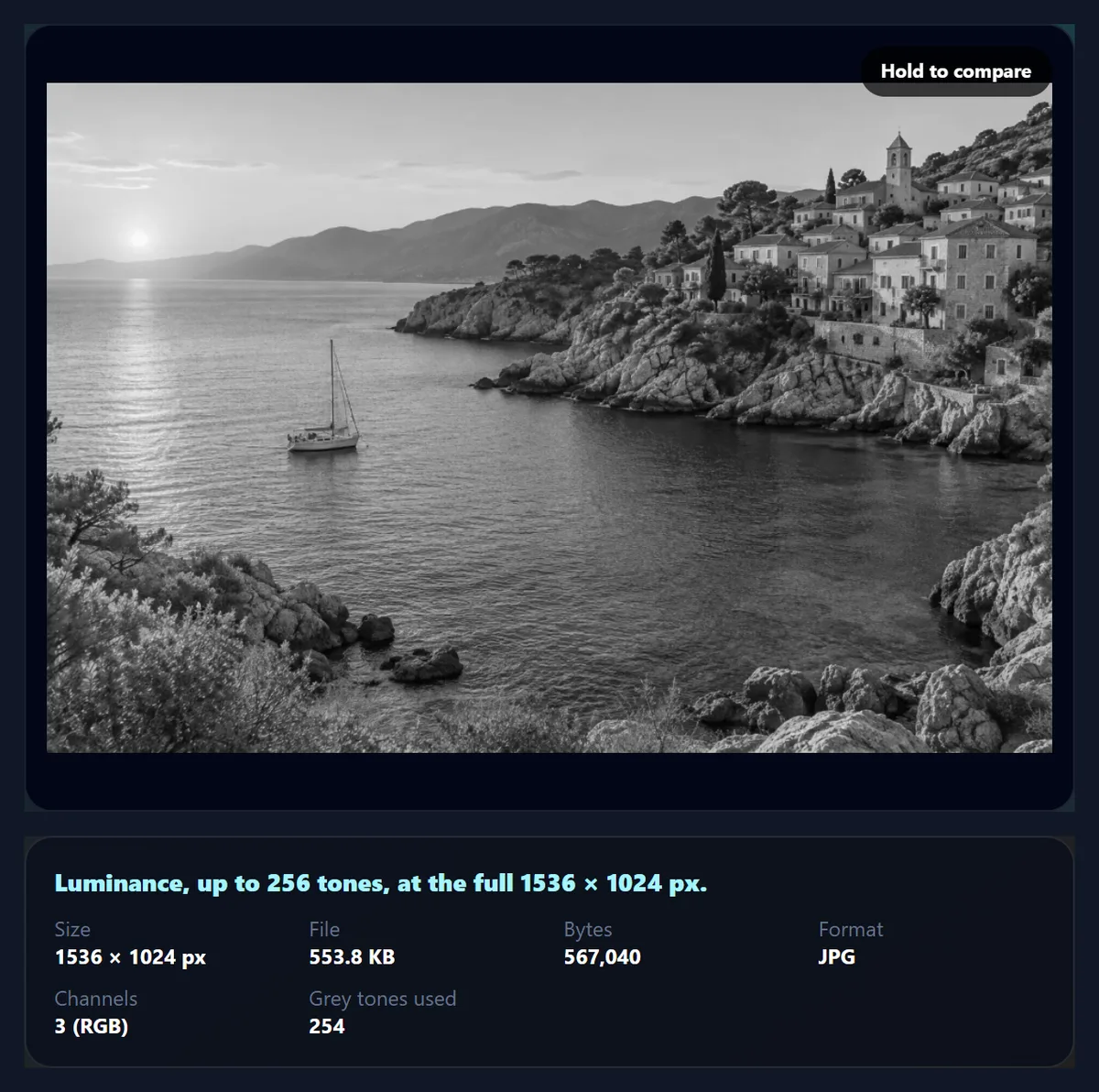
On the 1536 × 1024 sample, converted with Luminance, the one-channel PNG with 256 tones was 963,045 bytes, against 1,837,513 bytes for the same picture from the browser's encoder: 48% smaller. Fewer tones pack several pixels into each byte: 417,148 bytes with 16 tones, 200,518 with 4 and 158,511 in black and white, all dithered, each a third or less of the browser's PNG of the same picture. Dithering costs bytes, because its fine dot patterns compress less well than flat bands: without it, black and white was 54,875 bytes. A 92% JPG of the 256-tone picture was 567,040 bytes; browsers' JPEG encoders always write three components, but spend very little on the empty colour.
| File | Bytes | Browser PNG of the same picture |
|---|---|---|
| Browser PNG, 256 tones (4 channels) | 1,837,513 | 1,837,513 |
| Grayscale PNG, 256 tones (8-bit) | 963,045 | 1,837,513 |
| JPG at 92%, 256 tones | 567,040 | — |
| Grayscale PNG, 16 tones, dithered (4-bit) | 417,148 | 983,357 |
| Grayscale PNG, 4 tones, dithered (2-bit) | 200,518 | 734,970 |
| Grayscale PNG, black and white, dithered (1-bit) | 158,511 | 874,536 |
| Grayscale PNG, 4 tones, no dithering | 103,657 | 352,045 |
| Grayscale PNG, black and white, no dithering | 54,875 | 261,195 |
What do 16, 4 and 2 tones mean, and what is dithering?
A normal grayscale image has 256 possible greys per pixel, enough that smooth gradients never show steps. With fewer tones, every pixel has to be one of a handful of evenly spaced greys: 16 tones (4 bits per pixel), 4 tones (black, 85, 170 and white) or 2 (pure black and white). Rounding each pixel to the nearest grey turns a smooth sky into visible bands. Dithering hides them: the tool uses Floyd–Steinberg error diffusion, which passes each pixel's rounding error on to its neighbours (seven sixteenths to the right, and three, five and one sixteenths to the row below), so the average tone of every area stays right and gradients become fine patterns of dots.
The rows are processed in alternating directions, a serpentine scan, so the error does not drift to one side. Dithered black and white suits printing on simple printers, thermal and receipt printers, laser engraving and pixel-art looks; 16 tones is a good match for e-ink screens, which show a limited number of grey levels.
| Tones | Bits per pixel | Grey levels (0–255) | Pixels per byte |
|---|---|---|---|
| 256 | 8 | 0, 1, 2 … 255 | 1 |
| 16 | 4 | 0, 17, 34 … 255 | 2 |
| 4 | 2 | 0, 85, 170, 255 | 4 |
| 2 (black and white) | 1 | 0, 255 | 8 |
Is grayscale the same as black and white?
In everyday photography, yes: a black and white photo is a grayscale one, made of every shade between black and white. In printing and image formats, black and white often means only two colours, black ink or none, which is what the tool's Black & white option makes (a 1-bit image). Grayscale also differs from a black and white filter: this page converts as exactly as possible, while the B&W Image Filter page adds film-style looks, contrast, colour filters, toning and grain on top. Start here when you need a faithful grey version of an image, or a small file; use the filter when you want a mood.
Converting is one way. Once the colour is gone it cannot be recovered from the grey values, because many different colours give the same grey (pure red and a mid-grey both become 127 with Luminance). Keep the colour original.
When is a single colour channel better?
Black and white film photographers put coloured filters on the lens to control which colours turn light or dark. A red filter darkens blue sky and makes clouds stand out; a green one lightens foliage. The Red, Green and Blue channel methods are the strongest version of that idea: each keeps one channel as the grey. On the sample, the red channel keeps the sunset and the warm cliffs bright and turns the blue sea dark, while the blue channel does the opposite: the warm sky comes out darker and the sea lighter.
Single channels are also useful for technical work: the green channel of a scanned document often has the least noise, and the red channel can make blue pen marks vanish from a page. For portraits, the red channel smooths skin, because skin is bright in red; the blue channel exaggerates blemishes.
What is a grayscale image used for?
Printing is the most common reason: a grayscale file prints the same on any printer, uses no colour ink, and avoids a colour cast from a black-only laser printer guessing at greys. Documents, forms and scans become smaller and easier to read. Designers check a layout in grayscale to see whether it still works without colour, which is how people with some kinds of colour blindness, or anyone reading a black and white printout, will see it. Grayscale is also a strong style for portraits, architecture and street photos, where it removes distracting colour and leaves shape, light and texture.
Some systems expect grayscale input: e-ink displays, embroidery and laser-engraving software, machine-learning datasets, and image processing that works on brightness alone. A one-channel PNG is the natural format for all of these.
Which files work, and what size is the result?
The tool opens JPG, PNG and WebP images up to 40 megapixels, applying the camera's orientation so the photo is the right way up. Convert iPhone HEIC photos first with HEIC to JPG. The result keeps the photo's full size up to about 16 megapixels (larger photos are scaled to fit, because that is the biggest canvas iPhone browsers allow), and transparent areas stay transparent in PNG and WebP: the PNG is then saved as grey plus alpha. The sample's grayscale PNG came out at 1536 × 1024 pixels with one channel, as its file header says.
Nothing is uploaded and no account is needed. The downloaded file carries no EXIF data from the original, so camera details and any location are not copied.
Why does my grayscale photo look flat?
Colour does a lot of the work of separating objects. A red apple on green leaves stands out in colour, but the two can have almost the same luminance and turn into the same grey. Try another method: on that apple, the red channel would make it light and the leaves dark. If the whole picture still lacks punch, add contrast with the B&W Image Filter, or darken or brighten it first.
If a reduced-tone image shows bands, turn dithering on. If a dithered image looks noisy on screen, view it at 100%: dithering is meant to be seen at its own size or printed, and shrinking it on screen can create patterns. And if a PNG is larger than you expected, choose fewer tones, or save as JPG for photos.
Frequently asked questions
How do I convert an image to grayscale?
Open it here; it is converted with Luminance at once. Pick another method if you like, then download.
Which grayscale method is the most accurate?
Luminance, which weights red, green and blue by how bright they look and adds them in linear light.
What is the difference between luminance and luma?
Luma uses the same weights on the stored values; luminance converts to linear light first, so saturated colours keep their real brightness.
Does a grayscale image make the file smaller?
As a one-channel PNG, yes: the sample was 48% smaller than the browser’s own PNG. Fewer tones shrink it further.
Is grayscale the same as black and white?
In photography, yes. The Black & white option here makes a true two-colour image instead.
What does dithering do?
It spreads each pixel’s rounding error to its neighbours, so few tones still show smooth gradients.
Can I turn a grayscale image back into colour?
Not from the grey values: different colours give the same grey. Keep the original.
Does it keep transparency?
Yes, in PNG (saved as grey plus alpha) and WebP. JPG has no transparency.
Is my photo uploaded?
No. It is converted in your browser tab and never sent anywhere.
Is it free?
Yes, with no account, watermark or limit on how many photos you convert.
Related tools
- B&W Image Filter — Film looks, contrast, toning and grain for black and white photos.
- Change Color of Image — Recolour one part of a photo instead of all of it.
- Photo Effects — 36 looks for a photo, mono ones included.
- Darken Image — Bring down a bright photo before converting it.
- HEIC to JPG — Convert iPhone photos so they open here.
- Vignette — Shade the edges; it suits grayscale photos.