Caption
Add captions to a video in your browser: type them, paste a script or import SRT, time each one to the voice, style them, and save an MP4 with the captions burnt in or an SRT or VTT file.
Updated
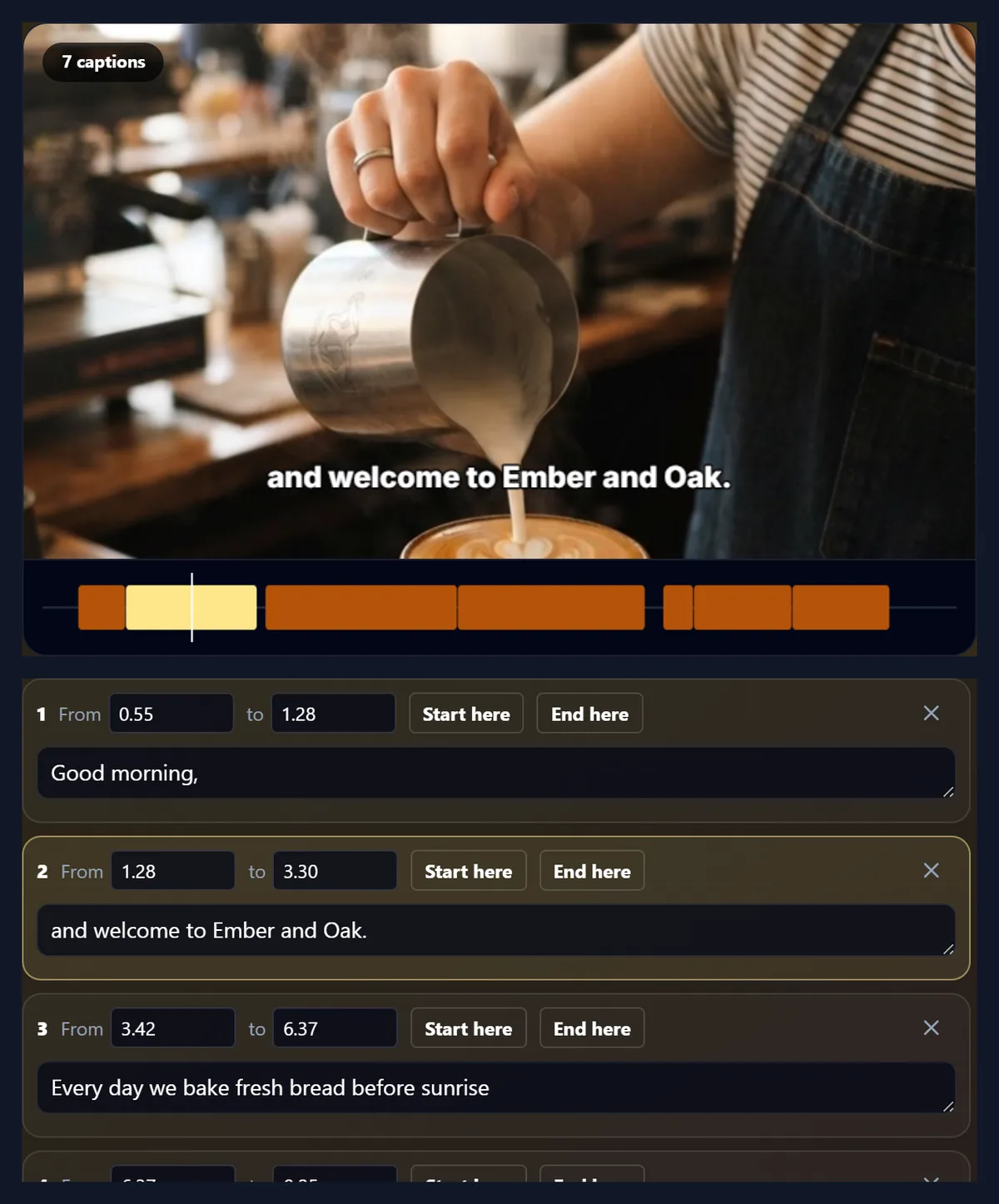
How do you add captions to a video?
Open the video, add the words (type them at the playhead, paste the script, or import an SRT or VTT file), fix each caption's timing with Start here and End here, pick a style, and burn them into the video or save them as a caption file.
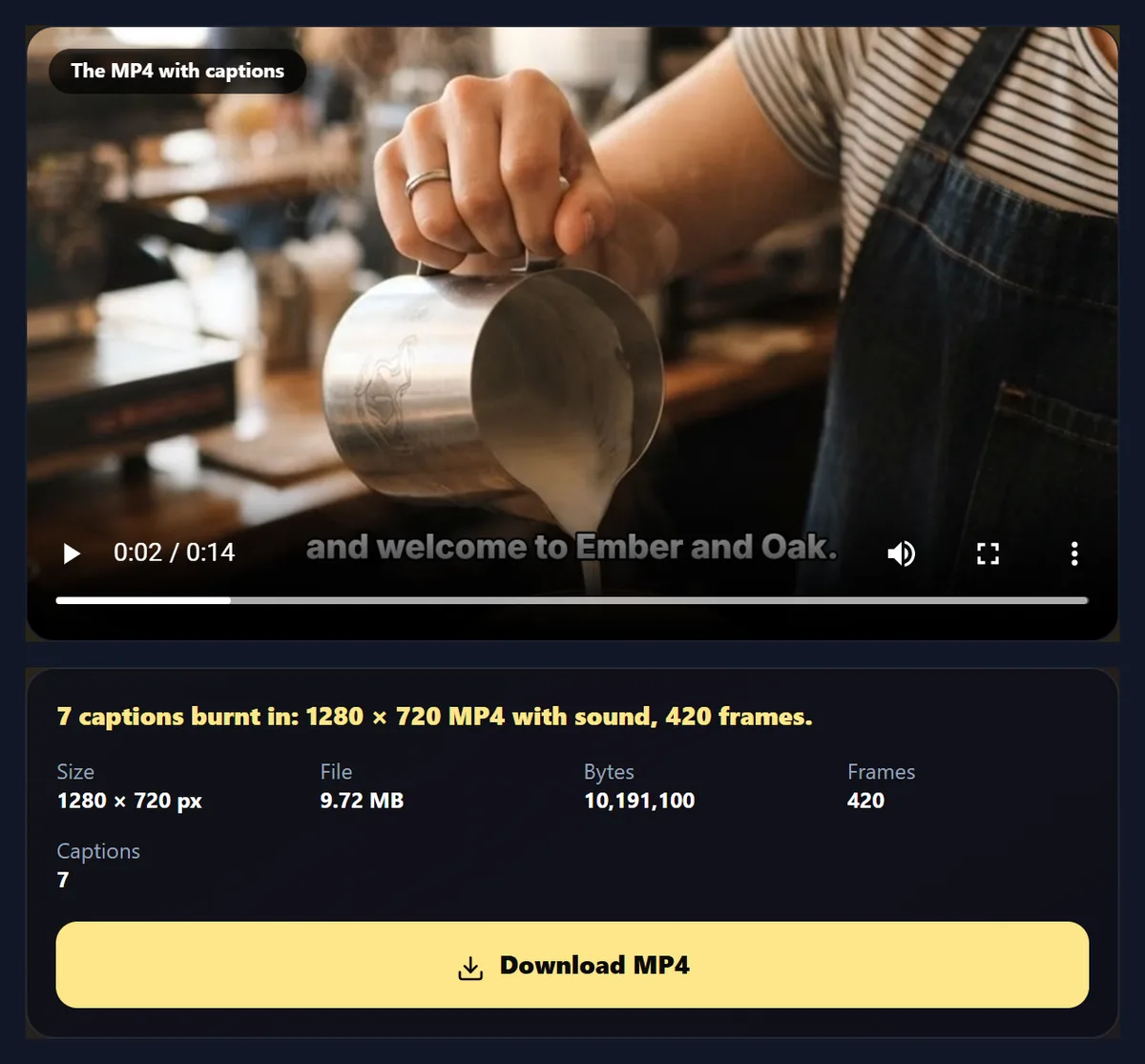
The sample's seven captions show 179 words a minute; burnt in, they made a 1280 × 720 MP4 with all 420 frames and the sound kept, and an SRT of 422 bytes.
How to caption a video
- Open a video Any video your browser plays.
- Add the words Type, paste a script, or import SRT or VTT.
- Time them Start here and End here at the right frames.
- Style and save Burn them in as an MP4, or save SRT or VTT.
Add captions to a video
A real recording of this tool: the sample opened with its captions, the first caption edited, three styles tried, and the captions burnt into the video.
- The sample video opens with its seven captions.
- The first caption is rewritten.
- The Boxed, Bold and Classic styles are tried.
- The captions are burnt into the MP4, which then plays.
How long should each caption stay on screen?
Long enough to read comfortably, which depends on its length. The sample's seven captions are timed to the pauses in the voice: the shortest, “Come in,”, is up for 0.47 seconds, the longest, “Every day we bake fresh bread before sunrise”, for 2.95. Over the whole clip they show 179 words a minute, 15.3 characters a second.
The tool shows that reading speed under the list of captions and warns when it passes 20 characters a second, the most Netflix's English subtitle guidelines allow for adult programmes. If a caption flashes by, lengthen it, split the sentence across two captions, or cut words.
| Caption | From | On screen |
|---|---|---|
| Good morning, | 0.55 s | 0.73 s |
| and welcome to Ember and Oak. | 1.28 s | 2.02 s |
| Every day we bake fresh bread before sunrise | 3.42 s | 2.95 s |
| and pour coffee from beans we roast ourselves. | 6.37 s | 2.88 s |
| Come in, | 9.52 s | 0.47 s |
| find a seat by the window, | 9.99 s | 1.51 s |
| and take your time. | 11.50 s | 1.50 s |
How do I add captions to a video?
Open your video, then get the words in: press Add a caption here at the right moment and type, paste the whole script and spread it over the video, or import an SRT or VTT file. Play the video and fix each caption's timing with Start here and End here. Choose a style, then burn the captions into the video, or save them as an SRT or VTT file to upload with it.
The sample is a 14-second café video with a voiceover; it opens with its seven captions already timed. Burnt in, it became a 1280 × 720 MP4 with all 420 frames and its sound.
Do I have to type every caption?
No: there are three ways in. Add a caption here starts a new caption at the playhead, for typing as you watch. Paste a script takes the whole text, splits it into captions at sentences and commas, at most 42 characters each, and spreads them over the video in proportion to their length, ready to adjust. Import SRT or VTT reads a caption file from another app or an earlier session.
Spreading a script gets every caption roughly in place in one step; it cannot hear the pauses, so play it through and nudge the ones that drift. To have the timing done for you from the voice, use the AI caption generator.
How do I time captions precisely?
Pause the video on the frame where a caption should appear, by playing, dragging the playhead, or clicking the timeline under the video, and press Start here on that caption; then on the frame where it should go, press End here. The From and to boxes take times in seconds to a twentieth, for fine adjustments.
Captions are kept in order and never overlap: if you move one into the next, it ends where the next begins. A caption is never shorter than 0.3 seconds unless the next one starts sooner. The timeline draws every caption as a block, with the one showing now highlighted.
Which caption styles are there?
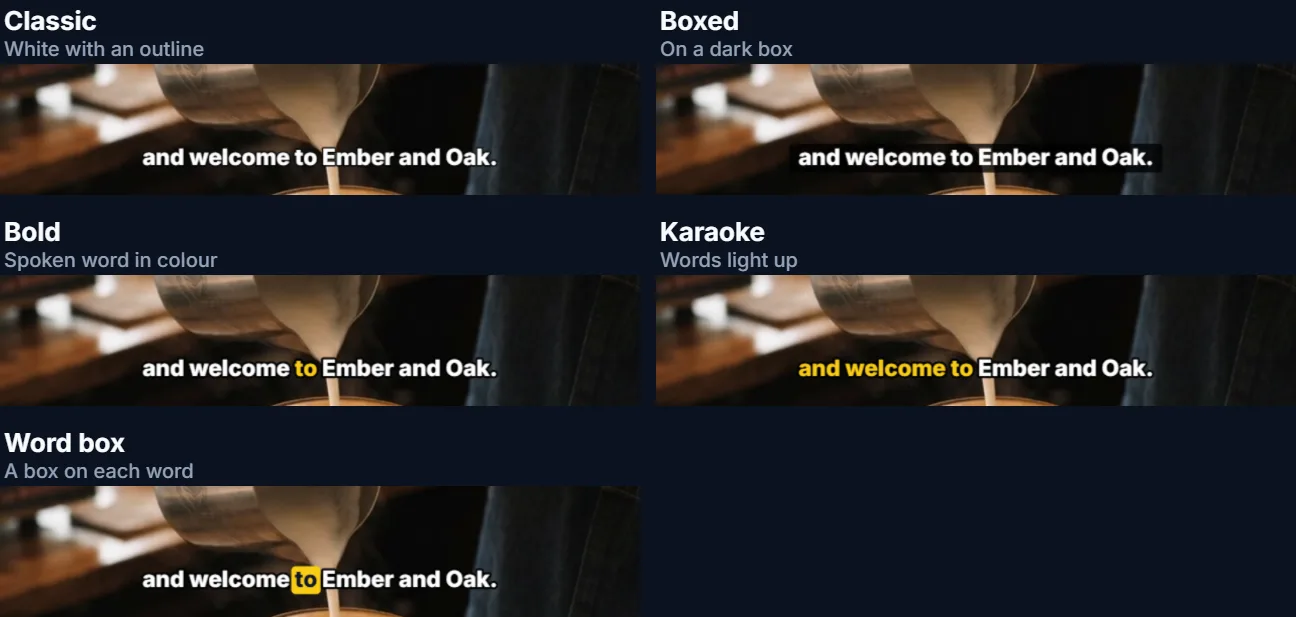
Five. Classic is white text with a dark outline, the look of TV subtitles; Boxed puts each line on a dark box, readable over anything; Bold colours the word being spoken; Karaoke lights the words up as they are said; Word box puts a coloured box behind the word being spoken, with dark or light text chosen to stay readable on the box.
For typed captions the tool does not know when each word is said, so the word styles spread the words over the caption by their length; with the AI caption generator, every word has its own time from the voice.
Can I change the font, size and colours?
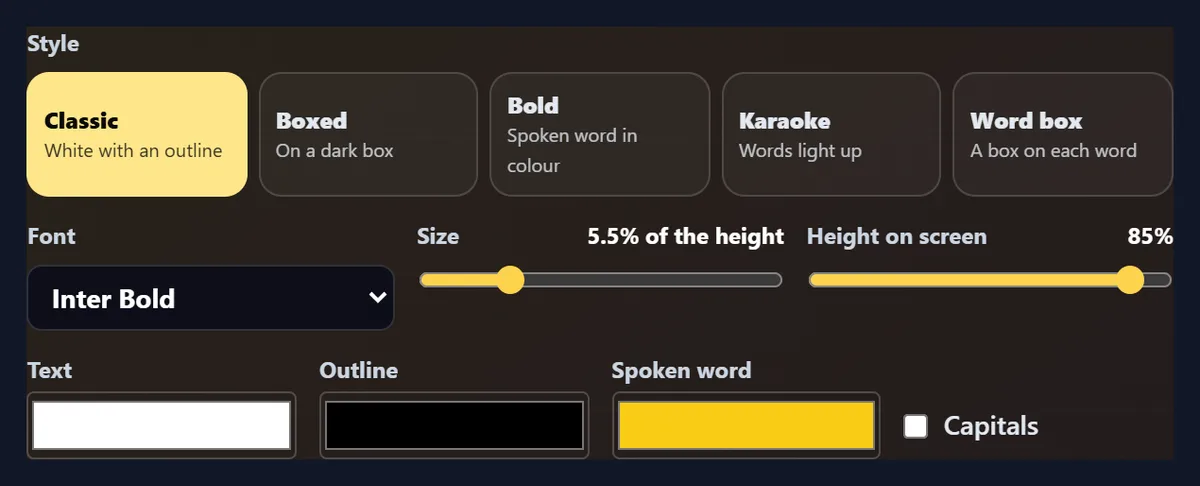
Yes: eleven fonts, from Inter and Montserrat to Bebas Neue and Permanent Marker; a size from 3.5% to 12% of the video's height; a height on screen from near the top to near the bottom; colours for the text, the outline or box, and the spoken word; and capitals. Sizes are shares of the height, so the captions look the same at any resolution.
Captions are usually placed in the bottom fifth, above any controls an app draws over the video; move them up if the video has its own text near the bottom.
What is the difference between SRT and VTT?
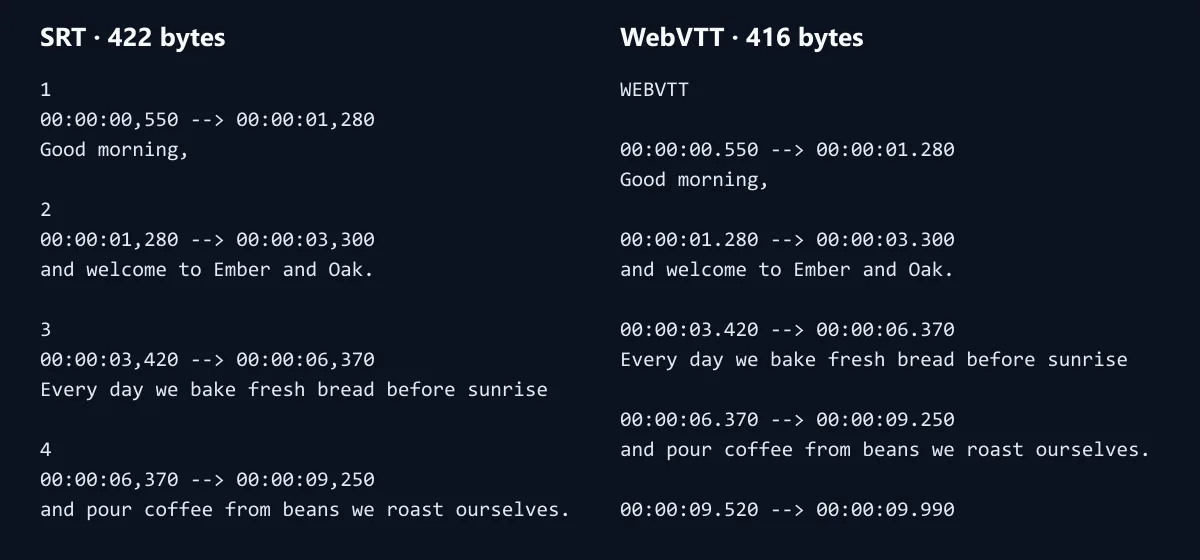
Both are plain text: a number or blank line, a start and end time, and the words. SRT writes times with a comma before the milliseconds and numbers each caption; WebVTT (VTT) starts with the word WEBVTT and uses a dot. The sample's seven captions were 422 bytes as SRT and 416 as VTT; the plain text of the words was 192 bytes.
Most video platforms and editors read SRT; web players and HTML video use VTT. Both open in any text editor if you want to fix a word later.
| File | Size | Opens in |
|---|---|---|
| SRT | 422 bytes | Most players, editors and platforms |
| VTT | 416 bytes | Web players and HTML video |
| Text | 192 bytes | Any text editor: the words only |
Should I burn the captions in or upload a caption file?
Burn them in when the video will be posted where caption files cannot be added, or when the style matters, as with word-by-word captions on short videos: they become part of the picture and show everywhere, but cannot be turned off or translated by the viewer. Upload a caption file where the platform accepts one, as YouTube does: viewers can switch it off, and the platform can offer it in other languages.
You can do both from the same captions: make the MP4 and save the SRT.
What does the burnt-in video look like?
The same video, re-encoded as H.264 at its own size, with the captions drawn into every frame and the original sound kept. The sample's MP4 was 1280 × 720, 420 frames at 30 a second, 9.72 MB.
The video plays through once at half speed while each frame is drawn, so that none is missed: about twice the video's length.
How long should a caption line be?
Short enough to read at a glance: Netflix's English guidelines allow 42 characters a line, and many broadcasters use fewer. The tool wraps long captions onto two lines automatically; splitting a long sentence into two captions is usually easier to read than two full lines.
Break lines where you would pause: after a comma, before and or but, never between a word and its article.
Who are captions for?
People who are deaf or hard of hearing, people watching without sound in a public place, people watching in a second language, and anyone who skims. On platforms that index caption files, they also make the words in a video searchable.
Good captions say what is said, and when it matters, who says it and important sounds in brackets, such as [door slams].
Can captions be written automatically?
Yes, on the AI caption generator page: speech recognition listens to the video and writes every word with its time, then the same editor and styles apply. On the sample voiceover it heard all 36 words correctly. Typing captions here needs no account and nothing leaves your device.
Use AI captions for long videos and this page for short ones, lyrics, or videos whose words you already have as a script.
Can I fix an SRT file made somewhere else?
Yes: press Import SRT or VTT, and its captions appear in the list with their times, ready to play against your video. Fix wording, move captions that drift, delete extra ones, then save it again as SRT, or as VTT if your player needs that. Tags such as italics and numbers are read and set aside; the times and words are kept.
This is also a quick way to convert an SRT file to VTT or back.
How do I show who is speaking?
Start the caption with the speaker's name when it is not obvious, as in “Anna: Shall we start?”, and begin a new caption whenever the speaker changes, so each caption belongs to one voice. For a single narrator, no name is needed.
Keep the same style for every caption; changing colours for each speaker is hard to follow on a phone.
Can I add captions on my phone?
Yes, in a current browser on Android or an iPhone: open the video from your gallery, type or paste the captions, and save the MP4 or the SRT. Typing many captions is quicker on a computer.
Keep the screen on while the MP4 is made.
Is my video uploaded?
No. The captions are timed, drawn and encoded inside your browser tab with your video, and the SRT and VTT files are made there too. Nothing is sent to HueFold or anyone else, and there is no watermark or sign-up.
That also means it works offline once the page has loaded.
Frequently asked questions
How do I add captions to a video?
Add the words, time each caption to the playhead, pick a style and burn them in or save a caption file.
Can I import an SRT file?
Yes, SRT or WebVTT.
Can I save the captions as SRT?
Yes, as SRT, VTT or plain text.
Can I paste a whole script?
Yes. It is split into captions and spread over the video, ready to adjust.
Which styles are there?
Classic, Boxed, Bold, Karaoke and Word box, in eleven fonts.
Is the sound kept?
Yes. The burnt-in MP4 keeps the video’s own sound.
Can captions be written automatically?
Yes, with the AI caption generator.
Is my video uploaded?
No. Everything happens in your browser.
Related tools
- AI Caption Generator — Captions written from the voice.
- Add Text to Video — Titles and labels at set times.
- AI Voice Generator — A voiceover from a script.
- Video Splitter — Cut a long video first.
- Resize Video for Instagram — The right shape for Reels.
- Add Music to Video — Music under the voice.