Video Splitter
Cut a video into parts in your browser: where you choose, every few seconds or into equal parts. Each part is an MP4 with its sound; download one or all as a ZIP.
Updated
How do you split a video into parts?
Open a video and cut it at moments you choose, every so many seconds, or into equal parts. Press Split, and each part is made as its own MP4 with its sound, ready to play and download, one by one or all together as a ZIP.
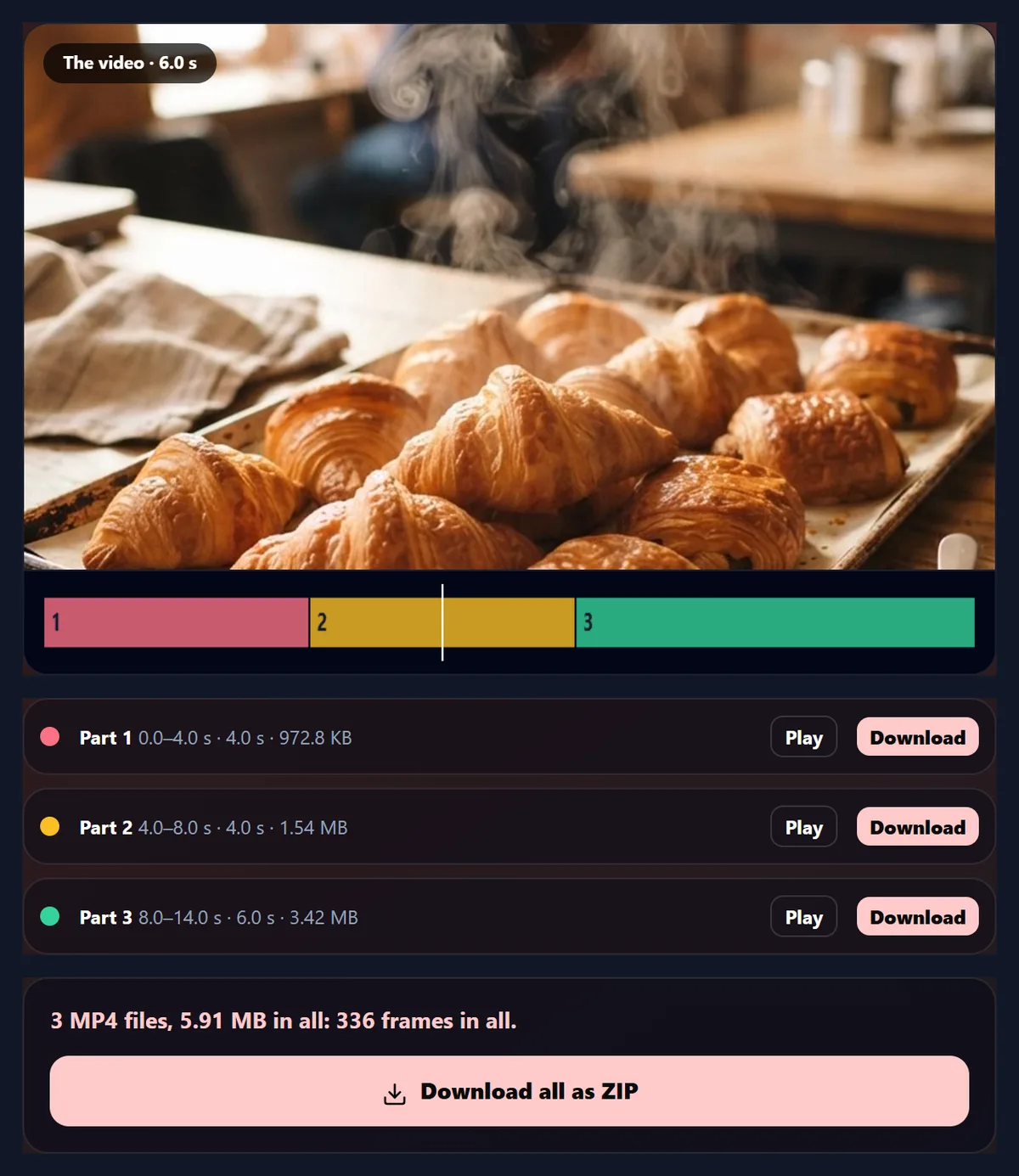
The 14-second sample split at 4 and 8 seconds into three MP4s of 4.0, 4.0, 6.0 seconds. Nothing is uploaded and there is no watermark.
How to split a video
- Open a video Any video your browser plays.
- Choose where to cut At moments, every N seconds, or equal parts.
- Split Each part is made in turn.
- Download Each part, or all as a ZIP.
Split a video into three parts
A real recording of this tool: the sample opened, the three ways of splitting tried, the video split at two moments, and a part played.
- The sample video is opened with cuts at 4 and 8 seconds.
- Every N seconds and equal parts are tried.
- The video is split into three MP4s.
- A part is played.
How big is each part?
It depends on its length and on what is in it. The 14-second sample split at 4 and 8 seconds gave a 4-second part of a slow tilt down a still café photo at 0.95 MB, a 4-second part of pastries with rising steam at 1.54 MB, and the 6-second waving clip at 3.42 MB. The encoder aims at a generous amount of data each second, but spends less where little changes from frame to frame, as in a slow move over a still photo.
The three parts held 336 frames between them, exactly the sample's 336. Every part is its own complete MP4 with its own sound, so each one plays, uploads and shares on its own.
| Part | Length | MP4 size | Frames |
|---|---|---|---|
| Part 1 | 4.0 s | 0.95 MB | 96 |
| Part 2 | 4.0 s | 1.54 MB | 96 |
| Part 3 | 6.0 s | 3.42 MB | 144 |
How do you split a video?
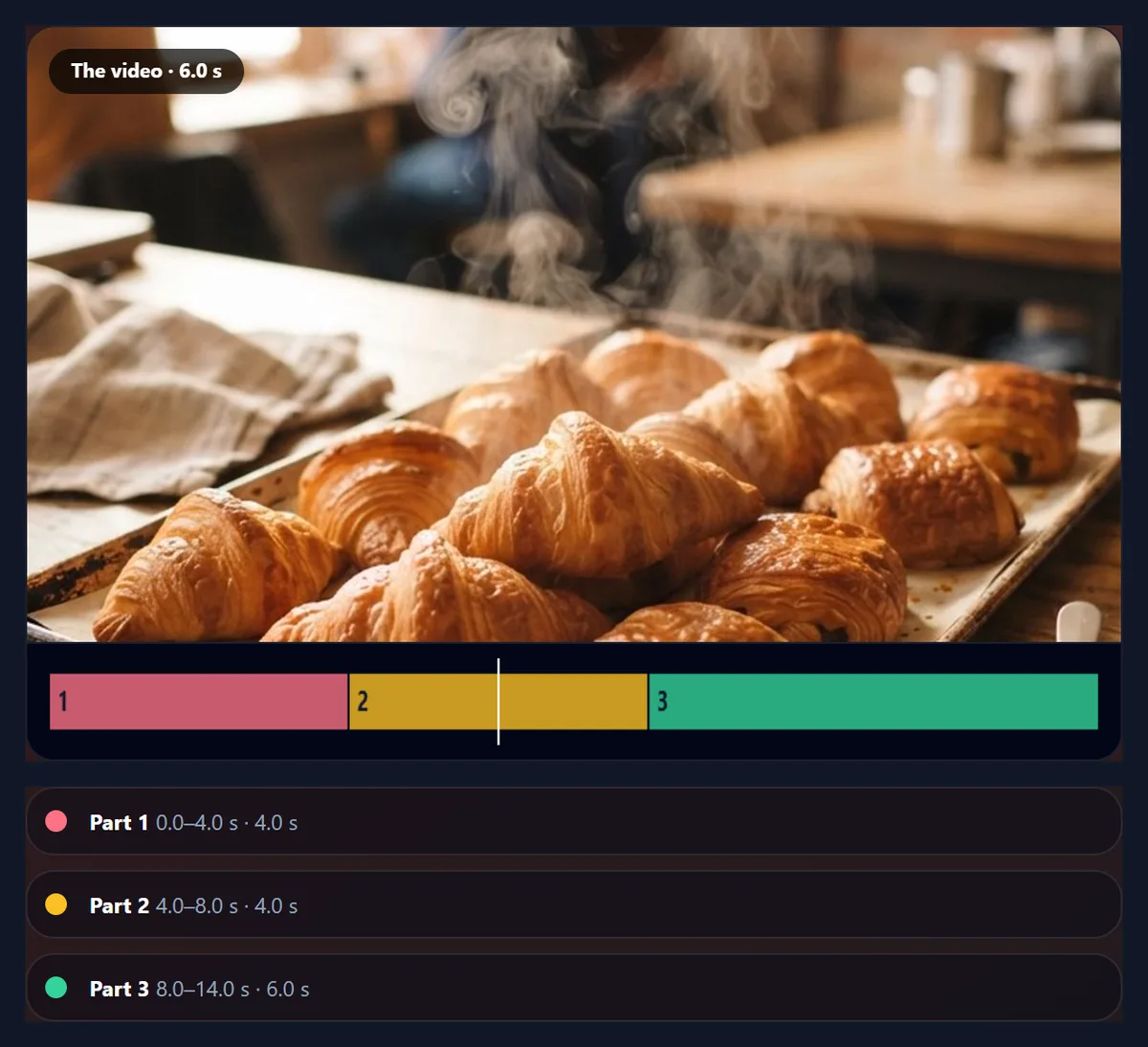
Open the video and choose how to split it. At moments: move the playhead to each place you want to cut and press Cut. Every N seconds: set a length, for example 15 seconds for stories. Equal parts: choose 2 to 10 parts. The parts appear on the timeline in colour and in a list with their times. Press Split, and each part is made in turn, ready to play and download.
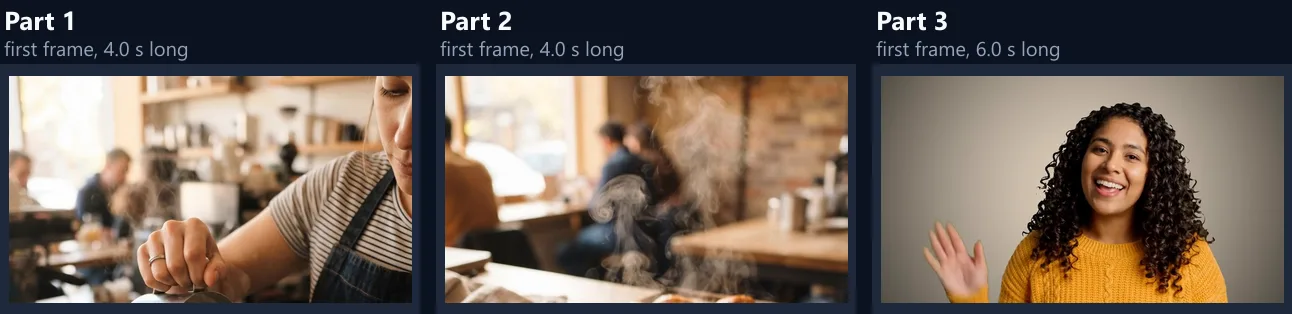
The sample, three café and waving shots one after another, split at 4 and 8 seconds into three MP4s, one for each shot.
Which way of splitting should I use?
At moments for cutting a recording into scenes, removing a part, or taking the best clip out of a long video. Every N seconds for stories and statuses, which show one short video at a time, or to post a long video as a series. Equal parts to share a long video in pieces of the same length.
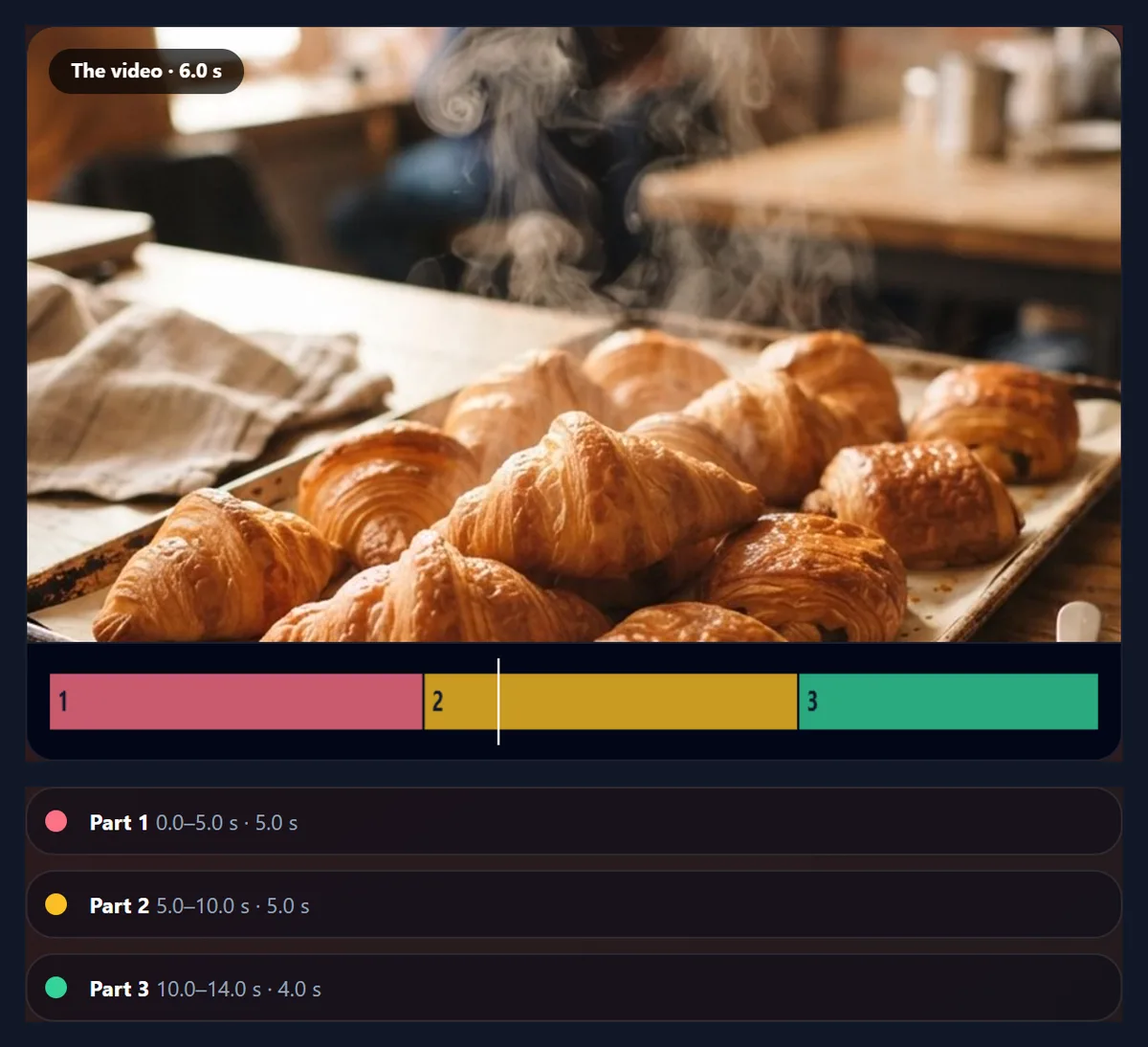
Every 5 seconds turned the sample into 3 parts, the last one shorter; 4 equal parts gave 4 of 3.5 seconds each.
Does any part lose frames or overlap the next?
No. Each part starts exactly at its cut and stops just before the next, so every frame of the video goes into one part. The three parts of the sample had 336 frames in all, and the sample 336.
Cuts can be anywhere, not only on keyframes, because every part is encoded afresh: a simple copy, as some tools do, can only cut where the original has a keyframe, often seconds apart.
What do I get?
One MP4 per part, named after your video with its part number, each playable straight away in the tool. Download them one at a time, or press Download all as ZIP: the sample's three parts came to a 5.91 MB ZIP. The ZIP stores the MP4s without compressing them again, since they are already compressed.
The figure shows the first frame of each part.
Does each part keep its sound?
Yes. Each part gets exactly its own stretch of the video's sound, in AAC, in sync with its picture. Choose Remove sound for silent parts.
Where the sample's café shots are silent, so are their parts; the waving shot keeps her voice.
How many parts can I make?
Up to 20 at a time, each at least half a second long: cuts closer than that to each other or to an end are ignored. To make more, split into 20, then split the parts.
Very short parts are fine for loops and GIFs; for stories, keep each one under the app's limit.
How long does splitting take?
About twice the video's length in all: each part plays through at half speed (a quarter for 4K) while it is encoded, so that no frame is missed. The page shows how long before you start, and which part it is making.
Keep the tab in front while it works.
Can I make the parts smaller?
Yes: Up to 1080p or Up to 720p scales the picture down if it is larger. Same keeps it.
A smaller picture makes smaller files and takes no longer.
How do I split a long video for Stories?
Choose Every N seconds and set the length each Story allows; the parts come out one after another, the last one shorter, and post in order. Splitting on a fixed length can cut through a word, so for talking videos split At moments instead, at the pauses between sentences.
Check the length limit in the app you post to, since apps change them.
How do I remove a part from the middle of a video?
Cut just before and just after the part you want to remove, so it becomes its own part. Download the parts on either side, and join them with the merge videos tool. The part in the middle is simply left out.
The same works for several unwanted parts: cut round each, then merge the ones you keep.
How do I find the exact moment to cut?
Drag the playhead slider, in twentieths of a second, or click the timeline under the video: the picture shows the frame at that moment. For a cut on a scene change, step back and forth until the new scene's first frame shows, then press Cut.
Each cut is marked on the timeline and listed under the buttons, where a click removes it.
When are equal parts useful?
To share a long video in pieces of the same length, such as a lesson in four parts or a recording in chunks small enough to send. Choose from 2 to 10 parts; each lasts the video's length divided by the number of parts.
On the 14-second sample, 4 equal parts were 3.5 seconds each.
How are the parts named?
After your video, with the part number: holiday-part-1.mp4, holiday-part-2.mp4 and so on, so they sort in order in any folder. The ZIP is named after your video too.
Every part is a standard MP4 with H.264 video and AAC sound.
Can I join the parts back together?
Yes, with the merge videos tool: add the parts in order and they join with straight cuts, exactly as they were, or with transitions between them if you choose.
That is also how to reorder a video: split it, then merge the parts in a new order.
Which videos can I split?
Any video your browser can play: MP4 and MOV from phones, WebM, MKV and more. Each part is an MP4, whatever the original was.
If a video will not open, convert it with the video to MP4 converter first.
Why split a video?
To post a long video as a series of Stories or statuses; to send a large video in smaller files; to cut a recording into separate scenes or topics; to keep only the best moment of a long clip; or to remove a part from the middle and join the rest. Splitting is often the first step before cropping, filtering or adding text to just one part.
Each part is a complete MP4, so it can go anywhere a video can.
How do I cut a talk or a lesson at the pauses?
Play the video and pause at the end of each sentence or topic, then press Cut: the playhead stops on the moment the pause begins, and a cut there never splits a word. The colours on the timeline show each part's length as you go, so you can keep the parts even.
For a lesson in sections, cutting at each new slide or topic gives parts people can find again.
Is there a limit on the video’s size?
Only your device's memory: the video is read in the browser, and each part is made and kept in memory until you download it. Large 4K videos split into many parts use a lot of memory, so choose Up to 1080p for them, download the parts, and close the tab when you are done.
On a phone, split long videos into fewer, longer parts.
How do I check the parts before downloading?
Each finished part has a Play button: press it and the part plays in the stage, with its own controls, so you can check where it starts and ends. The list shows each part's times, length and file size.
If a cut is off, change it and split again; only the parts are remade, the original is untouched.
Can I split a video on my phone?
Yes, in a current browser on Android or an iPhone. Download the parts one by one to save them to your gallery or files; a ZIP is easier on a computer.
Keep the screen on while the parts are made.
Is my video uploaded?
No. The video is cut and encoded inside your browser tab. Nothing is sent to HueFold or anyone else, and there is no watermark or sign-up.
Large videos are not slowed by your internet connection.
Why is my cut ignored?
A cut less than half a second from another cut or from the start or end is ignored, so no part is too short to play. Move the playhead further and cut again.
If the video will not open, your browser cannot play its codec: try Chrome or Edge, or convert it to MP4 first.
Frequently asked questions
How do I split a video?
Choose where to cut and press Split.
Can I split a video every 15 seconds?
Yes. Choose Every N seconds and set 15.
Can I split into equal parts?
Yes, 2 to 10.
Does each part keep its sound?
Yes, its own stretch of it.
Can I cut anywhere, not just on keyframes?
Yes. Each part is encoded afresh.
Can I download all the parts at once?
Yes: Download all as ZIP saves one ZIP file holding every part as its own MP4, ready to unzip.
Is my video uploaded?
No. Everything happens in your browser.
Is there a watermark?
No.
Related tools
- Merge Videos — Join parts back together.
- Crop Videos — Crop the frame.
- Video to GIF — Turn a part into a GIF.
- Video Transitions — Join with transitions.
- Video Resizer — Resize for stories.
- Remove Audio From Video — Silence a part.