Change Color of Image
Click a colour in a photo, choose what it should become, and every shade of it changes together, from the lit side to the darkest fold. Keep the change inside a box, see exactly which pixels it touches, or turn every colour in the picture at once.
Updated

How do you change the colour of something in a photo?
Open the photo and the tool picks its most colourful area for you; click anywhere else to pick a different colour. Choose the new colour from the swatches or the colour picker, widen or narrow the Range until just the right part changes, and download. If the same colour appears elsewhere, tick Only inside a box and drag a box around the object.
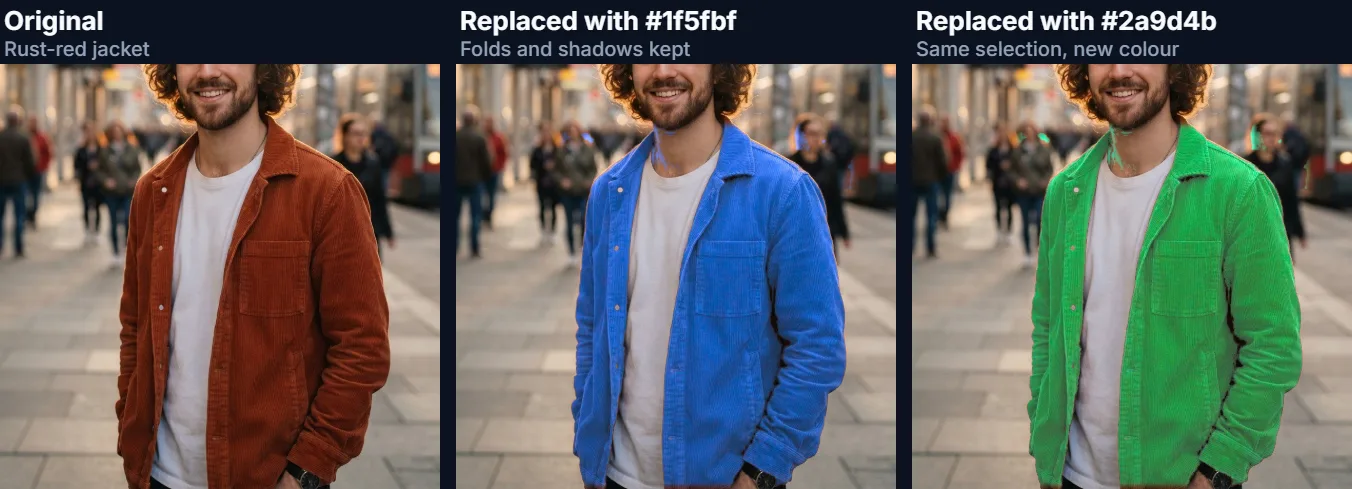
The tool does not paint a flat colour over the object. It matches colours by hue in OKLCh, a colour space built so that a hue means the same thing at every brightness, then turns each matching pixel to the new hue and scales its colourfulness, keeping its own lightness relative to the rest. That is why a red jacket becomes a blue jacket with the same folds, seams and shadows, rather than a blue cut-out.
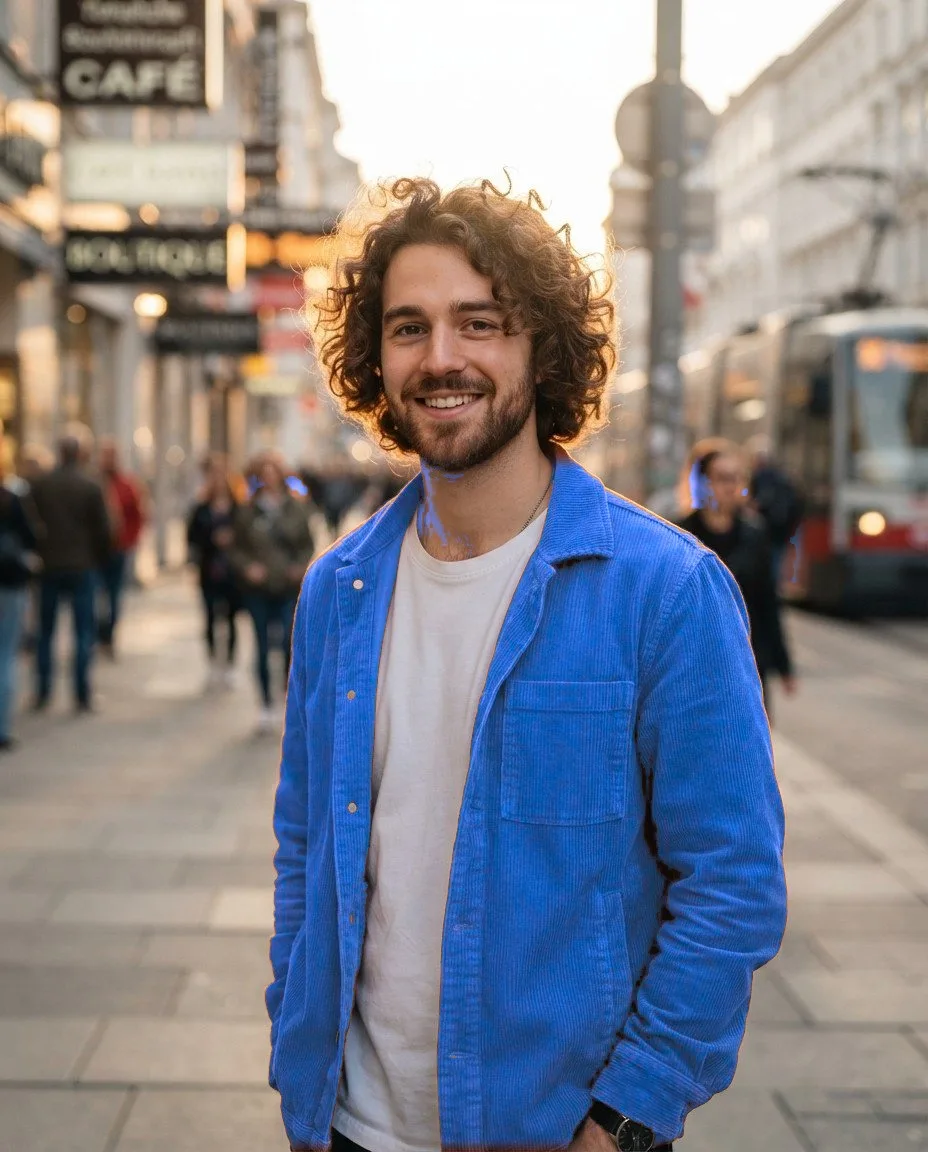
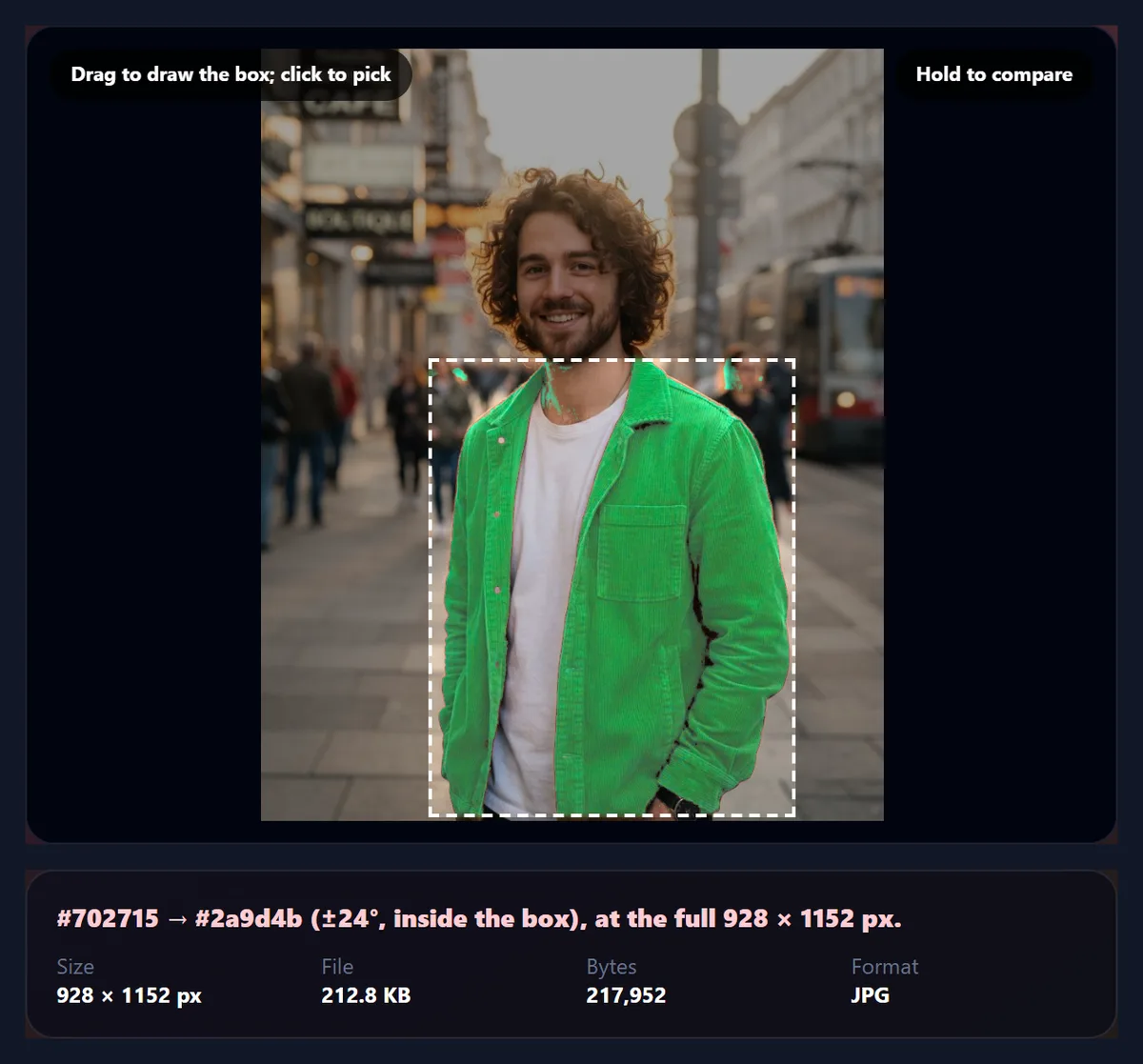
On the sample, a street portrait of a fictional person made with AI, the rust-red jacket turned blue with a box around it changed 22% of the pixels. Nothing is uploaded: the colours are changed in your browser tab.
How to change the colour of an image online
- Open the photo Choose a JPG, PNG or WebP, drop it on the preview, or use the street portrait sample.
- Click the colour to change The most colourful area is picked for you; click the photo to pick another.
- Choose the new colour Pick a swatch or any colour, set the Range, and tick Show what changes to check the selection. Add a box if needed.
- Download Save as JPG, PNG or WebP at the photo’s full size.
Change the colour of a jacket in a photo
A real recording of this tool: the jacket is picked automatically and turned blue, the selection is shown, a box keeps the change to the jacket, other colours are tried, and the photo is downloaded.
- The street portrait opens with the jacket picked automatically and turned blue.
- Show what changes dims everything that will not change, then is turned off.
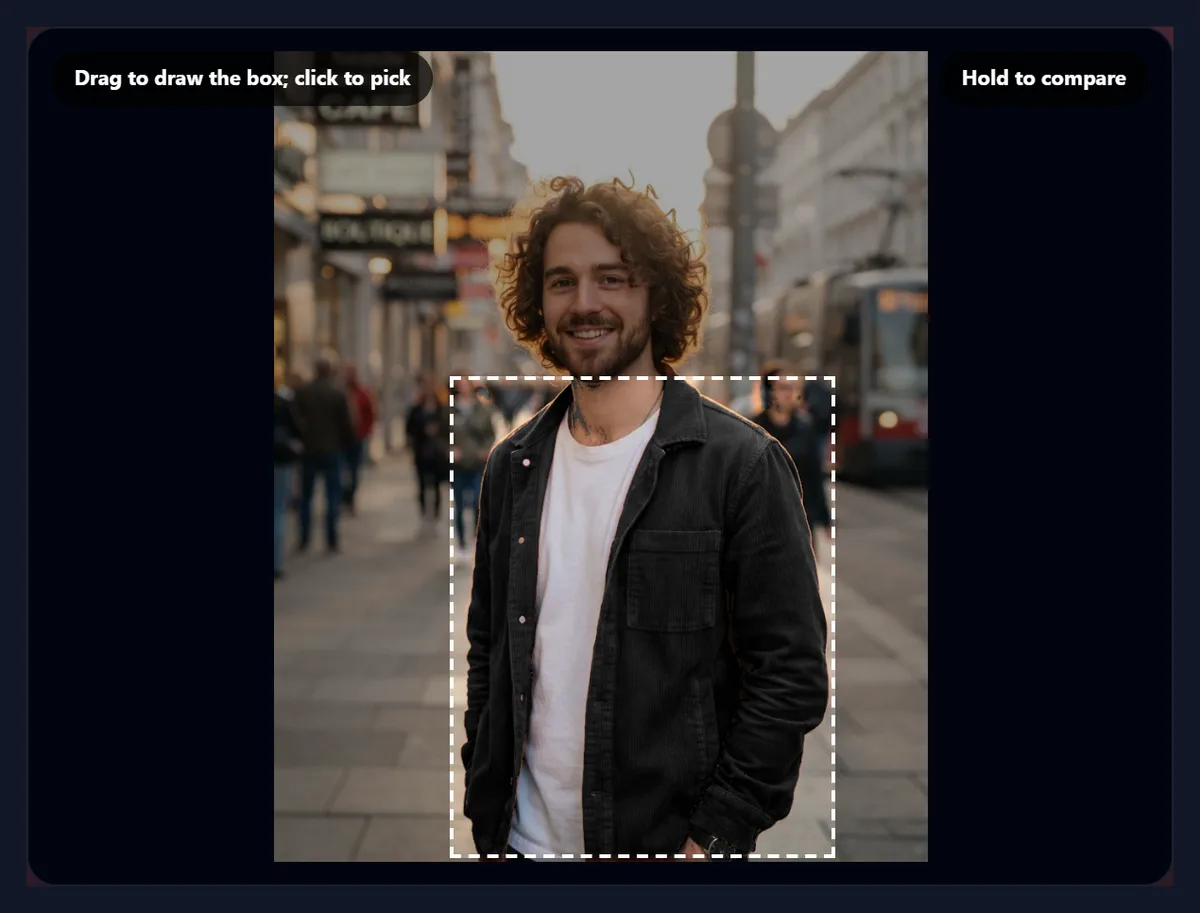
- Only inside a box is ticked and a box is dragged around the jacket.
- The green, purple and blue swatches are tried, and the photo is downloaded.
How much of the photo does a colour change reach?
The Range slider sets how far a pixel's hue may be from the picked colour's and still change: within the range it changes fully, and over the Soft edge beyond it the change fades out. The same setting also limits how much paler or stronger a colour may be (its saturation, the colourfulness relative to lightness), so a wide range takes in both more neighbouring hues and more washed-out versions of the colour.
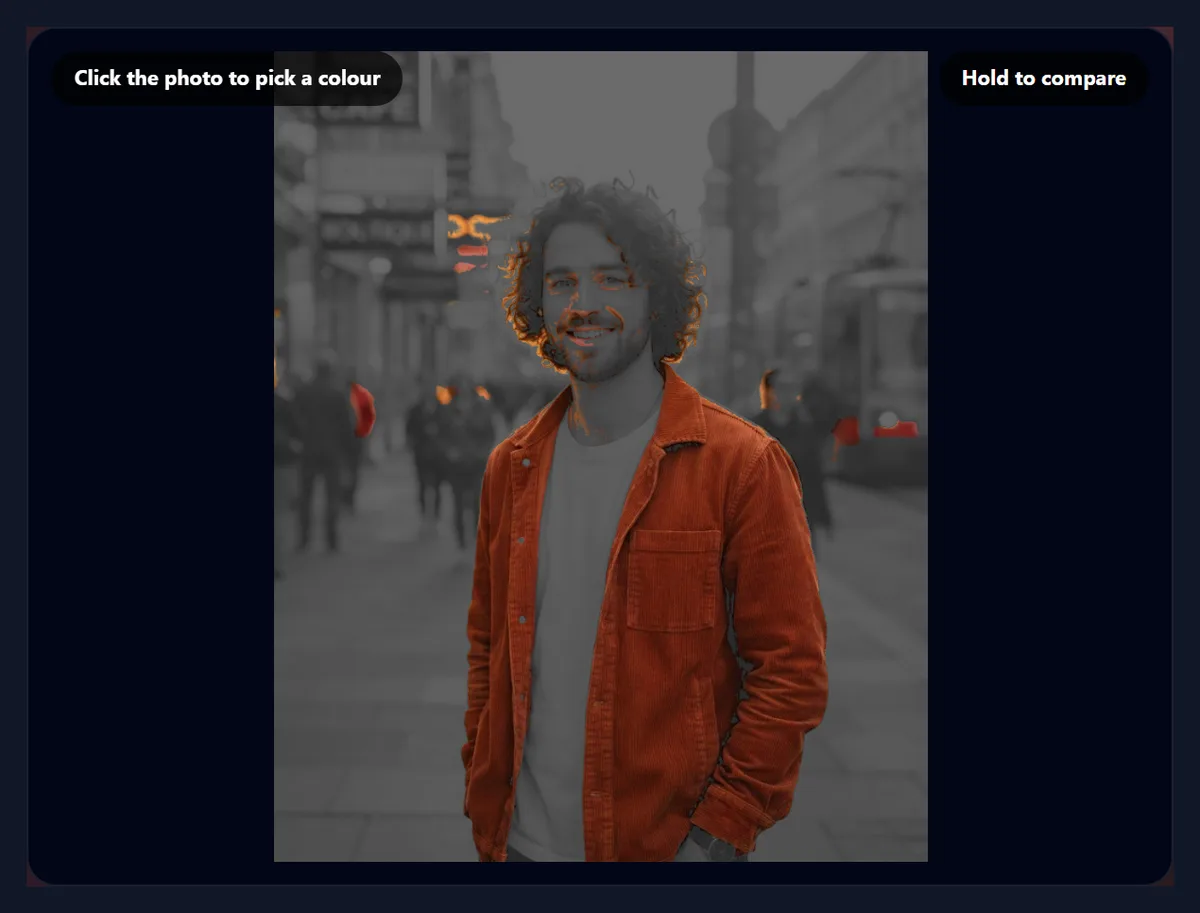
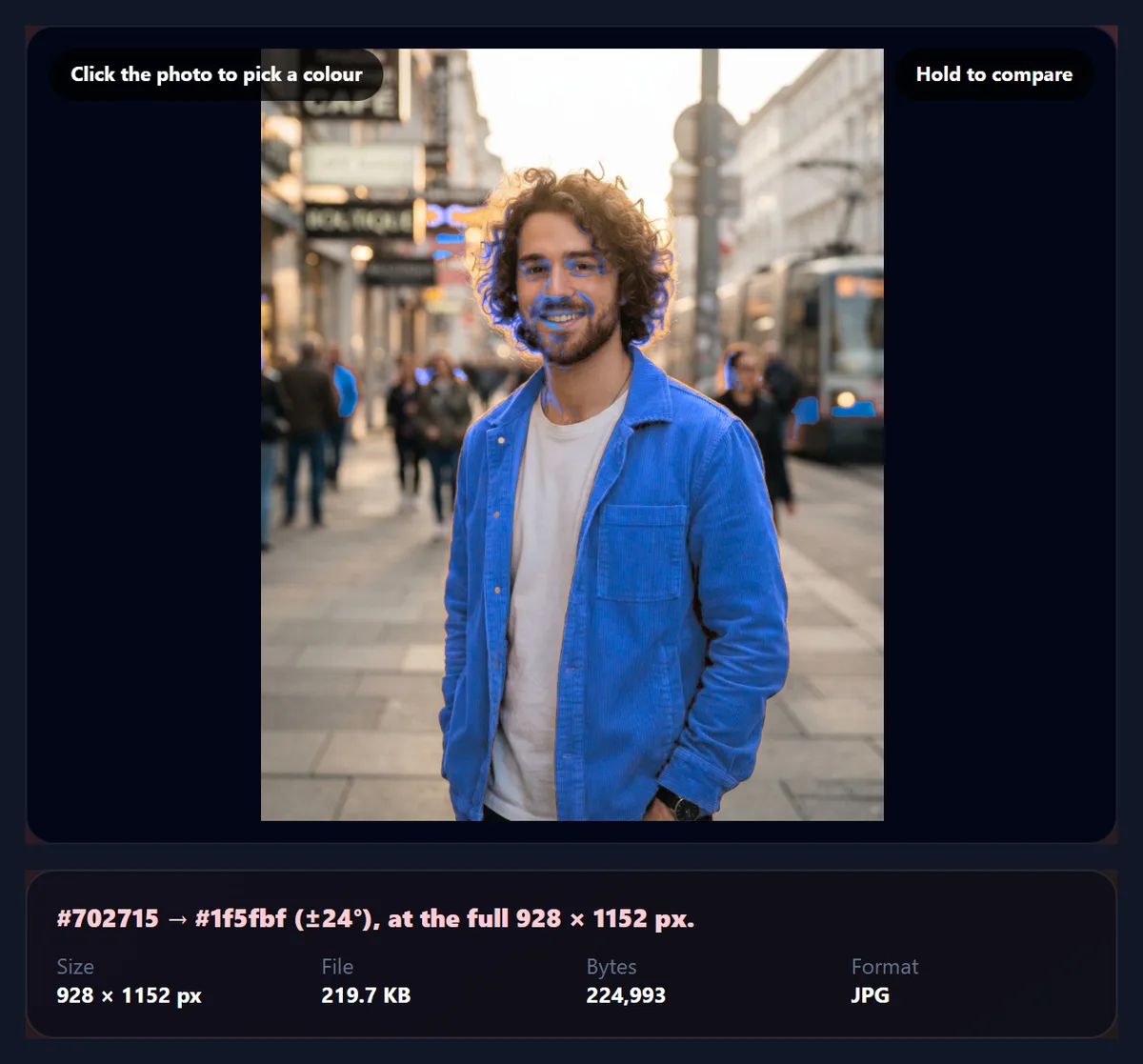
The table shows the share of the sample's pixels that changed fully at each range, with the auto-picked rust red (#702715) and no box. Even at ±8° most of the jacket changes, 21% of the photo, because a jacket's lit side and its folds share one hue. Widening the range adds the jacket's palest highlights first, then other warm things in the picture: the rim of the subject's curly hair, his lips, an orange shop sign and a passer-by's red bag. At ±90°, 34% of the photo changes. The warm skin stays out at every range, because it is far less saturated than the jacket. When other things share the colour, draw a box.
| Range | Pixels changed fully | Changed partly |
|---|---|---|
| ±8° | 21% | 0.8% |
| ±16° | 22% | 0.9% |
| ±24° | 23% | 1.1% |
| ±32° | 25% | 1.4% |
| ±48° | 28% | 1.3% |
| ±64° | 31% | 1.2% |
| ±90° | 34% | 1.2% |
How does the tool keep the shading?
Every pixel is converted to OKLab, a colour space published by Björn Ottosson in 2020 and now part of CSS, and read as lightness, chroma (colourfulness) and hue, its polar form OKLCh. In OKLab, a shadow on a red jacket has a lower lightness and chroma than the lit side but nearly the same hue angle, so a single hue range finds both. The change is then the same for every selected pixel: its hue turns by the difference between the picked and the new colour, its chroma is scaled by their chroma ratio, and its lightness moves by the difference in lightness. A fold that was darker than the rest of the jacket stays darker than the rest of the new jacket.
Tick Keep the original brightness to leave lightness alone and change only the hue and chroma, useful when the new colour should sit at the photo's own light level. Colours that fall outside what a screen can show after the change lose chroma until they fit, rather than shifting hue, so a bright result never turns an unexpected shade.
How do you change only one object?
Colours repeat in photos. The sample's jacket shares its hue with the rim of the subject's hair, his lips, a shop sign and a passer-by's bag, so without a limit those change too: 23% of the pixels at ±24° without a box, against 22% with a box round the jacket. Tick Only inside a box and drag a rectangle around the object. Pixels outside the box are never touched, and the box has a soft edge, 2% of the photo's shorter side, so no hard line appears where it crosses the object.
Tick Show what changes to check the selection at any time: pixels that will change keep their colour and everything else turns dim grey. Click again on the photo to pick from a different part of the object if part of it is missing, or widen the range a little.
Which colour is picked for you?
When a photo opens, the tool looks at a small copy of it, sorts every colourful pixel into 36 hue bands of 10°, and weights each band by how much colour it holds (pixel count times chroma). The band with the most colour wins, and the picked colour is the average of the more colourful half of its pixels. On the sample that is the jacket, #702715. Greys, whites and blacks are skipped, because they have no reliable hue.
Click anywhere on the photo to pick a colour yourself: the tool averages a 5 × 5 pixel square under the pointer from the unchanged photo, so a click on a noisy area still gives a steady colour. A marker shows where you clicked.
Can you change every colour in a photo at once?
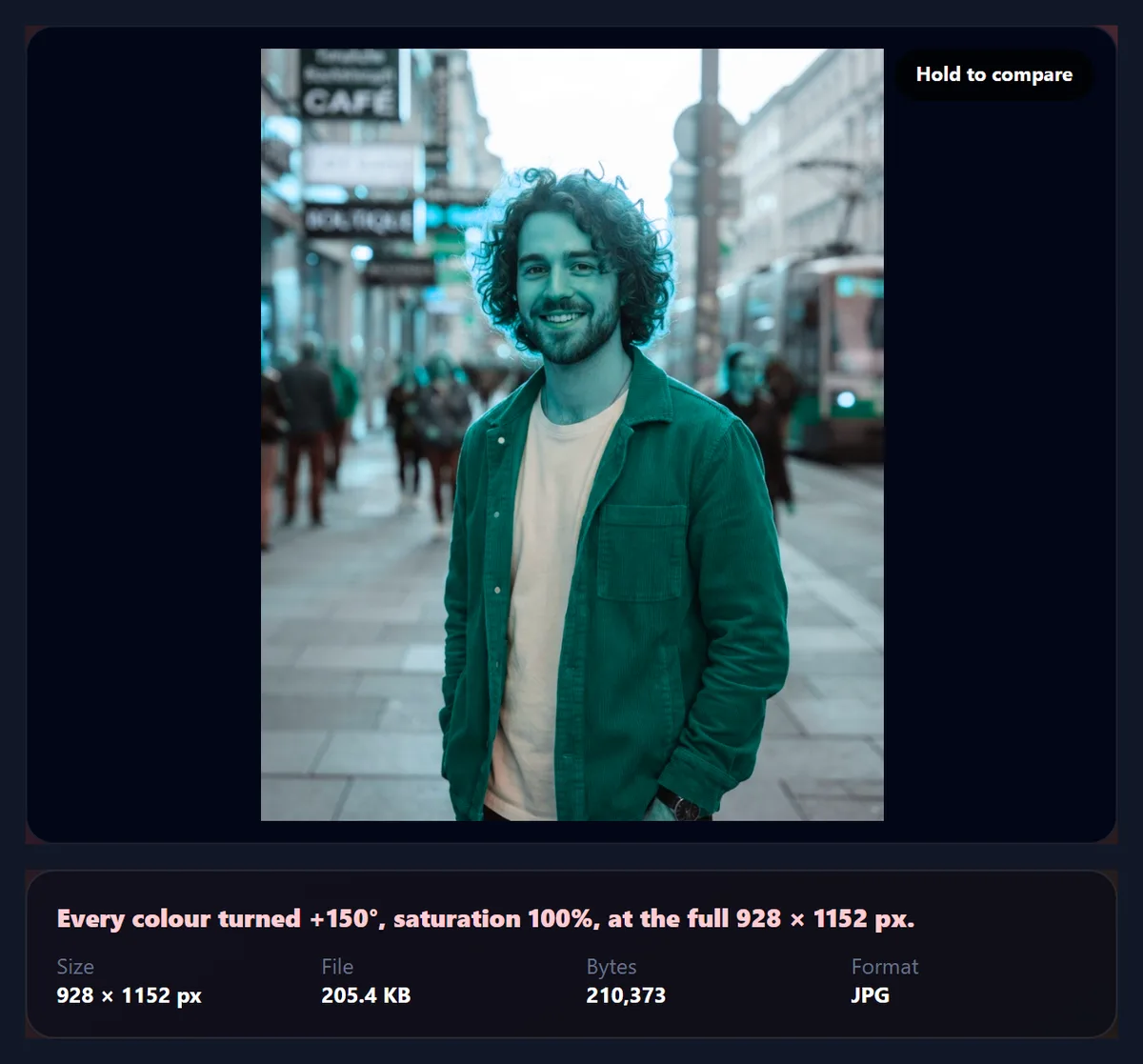
Yes. Shift every colour turns all the hues in the photo by the same angle and scales their saturation, from 0 (grey) to 200%. A shift of 180° swaps every colour for its opposite, warm for cool; small shifts, 10° to 30°, warm or cool a whole picture; 120° steps rotate the primaries, red to green to blue. Because the turn happens in OKLab, brightness stays put: a light yellow does not become a dark blue.
This is the quick way to make colour variations of a graphic or a background, or a surreal version of a landscape. For a photo of people, turn the box on in Replace one colour instead, so skin keeps its colour.
Can you change a black, white or grey object?
Not by picking it. Black, white and grey have no hue, so there is nothing for the tool to match: a white shirt and a white wall look the same to a hue selection. Changing a colourful object to black, white or grey does work. Pick a black, grey or white swatch, and the selected pixels lose their colour and move to that lightness; with Keep the original brightness ticked, they lose the colour but keep their own light, which gives a natural grey version of the object.
To replace a plain white or grey background with a colour, use Change Background Color, which finds the backdrop by its colour and position rather than its hue.
What can you use a colour changer for?
Product colour variants are the most common use: photograph a T-shirt, a sneaker or a bag once and show it in the other colours it comes in. Shops should make sure the result matches the real product, since a recoloured photo is only as accurate as the new colour you pick. Designers use it to try a brand colour on a mock-up, to match a prop to a palette, or to recolour an illustration. Photographers fix a distracting colour, such as a bright red sign behind a subject, by turning it to something calmer, and anyone can see what a car, a front door or a wall would look like in another colour.
For social posts, a single changed colour that matches the rest of a feed is a quick way to tie photos together.
Which files work, and is anything uploaded?
The tool opens JPG, PNG and WebP images up to 40 megapixels, the right way up. The result is drawn at the photo's full size up to about 16 megapixels (larger photos are scaled to fit, the biggest canvas iPhone browsers allow) and saved as JPG, PNG or WebP; PNG and WebP keep transparency. The sample's blue jacket came out at 928 × 1152 pixels and 217,278 bytes as a 92% JPG.
Nothing is uploaded and no account is needed. The new file carries no EXIF data, so camera details and location are not copied. The readout of changed pixels is measured on the preview, which is at most 1,000 pixels on its long side; the full-size file uses the same settings.
Why did only part of the object change colour?
Usually the range is too narrow for the object's darkest or palest areas, or the picked point was not typical of it, such as a highlight. Widen the Range a little, raise the Soft edge, or click a mid-tone of the object to pick again. If too much changes, narrow the range or draw a box. Edges that keep a thin rim of the old colour are often a mix of the object and the background; a slightly wider soft edge blends them.
If the new colour looks too bright or too dull, remember that the change follows the picked colour's lightness: tick or untick Keep the original brightness and compare. Very dark objects carry little colour, so making a black car red will look dim; that is a limit of the photo, not the tool.
Frequently asked questions
How do I change the colour of an object in a photo?
Click its colour on the photo, choose a new colour, adjust the Range, and download. Add a box to limit it to one object.
Does the new colour keep the shadows?
Yes. Each pixel keeps its own lightness relative to the picked colour, so folds and shadows stay.
Why did other parts of the photo change too?
They share the same hue. Narrow the range, or tick Only inside a box and drag around the object.
Can I change a white or black object?
Not by picking it: they have no hue. You can turn a colourful object black, white or grey.
Can I change all the colours at once?
Yes, with Shift every colour: turn every hue and set the saturation.
What colour space does it use?
OKLCh (OKLab in polar form), where a hue keeps its meaning at every brightness.
Is my photo uploaded?
No. The colours are changed in your browser tab.
Does it reduce the photo’s quality?
No. It works at full size up to about 16 megapixels; save as PNG for no compression at all.
Which formats can I use?
Open JPG, PNG or WebP; save as JPG, PNG or WebP.
Is it free?
Yes, with no account, watermark or limit.
Related tools
- Change Background Color — Swap a plain backdrop for any colour.
- Remove Color From Image — Make a colour transparent instead of changing it.
- Grayscale Image — Take all the colour out, nine ways.
- Photo Effects — 36 colour looks for a whole photo.
- SVG Editor — Recolour vector graphics exactly, colour by colour.
- AI Photo Enhancer — Fix colour balance and exposure automatically.