SVG Editor
Open an SVG and change it without installing anything: click a shape to recolour it, edit its stroke, opacity or text, reorder, duplicate or delete it, swap any colour across the whole file, edit the code directly, and save a cleaner SVG or a PNG at 1×, 2× or 4×.
Updated
How do you edit an SVG file online?
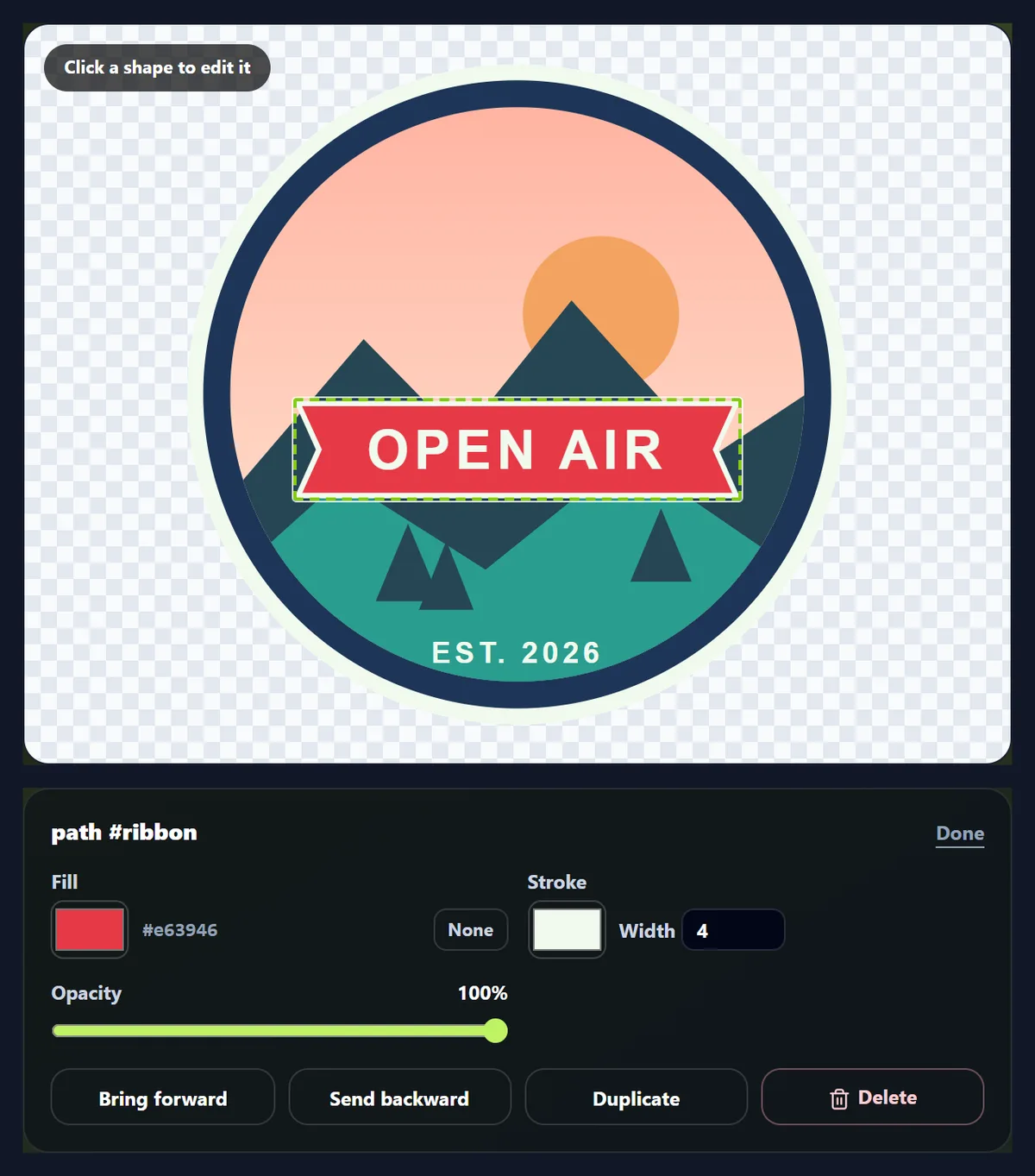
Open the SVG, or try the sample badge, and click any shape in the picture. Its fill, stroke, stroke width and opacity appear below, with its text if it is a text element; change them and the picture updates at once. To change a colour everywhere it is used, click it in the Colours used list and pick a new one. When you are done, download the SVG, cleaned up if you like, or a PNG.
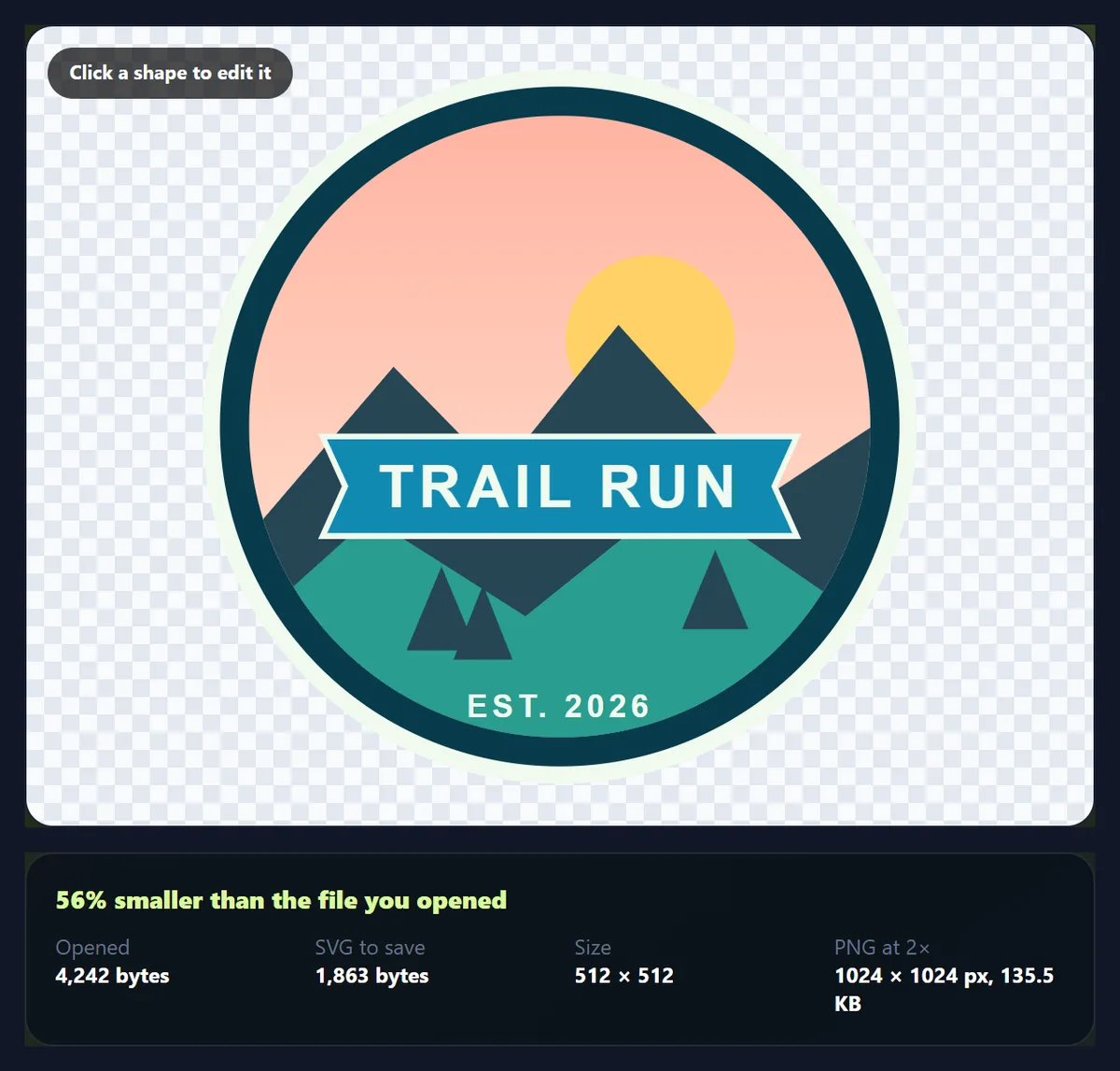
SVG is a vector format: the file is text describing shapes, paths, colours and text, so it stays sharp at any size and can be edited shape by shape. Logos, icons, illustrations, charts and cut files for craft machines are usually SVGs. Many of them come out of design apps with extra baggage, such as editor settings, comments and coordinates with six decimal places, which the clean-up options remove. On the sample, saving with every clean-up option took the file from 4,242 bytes to 1,862, 56% smaller, with nothing visible changed.
Nothing is uploaded. Before an SVG is shown, anything that could run code or reach outside the page is removed, so a file from anywhere is safe to open here.
How to edit an SVG online
- Open the SVG Choose or drop a .svg file, or try the sample badge.
- Click a shape Change its fill, stroke, width, opacity or text; bring it forward, send it back, duplicate or delete it.
- Swap colours Click a colour in Colours used to replace it everywhere at once. Edit the code directly if you need to.
- Save Download the cleaned-up SVG, or a PNG at 1×, 2× or 4× its size.
Edit an SVG badge online
A real recording of this tool: the sample badge opens, its ribbon is selected and recoloured, two colours are replaced everywhere, and the cleaned-up SVG and a PNG are downloaded.
- The sample badge opens in the editor.
- The ribbon is clicked and its fill changed to blue.
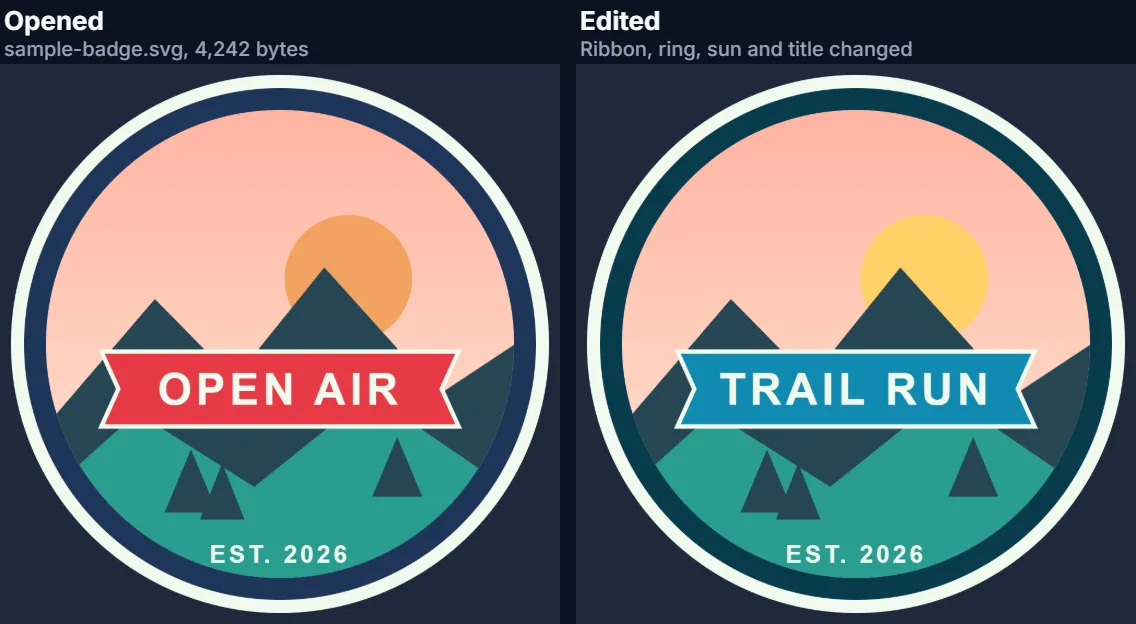
- The ring’s navy and the sun’s orange are replaced everywhere from Colours used.
- The cleaned-up SVG and a 2× PNG are downloaded.
How much smaller does cleaning up an SVG make it?
It depends on where the file came from. The sample badge was saved the way desktop vector editors save files: an XML declaration, comments, an editor block of view settings (window size, zoom, the current layer), an RDF metadata block, editor attributes on groups, every attribute on its own line, and numbers such as 318.429871. The table shows the file as each clean-up option is added in turn. Re-saving with no option ticked already drops the XML declaration and the line breaks inside tags. Removing comments takes off 202 bytes, editor data and metadata 774 more, the spaces between tags 152, and rounding numbers to 2 decimals 476.
Two decimals is invisible on any drawing measured in hundreds of pixels: a hundredth of a unit is a fraction of a pixel even at 4× size. Rounding to 1 decimal saved only 55 bytes more on the sample. For small icons drawn on a 24-unit grid, keep 2 or 3 decimals.
| Saved as | Bytes |
|---|---|
| The file as opened | 4,242 |
| Re-saved, no clean-up | 3,466 |
| + comments removed | 3,264 |
| + editor data and metadata removed | 2,490 |
| + spaces between tags removed | 2,338 |
| + numbers rounded to 2 decimals | 1,862 |
| (numbers rounded to 1 decimal instead) | 1,807 |
What can you change in an SVG?
Click a shape (a path, rectangle, circle, ellipse, line, polyline, polygon, text, image or use element) and edit it: fill colour or none, stroke colour and width, opacity, and the words of a text element. Bring forward and Send backward move it one step in the drawing order, since later shapes are drawn on top; Duplicate adds a copy just above it; Delete removes it. The Shapes list shows every visible shape with its id and colour, for picking shapes that are hard to click, such as a thin line or something hidden behind another shape. Shapes inside definitions, clip paths, masks and patterns are not listed, because they are not drawn directly.
If a shape's colour is set in a style attribute, the matching style property is removed when you set the colour, so the new colour is not overridden. Every change can be undone and redone, up to 50 steps.
How do you change a colour everywhere in an SVG?
The Colours used list shows every plain colour in the file, with how many places use it: fill and stroke attributes, stop colours in gradients, flood and lighting colours in filters, inline style properties and the rules of style blocks. Click a swatch and choose a new colour, and every one of those places changes together. Colours written in different ways count as the same colour: #ABC, #aabbcc, rgb(170, 187, 204) and named colours such as navy are all read as hex values.
This is the quick way to fit a logo or an icon set to a new brand palette. On the sample, replacing the ring's navy and the sun's orange took two clicks; the ribbon was recoloured by selecting it.
Is it safe to open an SVG from the internet?
An SVG can contain more than shapes: scripts, event handlers such as onload, embedded web pages, links and references to files elsewhere. Shown inside a page, some of that could run. So before a file is shown here, it is rebuilt from an allowlist: SVG shapes, text, gradients, patterns, clip paths, masks, markers, filters and animation elements are kept; script, foreignObject and every element outside the SVG and editor-metadata namespaces are removed, links are unwrapped (their shapes stay), every on… attribute goes, references may only point inside the file (#id), embedded images may only be inline PNG, JPEG, GIF or WebP data, and style blocks lose @import and outside url() references. The tool tells you what it removed.
The cleaned document is then added to the page node by node, never re-read as HTML, so nothing in it can turn into a live HTML element, and its styles are limited to the editor's own preview so they cannot restyle the page. The test files used to check this included scripts, an onload handler, an iframe, a javascript: link and an outside image; none of them ran or loaded.
How do you convert an SVG to PNG at a larger size?
Choose the PNG scale, 1×, 2× or 4×, and download. The PNG is drawn from the vector shapes at that size, not stretched from a small picture, so 4× is as sharp as 1×, only bigger; transparent areas stay transparent. The size comes from the SVG's width and height, or from its viewBox when they are missing. The edited sample at 2× was a 1024 × 1024 PNG of 138,790 bytes.
For batches of SVG files, the SVG to PNG converter turns many at once.

Can you edit the SVG code directly?
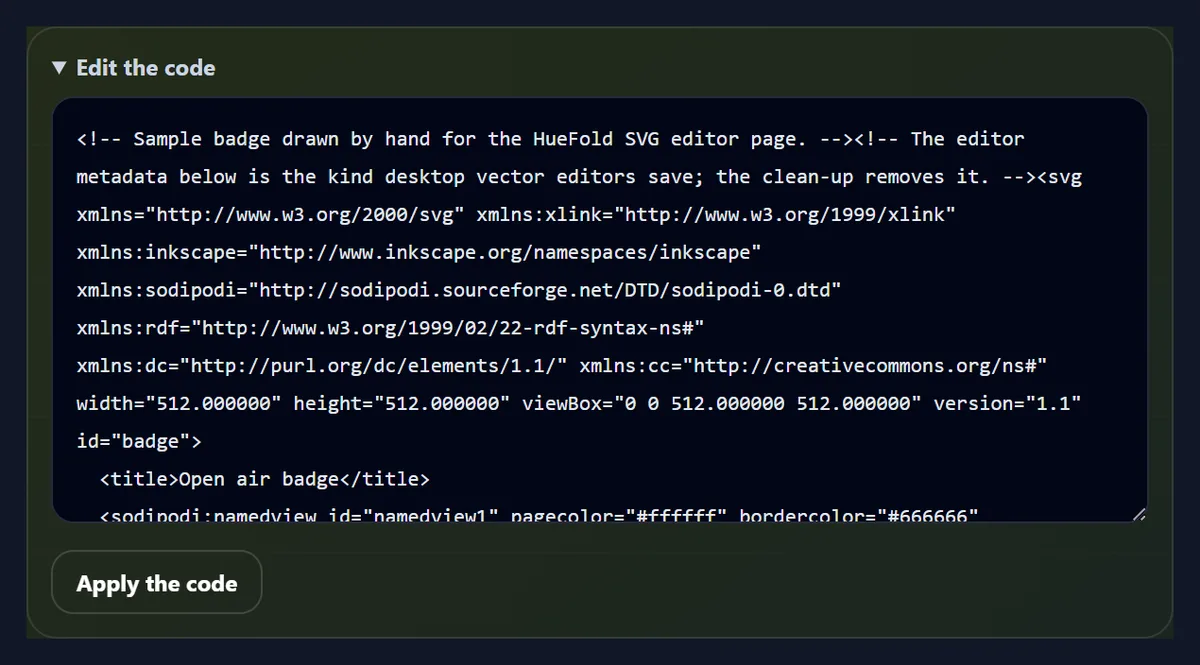
Yes. Open Edit the code to see the SVG as text, change it, and press Apply the code. The new code goes through the same safety cleaning as an uploaded file before it is shown. This is the place for edits the panel does not offer: a new viewBox, a gradient stop, a transform, a class name, or pasting in a path from another file. If the code is not valid SVG, the tool says so and keeps the last good version.
Applying code is one undo step, like any other change.
What is an online SVG editor useful for?
Fixing and adapting graphics you already have: changing a logo's colours for a dark background, recolouring an icon set to a brand palette, correcting a typo in an SVG chart's labels, deleting a stray shape from a downloaded illustration, or making a cut file for a vinyl cutter or a laser simpler. Developers use it to strip editor metadata from icons before adding them to a website, which makes pages lighter, and to check what an SVG from a third party contains before using it.
It is not a drawing program: there are no pen or node tools for drawing new paths. For that, draw in a vector app, then come back here to clean up and recolour.
Which SVG files work?
Standard SVG 1.1 and SVG 2 files up to 5 MB, as saved by vector editors, icon libraries, charting tools and code. Fonts used by text elements must be installed on the device or be common fonts, because an SVG usually names its fonts rather than containing them; the sample uses Arial, Helvetica or any sans-serif. Colours inside gradients appear in Colours used and can be replaced, but a gradient itself is edited in the code. Shapes inside a symbol, a clip path or a mask are not listed for clicking; edit those in the code.
Nothing is uploaded and no account is needed. The files are read, edited and saved in your browser tab.
Why does my SVG look different after editing?
Usually because of fonts or styles. Text shows in whatever font your device has if the named one is missing, and a style block in the file can override colours set in attributes; the tool removes the matching inline style when you set a colour, but rules in a style block stay, so recolour those through Colours used. If something disappeared after opening, it may have been removed for safety: the notice under the file name lists what was taken out. Rounding numbers to 1 decimal can shift points on very small drawings; use 2 or 3 decimals there.
If a click selects the wrong shape, another shape may be on top. Use the Shapes list, or select the shape on top and send it backward.
Frequently asked questions
How do I edit an SVG online for free?
Open it here, click a shape to change it, swap colours in Colours used, and download the SVG or a PNG.
How do I change the colour of an SVG?
Click a shape and set its fill, or click a colour in Colours used to replace it everywhere.
Can I edit text in an SVG?
Yes. Click the text and change it in the Text field.
How do I make an SVG file smaller?
Keep the clean-up options ticked: comments, editor data and spaces are removed and numbers rounded. The sample shrank by 56%.
Is it safe to open an SVG here?
Yes. Scripts, event handlers, embedded pages and outside links are removed before it is shown.
Can I convert SVG to PNG?
Yes, at 1×, 2× or 4× its size, drawn from the vectors and with transparency kept.
Can I edit the SVG code?
Yes. Open Edit the code, change it, and press Apply the code.
Can I undo changes?
Yes, up to 50 steps, with redo.
Is my file uploaded?
No. Everything happens in your browser tab.
Is it free?
Yes, with no account or watermark.
Related tools
- SVG to PNG — Turn many SVGs into PNGs at once.
- AI to SVG Converter — Get an SVG from an Illustrator file.
- PNG Maker — Make transparent PNGs from photos.
- Icons — Find icons to edit here.
- Remove Background from Logo — Clean up a raster logo.
- Image Converter — Convert between image formats.