Compress Image to 50KB
Drop in a photo and get a file of at most 50,000 bytes, at the highest quality that fits. Compare it with the original, look at it at 100%, then download a JPG or WebP. Nothing is uploaded.
Updated

How do you compress an image to 50 KB?
Open the image in the tool above; the 50 KB limit is already set. The tool encodes the picture repeatedly, keeps the best version that weighs 50,000 bytes or less, and shows it next to the original with its exact size. Download it when it looks right. It runs entirely in your browser and needs no account.
A 50 KB limit is common on application forms, profile uploads and older content systems, and it is tight for a modern photo: a phone picture is often 2 to 5 MB, forty to a hundred times larger. Getting under the limit means giving up quality, pixels or both, and the useful question is how to give up as little as possible. That is the job of the search described below.
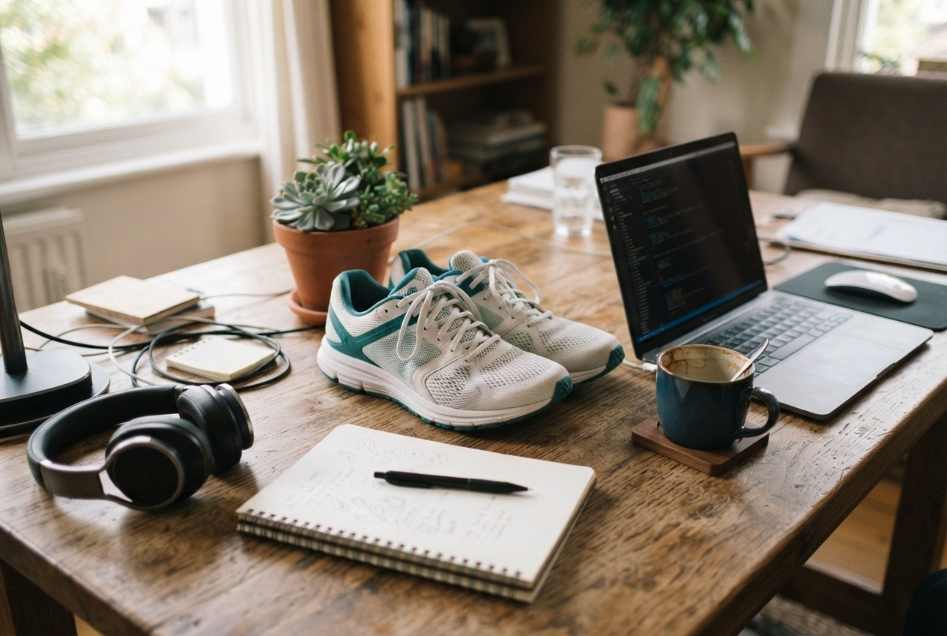
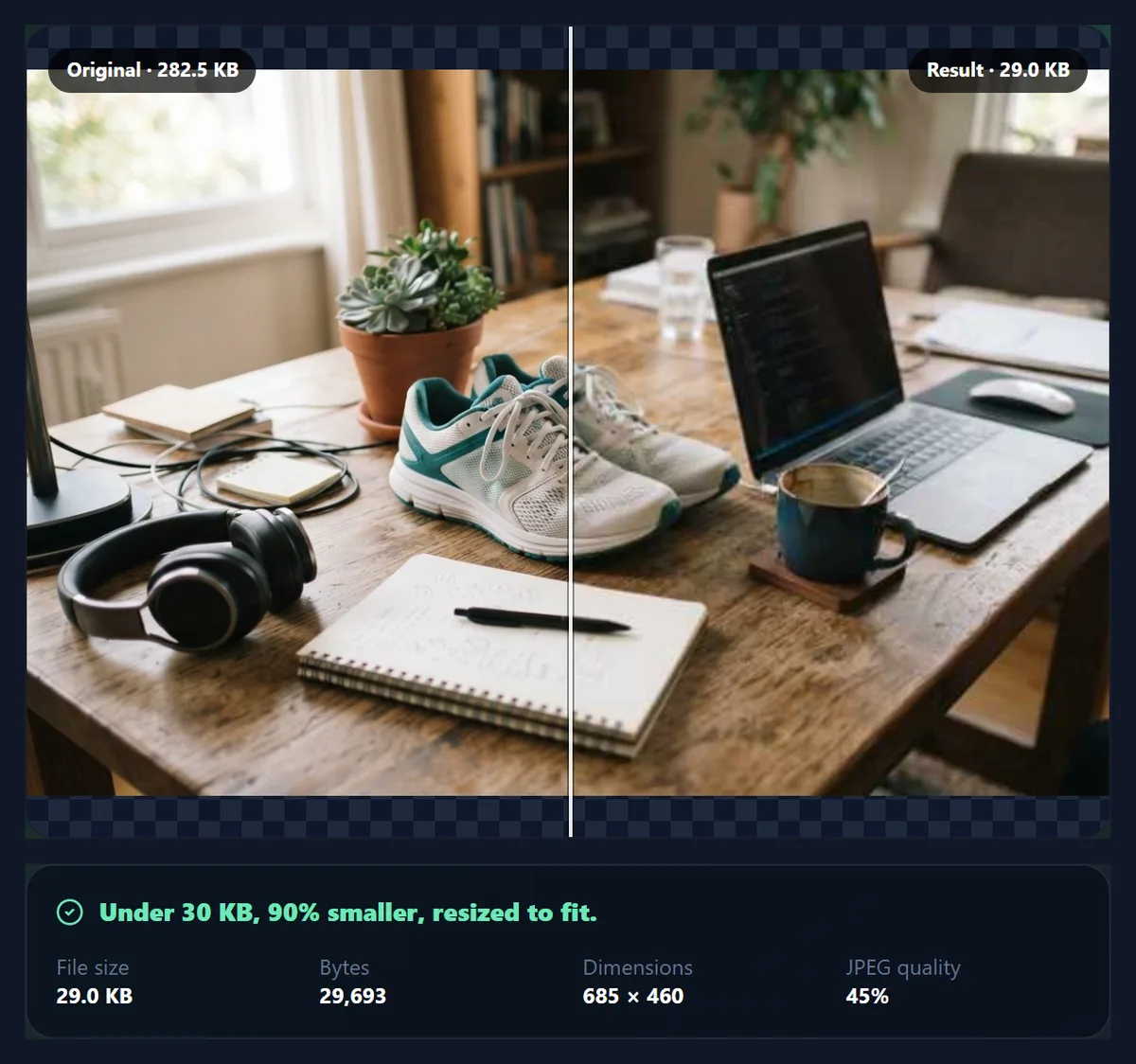
Every number on this page comes from running this tool on the sample sneaker photo, a 1264 × 848 JPEG of 289,321 bytes. Its 50 KB result was 49,585 bytes at 947 × 636 pixels and 47% quality; as WebP it kept the full 1264 × 848 pixels in 49,716 bytes.
How to compress an image to 50 KB
- Add the image Choose a JPG, PNG or WebP, drag it onto the preview, or try the sample. The original size in bytes appears under the preview.
- Keep 50 KB, or adjust 50 KB is selected. Neighbouring limits (30, 40, 60 and 80 KB) are one click away, and Custom takes any number.
- Inspect the result Slide between original and result, then press Inspect at 100% to see real pixels. Switch to WebP if your destination accepts it.
- Download The button shows the final size. The file is saved as your-name-50kb.jpg (or .webp).
Compress a photo to under 50 KB
A real screen recording of this tool: the sample lands under 50 KB, is inspected at 100%, is tried as WebP, then is compressed to 40 KB and downloaded.
- The sample sneaker photo is compressed under 50 KB as soon as it opens.
- Inspect at 100% shows the real pixels, with the slider moving between original and result.
- WebP is tried at the same limit and keeps the full size.
- The limit drops to 40 KB in JPG.
- The file is downloaded.
How does the tool find the best file under 50 KB?
It runs a short search and keeps score. First it encodes the photo at full size and 45% quality, the lowest it will use before it shrinks a picture. For the sample that was 76,153 bytes, too big, so no quality at 1264 × 848 could work. It reduced the dimensions in proportion to the overshoot and tried again: 993 × 667 still gave 51,724 bytes; 947 × 636 gave 48,461, under the limit.
With a size that can fit, it checks the top of the range, 95%, which gave 185,844 bytes. Then it halves the gap seven times: 70%, 57.5%, 51.3%, 48.1%, 46.6%, 47.3% and 47.7%, keeping the highest quality that stayed at or under 50,000 bytes. The winner was 47%, at 49,585 bytes.
Eleven encodes in all, which took a fraction of a second. You do not see this happen; you see the answer and its numbers, but it is why the result lands close to the limit instead of far below it.
| Try | Quality | Bytes | Size | Verdict |
|---|---|---|---|---|
| #1 · 45% | 45% | 76,153 | 1264 × 848 | Too big, shrink |
| #2 · 45% | 45% | 51,724 | 993 × 667 | Too big, shrink |
| #3 · 45% | 45% | 48,461 | 947 × 636 | Fits |
| #4 · 95% | 95% | 185,844 | 947 × 636 | Too big |
| #5 · 70% | 70% | 70,156 | 947 × 636 | Too big |
| #6 · 58% | 57.5% | 56,742 | 947 × 636 | Too big |
| #7 · 51% | 51.3% | 51,730 | 947 × 636 | Too big |
| #8 · 48% | 48.1% | 50,404 | 947 × 636 | Too big |
| #9 · 47% | 46.6% | 49,585 | 947 × 636 | Fits |
| #10 · 47% | 47.3% | 49,585 | 947 × 636 | Fits, kept |
| #11 · 48% | 47.7% | 50,404 | 947 × 636 | Too big |
Is WebP better than JPG at 50 KB?
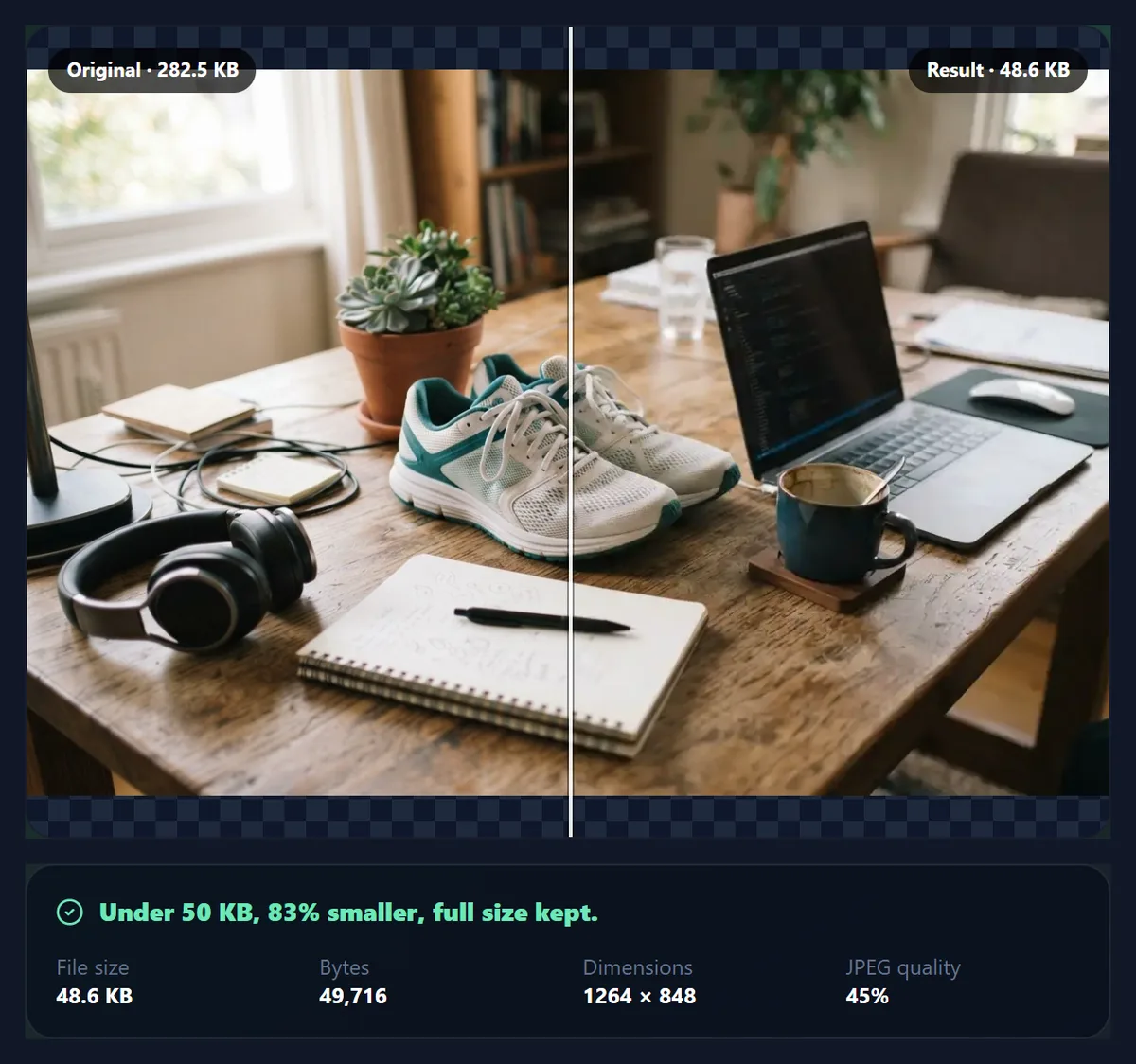
On this photo, clearly. Asked for the same 50 KB, WebP fitted the sneakers at the full 1264 × 848 pixels and 45% quality in 49,716 bytes, while JPG had to shrink to 947 × 636. That is 78% more pixels for 131 more bytes, still under the limit.
The catch is compatibility. Some upload forms still accept only JPG (often listed as JPEG) and PNG, and some older desktop software cannot open WebP. If the form names its formats, follow it; if it does not, try a WebP upload and fall back to JPG if it is refused. The tool switches between them in one click and redoes the search.
JPG cannot store transparency, so a transparent PNG compressed to JPG gets a white background. WebP keeps the transparent areas.
How can you tell whether the 50 KB version is good enough?
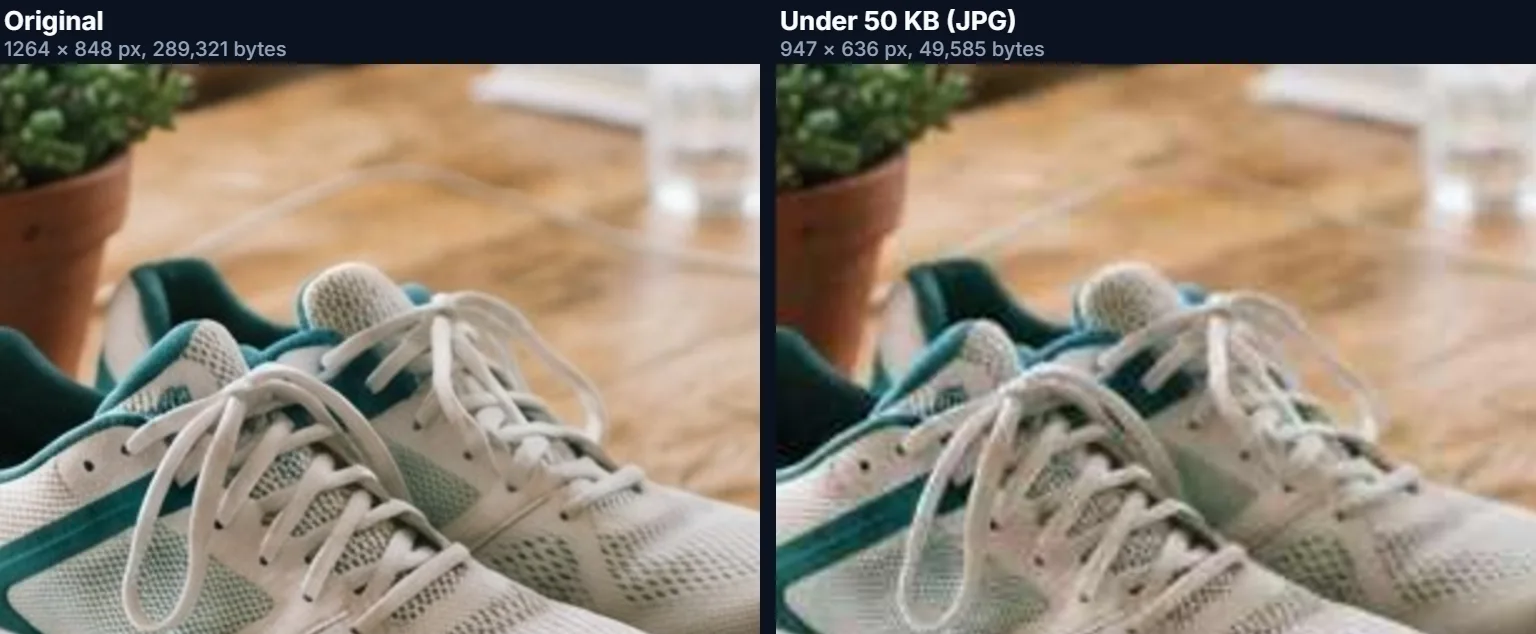
Look at it the way it will be seen, and then look closer. The comparison slider shows both versions fitted to the preview, which is roughly how a form reviewer or a website visitor will see them. Inspect at 100% shows the centre of the picture at its real pixel size, with the original stretched to match, so softness and JPEG blocks are not hidden by the preview's scaling.
At 50 KB the usual signs of strain are smeared fine texture (fabric, grass, hair), soft edges where the image was resized, and visible 8 × 8 squares in flat gradients such as sky. If what matters in your picture is a face or a document, check that first. If it does not look good enough, crop away the parts you do not need and compress again: the same 50 KB spread over fewer pixels goes further.
How many pixels fit in 50 KB?
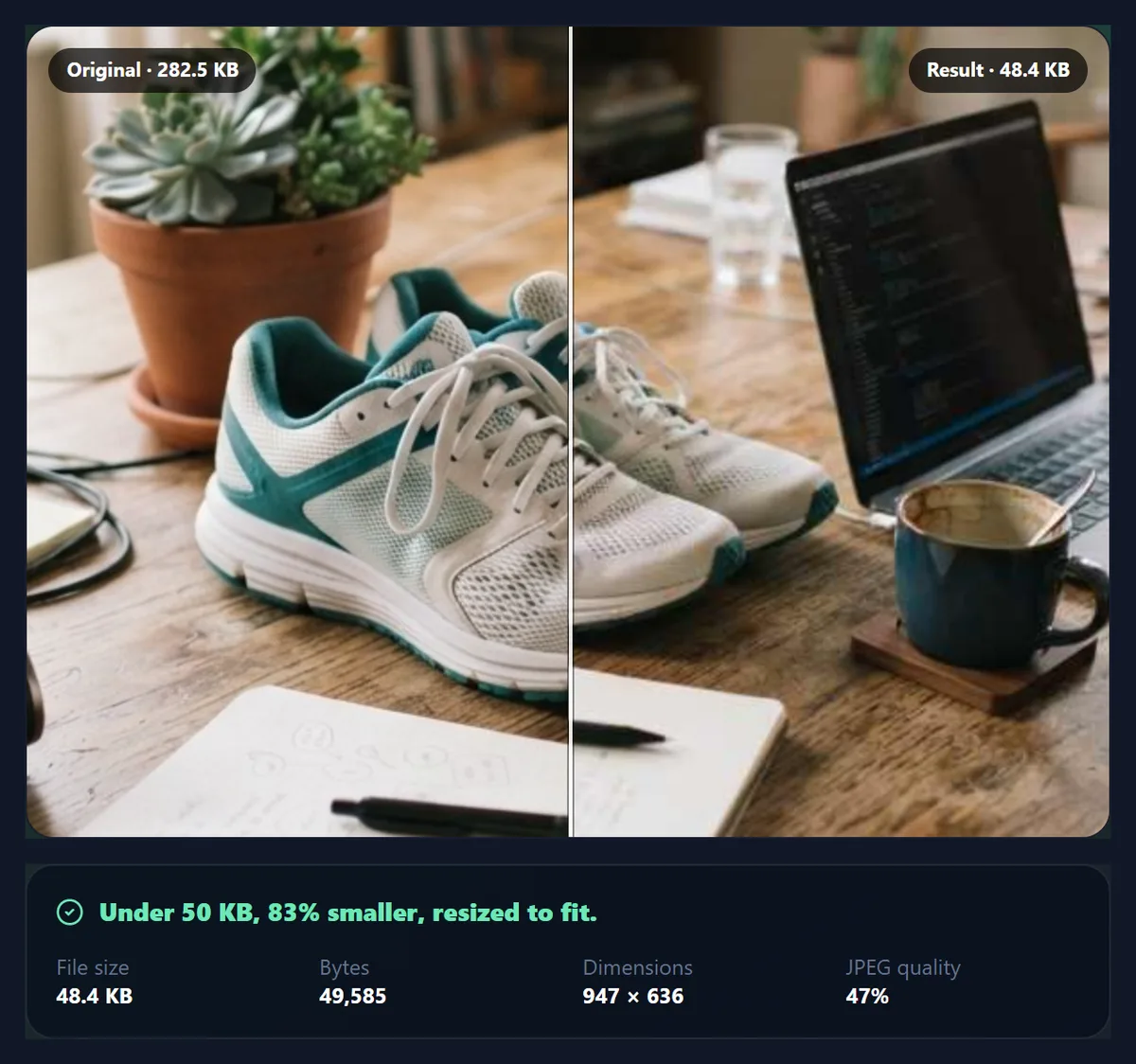
There is no fixed answer, because it depends on how much detail the picture contains. The sneaker photo fitted into 50 KB at about 600,000 pixels as JPG (947 × 636), which is 0.08 bytes per pixel. A portrait against a plain wall, with large smooth areas, fits far more pixels into the same bytes; a field of grass or a crowd fits far fewer.
For a detailed photo like this one, about 950 pixels wide fitted as JPG and the full 1264 pixels as WebP. A larger or busier picture will be shrunk further; a smaller or plainer one may keep its size and get a higher quality instead. You do not need to calculate this, because the tool finds it for each image, but it is useful to know when you are deciding whether 50 KB is a reasonable limit to set for others.
| Format | Bytes | Dimensions | Quality | Pixels |
|---|---|---|---|---|
| JPG | 49,585 | 947 × 636 | 47% | 602,292 |
| WebP | 49,716 | 1264 × 848 | 45% | 1,071,872 |
Why does the tool aim for 50,000 bytes and not 51,200?
Because nobody agrees what a kilobyte is. Windows and many upload validators count 1 KB as 1,024 bytes, so 50 KB is 51,200 bytes to them; macOS and storage makers count 1,000, so 50 KB is 50,000. A file of 50,800 bytes passes one check and fails the other.
Aiming at 50,000 bytes or less satisfies both. The panel shows the result in the Windows unit (49,585 bytes reads as 48.4 KB) and the exact byte count, so you can compare it with whatever the receiving site says.
What can you compress, and what comes out?
You can open JPG, PNG and WebP files up to 40 megapixels. HEIC photos from an iPhone need converting to JPG first, because browsers cannot read them. The output is JPG or WebP; PNG is not offered because it is lossless and cannot be pushed to a byte target the same way, so a photo saved as PNG would almost never fit into 50 KB.
The tool writes a fresh file from the pixels. Camera metadata (EXIF), including GPS location, is not copied into it, and the photo's orientation is applied before compressing so it does not come out sideways.
Does compressing to 50 KB upload the photo?
No. The tool is JavaScript running in your browser tab: it decodes the picture, encodes the trial versions and builds the download on your own device. There is no account, no queue and no copy on a server. That also means it works on a slow connection once the page has loaded, and that closing the tab clears everything.
What if the result will not go under 50 KB?
With resizing allowed, it always will; the tool keeps shrinking until the lowest allowed quality fits. If you ticked Keep pixel dimensions, it may not: the tool then tries every quality down to 5% at the original size and tells you the smallest file it could make. Either untick the box, crop the picture, or resize it to the dimensions the form asks for with the pixel resizer and then compress.
If the site still rejects the file, check the format (some accept JPG only), the dimensions (some set a minimum or exact size) and the file name (some refuse spaces or long names). The tool cannot see those rules, but the result panel gives you every number you need to check them.
Frequently asked questions
How can I compress an image to 50 KB for free?
Open it in the tool on this page. 50 KB is preselected; download the result. It is free and needs no account.
Will the file be exactly 50 KB?
It will be at or just under 50,000 bytes, at the highest quality that fits. The sample landed at 49,585 bytes.
Is my image uploaded to a server?
No. Everything happens in your browser, on your device.
Why did my photo get smaller in pixels?
At its original size even 45% quality was over 50 KB. A smaller picture at decent quality looks better than a full-size one at very low quality.
Can I keep the original dimensions?
Tick Keep pixel dimensions. The tool will try qualities down to 5% and tell you if 50 KB cannot be reached at that size.
Should I use JPG or WebP?
WebP usually keeps more pixels under 50 KB, but some forms accept only JPG. Use what the destination allows.
Can I compress a PNG to 50 KB?
Yes. Open the PNG and save it as JPG or WebP; JPG turns transparent areas white, WebP keeps them.
Does it work on a phone?
Yes, in any current mobile browser. Very large photos above 40 megapixels are refused to protect memory.
Does it remove EXIF and location data?
Yes. The compressed file is written from pixels only and carries no metadata.
Can I compress several images at once?
Not on this page; it compresses one image at a time. Open the next image when you have downloaded the first.
Can I choose a different limit?
Yes. Use the 30, 40, 60 or 80 KB buttons or type any value into Custom.
Related tools
- Compress Image to 20KB — A tighter limit for signatures and small photos.
- Compress Image to 100KB — Twice the room, and how much more quality that buys.
- Reduce Image Size in KB — Any target, with the quality-versus-size curve explained.
- Resize Image Pixel Online — Set exact dimensions first when a form requires them.
- Make Passport Size Photo — Crop a photo to an official passport size.
- Convert Image From MB to KB — Bring a multi-megabyte photo down to kilobytes.