Clipart Maker
Turn a photo into clip art: the colours reduced to a few flat ones, specks smoothed away, a clean outline drawn between the shapes, and a plain background removed, saved as a transparent PNG.
Updated

How do you turn a photo into clip art?
Open a photo and it becomes clip art at once. Choose how many colours it should have, from 2 to 16, how strongly specks are smoothed away, and the width and colour of the outline. If the photo was taken against a plain wall or backdrop, the tool can also make that background transparent. Download the result as a PNG, WebP or JPG.
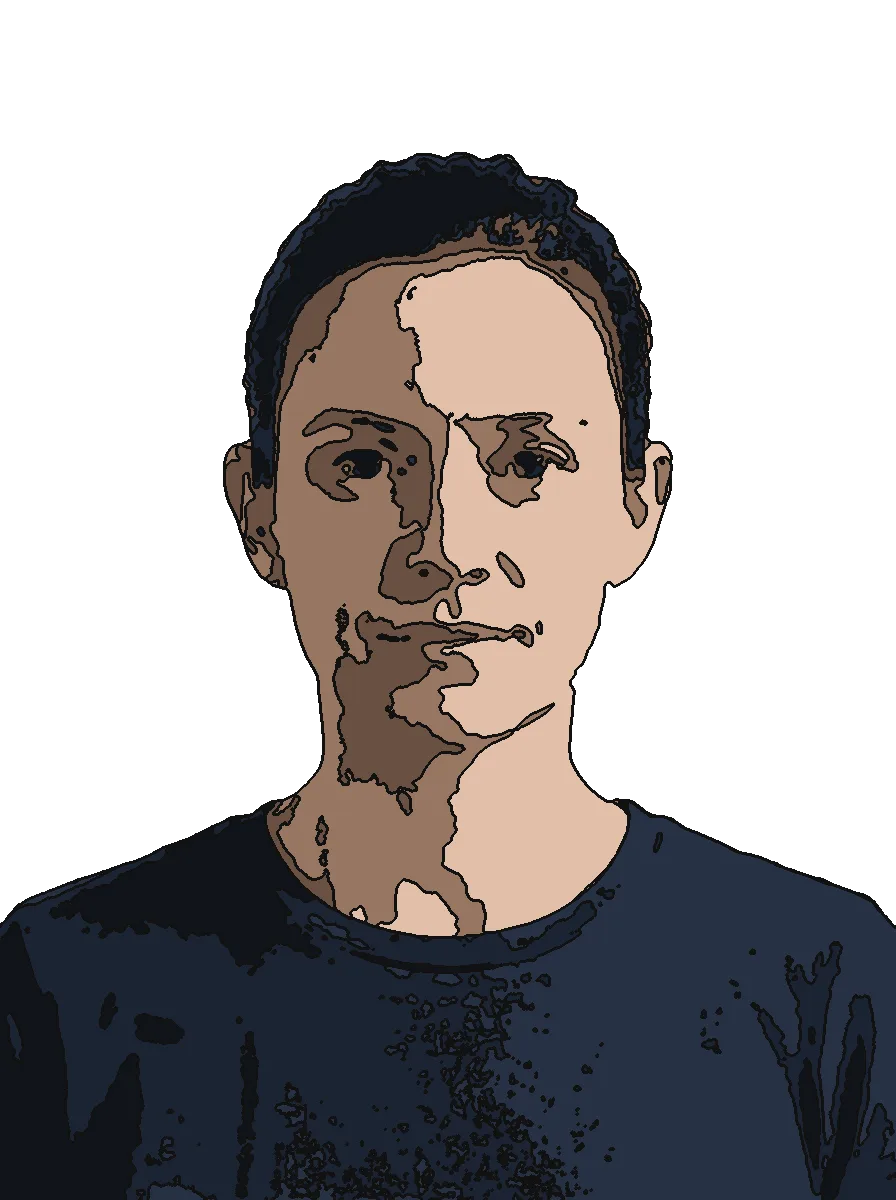
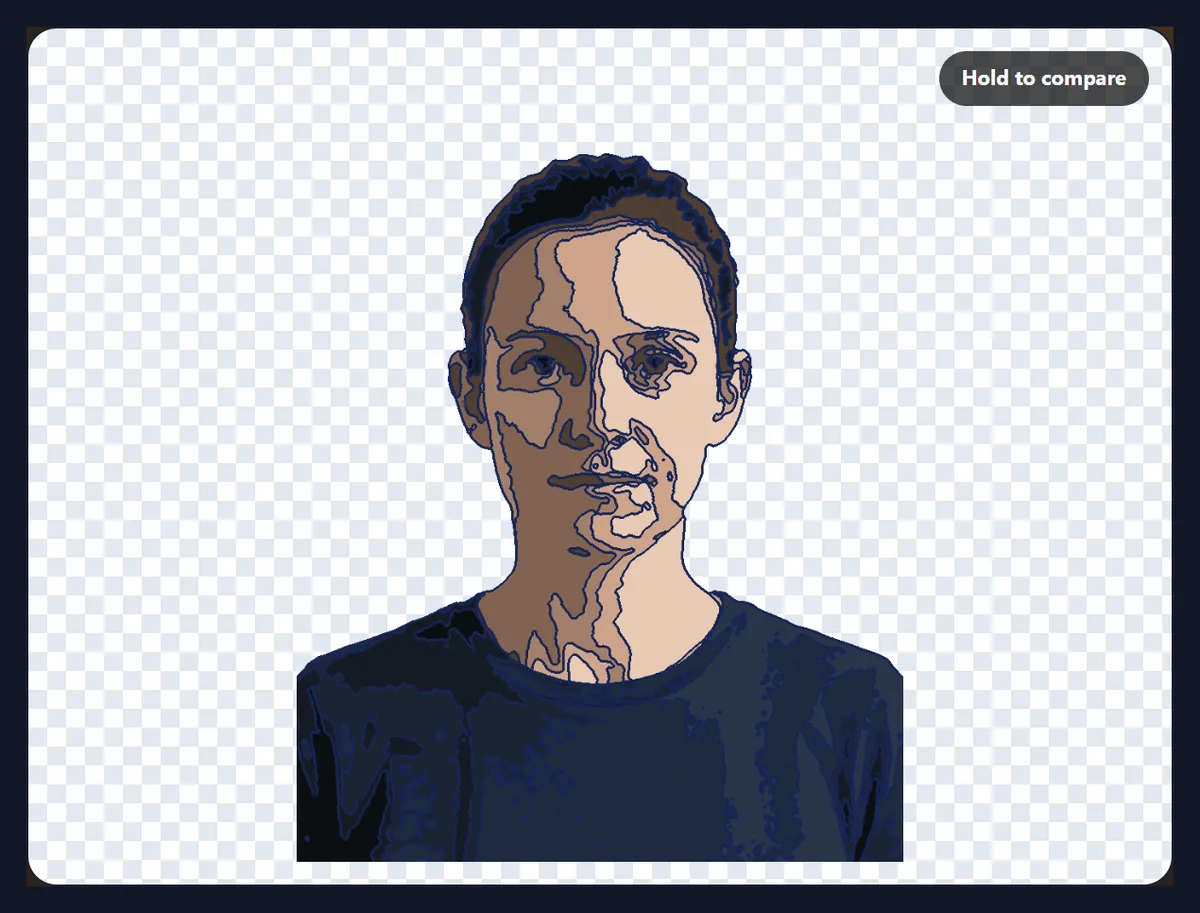
The sample portrait, with six colours and its background removed, became a 896 × 1200 PNG of 95 KB. Everything happens in your browser: no upload, no account and no AI.
How to make clip art from a photo
- Open a photo Choose a JPG, PNG or WebP, or try the sample portrait.
- Set the colours Pick 2 to 16 flat colours; watch the palette.
- Smooth and outline Remove specks, then set the outline width and colour.
- Download Save a PNG with a transparent background, or WebP or JPG.
Turn a photo into clip art
A real recording of this tool: the sample portrait as clip art, the colour count changed to 3, 10 and 6, smoothing and the outline raised, a navy outline chosen, and the PNG downloaded.
- The sample portrait opens as clip art with six colours.
- The colours are set to 3, then 10, then back to 6.
- Smoothing and the outline width are raised, and the outline turned navy.
- The PNG is downloaded.
How many colours should my clip art have?
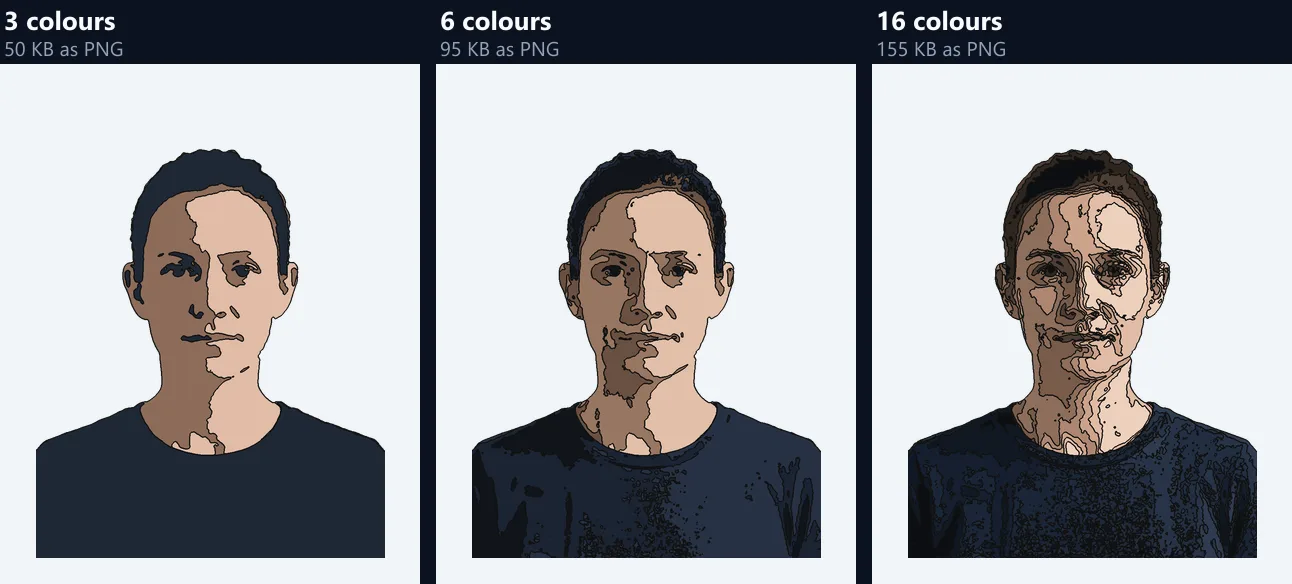
Fewer than you might think. Clip art reads as clip art because it uses a handful of flat colours: three to six give a bold, poster-like picture; eight to sixteen keep more shading and detail but start to look like a photo again. The tool starts at six. Each extra colour also adds areas and edges to store, so the file grows: the sample portrait, with its background removed, was 45.8 KB as a PNG with 2 colours, 95 KB with 6 and 155.1 KB with 16.
Pick the number by where the picture will be used. For a logo-like icon, a sticker or anything small, three or four. For an illustration that should still look like the person or object, six to ten. Watch the palette under the controls: it shows the exact colours chosen, so you can see when two of them are nearly the same and one fewer would do.
| Colours | PNG size |
|---|---|
| 2 colours | 45.8 KB |
| 3 colours | 50.3 KB |
| 4 colours | 67.3 KB |
| 6 colours | 95 KB |
| 8 colours | 100 KB |
| 12 colours | 127.8 KB |
| 16 colours | 155.1 KB |
How does a photo become clip art?
In three steps, all in your browser. First the photo's main colours are found: the tool samples about 20,000 of its pixels and groups similar colours together (the k-means method), starting from a spread of the photo's own colours from dark to light, so the same photo and settings always give the same result. Every pixel then takes the nearest of those colours, which turns soft gradients into flat areas.
Second, smoothing removes specks: each pixel takes the colour most common around it, which merges small islands of colour into the shapes around them. Third, the borders between colour areas are drawn as an outline in the colour and width you choose. The result is made at up to 1,600 pixels on the long side, which is plenty for flat colour and keeps it quick.
What does smoothing do?
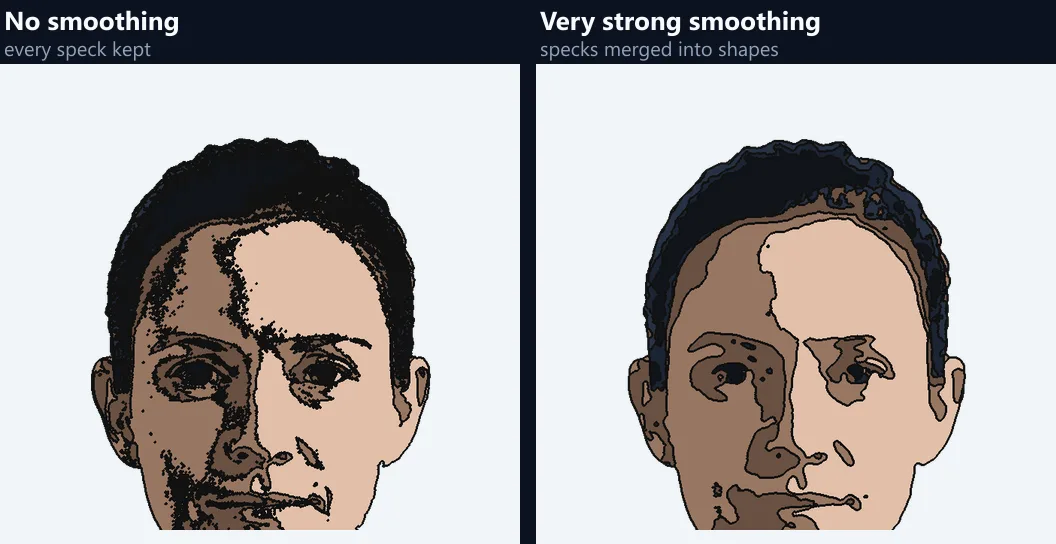
It cleans up the specks that flat colours leave behind. A photo has noise, texture and fine shading; when its colours are reduced, these become scattered dots of a second colour, and each dot gets its own outline. Smoothing looks at a small square around every pixel, from 3 × 3 at Light to 9 × 9 at Very strong, and gives the pixel the colour most of its neighbours have. Dots disappear and edges become calmer curves.
The default is Strong. Use None or Light to keep fine detail such as hair and text; use Very strong for the simplest, most cartoon-like shapes. Smoothing does not blur: every pixel still has one of the palette colours, so edges stay crisp.
How thick should the outline be?
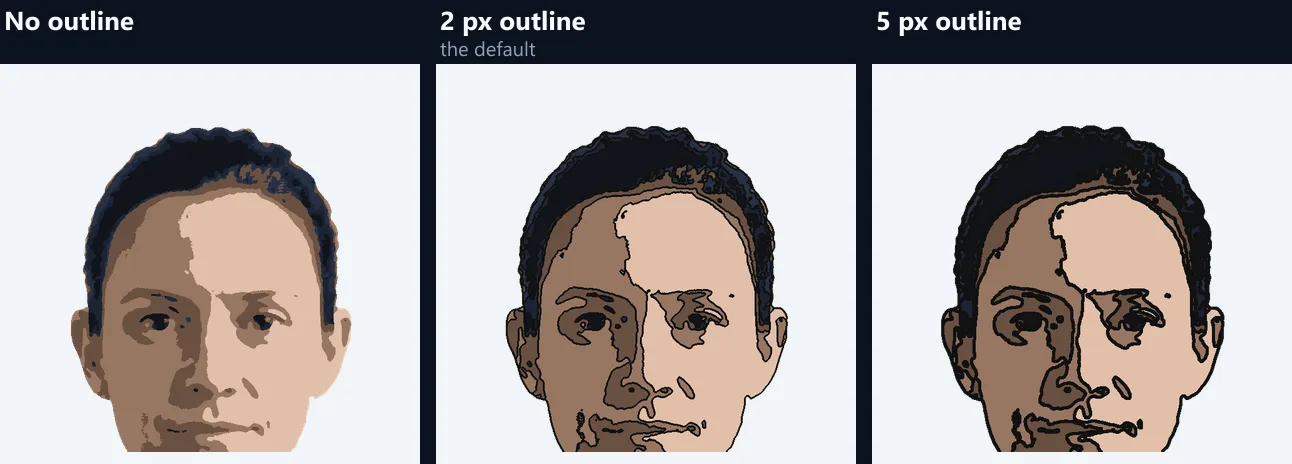
Two pixels, the default, suits most pictures at full size: it separates the colour areas like the line work in a colouring book. Thicker, up to 6, gives a bold sticker or cartoon look and survives being shown small; none gives a flat, poster style where the colours alone carry the shapes. The width is in pixels of the finished picture, so it looks the same however the preview is zoomed.
The outline can be black, navy, brown or white. Navy and brown are softer than black on light skin and warm colours; white suits clip art that will sit on a dark background. Where the background has been removed, the outline also runs round the outside of the picture, which gives the cut-out a clean edge.
Can it remove the background?
Yes, when the photo was taken against one plain colour, such as a studio wall, a sheet of paper or a painted backdrop. Tick Remove a plain background: the tool reads the colour along the photo's edge, then spreads inwards from the edge through pixels close to that colour and makes them transparent, before the clip-art colours are chosen. How close counts as the same is set from how much the edge colour itself varies, so a slightly uneven wall is still cleared.
The download is then a PNG with a transparent background, ready to place on any colour, design or document: the sample came out 896 × 1200 pixels, 95 KB. For a busy background, such as a street or a room, use the background remover first, which cuts out the subject with an AI model, then open its PNG here.
Which photos make the best clip art?
Photos with a clear subject, strong light and few colours: a person against a plain wall, a pet on a blanket, a product on a table, fruit, flowers, a cup of coffee. Even, soft light gives the simplest shapes; strong light from one side splits a face into a light half and a dark half, which reads as dramatic shading in the clip art, as on the sample.
Very busy photos, such as crowds, forests or patterned clothes, give busy clip art. Crop to the subject before you start, and use fewer colours and stronger smoothing for them.
What can I use clip art for?
Stickers, icons and emoji-like pictures of yourself, your pet or your product; illustrations for a presentation, worksheet or blog post; a portrait for a profile picture or a team page; artwork for T-shirts, mugs and cards, where few flat colours print cleanly; and simple shapes to cut with a vinyl or craft cutter.
Because the colours are flat, the PNG also traces well into vector shapes in a vector app, if you need an SVG for printing at any size.
Which format should I save?
PNG, nearly always. Clip art is flat colour with crisp edges, which PNG stores exactly and compactly, and it keeps the transparent background. JPG adds smudgy noise round every edge and cannot be transparent; use it only when an app refuses PNG. WebP is smaller than PNG and keeps transparency, and suits websites.
The export panel shows the real size of the file before you download it, so you can compare the formats, and the colour count, for the picture you have.
Can I print clip art on T-shirts, mugs or stickers?
Yes, and flat colours are what printing likes. Screen printing and vinyl cutting use one screen or one sheet per colour, so clip art with three to six colours is cheaper and cleaner to produce than a photo. Save as PNG with the background removed, so only the design is printed, and choose an outline colour that suits the material: black on light shirts, white on dark ones.
The clip art is made at up to 1,600 pixels on its long side, which prints sharp at about 13.5 centimetres at 300 dots per inch, the usual print resolution. For anything larger, such as a poster or a large T-shirt print, trace the PNG into vector shapes in a vector app first; flat colours trace cleanly.
Can I choose the colours myself?
The tool picks the colours from the photo itself, so the clip art keeps its natural look: skin stays skin-coloured, a red jacket stays red. You steer them with the colour count: fewer colours merge similar shades into one, more keep them apart. Watch the palette swatches as you move the slider.
To change a colour afterwards, for example to match a brand, open the PNG in the change colour of image tool and swap one colour for another; because clip art areas are flat, the swap is clean.
Is my photo uploaded?
No. The photo is opened, turned into clip art and saved inside your browser tab: nothing is sent anywhere and no account is needed. There is no AI involved: the colours, smoothing and outline are worked out by the tool's own code on your device, so the result is the same every time for the same photo and settings.
Large photos take a moment longer, mostly for the smoothing; the preview is drawn at a smaller size first, and the download at full size.
Why does my clip art look messy?
Usually too many colours or too little smoothing for the photo: lower the colours to four or five and raise smoothing to Strong or Very strong. If parts of the subject have vanished into the background, the background colour was too close to the subject's: untick Remove a plain background, or use the background remover first. If the outline looks broken into dashes, the shapes are too small for its width: use more smoothing, or a thinner outline.
If skin comes out patchy, the light was uneven: try one colour fewer, so the light and dark halves of the face merge, or one more, so there is a middle tone between them.
Frequently asked questions
How do I make clip art from a photo?
Open the photo, choose the number of colours, smoothing and outline, and download the PNG.
How many colours should I use?
Three to six for a bold look; eight to sixteen for more detail.
Can it remove the background?
Yes, when the photo has a plain, one-colour background.
Is the background transparent?
Yes, when the background is removed and you save as PNG or WebP.
Can I change the outline colour?
Yes: black, navy, brown or white, from none to 6 px.
Is this made by AI?
No. The colours, smoothing and outline are calculated by the tool itself.
What size is the result?
Up to 1,600 pixels on the long side.
Is my photo uploaded?
No. Everything happens in your browser.
Is it free?
Yes, with no account and no watermark.
Related tools
- AI Cartoon Generator — Redraw a photo as a cartoon with AI.
- Background Remover — Cut out a subject from any background.
- AI Sketch and Draw — Turn a photo into a sketch.
- Stickers — Stickers for your designs.
- PNG Maker — Make transparent PNGs.
- Photo Effects — More looks for your photos.