Image Montage
Put up to 30 photos into one picture. Justified rows keep every photo whole and fill each row edge to edge, like a gallery page; an even grid gives every photo the same cell. Reorder, set the spacing, round the corners and pick a background, all in your browser.
Updated

How do you make a montage of photos?
Add your photos, or try the eight samples, and pick a layout. Justified rows lays the photos out in order, scaling each row so it runs the full width without cropping or stretching anything. Even grid puts every photo in a cell of the same shape and crops each one to fill it. Use the arrows under each thumbnail to change the order, set the width, spacing, rounded corners and background colour, and download the montage as one JPG, PNG or WebP.
A montage, also called a photo grid or collage, is the quickest way to share a set of pictures as one image: a trip, a product range, a before-and-after series, or a mood board. The choice between the two layouts is the choice between keeping every photo whole and giving every photo the same space.
With the default settings, the eight samples, a mix of landscape, square and portrait pictures, made a 2000 × 986 pixel montage in two justified rows with nothing cropped. Nothing is uploaded; the photos are read and combined inside your browser tab.
How to make an image montage online
- Add photos Choose or drop up to 30 JPG, PNG or WebP photos, or try the eight samples.
- Pick a layout Justified rows keeps every photo whole; Even grid gives every photo the same cell.
- Arrange and style Reorder or remove photos with the buttons under each thumbnail, then set the width, spacing, corners and background.
- Download Save the montage as one JPG, PNG or WebP.
Make a montage of eight photos
A real recording of this tool: eight photos in justified rows, a taller target row height, an even grid, spacing and rounded corners, and the download.
- Eight sample photos open in two justified rows.
- A taller target row height breaks them into three rows.
- Even grid puts every photo in a cell of the same shape.
- Spacing and rounded corners are added, then the montage is downloaded.
Justified rows or an even grid: how much of each photo do you keep?
Justified rows keep all of every photo: each photo keeps its own shape and the row is scaled until it exactly fills the width. An even grid gives every photo a cell of the same shape, so any photo of a different shape is cropped to fill its cell. The further a photo's shape is from the cell's, the more it loses.
The eight samples are three 3:2 landscapes, one square, and four portraits from 4:5 to roughly 1:2. In square cells they keep 72% of their area on average, and the narrowest portrait keeps 52%. Landscape 4:3 cells keep 68% on average and 3:2 cells 69%, but there the narrowest portrait keeps only 39% and 35%. Portrait 3:4 cells keep 72%, with the wide landscapes losing half. For a mixed set, justified rows or square cells crop least; for a set of photos that all share a shape, choose that shape for the cells and nothing is cropped.
| Layout | Average shown | Least shown |
|---|---|---|
| Justified rows | 100% | 100% |
| Grid, square 1:1 cells | 72% | 52% |
| Grid, portrait 3:4 cells | 72% | 50% |
| Grid, landscape 3:2 cells | 69% | 35% |
| Grid, landscape 4:3 cells | 68% | 39% |
How do justified rows work?
The photos stay in the order you set. For each possible way of breaking them into rows, the tool works out how tall every row would be once it is scaled to fill the width, and picks the breaks that keep all rows closest to the target row height. That way every row, the last one included, runs edge to edge, and no row ends up with a single photo blown up to a huge size.
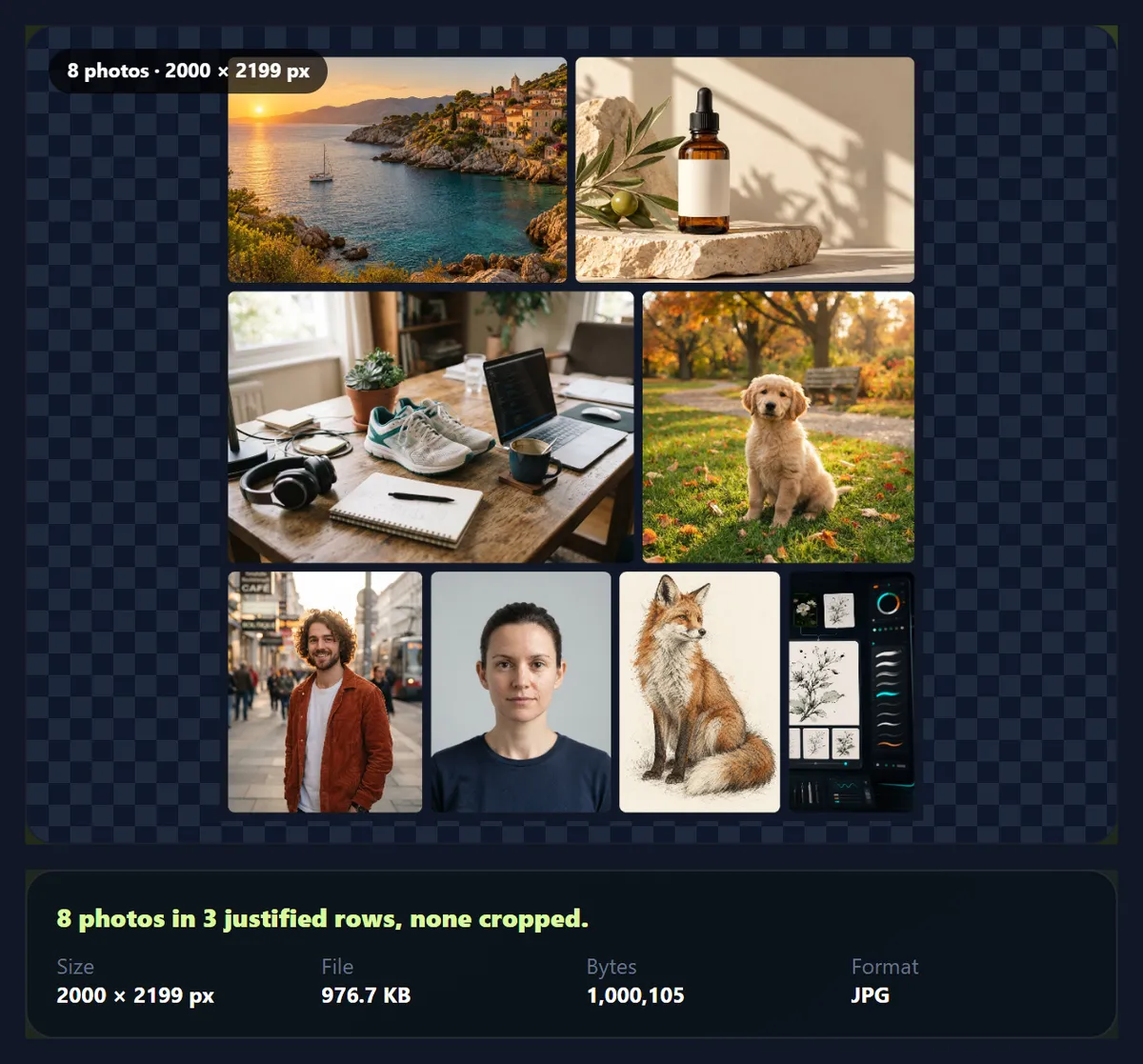
Because the number of rows has to be a whole number, the rows land near the target rather than exactly on it, and small changes to the target may not change the layout. With the eight samples at 2000 pixels wide, a target of 360 pixels gave two rows, 435 and 515 pixels tall (2000 × 986 in all); a target of 620 gave three rows (2000 × 2199). Wider photos make shorter rows, so a row of landscapes is usually shorter than a row of portraits.
How does the even grid choose the columns and the crop?
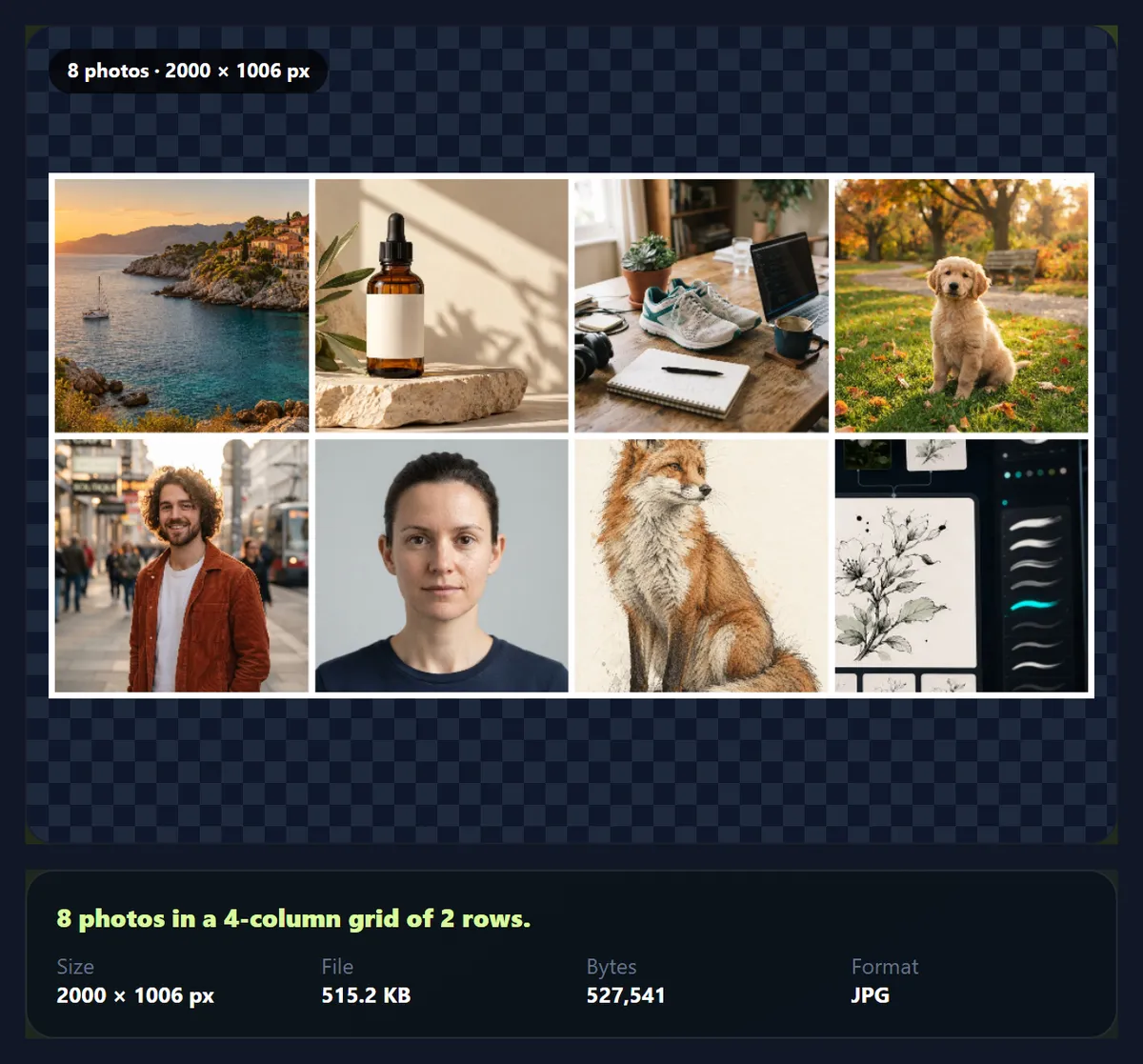
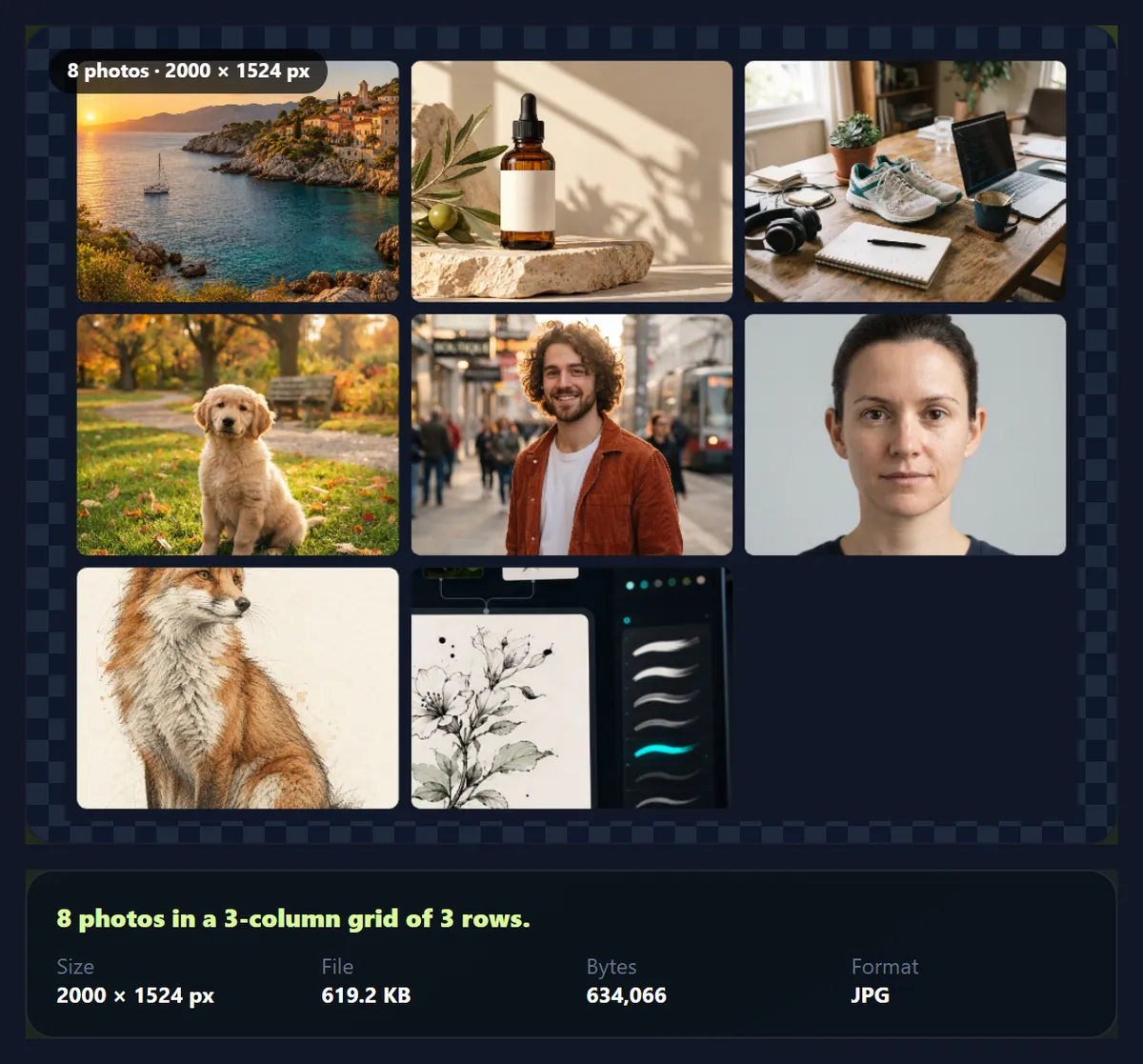
Every cell has the shape you choose: square 1:1, landscape 4:3 or 3:2, or portrait 3:4. With Columns on Auto, the tool picks the column count that makes the whole montage closest to a 3:2 landscape, counting empty cells in the last row against a choice, so full rows win where they can. Eight photos in square cells gave four columns and two rows (2000 × 1006 pixels); in 4:3 cells, three columns and three rows. You can set 1 to 8 columns yourself.
Each photo is scaled to cover its cell, then cropped. Across the photo the crop is centred; down a tall photo it sits a little above the centre (35% of the spare height is trimmed from the top and 65% from the bottom), because heads and faces are usually in the upper part of a portrait. If an important part of a photo is cut, crop that photo yourself first, or use justified rows.
How do spacing, corners and background work?
Spacing is the gap between photos and also the margin around the outside, from 0 to 60 pixels at the montage's full size; 0 makes a seamless mosaic. Rounded corners round every photo by up to 40 pixels. The background colour fills the spacing and any empty cells in the last row of a grid, so a dark background with a little spacing and rounded corners gives a modern, app-like look, and white with no corners a classic contact sheet.
Width sets how wide the finished montage is: 1200 pixels for messaging and the web, 2000 for social posts, 3000 for printing or large screens. The height follows from the layout. Each photo is read at up to 1600 pixels on its long side, which keeps the tool quick with 30 photos and is plenty for most layouts at these widths.
Can I change the order of the photos?
Yes. Each thumbnail has an arrow to move it earlier, an arrow to move it later, and a cross to remove it. Order matters more in justified rows, because the rows are built from the photos in sequence: putting portraits next to each other makes a taller row, and mixing them with landscapes evens the rows out. In a grid the order fills the cells left to right, top to bottom.
You can add more photos at any time, up to 30. If you add more than there is room for, the first ones are added and the tool says how many.
Is a montage the same as a collage?
The words overlap. A photo montage generally means several photos combined into one picture. A collage often means a looser arrangement where pictures overlap, tilt or sit on a textured background. A photo grid is the tidiest kind, with pictures side by side in rows and columns. This tool makes the grid kind: no photo covers another, the spacing is even, and the result is one image you can post, print or send. For freeform layouts with text and stickers, use the HueFold editor.
What makes a good montage?
A theme and a sequence. A trip told in order, the steps of a recipe or a craft, a product in every colour, a before-and-after series, a mood board, or the best shots from an event all work because the viewer reads them as one story. Start and end with the strongest pictures: the first photo goes top left and the last bottom right, where the eye starts and finishes.
Keep the set coherent: photos with similar colour and light sit together better than a mix of indoor and outdoor shots. Fewer, larger photos usually beat many small ones on a phone screen, while a large set of 20 or 30 suits a print or a big screen.
How big is a montage file?
It depends on the canvas size more than on the number of photos. At 2000 pixels wide as a 92% JPG, the eight samples made 541,436 bytes in two justified rows (2000 × 986), 527,541 bytes in a square grid (2000 × 1006) and 1,000,105 bytes in three taller rows (2000 × 2199): roughly twice the pixels, twice the bytes. For messaging and the web, the 1200 pixel width makes a much smaller file, WebP is usually smaller than JPG at the same quality, and Compress Image to 100KB can shrink the finished montage further if a site has a size limit.
Which files work, and is anything uploaded?
You can add JPG, PNG and WebP photos; convert iPhone HEIC photos to JPG first. The montage is saved as one JPG, PNG or WebP; the justified sample came out at 2000 × 986 pixels and 541,436 bytes as a 92% JPG. PNG keeps every pixel exactly but makes a much larger file for photos, so JPG or WebP is usually the better choice for sharing.
Nothing is uploaded: the photos are read, arranged and saved inside your browser tab, and no account is needed. The montage carries no EXIF data from the original photos.
Why is my montage so tall, or a photo cut off?
A tall montage usually means many portrait photos or a high target row height in justified rows. Lower the target row height, or switch to a grid with more columns. If one photo is cut off in the grid, its shape is far from the cell's: choose a cell shape closer to most of your photos, crop that photo first, or use justified rows, which never crop.
If the montage looks soft when printed large, use the 3000 pixel width and photos that are at least 1600 pixels on their long side.

Frequently asked questions
How do I make a photo montage?
Add your photos, choose Justified rows or Even grid, adjust the spacing and order, and download.
How many photos can a montage have?
Up to 30.
Will my photos be cropped?
Not in justified rows. In an even grid, photos are cropped to the cell shape.
What is a justified layout?
Rows of whole photos, each row scaled to fill the width exactly, like a gallery page.
Can I change the order?
Yes, with the arrows under each thumbnail.
Can I add space between photos?
Yes, 0 to 60 pixels, in any background colour.
How big is the montage?
1200, 2000 or 3000 pixels wide; the height follows from the layout.
Are my photos uploaded?
No. The montage is made in your browser.
Which formats can I use?
Add JPG, PNG or WebP; save as JPG, PNG or WebP.
Is it free?
Yes, with no account, watermark or limit.
Related tools
- Combine Images — Join two or more images side by side.
- Design and Photo Grids — Grid layouts in the editor.
- Photo Borders — Frame the finished montage.
- Crop Image — Crop a photo before adding it.
- Rotate Image — Turn a sideways photo first.
- Compress Image to 100KB — Shrink the montage file.