Reduce Image Size in KB
Type the largest file size you can accept, in KB. The tool finds the highest JPG or WebP quality that fits, keeps the full pixel size whenever it can, and shows the result beside the original before you download.
Updated

How do you reduce an image’s size in KB?
Open the image, type the largest size you can accept in KB, and download what the tool makes. It tries the photo at different JPEG or WebP quality settings, keeps the best-looking version that is at or under your limit, and only reduces the pixel dimensions when even a low quality cannot get the file small enough. Everything happens inside your browser tab, so the picture is never uploaded.
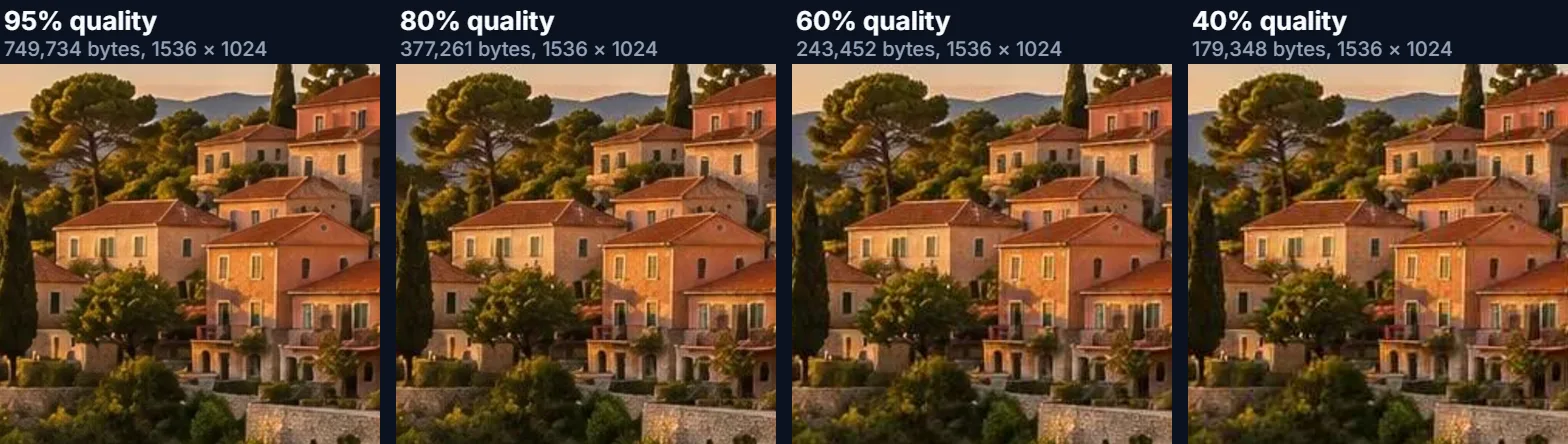
File size in kilobytes depends on two things you can change: how many pixels the image has and how hard the encoder compresses them. A 1536 × 1024 photo saved as a 95% JPEG weighed 749,734 bytes in our test; the same pixels at 40% weighed 179,348. Upload forms, email gateways and content systems usually care about the bytes, not about how the picture was made, so a tool that searches for the right setting saves you from guessing and re-saving by hand.
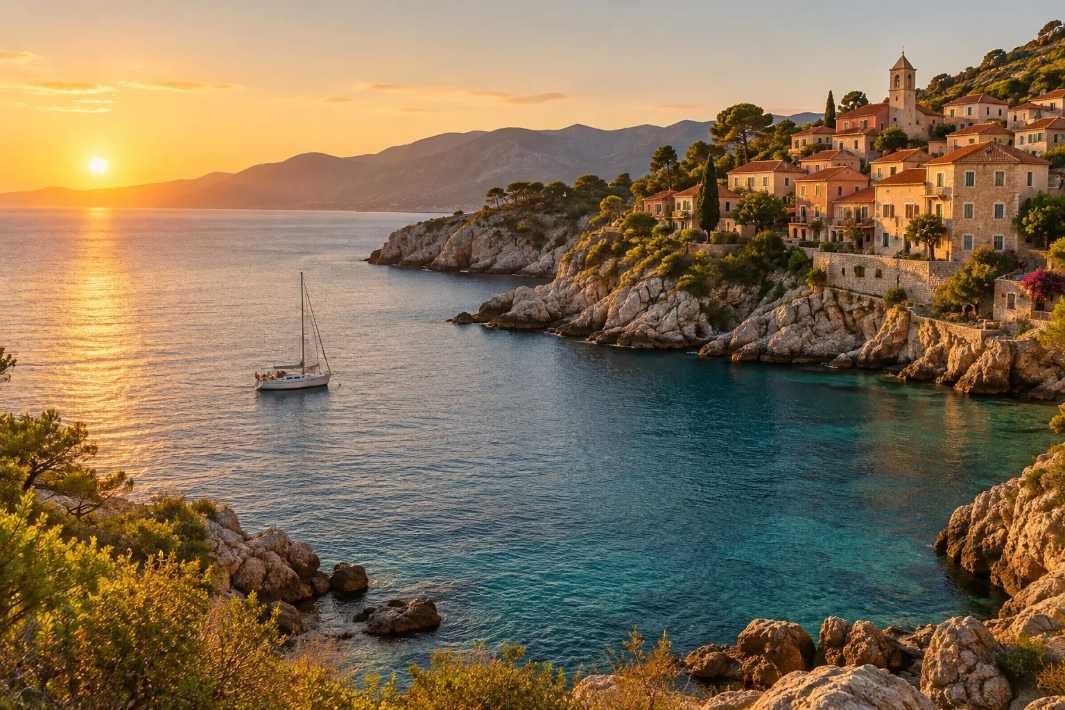
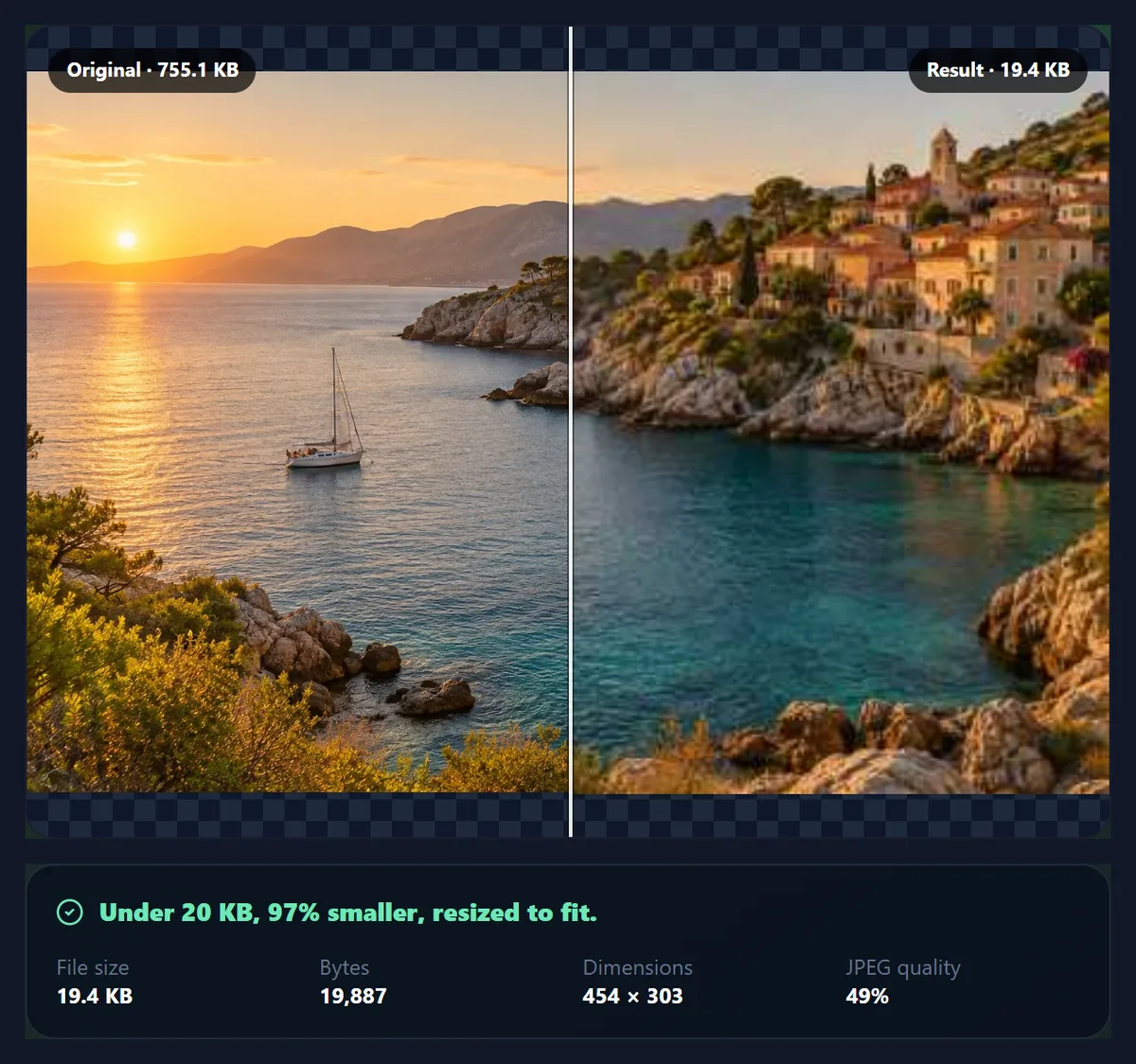
The figures on this page are real. Each one was made by the same compressor that runs above, on the sample cove photograph, and the captions give the exact bytes it produced. Try the sample to see how the result changes between 20 KB and 500 KB, then open your own file.
How to reduce image size in KB
- Open the image Choose a JPG, PNG or WebP, drop it on the preview, or start with the sample photo. The file is read by your browser; nothing is sent anywhere.
- Set the limit Pick 20, 50, 100, 200 or 500 KB, or type any number into Custom. The tool treats it as a ceiling and lands at or just under it.
- Check the result Drag the comparison slider and use Inspect at 100% to look at real pixels. The panel shows the exact bytes, dimensions and JPEG quality used.
- Download Save the file. Its name records the target, so photo.jpg becomes photo-100kb.jpg and you can tell versions apart later.
Reduce an image to 50 KB and 100 KB in the browser
A real screen recording of this page: the sample photo is reduced to 50 KB, compared with the original, inspected at 100%, switched to WebP at 100 KB and downloaded.
- The sample photo opens in the tool at its full 1536 × 1024 size.
- A 50 KB limit is chosen and the result appears beside the original.
- The comparison slider moves between the original and the compressed file.
- Inspect at 100% shows the real pixels of both versions.
- The format switches to WebP and the limit to 100 KB.
- The finished file is downloaded.
How does the tool hit a KB target?
The tool searches rather than guesses. It first encodes the image at the lowest quality it is allowed to use. If that file is still larger than your limit, no other quality at that size can work, so it reduces the width and height by the square root of the overshoot (file size roughly follows the pixel count) and tries again. Once the lowest quality fits, it tries 95%; if that fits too, you get the 95% file. Otherwise a binary search runs seven times between the two, each time keeping the highest quality that stayed under the limit.
The lowest quality it uses before shrinking the picture is 45%. Below that, JPEG blocks and colour banding usually look worse than a slightly smaller image at a decent quality. If you switch on Keep pixel dimensions the floor drops to 5%, because you have told the tool the size must not change.
The table shows what that produced for the sample photo, a 1536 × 1024 JPEG of 773,270 bytes. Each run took between about 80 and 250 milliseconds in Chrome on an ordinary laptop, using 9 to 12 trial encodes.
| Target | Result bytes | Dimensions | JPEG quality |
|---|---|---|---|
| 20 KB | 19,887 | 454 × 303 | 49% |
| 50 KB | 49,219 | 741 × 494 | 56% |
| 100 KB | 99,879 | 1065 × 710 | 49% |
| 200 KB | 199,734 | 1536 × 1024 | 46% |
| 500 KB | 492,806 | 1536 × 1024 | 89% |
How much does JPEG quality change the file size?
More than most people expect at the top of the scale, and less at the bottom. We saved the 1536 × 1024 sample at eight quality settings with the browser's own JPEG encoder. Going from 95% to 80% halved the file, from 749,734 to 377,261 bytes. Going from 80% all the way down to 40% only halved it again, to 179,348 bytes.
That curve is why a sensible limit rarely needs an ugly picture. The bytes at the top of the scale are spent on detail you mostly cannot see at normal viewing size. The bytes at the bottom are the ones holding the picture together, and removing them is where blocks, smeared texture and colour steps appear.
The crops in the figure are the same 100% region of the village from four of those files. Compare the roof edges and the trees: 95% and 80% look alike, 60% is softer, and 40% starts to show the 8 × 8 pixel blocks JPEG works in.
| Quality | Bytes | Share of the 95% file |
|---|---|---|
| 95% | 749,734 | 100% |
| 90% | 569,752 | 76% |
| 85% | 433,607 | 58% |
| 80% | 377,261 | 50% |
| 70% | 293,161 | 39% |
| 60% | 243,452 | 32% |
| 50% | 210,261 | 28% |
| 40% | 179,348 | 24% |
When does reducing the KB also reduce the dimensions?
Only when it has to. With the default settings the tool keeps the full width and height for as long as a quality of 45% or better fits. For the sample photo that was true at 200 KB and 500 KB. At 100 KB it was not, so the picture came out at 1065 × 710; at 20 KB it came out at 454 × 303.
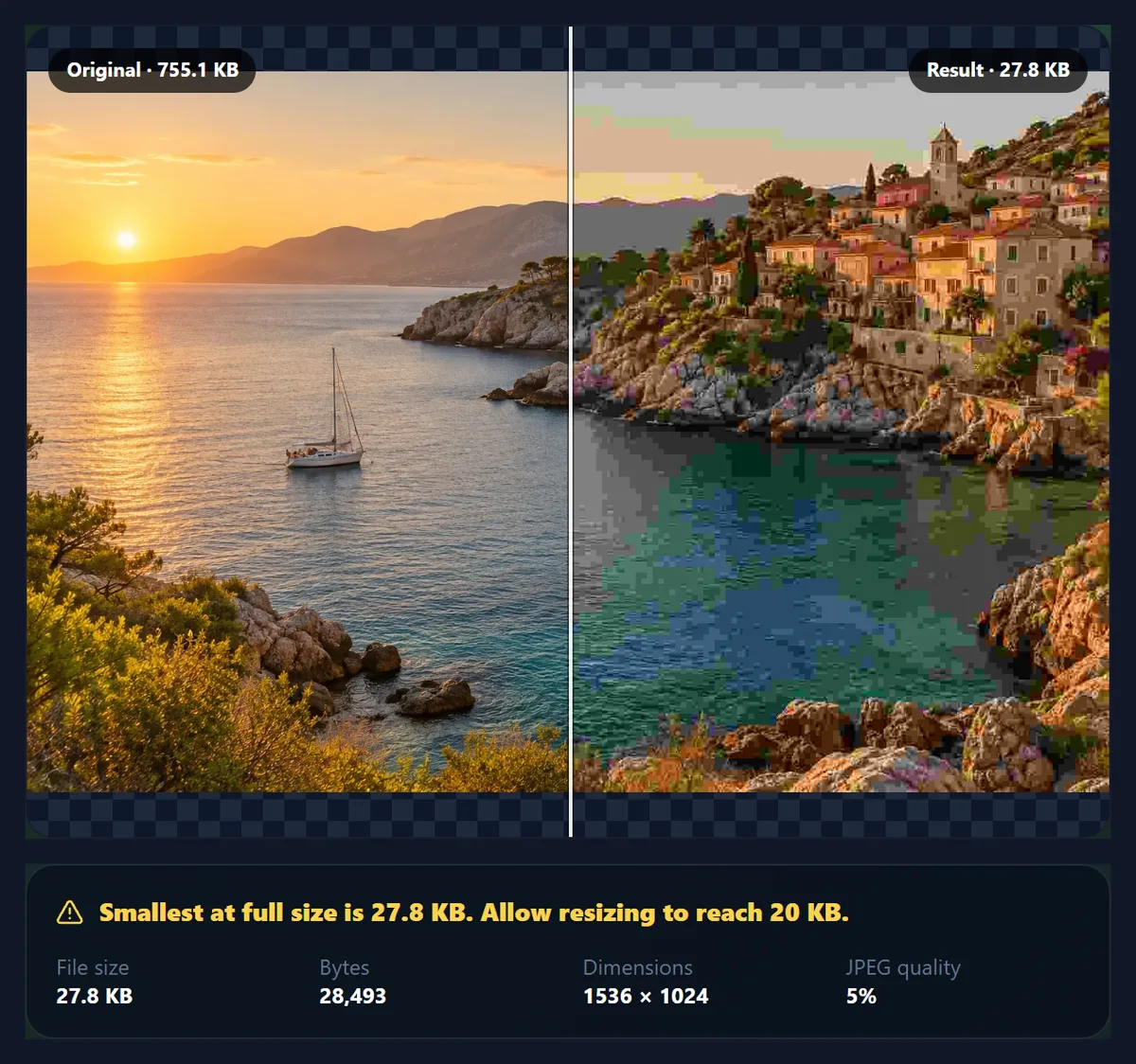
Some forms check pixel dimensions as well as file size, and some people simply need the full size. Tick Keep pixel dimensions and the tool will try every quality down to 5% without touching the size. That is not always enough: the smallest full-size version of the sample was 28,493 bytes, so a 20 KB limit cannot be met at 1536 × 1024. The tool says so in plain words instead of quietly handing you a file that is too big.
If you need both a fixed size and a small file, reduce the dimensions first with the pixel resizer to the size the form asks for, then come back and compress. Fewer pixels at a reasonable quality nearly always look better than full size at 5%.
Should you choose JPG or WebP?
JPG opens everywhere: every upload form, email client, office program and printer driver. WebP usually makes a smaller file at the same visual quality and keeps transparency, but some older software and some upload forms still refuse it. If a form lists the formats it accepts, follow the list.
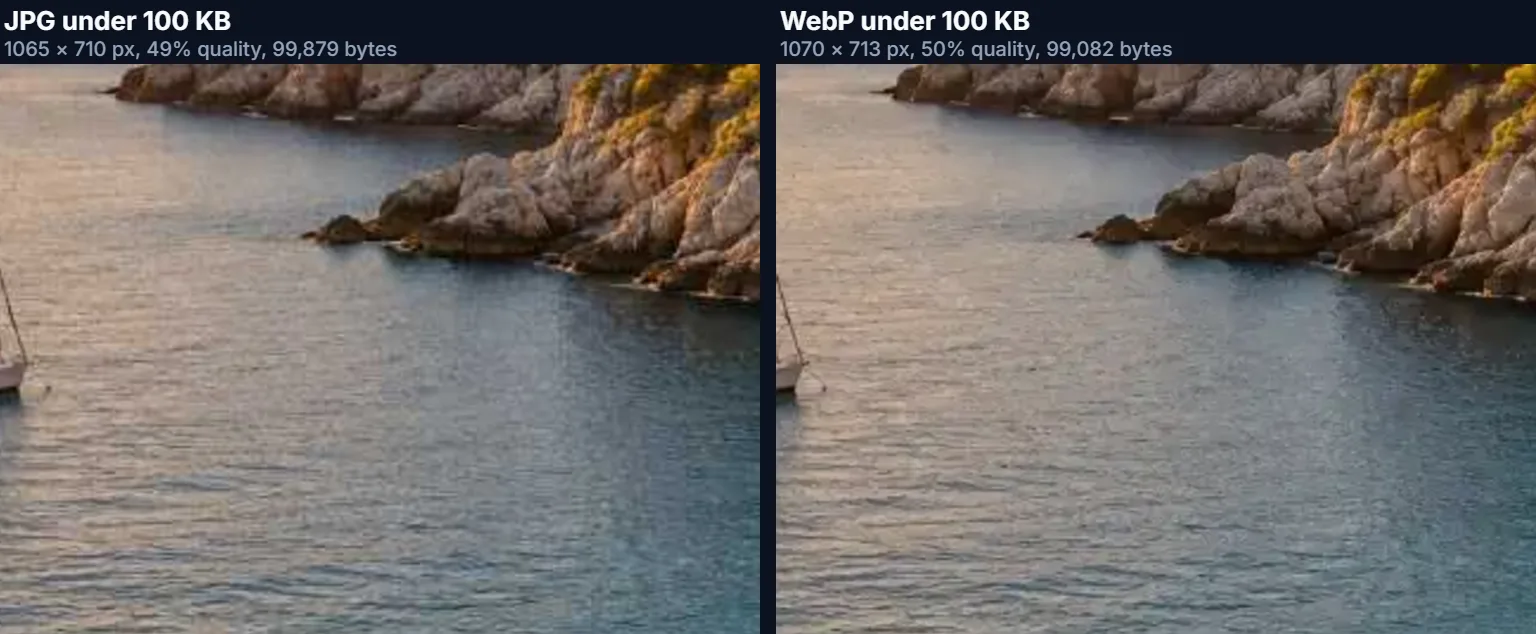
On the sample photo the difference at 100 KB was small. JPG landed at 99,879 bytes and 1065 × 710 pixels at 49% quality; WebP landed at 99,082 bytes and 1070 × 713 at 50%. On other pictures, especially ones with large smooth areas, WebP keeps noticeably more pixels for the same bytes. Try both on your own image; switching is one click and the result updates in a moment.
A PNG with transparency becomes a JPG on a white background, because JPG has no transparency at all. Choose WebP to keep the transparent areas. The WebP button is greyed out in the few browsers that cannot encode WebP; there the tool offers JPG only.
Is 1 KB 1,000 bytes or 1,024 bytes?
Both are in common use. Windows File Explorer and many upload validators count 1 KB as 1,024 bytes; macOS Finder and storage makers count 1,000. A file of 50,500 bytes is “under 50 KB” by the first reading and over it by the second, and that gap is enough to get an upload rejected.
So the tool aims at the stricter reading. A limit of 50 KB means at most 50,000 bytes, which is under 50 KB whichever definition the receiving site uses. The panel then shows the size in 1,024-byte kilobytes, the unit Windows shows you, plus the exact byte count, so you can check it against any rule.
| Limit you type | Bytes the tool aims at | Reads as (1,024-byte KB) | Reads as (1,000-byte KB) |
|---|---|---|---|
| 20 KB | ≤ 20,000 | ≤ 19.5 KB | ≤ 20.0 KB |
| 50 KB | ≤ 50,000 | ≤ 48.8 KB | ≤ 50.0 KB |
| 100 KB | ≤ 100,000 | ≤ 97.7 KB | ≤ 100.0 KB |
| 500 KB | ≤ 500,000 | ≤ 488.3 KB | ≤ 500.0 KB |
Which files can you reduce, and how large can they be?
The tool opens JPG, PNG and WebP. It does not open HEIC, the default format of recent iPhones, because most browsers cannot decode it; convert the photo with HEIC to JPG first, or set the iPhone camera to Most Compatible. GIF animations are not supported either, since re-encoding would keep only one frame.
Images above 40 megapixels are refused, because decoding one can use more memory than a phone browser allows. The working canvas is also capped at about 16.7 million pixels, the limit Safari on iOS places on a canvas, so a very large photo is scaled to fit inside that before the search starts. Camera orientation is applied when the image is opened, so a portrait photo stays upright in the result.
Does reducing the file size remove photo metadata?
Yes. The result is a new file written by the browser's encoder from the pixels alone, so it carries no EXIF data: no camera model, no capture date, no GPS location. That also saves a little space. If you need the original metadata, keep the original file; the tool never changes or deletes it.
Removing location data is often a benefit when you share a photo publicly. It is not a substitute for checking the picture itself, which can still show a street sign or a house number.
Is the image uploaded anywhere?
No. Opening, compressing, comparing and downloading all run in JavaScript in your browser tab. The page downloads the sample photo from HueFold when you ask for it; your own file stays on your device, and the tool works without an account. Closing the tab discards everything it held in memory.
Why does the result look blurry or blocky?
Because the limit is small for the picture. A detailed 12-megapixel photo has to lose either pixels or quality to fit into 50 KB, and the tool will have done one or both. Use Inspect at 100% to see which: soft edges mean it was resized; square blocks and colour steps mean low quality.
Three things help. Crop away what you do not need before compressing, since every pixel you remove frees bytes for the rest. Try WebP if the destination accepts it. And if the form allows a larger file, raise the limit: as the quality table shows, the step from 40% to 60% costs far fewer bytes than the step from 80% to 95%.
If the download button stays disabled, the image has not finished processing or failed to open. An error message under the controls says which; most failures are an unsupported format such as HEIC or a file above 40 megapixels.
Frequently asked questions
How do I reduce an image’s size in KB?
Open the image above, choose or type a limit in KB, and download the result. The tool finds the highest JPG or WebP quality under the limit automatically.
Is this image size reducer free?
Yes. It runs in your browser, needs no account and has no daily limit.
Is my photo uploaded?
No. Compression and download happen on your device. Only the optional sample photo is fetched from HueFold.
Can I reduce the size without changing the dimensions?
Tick Keep pixel dimensions. The tool then lowers quality only, down to 5%, and tells you if the limit still cannot be met at full size.
Why did my image get smaller in pixels?
Because even 45% quality was too big at the original size. Allowing a resize keeps the picture cleaner than pushing quality lower.
Does 50 KB mean 50,000 or 51,200 bytes?
The tool aims at 50,000 bytes or less, so the file passes whether a site counts 1,000 or 1,024 bytes per KB.
Which formats can I use?
You can open JPG, PNG and WebP, and save JPG or WebP. Convert HEIC photos to JPG first.
Will transparency be kept?
Only with WebP. JPG has no transparency, so transparent areas become white.
Does compressing remove EXIF and GPS data?
Yes. The new file is written from the pixels only and carries no camera metadata or location.
What is the largest image I can open?
Up to 40 megapixels. Larger photos are scaled to fit the browser canvas limit of about 16.7 million pixels before compressing.
Why is the result blocky?
The limit is tight for the picture. Crop first, try WebP, or allow a slightly larger file; the last few KB make the biggest visual difference.
Related tools
- Compress Image to 50KB — A fixed 50 KB ceiling, with the search shown step by step.
- Compress Image to 100KB — Keep more pixels at a roomier 100 KB limit.
- Compress Image to 20KB — For signatures and small form photos.
- Increase Image Size in KB — The opposite job: reach a minimum file size.
- Resize Image Pixel Online — Set exact pixel dimensions before compressing.
- HEIC to JPG — Convert an iPhone photo first; this tool reads JPG, PNG and WebP.