Increase Image Size in KB
When a form says your photo is too small, make the file reach the minimum it asks for: exactly, without uploading it anywhere, and either leaving the picture untouched or spending the extra bytes on quality.
Updated

How do you increase an image’s size in KB?
Open the photo in the tool above, choose the minimum size in KB, and download the JPG it makes. By default the tool saves the picture as a normal JPG and then adds padding inside the file until it reaches the size you asked for; every pixel stays exactly as it was. The other option raises the JPEG quality and, if that is not enough, the pixel dimensions, before padding whatever is left.
Upload forms sometimes set a minimum file size as well as a maximum, for example 20 KB to 50 KB for a photo, to stop people sending tiny thumbnails. If your picture is already the right shape but its file is too small, you do not need a new photo. The file just needs more bytes, and there are honest ways to add them. A larger file does not make a photo sharper, though. If the form rejected the picture for being blurry or too small in pixels, it needs a better photo, not a bigger file.
The examples here use a 240 × 321 pixel portrait of 6,045 bytes, the kind of small photo that fails a minimum. The tool took it to exactly 51,200 bytes both ways, and the figures show what is inside each file.
How to increase a photo’s file size
- Open the photo Choose a JPG, PNG or WebP, drop it on the preview, or try the sample. Its current size shows under the preview in KB and bytes.
- Set the minimum Pick 20, 30, 50, 100 or 200 KB, or type the minimum from the form into Custom.
- Choose how Keep the pixels (the same picture plus invisible padding) or Higher quality first (more image data, then padding).
- Download Save the JPG. The panel shows its exact bytes, dimensions and how much of it is padding.
Increase a photo from 6 KB to 50 KB
A real recording of this tool: a 6 KB photo reaches exactly 50 KB with its pixels kept, then with higher quality, then at 100 KB and 30 KB, and is downloaded.
- The 6 KB sample photo reaches exactly 51,200 bytes as soon as it opens, with its pixels kept.
- Higher quality first fills the same 50 KB with image data instead.
- The minimum changes to 100 KB, then back to Keep the pixels at 30 KB.
- The file is downloaded.
How can a file get bigger without changing the picture?
A JPEG file is a sequence of segments. Most hold image data, but the format also has a comment segment, which every decoder reads past without drawing anything. The tool saves your photo as an ordinary 92% quality JPG, then inserts as many comment segments as it needs, filled with spaces, right after the file header. Each segment holds up to 65,533 bytes, so even a 200 KB minimum takes only a few.
Because the image data is untouched, the picture is identical to a plain save. We checked: the 51,200-byte padded file and an 8,355-byte plain save of the sample decode to the same 77,040 pixels, with 0 pixels different. The size lands on the exact byte count you asked for, except when fewer than four bytes are missing, the smallest a segment can be, when it overshoots by up to three.
Padding is a standard part of the JPEG format, not a trick that breaks the file. It opens in browsers, phones, image editors and upload validators like any JPG, and most image optimisers strip it again if you compress the file later.
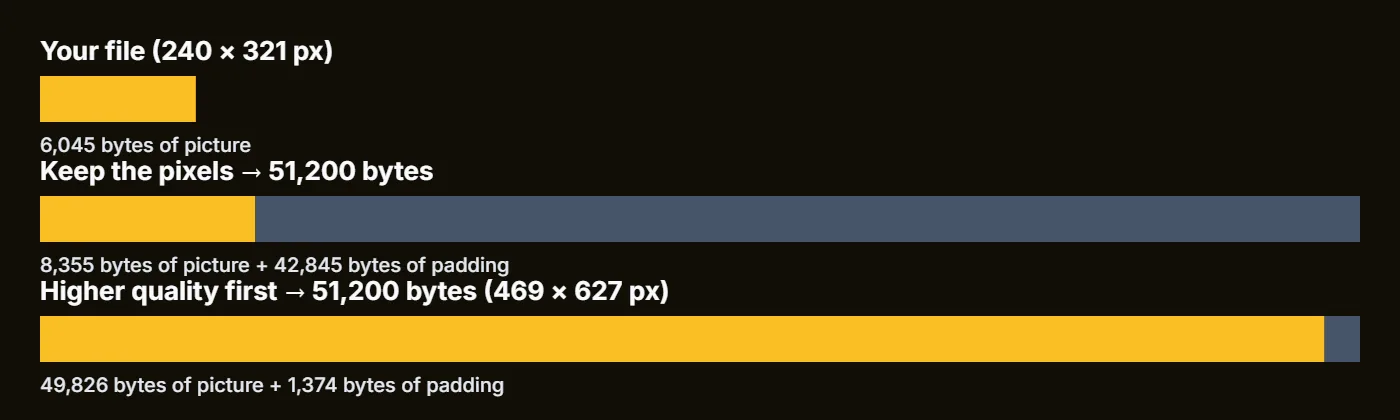
Keep the pixels or raise the quality: what is the difference?
Both options reach the same size; what fills the file differs. Keep the pixels stores the photo at its own 240 × 321 size and 92% quality, 8,355 bytes of picture, and fills the remaining 42,845 bytes with padding. Higher quality first spends the bytes on the image: it raised the JPEG quality to 98% and enlarged the photo to 469 × 627, about twice the width, which brought the picture data to 49,826 bytes, then padded the last 1,374.
Neither adds detail that was not in the original. Enlarging a small photo spreads the same information over more pixels; it does not reveal more. Choose Keep the pixels when the form checks only the file size, which is the usual case. Choose Higher quality first when it also wants more pixels, or when you would rather the bytes held image data, and check the result at 100% first.
| File | Picture data (bytes) | Padding (bytes) | Total bytes | Pixels |
|---|---|---|---|---|
| Your file | 6,045 | 0 | 6,045 | 240 × 321 |
| Keep the pixels | 8,355 | 42,845 | 51,200 | 240 × 321 |
| Higher quality first | 49,826 | 1,374 | 51,200 | 469 × 627 |
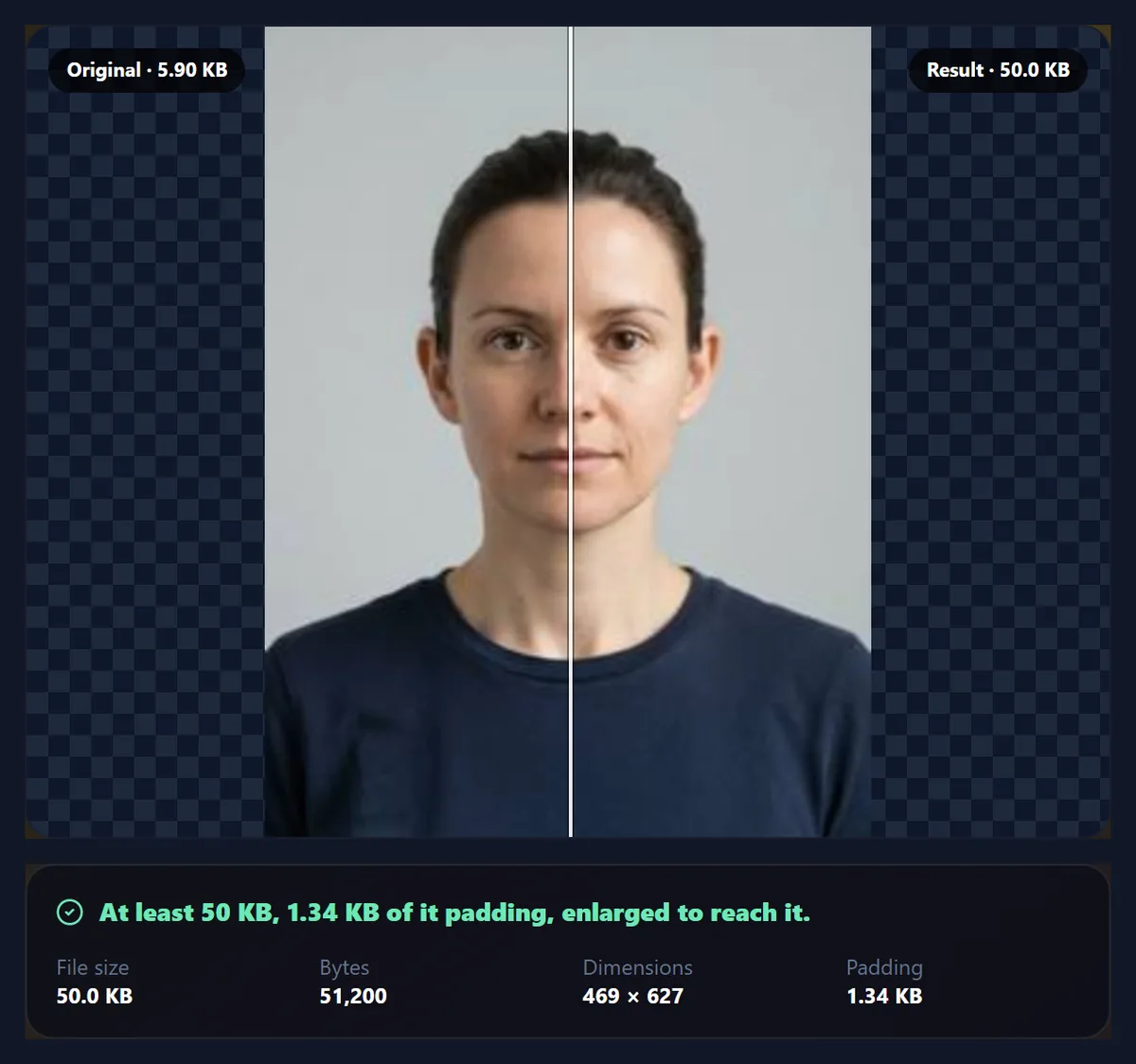
Why does 50 KB come out as 51,200 bytes?
Because a minimum has to be met under either meaning of kilobyte. Some systems count 1 KB as 1,000 bytes and others, including Windows and many upload validators, as 1,024. A file of 50,500 bytes is at least 50 KB to the first and not to the second. Aiming at 50 × 1,024 = 51,200 bytes satisfies both, so the tool always rounds a minimum up that way. Windows shows the result as exactly 50.0 KB.
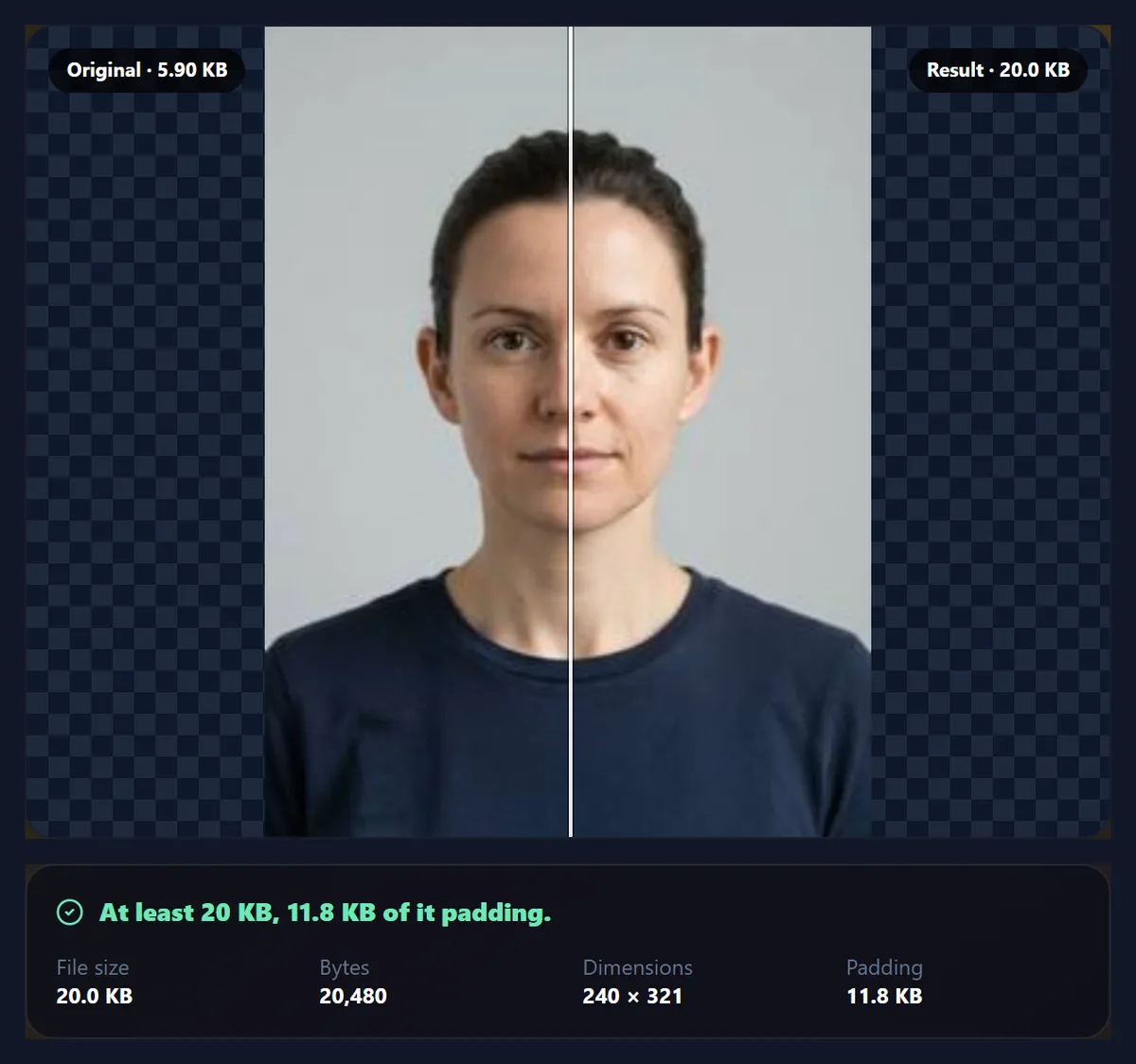
If a form gives a range, such as 20 KB to 50 KB, set the minimum here and check that the result is also under the maximum. With the padding method you can choose any size in between: the sample reached exactly 20,480 bytes for a 20 KB minimum and 30,720 for 30 KB.
| Minimum | Bytes produced | Of which padding |
|---|---|---|
| 20 KB | 20,480 | 12,125 |
| 30 KB | 30,720 | 22,365 |
| 50 KB | 51,200 | 42,845 |
| 200 KB | 204,800 | 196,445 |
How far will Higher quality first enlarge a photo?
To at most about twice its original width and height, in steps of 25%. It first tries 100% JPEG quality at the original size; if that reaches the minimum, it finds the quality that lands just under it and pads the rest, without enlarging anything. Only when even 100% is too small does it enlarge. If the file is still short at about twice the size, the rest is padding: for a 200 KB minimum the sample stopped at 469 × 627 pixels and was padded with 105,207 bytes.
That ceiling is deliberate. Blowing a 240-pixel photo up to 2000 pixels would make a large, soft image that looks worse to a human reviewer. If a form wants a large photo, start from a larger original.
When should you increase the file size, and when not?
Increase the size when the only complaint is the number of kilobytes: the photo is the right picture, the right shape and clear enough, but the file is under the form's minimum. That happens when a phone or an app saved the photo very efficiently, or when you compressed it earlier for another purpose.
Do not rely on it when the form is checking image quality. A minimum file size is a crude proxy for a decent photo, and a reviewer will still reject a tiny, blurry or badly lit picture however large its file. In that case retake the photo, or go back to the original file before it was compressed. And never use padding to sneak a file past a check you are meant to meet in good faith; it is for size rules, not for disguising content.
Which formats does it accept and produce?
You can open JPG, PNG and WebP photos up to 40 megapixels; convert iPhone HEIC files to JPG first. The result is always a JPG, because the padding method uses JPEG comment segments and because JPG is what size-limited forms usually ask for. Transparent areas of a PNG become white.
The new file is written from the pixels, so the original's EXIF data, such as camera, date and GPS location, is not carried over. The photo is rotated upright from its orientation tag before saving.
Is the photo uploaded?
No. The tool runs in your browser: it reads the photo from your device, builds the new file in memory and hands it to you as a download. HueFold never receives the picture, and there is no account or limit.
The form still says the file is too small. What now?
Check which size it measures. If it reports kilobytes and your file is at least the minimum times 1,024 bytes, the size is not the problem: the form may be checking pixel dimensions instead, so look for a rule such as “at least 600 pixels wide” and use Higher quality first or resize the photo. If it accepts only certain formats, make sure the file name ends in .jpg.
If the form rejects it as too large, you went past its maximum. Lower the minimum you typed until the result fits the range, or switch to Keep the pixels, which adds exactly what is needed and nothing more.

Frequently asked questions
How do I increase the size of a photo in KB?
Open it in the tool, choose the minimum in KB, and download the JPG. It reaches that size exactly.
Does increasing the KB change my photo?
Not with Keep the pixels: the picture decodes identically to a normal save. Higher quality first may enlarge it.
Does a bigger file make the photo sharper?
No. Extra bytes cannot add detail that was not captured. Use a better original if the photo itself is the problem.
Why is my 50 KB file 51,200 bytes?
That is 50 × 1,024 bytes, so it meets a 50 KB minimum whichever way a site counts kilobytes.
Will the padded file open everywhere?
Yes. Comment segments are part of the JPEG standard and every decoder skips them.
Can I increase a PNG’s size?
You can open a PNG; the result is a JPG. Transparent areas become white.
Is my photo uploaded?
No. The tool runs entirely in your browser.
How large can I go?
Any minimum you type. Padding adds bytes in segments of up to 65,533 bytes each, so even a few MB is fine.
Can I set a range like 20 KB to 50 KB?
Set the minimum here and check the result is under the maximum. Keep the pixels adds exactly what the minimum needs.
Is it free?
Yes, with no account and no watermark.
Related tools
- Reduce Image Size in KB — The opposite job: get a file under a limit.
- Compress Image to 20KB — For forms that set a 20 KB maximum.
- Compress Image to 50KB — Bring a large photo under 50 KB.
- Make Passport Size Photo — Crop a photo to an official passport size.
- Resize Image Pixel Online — When a form checks pixels rather than bytes.
- Resize Image in Centimeter — Set a printed size and DPI.