Compress Image to 20KB
Make a signature scan or a small photo fit a 20 KB upload limit. The tool lands at 20,000 bytes or less at the best quality it can, shows you the result at 100%, and never uploads the file.
Updated
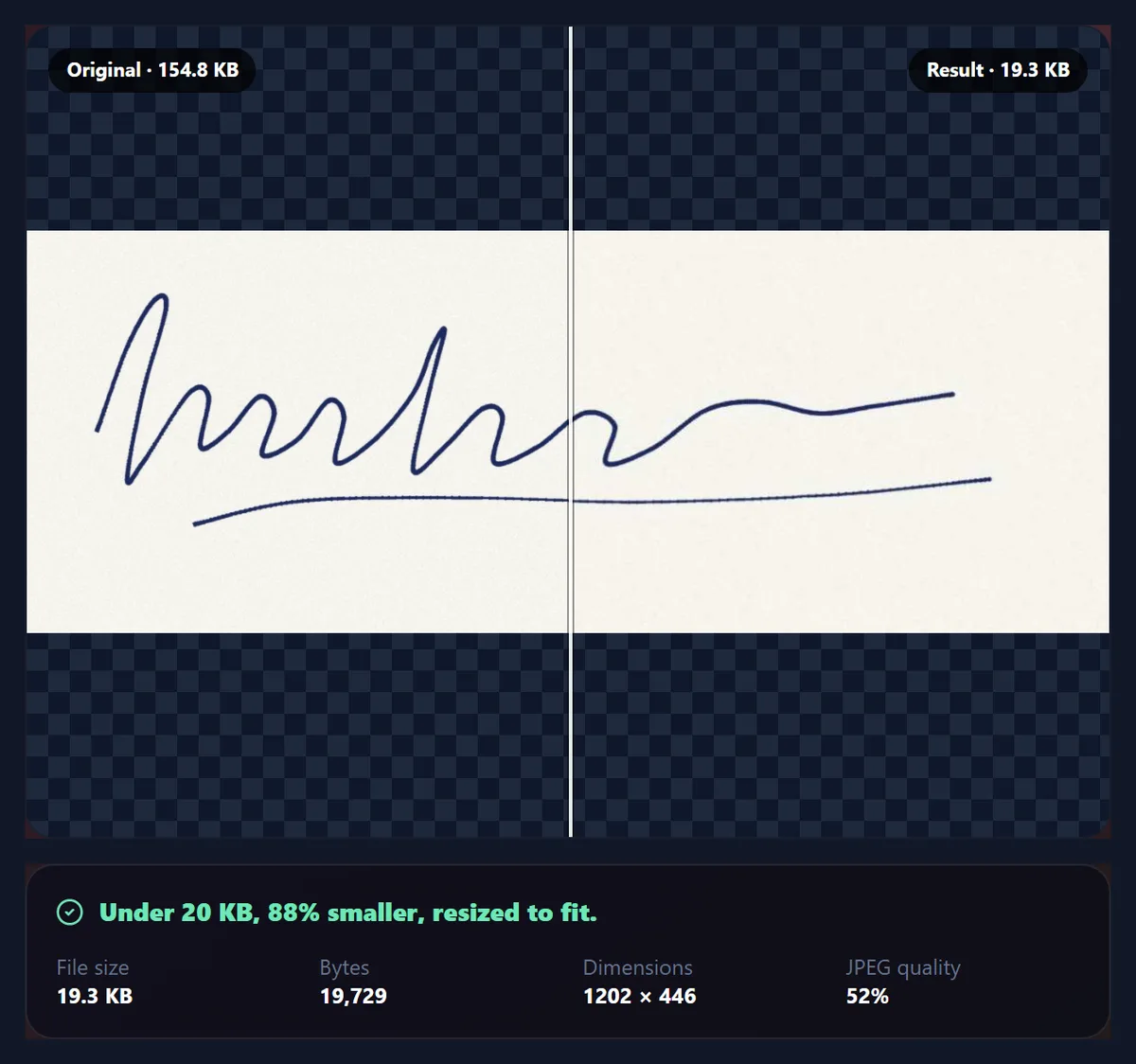
How do you compress an image to 20 KB?
Open the image in the tool above; 20 KB is already selected. The tool tries the picture at different JPEG or WebP qualities, reduces its pixel dimensions if even 45% quality is too big, and keeps the best version that weighs 20,000 bytes or less. Check it at 100%, then download it. The work happens in your browser, so a signature or an ID photo never leaves your device.
20 KB is a small budget, about a hundredth of a typical 2 MB phone photo. A form that sets it is asking for a small signature scan or a passport-style thumbnail, not a full photograph. What fits depends less on the image's dimensions than on how much fine detail it holds, and the measurements below show how much difference that makes.
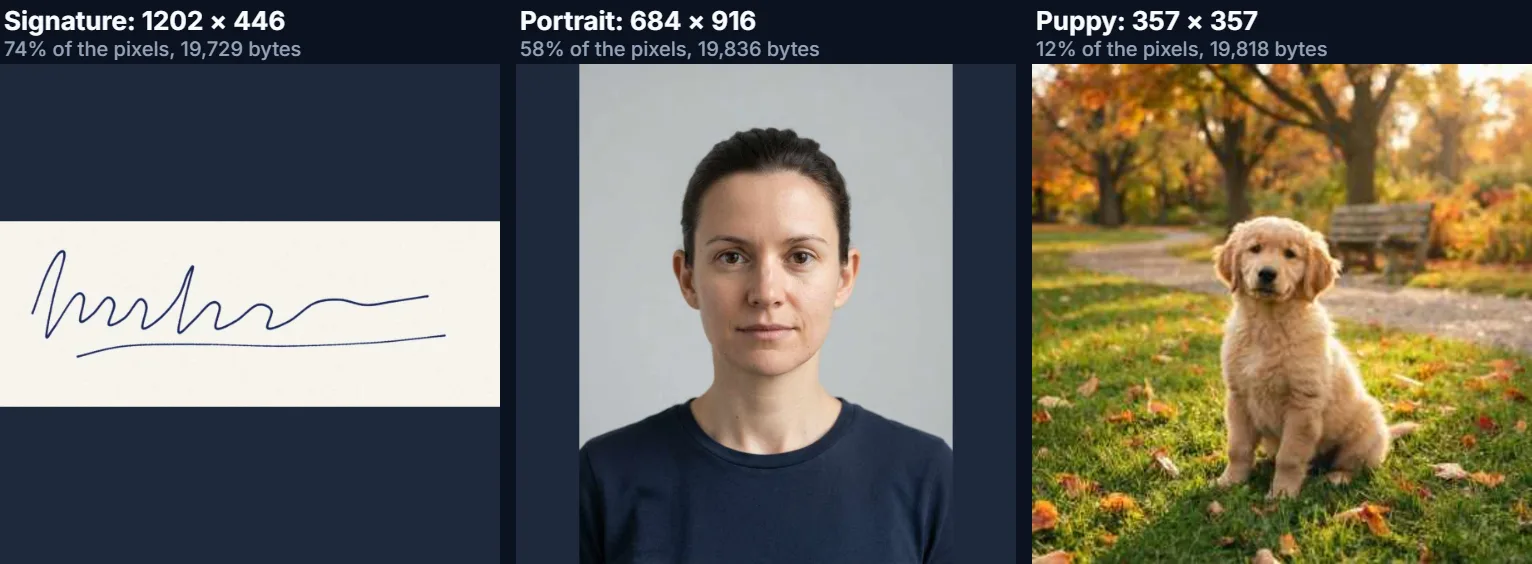
The samples on this page are a signature drawn on textured paper for this demonstration, a portrait of a fictional person made with AI, and a park photo. All three were compressed under 20 KB by this tool, and the captions give the exact results.
How to compress a photo or signature to 20 KB
- Scan or photograph it well For a signature, use dark ink on plain white paper in even light. A clean background is cheap to compress; shadows and paper texture are not.
- Open it in the tool Choose the JPG, PNG or WebP, or drop it on the preview. The 20 KB limit is selected; 10, 15, 30 and 40 KB are one click away.
- Check the details Use Inspect at 100% on the ink lines or the face. If they look rough, crop closer and compress again.
- Download and upload Save the file and attach it to the form. The panel shows the exact bytes and dimensions in case the form checks those too.
Compress a signature and a photo to 20 KB
A real recording of this tool: a scanned signature is compressed under 20 KB, inspected at 100%, taken down to 10 KB, then a portrait photo is compressed under 20 KB and downloaded.
- The sample signature is compressed under 20 KB as soon as it opens.
- Inspect at 100% shows the ink lines at their real size.
- The limit drops to 10 KB and the signature still fits.
- A portrait photo is opened and compressed under 20 KB.
- The file is downloaded.
What can fit in 20 KB?
More than you might expect, if the picture is simple. We compressed three very different images under 20,000 bytes. The signature, 1400 × 520 pixels on textured paper, kept 1202 × 446 pixels: 74% of its pixels. The portrait against a plain wall kept 684 × 916 of its 896 × 1200 pixels, 58%. The park photo, full of grass and leaves, had to drop from 1024 × 1024 to 357 × 357, only 12% of its pixels.
The difference is detail. JPEG stores smooth areas such as a painted wall or blank paper in very few bytes, and spends most of its budget on edges and texture. A busy scene has texture everywhere, so it runs out of bytes long before a portrait or a document does. When you need a small file, a simple picture is the most effective thing you can give the tool.
| Sample | Pixels kept | Result size | Bytes | Quality |
|---|---|---|---|---|
| Signature | 74% | 1202 × 446 | 19,729 | 52% |
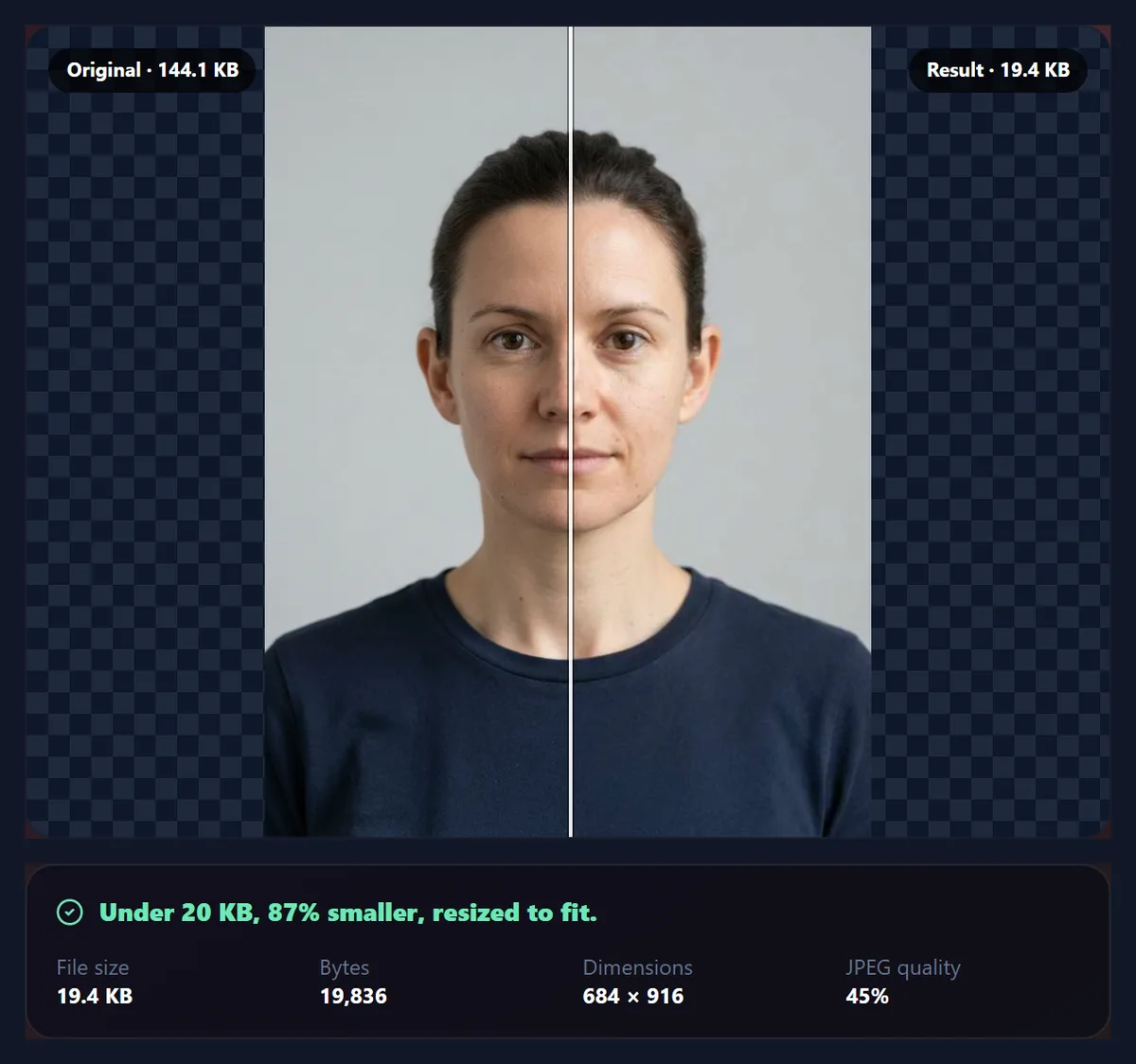
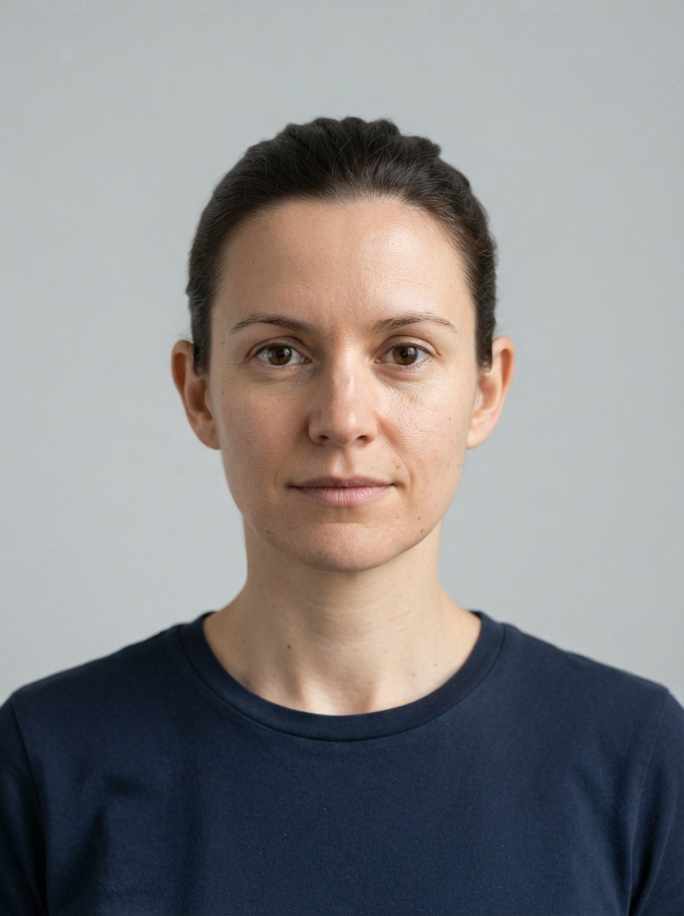
| Portrait | 58% | 684 × 916 | 19,836 | 45% |
| Park photo | 12% | 357 × 357 | 19,818 | 47% |
How do you get a signature under 20 KB?
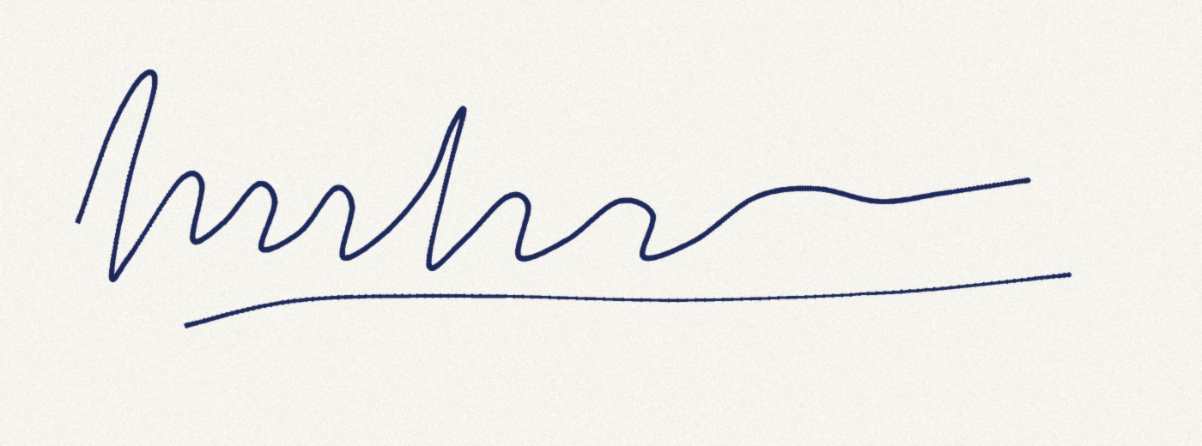
Start with a clean scan. Sign in dark blue or black ink on plain white paper, photograph or scan it in even light, and crop tightly around the signature so there is little empty paper. Then open it here. Our sample signature started at 158,493 bytes because it was drawn on deliberately textured, slightly grey paper, like a phone photo of a real page. It still came out at 19,729 bytes and 1202 × 446 pixels, which is plenty for a form.
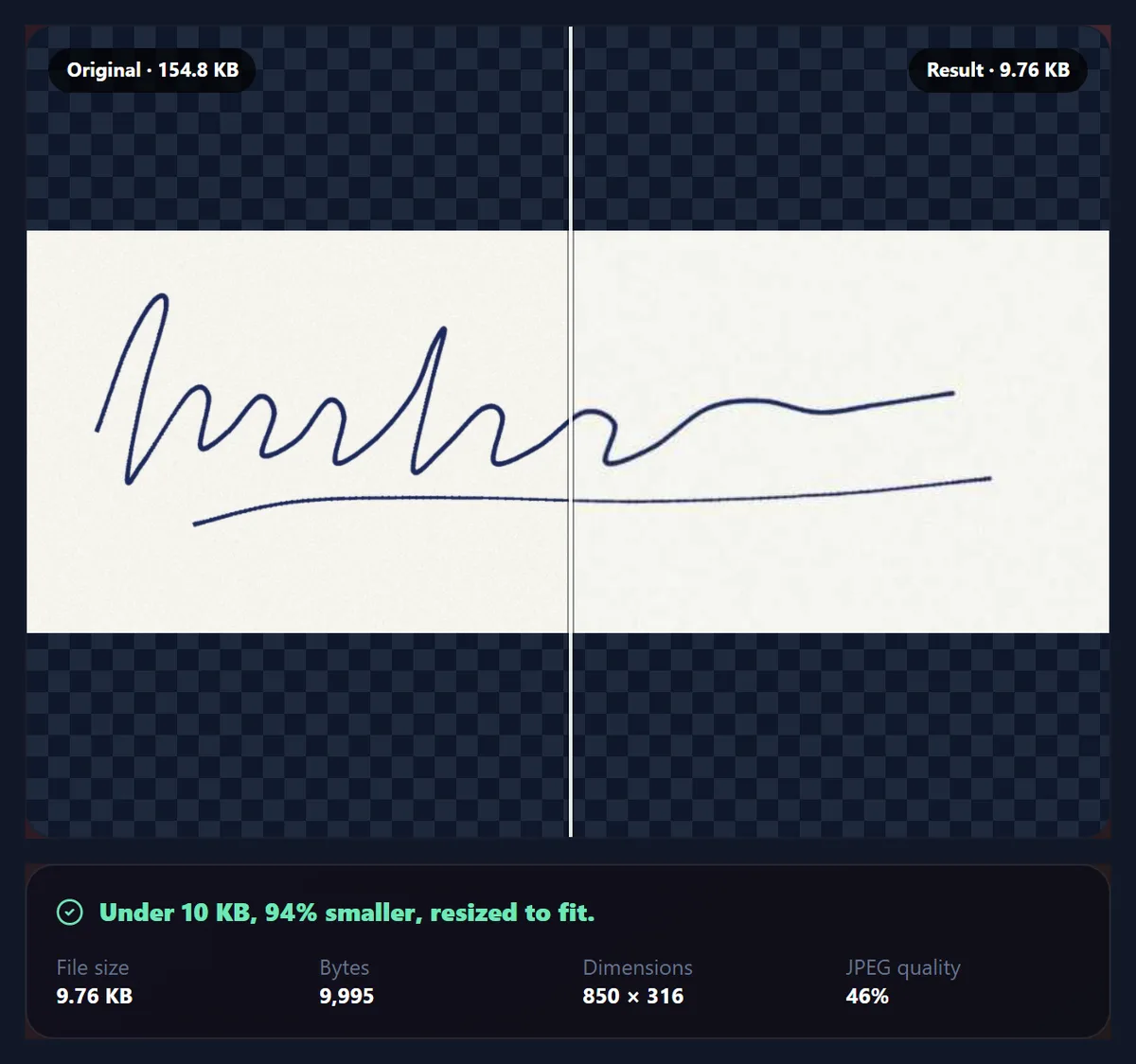
Lower limits work too: the same signature fitted under 15 KB at 1041 × 387 and under 10 KB at 850 × 316, both at around 50% quality. The ink lines stay readable because they are high-contrast edges, which JPEG handles well. What suffers first is the paper texture, which nobody needs.
If the form accepts WebP, the signature fitted under 20 KB at its full 1400 × 520 at 75% quality, as 19,598 bytes. Some forms accept only JPG, so check the instructions before choosing it.
| Limit | Format | Bytes | Dimensions | Quality |
|---|---|---|---|---|
| 20 KB | JPG | 19,729 | 1202 × 446 | 52% |
| 15 KB | JPG | 14,846 | 1041 × 387 | 51% |
| 10 KB | JPG | 9,995 | 850 × 316 | 46% |
| 20 KB | WebP | 19,598 | 1400 × 520 | 75% |
How do you get a photo under 20 KB?
Crop first, then compress. For an application photo, the face and shoulders are what matter, and every pixel of background you remove leaves more bytes for them. A portrait on a plain light background, the kind most photo rules ask for anyway, compresses far better than a snapshot with a busy room behind it.
The sample portrait, 896 × 1200 and 147,540 bytes, came out under 20 KB at 684 × 916 pixels and 45% quality: 19,836 bytes. Under 10 KB it was 442 × 592 at 48%. If a form asks for exact dimensions as well as a size limit, resize to those dimensions with the pixel resizer first, then compress here with Keep pixel dimensions ticked.
For a passport or visa photo, crop it to the official size with the passport photo maker before compressing; that tool measures the head size for you.
Should you scan a signature or photograph it?
Either works if the result is clean. A flatbed scanner gives even light and plain white paper, which is ideal. A phone photo is fine too: hold the phone parallel to the paper so the signature is not skewed, use daylight from a window rather than an overhead lamp that casts the phone's shadow, and fill the frame with the signature. Then crop away the empty paper before compressing. The cleaner the background, the more of the 20 KB goes on the ink.
Will a form accept the file as under 20 KB?
It should, as far as size goes. The tool aims at 20,000 bytes, which is under 20 KB whether a form counts 1,000 or 1,024 bytes per kilobyte. In Windows File Explorer the signature's 19,729 bytes shows as 19.3 KB.
Forms with a 20 KB limit may have other rules too: a minimum size such as 10 KB, a fixed width and height, JPG only, or a maximum file-name length. The result panel shows the bytes, dimensions and quality; compare them with the form's instructions before uploading. If the form needs a minimum size and your file is too small, the increase image size tool can add bytes without changing the picture.
Why does the tool shrink the image instead of lowering quality further?
Because below about 45% JPEG quality, pictures fall apart in ways that make a form reviewer reject them: blocky faces, smeared ink, colour bands across a plain background. A smaller image at a decent quality reads better. So once 45% is not enough, the tool reduces the width and height in proportion to how far over the limit the file is and searches again.
If you must keep the exact dimensions, tick Keep pixel dimensions. The tool will then go as low as 5% quality and, if 20 KB still cannot be reached, it tells you the smallest size it managed instead of handing over a file that would be rejected.
Which files work, and what do you get back?
You can open JPG, PNG and WebP images up to 40 megapixels; convert iPhone HEIC photos to JPG first. You get back a JPG or WebP. A signature saved as a transparent PNG becomes a JPG on white, which is what most forms want anyway.
The new file is written from the pixels only. Camera details and GPS location in the original's EXIF data are not carried over, and the picture is turned upright according to its orientation before compressing.
Is it safe to compress a signature here?
The signature is never uploaded. Decoding, compressing and saving all happen in your browser tab, and closing the tab clears it. No account is needed and HueFold receives no copy. You should still be careful where you upload the result: a signature image can be misused, so attach it only to forms you trust.
What if the result looks too rough?
Give the tool less to describe. Crop away empty paper or background, re-scan a signature on whiter paper with better light, or photograph a portrait against a plain wall. Each of these lets the same 20 KB keep more pixels at a higher quality. If the form allows it, use WebP or a slightly higher limit: the sample signature kept 1041 pixels of width at 15 KB and 1202 at 20 KB.
If the download button stays greyed out, the image did not open: the usual causes are a HEIC file or a picture larger than 40 megapixels.
Frequently asked questions
How do I compress an image to 20 KB?
Open it in the tool on this page; 20 KB is preselected. Download the result when it looks right.
Can I compress a signature to 20 KB?
Yes. A clean scan on white paper usually keeps most of its pixels; the sample kept 1202 × 446 px.
Can I compress a passport photo to 20 KB?
Yes. Crop it to the required size first, then compress it here. The sample portrait fitted at 684 × 916 px.
Will it be under 20 KB on the form?
The tool aims at 20,000 bytes or less, which is under 20 KB under either definition of a kilobyte.
Is my signature uploaded?
No. Everything happens in your browser and nothing is sent to HueFold.
Can I compress to 10 KB or 15 KB?
Yes. Use the 10 or 15 KB buttons, or type any limit into Custom.
Why did my photo get smaller in pixels?
Even 45% quality was too big at full size. A smaller, cleaner picture is usually accepted where a blocky one is not.
Can I keep exact dimensions?
Tick Keep pixel dimensions. If 20 KB cannot be reached at that size, the tool says so.
JPG or WebP?
Most forms want JPG. WebP keeps more detail in 20 KB but is not accepted everywhere.
Does it work on a phone?
Yes. Photograph the signature, open the photo here, and download the result.
Is it free?
Yes, with no account, no watermark and no limit on the number of files.
Related tools
- Make Passport Size Photo — Crop a photo to the official size before compressing.
- Compress Image to 50KB — A roomier limit, with the search shown step by step.
- Increase Image Size in KB — When a form also sets a minimum size.
- Resize Image Pixel Online — Set exact dimensions a form asks for.
- Reduce Image Size in KB — Any target, and how quality affects size.
- Crop Image — Crop away empty paper or background first.