Convert Image From MB to KB
Bring a multi-megabyte photo down to the kilobytes a form, email or website accepts. Type the KB limit, and the tool finds the sharpest JPG or WebP that fits, keeping as many pixels as the limit allows. The photo never leaves your device.
Updated

How do you convert an image from MB to KB?
Open the photo, type the largest size you can accept in KB, and download what the tool makes. A photo straight from a phone or camera is usually a few megabytes; most upload forms want a few hundred kilobytes. The tool closes that gap by trying the picture at different JPEG or WebP qualities and, when quality alone is not enough, at smaller pixel sizes, then keeps the best-looking file that is at or under your limit. Everything runs in your browser, so the photo is never uploaded.
There is no fixed exchange rate between megabytes and kilobytes of a photo, only between units. 1 MB is 1,024 KB in the binary convention Windows uses, or 1,000 KB in the decimal one macOS and storage makers use. Getting a 3.48 MB photo under 500 KB is not a unit conversion but a re-encode: the file has to hold less information, so something in the picture has to give.
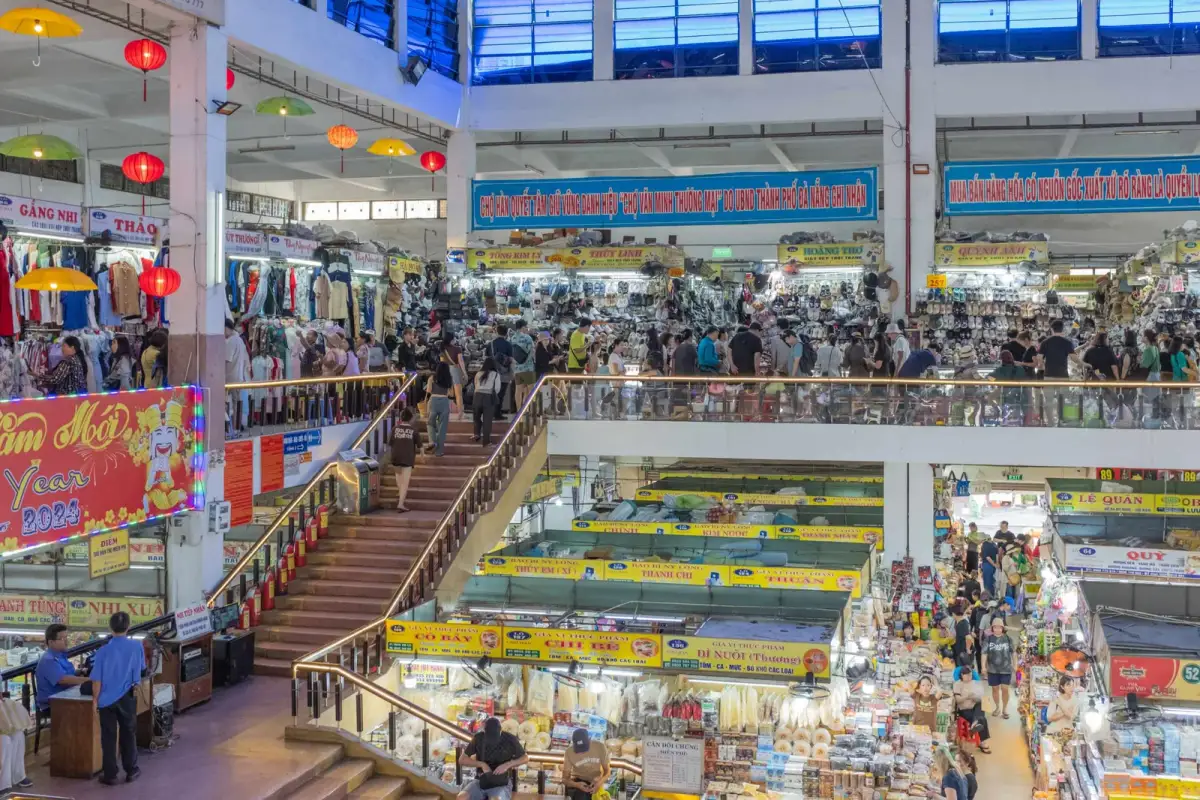
The examples on this page use one real camera photo: a 6000 × 4000 px picture of a market hall, 3,648,987 bytes, from Pexels. Every byte count, pixel size and quality setting below was produced by the tool above.
How to convert an image from MB to KB
- Open the photo Choose a JPG, PNG or WebP of any size up to 40 megapixels, drop it on the tool, or try the 3.48 MB sample photo.
- Type the KB limit Pick 100, 200, 500 or 1000 KB, or type any number into Custom. The tool treats it as a ceiling and lands just under it.
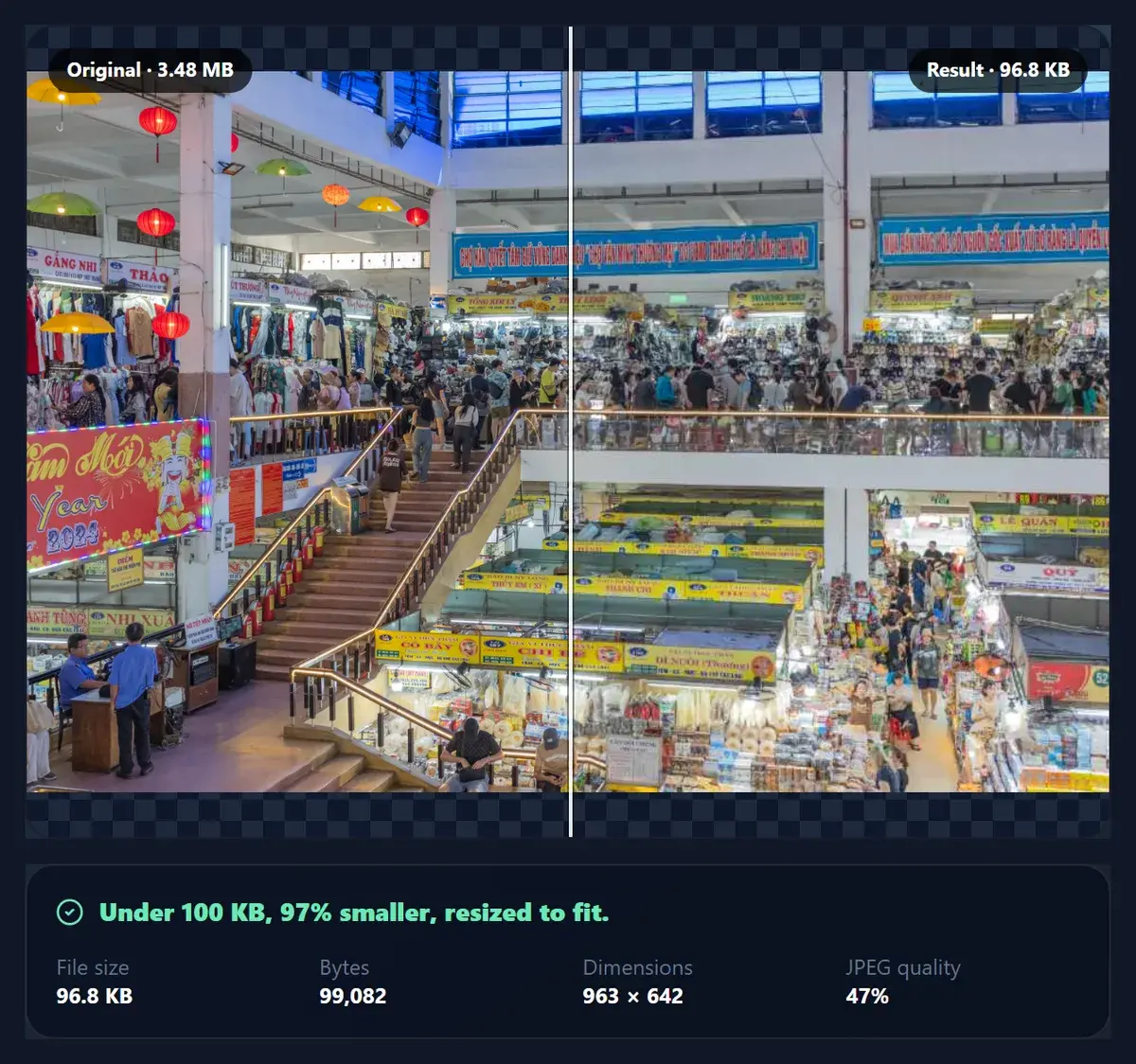
- Check what changed The panel shows the new bytes, pixel size and JPEG quality. Drag the comparison slider and inspect at 100% to see the real pixels.
- Download Save the file. Its name records the target, so market.jpg becomes market-500kb.jpg.
Convert a 3.48 MB photo to 500 KB and 100 KB in the browser
A real screen recording of this page: the 3.48 MB sample photo is converted to 500 KB, compared with the original, inspected at 100%, converted to 100 KB and downloaded.
- The 3.48 MB, 6000 × 4000 px sample photo is opened.
- The default 500 KB limit gives a 484.8 KB file at 2636 × 1757 px.
- The comparison slider moves between the original and the result.
- Inspect at 100% shows the real pixels of both.
- The limit is lowered to 100 KB and the tool finds a new size.
- The finished file is downloaded.
What happens to a 3.48 MB photo at 100, 200, 500 and 1000 KB?
Every target was met, landing just under the limit. What changed was how many pixels could stay. At 1000 KB the photo kept 3925 × 2617 px, 43% of its original pixels, at 48% JPEG quality. At 500 KB it kept 2636 × 1757 px. At 100 KB only 963 × 642 px fit, under 3% of the original pixel count, which is still plenty for a web page or a form preview.
The quality column barely moves (45% to 55%) because of how the search works. The tool will not push JPEG quality below 45% while it is allowed to shrink the picture instead; under that floor the blocks and colour steps look worse than a smaller, cleaner image. So each target ends up near that floor at the largest size that fits.
The search took 11 to 13 trial encodes per target. It starts at the lowest quality, shrinks the picture by the square root of the overshoot when even that is too large (file size roughly follows the pixel count), and then binary-searches the quality seven times at the size that fits.
| Target | Result bytes | Dimensions | JPEG quality | Pixels kept |
|---|---|---|---|---|
| 100 KB | 99,082 | 963 × 642 | 47% | 2.6% |
| 200 KB | 198,911 | 1434 × 956 | 55% | 5.7% |
| 500 KB | 496,455 | 2636 × 1757 | 45% | 19.3% |
| 1000 KB | 997,934 | 3925 × 2617 | 48% | 42.8% |
How many KB are in 1 MB?
Either 1,024 or 1,000, depending on who is counting. Windows File Explorer and many upload validators use the binary convention (1 KB = 1,024 bytes, 1 MB = 1,024 KB). macOS Finder, phone storage screens and drive makers use the decimal one (1 KB = 1,000 bytes, 1 MB = 1,000 KB). The international standard names the binary units KiB and MiB to tell them apart, but most software still writes KB and MB for both.
That is why the sample shows as 3.48 MB in this tool (and in Windows) and 3.65 MB on a Mac: it is the same 3,648,987 bytes. When a form says “under 500 KB”, the tool aims at 500,000 bytes or less, which passes under either reading.
| Size | KB (1 MB = 1,024 KB) | KB (1 MB = 1,000 KB) | Bytes (binary MB) |
|---|---|---|---|
| 0.5 MB | 512 | 500 | 524,288 |
| 1 MB | 1,024 | 1,000 | 1,048,576 |
| 2 MB | 2,048 | 2,000 | 2,097,152 |
| 5 MB | 5,120 | 5,000 | 5,242,880 |
| 10 MB | 10,240 | 10,000 | 10,485,760 |
| The sample, 3,648,987 bytes | 3,563.5 | 3,649.0 | 3,648,987 |
Does converting MB to KB lose quality?
Yes, always some, because the smaller file carries less information. The question is whether you can see it at the size the picture will be shown. The figure crops the same signboard from the original and from three converted files and scales each crop to the same width. At 1000 KB the lettering is still crisp; at 500 KB it is a little softer; at 100 KB the words are smudged, because the whole photo now has only 963 pixels across.
For a picture shown on a phone or as a website image, 500 KB of this photo is more than enough: a 2636 px wide image is wider than nearly every screen. For a print or for zooming into details, keep a larger file or the original. The tool never changes the file you opened; it only writes a new one.

Is WebP better than JPG for converting to KB?
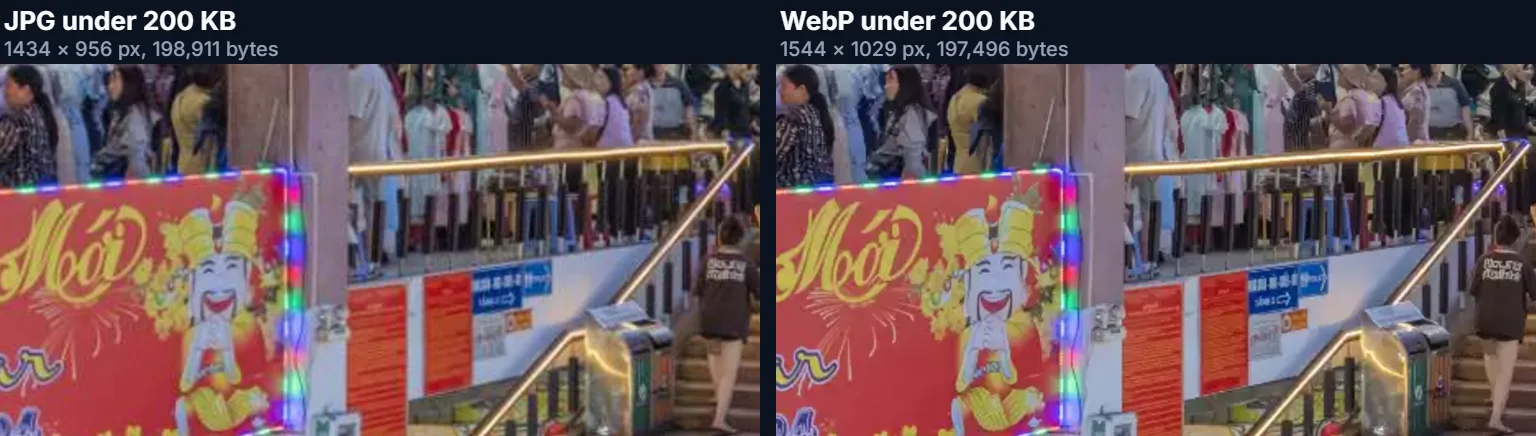
Usually it keeps more pixels for the same kilobytes. Under 200 KB, the sample came out at 1434 × 956 px as JPG and 1544 × 1029 px as WebP, 16% more pixels. Under 500 KB the gap grew: 2636 × 1757 px as JPG and 3205 × 2137 px as WebP, 48% more.
The catch is compatibility. Every browser shows WebP, but some older programs, printers and upload forms only take JPG, PNG or GIF. If a form lists the formats it accepts, follow the list; if it only says “image”, JPG is the safe choice. The WebP button is greyed out in the few browsers that cannot encode WebP.
| Limit | JPG size | JPG bytes | WebP size | WebP bytes |
|---|---|---|---|---|
| 200 KB | 1434 × 956 | 198,911 | 1544 × 1029 | 197,496 |
| 500 KB | 2636 × 1757 | 496,455 | 3205 × 2137 | 499,864 |
Can you convert MB to KB without changing the pixel size?
Often, but at a cost in quality, and with one limit you should know about. Tick Keep pixel dimensions and the tool lowers only the quality, down to 5%. For the sample, 1000 KB was reached at 27% quality and 500 KB at only 10%, which shows heavy JPEG blocking when you look closely.
The limit is the browser's canvas. Safari on iPhone and iPad refuses canvases larger than about 16.7 million pixels, so the tool works at most at that size on every device. A 24-megapixel photo like the sample is first scaled to 5017 × 3344 px; “keep pixel dimensions” keeps that working size. For most uses the honest advice is the opposite: let the tool shrink the picture, which looks better than full size at 10%.
Which KB limit should you choose?
Use the number the site, form or person asks for, and treat it as a maximum. Where nothing is stated, these rules of thumb work: 100–200 KB for a picture in an email body or a form preview, 300–500 KB for a large image on a web page, and 1000 KB or more when someone may zoom in or print.
If a form also states pixel dimensions (for example 600 × 600 px), resize first with the pixel resizer and then come back to compress: the tool cannot know the dimensions the form wants. If it asks for a minimum file size instead, use Increase Image Size in KB.
- Email and chat previews: 100–200 KB.
- A full-width web image: 300–500 KB.
- Something people zoom into or print: 1000 KB and up, or the original.
Is the photo uploaded, and which files work?
Nothing is uploaded. The photo is opened, re-encoded and saved by your browser; HueFold only sends the optional sample photo when you ask for it. The tool opens JPG, PNG and WebP up to 40 megapixels and saves JPG or WebP. HEIC photos from recent iPhones need converting to JPG first.
The new file is written from the pixels alone, so it carries no EXIF data: the sample's photographer tag and any camera or location details are not copied. A transparent PNG becomes a JPG on white, because JPG has no transparency; choose WebP to keep it.
Why is the converted photo blurry, or still too big?
Blurry means the limit is small for the photo, so the pixel size came down a lot; the panel shows the new dimensions. Crop away what you do not need first, so the remaining pixels share the bytes, or allow a slightly larger limit. WebP also keeps more pixels for the same size.
“Still too big” only happens with Keep pixel dimensions ticked: even 5% quality could not reach the limit at the working size, and the tool says so instead of handing you a file that is over. Untick it and the picture will be resized to fit.
If a large photo takes a few seconds, that is the search running eleven or more full encodes of a multi-megapixel picture; the status line under the preview shows which size it is trying.
Frequently asked questions
How do I convert an image from MB to KB?
Open it above, choose or type a KB limit and download. The tool finds the sharpest JPG or WebP that fits under it.
How many KB is 1 MB?
1,024 KB in the binary convention Windows uses, or 1,000 KB in the decimal one used by macOS and storage makers.
Is this MB to KB converter free?
Yes. It runs in your browser with no account, no watermark and no daily limit.
Is my photo uploaded?
No. Compression and download happen on your device. Only the optional sample photo is fetched from HueFold.
Can I convert 5 MB to 500 KB?
Yes. Type 500 KB. The 3.48 MB sample came out at 496,455 bytes and 2636 × 1757 px.
Will the picture get smaller in pixels?
Usually, for big reductions: the tool shrinks the picture rather than pushing JPEG quality below 45%. Tick Keep pixel dimensions to stop that.
Does 500 KB mean 500,000 or 512,000 bytes?
The tool aims at 500,000 bytes or less, so the file passes whichever definition a site uses.
Should I choose JPG or WebP?
WebP kept 16–48% more pixels than JPG for the same KB in our test, but JPG is accepted everywhere. Follow the form’s list of formats.
Can I convert a PNG from MB to KB?
Yes. It is saved as JPG or WebP; transparent areas become white in JPG and stay transparent in WebP.
What is the largest photo I can convert?
Up to 40 megapixels. Above about 16.7 megapixels the photo is scaled to fit the browser canvas limit before compressing.
Does it remove photo metadata?
Yes. The new file is written from the pixels only and carries no EXIF, camera or GPS data.
Related tools
- Reduce Image Size in KB — The same engine, explained for files that are already in kilobytes.
- Compress Image to 100KB — A fixed 100 KB ceiling for forms and portals.
- Compress Image to 50KB — For tighter limits such as ID and exam forms.
- Resize Image Pixel Online — Set exact pixel dimensions before you compress.
- Crop Image — Cut away what you do not need: fewer pixels, fewer bytes.
- Increase Image Size in KB — The opposite job: reach a minimum file size.