Curved Text Generator
Bend text into a gentle arch, a badge arch, a smile or a full circle, with eleven free fonts, letter spacing, colour and an outline, and save it as a transparent PNG at up to 4× or as an SVG with the font inside.
Updated

How do you curve text?
Type your text, pick a shape (Gentle arch, Badge arch, Smile, Full circle) or drag the curve from −360° to 360°, and choose the font, size, letter spacing, colour and outline. The preview shows the finished text, and a reading tells you how long the text is and how wide its circle. Download a transparent PNG, or an SVG that keeps the text editable.
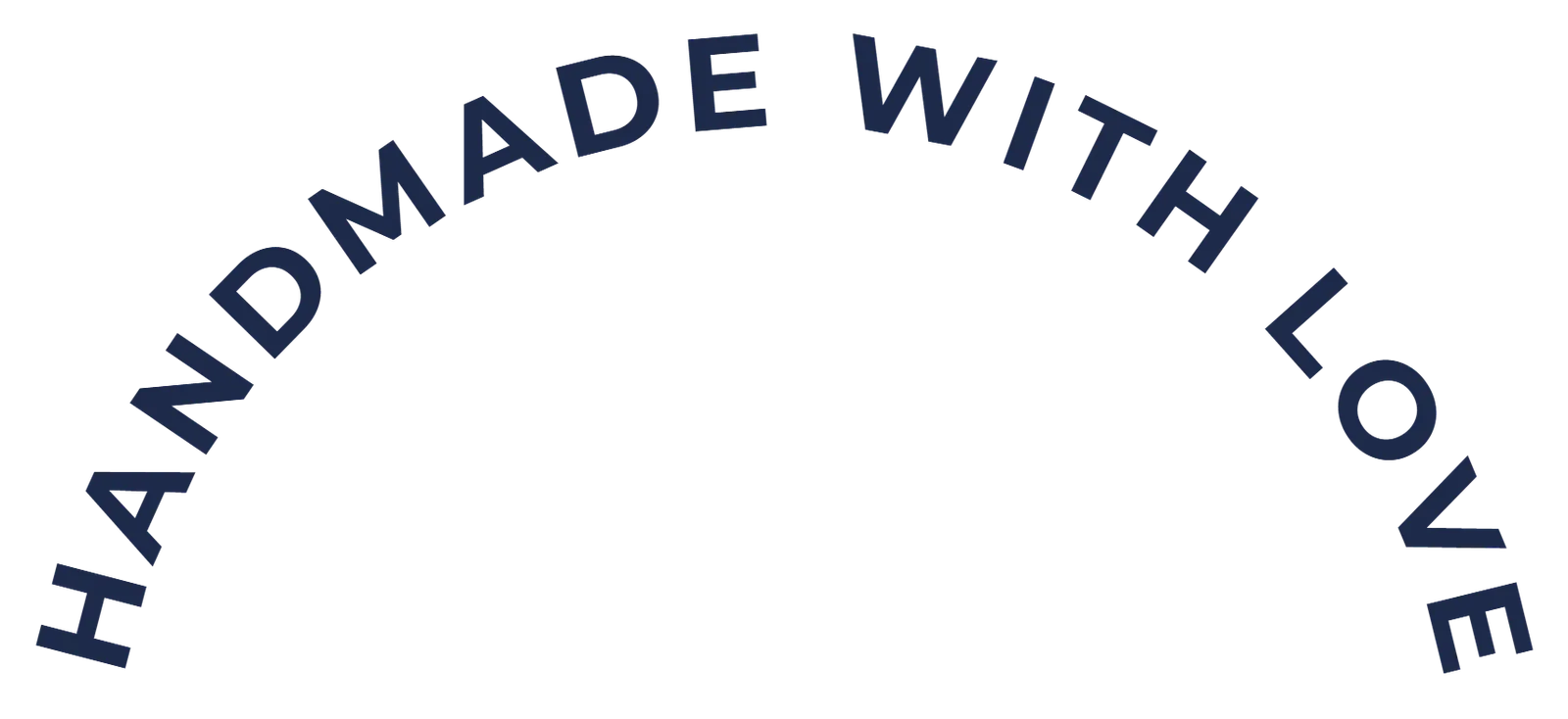
The default line, curved 160°, is 1,022 px of text on a circle 732 px across, saved as a 93,725-byte transparent PNG at 2×.
Everything is drawn in your browser: nothing is uploaded and no account is needed.
How to curve text
- Type your text A word or a short line reads best on a curve.
- Choose the curve Arch, smile or full circle, or any angle in between.
- Style it Font, size, spacing, colour, outline and background.
- Download A transparent PNG at 1×, 2× or 4×, or an SVG.
Curve text into an arch or a circle
A real recording of this tool: the badge arch, then the gentle arch, full circle and smile presets, a serif font, wider spacing and a new colour, and the text downloaded as SVG.
- The curved text generator opens with HANDMADE WITH LOVE in a badge arch.
- The Gentle arch, Full circle, Smile and Badge arch presets are tried.
- The font is changed to Playfair Display, the spacing widened and the colour changed to red.
- The text is saved as an SVG and downloaded.
How does the curve setting change the circle?
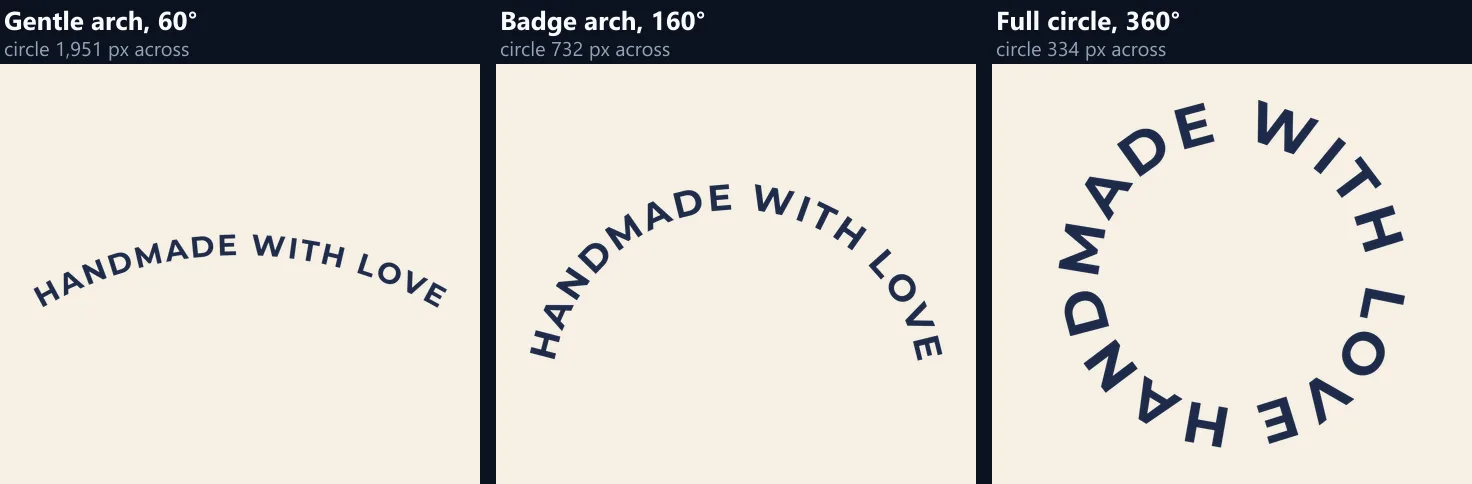
The curve is how much of a circle the text goes round: 0° is straight, 180° is a half circle, 360° closes it into a ring. The length of the text stays the same, so the more you bend it, the smaller the circle it sits on. The default line, HANDMADE WITH LOVE in Montserrat Bold at 72 px with 6 px spacing, is 1,022 px long; bent 60° it follows a circle 1,951 px across, at 160° one 732 px across, and as a full ring one 334 px across.
That is simple geometry: the text is an arc of the circle, and an arc of 160° is 160/360 of the circumference. So to fit text round a round logo of a given size, set the curve and change the font size or spacing until the reading under the controls shows the diameter you need.
| Curve | Circle across | Image (px) | PNG |
|---|---|---|---|
| 30° | 3,903 px | 2,142 × 335 | 74 KB |
| 60° | 1,951 px | 2,121 × 461 | 83.7 KB |
| 90° | 1,301 px | 2,051 × 576 | 92.4 KB |
| 120° | 976 px | 1,934 × 678 | 92 KB |
| 160° | 732 px | 1,713 × 786 | 91.5 KB |
| 200° | 585 px | 1,450 × 871 | 93.9 KB |
| 270° | 434 px | 1,148 × 980 | 84 KB |
| 360° | 334 px | 948 × 949 | 77.5 KB |
Arch, smile or circle: which should I use?
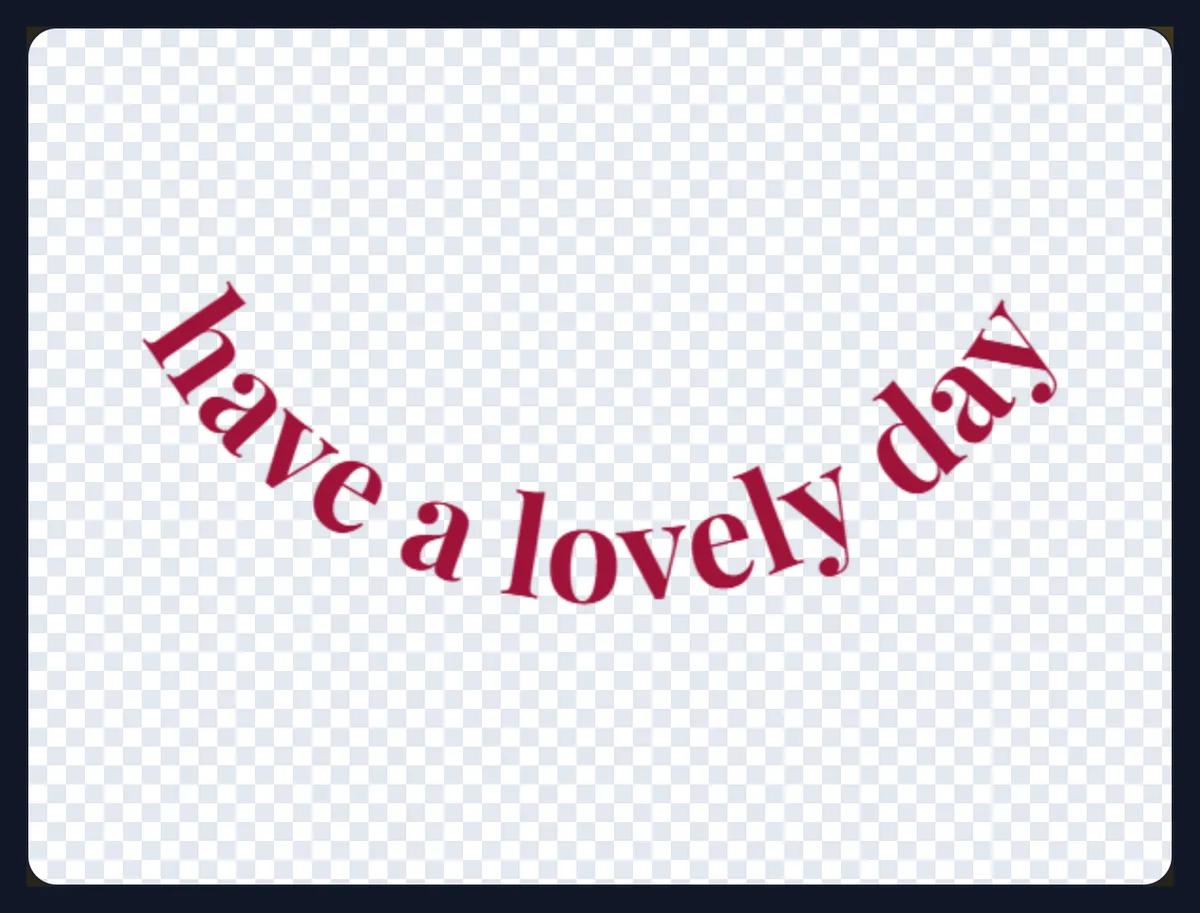
An arch (a positive curve) bends the text over the top of a circle, reading left to right with the letters' tops outward: the classic badge, stamp and logo shape. A smile (a negative curve) bends it under, with the letters upright and their feet outward, for the bottom half of a badge or a cheerful line under a picture. A full circle closes the text into a ring, for seals, stamps and round stickers.
The presets give a start: Gentle arch is 60°, Badge arch 160°, Smile −120° and Full circle 360°. Drag the curve slider anywhere between −360° and 360° for something in between.
How do I make text go all the way round a circle?
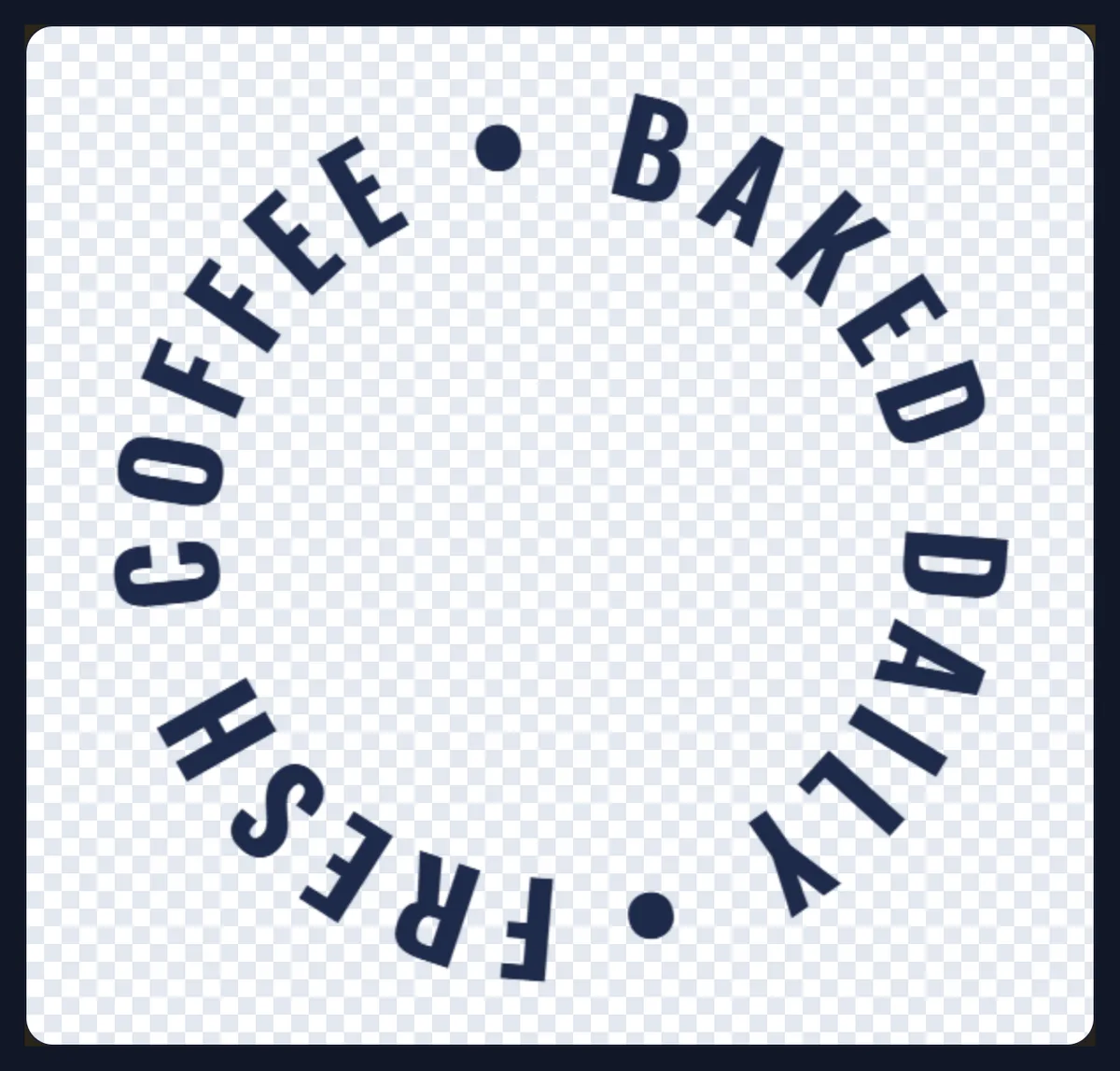
Choose Full circle. The text is spread evenly round the ring and starts at the top. If the text does not end with a space, a space is added where the end meets the start, so the last word does not run into the first: the default line became 1,048 px long as a ring instead of 1,022 px.
For a seal or a stamp, write the text with separators, such as FRESH COFFEE • BAKED DAILY •, so the ring reads as a loop; set wider letter spacing to fill the circle evenly. In the example below, set in Oswald with 10 px spacing, the reading showed: "The text is 1225 px long, bent 360° around a circle 390 px across."
Which fonts can I use?
Eleven free fonts that suit curved text: the sans serifs Montserrat, Poppins, Quicksand, Raleway and Oswald; the serifs Playfair Display, Lora and Merriweather; the display faces Anton and Abril Fatface; and Inconsolata, a monospaced face. Most come in bold too. They are open-source Google fonts under the Open Font License, so they may be used in any design and embedded in files.
Bold, wide letters stay readable on a tight curve; thin and condensed letters suit a gentle arch or a large circle. Capitals curve more neatly than lower case, because they have no tails below the line to crowd together on a smile.
Why do letters crowd together on a curve?
Because each letter turns to follow the circle, and the tops of letters on an arch spread apart while the feet move closer (on a smile it is the other way round). On a tight curve the inside of the text gets crowded first. Add letter spacing to open it up, or make the circle larger by using a gentler curve or a bigger font.
Spacing is added between every pair of letters and also counts in the length of the arc, so the reading under the controls always shows the real length and circle size.
Can I add an outline or a background?
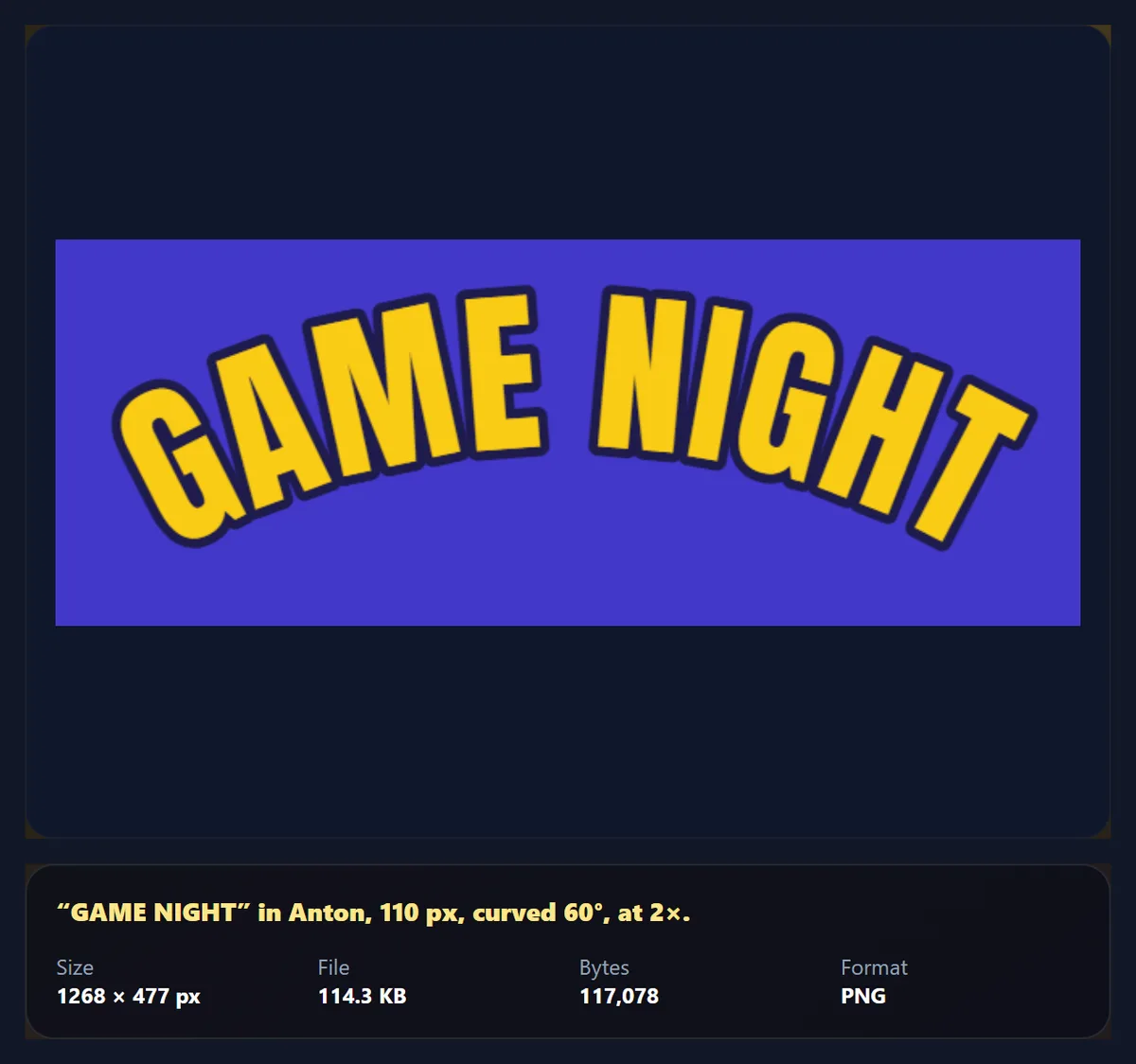
Yes. The outline slider draws a stroke round every letter, up to 16 px, in a colour of your choice; it is drawn behind the fill, so the letters keep their shape and the stroke only grows outward. A background can be a colour, or left transparent so the text sits on anything.
An outline makes text readable over busy photos and gives a sticker or team-shirt look. The GAME NIGHT example, in Anton at 110 px with a 6 px outline on a blue background, was a 117,078-byte PNG at 2×.
Should I download PNG or SVG?
PNG for apps that take pictures: social posts, slides, video editors and most design apps. It is transparent unless you choose a colour background, and can be saved at 1×, 2× or 4×: the badge arch was 858 × 394 px and 38,762 bytes at 1×, 1713 × 786 px at 2× and 3427 × 1572 px and 264.8 KB at 4×. Use 2× or 4× for sharp results on high-resolution screens and in print.
SVG for logos, cutting machines, print shops and vector design apps. The text stays real text on a curved path, so it is sharp at any size and can still be edited. With the font carried inside, the SVG was 236.2 KB, because the whole font file travels with it and it looks the same on every computer; without it, only 408 bytes, but then the computer that opens it must have the font installed.
How do I make a round badge or logo?
Make the top text as an arch and the bottom text as a smile with the same font, size and colour, and download both as PNG or SVG. In a design app, place them over a circle so the two arcs share the circle's centre, and put an icon or a short word in the middle. Matching the circle size is easiest when both curves read the same diameter under the controls.
For a seal with one continuous ring of text, use Full circle instead, with separators between phrases.
What does the reading under the controls tell me?
Two numbers: how long the text is along its curve, in pixels at 1×, and how wide the circle it follows is. The length includes the letter spacing; the circle is the one whose edge the middle of the letters sits on. When the curve is 0° the text is straight and there is no circle.
Use the circle to fit text to something round. If a round logo is 600 px across and the text should sit just outside it, adjust the curve, size or spacing until the circle reads a little more than 600 px, then place the PNG centred on the logo.
What font size should I use?
Large enough to read once the text is placed. The size is in pixels at 1×, from 24 to 200; downloading at 2× or 4× multiplies everything, so a 72 px line at 2× has 144 px letters. Bigger text on the same curve makes a bigger circle, because the text gets longer: at 160°, doubling the size roughly doubles the circle.
For a badge, start with the size that makes the circle fit, then adjust the spacing to fine-tune it; for a heading over a photo, choose the size first and then bend it gently.
Can I put curved text on a photo?
Yes. Download a transparent PNG and place it over the photo in any editor, or in HueFold's own editor; the transparent background means only the letters cover the photo. Over busy photos, add an outline in a contrasting colour so the letters stay readable on light and dark areas alike.
For text that follows something round in the photo, such as a plate, a sun or a face, match the circle reading to the size of that shape in the photo, scaled to the size you will place the text at.
Which colours work best for curved text?
Strong contrast with what will be behind it: dark text on light backgrounds and light text on dark ones. On a badge, the text colour usually matches the ring or the icon; an outline in the background colour can separate letters from a busy edge. The colour pickers take any colour, so brand colours can be entered exactly.
Thin serif letters lose contrast faster than bold sans-serif ones, especially on a curve where they turn; prefer bold for small sizes and light colours.
Where is curved text used?
Logos and badges for cafés, bakeries, teams and clubs; round stickers and labels; stamps and seals; T-shirt and mug designs; text that follows the edge of a round photo or a plate; and titles over arched shapes in posters and invitations. A gentle arch also adds movement to a heading without making it hard to read.
Keep curved text short: a few words read well on a curve; a whole sentence becomes hard to follow as it turns.
Is anything uploaded?
No. The fonts are loaded from HueFold's own server like any web font, and the text is laid out and drawn in your browser; the PNG and SVG are made there too. No account is needed.
Each letter is placed by measuring its width in the chosen font, centring it on the arc and turning it to face out from the centre (or in, for a smile), which is how the PNG and the preview are drawn. The SVG keeps the text as text on a curved path instead, so it can be edited later.
Why does my curved text look uneven?
Some letter pairs that look fine straight, such as AV or To, look gappy or crowded on a curve because each letter turns separately. Add a little spacing, or try a font with more regular widths, such as Montserrat or Oswald. If the text looks blurry when placed in another app, download it at 2× or 4×, or as SVG.
If an SVG shows a different font on another computer, download it again with the font carried inside. If the ring's ends overlap, the text is longer than the circle at that size: make the font smaller or reduce the spacing.
Frequently asked questions
How do I make curved text?
Type it, choose an arch, a smile or a circle, and download it as PNG or SVG.
Can I put text in a full circle?
Yes. Choose Full circle; a space is added where the ends meet.
Is the PNG transparent?
Yes, unless you choose a colour background.
Can I edit the SVG later?
Yes. The text stays text on a curved path, with the font inside if you choose.
Which fonts are there?
Eleven free Google fonts, from Montserrat and Oswald to Playfair Display and Anton.
Can I curve text downward?
Yes. Choose Smile, or a negative curve.
How do I make a round badge?
An arch on top and a smile below, same font and size, placed over a circle.
Is anything uploaded?
No. Everything is drawn in your browser.
Is it free?
Yes, with no account or watermark.
Related tools
- Text Effects — Shadows, outlines and glows for text.
- Add Text to Photo — Put text on a picture.
- Stickers — Turn a logo into a die-cut sticker.
- SVG Editor — Edit the SVG further.
- Text Animations — Animate a line of text.
- Icons — An icon for the middle of a badge.