PDF to PPT
Turn a PDF into a PowerPoint deck in your browser: a picture slide for every page, in the PDF’s own shape, with each page’s text in the speaker notes. Free, no upload.
Updated
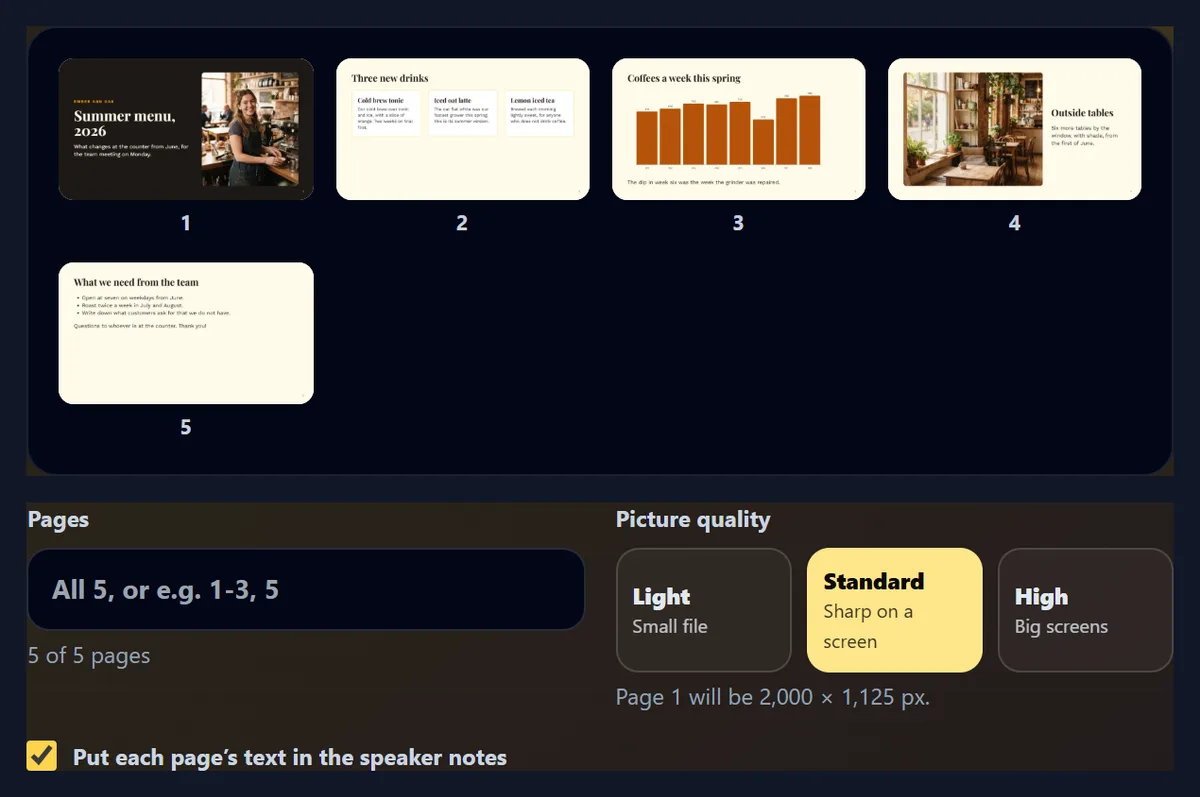
How do you convert a PDF to PowerPoint?
Open the PDF here, choose the pages and a picture quality, and press Convert to PowerPoint: each page becomes a slide showing that page exactly, in the PDF's own shape, and its text goes into the speaker notes. The PDF never leaves your browser.
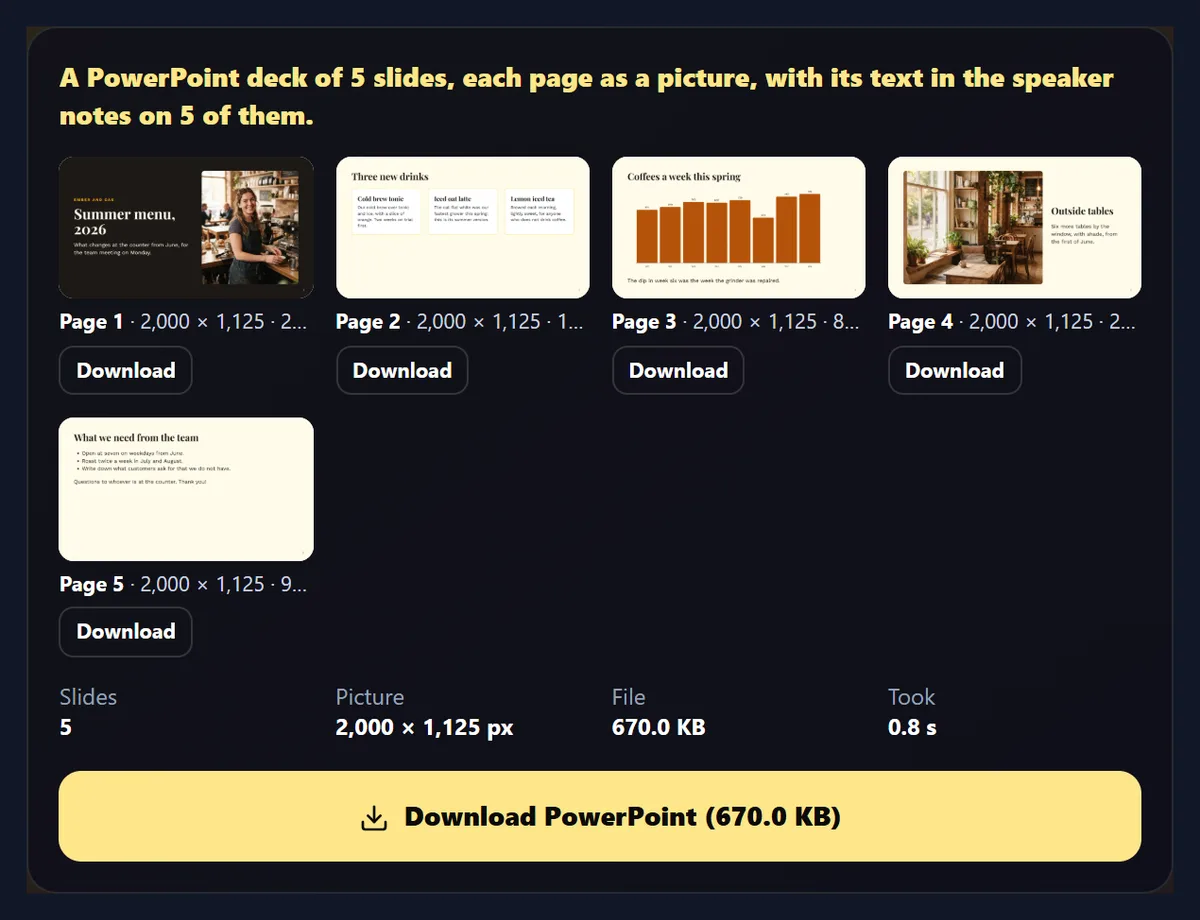
Microsoft PowerPoint opened the 5-page sample deck as 5 slides with their notes; at Standard quality the file was 670.0 KB. The text on the slides is part of each picture, so it cannot be edited there, but it can be copied from the notes.
How to turn a PDF into slides
- Open the PDF Drop it on the tool or choose it.
- Choose pages and quality All pages or a list; Light, Standard or High.
- Keep the notes Each page’s text in the speaker notes.
- Download the .pptx Open it in PowerPoint and present.
Turn a PDF into PowerPoint slides
A real recording of this tool: the sample deck opened, the picture qualities compared, and the PDF turned into a PowerPoint file.
- The sample PDF opens and its five pages appear.
- High and then Standard picture quality are chosen.
- The pages are converted into a PowerPoint deck, ready to download.
How big is the PowerPoint file?
Mostly as big as its slide pictures. The 5-page sample deck made a 449.4 KB file at Light quality, 670.0 KB at Standard and 1,079.4 KB at High. The text in the speaker notes added only 635 bytes: the same deck without notes was 669.4 KB.
Light suits email and a laptop screen, Standard any full-HD screen or projector, and High large screens where people will look closely.
| Quality | Slide picture | PPTX size |
|---|---|---|
| Light | 1,466 × 825 px (110 dpi) | 449.4 KB |
| Standard | 2,000 × 1,125 px (150 dpi) | 670.0 KB |
| High | 2,933 × 1,650 px (220 dpi) | 1,079.4 KB |
How do I convert a PDF to PowerPoint?
Drop the PDF on the tool or choose it, and its pages appear as thumbnails. Leave Pages empty for all of them or list the ones you want, choose the picture quality, keep Put each page’s text in the speaker notes ticked if you want the words, and press Convert to PowerPoint. The .pptx downloads with the PDF's name.
The sample's five pages took 1.2–1.8 seconds on the test laptop, whichever the quality.
What do the slides look like?
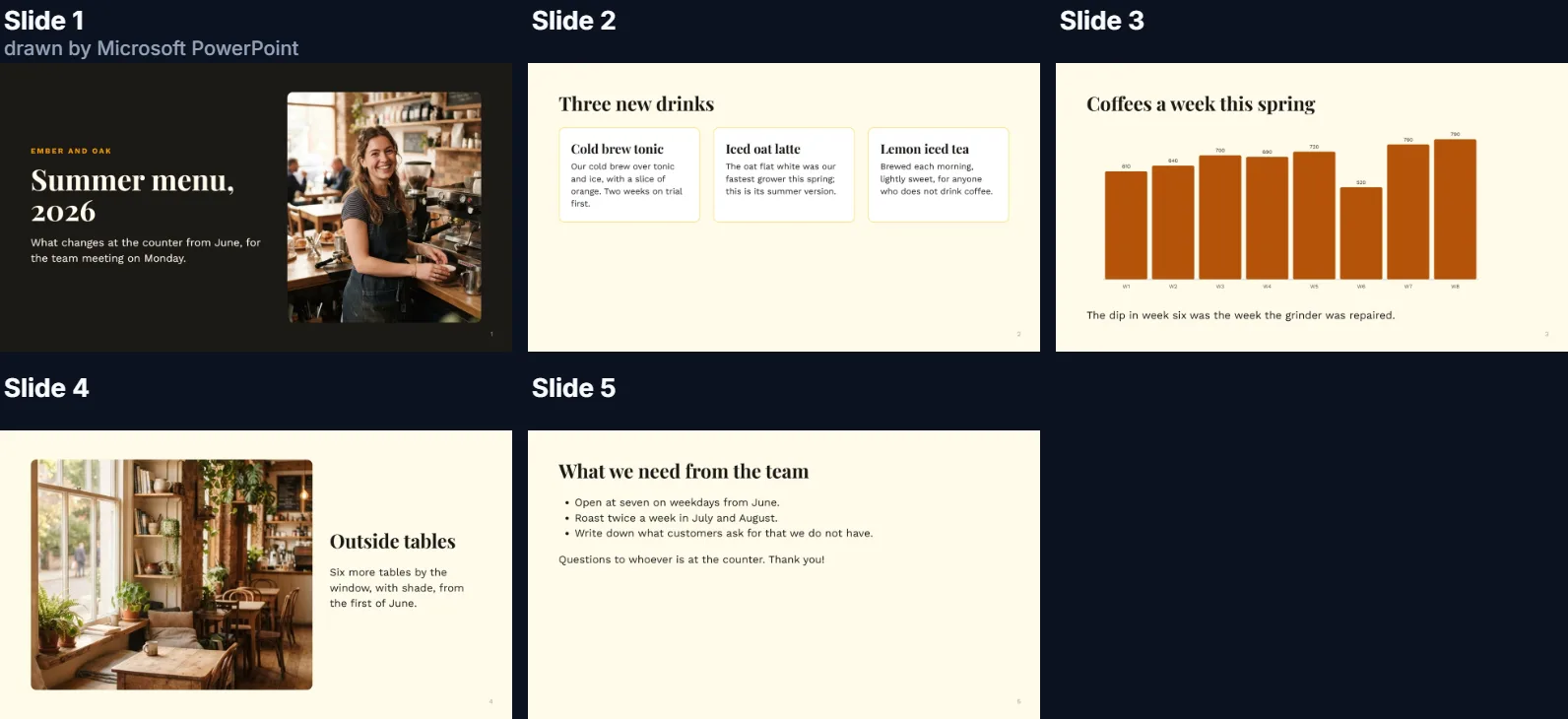
Exactly like the PDF's pages: each slide holds a picture of one page, filling the slide. Microsoft PowerPoint opened the sample's file as 5 slides of 10 × 5.62 inches, and the figure shows them as PowerPoint itself drew them, exported from PowerPoint, photos, chart and type unchanged.
Because each page is one picture, nothing can shift, reflow or lose its font, whichever computer shows the deck.
Can I edit the text on the slides?
Not on the slide itself: the words are part of the page's picture. What you can do is copy them from the speaker notes, where each page's text is kept, and type over the picture or onto a new slide; you can also add text, shapes and arrows on top of the picture in PowerPoint, as on any slide.
Turning a designed PDF page back into separate, editable text boxes in the right fonts and places is guesswork that often breaks the layout, so this tool keeps the pages exact instead. If you need the words to edit, the free PDF converter also saves them as a Word file.
What goes in the speaker notes?
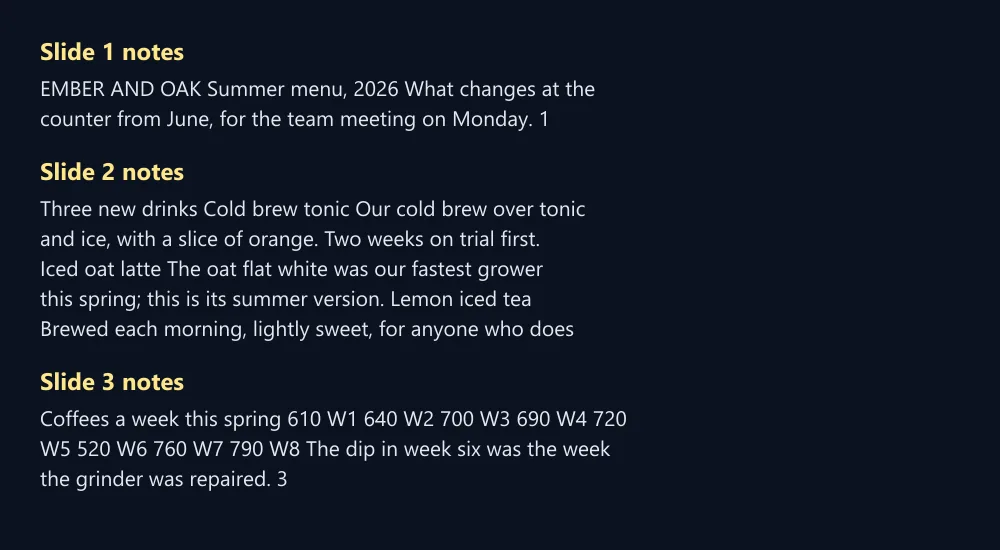
The page's text, read from the PDF, one paragraph per line, so you can read it while presenting or copy it into a new slide. PowerPoint read back notes of 104, 305, 143, 83 and 210 characters from the sample's five slides. A chart's labels come out as loose numbers, and letter-spaced headings are closed up again.
Untick the option to leave the notes empty: useful when the PDF's text should not travel with the deck.
What size are the slides?
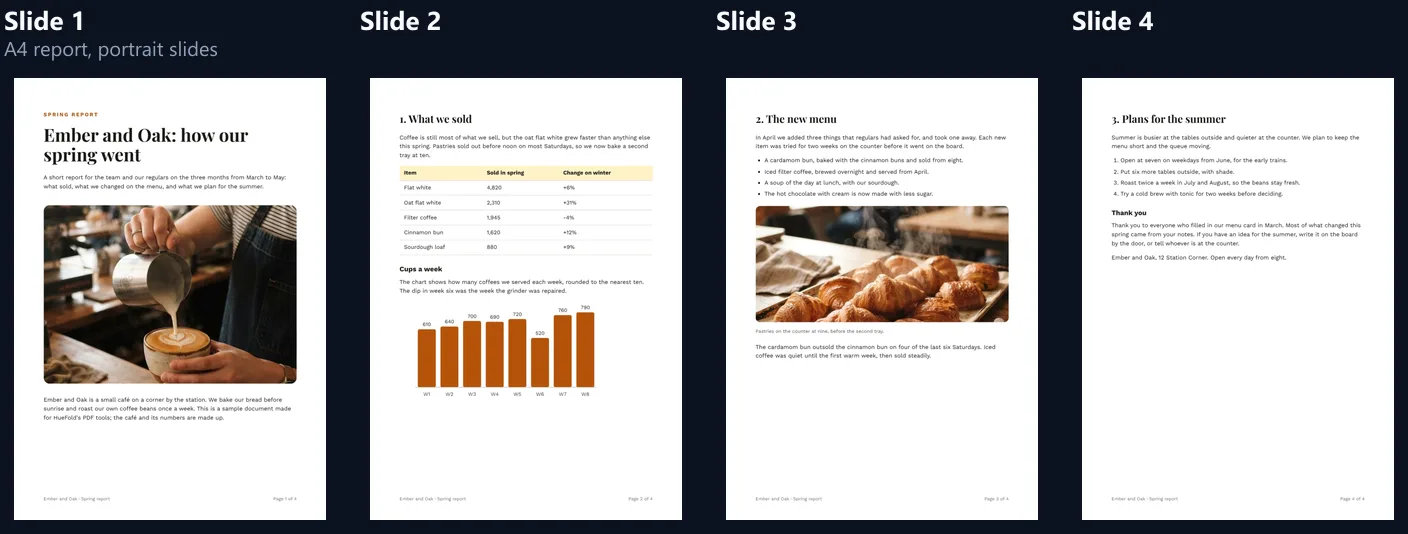
The shape of the PDF's first page, 10 inches on its long side. A 16:9 PDF makes 16:9 slides (10 × 5.62 in), and an A4 report makes portrait slides: PowerPoint opened the report's 4-slide deck at 7.07 × 10 inches. PowerPoint's own widescreen slide is 13.33 × 7.5 inches, the same shape as 16:9, so the deck fits in with others.
If a PDF mixes page sizes, every slide takes the first page's shape and each page is fitted into it, centred, keeping its own proportions.
Which picture quality should I choose?
Standard for most decks: its pictures are 2,000 pixels wide for a 16:9 slide, wider than a full-HD screen's 1,920, so text stays sharp on a projector. Light (1,466 px) is for email and small screens; High (2,933 px) for large, high-resolution screens and for zooming into detail.
The close-up shows the same line of small text from the chart slide at each quality, the picture's own pixels enlarged to the same width without smoothing: Light is readable, Standard clean, High crisp.

Can I present the deck straight away?
Yes: open the .pptx in PowerPoint and start the slide show. Slides change on a click like any deck, and the notes show in Presenter View. Add transitions, reorder slides or delete the ones you do not need as usual.
This is often the quickest way to present a PDF that someone sent you, such as a report or a brochure, on a screen that only runs PowerPoint.
What does the tool show when it is done?
How many slides were made, whether notes were added, the size of the slide pictures and of the file, and a preview of every slide with its own picture size. The sample deck at Standard quality: 5 slides with pictures of 2,000 × 1,125 pixels in a 670.0 KB file.
Each slide's picture can also be downloaded as a JPG from the preview, if you only need one page as an image.
What is PDF to PPT useful for?
Presenting a document that only exists as a PDF: a report in a meeting, a brochure on a stand, a supplier's price list on a screen. Turning a handout back into a deck you can add to, reorder and present with notes. Sending a deck to someone who works in PowerPoint and wants slides, not a PDF.
Check that you may reuse the document before you present or share someone else's PDF as slides; converting it does not change who owns it.
Can I change the order or leave pages out?
Yes, before or after converting. In the Pages box, pages are converted in the order you type them, so 3, 1, 2 makes a deck that starts with page 3, and pages you leave out are not made at all. After converting, drag slides in PowerPoint as with any deck.
Each page appears once even if you type it twice.
Can I add things on top of the slides?
Yes. The page picture is an ordinary picture on a blank slide, so PowerPoint lets you place text boxes, arrows, highlights and shapes on top of it, animate them, and crop or enlarge the picture to show one part of the page. To zoom into a chart or a small table, choose High quality first so the enlarged part stays sharp.
The picture can be sent to the back or replaced like any other, without affecting the rest of the deck.
Is the file small enough to email?
Usually. At Light quality the sample's five slides came to 449.4 KB, about 90 KB a slide, and at Standard 670.0 KB. Pages with large photos weigh more than pages of text, so a long, photo-heavy PDF can still grow to several megabytes.
For a big deck, share a link to the file instead of attaching it, or convert only the pages you need.
Which apps open the file?
Microsoft PowerPoint: every deck made for this page was opened in it, read back slide by slide with its notes, and its slides exported from it for the figures here. The file is a standard .pptx, so apps that import PowerPoint files, such as Google Slides and Keynote, should take it too, though only PowerPoint was tested.
Inside the file each slide holds one JPG picture and a notes page, nothing more exotic, which is the part of the format every app supports.
What happens to charts and tables?
They look exactly as in the PDF, because they are part of the page's picture, but PowerPoint does not see them as charts or tables: you cannot change a bar or a cell. Their labels and numbers are in the speaker notes as text.
To change a chart, rebuild it in PowerPoint from the numbers in the notes, or in the HueFold editor.
Do links in the PDF still work?
No: a link in a PDF is an invisible area over the page, and the slide keeps only the picture. To keep a link, draw a transparent shape over the words on the slide in PowerPoint and add the hyperlink to the shape; the address is in the speaker notes if it was printed on the page.
Videos and sounds embedded in a PDF are not carried over either; add them to the slide in PowerPoint.
Is there a limit on pages?
No limit is set: the deck has as many slides as the pages you choose, and pages are drawn one at a time so long PDFs work, more slowly. The first 48 pages show as thumbnails; the rest are still converted.
Very large pages are drawn at the most a phone browser can handle, 16,777,216 pixels per picture, which only affects posters and drawings far bigger than a slide.
Can I convert a scanned PDF?
Yes: each scanned sheet becomes a slide picture like any other page. The notes stay empty, because a scan has no text to read, only a photo of the paper.
Scans are often slightly crooked or grey; the slides show them as they are.
Is my PDF uploaded?
No. The PDF is opened and drawn inside this browser tab by pdf.js, the open-source PDF reader from Mozilla, and the PowerPoint file is put together there too. Nothing is sent to HueFold or kept, and there is no watermark or sign-up.
A protected PDF asks for its password, which is used in the tab to open the file and kept nowhere.
Can I convert PDF to PPT on my phone?
Yes, in a current browser on Android or an iPhone; the .pptx saves to Downloads or the Files app, and the PowerPoint app opens it. Long PDFs at High quality take more memory, so on a phone choose Standard or convert part of the document at a time.
A deck made on the phone is the same file as one made on a computer.
What about PowerPoint to PDF, or other formats?
To turn a deck back into a PDF, use PowerPoint's own Save as PDF or the PPT to PDF tool. To get a PDF's pages as images or its text as Word, use the free PDF converter or PDF to JPG.
To design new slides from scratch, the HueFold editor has presentation templates.
Frequently asked questions
Is PDF to PPT free?
Yes: no sign-up, no watermark and no limit on files.
Is my PDF uploaded?
No. The deck is made inside your browser.
Can I edit the text on the slides?
Not on the slide: each page is a picture. The text is in the speaker notes to copy.
Will the slides look like my PDF?
Exactly: each slide shows a picture of its page, fonts and all.
What shape are the slides?
The PDF’s first page: 16:9 PDFs make 16:9 slides, A4 makes portrait slides.
Which quality should I choose?
Standard for most screens, Light for email, High for large screens.
Does it work with PowerPoint?
Yes: the decks for this page were checked in Microsoft PowerPoint.
Can I convert only some pages?
Yes: type a list such as 1-3, 5.
Can I convert a protected PDF?
Yes, with its password, which stays in your tab.
Related tools
- Free PDF Converter — JPG, PNG, text or Word too.
- PDF to JPG — Pages as JPG images.
- PPT to PDF — A deck back into a PDF.
- JPG to PDF — Photos into one PDF.
- Image Converter — Convert slide pictures.
- Add Text to Photo — Label a slide picture.