JPG to PDF
Put photos into one PDF, a page per image, on A4, US Letter or pages the size of each photo, with the margin you choose. Upright JPGs go in byte for byte, without recompressing, and nothing is uploaded.
Updated

How do you convert JPG to PDF?
Add your JPG photos, or try the three samples. Choose the page size, the orientation and the margin, and the PDF is built at once: the preview shows each page as it will print, and the summary shows the page count, the exact file size and how sharply the photos will print. Then download the PDF.
A PDF is a document format that keeps every page exactly as laid out, on any device, and is what most forms, printers and offices expect. Putting photos into a PDF gives one tidy file with the pages in order, which is easier to send than a handful of separate images.
The samples are a coastal photo, a street portrait and a product photo. Your photos never leave your device.
How to convert JPG to PDF online
- Add photos Choose or drop up to 50 JPG, PNG or WebP images in the order you want the pages.
- Choose the layout Pick A4, US Letter or the image’s own size, the orientation and the margin.
- Check the pages Click each image in the list to see its page; the summary shows size and print resolution.
- Download Save the PDF.
Turn three photos into one PDF
A real recording of this tool: three photos made into a PDF, each page previewed, US Letter with a wider margin, and the download.
- Three sample photos open and become a three-page PDF on A4.
- Each page is previewed; the portrait photo gets a portrait page.
- The page size is changed to US Letter with a 20 mm margin.
- The layout goes back to A4 and the PDF is downloaded.
Is my photo sharp enough to print from the PDF?
It depends on how many pixels end up on each inch of paper. A landscape photo placed across an A4 page turned sideways, with 10 mm margins, is printed 277 mm wide; a portrait photo on an upright A4 page, 190 mm wide. Divide the photo's width in pixels by that width in inches and you get its print resolution. Around 300 pixels per inch is what photo labs and print shops ask for; around 150 looks fine at arm's length, such as on a document or a poster seen from a distance.
The tool reports the lowest resolution among your pages. For the three samples, which are 1200 pixels wide or less, it was 110 pixels per inch: fine for reading on screen, soft for close-up prints. For prints, start from the camera's full-size photos.
| Photo width | Pixels per inch, landscape page (277 mm) | Pixels per inch, portrait page (190 mm) |
|---|---|---|
| 800 px | 73 | 107 |
| 1,200 px | 110 | 160 |
| 2,000 px | 183 | 267 |
| 3,000 px | 275 | 401 |
| 4,000 px | 367 | 535 |
| 6,000 px | 550 | 802 |
Does converting JPG to PDF lose quality?
Not here. A PDF can hold a JPEG exactly as it is, so the tool places each upright JPG's own bytes in the PDF without decoding and re-encoding it. The three samples total 593,675 bytes as JPGs; the three-page PDF made from them was 598,142 bytes, only 4,467 bytes more, which is the PDF's own structure.
Two kinds of image are re-saved, as 92% JPGs: phone photos stored sideways with a rotation tag, which must be turned upright because PDFs ignore that tag, and PNG or WebP images, whose transparent areas are filled with the background colour. The list says which images were placed as they are.
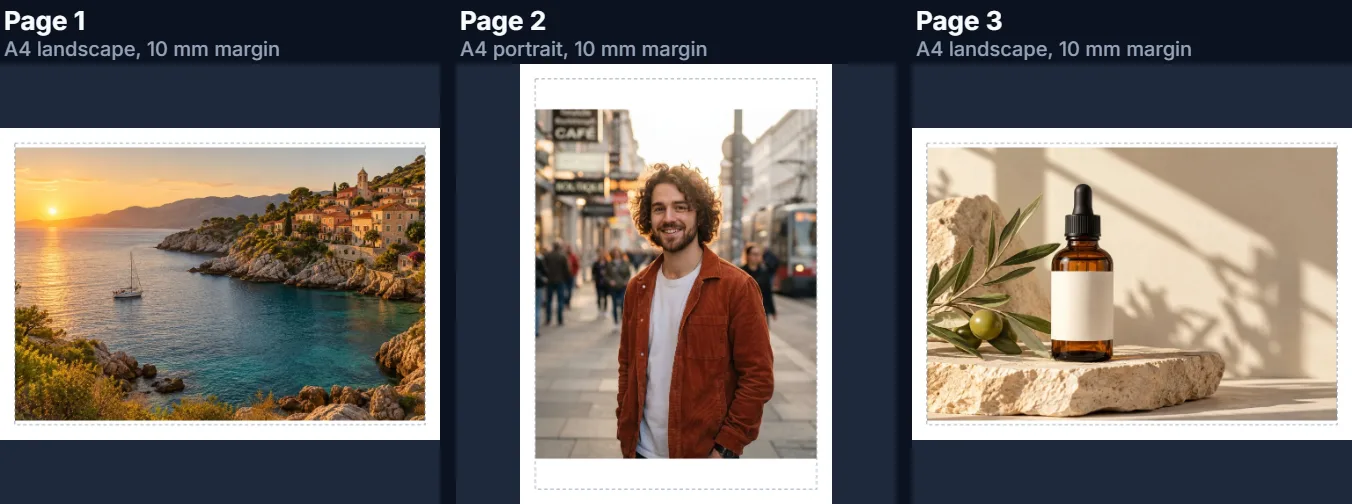
A4, US Letter or the image’s own size?
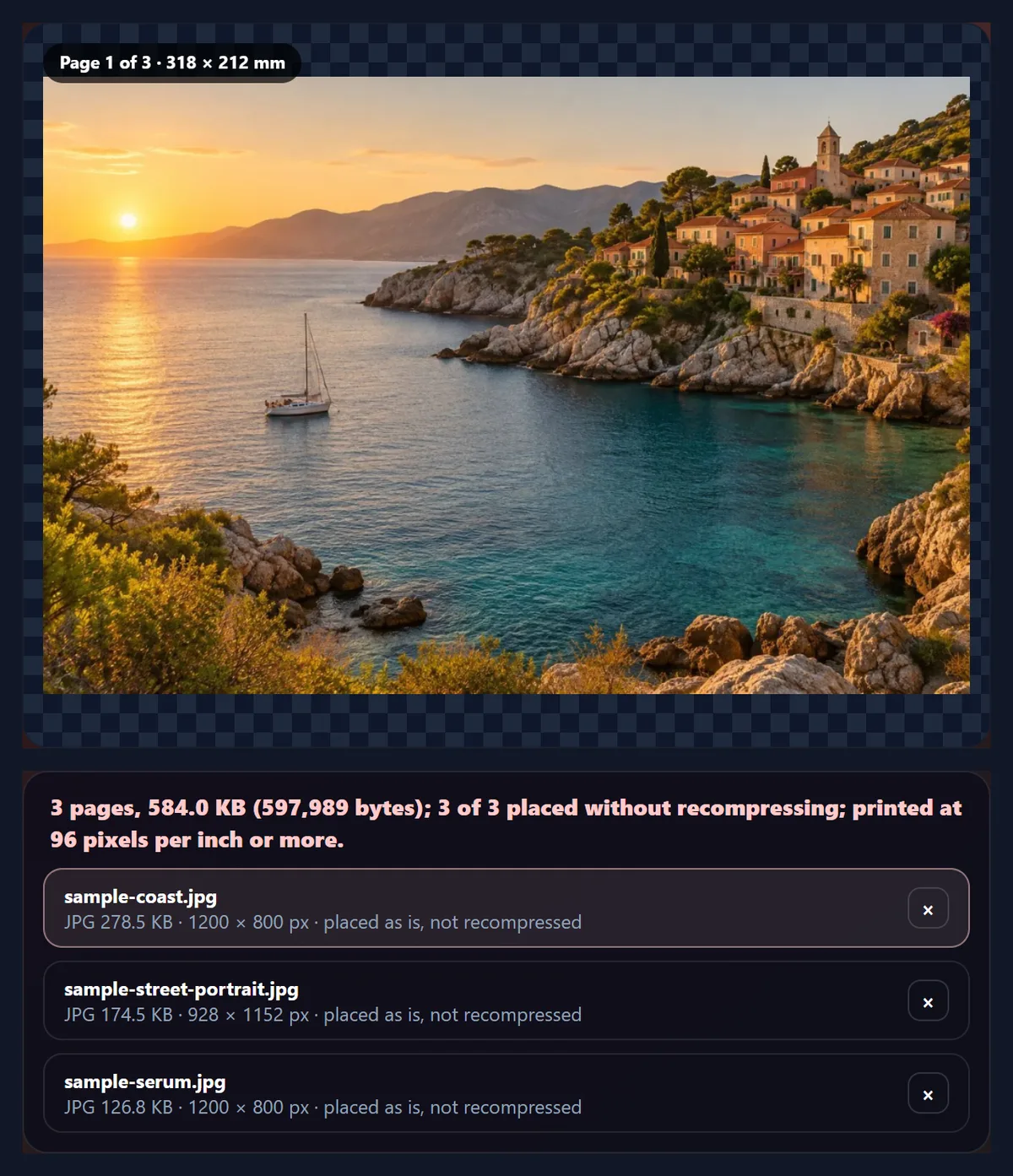
A4 (210 × 297 mm) is the standard paper size in most of the world; US Letter (8.5 × 11 inches, 215.9 × 279.4 mm) in the United States and Canada. Choose the one your printer or recipient uses. Same as the image makes each page exactly the size of its photo at 96 pixels per inch, plus the margin, so there are no white borders at all; this suits PDFs that will only be read on screen.
With US Letter and 20 mm margins, the sample PDF came to 598,098 bytes; page size changes the layout, not the images.
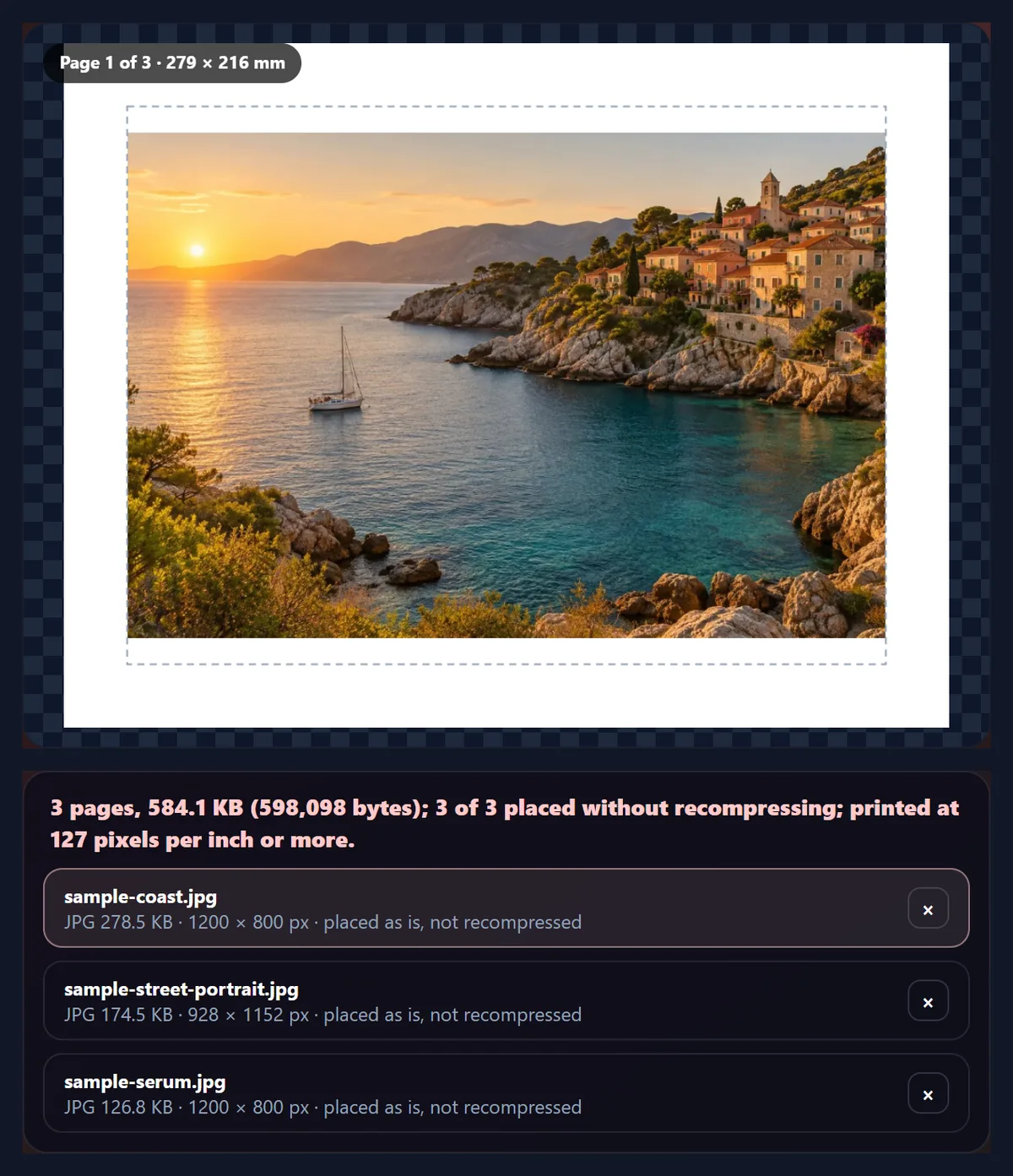
How are portrait and landscape photos placed?
With Orientation set to Match each image, each page is turned to suit its own photo: landscape photos get a landscape page and portrait photos a portrait page, so every photo is as large as possible. Set Portrait or Landscape to keep every page the same way round, which suits documents that will be printed and bound.
Each photo is scaled to fit inside the margin and centred; nothing is cropped or stretched.
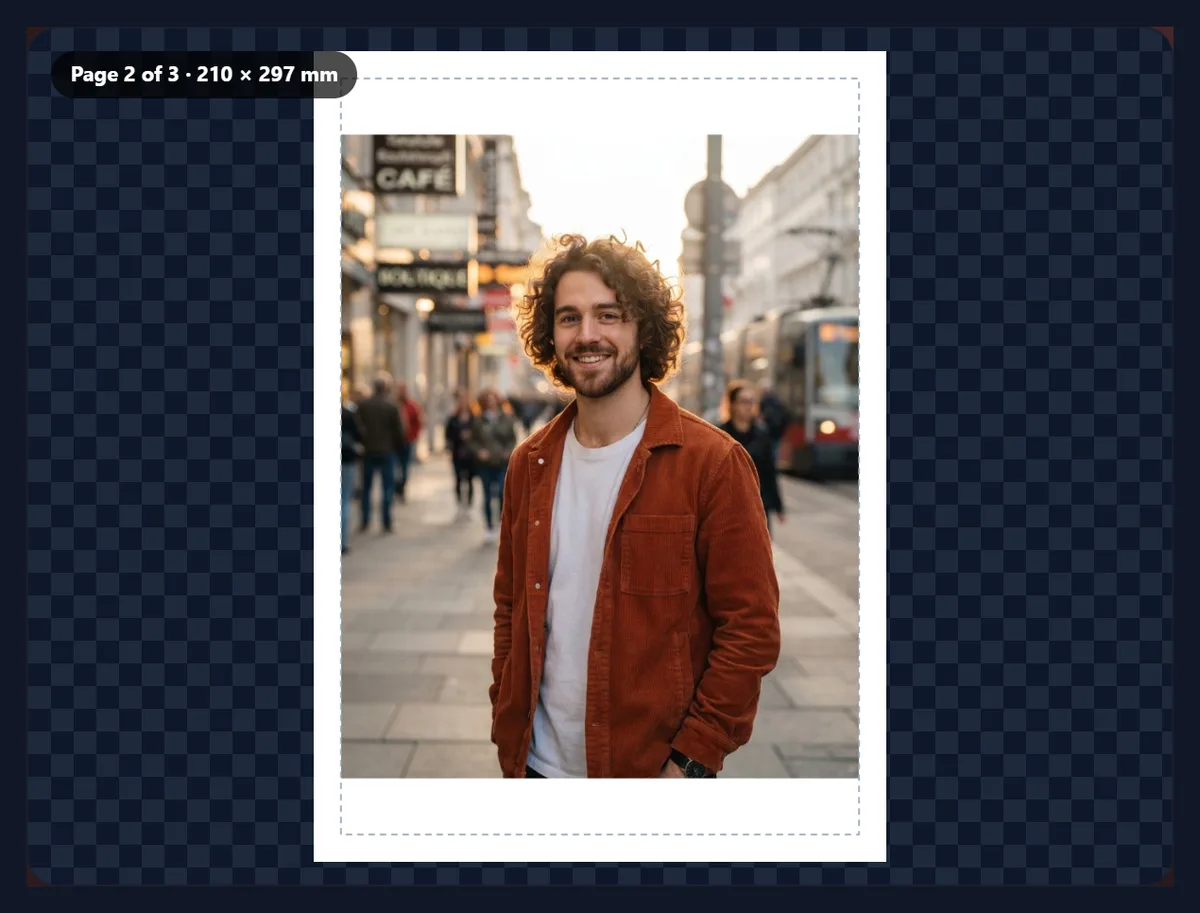
Which margin should I use?
10 mm suits most uses and keeps photos clear of the edge, where many home printers cannot print. 20 mm gives a framed, document look and room for notes. None fills the page edge to edge, as far as the photo's shape allows; on paper sizes the photo still keeps its proportions, so there may be white space on two sides.
Margins are drawn as a dashed line in the page preview so you can see the printable area.
What order do the pages go in?
The order you added the images, top to bottom in the list. Add them in the order you want, or remove and add again to change it. The PDF is rebuilt whenever you change a setting, and the summary above the list shows its page count and exact size.
One PDF holds all the images, one per page; for a separate PDF per image, convert them one at a time.
What is JPG to PDF useful for?
Sending several photos as one file: receipts and invoices for expenses, scanned or photographed documents, ID copies for an application, a portfolio, or pages of handwritten notes. Many forms accept only PDF, and a single PDF keeps the pages in order where separate photos might arrive shuffled.
For photographed documents, crop and straighten the photos first so each page is square to the paper.
How do I make a good PDF of documents photographed with a phone?
Lay each page flat in even daylight, hold the phone straight above it so the page fills most of the frame, and avoid your own shadow. Then crop each photo to the page and straighten it if it is tilted, so the page is square to the PDF. Set Orientation to Portrait, so every page of a document is the same way round, and keep a 10 mm margin.
Photograph pages in order, or add the photos in order, because the PDF follows the list.
How big will the PDF be?
About the size of the photos added together, plus a little for the PDF's own structure. Upright JPGs are placed without recompressing: the three samples total 593,675 bytes and the PDF made from them was 598,142 bytes, 4,467 bytes more for three pages. Images that have to be re-saved (sideways phone photos, PNG and WebP) are stored as JPEGs at the quality you set, so lowering the quality shrinks only those.
To make a much smaller PDF, make the photos smaller before adding them.
Can the text in the PDF be searched or copied?
Not from photos. A PDF made from images contains pictures of the pages, not the text itself, so you cannot search or copy the words in it. To make the text searchable, run the PDF through a text recognition (OCR) tool afterwards; many PDF readers and scanner apps include one.
For forms that only need to see the pages, an image PDF is exactly what is expected.
What does the quality setting change?
Only the images that have to be re-saved: sideways phone photos, which are turned upright, and PNG or WebP images, which become JPEGs inside the PDF. Upright JPGs are placed as they are, whatever the setting, so for a PDF of ordinary photos the quality slider changes nothing. The background colour fills any transparent areas in PNG or WebP images.
The summary above the list says how many images were placed without recompressing.
Does it work on a phone?
Yes. The tool runs in any current mobile browser, so you can turn photos into a PDF straight from your phone's photos or files. On an iPhone, downloads go to the Downloads folder in the Files app; on Android, to the Downloads folder. Phones have less memory than computers, so convert very large images, or long lists of them, a few at a time.
Nothing is installed and nothing is uploaded, so it works the same on a phone, a tablet or a computer.
What if my photos are all different sizes?
Each one is scaled on its own to fill the space inside the margin and centred, so a big photo is reduced and a small one is enlarged until it fits. Enlarging cannot add detail, so a small photo on a whole page prints soft; the print resolution in the summary shows the lowest of all the pages, so you can spot it before downloading.
To keep small pictures small, choose Same as the image, which makes each page the size of its own photo.
Is anything uploaded?
No. The images are read and the PDF is built inside your browser tab with jsPDF, and no account is needed, which matters for documents such as IDs, bank statements and medical letters. Images up to 40 megapixels can be opened, and up to 50 images go into one PDF.
The PDF carries no EXIF data from the photos; images placed as they are keep their original bytes inside the PDF.
Why is my PDF so large?
Because it holds the photos at their full size, and phone photos are often several megabytes each. To make a smaller PDF, make the photos smaller first, for example to 2000 pixels wide, which still prints at about 180 pixels per inch on A4, or compress them to a size limit. If one page is sideways, the photo had no rotation tag and was taken sideways: rotate it first.
If a form limits the PDF to a few megabytes, check the size in the summary before downloading; the sample PDF was 598,142 bytes for three pages.
Frequently asked questions
How do I convert JPG to PDF?
Add the photos, choose the page size and margin, and download the PDF.
Can I put several JPGs in one PDF?
Yes, up to 50, one per page, in the order you add them.
Does JPG to PDF lose quality?
No. Upright JPGs are placed in the PDF as they are, without recompressing.
Which page size should I choose?
A4 in most countries, US Letter in the US and Canada, or the image size for on-screen reading.
Are portrait and landscape photos handled?
Yes. Each page turns to match its photo, unless you fix the orientation.
Can I add margins?
Yes: none, 10 mm or 20 mm.
Will it print sharply?
Check the print resolution in the summary; about 300 pixels per inch is print-shop quality.
Are my photos uploaded?
No. The PDF is made in your browser.
Can I add PNG or WebP images?
Yes; they are saved as JPEGs inside the PDF.
Is it free?
Yes, with no account, watermark or limit.
Related tools
- Image Converter — Change image formats first.
- Rotate Image — Turn a sideways photo first.
- Crop Image — Trim photographed documents.
- Photo Straightener — Level a tilted page.
- Compress Image to 100KB — Make the photos smaller.
- Delete Pages From PDF — Remove pages afterwards.