Image Converter
Convert images between JPG, PNG and WebP, or turn SVG, GIF, BMP and AVIF files into them: up to 50 at once, each one recognised by its real format, with the true file size before and after, downloaded singly or as one ZIP.
Updated

How do you convert an image to another format?
Add your images, or try the four samples, and choose JPG, PNG or WebP. Each file is converted at once and listed with its real format and size before and after. Set the quality for JPG and WebP, a background colour for transparent areas, and a size for SVG files, then download the files one by one or all together as a ZIP.
An image format is the way a picture's pixels are stored in a file. JPG and WebP throw away detail you are unlikely to notice to make files small; PNG keeps every pixel exactly; SVG stores shapes rather than pixels, so it can be drawn at any size. Converting means opening the picture and saving it again in another format, which changes what the file can do: whether it keeps transparency, how big it is, and which apps accept it.
The samples are a photo saved as WebP, an SVG logo drawn for this page, the same logo as a transparent PNG, and a JPG portrait. Your files never leave your device.
How to convert images online
- Add images Choose or drop up to 50 JPG, PNG, WebP, GIF, BMP, AVIF or SVG files, or try the samples.
- Choose the format Pick JPG, PNG or WebP; set the quality, a background colour for transparent areas, and an SVG size.
- Check the list Every file shows its real format and size before and after, and notes anything that was changed.
- Download Save each file on its own, or all of them as one ZIP.
Convert four images at once
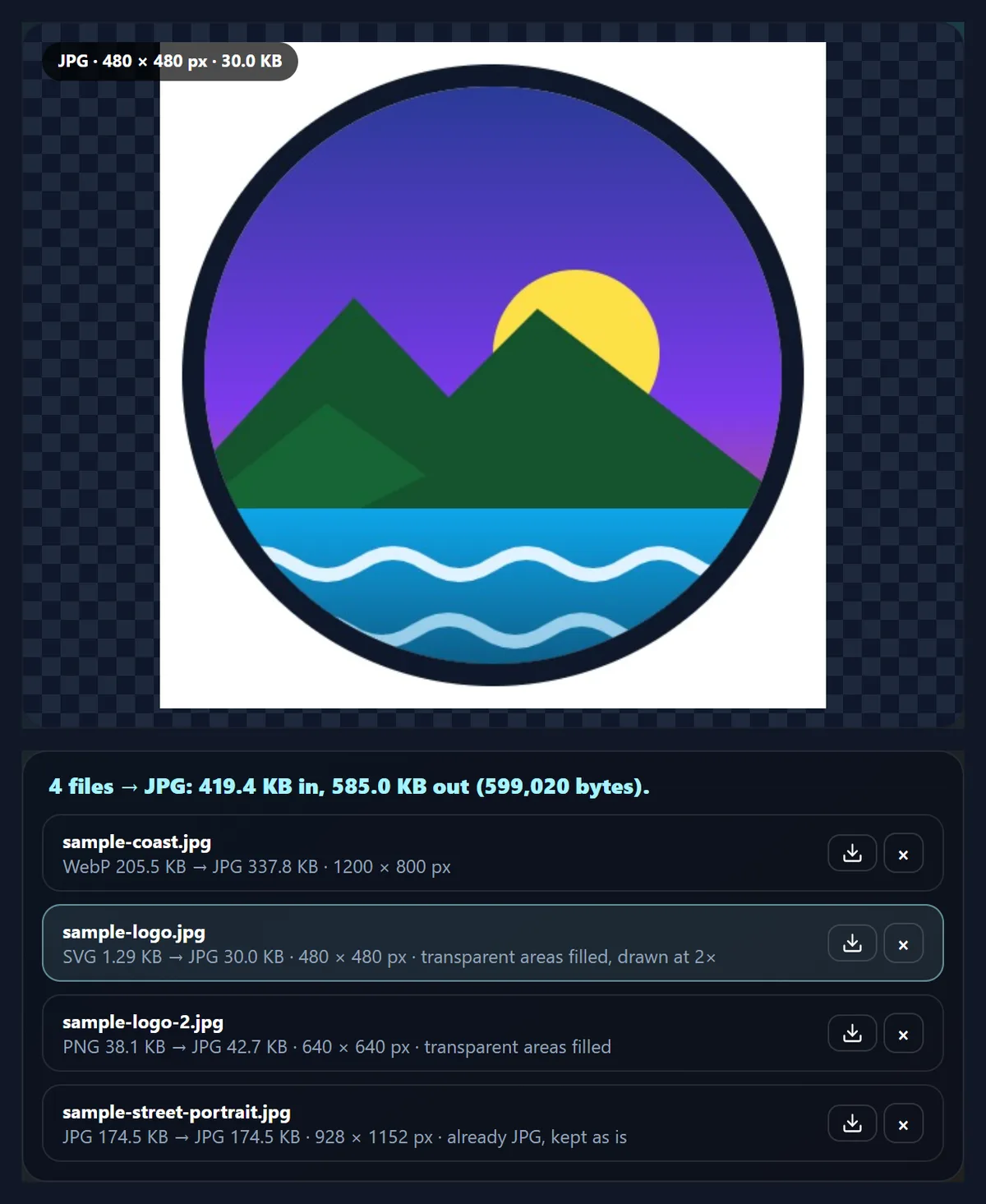
A real recording of this tool: four sample files converted to JPG, then PNG and WebP, an SVG drawn at 2×, and a ZIP download.
- Four sample files open and are converted to JPG.
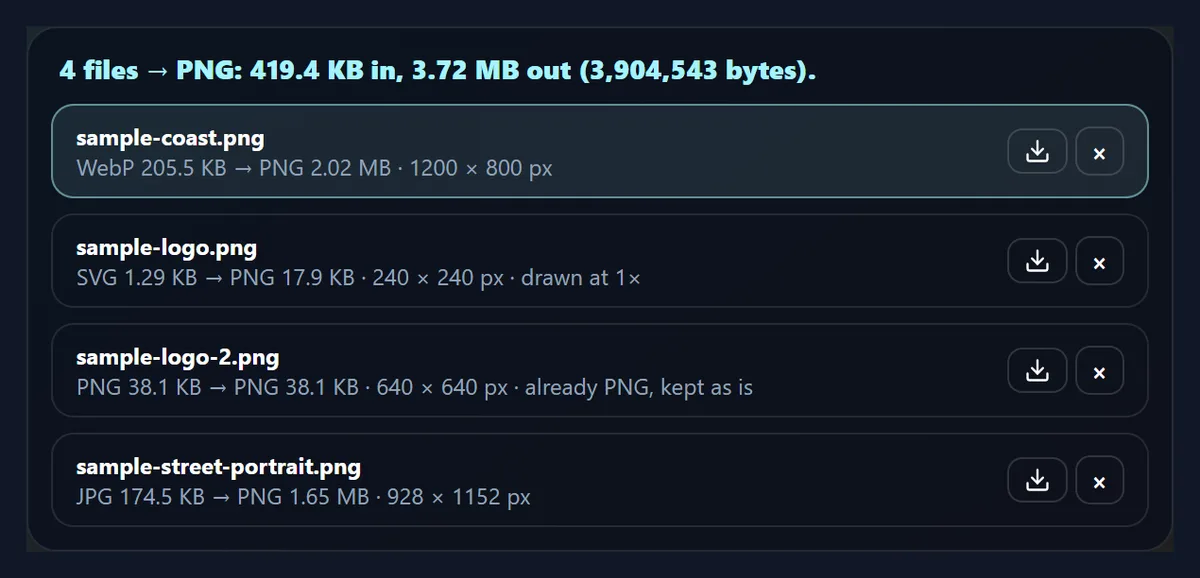
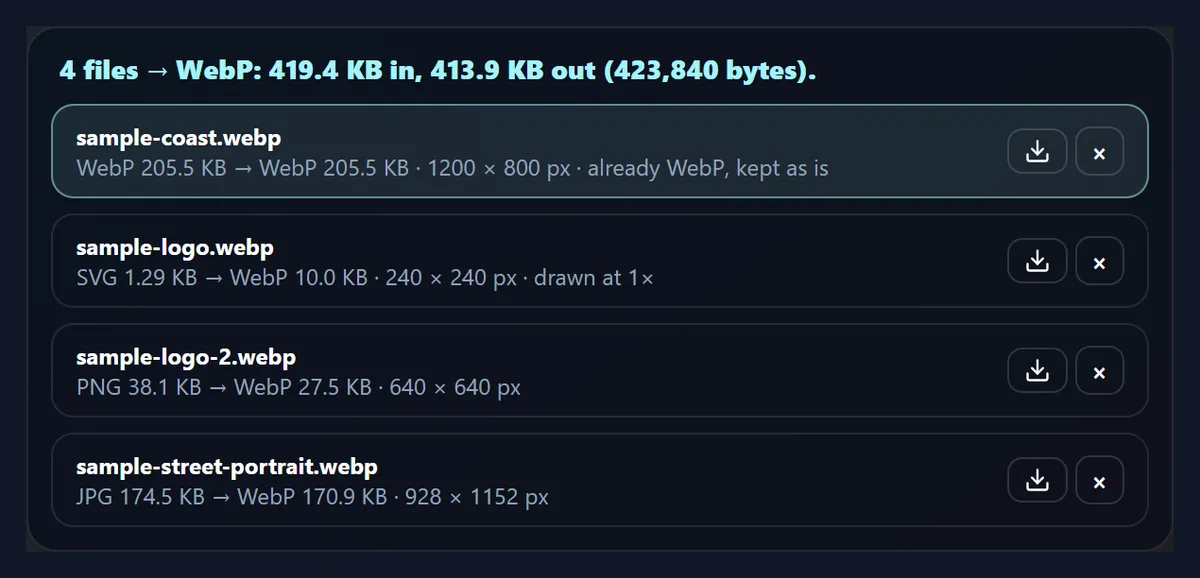
- The same files are converted to PNG, then to WebP.
- Back on JPG, the SVG logo is drawn at twice its size.
- All four files are downloaded as one ZIP.
Which format makes the smallest file?
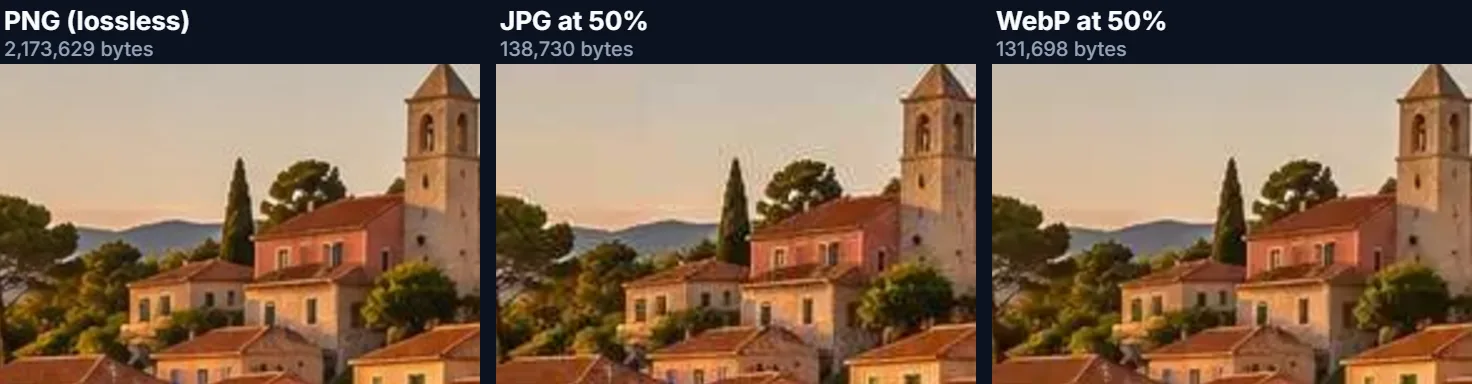
For photos, PNG is far behind and JPG and WebP are close, with WebP pulling ahead at everyday settings. The same 1200 × 800 coast photo, saved by this browser, came to 322,806 bytes as a 92% JPG and 336,030 bytes as a 92% WebP, slightly larger. At 80% it was 252,095 bytes as JPG and 210,704 as WebP, and at 50% 138,730 and 131,698. As a PNG, which keeps every pixel exactly, it was 2,173,629 bytes, 6.7 times the 92% JPG.
For graphics with flat colours, text and sharp edges, such as logos, charts and screenshots, the picture changes: PNG can be small, and JPG adds blurry blocks around edges. Convert one file, compare the sizes the tool shows, and keep whichever looks right at the smallest size.
| Format and quality | KB | Bytes |
|---|---|---|
| JPG, 92% quality | 315.2 | 322,806 |
| JPG, 80% | 246.2 | 252,095 |
| JPG, 50% | 135.5 | 138,730 |
| WebP, 92% quality | 328.2 | 336,030 |
| WebP, 80% | 205.8 | 210,704 |
| WebP, 50% | 128.6 | 131,698 |
| PNG (lossless) | 2119.7 | 2,173,629 |
JPG, PNG or WebP: which should I choose?
Choose JPG for photos that have to open everywhere: every phone, computer, app, printer and upload form accepts it. Choose PNG for screenshots, logos, diagrams and anything with text or a transparent background, or when you need an exact copy with nothing lost. Choose WebP for pictures on a website: at the quality settings sites usually use it tends to be smaller than JPG, it supports transparency, and every current browser shows it.
Some apps, print services and older upload forms still refuse WebP, which is the usual reason to convert WebP back to JPG or PNG. A converted file is a new file: going from JPG to PNG makes an exact copy of the JPG's pixels, including its compression marks, but cannot bring back what JPG compression already removed.
Which formats can the converter open?
JPG, PNG, WebP, GIF, BMP and SVG, and AVIF in browsers that decode it (current Chrome, Edge, Firefox and Safari do). GIF gives its first frame, as does an animated WebP. SVG is drawn as vectors at 1×, 2×, 3× or 4× its own size, so a larger size is just as sharp. For iPhone HEIC photos, use the HEIC to JPG converter.
Files are recognised by their first bytes, not their names. A photo saved as .png that is really a JPEG, or a .jpg that is really a WebP, which happens often with files saved from websites, is opened as what it really is, and the list shows its real format.
What does the quality setting do?
For JPG and WebP, quality sets how much detail the encoder may throw away, from 50% to 100%; the default is 92%. Lower quality makes a smaller file, with more visible artefacts: JPG shows blocky squares and halos around edges; WebP tends to smudge fine texture. PNG has no quality setting because it never throws anything away.
At 50% quality the coast sample came to 138,730 bytes as JPG and 131,698 bytes as WebP, against 2,173,629 bytes as PNG. Between 80% and 92% most photos look identical to most people at normal viewing size.
What happens to transparent backgrounds?
JPG cannot store transparency, so when you convert to JPG, transparent areas are filled with a background colour: white by default, or any colour you pick. PNG and WebP keep transparency, unless you tick Fill transparent areas to give them a solid background too. The list marks every file whose transparent areas were filled.
If a logo or cut-out has to sit on a coloured page, keep it as PNG or WebP. If it must be a JPG, choose a background colour that matches where it will be shown.
Can I convert many images at once?
Yes, up to 50 at a time. Every file is listed with its real format and size before and after, and you can download each one on its own or all of them as one ZIP. The four samples, converted to JPG, came to 581,677 bytes in all; to PNG, 3,904,543 bytes; to WebP, 423,840 bytes. Their ZIP of JPGs was 582,151 bytes: images are already compressed, so the ZIP stores them as they are rather than squeezing them again.
Names keep their original stem with the new extension. Two files that would end up with the same name, such as logo.svg and logo.png both converted to JPG, are numbered (logo.jpg, logo-2.jpg) so nothing in the ZIP is overwritten.
What if a file is already in the format I chose?
It is kept exactly as it is. Re-saving a JPG as a JPG, or a PNG as a PNG, only loses quality or wastes time, so the converter copies the original bytes and says so in the list. The exceptions are files that need changing anyway: a JPEG whose camera orientation tag says it should be turned is redrawn upright, and a PNG or WebP is redrawn when you ask for transparent areas to be filled.
That also means a file kept as it is keeps its metadata, such as the camera model and date, while converted files do not.
What happens to orientation and EXIF data?
Phone photos are often stored sideways with a tag telling viewers to turn them. The converter applies that tag when it opens a photo, so the converted file is upright on its own and needs no tag. Converted files are drawn fresh, so they carry no EXIF data from the original: no camera details, no date, and no GPS location. That is useful when you share photos publicly, but it also means the converted copy is not a full archive of the original.
Colours are saved in sRGB, the colour space the web assumes.
What about GIF, BMP and AVIF files?
GIF stores at most 256 colours per frame and is mostly used for simple animations; converting gives its first frame as a still picture, which as JPG or PNG can use millions of colours from then on. BMP is an old, usually uncompressed format, so a BMP photo converted to JPG or PNG often shrinks to a small fraction of its size with no visible change. AVIF is a newer format that compresses even better than WebP; it opens here in browsers that support it and can be saved as JPG, PNG or WebP for apps that do not.
SVG files are drawn as vectors at the size you choose, so they can become large, sharp PNGs.
Does it work on a phone?
Yes. The tool runs in any current mobile browser, so you can convert images straight from your phone's photos or files. On an iPhone, downloads go to the Downloads folder in the Files app; on Android, to the Downloads folder. Phones have less memory than computers, so convert very large images, or long lists of them, a few at a time.
Nothing is installed and nothing is uploaded, so it works the same on a phone, a tablet or a computer.
Is anything uploaded?
No. The files are opened, converted, zipped and saved inside your browser tab, and no account is needed. Photos up to 40 megapixels can be opened; very large pictures are best converted a few at a time on a phone, where memory is tighter.
Because nothing is uploaded, the converter keeps working on a slow connection and the files never sit on someone else's server.
Why is my converted file bigger than the original?
Because the new format or quality keeps more than the old one did. A photo converted from JPG to PNG grows several times over, because PNG stores every pixel exactly. A WebP converted to JPG usually grows, because WebP packs the same picture into fewer bytes. And a JPG saved at 70% quality grows when converted at 92%. Lower the quality, or keep the original format if you can.
If a file will not open, it may be a format this browser cannot decode, such as AVIF in an old browser, or not an image at all; the list says which.
Frequently asked questions
How do I convert an image to JPG?
Add it, choose JPG, and download. Transparent areas get the background colour you pick.
How do I convert an image to PNG?
Add it and choose PNG. The PNG keeps every pixel and any transparency.
Can I convert several images at once?
Yes, up to 50, and download them all as one ZIP.
Which formats can I convert from?
JPG, PNG, WebP, GIF, BMP, SVG, and AVIF where the browser supports it.
Does converting reduce quality?
JPG and WebP lose a little at the quality you set; PNG loses nothing. Files already in the target format are kept as they are.
Why is my PNG so much bigger than the JPG?
PNG stores every pixel exactly, which takes many more bytes for a photo.
Can I convert SVG to PNG at a larger size?
Yes, at 2×, 3× or 4×, drawn as vectors so it stays sharp.
Are my images uploaded?
No. Everything happens in your browser.
Does the converter keep EXIF data?
Converted files have none; files kept as they are keep theirs.
Is it free?
Yes, with no account, watermark or limit.
Related tools
- JPG to PNG — Lossless copies of JPG photos.
- PNG to JPG — Smaller files from PNGs.
- WebP to JPG — For apps that refuse WebP.
- SVG to PNG — Vectors drawn at any size.
- JPG to PDF — Photos into one PDF.
- HEIC to JPG — iPhone photos to JPG.