HEIC to JPG
Turn iPhone HEIC photos into JPG files that open everywhere: on Windows, in web forms, in email, in any app. Convert one photo or 50 at a time, choose the quality, see the real file sizes, and download each JPG or a ZIP. Nothing is uploaded.
Updated

How do you convert HEIC to JPG?
Drop your HEIC photos on the converter, or choose them, and each one is converted to JPG at once, at its full size. Set the Quality slider if you want smaller or better files, then download the JPGs one by one or all together as a ZIP. On the two samples, a coastal photo and a street portrait, the conversion took 0.8 seconds for both together in Chrome on the test laptop, including loading the decoder.
HEIC is the format iPhones save photos in by default (Apple calls it High Efficiency): a HEIF container holding pictures compressed with HEVC, the H.265 video codec. It keeps photos small, but many places still cannot open it: Windows without extra extensions, older Android phones, most websites' upload forms, and the Chrome, Edge and Firefox browsers. JPG opens everywhere.
Safari can decode HEIC itself, so there the tool uses Safari's own decoder. In other browsers it uses libheif, the open-source HEIF library, compiled to WebAssembly and downloaded once, the first time you open a HEIC. Either way the photos stay on your device: nothing is uploaded and no account is needed.
How to convert HEIC to JPG online
- Add the HEIC photos Drop or choose up to 50 .heic or .heif files, or try the two samples.
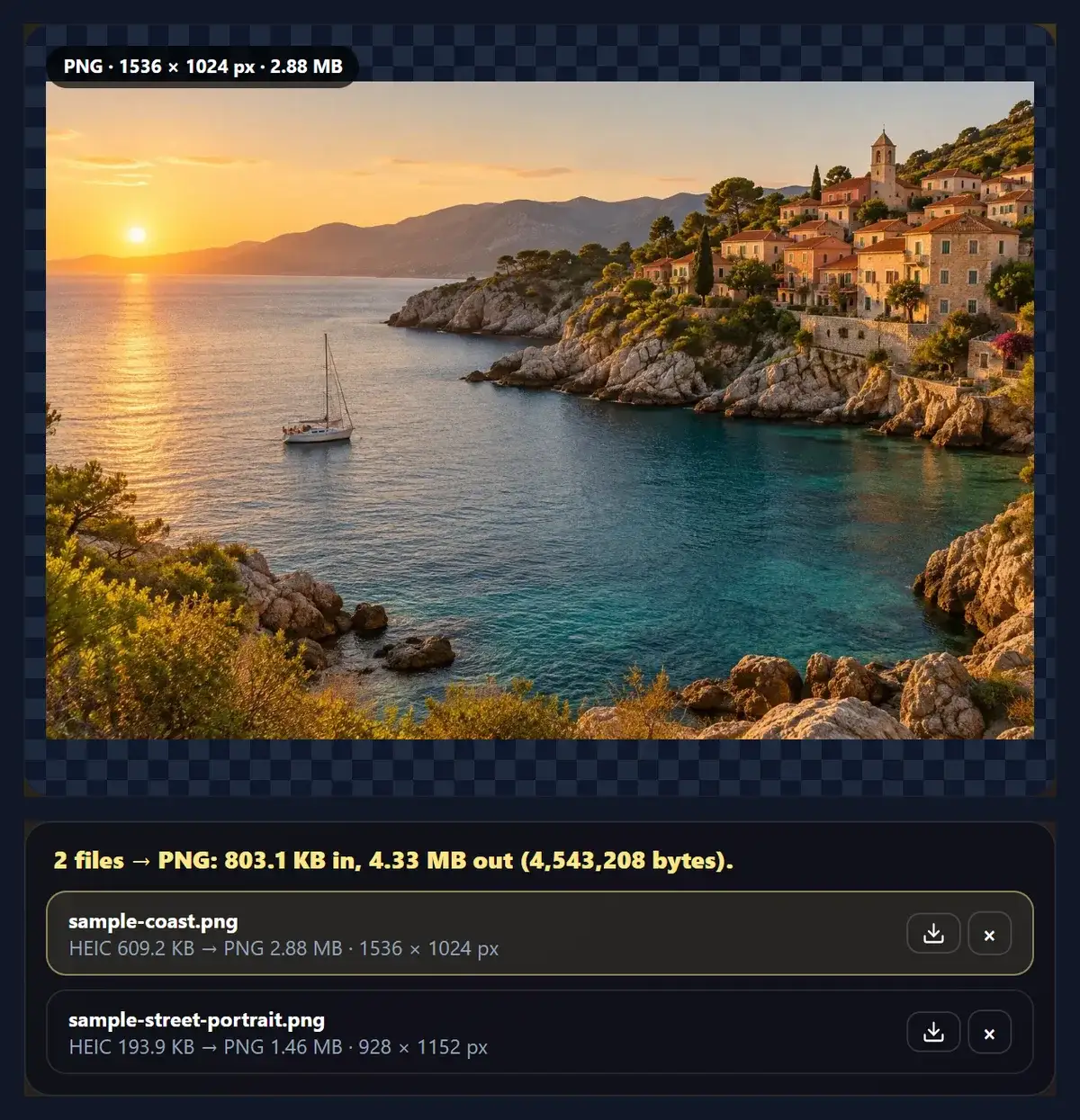
- Choose the quality 92% is the default; lower makes smaller files, 100% the largest. You can switch to PNG for lossless files.
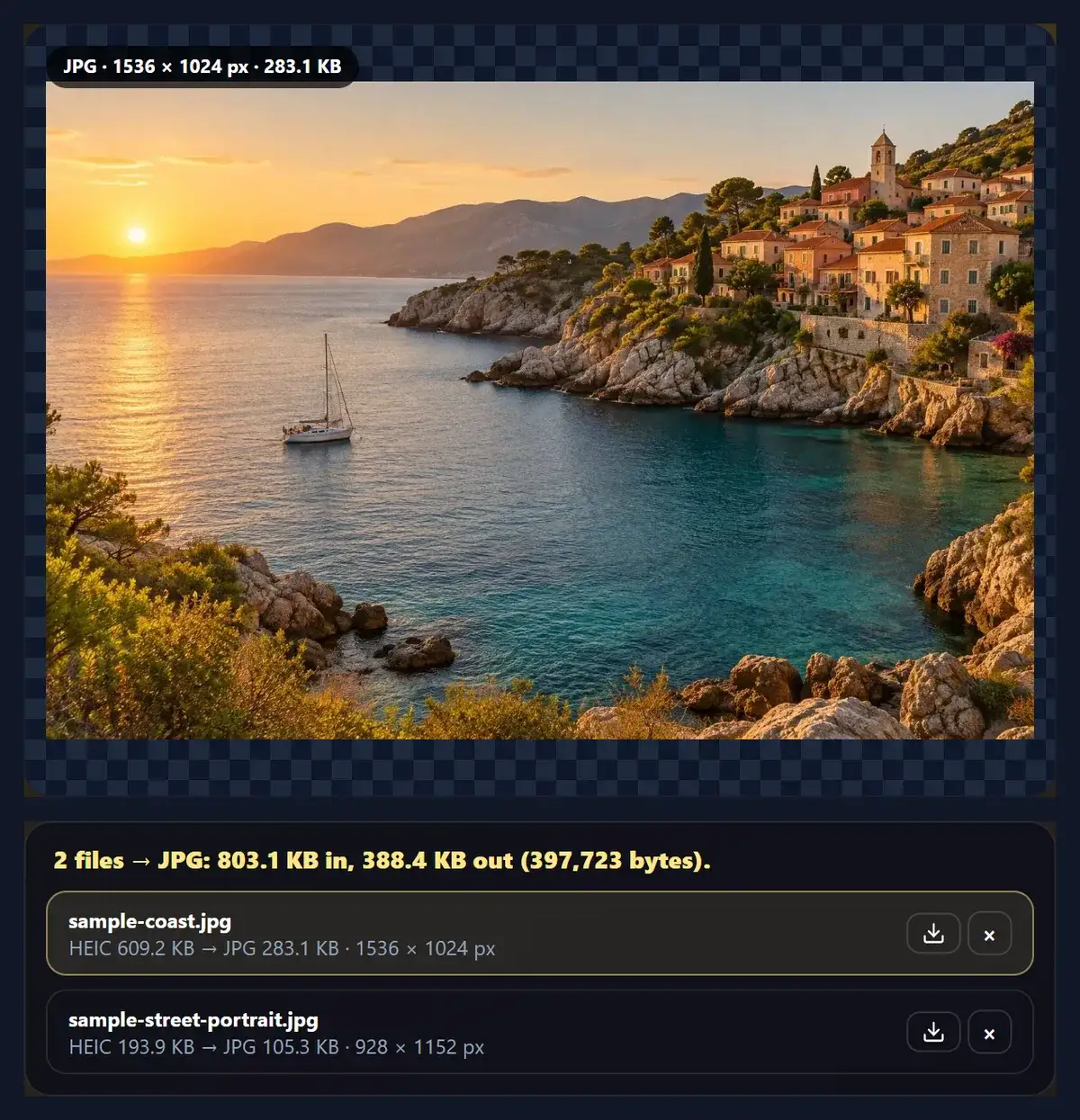
- Check the sizes Each photo shows its HEIC size and the real JPG size, with the pixel dimensions.
- Download Save each JPG, or all of them at once as a ZIP.
Convert two HEIC photos to JPG
A real recording of this tool: two HEIC samples are converted to JPG in the browser, the quality is changed and restored, and a JPG is downloaded.
- The two HEIC samples are loaded and decoded in the browser.
- Both are converted to JPG; the list shows each HEIC and JPG size.
- The quality is lowered to 75% and set back to 92%, and the sizes follow.
- One JPG is downloaded.
Is a JPG bigger than the HEIC it came from?
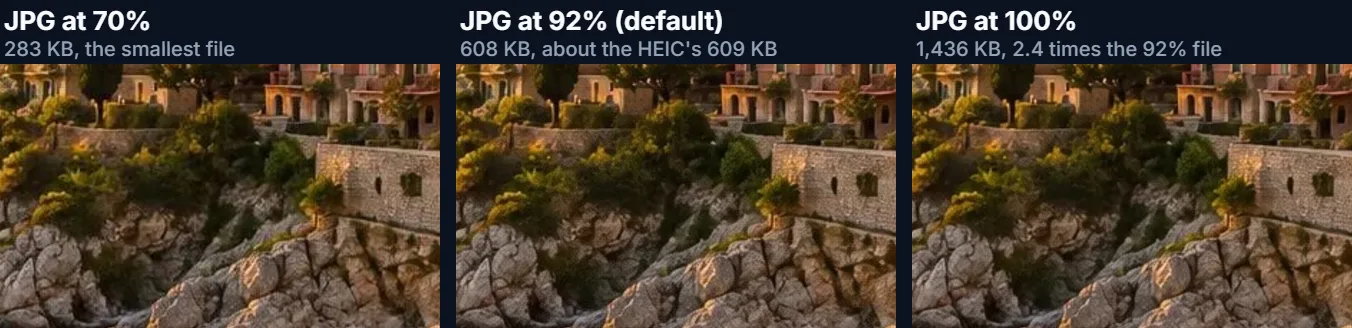
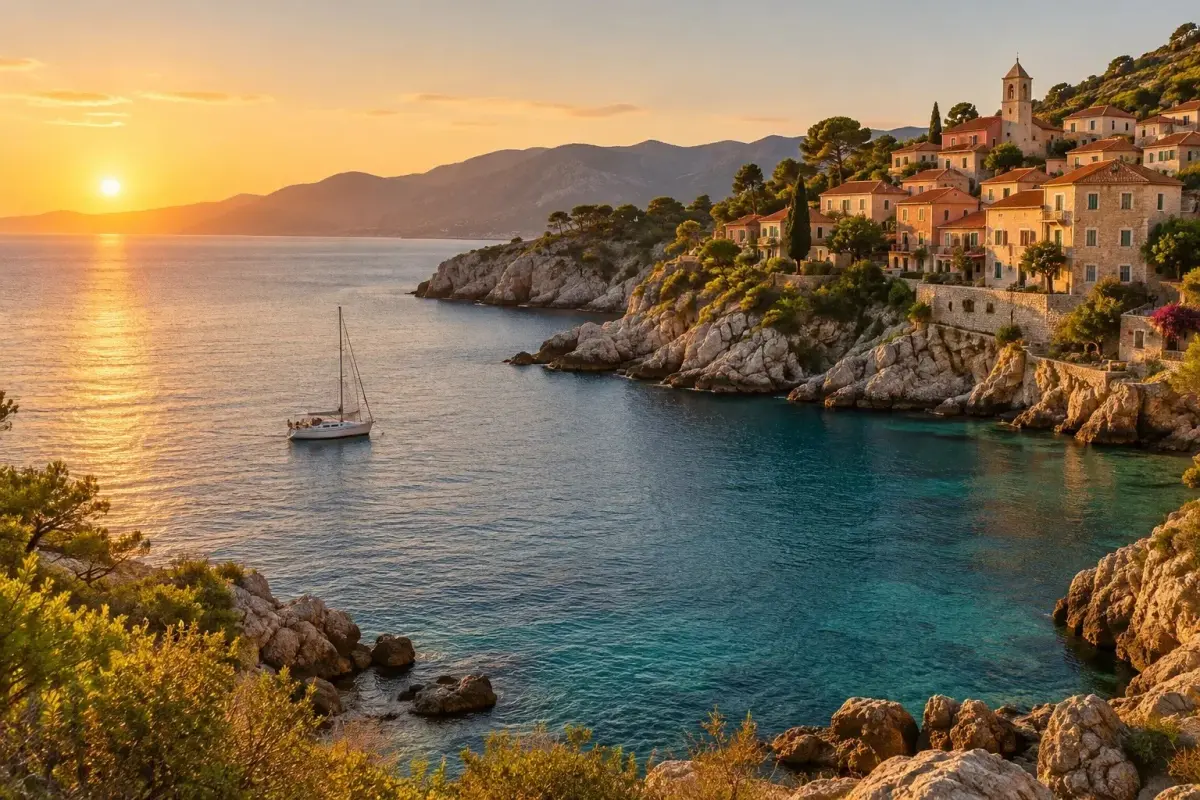
At the same visual quality, usually yes: HEVC, the compression inside a HEIC, packs a photo tighter than JPEG's older method, which is the whole point of the format. How much bigger depends on the quality you choose. On the coastal sample, a 609 KB HEIC, a JPG at the default 92% came out at about the same size, while 100% more than doubled it and 85% made it a third smaller. A PNG of the same photo, which keeps every decoded pixel exactly, was almost five times the HEIC.
The table lists the real sizes from the tool, in kilobytes of 1,024 bytes. The samples were saved as HEIC for this page with libheif's HEVC encoder at quality 70, from the site's sample photos; phones choose their own settings, so your photos will have their own sizes. The pixel dimensions never change: the coastal photo stays 1536 × 1024.
| File | Size (KB) | Bytes |
|---|---|---|
| HEIC, as opened | 609.2 | 623,859 |
| JPG at 70% | 283.1 | 289,904 |
| JPG at 85% | 412.6 | 422,485 |
| JPG at 92% (default) | 608.4 | 623,014 |
| JPG at 100% | 1,435.7 | 1,470,184 |
| PNG (lossless) | 2,946.2 | 3,016,887 |
Which JPG quality should you choose?
92% is the default and a good choice for photos you will keep, print or edit: the compression is hard to see even when you zoom in. 85% is the usual web setting, noticeably smaller with little visible change. 70% suits photos for chat apps, forms with size limits and email. 100% is rarely worth it: the file grows a lot (2.4 times the 92% file on the coastal sample) for detail that the HEIC compression had already simplified.
Remember that HEIC itself is compressed, so converting can never add detail: a JPG at 100% is a very faithful copy of the decoded HEIC, not of the original scene. If you need a smaller file in kilobytes, convert first and then use Reduce Image Size in KB.
| Quality | Coastal photo (HEIC 623,859) | Street portrait (HEIC 198,548) |
|---|---|---|
| 70% | 289,904 | 107,819 |
| 85% | 422,485 | 173,010 |
| 92% (default) | 623,014 | 210,611 |
| 100% | 1,470,184 | 626,388 |
| PNG instead | 3,016,887 | 1,526,321 |
How does a browser convert HEIC without uploading it?
In three steps, all inside the browser tab. First, the file is identified by its first bytes, not its name: a HEIC starts with an ftyp box naming a brand such as heic, heix or mif1, so a renamed or misnamed file is still recognised. Second, it is decoded: by Safari's own image decoder where it can, otherwise by libheif, the open-source HEIF library by struktur AG, compiled to WebAssembly by the libheif-js project (version 1.19.8, LGPL-3.0). The decoder is about 1.5 MB, downloaded the first time a HEIC is opened and kept for the rest of the visit. libheif applies the rotation and mirroring stored in the file, as it does by default, so photos come out as they were shot. Third, the decoded picture is encoded as JPG by the browser at the quality you chose.
When a HEIC holds more than one picture, the tool takes its first top-level image, which in a single-photo file is the photo itself.
How long does it take to convert a HEIC photo?
A second or two for a phone photo on a laptop. To time a phone-sized file, the coastal sample was enlarged to 4032 × 2688 pixels (11 megapixels, the size class of a 12-megapixel iPhone photo) and saved as a 1.5 MB HEIC. In Chrome on the test laptop, converting it to JPG took 1.5 seconds on a fresh page, including downloading the decoder, and 1.4 seconds the second time. The JPG was 2,206,797 bytes. Phones are usually slower than laptops, and a batch of 50 photos is converted one after another, so allow time for big batches.
Photos up to 40 megapixels open. Each converted file is kept in memory until you download it or clear the list, so for hundreds of photos, convert them in batches of 50.
Can an iPhone save photos as JPG instead of HEIC?
Yes. In Settings, Camera, Formats, choose Most Compatible instead of High Efficiency, and new photos are saved as JPG (and videos as H.264). Photos already taken stay HEIC. The iPhone also converts automatically in some situations: in Settings, Photos, the Transfer to Mac or PC option set to Automatic converts photos copied to a computer over a cable, and many apps receive a JPG when you share a photo with them.
Converting here is useful for the photos you already have, for files that arrived as HEIC by email, AirDrop or cloud storage, and when a website rejects them.
What is kept and what is lost when converting?
Kept: the picture itself, at its full pixel size, the right way up. Lost: the photo's EXIF data (date and time taken, camera settings, and the location if it was recorded) is not copied into the JPG, which is often what you want before sharing a photo online, but check before converting photos whose date you rely on. Also not carried over: extra pictures stored alongside the photo by some phones, such as a depth map for portrait mode, HDR information beyond the standard picture, and any 10-bit precision, since JPG stores 8 bits per channel. Colour profiles are not carried over either: in Chrome, Edge and Firefox the decoded colours are saved as they come, so on photos recorded in the wider Display P3 range, very saturated colours can come out slightly different. A Live Photo's movement is a separate video file and is not part of the HEIC.
Transparency does not exist in camera HEIC photos, and JPG cannot store it; if a HEIC does have transparent areas, they are filled with the background colour you choose.
How do you open HEIC files on Windows?
Windows can show HEIC photos once Microsoft's HEIF and HEVC extensions are installed from the Microsoft Store; without them, the Photos app shows nothing, and other programs may not open the files at all. Converting the photos to JPG avoids the question entirely: a JPG opens in every Windows program, in Office documents and in every browser. This converter runs in Chrome, Edge and Firefox on Windows without any extension, because it brings its own decoder.
On a Mac, Preview and the Photos app open HEIC directly and can export JPG; the converter here is quicker for batches and works the same on any computer.
Can you convert many HEIC files at once?
Yes, up to 50 at a time. Add them all at once or in several goes; each is converted as it arrives and listed with its sizes. Download each with its own button, or press the main button for a ZIP of all of them, with the original names and a .jpg ending (two photos with the same name get -2, -3 added). Remove any file from the list with its × button. The quality applies to the whole batch; change it and every photo is converted again.
Files that are not really HEIC are recognised by their bytes and converted too, or reported as unreadable, so a mixed folder can go in at once.
Why does a HEIC file not convert?
The most common reasons: the file is not a HEIC photo at all (a .heic name on a different kind of file, or a HEIC video sequence rather than a still), it is damaged or only partly downloaded from cloud storage, or it is larger than 40 megapixels. Download it again in full, or open it on the phone and share it again. If the decoder cannot be downloaded, because the connection dropped or a network blocks it, reload the page and try again.
Files are recognised by their bytes, so a photo with the wrong name, or no file type at all, still converts if it really is HEIC.

Frequently asked questions
How do I convert HEIC to JPG for free?
Drop the HEIC photos here, choose the quality, and download the JPGs or a ZIP. No account is needed.
Are my photos uploaded?
No. They are decoded and converted in your browser tab.
Does it work in Chrome on Windows?
Yes. Where the browser cannot open HEIC itself, the tool decodes it with libheif, compiled to WebAssembly.
Will the JPG be the same size as the HEIC?
Same pixels; the file size depends on the quality. At 92% the coastal sample came out about the same size.
Does converting reduce the quality?
Very little at 92%; JPG compression is added on top of the HEIC’s. Choose 100% or PNG to avoid more loss.
How many photos can I convert at once?
Up to 50, downloaded one by one or as a ZIP.
Is the photo’s date and location kept?
No. EXIF data, including any location, is not copied into the JPG.
How do I stop my iPhone saving HEIC?
Settings, Camera, Formats, Most Compatible. New photos are then JPG.
What is a HEIC file?
A HEIF image compressed with HEVC (H.265), the iPhone’s default photo format.
Can I convert HEIC to PNG instead?
Yes, choose PNG here, or use HEIC to PNG.
Related tools
- HEIC to PNG — Lossless PNG files from iPhone photos.
- Image Converter — Convert between JPG, PNG, WebP and more.
- Reduce Image Size in KB — Shrink the JPG to a size limit.
- Compress Image to 100KB — Fit a form’s 100 KB limit.
- WebP to JPG — The same for WebP images.
- PNG to JPG — Make PNGs smaller as JPGs.