HEIC to PNG
Turn iPhone HEIC photos into PNG files that keep every decoded pixel exactly, ready for editing, design and further processing. Convert one or 50 at a time in your browser, see the real file sizes, and download each PNG or a ZIP. Nothing is uploaded.
Updated
How do you convert HEIC to PNG?
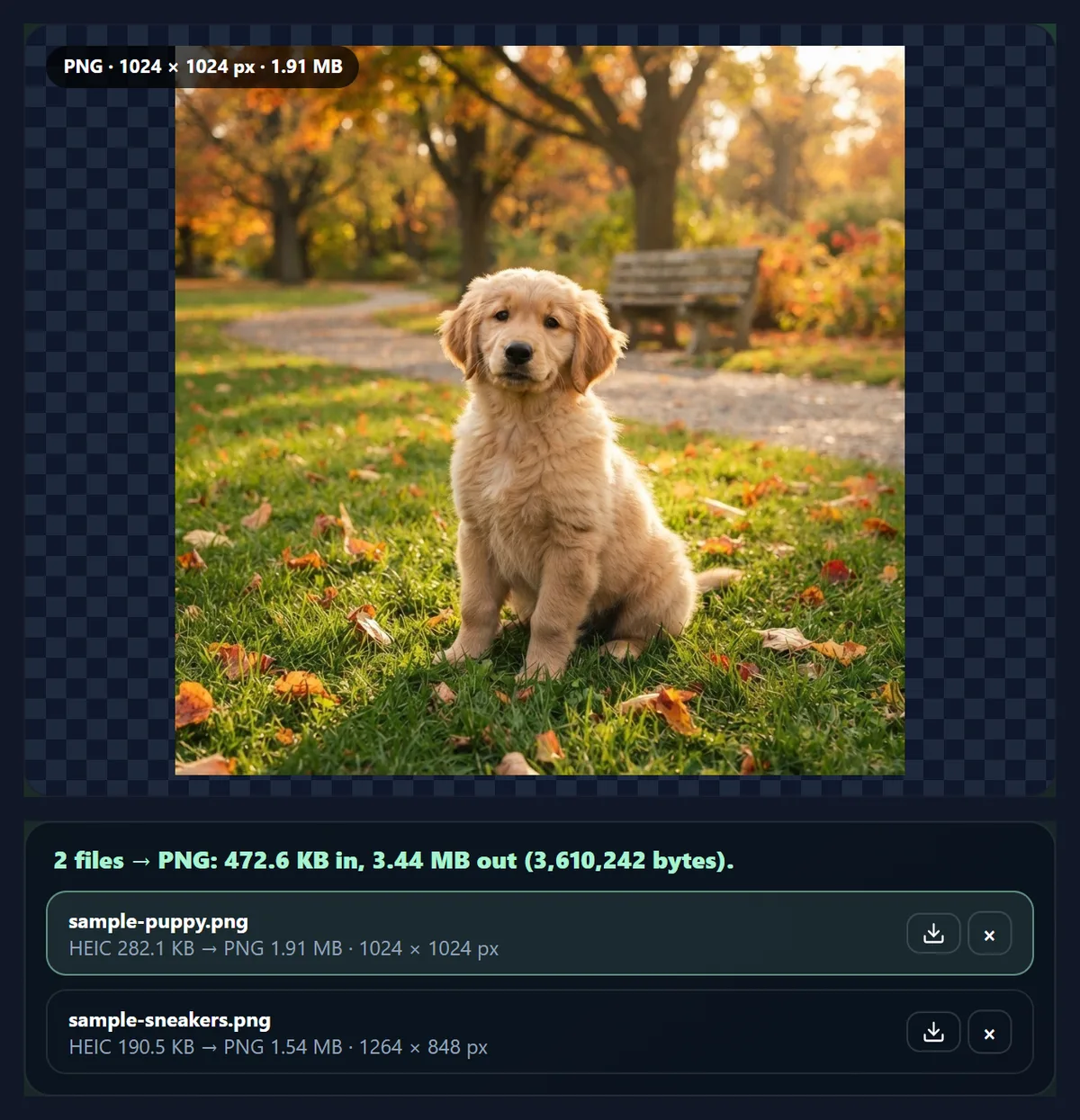
Drop your HEIC photos on the converter, or choose them, and each is decoded and saved as a PNG at once, at its full size. Download the PNGs one by one or all together as a ZIP. Switch to JPG in the same tool if you would rather have small files.
PNG is lossless: it stores exactly the pixels it is given, so a PNG made from a HEIC is a perfect copy of the decoded photo, and you can edit and save it again and again without it getting worse. That makes it the right choice for photos you will retouch, cut out, put into a design, or feed into another program. The price is size: on the puppy sample, the PNG was almost 7 times the HEIC.
HEIC is the iPhone's default photo format, a HEIF file compressed with HEVC (H.265). Safari can decode it; Chrome, Edge and Firefox cannot, so there the tool uses libheif, the open-source HEIF library compiled to WebAssembly, downloaded once, the first time you open a HEIC. Your photos never leave your device.
How to convert HEIC to PNG online
- Add the HEIC photos Drop or choose up to 50 .heic or .heif files, or try the two samples.
- Keep PNG selected PNG is the default here; choose JPG instead for smaller files.
- Check the sizes Each photo shows its HEIC size, the PNG size and its pixel dimensions.
- Download Save each PNG, or all of them at once as a ZIP.
Convert two HEIC photos to PNG
A real recording of this tool: two HEIC samples are decoded and saved as PNG in the browser, switched to JPG and back, and a PNG is downloaded.
- The two HEIC samples are loaded and decoded in the browser.
- Both are saved as PNG; the list shows each HEIC and PNG size.
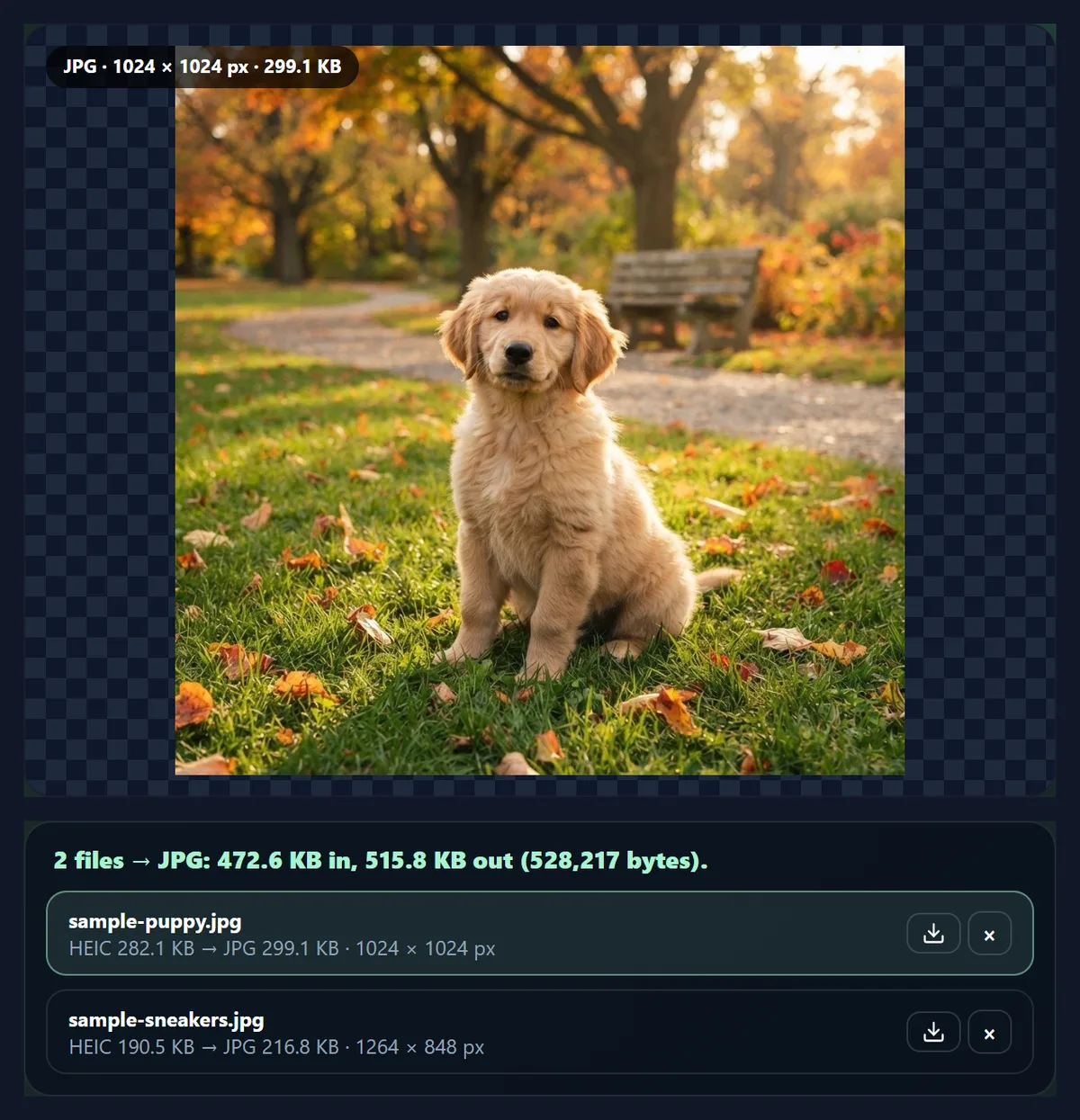
- The batch is switched to JPG, showing the smaller files, then back to PNG.
- One PNG is downloaded.
How big is a PNG made from a HEIC?
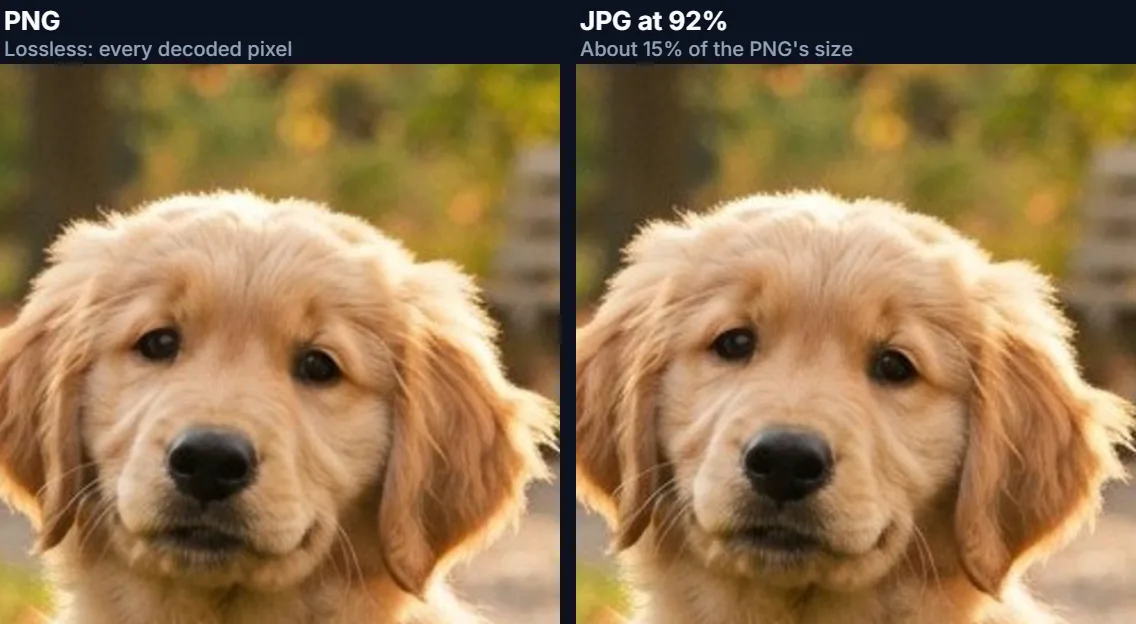
Several times bigger. HEIC is lossy: HEVC compression throws away detail the eye is unlikely to miss, which is how it keeps a photo small. PNG keeps everything it is given, and the compression it uses (deflate, as in ZIP files) only shrinks repeated patterns, which photos have few of. On the two samples, the PNG was about 7 and 8 times the size of the HEIC, while a 92% JPG of the same photo came out close to the HEIC's size.
The table lists the real files, in kilobytes of 1,024 bytes. The samples were saved as HEIC for this page with libheif's HEVC encoder at quality 70, from the site's sample photos; phones choose their own settings. A phone-sized photo (4032 × 2688) made a PNG of 15,615,981 bytes.
| File | Size (pixels) | Size (KB) |
|---|---|---|
| Puppy as HEIC | 1024 × 1024 | 282.1 |
| Puppy as JPG at 92% | 1024 × 1024 | 299.1 |
| Puppy as PNG | 1024 × 1024 | 1,953.3 |
| Desk as HEIC | 1264 × 848 | 190.5 |
| Desk as JPG at 92% | 1264 × 848 | 216.8 |
| Desk as PNG | 1264 × 848 | 1,572.3 |
Should you convert HEIC to PNG or to JPG?
PNG when the photo is going to be worked on: retouched, cut out, combined with graphics or text, colour graded, or used as the input to another tool or program. Every save of a JPG adds a little more compression damage; a PNG can be opened and saved any number of times with no loss. PNG is also what many design tools, game engines and machine-learning datasets expect.
JPG when the photo is going to be shared, uploaded or stored: it is a fraction of the size (about 15% of the PNG for the puppy sample) and, at 92% quality, visually the same. Converting to PNG cannot restore what the HEIC compression already removed; it only stops further loss. If you are unsure, convert to PNG for editing and export a JPG at the end.
How is the HEIC decoded in the browser?
The file is recognised by its first bytes, not its name: a HEIC begins with an ftyp box naming a brand such as heic, heix or mif1. Safari decodes it with the system's own image decoder. In Chrome, Edge and Firefox, the tool loads libheif, the open-source HEIF library by struktur AG, compiled to WebAssembly by the libheif-js project (version 1.19.8, LGPL-3.0); the decoder is about 1.5 MB and is downloaded once per visit, the first time a HEIC is opened. libheif applies the rotation and mirroring stored in the file, as it does by default, and the decoded pixels are saved as PNG by the browser.
On the test laptop in Chrome, the phone-sized HEIC (4032 × 2688, 1.5 MB) became a PNG in 2.1 seconds on a fresh page, including the decoder download, and 1.7 seconds the second time.
Does the PNG keep the HEIC’s colours and bit depth?
The colours, yes; the extra precision, not always. Many phones store HEIC photos with 10 bits per colour channel, and some add HDR information on top of the standard picture. The browser decodes the standard picture and saves an 8-bit-per-channel PNG (24-bit colour, plus an alpha channel the browser writes even though camera photos are fully opaque). For viewing, sharing and nearly all editing, 8 bits per channel is plenty; for professional grading of high-dynamic-range photos, use a desktop raw or HEIF workflow that writes 16-bit files.
Colour profiles are not carried over. In Chrome, Edge and Firefox the decoded colours are saved as they come, without the original's profile; on photos recorded in the wider Display P3 range, as recent iPhones record them, very saturated colours can come out slightly different from the original.
What is lost when converting HEIC to PNG?
Nothing from the picture itself: the full pixel size is kept and the photo comes out the right way up. Not copied: the EXIF data (the date and time taken, camera settings and any location), which matters if you sort photos by date and is a good thing if you are about to share them; depth maps and other extra images some phones store inside the HEIC; and HDR information beyond the standard picture. A Live Photo's movement lives in a separate video file and is not part of the HEIC.
PNG can hold transparency, but camera photos have none, so a PNG from an iPhone photo is fully opaque. To make the background transparent, run the PNG through Background Remover afterwards.
Can you convert several HEIC photos to PNG at once?
Yes, up to 50 at a time. Add them all at once or in several goes; each is converted as it arrives and listed with its sizes. Download each with its own button, or press the main button for a ZIP with the original names and a .png ending (duplicates get -2, -3 added). The ZIP saves you 50 separate downloads, but remember PNGs are large: 50 phone photos as PNG can easily come to several hundred megabytes, so check your free space, or convert in smaller groups.
Files are read from their bytes, so a mixed folder of HEIC, JPG and PNG photos can go in at once; the ones that are already PNG are simply saved again.
When is a PNG of an iPhone photo useful?
When the photo goes into a design or an edit: a product shot for a cut-out, a portrait for retouching, a picture to place behind text in a poster or a slide, frames for a stop-motion or a time-lapse, textures for a 3D or game project, or images for a dataset where JPEG artefacts would get in the way. Also when a program or a website accepts PNG but not HEIC, and you do not want to add JPEG compression on top of the HEIC's.
For simply sharing or uploading photos, HEIC to JPG gives files a fraction of the size.
Is converting HEIC to PNG here private and free?
Yes. The photos are opened, decoded and saved inside your browser tab; nothing is uploaded, and the page works without an account. The only download involved is the decoder itself, the same file for everyone, fetched from this site the first time you open a HEIC. Because EXIF data is not copied, the PNGs carry no location or camera details.
There is no watermark and no limit beyond 50 files per batch and 40 megapixels per photo.
What is the difference between HEIC and HEIF?
HEIF, the High Efficiency Image File Format, is the container: an MPEG standard (ISO/IEC 23008-12) for storing one or more images, with thumbnails, depth maps and metadata, in a single file. HEIC is HEIF with the pictures compressed by HEVC, the H.265 codec, which is what iPhones write; the files end in .heic. A .heif file may use HEVC or another codec, and AVIF is the same container with pictures compressed by AV1, the codec behind much web video.
This converter reads HEIC and HEVC-coded .heif files. Browsers open AVIF themselves, so an AVIF goes through the image converter like any JPG or PNG.
Why does a HEIC file not become a PNG?
Usually the file is not a still HEIC photo (a renamed file of another kind, or an image sequence), it is incomplete because it was still downloading from cloud storage, or it is over 40 megapixels. Download it again in full, or share it again from the phone. If the decoder fails to download because the connection dropped or a network blocks it, reload the page.
A file with the wrong name, or no file type at all, still converts if its bytes say HEIC. And if the PNG seems too large for its purpose, switch to JPG, which keeps the look at a fraction of the size.


Frequently asked questions
How do I convert HEIC to PNG for free?
Drop the HEIC photos here and download the PNGs or a ZIP. No account is needed.
Is HEIC to PNG lossless?
The PNG keeps every decoded pixel exactly; it cannot restore what the HEIC compression removed.
Why is the PNG so much bigger than the HEIC?
PNG stores every pixel without lossy compression. On the samples it was about 7 to 8 times the HEIC.
Are my photos uploaded?
No. They are decoded and converted in your browser tab.
Does it work in Chrome on Windows?
Yes. Where the browser cannot open HEIC, libheif decodes it as WebAssembly.
Will the PNG have a transparent background?
No, camera photos are opaque. Use Background Remover afterwards for transparency.
Is the photo’s date and location kept?
No. EXIF data is not copied into the PNG.
How many photos can I convert at once?
Up to 50, downloaded one by one or as a ZIP.
Should I choose PNG or JPG?
PNG for editing and design, JPG for sharing and storage.
Is it free?
Yes, with no account, watermark or upload.
Related tools
- HEIC to JPG — Small JPG files from iPhone photos.
- Background Remover — Make the PNG’s background transparent.
- JPG to PNG — The same for JPG photos.
- PNG to JPG — Shrink a PNG back to a JPG.
- Image Converter — Convert between all the common formats.
- Convert Image from MB to KB — Fit a size limit after converting.