Rotate Image
Turn a photo the right way up with a quarter turn, or rotate it by any angle and choose whether to grow the canvas or crop the corners. Every step runs in your browser and the download keeps the full resolution.
Updated
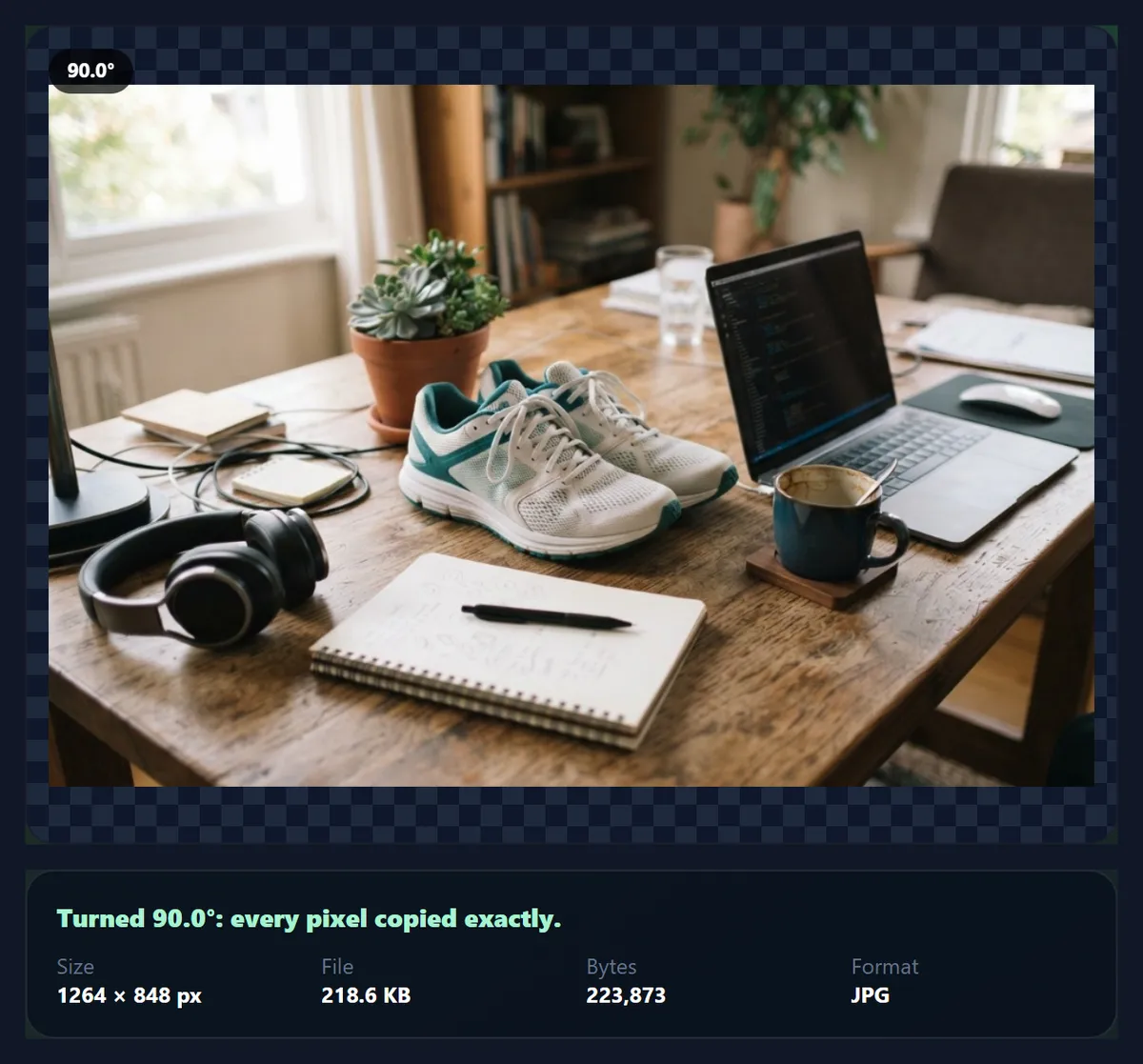
How do you rotate an image?
Open the image, press 90° right, 90° left or 180°, and download it. Quarter turns move every pixel to a new position without changing it, so the rotated file has exactly the same detail as the original. For any other angle, drag the angle slider: the tool either grows the canvas so no corner is cut off, or crops the corners away, whichever you choose.
Sideways photos are common. A phone records which way it was held in a small orientation tag, and some apps, upload forms and older programs ignore that tag, so the picture appears on its side. Rotating the pixels themselves fixes the problem everywhere, because the file no longer relies on the tag. The tool also applies a photo's existing tag when it opens it, so what you see is the way the camera meant it.
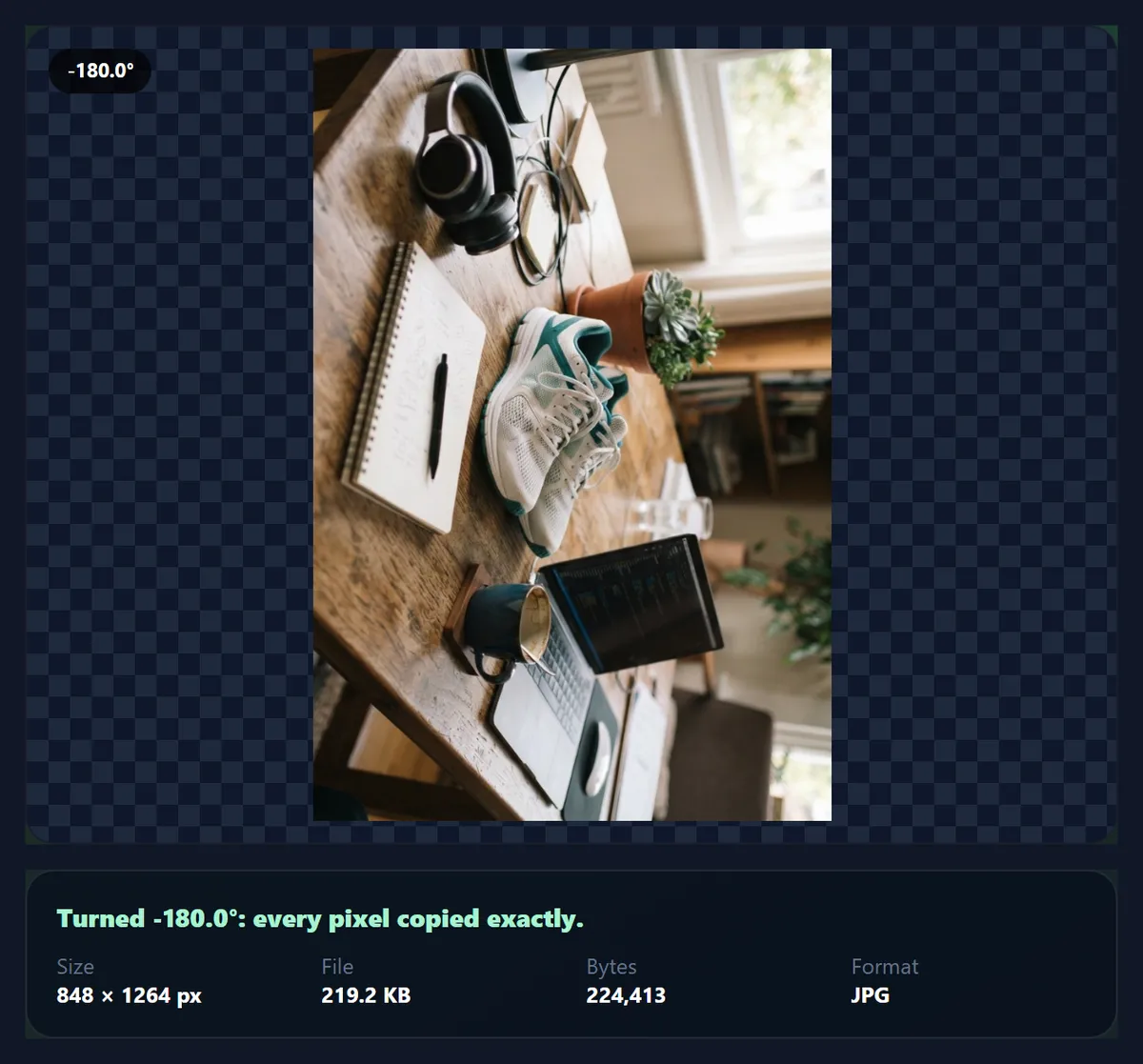
The sample here is a product photo saved sideways, 848 × 1264 pixels. One press of 90° right turns it into the 1264 × 848 picture it should have been. Everything happens on your device; the photo is not uploaded.
How to rotate an image online
- Open the image Choose a JPG, PNG or WebP, drop it on the preview, or use the sideways sample. Its size in pixels appears underneath.
- Turn it Press 90° right, 90° left or 180°. Press again to keep turning; Reset puts it back.
- Or pick any angle Drag the angle slider from −180° to 180°. Choose Grow the canvas to keep the corners, or Crop the corners for a clean rectangle.
- Download Pick JPG, PNG or WebP and download. The panel shows the exact size of the file you will get.
Rotate a sideways photo upright, then by any angle
A real recording of this tool: a sideways photo is turned 90° right, rotated 15° with its corners kept, then cropped, and downloaded.
- The sample product photo opens sideways.
- 90° right turns it upright.
- The angle slider turns it a further 15° on a larger canvas.
- Crop the corners trims it to a clean rectangle.
- The file is downloaded.
Does rotating an image lose quality?
Not when you turn it by 90°, 180° or 270°. A quarter turn maps every pixel onto another pixel position exactly: the top row becomes the right-hand column, and so on. The tool draws those turns with image smoothing switched off, so no pixel is blended with its neighbours. What can change the file is saving it again: a JPG is compressed again when you download it, at the quality you choose (92% to start). Choose PNG if you need a lossless copy.
Other angles are different. Turning a photo by 15° puts the original pixel grid at a slant to the new one, so each new pixel has to be worked out from the ones around it. The tool does that once, with the browser's high-quality smoothing. Edges stay clean, but very fine patterns can soften slightly, so rotate by an arbitrary angle once rather than in several small steps.
What happens to the corners when you rotate by an angle?
A rectangle turned by anything other than a quarter turn no longer fits in a rectangle of its own size. Its corners stick out. There are two honest ways to handle that, and the tool offers both.
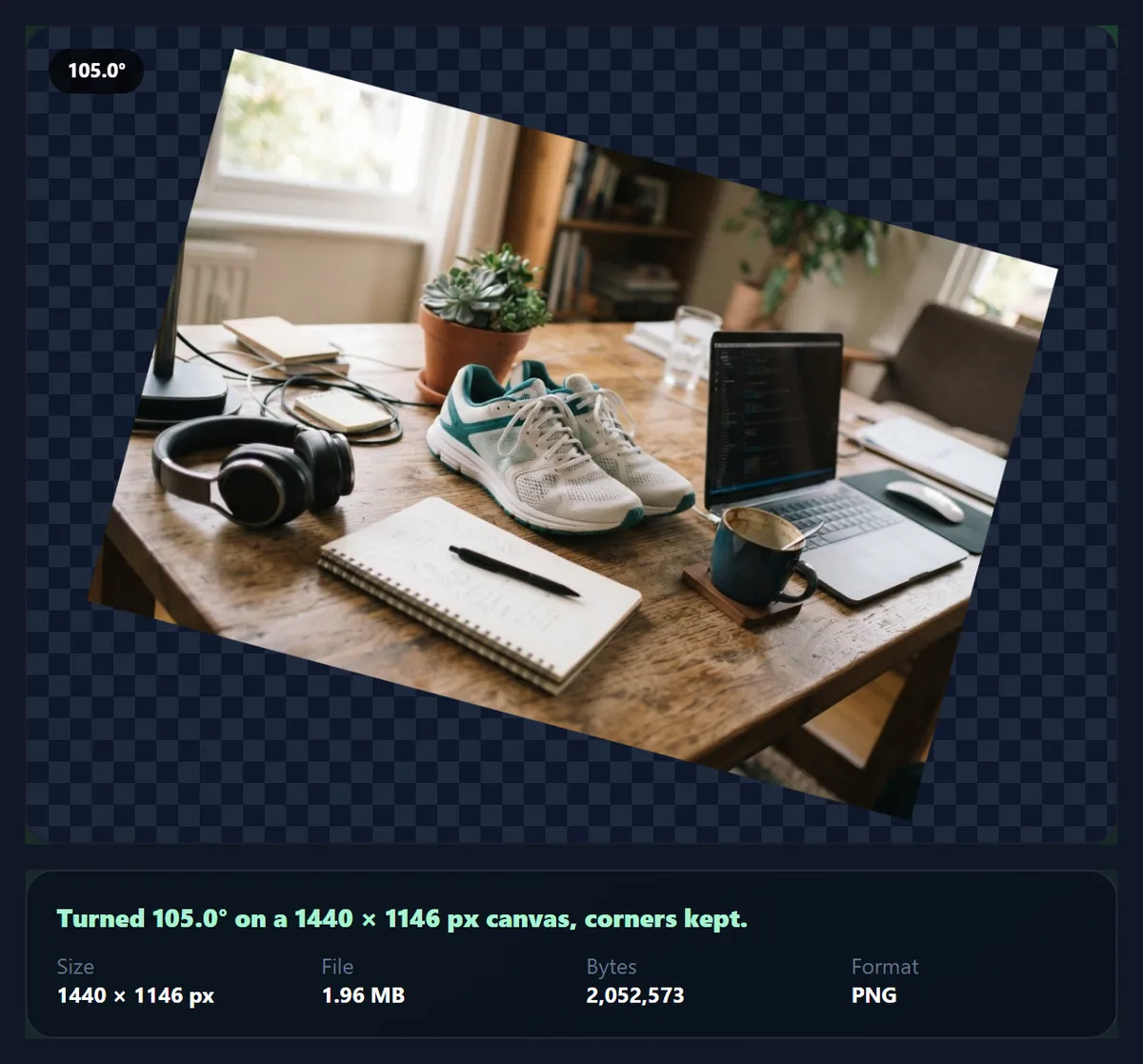
Grow the canvas keeps the whole photo and makes the picture bigger, filling the new triangles in the corners with a colour you choose, white to start, or leaving them transparent if you save a PNG or WebP. A 1536 × 1024 photo turned by 15° needs a 1749 × 1387 canvas, 54% more area; at 45° it needs 1810 × 1810, about twice the area. The table gives the figures for several angles.
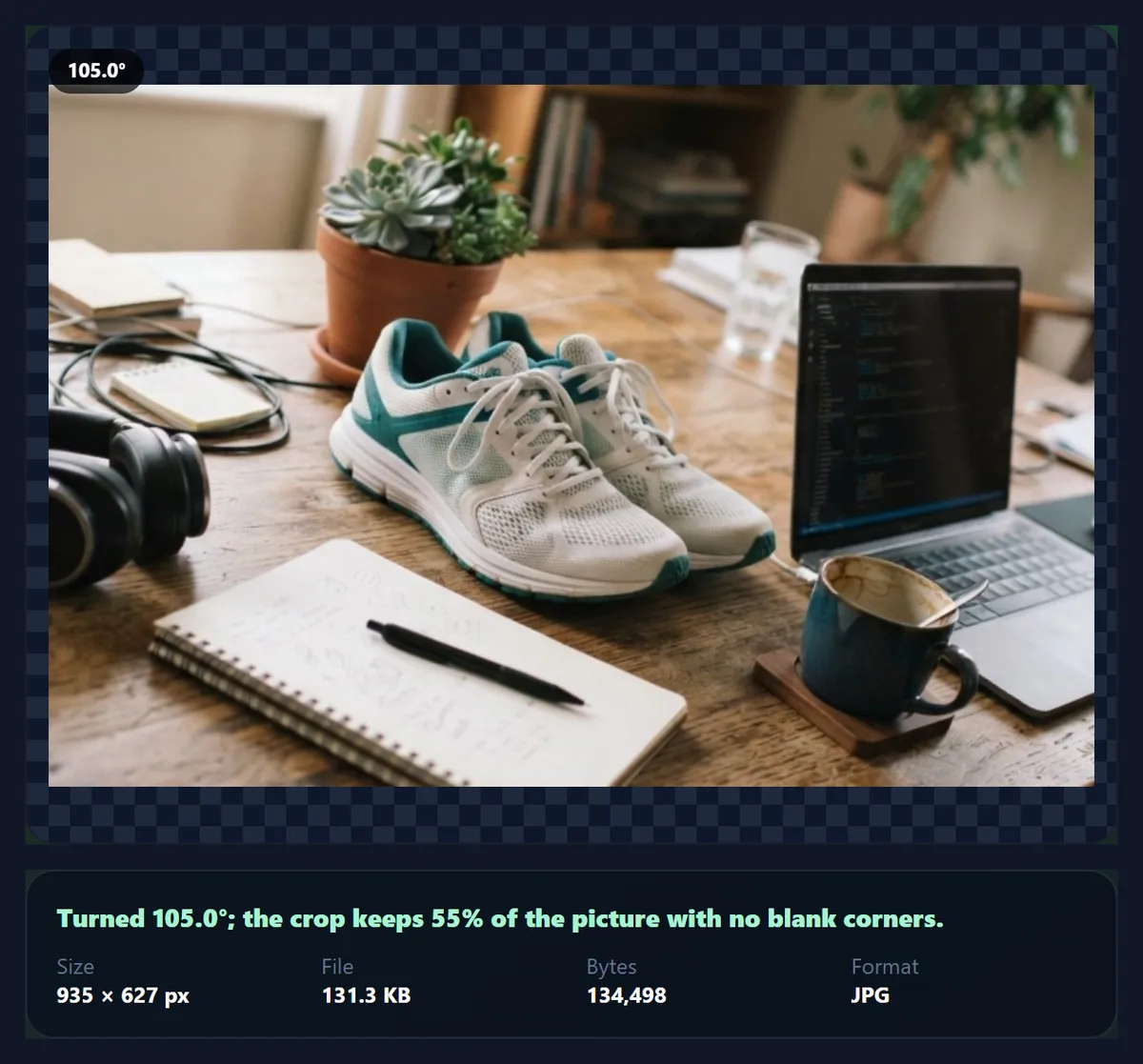
Crop the corners does the opposite: it keeps the largest rectangle with the photo's own shape that fits inside the turned picture, so there are no blank areas, and trims everything else. That is what you want when the result must stay a clean photograph, for example to straighten a crooked shot. The photo straightener page explains how much a crop costs at each angle.
| Angle | Canvas | Area compared with the photo |
|---|---|---|
| 5° | 1619 × 1154 | 119% |
| 15° | 1749 × 1387 | 154% |
| 30° | 1842 × 1655 | 194% |
| 45° | 1810 × 1810 | 208% |
| 60° | 1655 × 1842 | 194% |
| 90° | 1024 × 1536 | 100% |
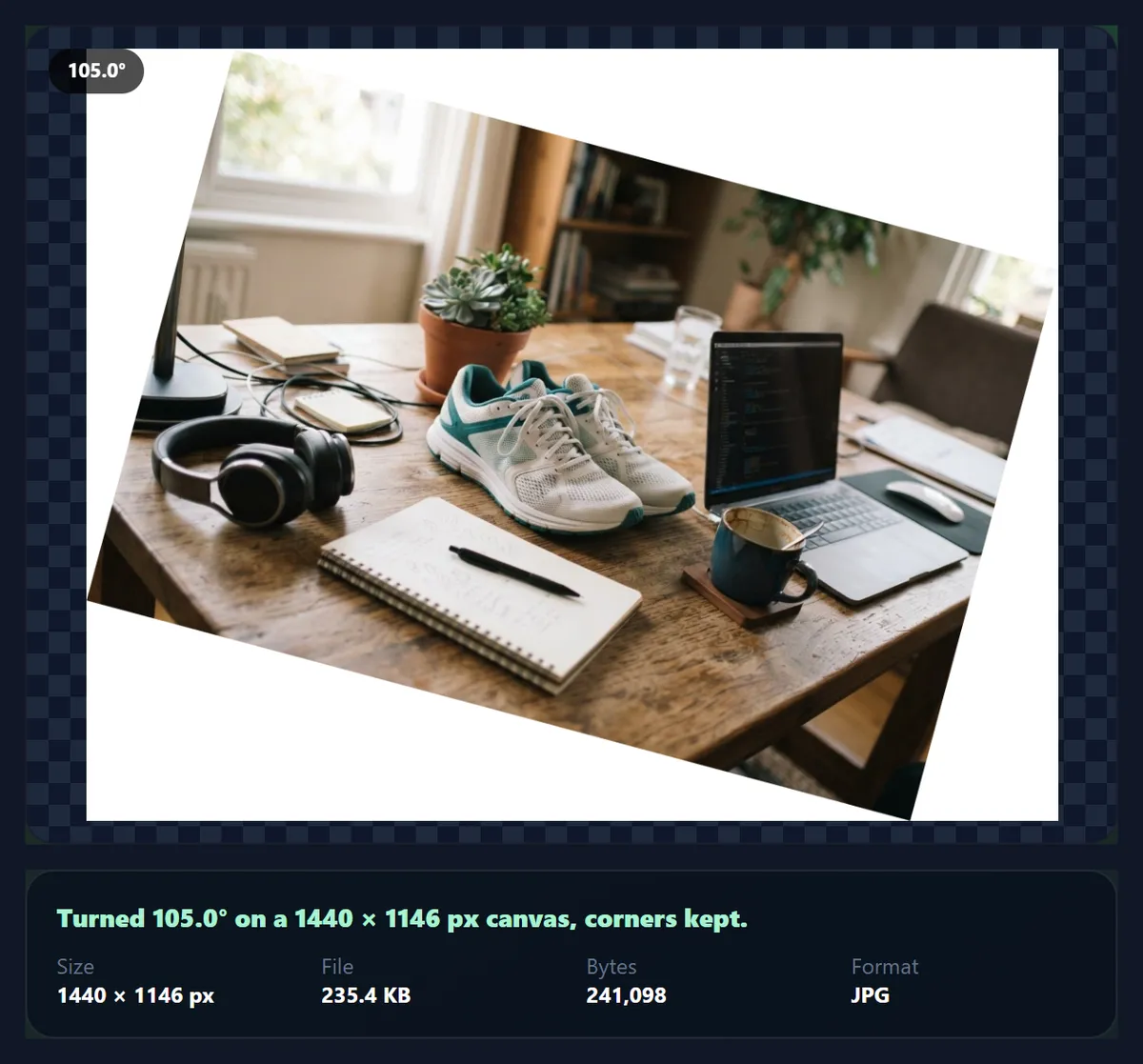
Should you grow the canvas or crop the corners?
Grow the canvas when the whole picture matters and a frame around it is acceptable: a diagram, a scanned page, a design element you will place in a layout, or an artistic tilt in a social post. With transparent corners, the rotated picture drops onto any background in a design tool without a box around it.
Crop the corners when the result must look like an ordinary photograph. The picture keeps its proportions and loses a strip from each edge; the bigger the angle, the more it loses. For small corrections of a crooked horizon, use the photo straightener, which adds an automatic level, a grid and finer control up to 15° either way.
Can the corners be transparent?
Yes, with PNG or WebP. Tick Transparent corners and the areas outside the turned photo stay empty instead of being filled with a colour. JPG has no transparency, so if you save as JPG the tool puts those areas on white rather than letting them turn black, which is what an empty JPG pixel would otherwise become.
Transparent PNGs are larger than JPGs because they are lossless. That is the price of keeping the edges perfect for later use in a design. For a photo you only want to share, a coloured corner and a JPG are usually the better file.
Which way does each angle turn the image?
Positive angles turn the image clockwise and negative angles anticlockwise. 90° right adds a clockwise quarter turn and 90° left an anticlockwise one; 180° turns the image upside down, which is the same either way. The Any angle slider adds a further −180° to +180° in half-degree steps on top of the quarter turns, so 90° right with −15° on the slider is a 75° clockwise turn.
Typical turns: a phone photo that shows sideways needs a quarter turn, a scan that went in upside down needs 180°, and a square image turned 45° with Grow the canvas and Transparent corners makes a diamond for a layout. For small corrections of a tilted horizon, the Photo Straightener is easier: it works in tenth-of-a-degree steps, shows a grid, can find the tilt for you, and always crops the blank corners away.
How do I rotate a scanned page or photo?
Use the quarter-turn buttons: a page scanned sideways needs 90° left or right, and one placed upside down on the glass needs 180°. Quarter turns move every pixel exactly, so text stays as sharp as in the scan. If the page is also slightly crooked, turn it upright here first, then level the last degree or two with the Photo Straightener, which crops the blank corners away and keeps the page's shape.
Which formats can you rotate, and what is kept?
You can open JPG, PNG and WebP images up to 40 megapixels (above about 16 megapixels the result is saved slightly smaller, because that is the largest canvas iPhone browsers allow); convert iPhone HEIC photos to JPG first. Choose the output format with the buttons above the download: it starts as the format you opened. JPG and WebP have a quality slider from 50% to 100%; PNG is lossless and keeps transparency.
The new file is written from the pixels, so EXIF data from the original, such as the camera model, date and GPS location, is not copied. Keep the original if you need that information. Very large photos are drawn at a reduced size if the result would exceed what a phone browser can hold, so check the size the panel reports.
Is the image uploaded?
No. Rotating happens in your browser tab: the photo is read from your device, drawn on a canvas and saved back to your device as a download. HueFold never receives it, and the tool works without an account. Closing the tab discards everything.
Why is my rotated image larger or blurrier than expected?
Larger: an angle other than a quarter turn grows the canvas when Grow the canvas is selected, by up to about twice the area at 45°, and PNG files are lossless and therefore big. Choose Crop the corners, or JPG, for a smaller file.
Blurrier: arbitrary angles resample the photo once. If you rotate a picture several times by small amounts, in this or any other tool, each pass softens it a little more. Start again from the original and set the final angle in one go. For quarter turns there is no blur at all.
Frequently asked questions
How do I rotate an image 90 degrees?
Open it and press 90° right or 90° left, then download. The pixels are copied exactly, with no loss.
Can I rotate an image by any angle?
Yes. Drag the angle slider from −180° to 180°, then choose to grow the canvas or crop the corners.
Does rotating reduce quality?
Quarter turns do not. Other angles resample once; saving as JPG compresses again at the quality you choose.
Can I rotate without cropping?
Yes. Grow the canvas keeps the whole photo and fills the corners with a colour or transparency.
Can the corners be transparent?
Yes, when you save as PNG or WebP. JPG puts them on white.
Why is my photo sideways on some websites?
They ignore the phone’s orientation tag. Downloading from this tool saves the pixels the right way up, which fixes it everywhere.
Is the image uploaded?
No. Rotation happens in your browser.
Which formats are supported?
Open JPG, PNG or WebP; download JPG, PNG or WebP.
How do I straighten a slightly tilted photo?
Use the photo straightener, which has Auto level, a grid and 0.1° control.
Is it free?
Yes, with no account, watermark or limit.
Related tools
- Photo Straightener — Level a crooked horizon with Auto level.
- Flip Image — Mirror a photo horizontally or vertically.
- Crop Image — Crop to any size or ratio after turning.
- Mirror Images — Symmetry and reflection effects.
- Resize Image Pixel Online — Set exact pixel dimensions.
- Photo Borders — Add a border or pad to a shape.