Video Transitions
Join clips with transitions in your browser: crossfade, fade to black or white, wipe, push, zoom or iris, from 0.3 to 1.5 seconds, previewed before you make the MP4.
Updated

How do you add transitions to a video?
Add your clips in order, pick a transition and how long it lasts, and watch it in the preview. Press Join and the clips are joined into one MP4, with each transition blending the end of one clip into the start of the next, picture and sound.
The three sample clips with 0.8-second crossfades became one 960 × 540 video of 12.4 seconds. Nothing is uploaded and there is no watermark.
How to add video transitions
- Add clips Two to eight, in order.
- Pick a transition Eight kinds, previewed between two clips.
- Set its length 0.3 to 1.5 seconds.
- Join and download One MP4 with the sound crossfaded too.
Join three clips with transitions
A real recording of this tool: three sample clips added, four transitions previewed, the length set, and the clips joined into one MP4.
- Three sample clips are added.
- Fade to black, wipe, iris and crossfade are previewed.
- The transition length is set to 1.2 seconds.
- The clips are joined into one MP4.
How much shorter does a transition make the video?
A transition overlaps the end of one clip with the start of the next, so each join takes the transition's length off the total. The three sample clips last 14 seconds end to end; joined with 0.3-second crossfades they made a 13.4-second video, with 0.8-second ones 12.4 seconds, and with 1.5-second ones 11 seconds. The MP4 made at 0.8 seconds measured 12.4 seconds, as planned.
With a straight cut nothing overlaps, so the joined video is exactly as long as the clips. The tool shows the joined length as you change the transition, and no transition ever takes more than half of a clip, so a short clip is never swallowed by the joins on either side.
| Transition length | Joined video | Time lost to joins |
|---|---|---|
| 0.3 s | 13.4 s | 0.6 s |
| 0.5 s | 13 s | 1.0 s |
| 0.8 s | 12.4 s | 1.6 s |
| 1 s | 12 s | 2.0 s |
| 1.5 s | 11 s | 3.0 s |
How do you add transitions between clips?
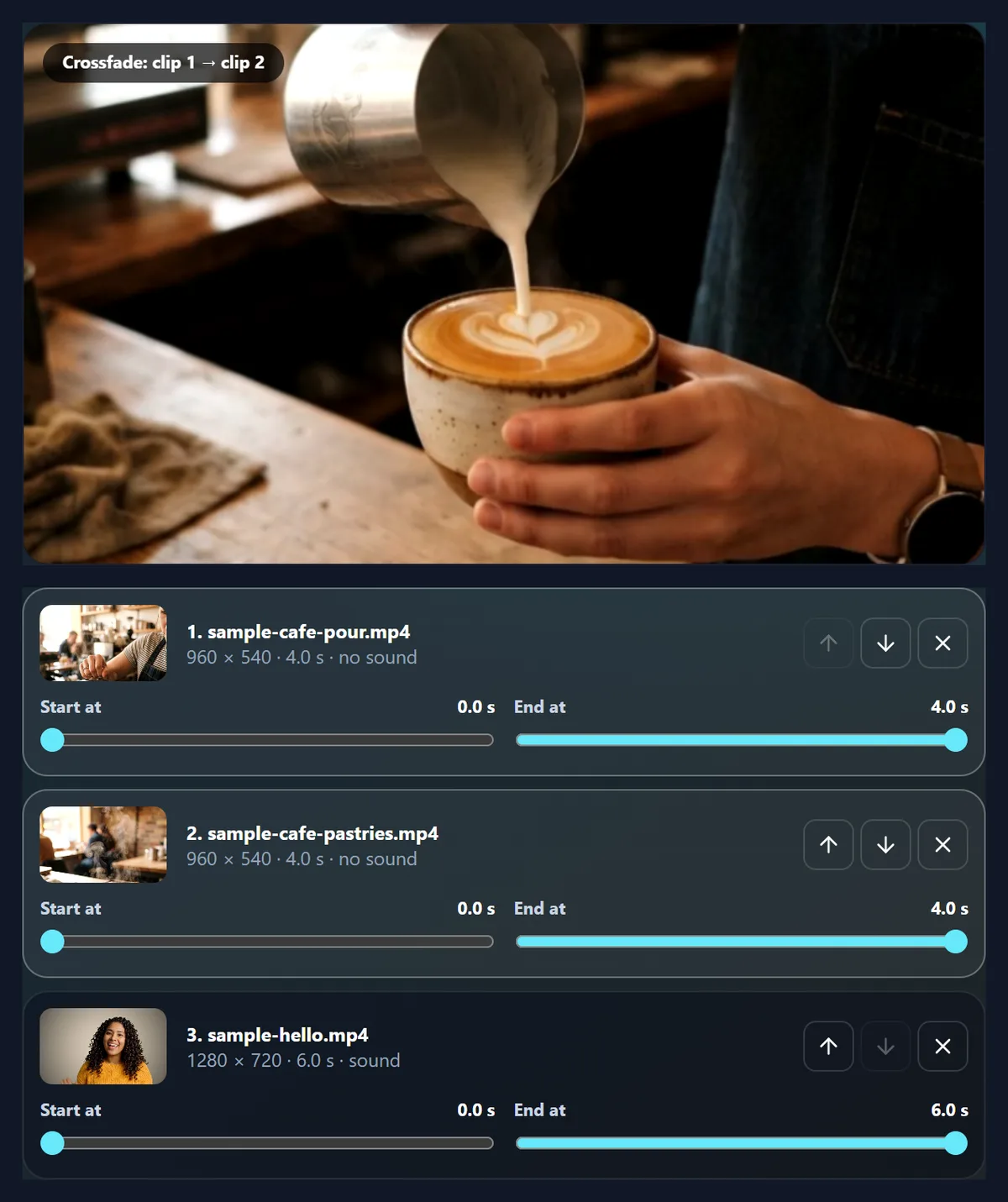
Add two or more clips, put them in order, pick a transition and its length, and press Join. The preview shows the transition between two clips, looping, so you can compare transitions before making anything; with three or more clips, choose which join to preview. The clips then play through one after another while every frame, including the blended frames of each transition, is encoded into one MP4.
The three sample clips joined with 0.8-second crossfades became a 960 × 540 MP4 of 12.4 seconds with 298 frames, in 30 seconds.
Which transitions are there?
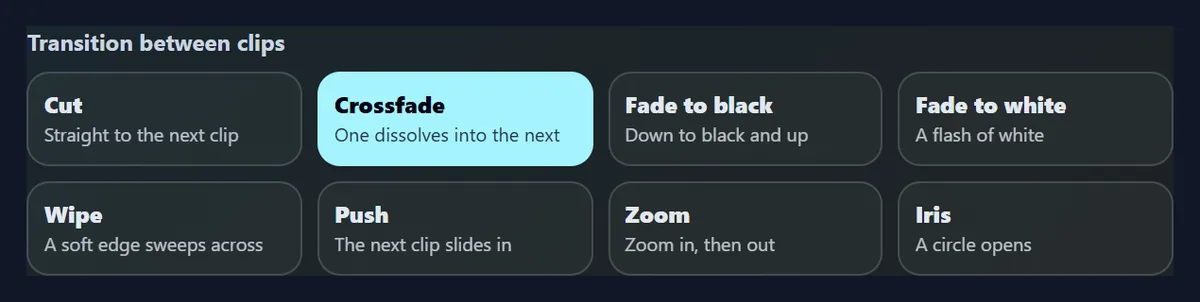
Eight. Cut goes straight to the next clip. Crossfade dissolves one into the next. Fade to black goes down to black and comes up on the next clip, which feels like the end of a scene; fade to white does the same through a flash of white. Wipe sweeps the next clip in from the left behind a soft edge. Push slides the next clip in, pushing the first out. Zoom zooms into the first clip as the next settles from slightly zoomed in. Iris opens a circle onto the next clip.
The figure shows each one half way through, taken from the MP4s the tool made: the same moment of the same join, eight ways.

What does a crossfade look like frame by frame?
Both clips play during it: the end of the first and the start of the second, the second growing more solid over the transition's length. The figure shows the first join of the sample at a quarter, half and three quarters of its 0.8 seconds. Each transition eases in and out, starting and ending gently, so it never lurches.
Because both clips play during a transition, they keep moving, which looks more natural than freezing a frame.

Which transition should I use?
A cut or a short crossfade for most videos: they keep attention on the content. Fade to black between scenes or at the end; fade to white for a dreamy or wedding look. Push, wipe, zoom and iris are livelier and suit social clips and promotions, but used everywhere they quickly feel busy.
Keep transitions short, 0.3 to 0.8 seconds, for fast edits; 1 to 1.5 seconds for calm, slow ones.
Do transitions make the file bigger?
Not noticeably. The same join with each of the eight transitions came to between 4.52 MB and 5.11 MB, within 13.2% of each other, because the encoder aims at a set amount of data each second for the picture size. A transition shortens the video slightly, which matters more: the cut version, 14.0 seconds long, was 4.71 MB.
What a transition does cost is a little sharpness during the blend, because the blended frames are harder to compress; at this tool's bitrate, at least 4 megabits a second, that is not visible.
| Transition | MP4 size | Length | Frames |
|---|---|---|---|
| Cut | 4.71 MB | 14.0 s | 336 |
| Crossfade | 5.05 MB | 12.4 s | 298 |
| Fade to black | 5.11 MB | 12.4 s | 298 |
| Fade to white | 5.10 MB | 12.4 s | 298 |
| Wipe | 4.61 MB | 12.4 s | 298 |
| Push | 4.52 MB | 12.4 s | 298 |
| Zoom | 5.02 MB | 12.4 s | 298 |
| Iris | 4.54 MB | 12.4 s | 298 |
What happens to the sound at a transition?
It crossfades with the picture: the first clip's sound fades out over the transition while the next one's fades in, so there is no click or jump. With a cut, the sounds simply follow one another. Untick Keep the clips' sound for a silent video.
The sample's café clips have no sound and the waving clip does, so with 0.8-second crossfades the joined video is silent until 6.4 seconds, when her voice fades in with her picture.
Can I join clips of different shapes?
Yes. Choose the video's shape, like the first clip, 16:9, 9:16 or 1:1, and clips of another shape are fitted on a blurred copy of themselves, on black, or filled and cropped. Transitions work the same between any two clips.
For a story, choose 9:16 and Fill (crop) so every clip fills the frame.
Can I trim the clips first?
Yes. Each clip has Start at and End at sliders, so you can join only the best moments. Trimming changes where each transition falls, and the joined length updates as you go.
Trim a little extra at the end of a clip if its last moment is important: the transition will cover part of it.
How long does joining take?
About twice the joined video's length, because each clip plays through at half speed (a quarter for 4K) so that no frame is missed. The 12.4-second sample took 30 seconds. The page shows the time before you start.
Keep the tab in front while it works; browsers slow hidden tabs.
Can I change the order of the clips?
Yes: each clip has arrows to move it earlier or later and a cross to remove it. With three or more clips, the buttons under the transitions choose which join the preview shows.
If the video's shape is set to follow the first clip, moving a clip of another shape to the top changes the shape of the whole video.
How does the preview work?
It loops one join: a second of the last frame of the outgoing clip, the transition, and a second of the first frame of the next clip, drawn with exactly the same transition code as the finished video. It shows still frames so it can loop instantly; in the MP4 both clips keep moving through the transition.
Change the transition or its length and the preview updates at once.
Can I add music under the joined video?
Yes: join the clips here, then open the MP4 in the add music to video tool, choose a song and set how loud the clips' own sound stays under it. For cuts that land on the beat, use beat sync instead.
Untick Keep the clips' sound here if you only want the music in the end.
Do transitions lower the quality?
No more than any re-encoding: every frame, including the blended ones, is encoded as H.264 at a generous bitrate for the picture size. Clips are scaled to the video's size once, so a 4K clip in a 720p video is downscaled cleanly.
Choose 1080p for the sharpest result, 720p for smaller files.
How long should a transition be?
Short for energy, long for calm. 0.3 to 0.5 seconds keeps a fast edit moving and suits pushes and wipes; 0.8 seconds, the starting length, suits most crossfades; 1 to 1.5 seconds suits slow, emotional videos and fades to black between scenes. A transition can never be longer than half of either clip it joins, so short clips get shorter transitions.
The joined length shown under the clips updates as you change it, so you can see what the transitions cost.
Can I use different transitions at different joins?
Not in one pass: the transition you choose is used at every join, which keeps a video consistent. For a different transition at one join, join the first clips with one transition, download the MP4, then join it to the next clip with another.
Most edits look best with one or two kinds of transition used throughout.
Which clips work best with transitions?
Clips that end and start with movement or a clear subject: a transition blends the end of one clip into the start of the next, so a clip that ends on a blank wall makes a dull blend. Trim each clip so its last second and the next clip's first second are worth seeing together.
Clips of the same shape and light blend most smoothly; very different clips are often better joined with a fade to black.
Can I add transitions on my phone?
Yes, in a current browser on Android or an iPhone: add clips from your gallery, choose a transition, and save the MP4 to your downloads. Keep the screen on while it works.
With many long clips, choose 720p to keep the phone's memory free.
Are my videos uploaded?
No. The clips are opened, blended and encoded inside your browser tab. Nothing is sent to HueFold or anyone else, and there is no watermark or sign-up.
Large clips are not slowed by your internet connection.
Why is the Join button greyed out?
A transition needs at least two clips: add another. If a clip will not open, your browser cannot play its codec; try Chrome or Edge, or convert it to MP4 first.
If the page says it cannot write MP4 at this size, choose 720p or use a current Chrome, Edge or Safari.
Frequently asked questions
How do I add a transition between two videos?
Add both, pick a transition, and press Join.
Which transitions are there?
Cut, crossfade, fade to black or white, wipe, push, zoom and iris.
How long can a transition be?
0.3 to 1.5 seconds, never more than half a clip.
Does the sound crossfade too?
Yes, with the picture.
Can I use a different transition at each join?
One kind is used for every join; join in steps for different ones.
Does a transition shorten the video?
Yes, by its length at each join.
Are my videos uploaded?
No. Everything happens in your browser.
Is there a watermark?
No.
Related tools
- Merge Videos — Join clips with straight cuts.
- Images to Video — Photos with transitions.
- Add Music to Video — Put a song under it.
- Add Text to Video — Titles and captions.
- Crop Videos — Crop the frame.
- Video Splitter — Cut a video into parts.