Merge Videos Online
Join videos into one MP4 in your browser: put up to eight clips in order, trim them, choose the shape and quality, and fit clips of other shapes on a blurred copy.
Updated

How do you merge videos into one?
Add your clips, put them in order and trim them if you like, then choose the shape and quality and press Join. The clips play through one after another into one MP4 with their sound.
The three sample clips, of three different shapes, became one 1280 × 720 video of 14.0 seconds and 7.79 MB. Nothing is uploaded and there is no watermark.
How to merge videos
- Add clips Two to eight videos.
- Order and trim Arrows to reorder, sliders to trim.
- Choose shape and quality Like clip 1, 16:9, 9:16 or 1:1; 720p or 1080p.
- Join and download One MP4 with the sound.
Merge three videos into one
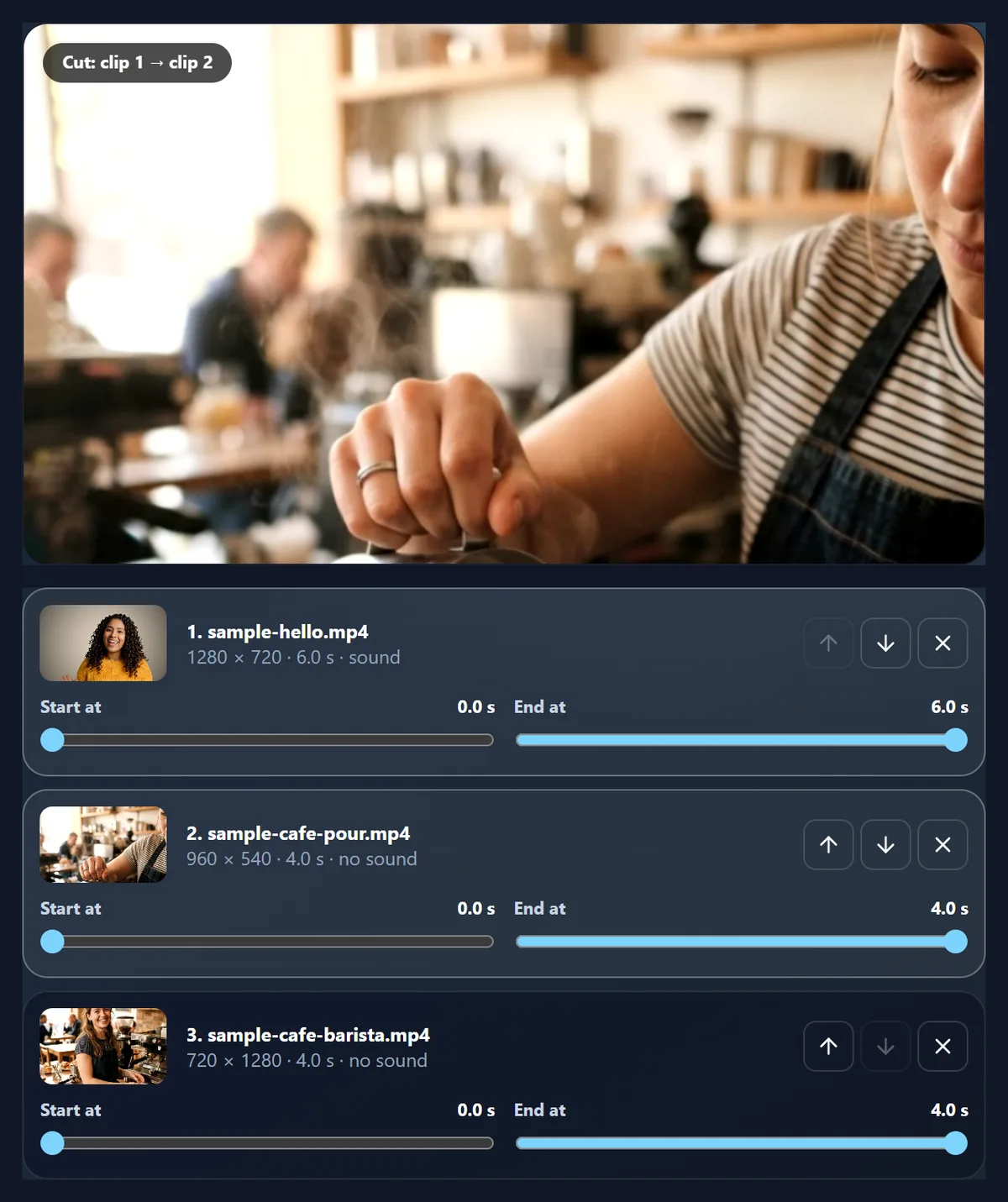
A real recording of this tool: three sample clips added, reordered, the shape and fit chosen, and the merged MP4 made.
- Three sample clips are added.
- The clips are reordered with the arrows.
- The 16:9 shape and the blurred-copy fit are chosen.
- The clips are joined into one MP4.
How big will the merged video be?
Mostly a matter of length and quality. The three sample clips merged into one 14-second video came to 7.79 MB as 16:9 at 720p and 16.59 MB at 1080p. A square video at 720p, with fewer pixels, was 5.73 MB, and at 1080p 9.85 MB.
The encoder aims at a set amount of data a second for the picture size, at least 4 megabits a second and more for bigger pictures, so 1080p costs more than any change of shape. Choose 720p for sharing in chats and 1080p for YouTube or a large screen.
| Shape | Quality | MP4 size | Picture |
|---|---|---|---|
| 16:9 | 720p | 7.79 MB | 1280 × 720 |
| 16:9 | 1080p | 16.59 MB | 1920 × 1080 |
| 9:16 | 720p | 7.86 MB | 720 × 1280 |
| 9:16 | 1080p | 15.64 MB | 1080 × 1920 |
| 1:1 | 720p | 5.73 MB | 720 × 720 |
| 1:1 | 1080p | 9.85 MB | 1080 × 1080 |
How do you merge videos?
Add two or more videos, up to eight. Each appears in a list with its first frame, size, length and whether it has sound. Put them in order with the arrows, trim any clip with its Start at and End at sliders, choose the shape and quality, and press Join. The clips play through one after another while every frame is encoded into one MP4, with each clip's sound in its place.
The three samples, 3 clips of different shapes and frame sizes, became one 1280 × 720 video of 14.0 seconds with all 336 frames, in 31 seconds.
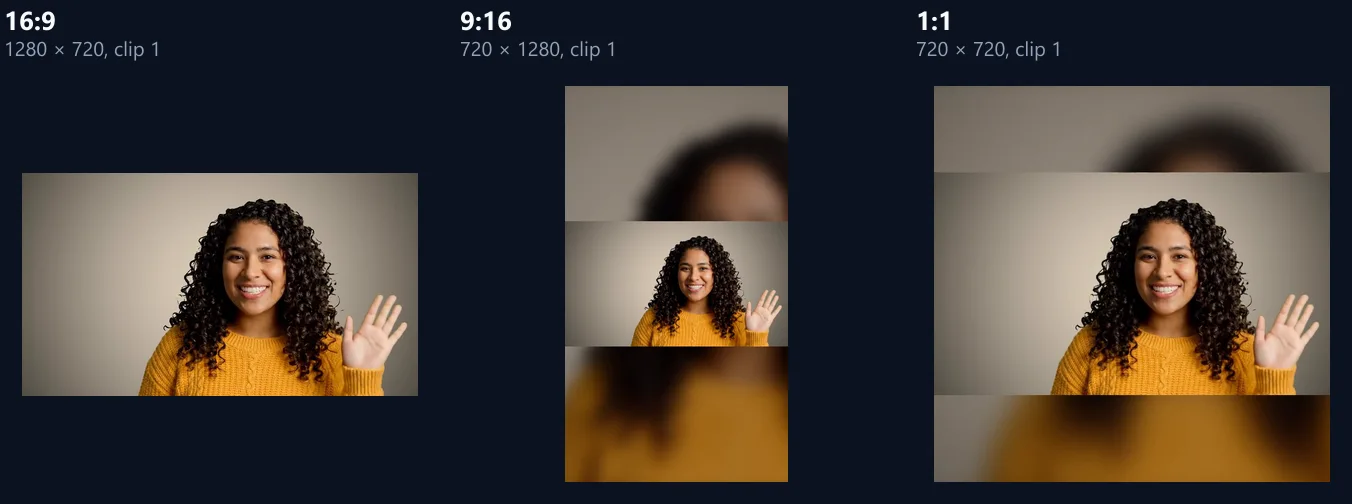
What shape will the merged video be?
Like clip 1 (the default) gives the whole video the shape of the first clip; 16:9, 9:16 and 1:1 set it yourself. At 720p the short side is 720 pixels, at 1080p 1,080, and Like clip 1 never makes the video larger than the first clip. The figure shows the same moment merged into each shape.
Put the clip whose shape you want first, or choose the shape for where the video is going: 9:16 for Reels and Stories, 16:9 for YouTube.
What happens to clips of another shape?
They are fitted into the video's shape one of three ways. Fit on a blurred copy (the default) shows the whole clip over a blurred, darkened copy of itself, the look most apps use; Fit on black shows it on plain black, like a letterbox; Fill (crop) fills the frame and crops the clip's edges. The figure shows the upright barista clip in a 16:9 video each way.
The fit makes little difference to the file: the 16:9 720p video was 7.79 MB on a blurred copy, 7.80 MB on black and 7.76 MB filled.

Can I trim the clips before merging?
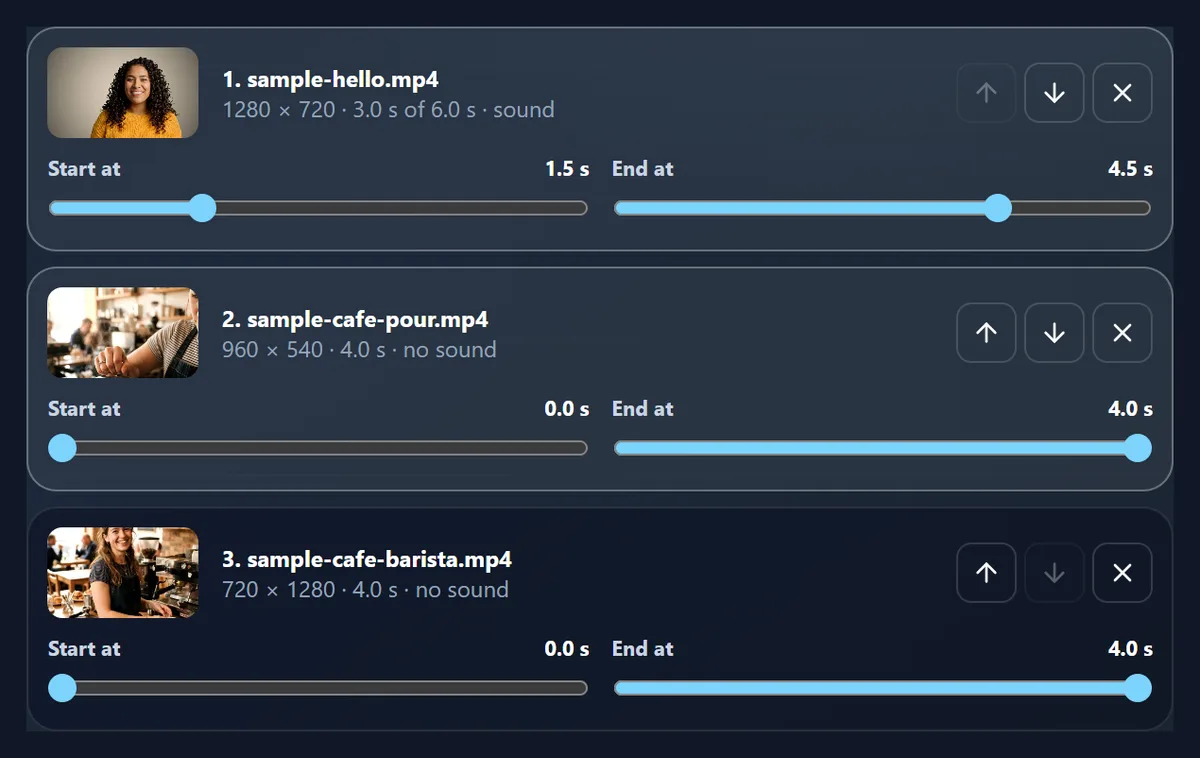
Yes. Every clip has Start at and End at sliders in tenths of a second, so you keep only the part you want; the list shows the length kept and the total updates. Trimming the first sample clip to its middle 3 seconds made the merged video 11.0 seconds instead of 14.0.
A clip keeps at least half a second. To cut a clip into several parts, add it more than once and trim each copy differently.
How do I change the order?
Use the up and down arrows next to each clip, or remove a clip with its cross. Clips are added in the order you choose them, and you can add more at any time until there are eight.
The first clip sets the shape when Like clip 1 is chosen, so moving a different clip to the top can change the video's shape.
Can I add transitions between the clips?
Yes. Merging starts with straight cuts, the usual choice, but every transition of the video transitions tool is here too: crossfade, fade to black or white, wipe, push, zoom and iris, from 0.3 to 1.5 seconds. A transition overlaps the end of one clip with the start of the next, so the video gets shorter by the transition's length at each join.
The sound crossfades with the picture at each join, so there is no click between clips.
What happens to the sound?
Each clip's sound plays with its picture, trimmed the same way. Clips with no sound are silent for their part. Untick Keep the clips' sound for a silent video, for example to add music afterwards with the add music to video tool.
The sound is mixed in your browser at 48 kHz in stereo and saved as AAC in the MP4.
Can I merge videos of different sizes and frame rates?
Yes. Every clip is drawn into the video's frame at its size, so clips from a phone, a camera and a screen recording can be joined. Each frame is written at its own moment, so a 24 and a 30 frames a second clip both play at their real speed.
The samples were 1280 × 720, 960 × 540, 720 × 1280: a wide clip, a smaller wide clip and an upright one.
How long does merging take?
About twice the joined video's length: each clip plays through at half speed (a quarter for 4K) so that no frame is missed. The 14-second sample took 31 seconds. The page shows how long before you start.
Keep the tab in front while it works; browsers slow hidden tabs.
What if the clips are at different volumes?
Each clip's sound plays as it was recorded, so a quiet clip next to a loud one stays quiet. To even them out, change the quiet clip's volume first with the remove audio from video tool's New volume, then merge.
The level readout there shows each clip's average loudness, so you can match them.
Can I add photos between the videos?
Not in this tool, which joins videos. Turn your photos into a short video first with the images to video tool, at the same shape and quality, and then merge it with the other clips.
A photo slideshow at 2 to 3 seconds a photo fits naturally between video clips.
Can I put a pause or black between clips?
Choose the Fade to black transition: each join fades down to black and up into the next clip, over the length you set. For a longer pause, a clip of black, or of a title card made with the images to video tool, can be added between two clips.
Fade to white gives a bright flash between clips instead.
How long can the merged video be?
There is no set limit: the length is the sum of the clips (less any transitions), shown before you join. Long videos take longer to make, about twice their length, and use more memory, so on a phone keep to 720p for anything over a few minutes.
Up to eight clips can be joined at once; join more in two steps.
In what order should I put the clips?
Start strong, keep the story in order, and end on something that feels like an ending. For a trip, follow the days; for a product, show it, then show it in use, then show the result; for a highlight reel, put the best moment first and the second best last.
Trim the slow start and end of each clip: a merged video feels much tighter when every clip begins on something happening.
Which videos can I merge?
Any videos your browser can play: MP4 and MOV from phones, WebM from screen recorders and websites, MKV and more, in any mix of sizes, shapes and frame rates. Each clip is drawn into the shared frame, so they do not need to match.
If a clip will not open, convert it to MP4 first with the video to MP4 converter, then add it.
Why is part of my merged video silent?
A clip that has no sound track, such as the sample café clips or a screen recording without the microphone, is silent for its part of the video; the others keep their sound. To put music under the whole video, open the merged MP4 in the add music to video tool.
With a transition other than a cut, each clip's sound fades in and out with its picture.
Can I merge videos on my phone?
Yes, in a current browser on Android or an iPhone: choose several videos from your gallery and save the merged MP4 to your downloads. Keep the screen on while it works.
Long 4K clips use a lot of memory; choose 720p for them.
Are my videos uploaded?
No. The clips are opened, played, joined and encoded inside your browser tab. Nothing is sent to HueFold or anyone else, and there is no watermark or sign-up.
Large videos are not slowed by your internet connection.
Why will a clip not add?
If a clip will not open, your browser cannot play its codec: try Chrome or Edge, or convert it with the video to MP4 converter. Eight clips is the limit; join eight, then join the result with more.
If the page says it cannot write MP4 at this size, choose 720p or use a current Chrome, Edge or Safari.
Frequently asked questions
How do I merge videos?
Add the clips, put them in order, and press Join.
How many videos can I merge?
Up to eight at a time.
Can I merge videos of different sizes?
Yes. Each is fitted into the video’s shape.
Can I trim the clips?
Yes, each with its own start and end.
Does it keep the sound?
Yes, each clip’s sound in its place.
Can I add transitions?
Yes: crossfades, fades, wipes and more.
Are my videos uploaded?
No. Everything happens in your browser.
Is there a watermark?
No.
Related tools
- Video Transitions — Join clips with transitions.
- Images to Video — Make a video from photos.
- Add Music to Video — Put a song under it.
- Video Splitter — Cut a video into parts.
- Crop Videos — Crop the frame.
- Video Resizer — Resize for Reels and Stories.
Which settings suit TikTok, Reels or YouTube?
For TikTok, Reels and Shorts: 9:16 at 1080p, with Fill (crop) so every clip fills the screen, or fit on a blurred copy for wide clips. For YouTube: 16:9 at 1080p. For a feed post: 1:1 or 4:5.
Make the first clip the strongest: it is what people see before deciding to watch.