Resize Image in Centimeter
Type the printed width and height in centimetres, millimetres or inches, choose the print resolution, and download an image with exactly the pixels that size needs and the DPI written into the file.
Updated

How do you resize an image in centimetres?
Open the image, type the width and height in cm and choose a DPI (dots per inch): 300 is the usual choice for photo prints. The tool works out the pixels with pixels = cm ÷ 2.54 × DPI, resizes the picture to exactly that, and writes the DPI into the JPG or PNG file it downloads. Programs that respect that setting, such as print dialogs, word processors and layout apps, then place the image at the size you typed.
An image file has no physical size of its own, only pixels. A size in centimetres appears only when you say how densely those pixels are printed. The same 1181-pixel-wide picture is 10 cm wide at 300 DPI and 20 cm wide at 150 DPI. That is why a centimetre resizer needs two inputs, the size and the resolution, and why forms that ask for a photo “3.5 × 4.5 cm” usually also mention the DPI or a pixel size.
The examples below use a 928 × 1152 portrait, which is 7.86 × 9.75 cm at 300 DPI as it stands. Every size, DPI and file shown came from this tool.
How to resize an image to centimetres
- Open the image Choose a JPG, PNG or WebP, drop it on the preview, or use the sample. Its current printed size at the chosen DPI is shown underneath.
- Type the size Enter width and height in cm, or switch to mm or inches. Presets cover 3.5 × 4.5 cm, 10 × 15 cm, A5 and A4.
- Pick the DPI Choose 72, 150, 300 or 600 DPI. The pixel size updates as you change it; 300 is the common choice for photo prints.
- Download Save a JPG or PNG with the DPI in its header, or WebP without. The file name records the size, such as photo-10x15cm.jpg.
Resize a photo to 10 × 15 cm at 300 DPI
A real recording of this tool: the sample is set to 10 × 15 cm, the DPI changes between 150, 600 and 300, the units switch between mm, inches and cm, and the file is downloaded.
- The sample portrait opens at its own size at 300 DPI.
- The 10 × 15 cm preset is chosen; the tool fills and crops it to 1181 × 1772 pixels.
- The DPI changes to 150, then 600, then back to 300, and the pixel size follows.
- The units switch to millimetres, inches and back to centimetres.
- The JPG is downloaded with 300 DPI in its header.
How many pixels is 1 cm?
It depends entirely on the DPI. One inch is 2.54 cm, so at 300 DPI a centimetre is 300 ÷ 2.54 ≈ 118.1 pixels, and at 72 DPI it is about 28.3. The tool rounds to whole pixels after multiplying the full length, so a 10 cm edge at 300 DPI is 1181 pixels rather than ten times 118.
Doubling the DPI doubles the pixels along each edge and quadruples the total, which is why a 600 DPI A4 page is beyond what a phone browser can hold. The table gives the arithmetic for a 10 cm edge.
| DPI | Pixels for 10 cm | Pixels per cm |
|---|---|---|
| 72 | 283 | 28.3 |
| 150 | 591 | 59.1 |
| 300 | 1,181 | 118.1 |
| 600 | 2,362 | 236.2 |
What pixel size do common print sizes need?
The presets are standard paper and photo sizes. A4 (21 × 29.7 cm) and A5 (14.8 × 21 cm) are ISO 216 paper sizes; 10 × 15 cm is the common photo print often called 4 × 6 inches; 3.5 × 4.5 cm is the size many passport and visa rules use. The pixel figures below are what the tool produces for each at 300 DPI.
If your photo has fewer pixels than the size needs, the tool enlarges it and says by how much, because enlarging adds no detail. A small enlargement is often hard to see in a print held at arm's length; a large one shows as soft edges and blurred texture. If the tool reports a large enlargement, print smaller or choose 150 DPI, which halves the pixels each edge needs.
| Size | Pixels at 300 DPI | Megapixels |
|---|---|---|
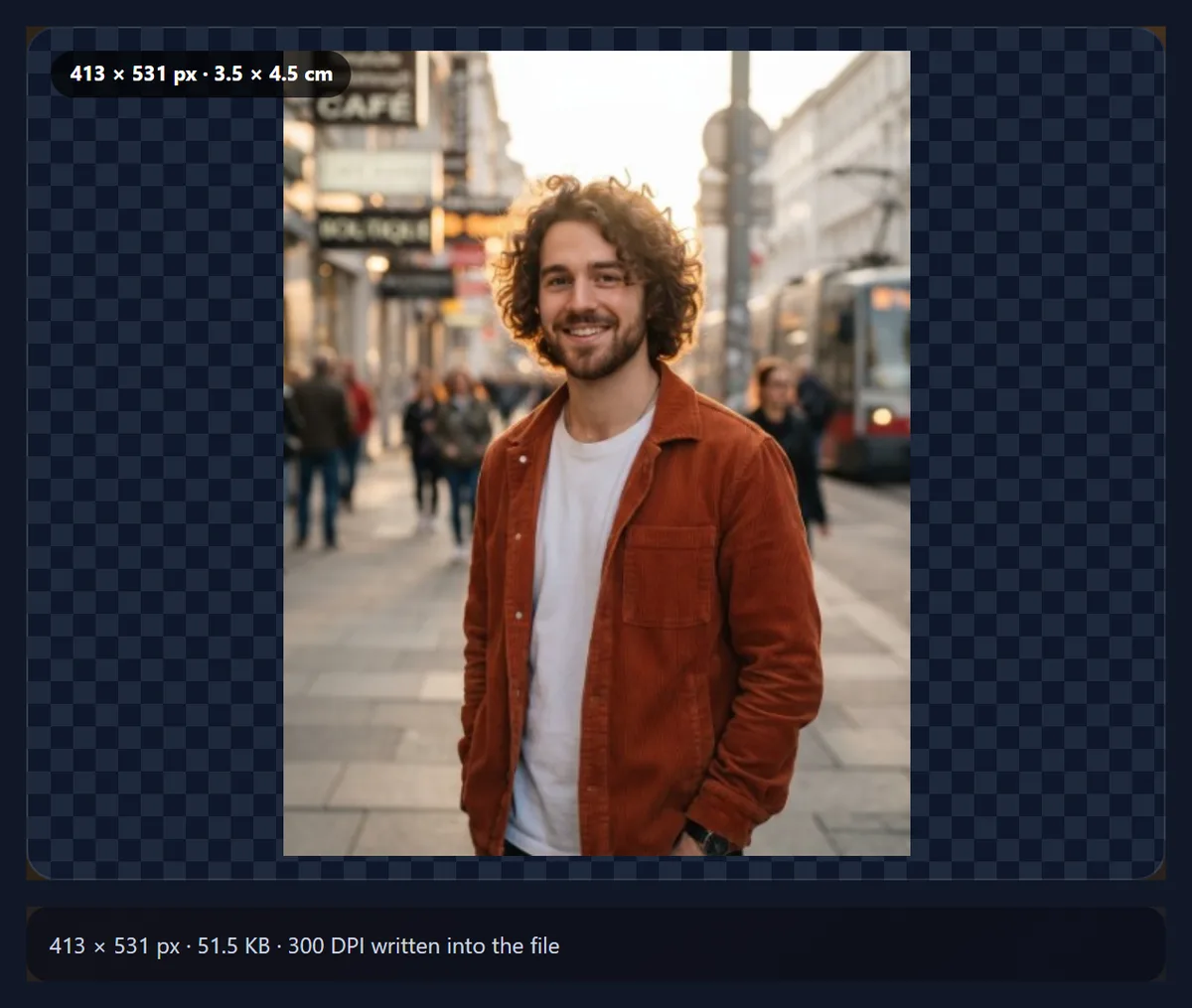
| 3.5 × 4.5 cm | 413 × 531 | 0.22 |
| 5 × 5 cm | 591 × 591 | 0.35 |
| 10 × 15 cm | 1181 × 1772 | 2.09 |
| 13 × 18 cm | 1535 × 2126 | 3.26 |
| A5 · 14.8 × 21 cm | 1748 × 2480 | 4.34 |
| A4 · 21 × 29.7 cm | 2480 × 3508 | 8.70 |
Does the downloaded file really print at that size?
For JPG and PNG, yes, wherever the program honours the file's resolution. The tool writes the DPI into the JPEG's JFIF header (as dots per inch) or into the PNG's pHYs chunk (as pixels per metre). We downloaded the 10 × 15 cm portrait at 300 DPI and read its header back with an independent image library: 1181 × 1772 pixels at 300 DPI, as expected.
Some programs ignore embedded resolution and use their own default, often 72 or 96 DPI, which makes the image appear larger on screen. In that case set the size in the program's print or image dialog; the pixel count is right, so a 10 × 15 cm print at 300 DPI will be sharp. WebP has no standard resolution field, so a WebP download carries none; choose JPG or PNG when the printed size matters.

Which DPI should you choose?
Use 300 DPI for photos printed at a lab or on a good inkjet and viewed in the hand; it is the long-standing standard for photo prints. Use 150 DPI for larger prints seen from further away, such as posters, or when your photo simply does not have enough pixels for 300. 600 DPI suits line art and scanned documents with fine text, where crisp edges matter more than file size.
72 DPI is offered because some forms ask for it, but it matters little on screen: websites and apps show images by their pixels and ignore the DPI. If a form specifies both a centimetre size and a pixel size, follow the pixel size; the tool shows both as you work.
What happens when the new size has a different shape?
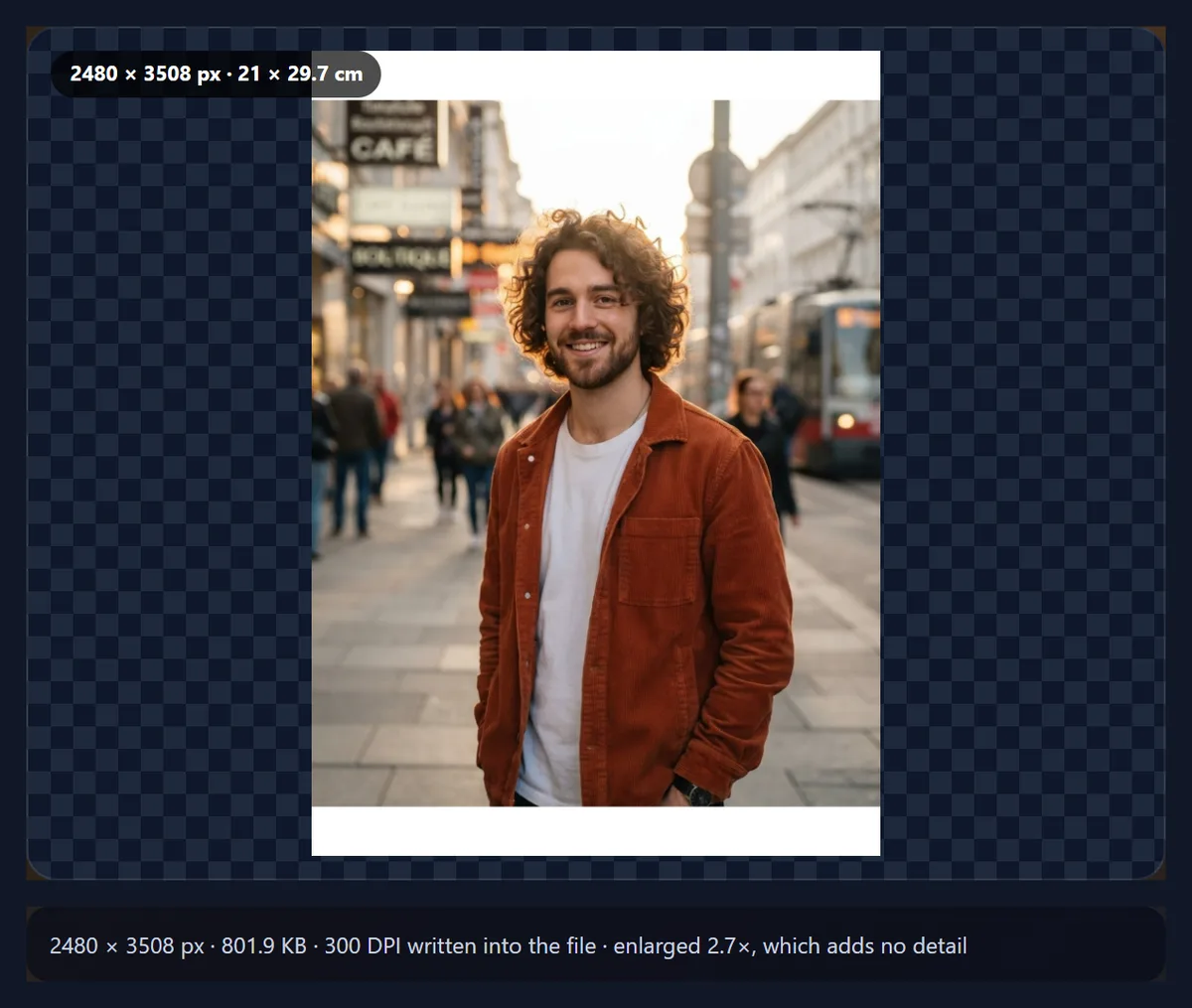
With the lock closed, typing a width fills in the height that keeps your photo's proportions. When you set both, or pick a preset of a different shape, choose what to do with the difference. Fill + crop scales the photo to cover the new size and trims the centre, so nothing is distorted but the edges are cut. Fit + border shows the whole photo and fills the gaps with a colour you choose, white by default, which suits printing. Stretch fills the size by distorting the photo, which is rarely what you want for people.
The A4 example uses Fit + border: the whole 928 × 1152 portrait sits on a white page of 2480 × 3508 pixels, enlarged 2.7 times to fill the width.
Can you resize in millimetres or inches instead?
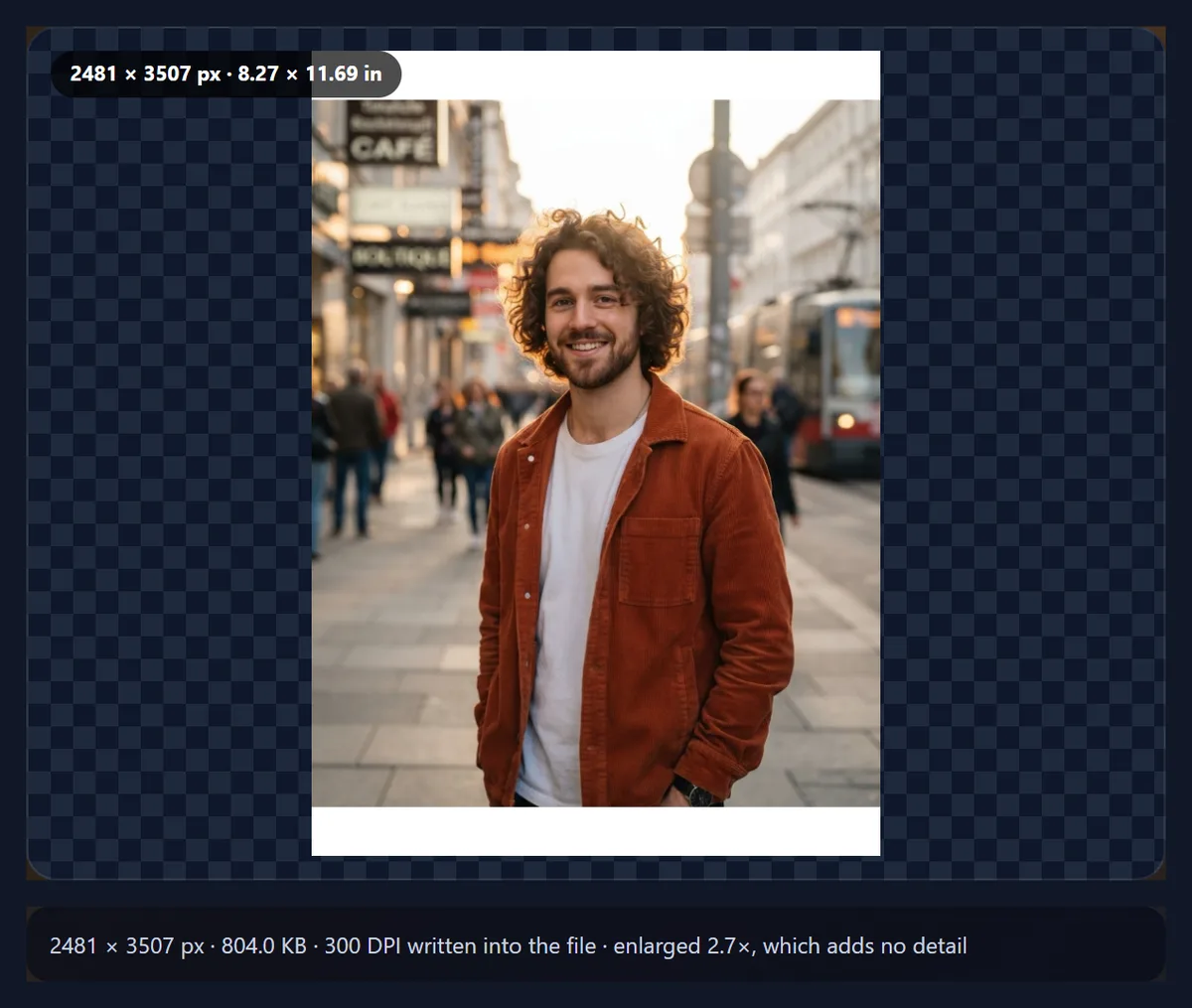
Yes. The unit buttons switch between px, mm, cm and in, and convert the numbers you have typed so the image does not change. 25.4 mm make an inch and 10 mm a centimetre. Use inches for US paper and photo sizes such as 4 × 6 or 5 × 7 inches, and millimetres for rules written that way, such as 35 × 45 mm passport photos. For a passport or visa photo, the passport photo maker also measures the head height for you.
Why does my photo say 72 DPI?
Because the DPI in a photo file is just a label, and many cameras, phones and programs write a default such as 72 regardless of how the picture will be printed. It does not reduce quality: a 4000 × 3000 photo labelled 72 DPI has exactly the same pixels as one labelled 300. The label only decides how large a program prints the photo at its natural size, which is about 141 × 106 cm at 72 DPI and 34 × 25 cm at 300 DPI for that photo.
So the useful question is not what DPI your photo has, but how many pixels it has. The sample, 928 × 1152 pixels, is 7.86 × 9.75 cm at 300 DPI; printing it larger at 300 DPI means enlarging it. Use the tool to set the label and the pixels together.
How large can you go?
The output is drawn on a browser canvas, and Safari on iPhones and iPads caps a canvas at about 16.7 million pixels, so the tool keeps every result under that ceiling. That covers A4 at 300 DPI (8.7 megapixels) but not A4 at 600 DPI (34.8 megapixels); the tool says so and suggests a lower DPI rather than producing a blank file. Input photos can be up to 40 megapixels; convert HEIC photos to JPG first.
Resizing happens on your device and nothing is uploaded. The new file does not include the original's EXIF data, such as camera, date or GPS location.
Why does my print come out the wrong size?
Check the print dialog first. Some print dialogs default to “fit to page” or “fill”, which rescales the image regardless of its DPI; choose “actual size” or 100% instead. If a word processor shows the image at the wrong size, it may be ignoring the embedded DPI: set the width in its picture-size box to your centimetre value.
If the print looks soft, the photo was enlarged. The result line tells you by how much; reduce the printed size, lower the DPI to 150, or start from a larger original.
Frequently asked questions
How do I resize an image to a size in cm?
Open it, type the width and height in cm, choose a DPI such as 300, and download. The pixels are calculated for you.
How many pixels is 3.5 × 4.5 cm?
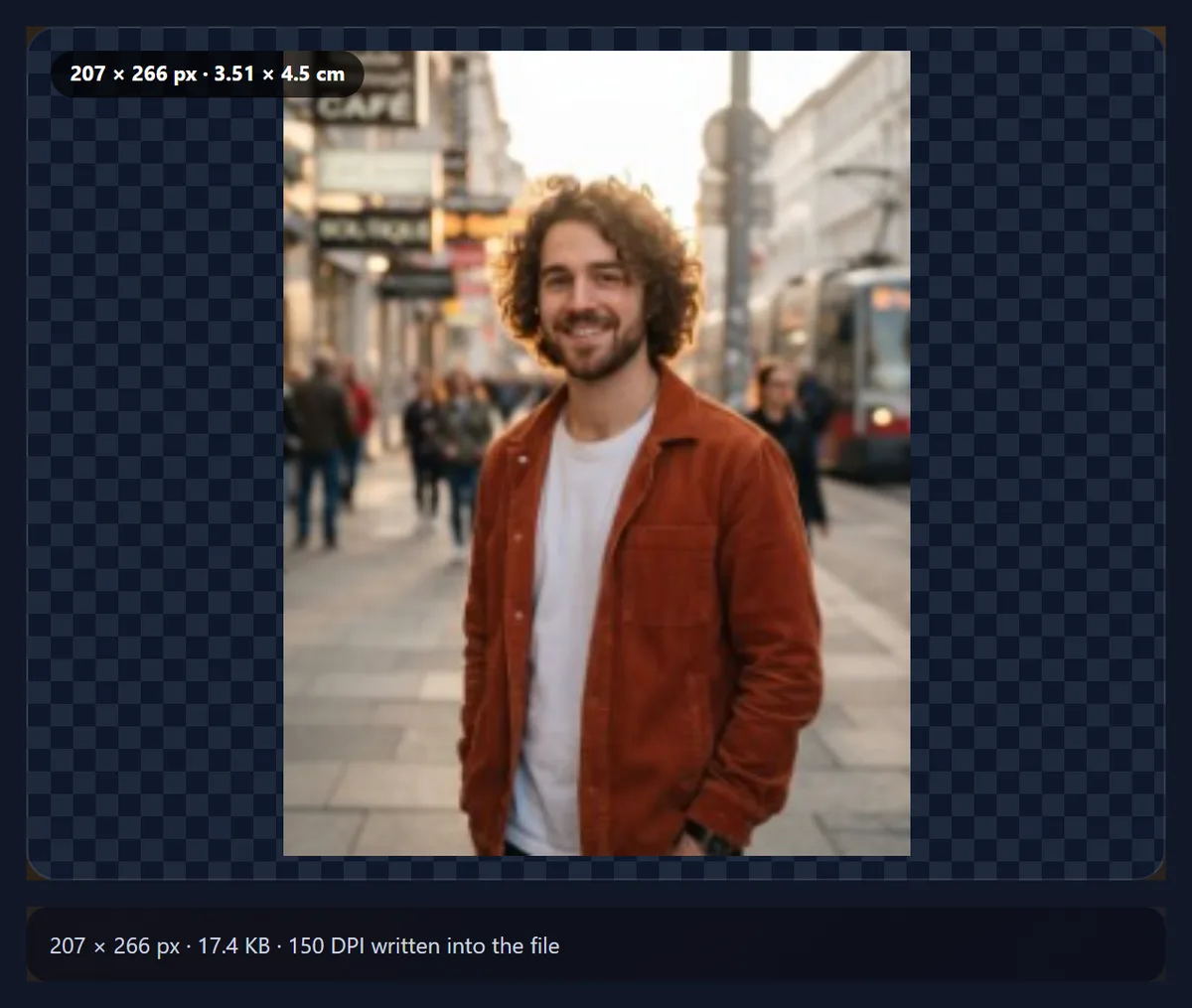
At 300 DPI it is 413 × 531 pixels; at 150 DPI, 207 × 266; at 600 DPI, 827 × 1063.
How many pixels is 10 × 15 cm at 300 DPI?
1181 × 1772 pixels, about 2.1 megapixels.
Does the file keep the DPI?
JPG and PNG downloads carry it in their headers. WebP has no standard DPI field, so it carries none.
What DPI should I use for printing?
300 DPI for photo prints held in the hand, 150 for large prints seen from a distance, 600 for fine line art.
Does DPI matter for websites?
No. Screens show images by their pixel size; the DPI value is ignored.
Can I resize in mm or inches?
Yes. Switch units at any time; the numbers convert so the image does not change.
Will my photo be cropped?
Only if the new size has a different shape and you choose Fill + crop. Fit + border keeps the whole photo.
Is my image uploaded?
No. Resizing happens in your browser.
Why can’t I make A4 at 600 DPI?
It needs 34.8 million pixels, more than the 16.7 million the tool allows so it also works on iPhones and iPads. Use 300 DPI instead.
Related tools
- Resize Image Pixel Online — Exact pixel sizes for screens and websites.
- Make Passport Size Photo — Official passport sizes with the head measured.
- Compress Image to 50KB — Bring the resized file under a size limit.
- Increase Image Size in KB — Reach a minimum file size for a form.
- Crop Image — Choose the part of the photo to print.
- Photo Borders — Frame a photo before printing it.