MKV To MP4
Convert MKV to MP4 in your browser by copying the video as it is: H.264, H.265, VP9 and AV1 frames kept bit for bit, sound made AAC when needed, subtitles saved as SRT, nothing uploaded.
Updated
How do you convert MKV to MP4 without losing quality?
Copy it instead of re-encoding it: open the MKV, choose the sound track, and press Make the MP4. The encoded frames move into an MP4 unchanged, so the quality is exactly the MKV's and it takes as long as reading the file.
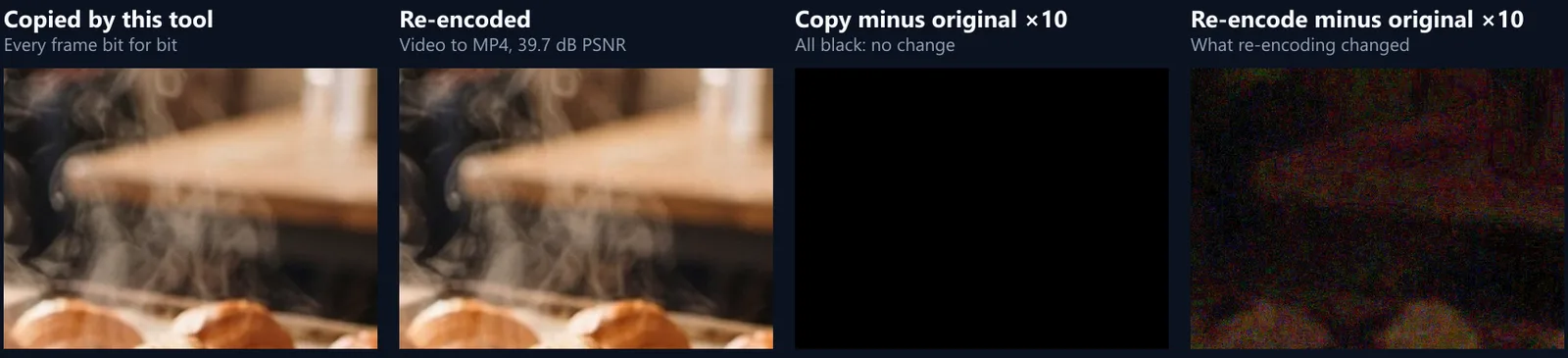
The 14-second sample took 82 ms; every one of its 420 frames was identical afterwards. Re-encoding the same clip took 29.5 s and changed the picture.
How to convert MKV to MP4
- Open the MKV Or a WebM. The tool lists every track.
- Choose the sound One language or commentary track.
- Make the MP4 Frames are copied, not re-encoded.
- Download The MP4, and SRT files for the subtitles.
Convert MKV to MP4 by copying
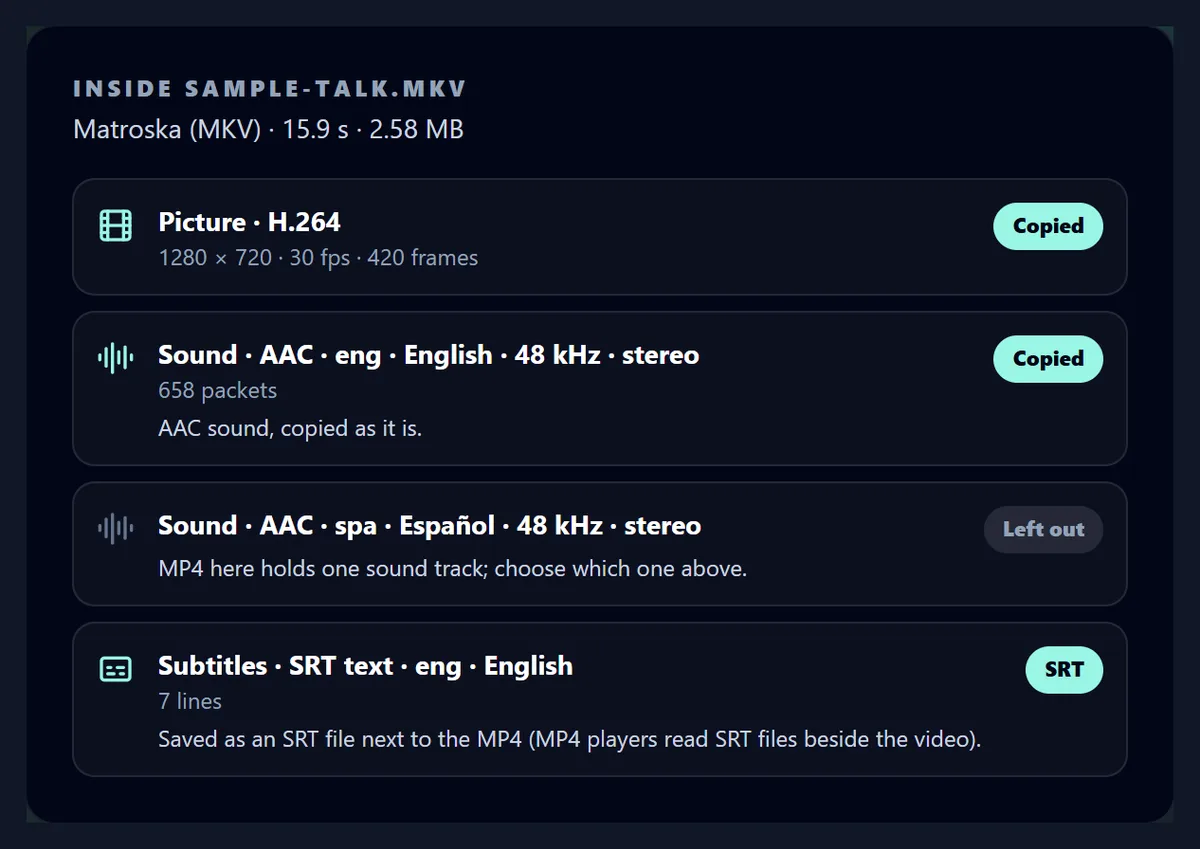
A real recording of this tool: the sample MKV opened and its tracks listed, the English sound chosen, the MP4 made in a fraction of a second and played.
- The sample MKV is opened and its four tracks are listed.
- The English sound track is chosen.
- The MP4 is made by copying the frames.
- The MP4 plays in the page.
What is an MKV file?
MKV (Matroska) is a container: a file that holds a video track, one or more sound tracks, subtitles and chapters, each encoded with its own codec. MP4 is another container. Both usually hold the same kind of video inside, most often H.264, so turning an MKV into an MP4 rarely needs the picture to be compressed again; the frames only need to be moved from one container to the other.
That is what this tool does: it reads the MKV, lists what is inside, and copies the encoded frames and sound packets into an MP4 as they are. MP4 is the format phones, editing apps and video sites accept almost everywhere; MKV is not, iPhones' own apps among them.
How long does it take?
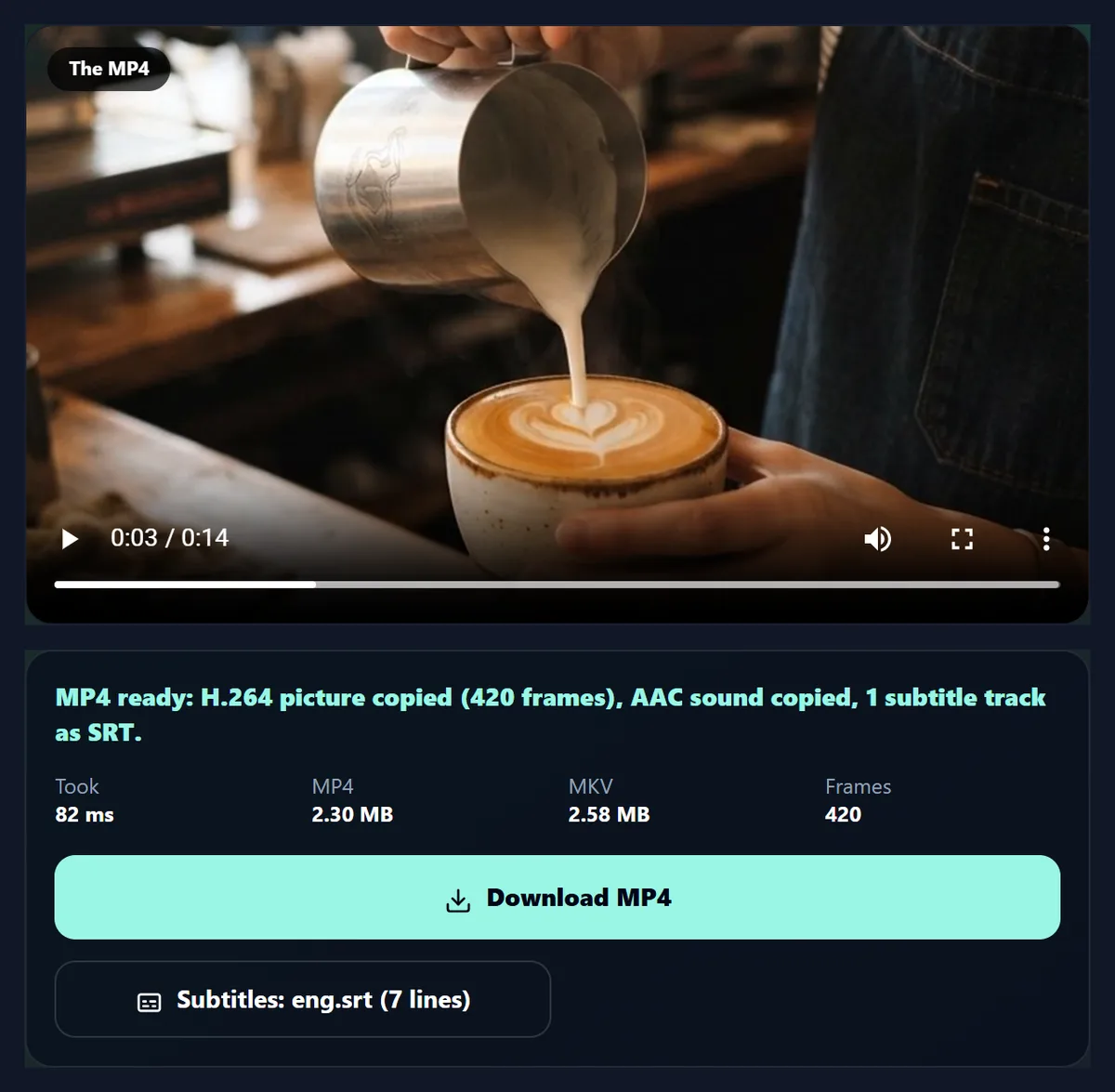
About as long as reading the file. The 14-second sample (2.58 MB) became an MP4 in 82 ms in Chrome on a laptop: 420 frames and 658 sound packets copied, nothing decoded. A film of a few gigabytes takes as long as the disk takes to read it.
Re-encoding the same clip with the Video to MP4 converter took 29.5 s: it plays the video through and compresses every frame again, so the time grows with the length of the video, not its size.
| Way | Time | MP4 size | Picture |
|---|---|---|---|
| Copied, English AAC sound | 0.08 s | 2.30 MB | Identical: all 420 frames bit for bit |
| Copied, Spanish AAC sound | 0.17 s | 2.33 MB | Copied, sound identical |
| Copied, FLAC sound made AAC | 0.21 s | 2.36 MB | Identical: all 420 frames |
| Re-encoded (Video to MP4) | 29.5 s | 9.03 MB | 39.7 dB PSNR, SSIM 0.993 |
Is the quality the same as the MKV?
Yes, exactly: the MP4's picture is the MKV's picture. The sample's 420 video frames and 658 sound packets were compared with ffmpeg after copying, packet by packet, and every one was identical. Nothing is decoded, so nothing can be lost.
Re-encoding always changes the picture a little. The re-encoded sample measured 39.7 dB PSNR and an SSIM of 0.993 against the original: hard to see at a glance, but the difference image shows where detail moved, and every further re-encode adds to it.
Which MKV files can be copied?
Any MKV whose picture is H.264 (AVC), H.265 (HEVC), VP9 or AV1, the codecs MP4 can hold. That covers videos from screen recorders, OBS, most cameras, phones and downloads made in the last ten years. WebM files are Matroska too and copy the same way.
Older MKVs with MPEG-4 Part 2 (Xvid, DivX), MPEG-2 or VC-1 video cannot be copied into a standard MP4 players will open; the tool says so before doing anything and points to the Video to MP4 converter, which re-encodes what the browser can play.
| Picture codec | In the MP4 |
|---|---|
| H.264 (AVC) | Copied |
| H.265 (HEVC) | Copied (plays where the device decodes HEVC) |
| VP9 | Copied |
| AV1 | Copied |
| MPEG-4 Part 2, MPEG-2, VC-1 | Not copied: convert it with Video to MP4 |
What happens to the sound?
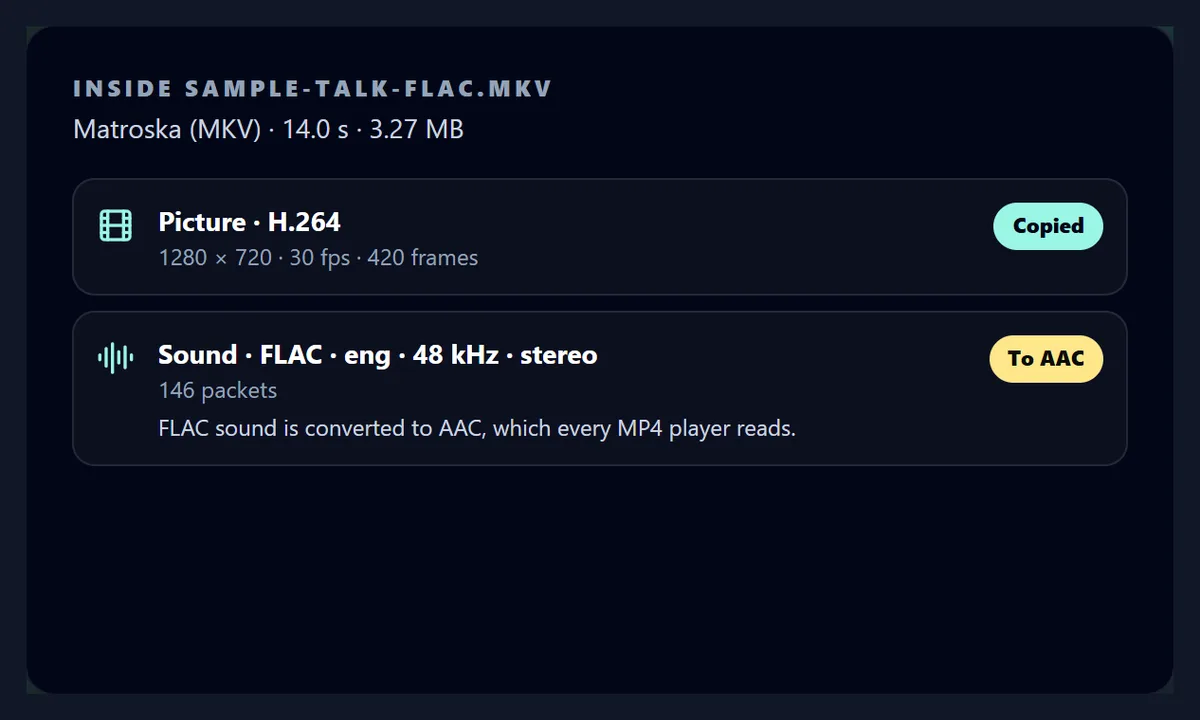
AAC and Opus sound is copied as it is. FLAC, MP3, Vorbis and uncompressed PCM, which MP4 players read badly or not at all, are decoded and encoded as AAC, at the same sample rate. The FLAC sample's sound was converted in 206 ms, the picture still copied (420 frames, identical), and the AAC measured -27.2 dB on average against -27.2 dB for the FLAC: the same loudness.
Dolby Digital (AC-3, E-AC-3) and DTS are converted only where the browser can decode them, and most cannot: the tool tells you before you start, and the MP4 is then made without sound.
| Sound codec | In the MP4 |
|---|---|
| AAC | Copied |
| Opus | Copied |
| FLAC, MP3, Vorbis, PCM | Converted to AAC |
| AC-3, E-AC-3, DTS | Converted if the browser decodes it; otherwise left out |
My MKV has several languages. Which one is kept?
The one you choose. MKVs often carry several sound tracks, one per language or a commentary; the tool lists them all and keeps one in the MP4, the first by default. The sample has English and Spanish: choosing Spanish made an MP4 whose 745 sound packets were identical to the MKV's Spanish track.
For an MP4 in each language, make it once per sound track; each takes seconds.
What happens to the subtitles?
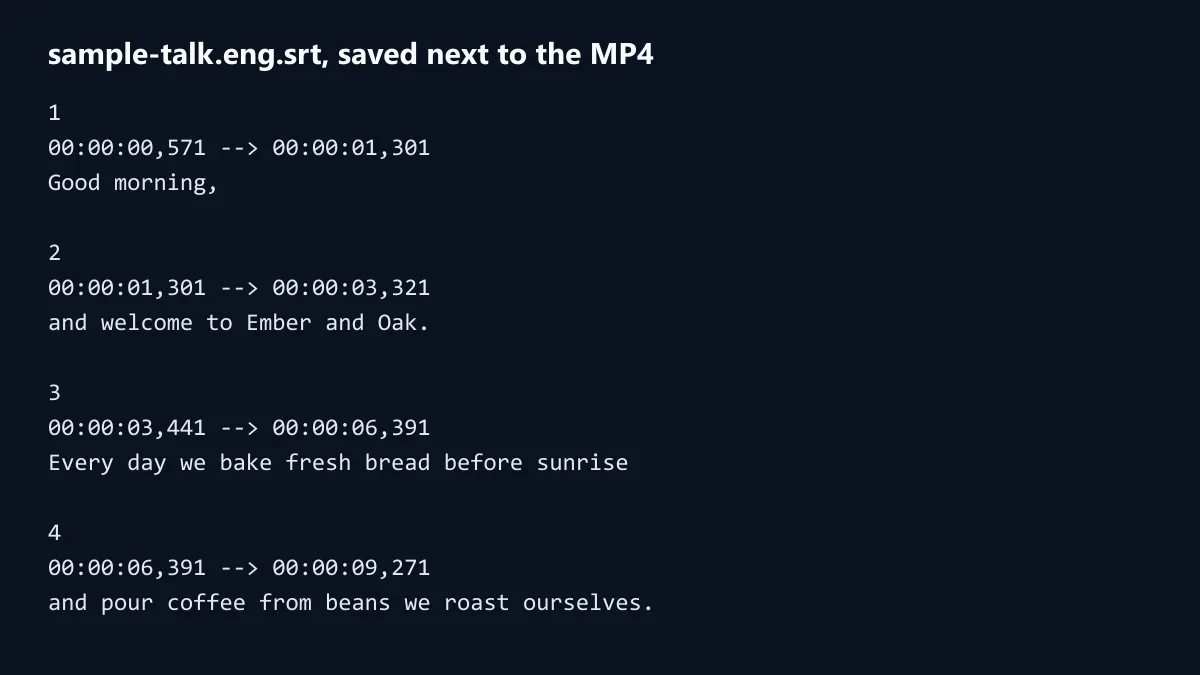
Text subtitles (SRT, and the words of ASS/SSA) are saved as SRT files next to the MP4, one per track, named with their language. The sample's English subtitles became a 422-byte SRT with 7 lines, timed as in the MKV. Video players and editors pick up an SRT with the same name as the video, and YouTube and most sites take it as a caption file.
Picture subtitles (PGS from Blu-ray, VobSub from DVD) are images, not text, so they cannot become SRT; the tool marks them as left out.
Will the sound stay in sync?
Yes. Every frame keeps its own time, and where a track starts later than another (the sample's picture starts 21 milliseconds after its sound, as it does in the MKV) or begins with frames that are decoded but not shown, the MP4 gets an edit list that says so, as ffmpeg writes it. The MP4's tracks start where the MKV's did.
Converted sound is timed from the MKV's own clock, and the AAC it becomes lines up with the original sound to the sample.
What do I get?
An MP4 with the same picture, the sound you chose, and the file's index at the start so it plays while it downloads. The sample MP4 was 1280 × 720, 420 frames at 30 a second, 2.30 MB (the MKV, with a second sound track and subtitles, was 2.58 MB).
It plays in the page as soon as it is made, so you can check it before downloading.
Will the MP4 be bigger or smaller?
About the same as the tracks you keep. Copying adds or removes almost nothing: the picture and sound are the same bytes, and the MP4's index is a few kilobytes. It is smaller when the MKV had tracks you leave out (other languages, subtitles), or sound converted from FLAC or PCM, which AAC stores in a fraction of the space.
The FLAC sample went from 3.27 MB to 2.36 MB, almost all of it the sound.
Can it handle a whole film?
Yes. Files up to 1 GB are copied in memory and offered as a download. Larger ones are written straight to a file you choose, which needs Chrome or Edge on a computer; the tool asks where to save before it starts. Either way the MKV is read a piece at a time, never all at once.
Speed is set by your disk: copying reads every byte once and writes it once.
When do I need to convert instead of copy?
When the picture codec is one MP4 players do not read (see the table above), when you want a smaller file than the original, or when you need a different size or frame rate. Then the video has to be re-encoded: the Video to MP4 converter does that in the browser, at play-through speed.
If the MP4 just needs to be smaller to send, Share Video re-encodes it to fit a size limit.
Where will the MP4 play?
An MP4 with H.264 and AAC plays almost everywhere: phones, computers, TVs, browsers and every video site. H.265 plays on iPhones, Macs and recent Windows and Android devices that decode it; VP9 and AV1 in MP4 play in current browsers and newer phones. The tool shows the MP4 in the page when this browser can play it.
If an old player refuses an H.265 MP4, convert it to H.264 with Video to MP4.
Does it work for WebM files?
Yes. WebM is a kind of Matroska file with VP8, VP9 or AV1 picture and Opus or Vorbis sound. VP9 and AV1 copy into MP4; Opus is copied and Vorbis converted to AAC. VP8 is not copied: convert it with WebM to MP4 or Video to MP4.
Screen recordings made in a browser are usually WebM with VP8 or VP9.
How does copying work?
An MKV is a tree of tagged blocks: a header that names each track and its codec, then clusters of frames, each frame stamped with the moment it is shown. The tool reads the header, walks the clusters to find every frame's place in the file and its time, and works out the order the decoder needs (frames that are shown out of order, as B-frames are, keep their own times). Then it writes the same frames into an MP4 with an index that records where each one is and when it plays.
Only the index is new; the frames themselves are the bytes that were in the MKV.
Are chapters and attachments kept?
No. The MP4 holds the picture, one sound track and nothing else; MKV chapters, cover art, fonts attached for ASS subtitles and tags are left behind. Text subtitles come out as SRT files beside it, as described above.
If you need chapters in the MP4, add them in an editor that writes MP4 chapters after converting.
Is my video uploaded?
No. The MKV is read and the MP4 written inside your browser tab; nothing is sent to HueFold or anyone else, and there is no sign-up or watermark.
Once the page has loaded it even works offline.
Frequently asked questions
How do I convert MKV to MP4 without losing quality?
Copy the frames instead of re-encoding them, as this tool does: the picture is the MKV's, bit for bit.
How long does it take?
Seconds: the 14-second sample took 82 ms. A film takes as long as reading the file.
Does it re-encode the video?
No. H.264, H.265, VP9 and AV1 are copied as they are.
What happens to the sound?
AAC and Opus are copied; FLAC, MP3, Vorbis and PCM become AAC.
Are subtitles kept?
Text subtitles are saved as SRT files next to the MP4.
Which language track is used?
The one you choose from the list.
Is there a size limit?
Files over 1 GB are saved straight to disk, in Chrome or Edge on a computer.
Is my video uploaded?
No. It is read and written in your browser.
Related tools
- MOV to MP4 Converter — iPhone and camera MOVs, copied.
- Video to MP4 — Re-encode anything the browser plays.
- WebM to MP4 — Browser recordings to MP4.
- Share Video — Make it small enough to send.
- Caption — Edit the subtitles, burn them in.
- Video Splitter — Cut a long video into parts.