Share Video
Make a video small enough to share: choose a size limit, trim it if you like, and get an MP4 checked to fit, then send it from your device's share sheet. Nothing is uploaded.
Updated
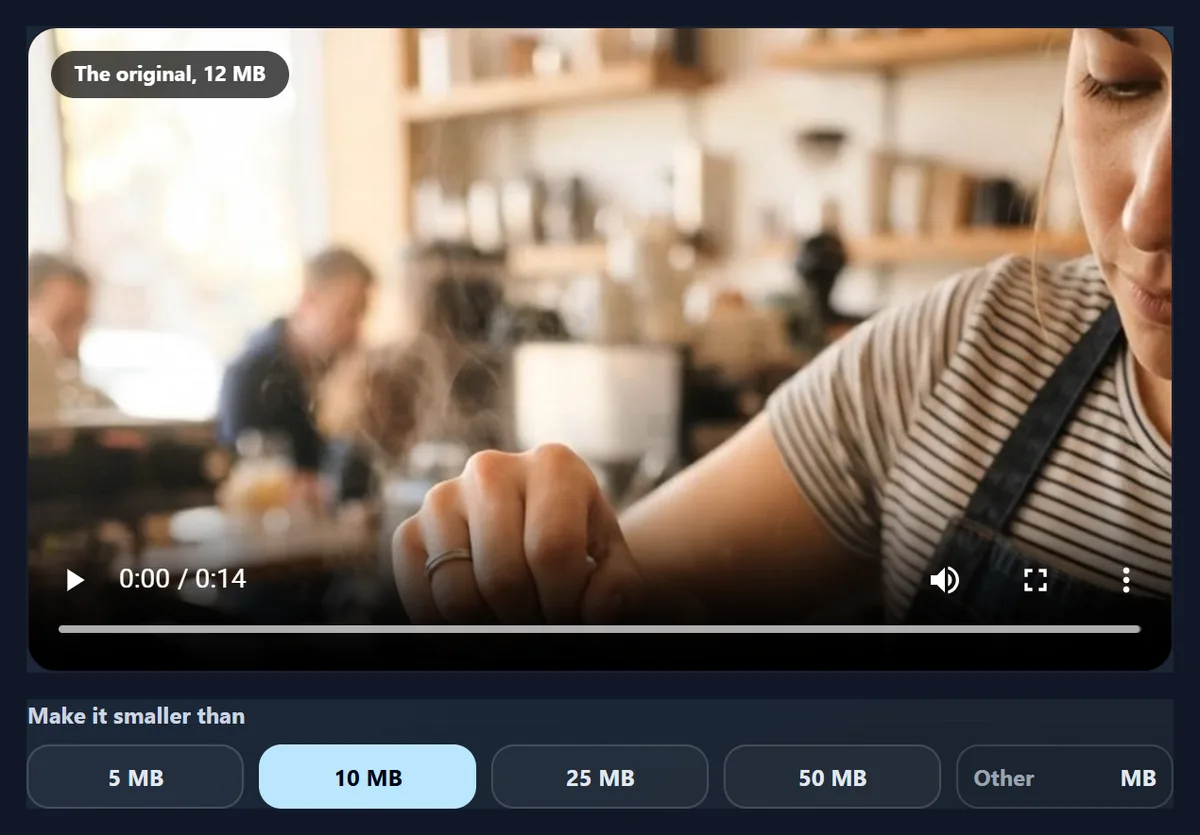
How do you make a video small enough to share?
Re-encode it to fit the limit: choose the size it must be under, and the tool works out the bitrate, picks a picture size that stays clean, and checks the file it makes, making it again a little smaller if it came out over.
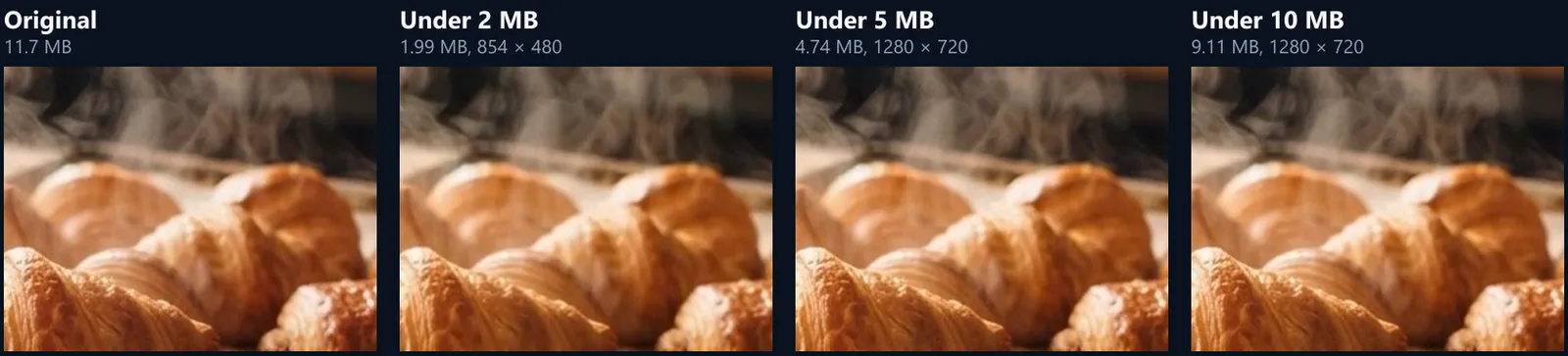
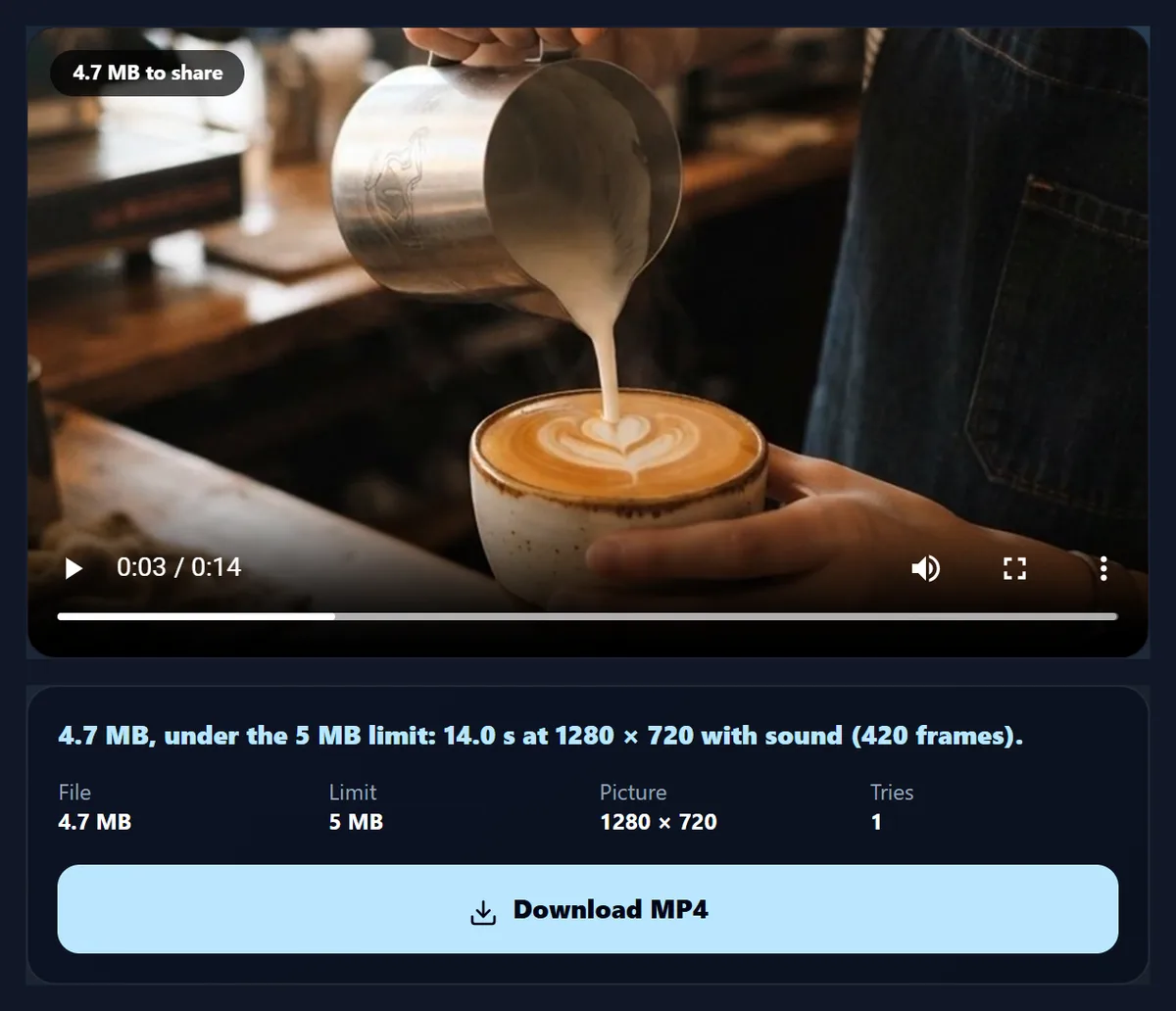
The 11.71 MB sample came out at 4.74 MB for a 5 MB limit and 9.11 MB for 10 MB, then went straight to the share sheet.
How to share a video under a size limit
- Open the video Any video your browser plays.
- Choose the limit 5, 10, 25, 50 MB, or any size.
- Make it fit Re-encoded and checked against the limit.
- Share Your device's share sheet, or download.
Make a video fit 5 MB and share it
A real recording of this tool: the sample video opened, the 5 MB limit chosen for its first five seconds, the part re-encoded to fit and checked, and the result played.
- The 11.7 MB sample video is opened.
- The 5 MB limit is chosen and the part set to the first five seconds; the tool shows the bitrate and picture size it will use.
- The part is re-encoded and checked against the limit.
- The result plays, ready to share or download.
How do I make a video small enough to send?
Open the video, choose the limit it has to fit under (5, 10, 25 or 50 MB, or any size you type), and press Make it under. The tool works out how many bits a second the picture and the sound may use, picks the largest picture size that stays clean at that rate, re-encodes the video, and checks the real file: if it came out over the limit, it is made again a little smaller.
The sample is the 14-second café clip saved at the rate a phone records, 11.71 MB. Made to fit 5 MB it came out at 4.74 MB, 1280 × 720, on try 1.
How close to the limit does it get?
Just under it. The sample was made to fit four limits; every one landed under its line, each in a single encode unless the table says otherwise. The picture quality column is how close each picture stayed to the original, measured with ffmpeg: higher is closer, and above about 40 dB the difference is hard to see.
The tool aims at 96% of the limit for the picture and sound, leaving room for the MP4's own index and headers, and checks the result, because encoders do not always spend exactly the bits they are given.
| Limit | MP4 | Picture | Tries | Picture quality (PSNR) |
|---|---|---|---|---|
| Under 2 MB | 1.99 MB | 854 × 480 | 1 | 32.1 dB |
| Under 5 MB | 4.74 MB | 1280 × 720 | 1 | 39.5 dB |
| Under 8 MB | 7.62 MB | 1280 × 720 | 1 | 39.6 dB |
| Under 10 MB | 9.11 MB | 1280 × 720 | 1 | 39.7 dB |
How much does it lose?
Less than you might think, down to a point. At 10 MB the sample kept 39.7 dB, at 5 MB 39.5 dB; at 2 MB the tool chose 854 × 480, because squeezing a full-size picture into so few bits looks worse than a smaller sharp one.
Talking heads and screen recordings stay clean at low rates; fast action, grass and water need more bits for the same look.
How does it choose the picture size?
From the bits each pixel gets. The bitrate left for the picture is shared out over the pixels of every frame; when that falls below 0.07 bits a pixel at 30 frames a second, the picture is made smaller: 1080p, then 720p, 540p, 480p, 360p and 240p. A smaller picture with enough bits looks better than a large one starved of them.
You can also set it yourself: Best fit lets the tool choose; 720p and 480p fix the size.
The video is too long for the limit. What can I do?
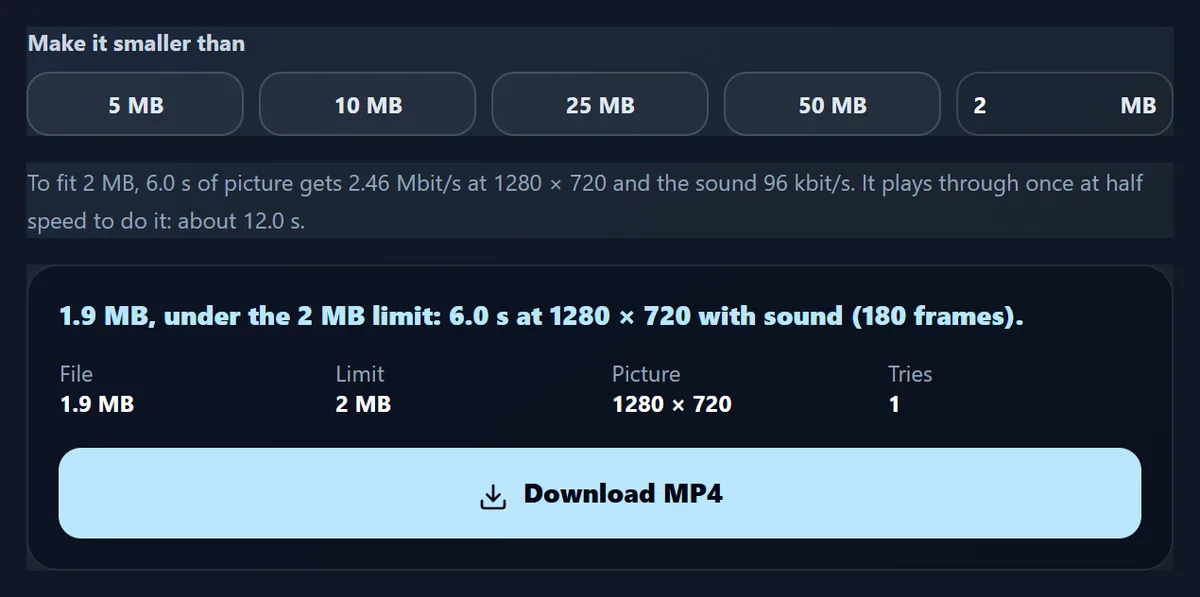
Share part of it. Length matters most: the same limit spread over fewer seconds gives each second more bits. Six seconds of the sample under 2 MB kept 1280 × 720 at 38.5 dB, where the whole 14 seconds had to drop to 854 × 480.
Taking the sound out frees its share too: 96 kbit/s under 12 MB, 128 kbit/s above.
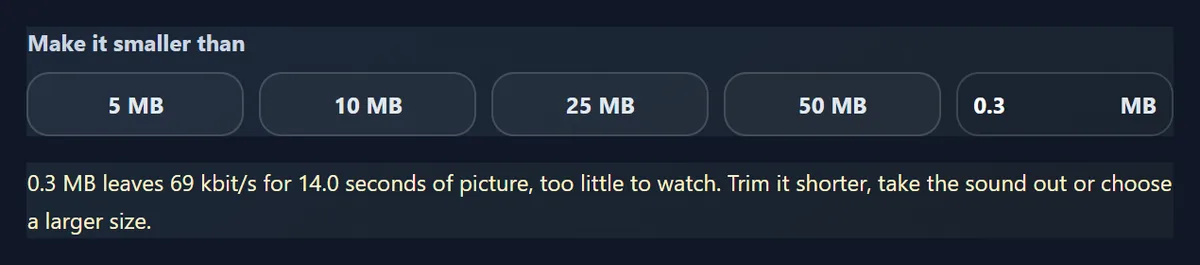
What if the limit is too small?
The tool says so before encoding anything: when the limit leaves less than 150 kbit/s for the picture, the video would turn to blocks at any size. For the whole sample under 0.3 MB it said: “0.3 MB leaves 69 kbit/s for 14.0 seconds of picture, too little to watch. Trim it shorter, take the sound out or choose a larger size.”
Then trim it, take the sound out, or choose a larger limit.
What is in the MP4?
H.264 picture and AAC sound, the formats every phone, computer and app plays. Each frame keeps its own time, so the motion is as smooth as the original. The 5 MB version of the sample was 420 frames, 1280 × 720.
Making it plays the video through once at half speed so no frame is missed: about twice its length.
What size limits do apps have?
They vary by app and change over time, so check the one you use. Email is the most common: Gmail, for example, sends attachments up to 25 MB and offers a Drive link above that. Many chat apps compress videos again on the way, which costs quality; a file already well under their limit, or sent as a document, keeps yours.
Sizes here are megabytes of a million bytes, so a file made to fit 25 MB fits however an app counts.
Why not just zip it?
Because video is already compressed: zipping an MP4 saves almost nothing. The only way to make it smaller is to re-encode it with fewer bits, a smaller picture, or a shorter length, which is what this tool does.
Copying a video into another container, as the MKV and MOV to MP4 pages do, keeps the size too.
How is the bitrate worked out?
From the limit and the length. A 5 MB limit is 40 million bits; 96% of that, 38.4 million, is shared over the 14 seconds of the sample: 2.74 Mbit/s. The sound takes 96 kbit/s of it, leaving 2.65 Mbit/s for the picture, and at 1280 × 720 and 30 frames a second that is about 0.1 bits a pixel, enough to stay clean, so the full size is kept. The tool shows this sum under the limits before you start.
A longer video or a smaller limit lowers the bits per pixel, and below 0.07 the picture is made smaller to keep it clean.
Does it change the frame rate?
No. Every frame of the original is kept with its own time, so 24, 25, 30 and 60 frames a second all stay as they were, and variable frame rates from phones play as smoothly as the original. Fewer bits mean each frame carries less detail, not that frames are dropped.
The sound stays in step for the same reason: it is laid under the frames by time.
Which videos can I open?
Any video this browser can play: MP4 and MOV from phones (H.264, and H.265 where the device decodes it), WebM, and others. The result is always H.264 with AAC sound, which every app and device reads.
For an MKV or a MOV that only needs to become an MP4 without getting smaller, MKV to MP4 and MOV to MP4 copy it without re-encoding.
How do I keep the most quality?
Share only the part that matters: length is what the limit is spread over. Take the sound out if it is not needed. For talking heads and screen recordings, 720p or even 480p is plenty on a phone screen, and the bits that saves go into detail. And share from the original each time; a video already squeezed once loses more when squeezed again.
If quality matters more than size, send a link instead: put the video in a HueFold design and copy its share link.
Does it work on a phone?
Yes, in a current browser on Android or an iPhone: open the video from your gallery, choose the limit, and share straight to an app from the share sheet. Making the video takes about twice its length, so keep the screen on until it is done.
On a computer it is the same, with Download when the browser cannot share files.
Can I make it for several apps?
Yes: make it once per limit. Each version starts again from the original, not from the last one, so a 25 MB copy for email does not lose quality because a 5 MB copy was made first. Changing the limit, the part or the picture size clears the last result, so you always know which settings made the file you download.
Keep the original too: the shared copies are for sending, not for archiving.
Why does it always make an MP4?
Because it is the one format every phone, computer, chat app and email client opens without asking: H.264 picture and AAC sound, in an MP4 with its index at the front so it starts playing straight away. A smaller WebM or HEVC file would save a little more space but fail to play for some of the people you send it to.
The file name ends with the limit (for example video-5mb.mp4), so the versions are easy to tell apart.
Is my video uploaded?
No. It is played, re-encoded and checked inside your browser tab, and shared from your device; nothing goes to HueFold or anyone else, and there is no sign-up or watermark.
To send a link instead of a file, add the video to a HueFold design and copy its share link in the editor.
Frequently asked questions
How do I make a video small enough to send?
Choose the size limit and press Make it under; the tool re-encodes it to fit and checks the file.
Will it really be under the limit?
Yes: the real file is measured, and made again smaller if it is over.
How much quality does it lose?
It depends on the limit: the sample kept 39.5 dB at 5 MB.
Can I share only part of a video?
Yes. Set From and To; shorter parts keep more quality.
Is the sound kept?
Yes, as AAC, unless you take it out to save room.
How do I send it?
Share opens your device's share sheet; Download saves the MP4.
Why not zip it?
Video is already compressed; zipping saves almost nothing.
Is my video uploaded?
No. Everything happens in your browser.
Related tools
- Video Splitter — Cut a long video into parts.
- Video Resizer — Change the shape for each app.
- MOV to MP4 Converter — iPhone videos to MP4, unchanged.
- Video to GIF — A short clip as a GIF.
- Crop Videos — Cut away the edges.
- Remove Audio from Video — Keep the picture only.