WebM to MP4
Convert a WebM to MP4 in your browser: VP9, VP8 or AV1 picture and Opus or Vorbis sound become H.264 and AAC that every phone and editor plays, with a colour for transparent parts. Free, no upload.
Updated
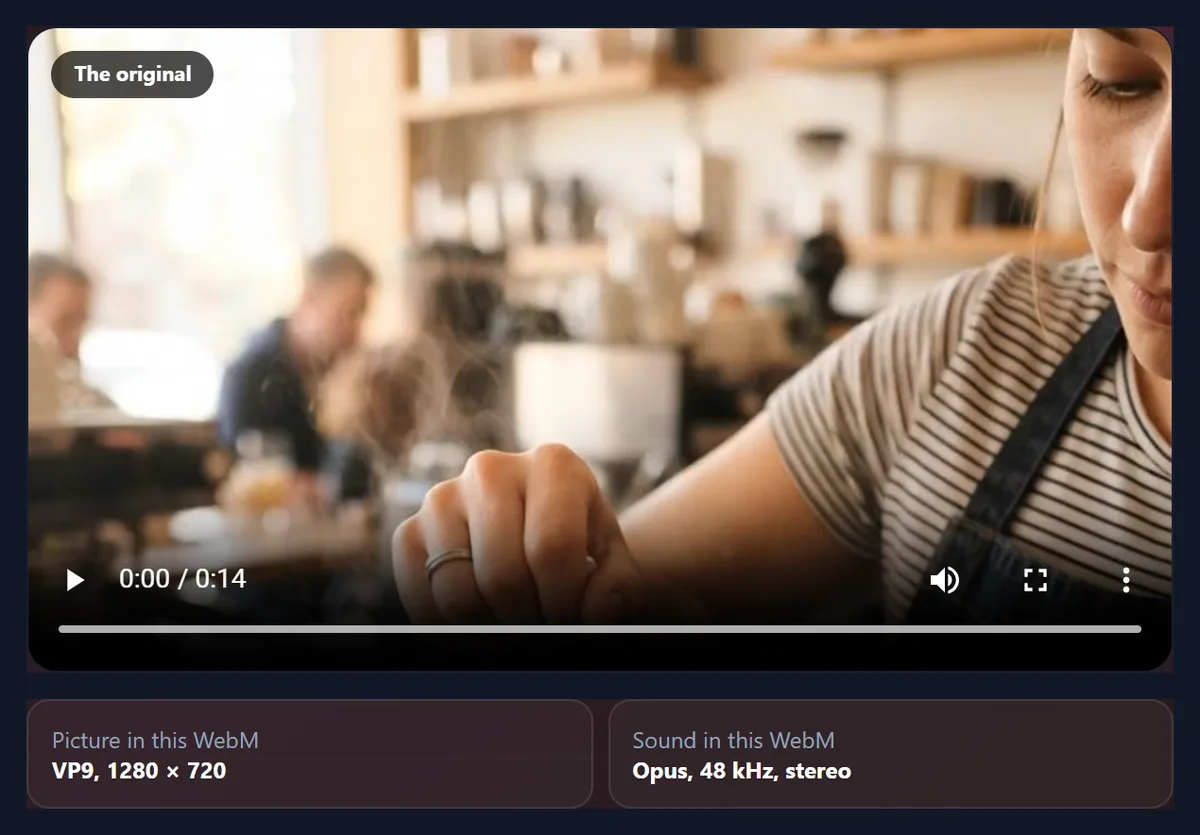
How do you convert WebM to MP4?
Open the WebM here, choose the picture size and whether to keep the sound, and press Convert to MP4: the browser plays the video and every frame is written to an H.264 MP4 with AAC sound, which plays almost everywhere. The file is never uploaded.
Four sample WebMs (VP9, VP8, AV1 and a transparent sticker) kept every frame; the MP4s were bigger, 8.81 MB for a 1,417 KB VP9 screen recording, because H.264 needs more bits than VP9.
How to convert WebM to MP4
- Open the WebM Drop it on the tool or choose it.
- Check what is inside Picture and sound formats are shown.
- Choose the options Size, sound, background colour.
- Convert and download An H.264 and AAC MP4.
Convert a WebM to MP4
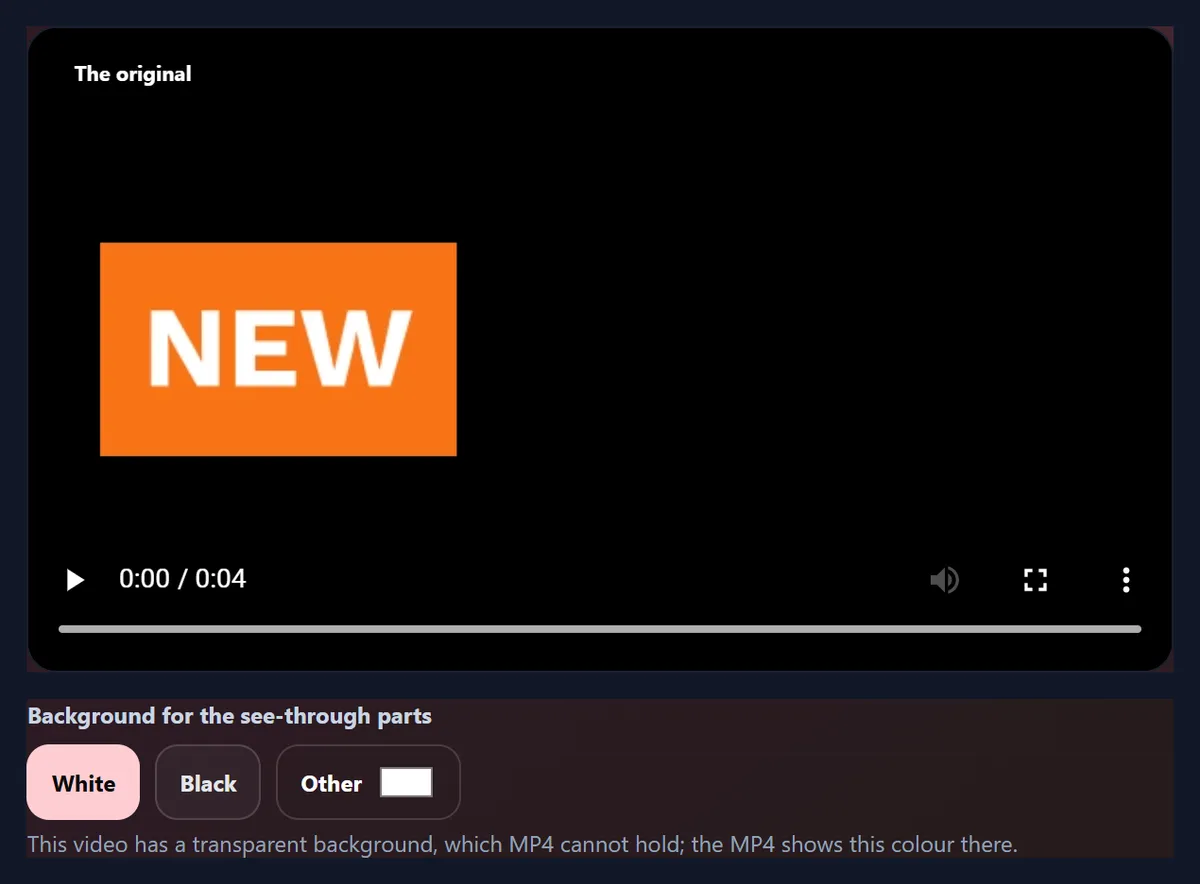
A real recording of this tool: a transparent WebM opened, its contents shown, white chosen as the background and the MP4 made.
- The transparent sample WebM opens.
- The tool shows what is inside: a VP9 picture and no sound.
- White is chosen as the background for the see-through parts.
- The MP4 is made and plays.
How big is the MP4?
Usually bigger than the WebM. The four samples in the table, converted by this tool with every frame kept, grew between 3.6 and 9.3 times: the 14-second VP9 screen recording went from 1,417 KB to 8.81 MB. VP9 and AV1 squeeze video far harder than H.264, and the browser's H.264 encoder spends bits generously to keep the picture clean.
That is the price of an MP4 that plays everywhere. To make it smaller, choose a smaller picture size in the tool; to keep the WebM's size, copy instead of converting, as explained below.
| Sample | Picture | WebM | MP4 | Frames kept |
|---|---|---|---|---|
| VP9 + Opus | VP9 1280 × 720, 14 s | 1,417 KB | 9,021 KB | 420 of 420 |
| VP8 + Vorbis | VP8 640 × 360, 6 s | 743 KB | 2,642 KB | 144 of 144 |
| AV1 + Opus | AV1 640 × 360, 6 s | 277 KB | 2,589 KB | 144 of 144 |
| See-through | VP9 640 × 360, 4 s | 27 KB | 316 KB | 120 of 120 |
How do I convert a WebM to MP4?
Drop the WebM on the tool or choose it. The tool opens it, shows what is inside (the picture and sound formats), and plays it as the original. Choose the picture size and whether to keep the sound, pick a background colour if the video is transparent, and press Convert to MP4; when it is done, the MP4 plays in the same place and Download MP4 saves it.
Converting plays the video through once at half speed so that no frame is missed: the 14-second sample took 203 seconds, the 6-second ones about 91.
Why convert WebM to MP4?
Because MP4 with H.264 picture and AAC sound is the combination almost every phone, editor, TV and social network accepts, while WebM is mainly a web format. Some apps and older devices do not open WebM files, and some upload forms only take MP4.
Chrome and Firefox save screen and webcam recordings as WebM, and many web tools save clips that way, so this conversion is often the step between recording something and sharing it.
What is inside a WebM file?
A WebM holds a picture in one of three formats, VP8, VP9 or AV1, and sound in Vorbis or Opus. The tool reads the file's own description and shows them before you convert: the samples here are VP9 with Opus (how a browser records), VP8 with Vorbis (the older pair) and AV1 with Opus (the newest and most compact).
Whatever is inside, the MP4 comes out the same way: H.264 picture and AAC sound at 48 kHz.
Can I convert WebM to MP4 without re-encoding?
Yes, for VP9 and AV1 WebM files: the MKV to MP4 tool on this site copies the encoded picture and Opus sound into an MP4 as they are, in seconds and with no change at all. The catch is that the result is still VP9 or AV1 inside, which many players and apps cannot read, so it does not solve the problem most people convert for.
Use copying when the MP4 only needs to be an MP4 for a program that reads VP9 or AV1; use this converter when it has to play everywhere.
Why is the MP4 so much bigger?
Two reasons. VP9 and AV1 are newer formats that need fewer bits than H.264 for the same picture. And the browser's encoder, built for speed, aims at a generous bitrate so as not to lose detail: the 1280 × 720 sample's MP4 came out at 5.3 megabits a second, against 0.83 for its WebM.
Choosing Up to 720p or Up to 480p in the tool makes a smaller file when the full size is not needed, such as for a chat app.
Which picture size should I choose?
Same as the video keeps every pixel; Up to 1080p, Up to 720p and Up to 480p shrink larger videos to fit, keeping their shape and never enlarging a smaller one. The tool says the exact output size before you convert.
For posting on social networks 1080p is enough; for messages, 720p.
What happens to the sound?
It is decoded and saved as AAC, the sound format MP4 players expect, at 48 kHz in stereo: the Opus and Vorbis tracks of the samples all came out that way. Remove sound leaves it out, for a silent clip or a background video.
A WebM with no sound, like the transparent sample, simply makes an MP4 with no sound.
What happens to a transparent WebM?
WebM can hold a transparent background, as stickers and overlays do; MP4 cannot. The tool spots transparency when it opens the file and asks for a background colour, white, black or any other, to fill the see-through parts. The sample badge was 90% see-through; its MP4s on white and on black are shown here.
Choose the colour of the place the video will be shown on. To keep the transparency, keep the WebM as well: browsers play it with its see-through parts.

How do I pick the background colour?
The Background for the see-through parts choice appears only for transparent videos: White, Black, or Other to pick any colour. The MP4 is made with that colour behind every frame, and the summary under the result says which colour was used.
Partly transparent edges, such as soft shadows, blend into the colour you pick.
Are any frames lost?
No: every frame is kept at its own time. Checked with ffprobe, the four samples had 420, 144, 144 and 120 frames as WebM and the same as MP4, at the same frame rates (30 and 24 a second).
If a busy computer misses a frame while converting, the tool notices and converts again more slowly, and says so.
Does the frame rate change?
No. Each frame is written at the moment it had in the WebM, so a 30 fps recording stays 30 fps and a 24 fps clip stays 24. Screen recordings often have an uneven frame rate, with fewer frames when nothing moves; those gaps are kept too, so the MP4 stays in step with its sound.
Nothing is added or dropped to reach a round number, which is why the frame counts match exactly.
What does the tool show when it is done?
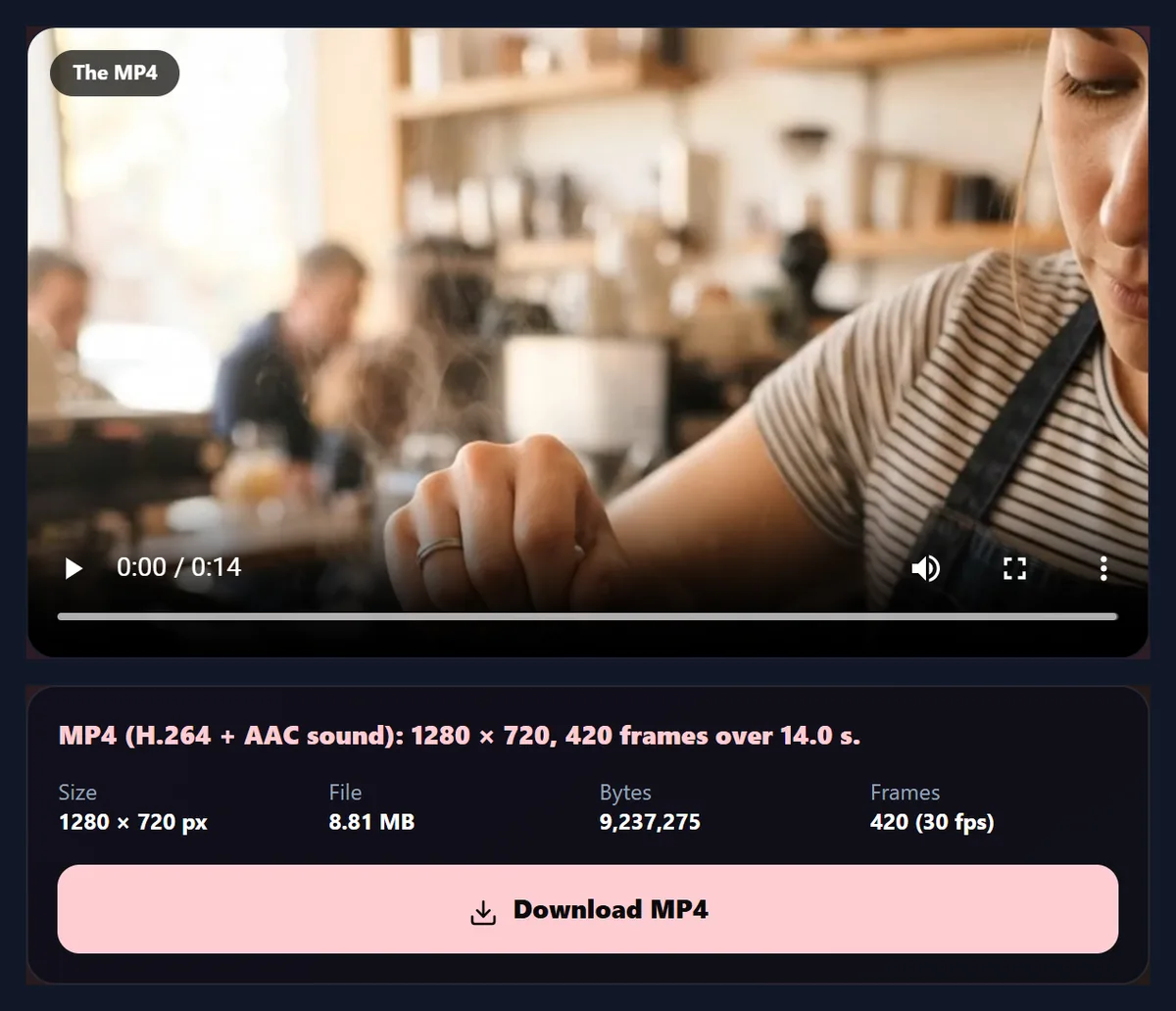
The MP4 playing in place of the original, and its picture size, file size, exact bytes and frame count with the frame rate. For the screen recording sample: 1280 × 720, 8.81 MB, 420 frames at 30 a second.
Download MP4 saves it with the WebM's name and .mp4 at the end.
Does the MP4 look the same?
To the eye, yes: the figure shows the same moment from the WebM and from the MP4. Converting re-encodes the picture, so it is not bit for bit identical, but at the generous bitrate the browser uses the difference is not visible in ordinary viewing.
Converting the same video back and forth many times would slowly soften it, as with any re-encoding; convert once, from the original.

Can I convert a screen recording?
Yes: screen and webcam recordings made in a browser are usually WebM with VP8 or VP9 and Opus, exactly what this tool reads. The online video recorder on this site records your screen or camera and can save an MP4 directly.
Long recordings take as long as their length to convert, at half speed, so a 10-minute recording takes about 20 minutes; keep the tab open.
What if my WebM will not open?
The tool uses the browser's own video decoder, so a WebM opens wherever the browser can play it. Current Chrome, Edge and Firefox play VP8, VP9 and AV1; Safari's support depends on its version and the device. If a file will not open, try it in Chrome or Edge on a computer.
A WebM that is damaged, or was cut off while it was being recorded, may not open at all, or only up to the damaged point.
Can I convert several WebM files at once?
One at a time: each conversion plays its video through, so the browser works on one file. Open the next WebM when the first MP4 has downloaded; the settings stay as you left them.
For many short clips this is still quick: the 6-second samples took about 14 seconds each.
Can I edit the MP4 afterwards?
Yes, it is an ordinary MP4. Cut it into parts with the video splitter, add titles with Add text to video, music with Add music to video, or open it in the HueFold editor with your other media.
Edit the MP4 rather than going back to the WebM each time, so the video is converted only once.
Is my video uploaded?
No. The WebM is played, converted and saved inside this browser tab; nothing is sent to HueFold or anywhere else, and there is no watermark, sign-up or limit on files.
That also means the conversion uses your device's power: a computer is faster than a phone for long videos.
Can I convert WebM to MP4 on a phone?
Yes, in a current browser on Android, and on an iPhone with a recent version of iOS where Safari can play the WebM. Keep the screen on and the page open while it converts.
The MP4 saves to Downloads on Android and to the Files app on an iPhone, from where it can be saved to Photos.
Frequently asked questions
Is WebM to MP4 free?
Yes: no sign-up, no watermark and no limit on files.
Is my video uploaded?
No. It is converted inside your browser.
Why is the MP4 bigger than the WebM?
H.264 needs more bits than VP9 or AV1 for the same picture.
Are any frames lost?
No: every frame is kept at its own time.
What happens to the sound?
Opus or Vorbis sound becomes AAC at 48 kHz.
Can I keep a transparent background?
Not in MP4: choose a colour to fill it, or keep the WebM.
Can I convert without re-encoding?
Yes, for VP9 and AV1, with the MKV to MP4 tool, but fewer players read the result.
How long does it take?
About twice the video’s length: it plays through at half speed.
Does it work on a phone?
Yes, where the phone’s browser can play the WebM.
Related tools
- MKV to MP4 — Copy VP9 or AV1 into MP4 without re-encoding.
- Video to MP4 — Any video the browser plays.
- Online Video Recorder — Record your screen or camera.
- MOV to MP4 Converter — iPhone videos to MP4.
- Free Video to GIF Converter — A clip as a GIF.
- Resize Video for Instagram — Reels and Stories shapes.