Video to MP4 Converter
Convert WebM, MOV and other videos to MP4 in your browser: H.264 picture and AAC sound, at the same size and frame rate or smaller, with nothing uploaded.
Updated

How do you convert a video to MP4?
Open a video, choose the picture size and whether to keep the sound, and press Convert to MP4. The browser plays the video through once, encoding each frame and the sound as it goes, and the MP4 is ready to download when it finishes, with its size, frame count and frame rate shown so you can see nothing was dropped.
The 8-second sample WebM became a 1280 × 720 MP4 of 4.57 MB with all 192 frames. Everything happens in your browser: no upload, no account.
How to convert to MP4
- Open a video WebM, MOV, MKV or any video your browser plays.
- Pick a size Same as the video, or up to 1080p, 720p or 480p.
- Keep or remove the sound Sound is converted to AAC.
- Convert and download About twice the video’s length; the page shows how long.
Convert a WebM video to MP4
A real recording of this tool: the sample WebM opened, the size options tried, the video converted to MP4 in real time, and the MP4 downloaded.
- The sample WebM video is opened.
- The size options are tried, and Same as the video is kept.
- The video is converted to MP4 as it plays through.
- The MP4 is downloaded.
How big will my MP4 be?
Usually larger than a WebM of the same video, and it depends on the picture size. The 8-second sample WebM, 1280 × 720, was 1.51 MB. Converted at the same size with its sound, the MP4 was 4.57 MB; without the sound, 4.41 MB; and at 480p, 3.29 MB. The frames were all there each time: the source has 192, the MP4s 192.
The MP4 is larger because VP9, the codec inside most WebM files, packs video more tightly than H.264, and the converter encodes at a generous bitrate (about 6 bits per pixel each second, at least 4 and at most 16 megabits a second) so the picture does not lose detail. The sound is a small part of the file: dropping it saved 3%. If the file is too large, choose a smaller picture size.
| Version | MP4 size | Picture | Frames |
|---|---|---|---|
| The WebM it came from (VP9 + Opus) | 1.51 MB | 1280 × 720 | 192 at 24 fps |
| Same size, with sound | 4.57 MB | 1280 × 720 | 192 at 24 fps |
| Same size, no sound | 4.41 MB | 1280 × 720 | 192 at 24 fps |
| 480p, with sound | 3.29 MB | 854 × 480 | 192 at 24 fps |
Why convert a video to MP4?
Because MP4 with H.264 video and AAC sound plays almost everywhere: every phone, every browser, Windows, macOS, TVs, WhatsApp, Instagram, TikTok, YouTube, PowerPoint and Keynote, and every video editor. WebM, the format many browsers, screen recorders and websites save, is not accepted by some apps and editors, and MOV files from iPhones can use codecs Windows apps cannot play.
Converting to MP4 is the quick fix when a video will not upload, will not play on a TV or phone, or will not open in an editor.
How does the converter work?
Your browser plays the video silently, start to finish, and every frame it shows is drawn and passed straight to the browser's own H.264 encoder, stamped with the moment it belongs to, so the MP4 keeps the original frame rate. The sound is decoded from the file and encoded as AAC. The two are written together into a standard MP4, with the index at the front so it can start playing before it has fully downloaded.
Because the video is played to read its frames, converting takes about twice as long as the video lasts: it plays at half speed (a quarter for 4K videos), so that no frame arrives while the one before is still being encoded. The converter also counts the frames the browser showed: if a busy page made it miss any, it reads the video again at half that speed, so the MP4 has every frame. In real time, test conversions sometimes missed a few frames; at half speed, with that check, every test conversion had all 192. The 8-second sample took 18 seconds or less each time, including reading its sound, and the page shows how long a video will take before you start. Keep the tab open and in front while it works; a tab in the background is slowed by the browser.
Which videos can I convert?
Any video your browser can play: WebM (VP8, VP9 or AV1), MOV and MP4 with H.264, most MKV files with common codecs, and Ogg video. In Chrome and Edge that covers almost everything people record or download; Safari plays HEVC (H.265) MOV files from iPhones too. If the browser cannot play a file, it cannot convert it, and the page says so.
Converting an MP4 that is already H.264 is also useful: to shrink its picture size, to remove its sound, or to rewrite an MP4 that an app refuses.
Will I lose quality?
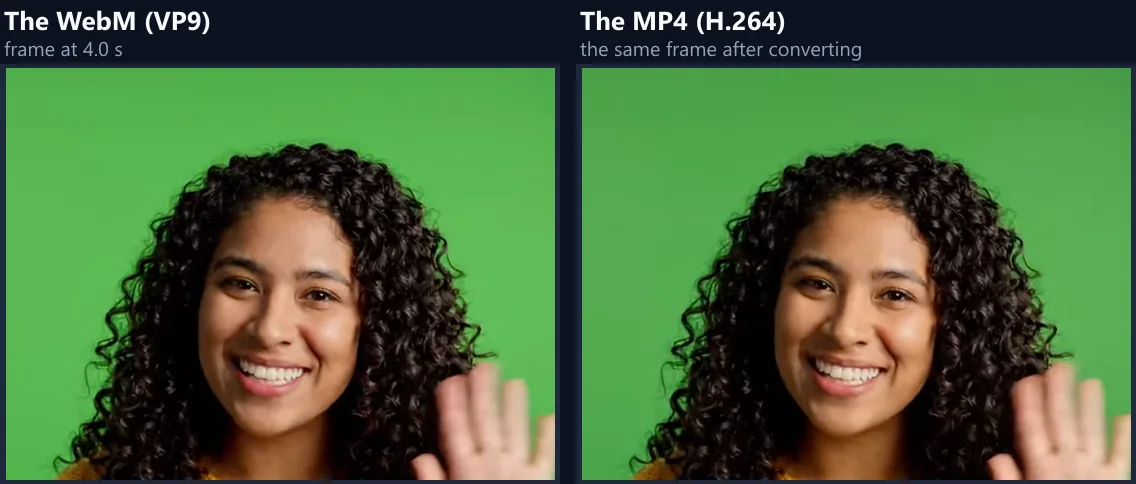
Very little that you can see. Any conversion re-encodes the video, so it cannot be a perfect copy, but the bitrate is set high for the picture size, and the frames are taken at full size, not from a scaled preview. The figure shows the same frame of the sample before and after.
To avoid needless loss, convert the original file rather than a copy that has already been converted or compressed, and keep the picture size the same unless you need it smaller.
Can I make the video smaller?
Yes. Choose Up to 1080p, 720p or 480p and the picture is scaled down to fit, keeping its shape; Same as the video keeps it as it is. Smaller pictures make smaller files and convert at the same speed. A video smaller than the size you choose is never enlarged.
For sharing in a chat or email, 720p or 480p is usually plenty: the sample at 480p was 3.29 MB, against 4.57 MB at its full 720p.
What happens to the sound?
It is kept by default and converted to AAC, the sound format MP4 players expect, in stereo at 48 kHz. Choose Remove sound for a silent MP4, for example for a background video on a website or a clip you will add music to later. A video with no sound track simply gives an MP4 with no sound.
The sample's sound is Opus inside the WebM; in the MP4 it became AAC at 48 kHz, as ffprobe confirms.
Can I convert on my phone?
Yes, in a current browser: Chrome on Android, and Safari on an iPhone or iPad running iOS 17 or later, which can encode H.264. Keep the screen on and the page open while it converts, because phones pause pages in the background. Long or 4K videos use a lot of memory on a phone; choose 720p for them.
The finished MP4 is saved to your downloads or files, ready to share.
What is the difference between MP4, WebM and MOV?
Each is a container: a file format that holds a video stream and a sound stream, each written with a codec. MP4 usually holds H.264 or H.265 video and AAC sound. WebM holds VP8, VP9 or AV1 video and Vorbis or Opus sound. MOV is Apple's QuickTime container, usually with H.264 or HEVC video and AAC sound. Two files with the same extension can therefore still play differently, depending on the codecs inside.
This converter always writes MP4 with H.264 video (High profile) and AAC sound at 48 kHz, the combination that the most devices and apps play.
Will the sound stay in sync?
Yes. Every frame is written at the exact moment it belongs to in the original, and the sound is encoded whole from the original file, so they line up from start to finish. This also keeps recordings from phones and screen recorders in sync, which often have a variable frame rate: the frames are not evenly spaced, and a converter that assumed they were would drift.
The result panel shows the frame count and the frame rate it works out, so you can compare them with the original.
Can I convert several videos at once?
One at a time: each conversion plays its video through, and playing two at once would only slow both down and risk missing frames. When one is done, download it and open the next; the settings you chose stay as they are.
For a long video, choose the smallest picture size that suits where it will be shown before you start: it makes the file smaller without making the conversion take longer.
Can it make H.265 (HEVC) MP4 files?
No, on purpose: it always writes H.264. HEVC makes smaller files at the same quality, but not every browser, older phone, TV or Windows PC can play it without extra software, and the whole point of converting to MP4 is a file that plays everywhere. H.264 does.
If the file is too large, choose a smaller picture size instead: 720p is plenty for most sharing, and the size you choose is shown before you convert.
Can I cut the video while converting?
Not in this tool: it converts the whole video, start to finish. To keep only a part, convert it first and then cut it with the video splitter, or cut it first if the splitter can open your file. Removing parts you do not need also makes the MP4 smaller.
To change the shape as well, for example to 9:16 for a story, use the video resizer, which also writes MP4.
How do I convert an iPhone video?
Open it here like any other video. iPhones record either H.264 or HEVC (H.265) inside a MOV file, depending on the camera setting. Safari plays both, and so do Chrome and Edge on computers that can decode HEVC; if a MOV will not open, try it in Safari or on another computer. The result is an H.264 MP4 that plays on Android phones and Windows PCs too.
To skip converting in future, set the iPhone's camera format to Most Compatible (in Settings, Camera, Formats), and it records H.264 from the start.
Is my video uploaded?
No. The video is opened, played, re-encoded and saved inside your browser tab; nothing is sent to HueFold or anyone else, and there is no account, watermark or file size limit beyond what your device can hold in memory.
Because nothing is uploaded, converting a large file is not slowed by your internet connection, and private videos stay private.
Why did my conversion fail?
If the page says the browser cannot read video frames one by one or cannot write MP4, use a current Chrome, Edge or Safari. If the video does not open, the browser cannot play its codec: try opening it in Chrome. If the MP4 is shorter than the original or stops early, the tab was probably hidden while converting: convert again with the tab in front.
If the converter says it cannot write MP4 at this size, the video is larger than the browser's encoder accepts: choose Up to 1080p.
Frequently asked questions
How do I convert WebM to MP4?
Open the WebM, press Convert to MP4, and download the MP4.
Can I convert MOV to MP4?
Yes, if your browser can play the MOV, which most can.
Is the MP4 H.264?
Yes, with AAC sound, the most widely supported MP4 kind.
Does it keep the frame rate?
Yes. Each frame keeps its own time; the result shows the frame count.
How long does it take?
About twice as long as the video plays (four times for 4K).
Can I remove the sound?
Yes. Choose Remove sound.
Is my video uploaded?
No. Everything happens in your browser.
Is there a file size limit?
Only your device’s memory.
Is it free?
Yes, with no account and no watermark.
Related tools
- WebM to MP4 — Another WebM converter.
- MOV to MP4 — Convert iPhone videos.
- MKV to MP4 — Convert MKV files.
- Video Resizer — Resize a video for Reels and Stories.
- Video to GIF — Turn a video into a GIF.
- Remove Audio From Video — Silence a video.