Online Video Recorder
Record your webcam, your screen, or both with your face in a bubble, with your microphone, pause and resume, and save the video to your device as MP4. No install, no upload.
Updated

How do you record a video online?
Choose Camera, Screen or Screen + camera, allow the browser to use them, and press Start recording. After a 3, 2, 1 countdown the recording runs; pause and resume as you like, and press Stop. The video plays back on the page with its size, length and file size, ready to download as MP4 (or WebM in Firefox, which the page can convert).
A test webcam recording in Chrome came to 36 MB a minute at 960 × 540. Everything happens in your browser: nothing is uploaded and no account is needed.
How to record
- Choose a source Camera, Screen, or Screen + camera.
- Allow access Your browser asks for the camera, screen or microphone.
- Record A 3-2-1 countdown, then pause and resume as you like.
- Download Save the MP4 to your device.
Record a webcam video
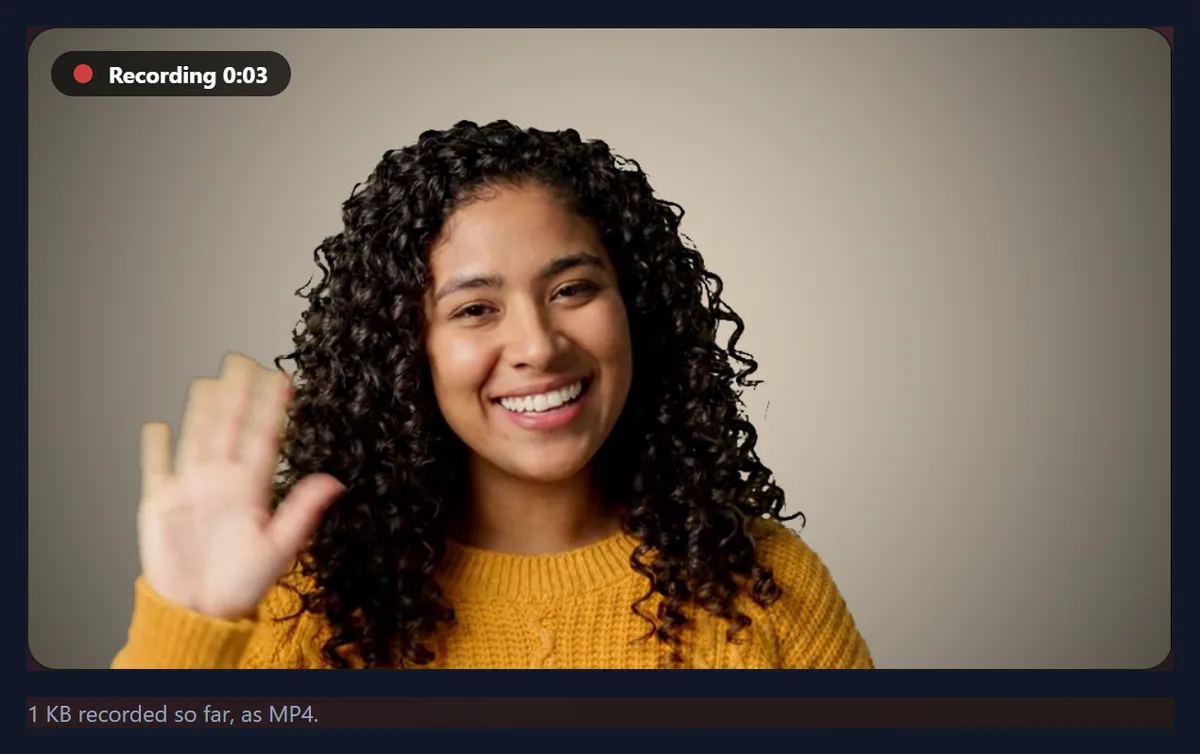
A real recording of this tool, using a test webcam feed: the camera turned on, a recording started after the countdown, paused and resumed, stopped, and downloaded as MP4.
- The camera is turned on and the live preview appears.
- Recording starts after a 3, 2, 1 countdown.
- The recording is paused and resumed.
- It is stopped, plays back, and is downloaded as MP4.
How big is a recording?
It depends on how much moves. The recorder asks the browser for at most about 6 megabits a second, and the browser spends less when the picture is still. In test recordings made with the tool in Chrome, a webcam picture of a person waving used 36 MB a minute at 960 × 540, while a mostly still screen at 1600 × 900 used only 5 MB a minute, and the same screen with the webcam bubble 15 MB.
So a ten-minute webcam message is a few hundred megabytes, while a ten-minute walk-through of slides or a document can be far less. Everything is kept in your browser's memory until you download it, so for long recordings make sure the device has room, and download soon after you stop.
| Recording | Picture | MB per minute | Measured |
|---|---|---|---|
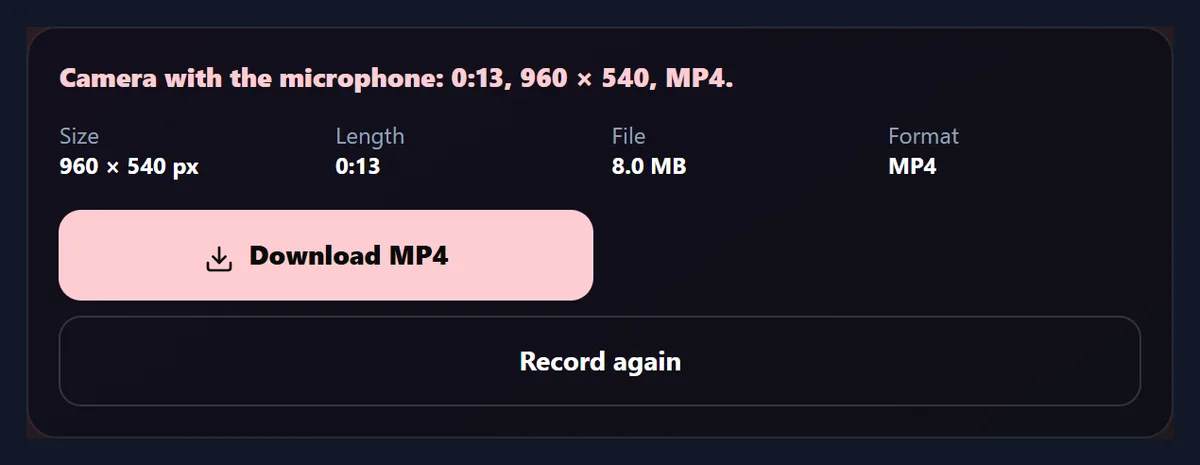
| Camera (a webcam picture of a person waving) | 960 × 540, 24 fps | 35.9 MB | 13.3 s, 7.99 MB |
| Screen (Chrome's test screen, mostly still) | 1600 × 900, 29 fps | 5.4 MB | 9.2 s, 844.9 KB |
| Screen + camera (the test screen with the webcam bubble) | 1600 × 900, 29 fps | 14.9 MB | 9.2 s, 2.28 MB |
What can I record?
Three things. Camera records your webcam. Screen records a browser tab, a window or your whole screen; your browser asks which one, and the recording stops if you press its own Stop sharing button. Screen + camera records the screen with your webcam in a round bubble in the bottom right corner, for tutorials, demos, reviews and presentations.
Tick Microphone to record your voice with any of them; echo cancellation and noise suppression are switched on, so a laptop's built-in microphone sounds clearer. Sound playing on the computer is not recorded.

How do I record a video?
Choose what to record and press Start camera or Choose screen. Your browser asks for permission the first time; allow it. You then see a live preview. Press Start recording: a 3, 2, 1 countdown gives you a moment to get ready, and the recording starts, with a red dot and the time in the corner. Pause and Resume as often as you like; the paused parts are left out. Press Stop when you are done.
The recording then plays back on the page, with its size, length, file size and format. Download it, or press Record again to start over.
Is the recording MP4 or WebM?
MP4 where the browser can record it, which current Chrome, Edge and Safari can: H.264 video and AAC sound, which plays everywhere. The test recordings in Chrome were MP4 with Constrained Baseline H.264 and AAC sound at 48 kHz. Firefox records WebM (VP9 video with Opus sound); for those, a Convert to MP4 button turns the recording into an MP4 on the page, using the same converter as the video to MP4 tool.
The result shows which format was recorded, with its size and length, before you download it.
How good is the picture?
As good as your camera and screen. The camera is asked for 1280 × 720 (720p); most webcams give that or close to it, and the recording keeps whatever the camera sends. Screens are recorded at up to 1920 pixels on the long side, at up to 30 frames a second. Light makes the biggest difference for a webcam: face a window or a lamp rather than sitting with one behind you.
The test webcam feed was 960 × 540 at 24 frames a second, and the recording kept exactly that.
Why does the preview look mirrored?
Because that is how people expect to see themselves, as in a mirror, so the camera preview is mirrored by default. In Camera mode this only changes the preview: the recording shows you as others see you, with text on your shirt the right way round. In Screen + camera, the bubble is recorded as it looks in the preview, so untick Mirror if you hold up something with writing on it.
The preview of the screen is never mirrored.
What can I use it for?
Video messages to colleagues, friends or customers; tutorials and how-to videos; product demos and bug reports; presentations recorded with your slides and your face; feedback on a design or document; video answers for job applications and courses; and quick clips for social media.
For a recording with music, captions or cuts, download it and open it in a video editor; HueFold's video tools can add text, music and trim it.
How do I make a recording look and sound good?
Face the light: a window or lamp in front of you, not behind. Put the camera at eye level, so you look straight into it, and sit at arm's length. For sound, a quiet room matters more than the microphone; a headset or earbuds with a microphone sound clearer than a laptop's built-in one. Make a ten-second test recording and play it back before the real one.
For a screen recording, close notifications and tabs you do not want seen, and make text larger than usual: viewers often watch on a phone.
How long can I record?
There is no time limit in the tool. The recording is kept in your browser's memory until you download it, so the practical limit is your device: at the 36 MB a minute measured for a webcam, half an hour is about 1.1 GB. Screen recordings of mostly still content are much smaller.
For long recordings, record in parts, download each one, and join them later in a video editor; that way a closed tab or a crash loses only one part.
How do I record a presentation with my face in it?
Open your slides in a window or browser tab, then choose Screen + camera, press Choose screen and pick that window or tab. Your webcam appears in a round bubble in the bottom right corner of the recording, so leave that corner of your slides empty. Tick Microphone, press Start recording, and present as usual; pause between sections if you like.
Sharing a single window rather than the whole screen keeps notifications and other apps out of the recording.
Do I need a recording app such as Loom?
Not for quick recordings. This page records the camera, the screen or both, with your voice, and saves an MP4 to your device with nothing to install and no account. What it does not do is host the video for you: there is no share link, so you send the file yourself, or upload it to a cloud drive or video site.
For editing afterwards, such as trimming, captions or music, use a video editor or HueFold's video tools.
How do I use a different camera or microphone?
The browser uses the camera and microphone it is set to use for this site, usually your system's default. To change them, click the camera icon in the browser's address bar, or open its site settings, choose the camera and microphone you want, then press Turn off and Start camera again. An external webcam or a USB microphone often looks and sounds better than a laptop's built-in ones.
If a camera is busy in another app, such as a video call, close that app first.
Is my recording uploaded?
No. The camera, screen and microphone go straight into a file inside your browser tab: nothing is sent to HueFold or anyone else, and there is no account. The browser shows that the camera or screen is in use while the preview is on; Turn off, or leaving the page, switches everything off.
Because the recording lives in the tab until you download it, closing or reloading the tab before downloading loses it.
Does it work on a phone?
Camera recording works in current mobile browsers. Recording the screen does not: phones and tablets do not let web pages capture the screen, so use the phone's own screen recorder for that. On a laptop or desktop, all three modes work in Chrome, Edge, Firefox and Safari.
On a phone, keep the page open and the screen on while recording.
Why can’t I record?
If the page says permission was refused, allow the camera, microphone or screen in the browser: click the camera icon in the address bar, or check the browser's site settings, then try again. If no camera or microphone was found, check that it is connected and not in use by another app such as Zoom or Teams. On macOS, the browser also needs permission in System Settings, under Privacy and Security, for the camera, microphone and screen recording.
If the recording is choppy, close other heavy tabs and apps; if the sound is missing, check that Microphone was ticked before you started the preview.
Frequently asked questions
How do I record my webcam online?
Choose Camera, press Start camera, allow access, and press Start recording.
Can I record my screen and my face together?
Yes. Choose Screen + camera for your webcam in a bubble on the screen.
Is the recording MP4?
Yes in Chrome, Edge and Safari; Firefox records WebM, which the page can convert.
Can I pause a recording?
Yes. Pause and Resume as often as you like.
Does it record my voice?
Yes, with Microphone ticked. Computer sound is not recorded.
Is there a time limit?
No, only your device’s memory.
Is my recording uploaded?
No. It stays in your browser until you download it.
Can I record my screen on a phone?
No; phones do not allow it. Camera recording works.
Is it free?
Yes, with no account and no watermark.
Related tools
- Voice Recorder — Record audio only.
- Video to MP4 — Convert other videos to MP4.
- Video Resizer — Resize a recording for social media.
- Add Text to Video — Write over your recording.
- Auto Caption — Add captions to a video.
- Video Splitter — Cut a recording into parts.