Voice Recorder
Record your voice online in your browser: watch the level as you speak, trim the silence, normalise the volume, and save a WAV or M4A. Free, no sign-up, nothing uploaded.
Updated
How do you record your voice online?
Turn on the microphone here, press Record, speak, and press Stop; then trim the silence, leave Normalise on, and download the take as a WAV or an M4A. The sound never leaves your browser.
In our test a 17.1-second take was trimmed to 12.2 seconds and normalised by +15.1 dB, then saved as a 1,148.5 KB WAV and a 146.7 KB M4A; the browser's noise filter made the room 20 dB quieter.
How to record your voice
- Turn on the microphone Allow it when the browser asks.
- Record Pause if you need to, then Stop.
- Trim and normalise Cut the silence, even out the level.
- Download WAV for editing, M4A for sharing.
Record your voice in the browser
A real recording of this tool, made with Chrome’s test microphone playing a voice file in a loop: the microphone turned on, one pass of the voice recorded, the silence trimmed and the take saved as a WAV.
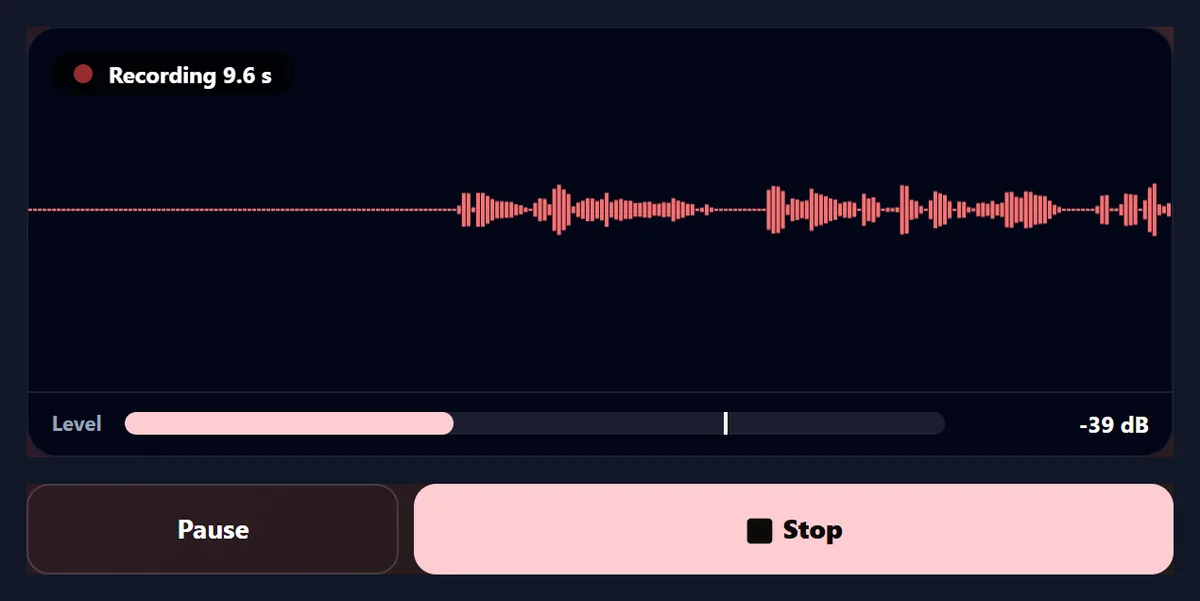
- The microphone is turned on; the level meter and waveform follow the voice as it plays once.
- Record is pressed in the silence before the voice comes round again, and Stop just after it ends.
- Trim the silence cuts the quiet start and end, and Normalise evens out the level.
- The take is saved as a WAV.
How big is a voice recording?
As a WAV, exactly 96,000 bytes for every second: 48,000 samples a second, two bytes each, one channel, so a minute is 5.5 MB. As an M4A it is about 8 times smaller: the 12.2-second voice in the table was 1,148.5 KB as a WAV and 146.7 KB as an M4A, and a 30-second take 2,808.0 KB and 357.5 KB.
WAV size depends only on length; M4A size depends a little on what was said, since the encoder spends its 96 kilobits a second where the sound needs them.
| Recording | Length | Size | Per second |
|---|---|---|---|
| WAV · the trimmed voice | 12.25 s | 1,148.5 KB | 93.8 KB |
| M4A · the trimmed voice | 12.27 s | 146.7 KB | 12.0 KB |
| WAV · a 30 s take | 29.95 s | 2,808.0 KB | 93.8 KB |
| M4A · a 30 s take | 29.95 s | 357.5 KB | 11.9 KB |
How do I record my voice online?
Press Turn on the microphone and allow it when the browser asks; the level meter starts moving as you speak. Press Record, speak, and press Stop: the take appears as a waveform. Press Trim the silence to cut the quiet start and end, leave Normalise on to bring it to a good loudness, play it back, and download it as a WAV or an M4A.
Pause stops the recording without ending the take, so you can gather your thoughts; Resume carries on in the same take.
Why does the browser ask to use my microphone?
Because a web page may only hear your microphone when you allow it. The browser asks once; on most browsers the choice is remembered for this site. If you block it by mistake, the tool says so: click the microphone or lock icon in the address bar, allow the microphone, and turn it on again.
When the microphone is on, the browser shows its own recording indicator in the tab or the address bar. Turn off the microphone, or close the tab, and it stops.
What should the level meter show?
Speech that peaks around −12 to −6 dB is a healthy level. The meter shows the sound's average level from −60 dB (silence) to 0 dB (the loudest a recording can hold), with a white line for the latest peak; the bar turns amber when peaks pass −6 dB and red above −1 dB, and a warning appears if the sound reaches the top of the scale, where it would be clipped and distorted.
The sample voice in these tests, spoken from across a desk, averaged -31.4 dB with peaks at -15.3 dB: quiet but clean, which Normalise then corrects. Quiet is fixable; clipped is not.
Should I turn on noise reduction?
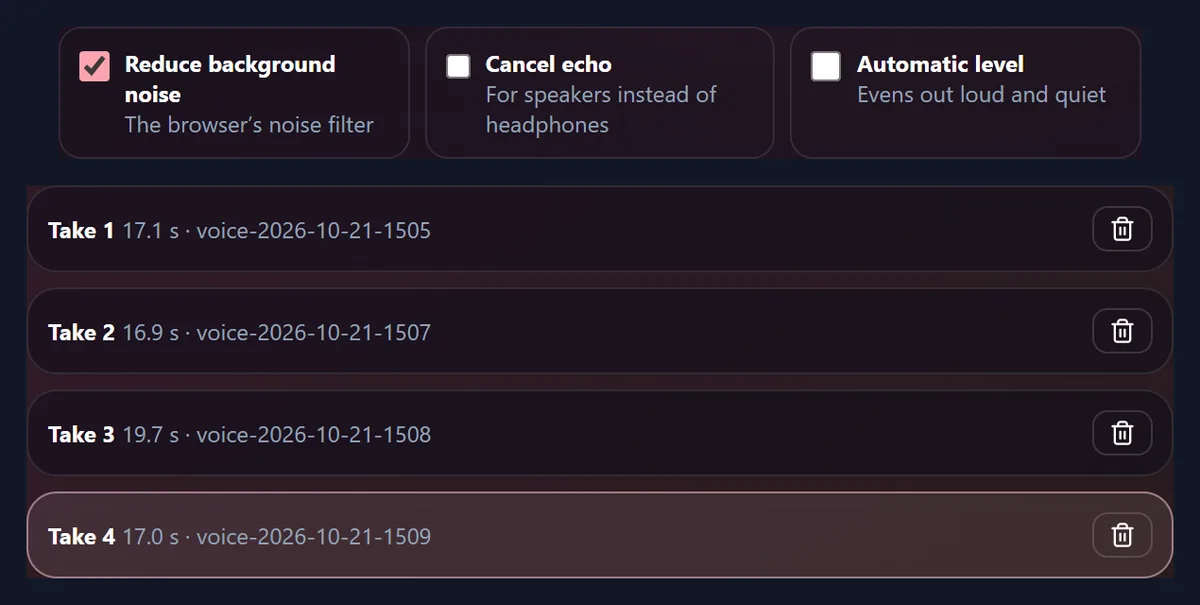
For speaking in an ordinary room, yes; it is on by default. Reduce background noise switches on the browser's own noise filter, the one video calls use. In our test it brought the room noise between words down from -62.5 dB to -82.4 dB, about 20 dB quieter, while the speech stayed at the same level (-31.4 and -31.8 dB).
Turn it off for music or sound effects, which a speech filter can mistake for noise, and for a recording you will clean up later in an audio editor. The three options change how the browser hears the microphone, so changing one turns the microphone off and on again.
| Browser processing | Room noise | Speech | Loudest |
|---|---|---|---|
| All off | -62.5 dB | -31.4 dB | -15.3 dB |
| Reduce background noise | -82.4 dB | -31.8 dB | -16.1 dB |
| Noise and automatic level | -71.1 dB | -22.2 dB | -6.3 dB |
What does Automatic level do?
It turns the microphone up when you are quiet and down when you are loud, while you record. In the test it lifted the speech from -31.8 to -22.2 dB, about 10 dB louder, but it lifted the room noise too, from -82.4 to -71.1 dB.
Leave it off when you can set your distance from the microphone and let Normalise fix the level afterwards: that raises the whole take by one amount, so quiet and loud words keep their difference. Turn it on when you move around or the level keeps changing.
When do I need Cancel echo?
When sound from your speakers can reach the microphone: for example when you record while a video plays out loud, or on a laptop during a call. The filter removes what the computer itself is playing. With headphones, or with nothing playing, leave it off: there is nothing for it to cancel.
It only removes sound the computer plays, not echo from the room itself; for a less echoey sound, record in a smaller room with soft furnishings.
Can I record several takes?
Yes. Every time you press Stop, the take is added to the list, named with the date and time, and stays there until you delete it or leave the page. Choose a take to trim, play or download it; Record makes the next one while the microphone stays on.
A take can be up to 15 minutes long; at 15 minutes the recorder stops by itself, keeps the take, and says so. Pause and Resume do not count the paused time.
How do I cut the silence at the start and end?
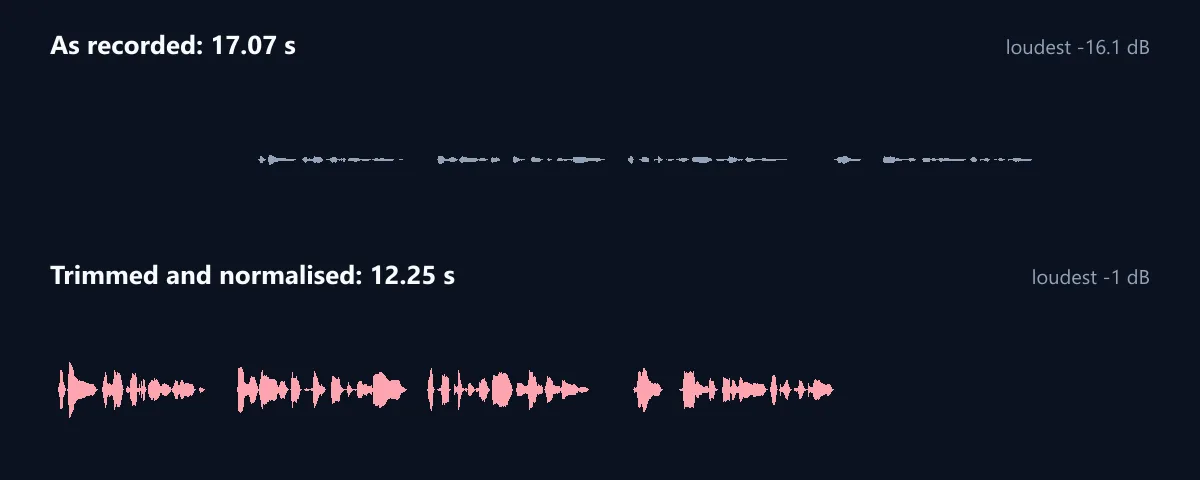
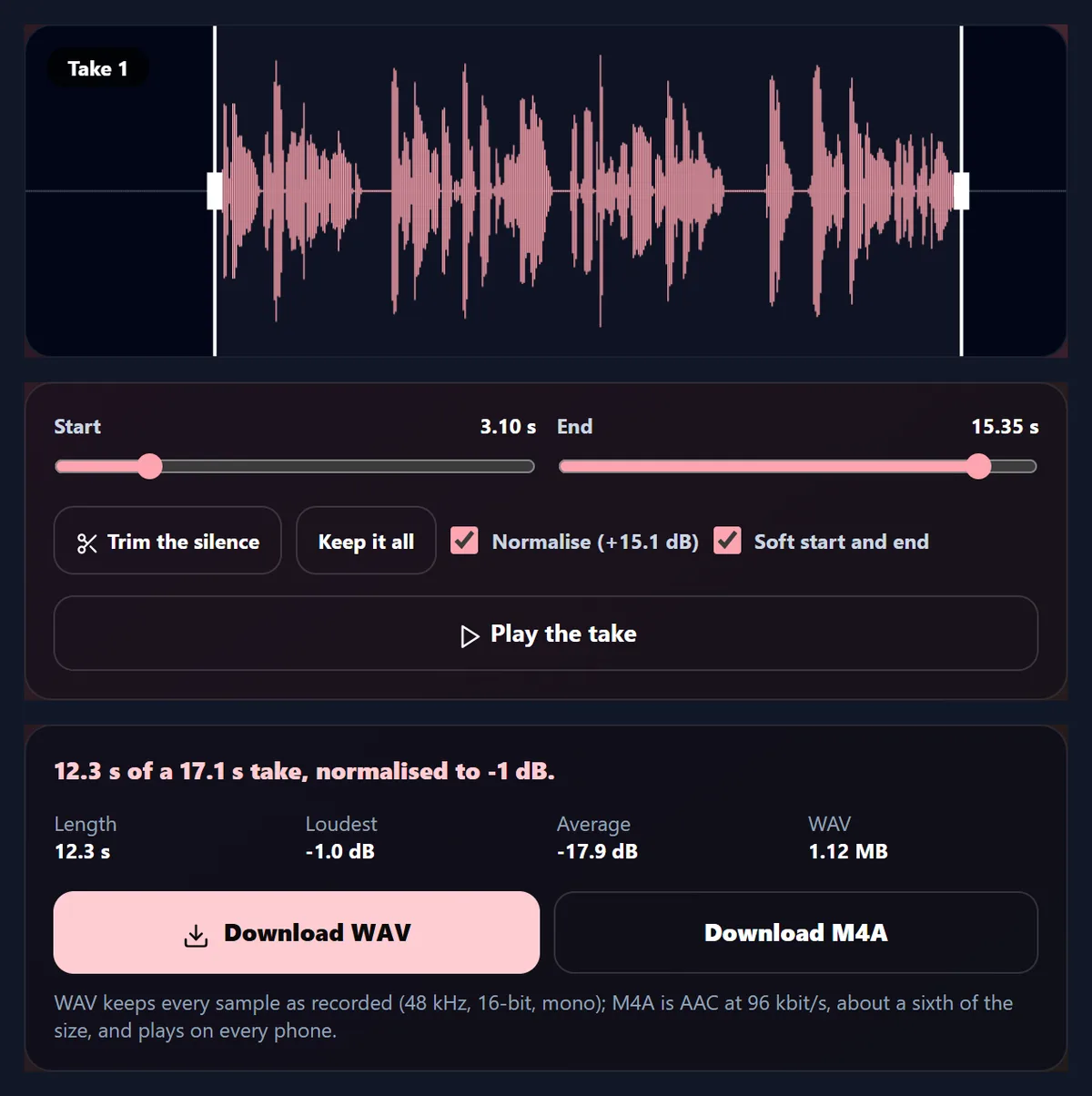
Press Trim the silence: the start and end move to where the voice begins and ends, with 0.15 seconds kept on either side so no word is clipped. The tool looks at the sound in steps of 50 milliseconds and treats anything quieter than −45 dB as silence. The test take of 17.07 seconds became 12.25 seconds, from 3.10 to 15.35 s.
You can also drag the white handles on the waveform, or use the Start and End sliders, to trim by hand; Keep it all puts them back at the ends. Trimming never changes the take itself, only what is played and saved.
What does Normalise do?
It turns the whole take up (or down) by one amount, so its loudest moment reaches −1 dB, just under the top of the scale. The test voice needed +15.1 dB: its loudest sample went from -16.1 dB to -1.0 dB, and the trimmed voice's average level from -33.0 dB to -17.9 dB. The box shows how many decibels it adds before you save.
Normalising never adds more than 20 dB, so a take that is almost silent is not blown up into noise. Because the whole take moves by the same amount, it keeps its natural rise and fall.
What is Soft start and end?
A 10-millisecond fade at the very start and end of what you save. Cutting a recording in the middle of a sound makes a small click; the fade takes it away without being heard as a fade.
It is on by default; turn it off only if the recording will be joined to another one exactly at that point.
Should I save WAV or M4A?
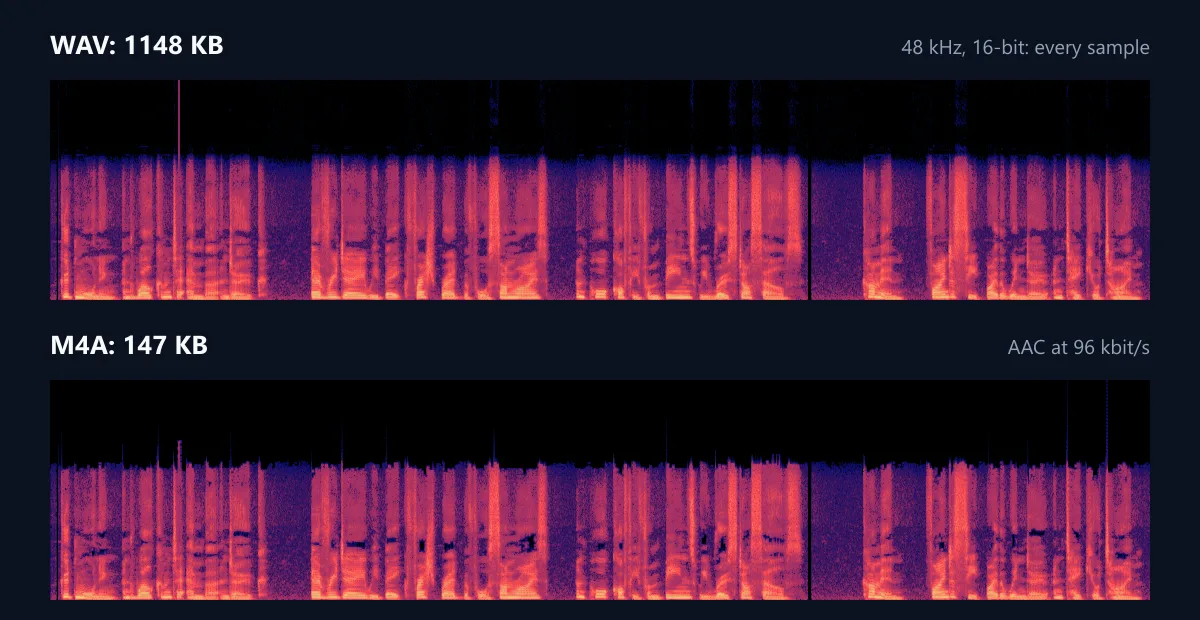
WAV for editing, M4A for sharing. A WAV holds every sample the microphone gave, 48,000 a second at 16 bits, which audio and video editors take without any loss. An M4A holds the sound as AAC at 96 kilobits a second, about 8 times smaller: 146.7 KB against 1,148.5 KB for the test voice, at the same loudness.
The spectrograms show the same voice in both files, frequency upwards, time across: the M4A keeps the voice's sound and drops fine detail in places, the small dark gaps, which is why it is so much smaller.
Can I save the recording as MP3?
Not from this page: browsers have no built-in MP3 encoder, while they can write AAC, the sound inside an M4A, directly. M4A plays on iPhones and Android phones, on Windows and Mac, and in current browsers.
If a site insists on MP3, save the WAV and convert it with an audio converter; converting the WAV avoids compressing the sound twice.
How do I make a recording sound better?
Get closer to the microphone, about a hand's width to a forearm away, and away from hard walls. The test voice was spoken from across a desk, which is why it needed +15 dB of normalising: the closer you are, the less the room and its noise are heard compared with your voice.
A wired headset or a USB microphone usually beats a laptop's built-in one. Record a few seconds first and play them back before the real take.
Why does my recording have tiny gaps?
Because the computer fell behind in delivering the microphone's sound. In our tests on a laptop busy with other heavy programs, the browser now and then passed on a stretch of silence instead: 7 gaps in the 17.1-second test take, 110 milliseconds in all, the longest 40 ms. They show as dark lines on the spectrogram.
Closing other heavy tabs and programs while you record gives the browser room to keep up; the recorder itself keeps every sample the browser gives it.
Is my recording uploaded?
No. The microphone's sound goes into this browser tab and stays there; the WAV and M4A files are made in the tab and saved straight to your device. Nothing is sent to HueFold or anyone else, and the takes are gone when you leave the page, so download the ones you want to keep.
There is no sign-up, no watermark and no limit on how many takes you record.
Does it work on a phone?
Yes, in a current browser on Android or an iPhone. Keep the page open and the screen on while recording: phones can stop a page's microphone when it goes into the background.
On an iPhone, downloads go to the Files app, where the M4A plays and can be shared.
What can I do with the recording?
Voice notes and messages, a voiceover for a video, a podcast segment, practice for a talk or an interview, a pronunciation check. To put the recording under pictures, add it to a video; for captions, the AI caption generator writes them from a video's speech.
If you would rather not record your own voice, the AI voice generator reads a script aloud in many voices.
Frequently asked questions
Is the voice recorder free?
Yes: no sign-up, no watermark and no limit on takes.
Is my recording uploaded?
No. It stays in your browser until you download it.
Which formats can I save?
WAV (48 kHz, 16-bit, mono) or M4A (AAC at 96 kbit/s).
Can I save as MP3?
No; browsers cannot write MP3. M4A is as widely playable and smaller than WAV.
How long can a recording be?
Up to 15 minutes per take, with as many takes as you like.
Can I pause while recording?
Yes: Pause and Resume keep it one take.
How do I remove the silence at the start?
Press Trim the silence, or drag the handles on the waveform.
Should I turn on noise reduction?
For speech, yes: in our test it made the room noise 20 dB quieter.
Does it work on iPhone and Android?
Yes, in a current browser, with the page kept open.
Related tools
- AI Voice Generator — A voiceover from a script.
- Online Video Recorder — Record your camera or screen.
- Add Music to Video — Sound under your pictures.
- AI Caption Generator — Captions from speech.
- Sound Effects for Video — Effects at the right moment.
- Remove Audio from Video — Silence a clip first.